
Easy Start with MotoPress Hotel Booking Plugin – Top Tips
Table of Contents
You’ve uploaded a file with the WordPress Hotel Booking plugin by MotoPress to your website, installed and activated it. But what’s next? I guess that every MotoPress Hotel Booking setup starts with the same question: Where do I begin? Whether you’re building a website for a boutique hotel, a vacation rental, a campground, or a collection of holiday homes, this guide will help you get the ball rolling!
We’ve gathered the most popular questions from our customers, consulted with our support team, and voilà – a comprehensive tutorial is here to get you started and configure the plugin to match your business needs!
It’s worth noting that we won’t walk you through each setting one by one (we already have many dedicated guides on our resources for that case) but focus on the questions that come up most often during the initial setup. The main goal is to show you how you can solve them via built-in features or add-ons. Let’s get down to business!
What Is MotoPress Hotel Booking?
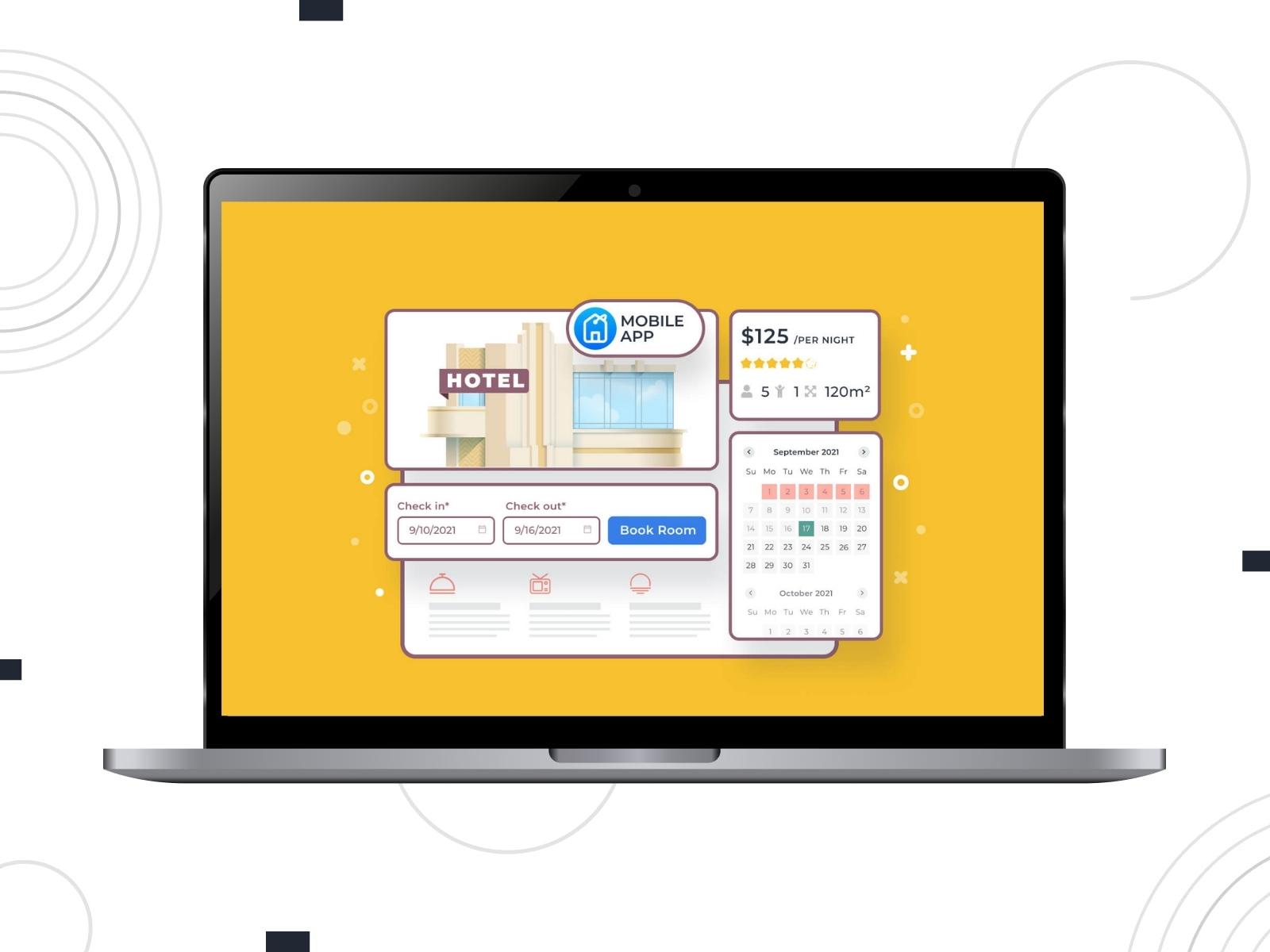
As you probably know, MotoPress Hotel Booking is a WordPress booking plugin that accommodation businesses turn to if they need an all-in-one direct reservation system. All from your WordPress dashboard, it lets you manage bookings, process payments, synchronize bookings with external travel channels, and customize booking rules.
Users find it flexible enough to work either for a single vacation rental or multiple hotels, apartment complexes, campgrounds, hostels, and villas.
More Details Hotel Booking extensions
To give a clear overview of the MotoPress Hotel Booking pricing, we’ve built a table with available options:
| Hotel Booking Plugin |
|
| Hotel Booking Plugin + 9 Addons Bundle |
|
| Membership (All MotoPress Plugins & Themes) | $349/year |
| Free Trial | 7 days |
*Please note that pricing may change over time, so it’s always worth checking the latest plans on the MotoPress website before purchasing.
Common MotoPress Hotel Booking Setup Questions
No matter how experienced you are with WordPress, the first MotoPress Hotel Booking setup might raise a few questions. And it’s caused not by the plugin complexity but by the needs of accommodation bookings that involve many moving parts.
This section unveils practical answers that can save you time and help you avoid the most common configuration mistakes.
What’s the Fastest Way to Get Started with MotoPress Hotel Booking?
Are you starting with a blank website and configuring everything from day one? Or would you rather begin with something that already works and customize it along the way?
Whichever approach sounds more like you, there are a few shortcuts that can make the first setup much easier.
Start with a Ready-to-Use Vacation Rental Theme
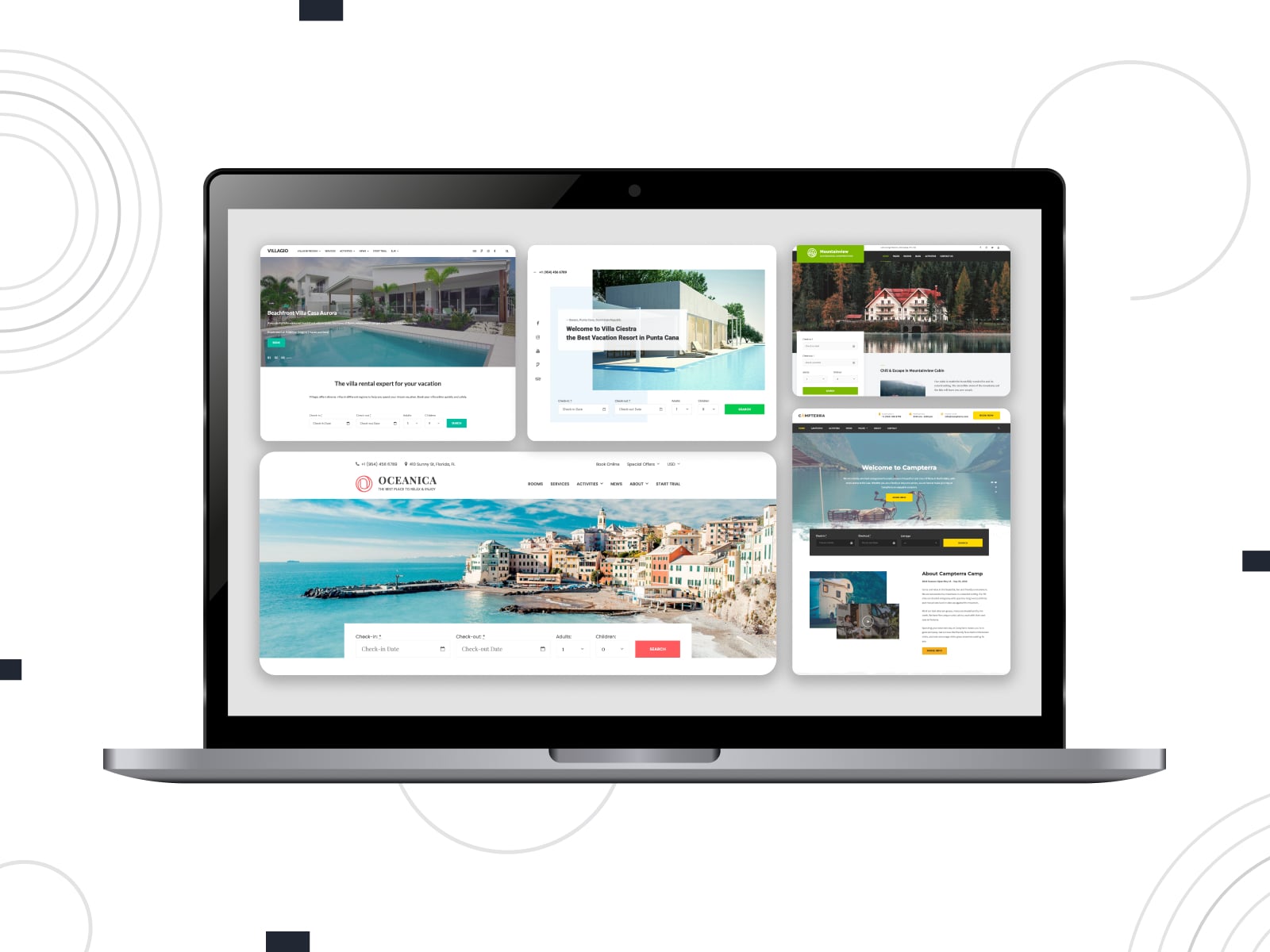
If you’re creating a hotel or vacation rental website from scratch, starting with one of the MotoPress themes can save quite a bit of work.
We have a collection of themes for different properties that already include the MotoPress Hotel Booking plugin and demo content you can import in a few clicks. Once finished, it’s your turn to replace the demo content with your own properties, photos, and branding.
Collection of MotoPress Vacation Rental Themes
Let the Plugin Create the Required System Pages
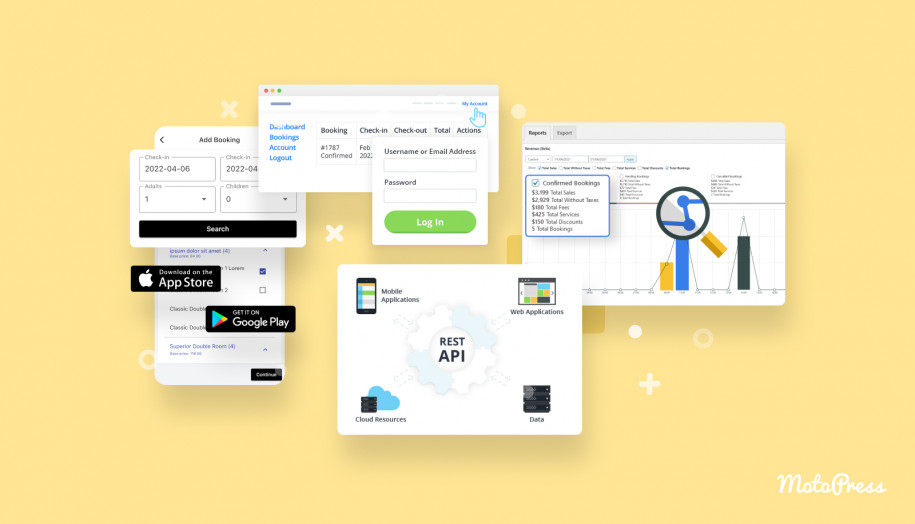
What if you prefer working with your own theme and simply integrating the plugin into its design? Then at least you should follow the prompt to create all the required system pages while activating MotoPress Hotel Booking for the first time.
Accommodation vs. Accommodation Type: How to Distinguish Them?
Let’s discuss the concept that sometimes confuses new users the most. Namely, it’s the difference between Accommodation Type and Accommodations because these terms are separated in MotoPress Hotel Booking.
You need to think of an Accommodation Type as a template. It defines everything shared by a group of units: the description, amenities, photos, capacity, pricing, and booking rules.
An Accommodation is the actual unit guests can reserve.
Let’s assume that your hotel has ten Standard Double Rooms that all look the same and have identical pricing; you only need one Accommodation Type called Standard Double Room. Then you create ten separate Accommodations that belong to that type.
How Do Seasons Work?
Before you can start setting accommodation prices, you need to create at least one Season.
In the MotoPress Hotel Booking plugin features, a season simply defines when a particular price should apply. The name is entirely up to you. Some property owners use traditional names like High Season and Low Season, while others create periods for holidays, local events, or special promotions.
To create a season, go to Accommodation > Seasons > Add New Season (or create one directly from the new Calendar Beta in the Bookings menu).
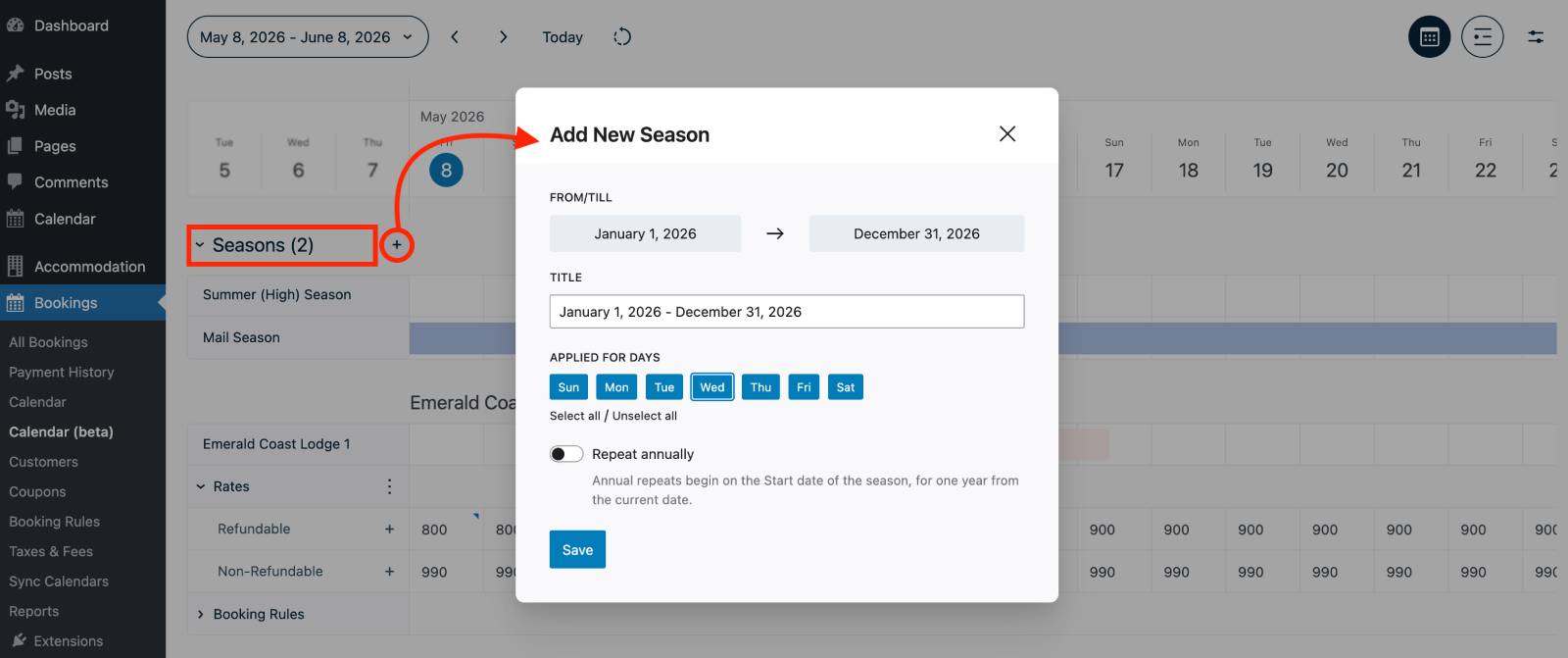
When creating a season, you’ll be able to:
- Give it a descriptive name;
- Choose the start and end dates;
- Optionally apply it only to specific weekdays;
- Make it repeat annually if needed.
How Do I Create Rates in MotoPress Hotel Booking?
Once your seasons are in place, it’s time to assign prices to them.
This is where many new users get confused during MotoPress Hotel Booking setup because a Rate in MotoPress Hotel Booking isn’t simply “a price.” Instead, it’s a pricing plan that guests can choose when making a reservation.
For example, you can create separate rates for:
- Refundable and Non-Refundable bookings;
- Breakfast Included and Room Only;
- Half Board and Full Board.
To create a new rate, go to Accommodation > Rates > Add New.
After giving your rate a name and selecting the Accommodation Type, you’ll configure one or more Season Prices.
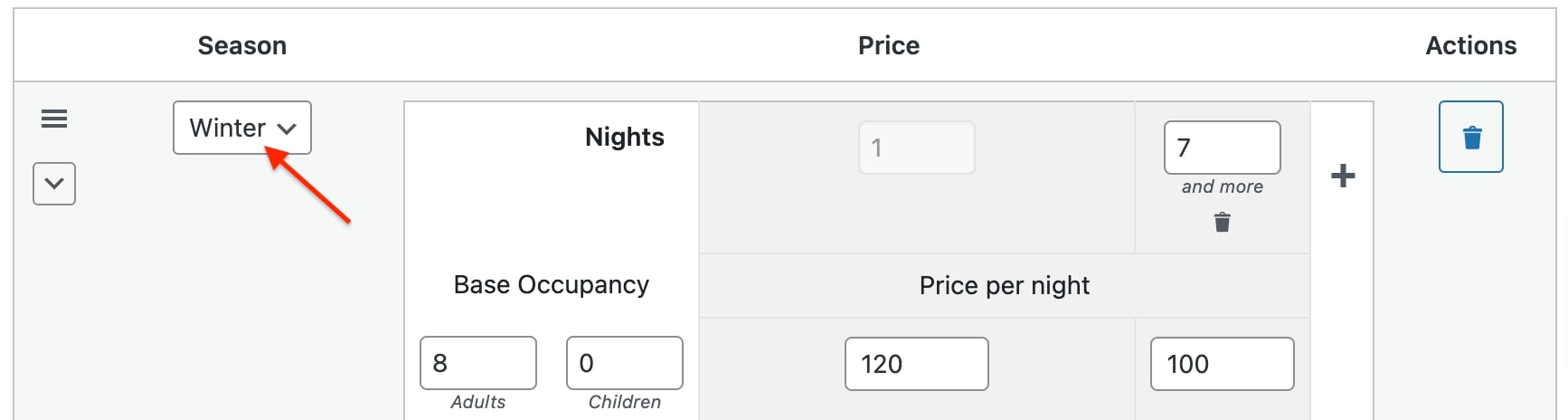
The most common mistake: To adjust prices by season, stay length, or guest count, don’t create a new rate; add Season Prices to the existing rate. The correct price will apply automatically.
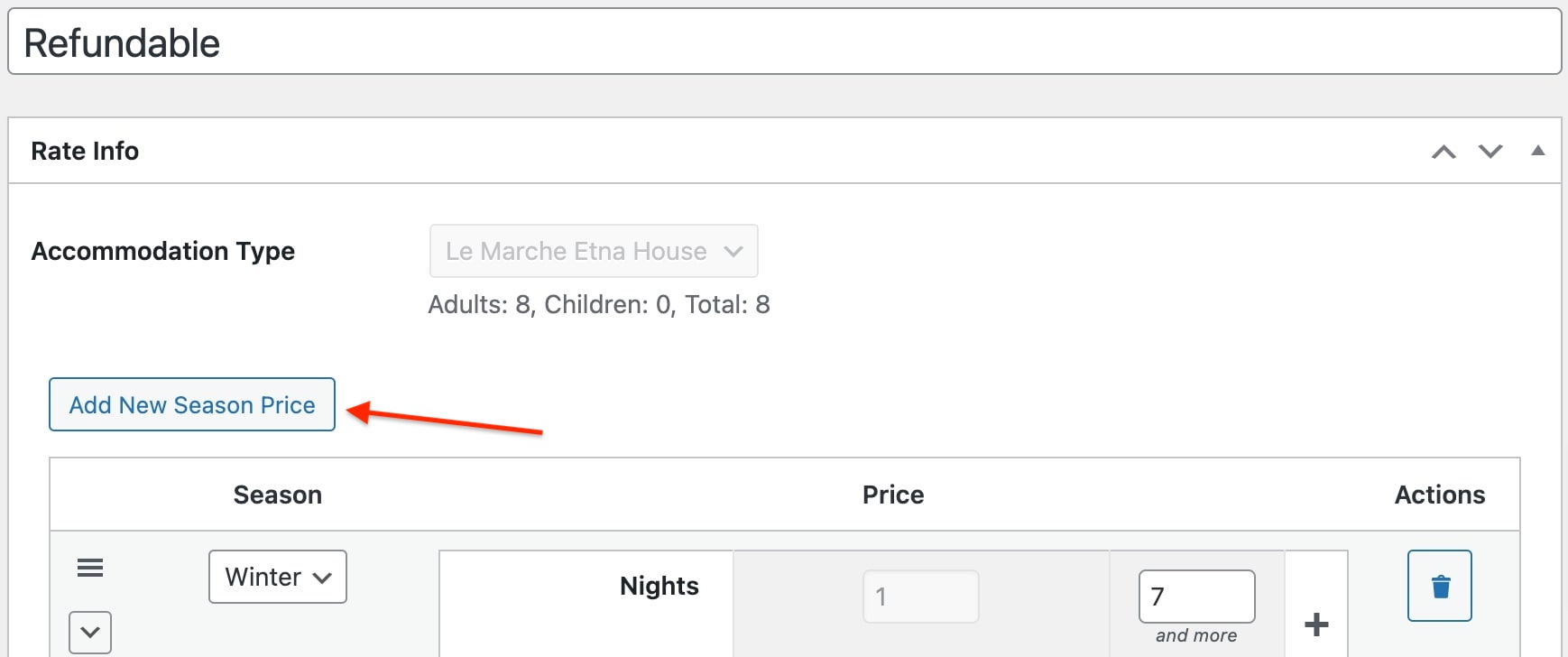
Each Season Price lets you define:
- The season it belongs to;
- The nightly price;
- The base occupancy;
- Extra guest fees;
- Discounts for longer stays;
- Variable pricing for different guest combinations.
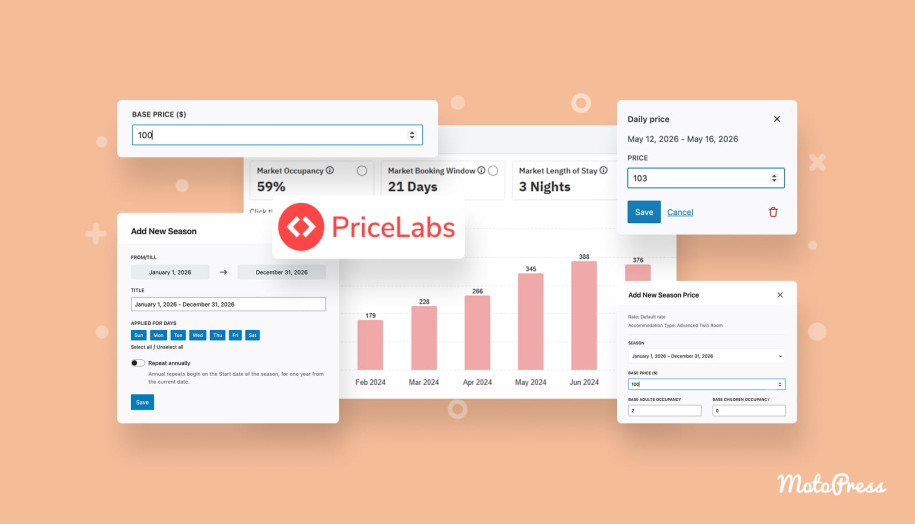
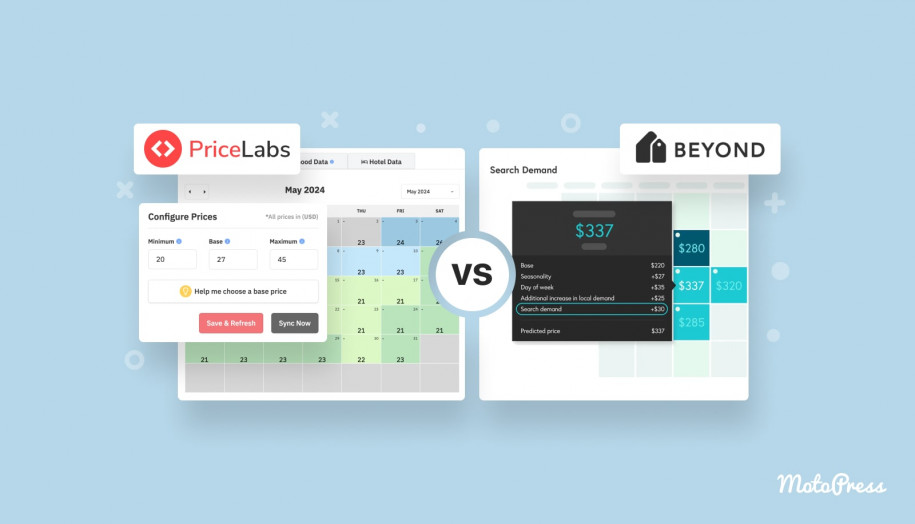
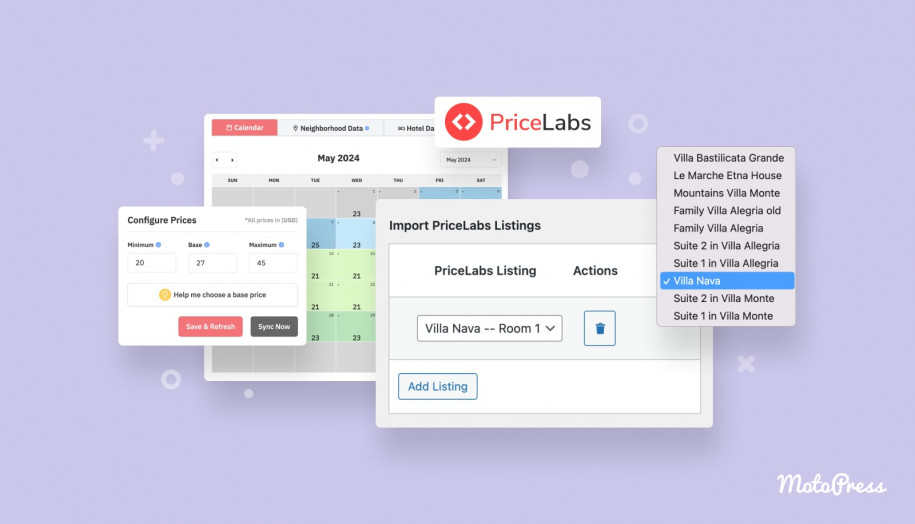
Here’s some good news if you already work with PriceLabs: you don’t need to manually rebuild your pricing during MotoPress Hotel Booking setup. Connect the PriceLabs Integration add-on once and let future price updates come straight automatically.
How to Add Daily Rates?
Seasonal pricing works for specified recurring pricing periods, but sometimes you only need to adjust prices for a few specific dates. Local festivals, events, last-minute changes, temporary surcharges, public holidays – what else can happen? That’s where Daily Pricing takes the main role on the stage.
Available in the new property management dashboard – Calendar (Beta) under Bookings – it lets you override your standard seasonal rates directly from the booking calendar without editing your rates.
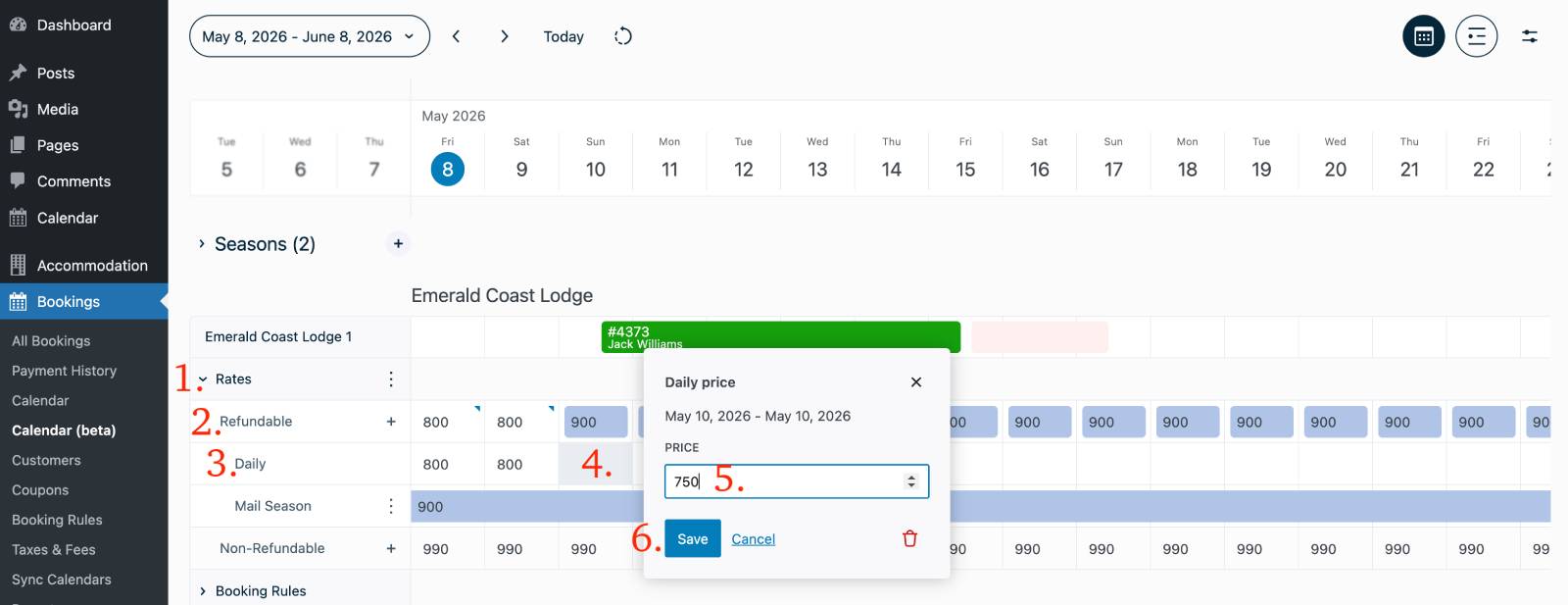
Simply open Bookings > Calendar (Beta), expand the Rates section for the property, and select the Daily Pricing row. From there, you can click a single date or drag across multiple dates to assign the same price to an entire date range.
As a rule of thumb, use Seasons for long-term pricing strategies and Daily Pricing for short-term adjustments.
Why Is My Accommodation Unavailable Even Though I Created Seasons and Rates?
If your accommodation doesn’t appear in search results or guests can’t complete a booking, don’t necessarily lay the blame at the plugin’s door.
Creating Seasons and Rates alone doesn’t make an accommodation bookable. They also need to be connected to an Accommodation Type, and that Accommodation Type must contain at least one published Accommodation.
If everything seems correct but the accommodation still isn’t available, our troubleshooting video walks through the most common causes step by step:
How to Set Up Minimum and Maximum Stay Rules for Different Seasons?
Do you need flexible adjustments to control how long guests can stay?
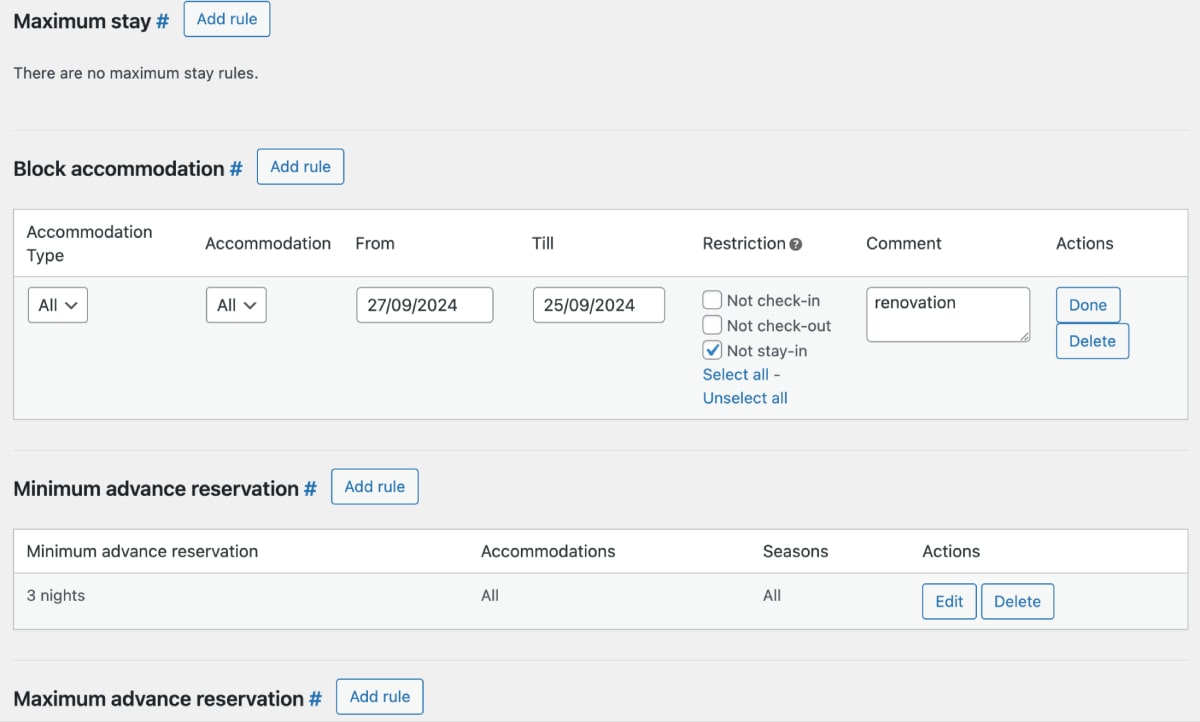
We’ve taken into account cases when you might require a minimum stay of three nights during the summer season, one-night reservations during quieter months, or perhaps you only accept weekly bookings over the Christmas holidays.
Luckily, MotoPress Hotel Booking comes with a feature called Booking Rules. Head to Bookings > Booking Rules and create minimum and maximum stay, check-in/checkout, buffer time, and other rules.
How Can I Block an Entire Property When a Connected Room Is Booked?
When do customers submit tickets or write comments with this question? A common example is a villa that can be rented either as a whole or as individual suites. If someone books the entire villa, none of the linked suites should remain available.
How to enable this feature of Linked Accommodations? Within your Hotel Booking dashboard > Accommodations, establish connections between your main/source listing and its associated units (“linked accommodations”) through the Edit Accommodation menu.
To make it even easier, we’ve published a video MotoPress tutorial on our channel:
How to Display One Availability Calendar for Multiple Accommodation Types?
Another highly requested feature among MotoPress Hotel Booking users that we brought to life is a Multi-Property Availability Calendar. If your website lists several accommodation types, you can now display their availability in one place instead of asking visitors to open every property one by one.
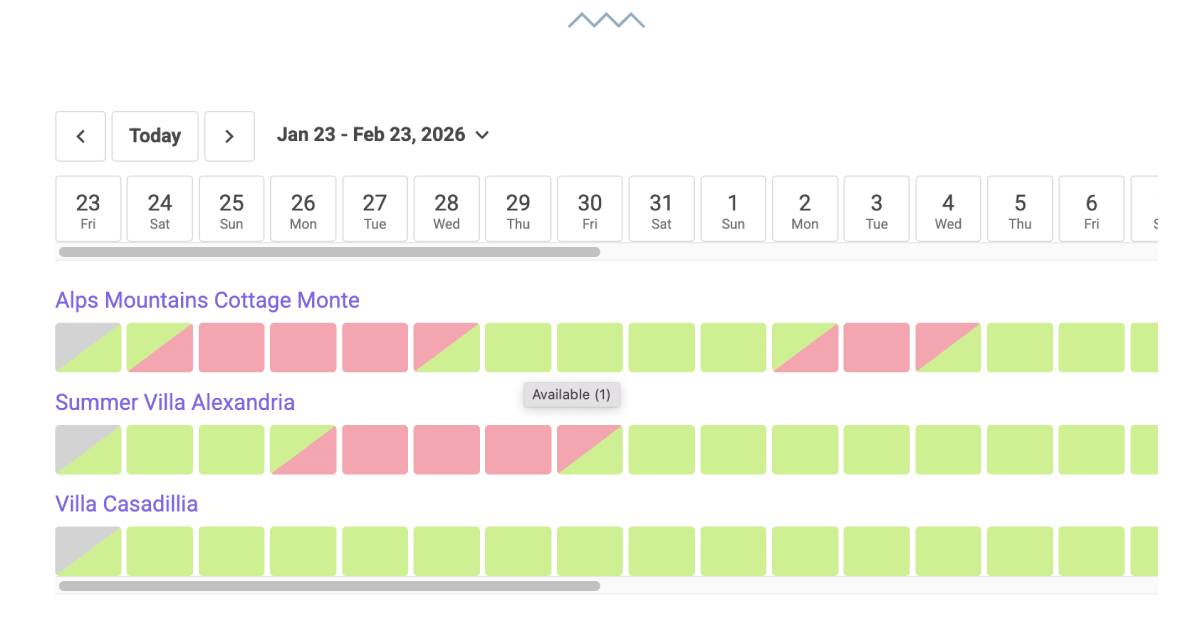
Do you also think that it’s useful for hotels, apartment complexes, or vacation rental businesses that manage several properties?
What Are the Possible Ways to Confirm the Reservation?
Are you stuck at the step of choosing the most suitable confirmation mode in Accommodation > Settings > General > Booking Confirmation? That’s why we’ve created this guide!
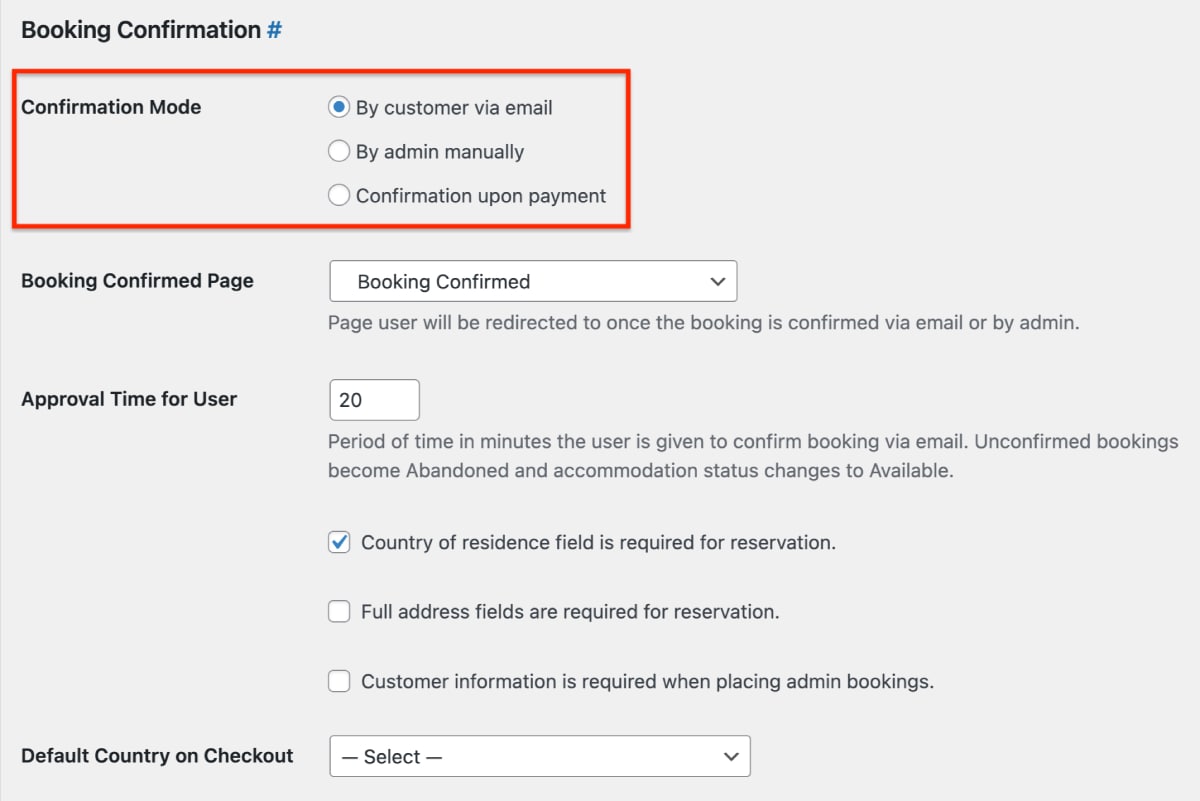
Let’s sort things out: what these three reservation confirmation modes mean.
1. Confirmation by Customer via Email
We’ve found this to be a good middle ground for many property owners. Guests confirm their reservation by clicking the link in the email, while the booking stays in Pending User. If the guest doesn’t confirm the booking before the approval time runs out (for example, 30 minutes), the reservation is marked as Abandoned, and those dates are released again.
2. Manual Confirmation by Admin
Prefer to approve every reservation yourself? This mode leaves new bookings in Pending Admin until you review them. Many hosts choose it when they want to double-check availability on other channels or contact guests before accepting a reservation.
3. Automatic Confirmation Upon Payment
I’d say that this is the most hands-off option. Why so? Because bookings are automatically confirmed only after payment. From there, open Accommodation > Settings > Payment Gateways to finish the payment setup – enable the gateways you want to use and decide how much guests should pay during checkout.
Which Payment Features Does MotoPress Hotel Booking Support?
MotoPress Hotel Booking includes everything you need to accept payments directly on your website, from online payment gateways to taxes, deposits, coupons, and payment automation. Of course, you can start with a simple “Pay on Arrival” workflow. Otherwise, build a fully automated checkout experience, depending on how you run your business.
Which Payment Gateways Are Available?
As mentioned in the confirmation mode section, to configure online payments, go to Accommodation > Settings > Payment Gateways. After the MotoPress Hotel Booking setup, you get access to multiple payment gateways:
- Stripe;
- PayPal;
- Braintree;
- 2Checkout;
- Bambora (Beanstream);
- Direct Bank Transfer;
- Pay on Arrival;
- WooCommerce Payments (available via addon).
Don’t limit yourself to only enabling the preferred method. From the same settings page, you can configure checkout pages, add transaction fees, and adjust general payment options.
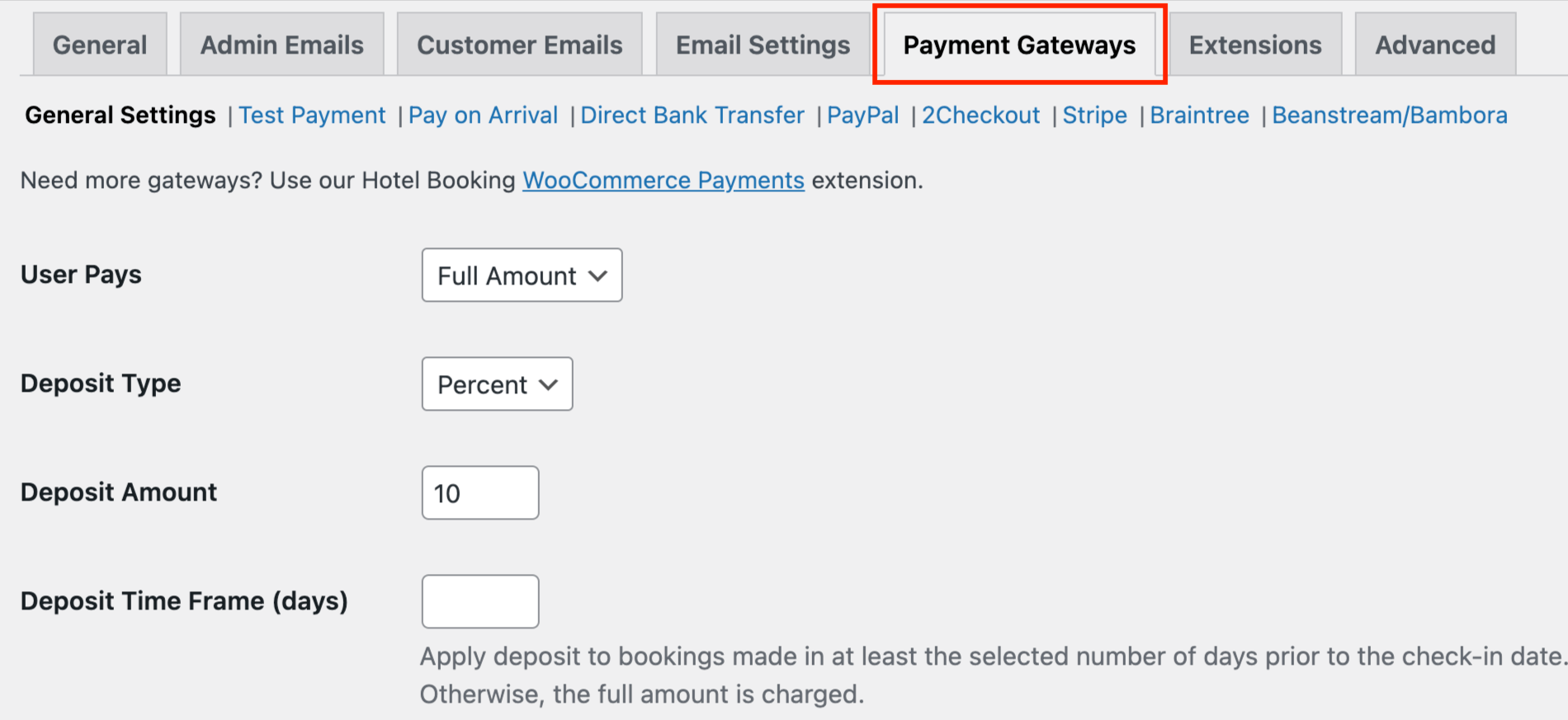
Also, not every booking has to be paid in full on day one. If you’d like guests to reserve now and pay the rest later, deposits make that easy. You’ll find the setting under Accommodation > Settings > Payment Gateways > General Settings.
Just select Deposit under User Pays and decide whether to charge a fixed amount or a percentage of the booking total.
Can I Assign Different Payment Methods to Individual Accommodation Types?
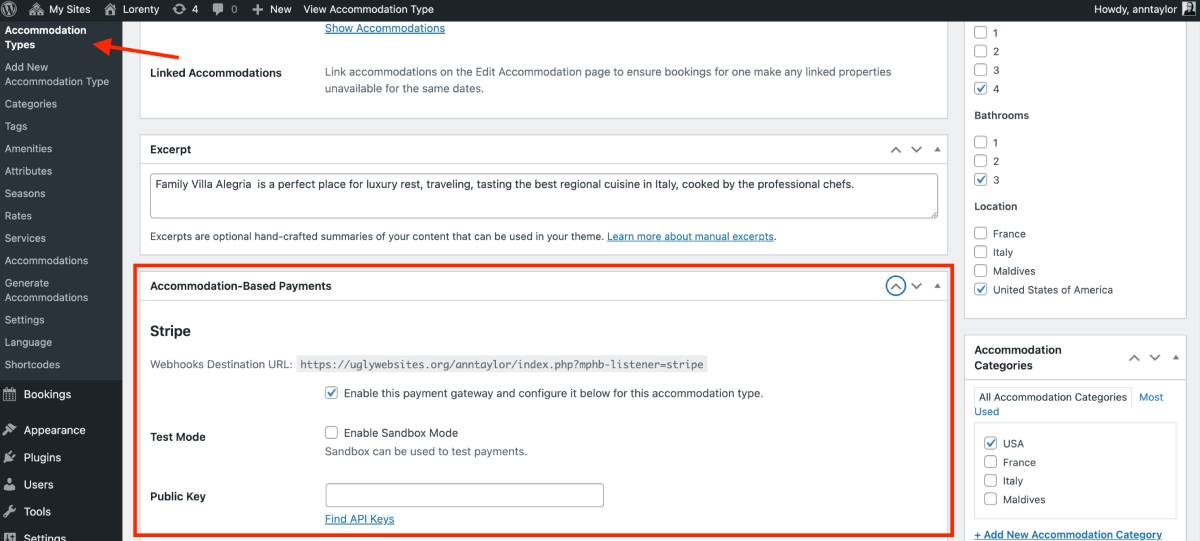
We were receiving this feature request from property managers and users running a platform with lots of different owners listing their accommodations. That’s how the Accommodation-Based Payments add-on has appeared on our roadmap of Hotel Booking extensions.
After installing the add-on, simply choose which gateways should appear for each accommodation type.
Note: This add-on is not currently included in the Hotel Booking Bundles.
How Can I Send Balance Due Payment Reminders?
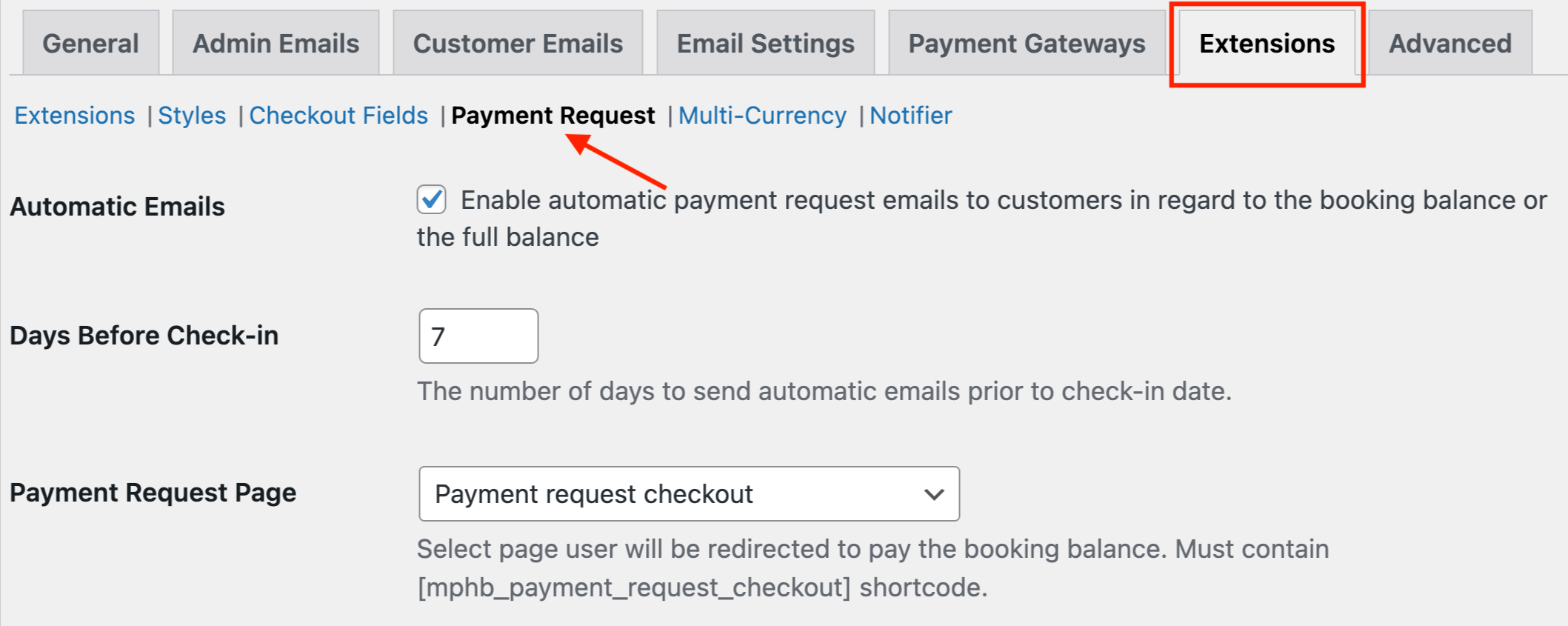
One more Hotel Booking addon comes on the stage – Payment Request. It lets you automatically request outstanding payments after a booking is created.
The setup is flexible. It’s up to you: when reminders go out and whether the payment request should cover the remaining balance, a fixed amount, a percentage of the booking, or another deposit.
How to Show/Hide Taxes before Checkout?
The next popular question deals with taxes. During their setup in MotoPress Hotel Booking via Bookings > Taxes & Fees, you can select the option “Include” if you want to display a property rate on the site with this accommodation tax included. On the other hand, a not-ticked “Include” results in the tax and fee charges info being displayed separately.

How Do I Customize Checkout Fields?
If you need more than the default checkout fields, install the Hotel Booking Checkout Fields add-on.
Every property collects a little different information during checkout. With this add-on, you can add, remove, or edit fields without writing code. Whether you need company details for invoices, consent checkboxes, special requests, or a simple “How did you find us?” question, you can tailor the checkout form to your booking workflow.
How Do Notifications Work?
MotoPress Hotel Booking automatically keeps both you and your guests informed throughout the booking process.
Out of the box, the plugin sends emails for new reservations, booking confirmations, cancellations, payment updates, and other important booking events. All email templates can be customized under Accommodation > Settings > Email Settings, where you can edit the content, upload your logo, change colors, and personalize messages using dynamic placeholders that automatically insert guest and booking information.
If you need more advanced communication, several add-ons extend the built-in notification system.
How Can I Send Automated Booking Updates?

You can use the Hotel Booking Event-Driven Emails add-on for different cases relevant to the hospitality industry. What to include in these emails? Check-in instructions, house rules, parking details, or upgrade offers – and that’s not the full list of all emails many property owners send as part of their daily routine.
Can I Generate PDF Invoices Automatically?
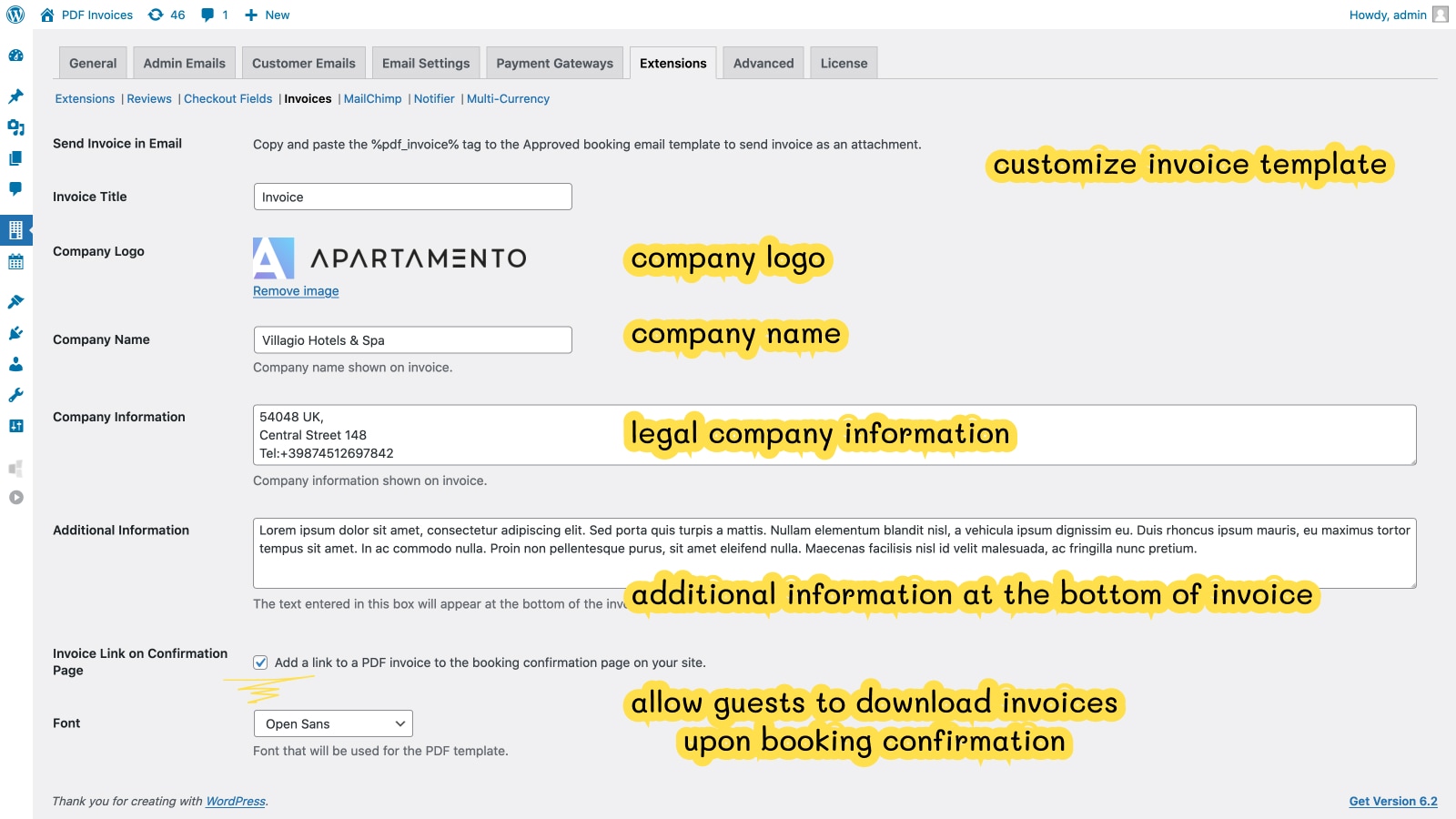
With the Hotel Booking PDF Invoices add-on, you have one less thing to do after every booking. For your convenience, it automatically generates a PDF invoice for every confirmed booking, emails it to the guest, and stores a copy in your dashboard.
How to Send SMS Notifications with MotoPress Hotel Booking?
The Hotel Booking Messaging (Beta) add-on adds automated SMS notifications for guests and staff!
What’s the point of this extension? You can send messages based on booking confirmations, payment updates, check-in and check-out dates, or custom schedules. SMS templates support dynamic booking details, and notifications can be sent without relying on a separate SMS service.
Note: The add-on is currently available in Beta and continues to expand its supported regions and features.
Search and Booking Forms: Answering Popular Questions
After the core setup is done, most users start tweaking the booking experience. From search form layouts to form fields, these are the questions our support team answers most often.
Should I Use a Horizontal or Vertical Search Form?
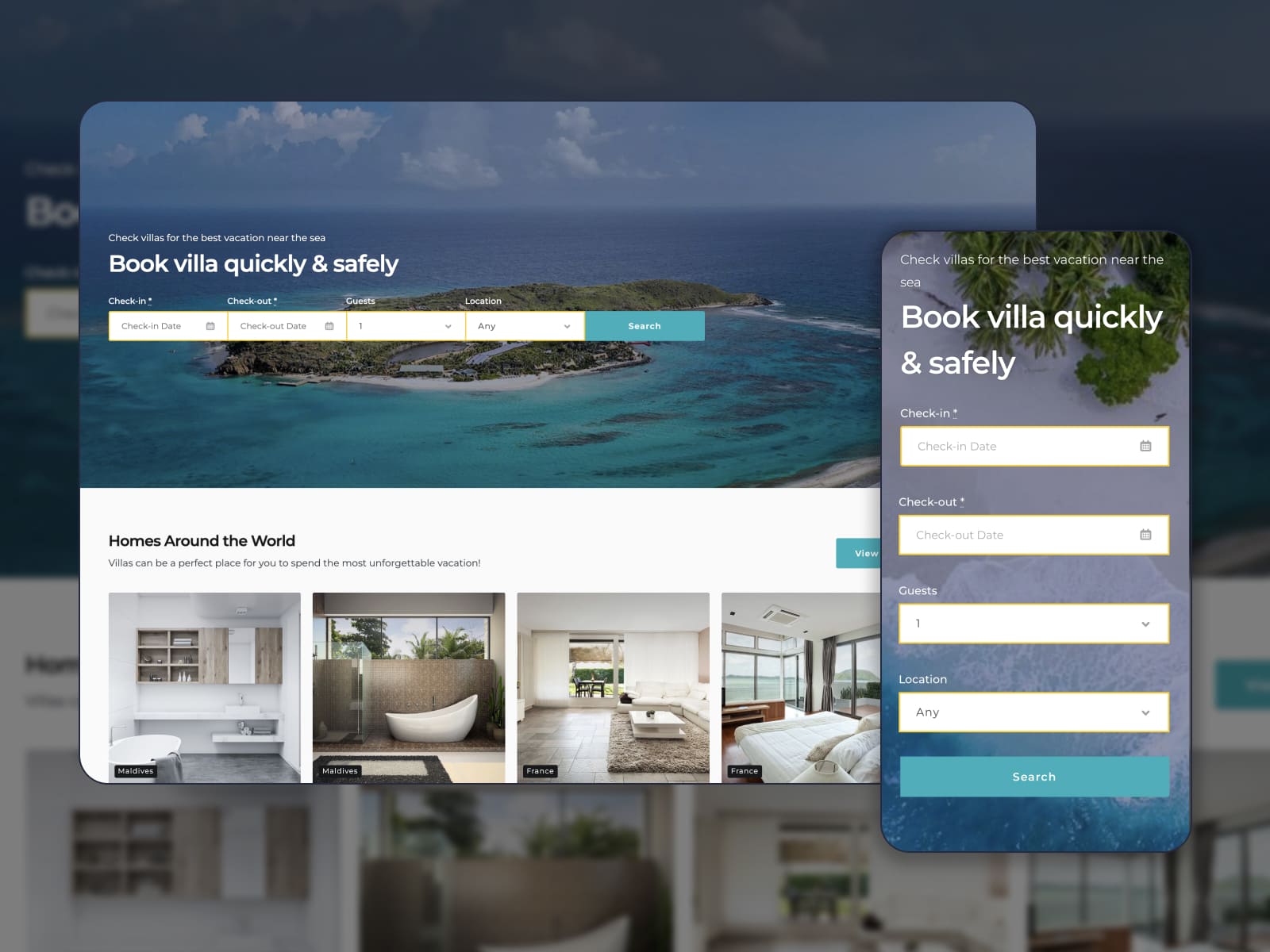
By default, the search form in MotoPress Hotel Booking setup adopts the styles of your WordPress theme, which is why it often appears as a vertical form.
If you’d like a different look, you can install the free Hotel Booking Styles add-on. It’s a free solution we’ve developed to let you switch between horizontal and vertical layouts, adjust spacing, hide labels, stretch buttons, limit field widths, and apply other styling tweaks in just a few clicks.
It doesn’t stop with the search form, either. The same add-on also lets you create custom templates for accommodation pages, so you can rearrange sections, highlight the details that matter most, and give your room pages a different look.
How Do I Add or Remove Booking Form Fields?
If the default search fields aren’t enough, you can add your own using Attributes. These work as advanced search filters and can also be displayed as additional details on accommodation pages.
To create one, go to Accommodation > Attributes > Add New, give it a name (for example, owners often include Location), and add the terms you want guests to choose from, such as London, Paris, or New York.
Next, assign the attribute to the relevant accommodation types under Accommodation > Accommodation Types. To display it in the search form, simply add the attribute name to your Availability Search block or shortcode.

Can I Skip the Room Selection Step for a Single Property? Why Does the Booking Form on the Accommodation Type Page Redirect to Search Results Instead of Checkout?
These are the questions we see quite often. If your website rents only one property, there’s no need to send guests through a search results page.
If your booking form keeps sending guests to the Search Results page, chances are Skip Search Results is turned off.
For single-property websites, enable the Accommodation > Settings > Skip Search Results and Direct Booking from accommodation pages options in the plugin settings. Guests will be able to continue straight to checkout after selecting their dates instead of stopping at the search results page.

Why Doesn’t the “Book Now” Button Open the Checkout Page?
The first thing to check is whether all required system pages have been created and assigned. Your Booking Confirmation page should contain the [mphb_checkout] shortcode and be assigned to the corresponding option in the plugin settings.

How Does iCal Calendar Synchronization Work?
If you accept bookings from multiple sources such as your website, Airbnb, or Booking.com, you’ll want all calendars to stay in sync to prevent double bookings.
MotoPress Hotel Booking supports iCal calendar synchronization, allowing your website to exchange availability with any booking platform that also supports the iCalendar format.
In short, setting up synchronization is a 2-phase process: you’ll need to export a calendar URL to an external channel/channels (to notify them about the bookings made through your site) and import the link from them to your site (to notify your site about the bookings made through the channels).
During synchronization, the Hotel Booking plugin downloads bookings from external booking platforms (Airbnb, VRBO, etc.) via the imported links. All other external channels download the bookings from our plugin via the exported links according to their internal schedules. Thus, each online channel gets information from the others about new bookings and creates them in its system to prevent overbooking.
You can synchronize calendars manually at any time or use automatic synchronization to keep availability up to date without any manual work.
If you’re setting up calendar synchronization for the first time via Bookings tab > Sync Calendars, we’ve prepared a step-by-step video tutorial that walks through the entire process:
Will MotoPress Hotel Booking Work with My Page Builder?
However you build your WordPress website, MotoPress Hotel Booking has you covered.
- Gutenberg (Block Editor) – Use the built-in Hotel Booking blocks to add search forms, booking forms, accommodation listings, calendars, checkout pages, search results, and other booking elements.
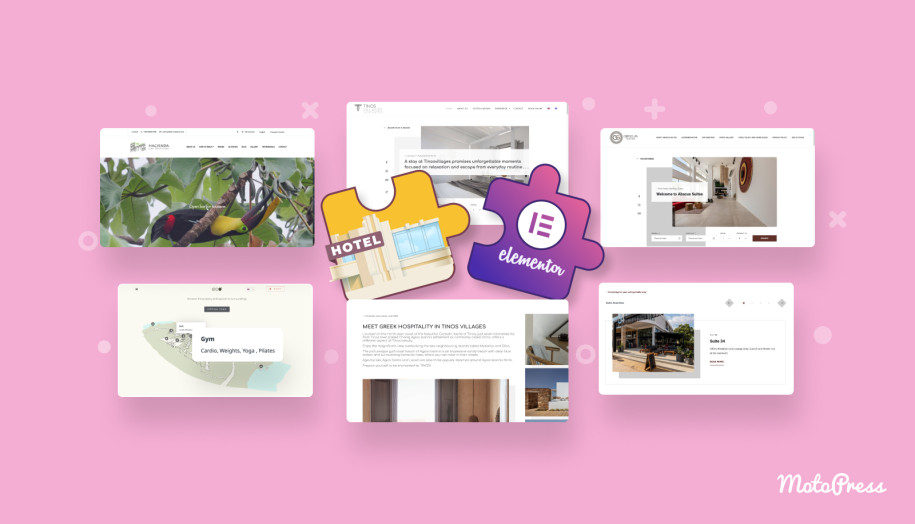
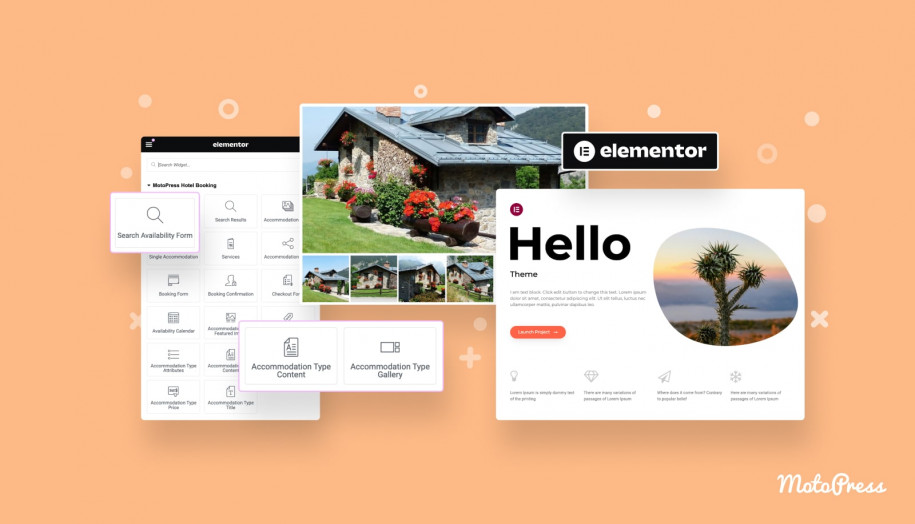
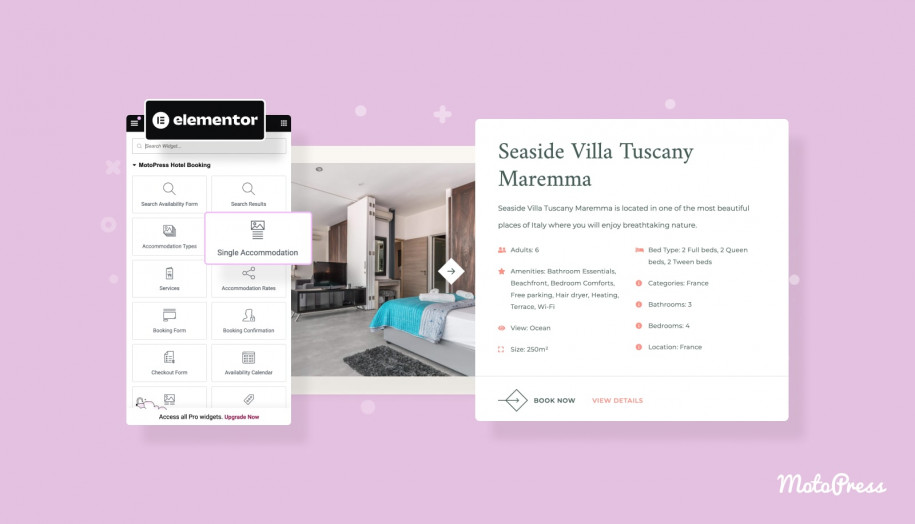
- Elementor – Install the Hotel Booking & Elementor Integration add-on to unlock 17 dedicated Elementor widgets for building booking pages visually.
- Divi – Prefer Divi or Divi 5? The Hotel Booking & Divi Integration add-on includes 17 native Divi modules covering the same booking functionality.
- Other page builders – If you’re using WPBakery, Bricks, Beaver Builder, or another builder, simply use the plugin’s built-in shortcodes to place booking forms and other Hotel Booking elements wherever you need them.
How Can I Translate MotoPress Hotel Booking?
Are you building a multilingual vacation rental website with MotoPress Hotel Booking? Here are some points to consider:
- If you choose WPML as your translation plugin, you’re good to go – the plugin is officially compatible with it. If this is your first multilingual booking website, check out our step-by-step video tutorial.
- Using WordPress in another language? The plugin will follow the language selected under Settings > General > Site Language. It already includes translations for many languages, and you can always check the latest progress or contribute new ones through our Crowdin project.
- Need to tweak a translation? You can edit language files directly in your WordPress dashboard with Loco Translate or use Poedit to create and upload your own translation files.
Get Extra Help with Your MotoPress Hotel Booking Setup
If you’ve made it this far, you’ve probably realized something: the plugin is flexible, and that flexibility comes with quite a few settings. Some people enjoy configuring everything themselves following the MotoPress documentation. Others just want to launch the website and move on.
If you fall into the second group, here’s where we can help.
1. Extended Support – $69
This is usually enough when your website is already live, but you’ve hit a roadblock. Maybe something doesn’t behave the way you expected, maybe you’d like a small layout tweak, or maybe you simply want another pair of eyes to look at the setup. That’s exactly what Extended MotoPress Support is for.
2. Hotel Booking Initial Configuration – from $99
Don’t want to spend your afternoon figuring out seasons, rates, booking rules, and payment settings? Send us your property details, and we’ll take care of the initial configuration.
Packages start at $99 and go up to $179, depending on how complex your setup is.
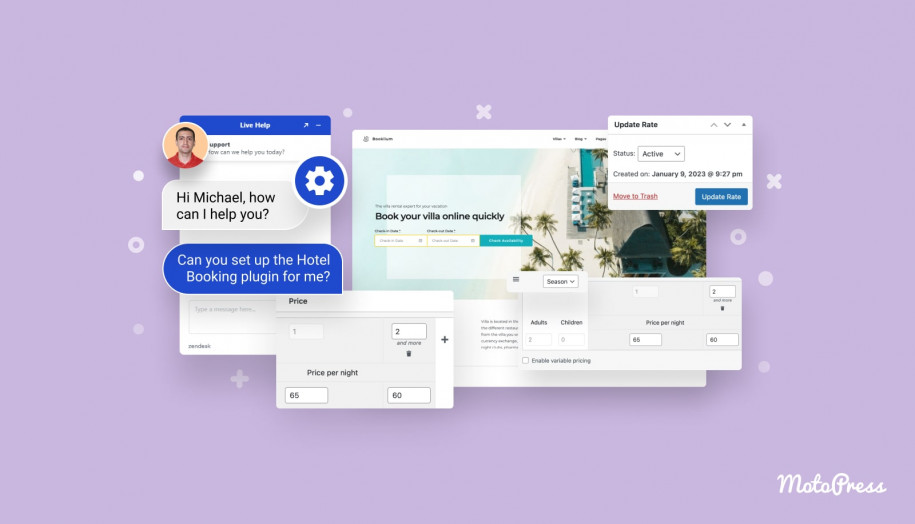

3. Ready-to-Use Booking Website – $399
Sometimes it makes more sense to start with a finished website instead of a blank page. With this service, we install everything, import the demo, configure the booking engine, replace the content with yours, and prepare the site for launch.
MotoPress Hotel Booking Resources: Important Links
Even after the MotoPress Hotel Booking setup your booking website goes live, you’ll probably come back with new ideas or questions. That’s completely normal – we do the same when testing new features. Here are the resources you can check out to discover more details about the plugin or share your feedback on using it:
- MotoPress Hotel Booking Documentation
- On our YouTube channel, we’ve recorded step-by-step walkthroughs for many common setup tasks.
- Our team has gathered a growing collection of troubleshooting articles based on questions we’ve received over the years.
- Join MotoPress Hotel Booking Facebook Community to get help from other users or share your experience.
- If you can’t find the answer anywhere else, you can submit a ticket, and we’ll be happy to help.
Final Thoughts
If there’s one piece of advice we’d give after supporting thousands of Hotel Booking users, it’s this: don’t try to boil the ocean.
First things first: start with your accommodation types, seasons, and rates. Once those pieces are in place, adding payment gateways, calendar synchronization, translations, or dynamic pricing is much more straightforward.
Do you still have a question about your MotoPress Hotel Booking setup? Drop it in the comments below!
FAQ
Can I get a discount if I buy all addons for this plugin?
What property types can the MotoPress Hotel Booking plugin be used for?
Is MotoPress Hotel Booking free?
Can I use MotoPress Hotel Booking for hourly bookings?