
WordPress Event & Calendar Widgets: Full Guide
Table of Contents
Not all events are created equal. A multi-track tech conference needs a minute-by-minute agenda, while a local yoga studio just needs a clean monthly grid. If you force your schedule into the wrong layout, your visitors will just get confused. In this guide, we’ll dive deep into the MotoPress Events Calendar toolkit to choose the most suitable WordPress event calendar widget!
This plugin provides several event widgets (available as Gutenberg blocks and shortcodes) to display schedules, event listings, and individual events. Let’s explore them so you can find the perfect match for your goals!
Which Event Widgets Are Available in MotoPress Events Calendar?
The WordPress Event Calendar plugin by MotoPress includes blocks for different event display scenarios.
| Widget | Best For |
|---|---|
| Events Calendar | Interactive schedules |
| Events List | Featured and upcoming events |
| Events Schedule | Agendas and timetables |
| Events Search | Event discovery |
| Events Filters | Large schedules |
| Single Event Pages: Single Event Schedule, Event Date, Event Location, Event Organizers, Event Categories, and Event Tags. | Event landing pages |
Each events widget can be added directly through the WordPress block editor or inserted with a shortcode. Let’s take a closer look at the available options!
Events Calendar Block: Interactive Schedule Browsing
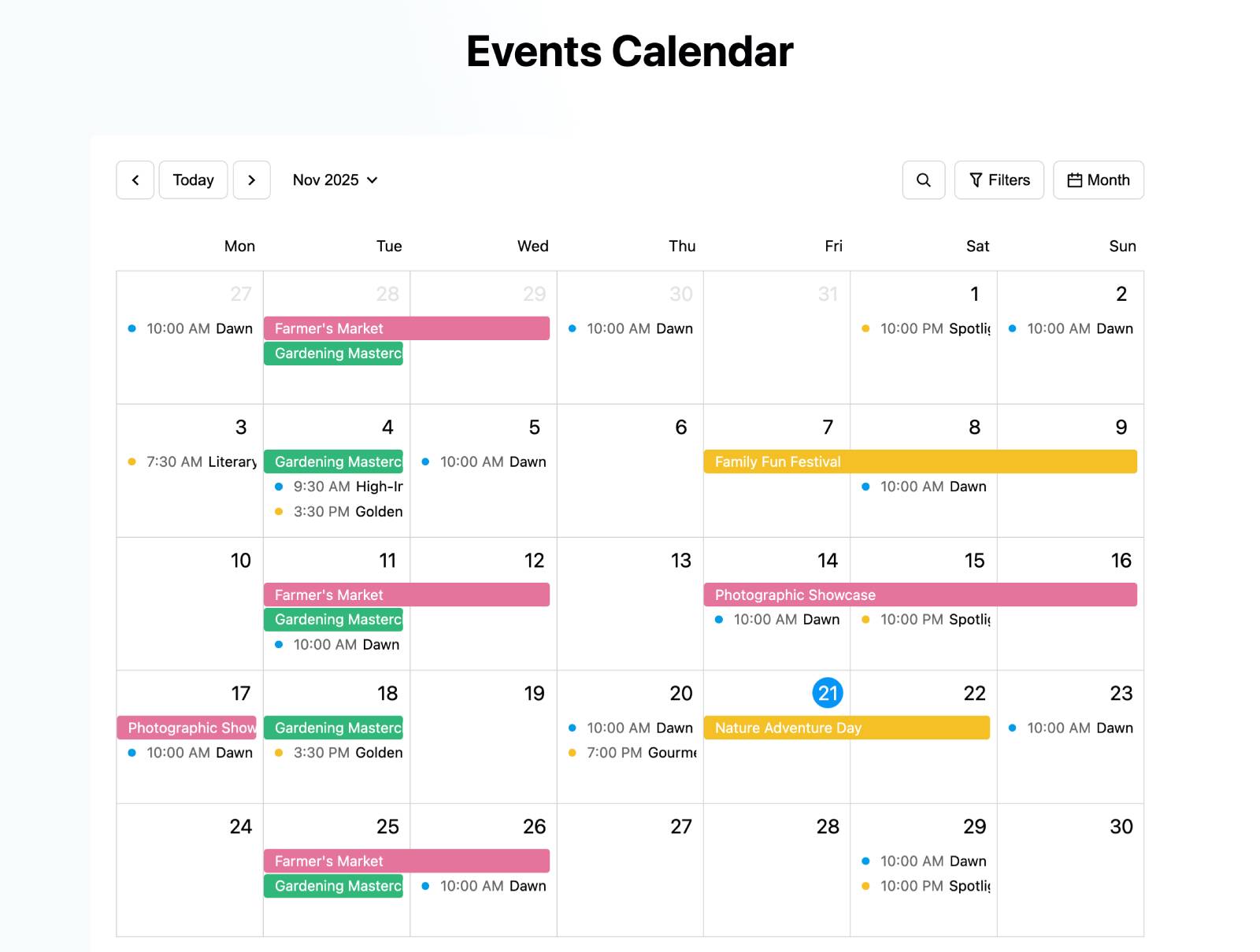
The Events Calendar block provides a fully interactive schedule that allows visitors to browse events using different calendar views.
Different Calendar Views
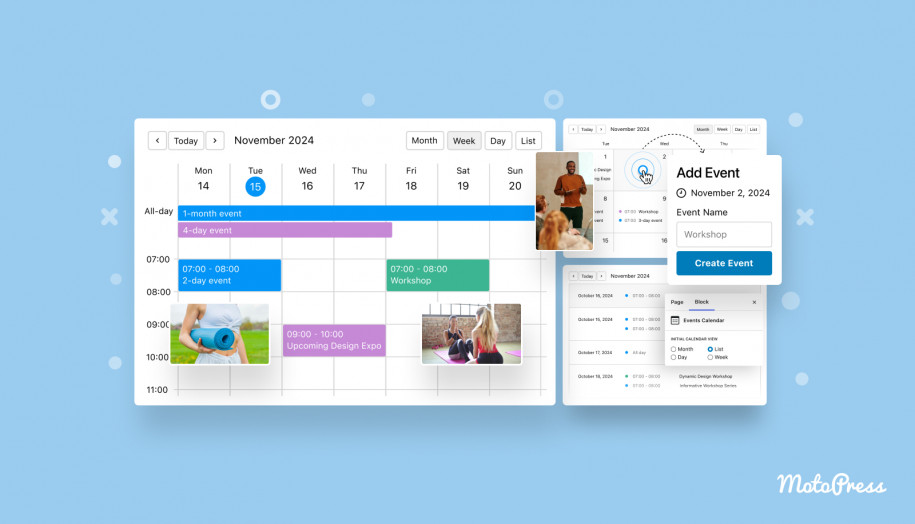
The Events Calendar block supports four layouts:
1. Month View
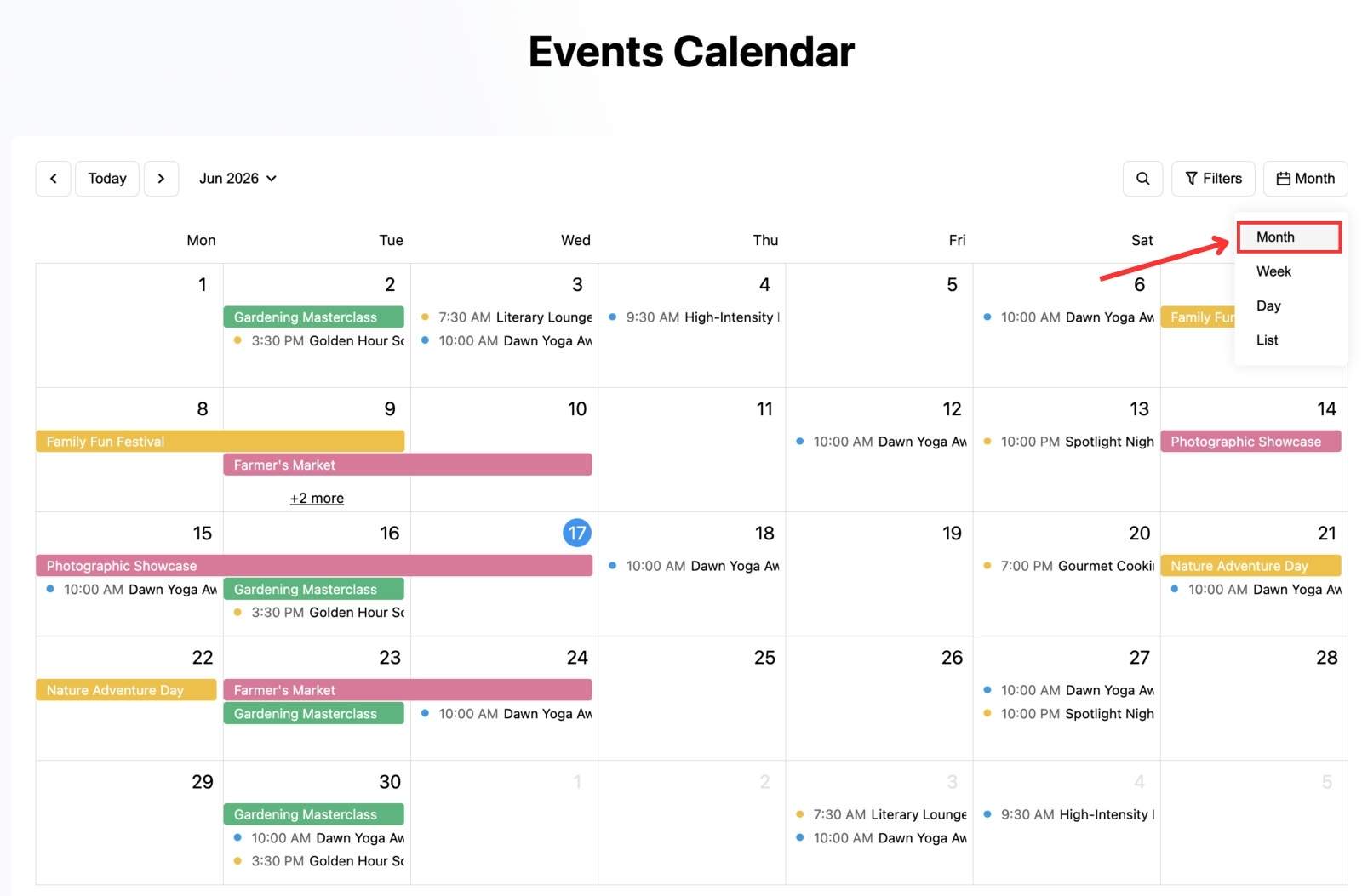
The monthly calendar is the most familiar format for most visitors. It provides an overview of everything happening throughout the month. It’s a great option for organizations that publish recurring events, workshops, classes, or seasonal activities. Visitors can quickly compare dates and identify busy periods.
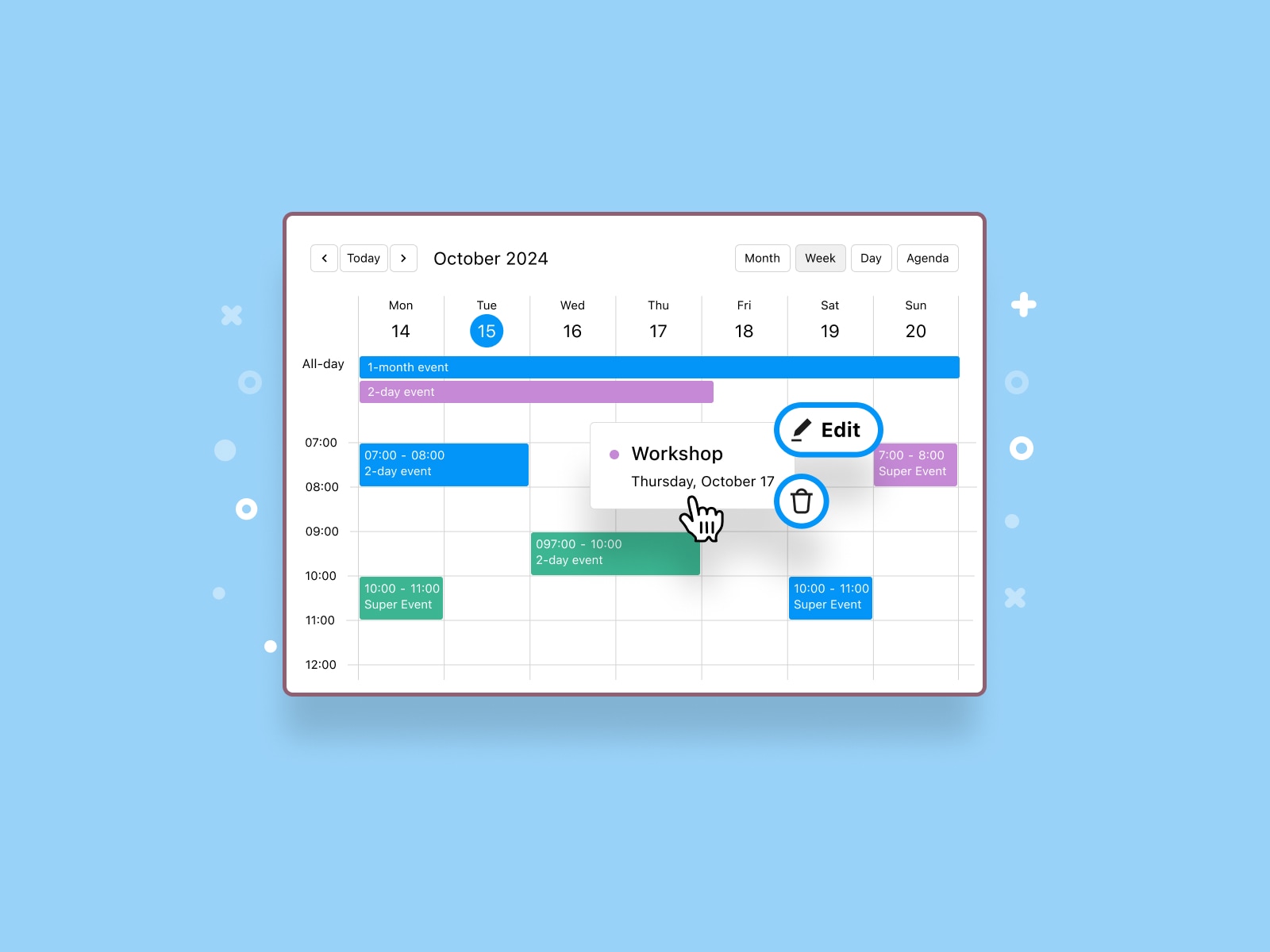
2. Week View
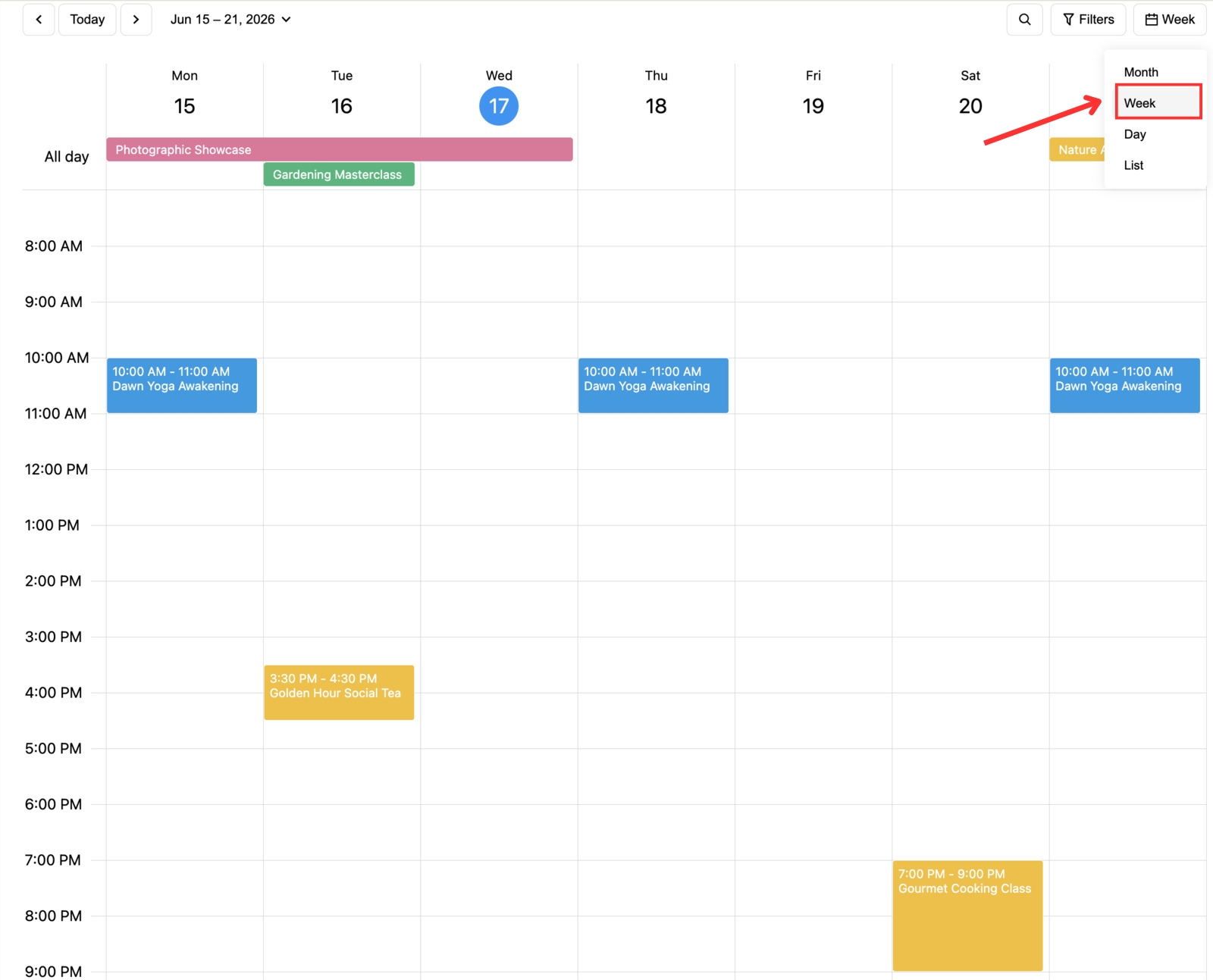
The weekly format of the event calendar widget is often used for:
- Educational schedules;
- Training programs;
- Sports clubs;
- Church ministries;
- Recurring workshops.
Since visitors can see an entire week at once, it’s easier to discover recurring activities and available time slots.
3. Day View
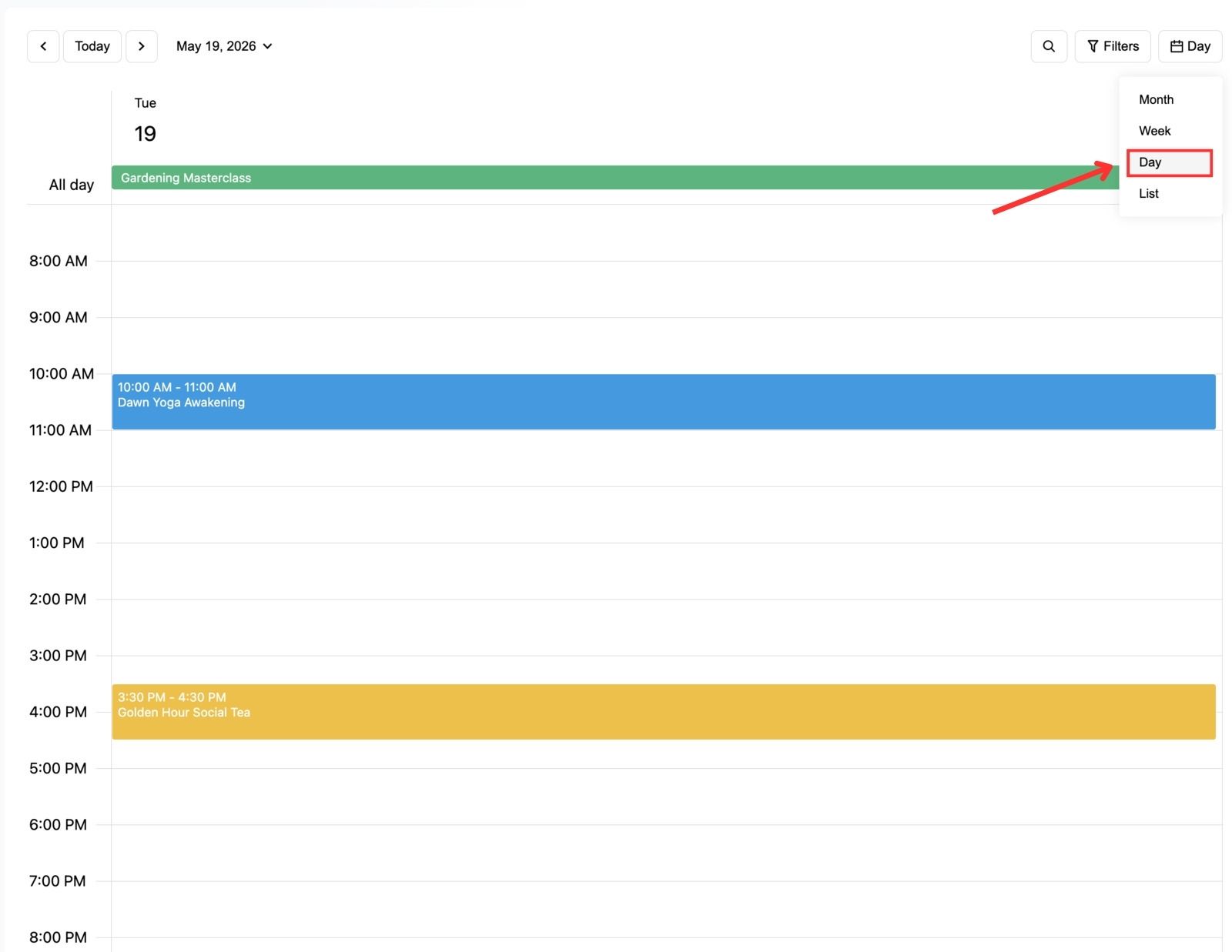
In the day view of the WordPress event calendar widget, you can focus on a single date and display events within a timetable-style layout.
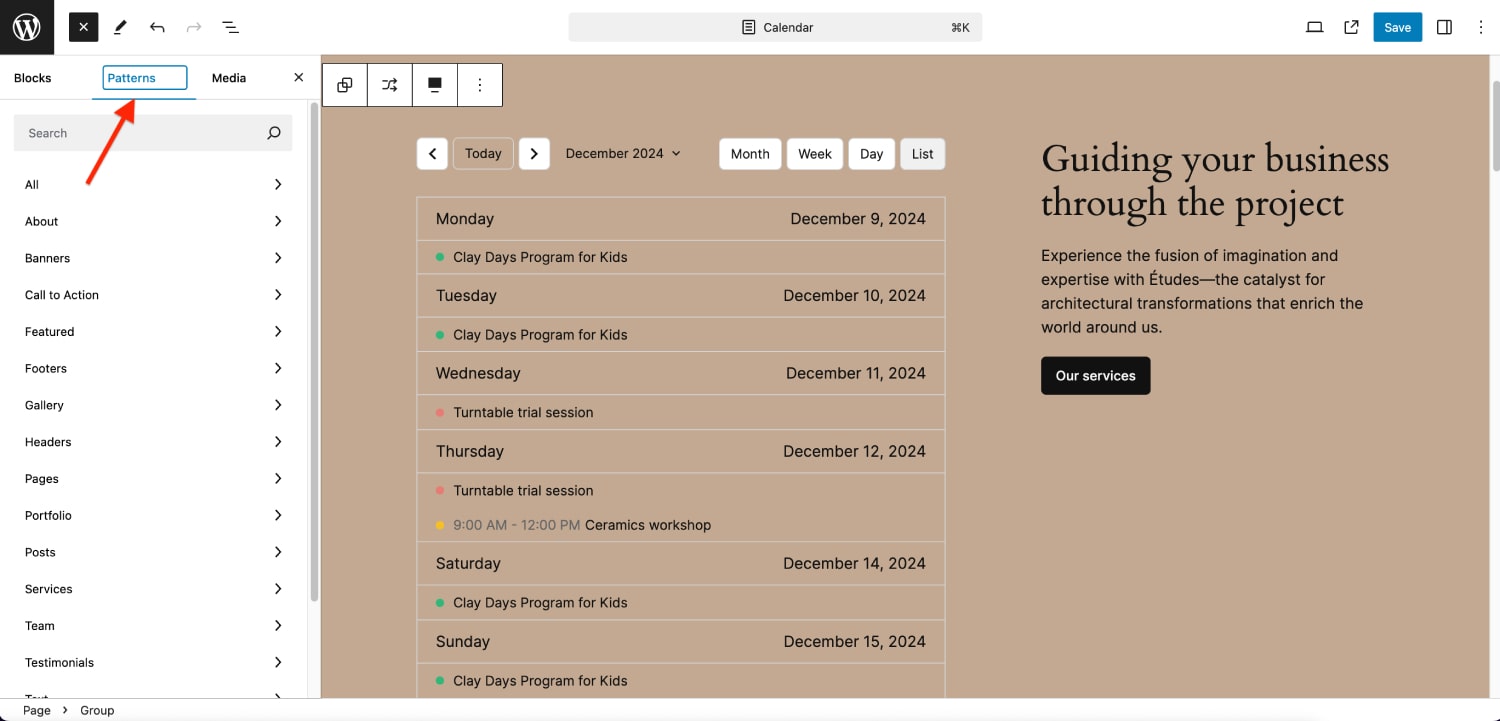
4. List View
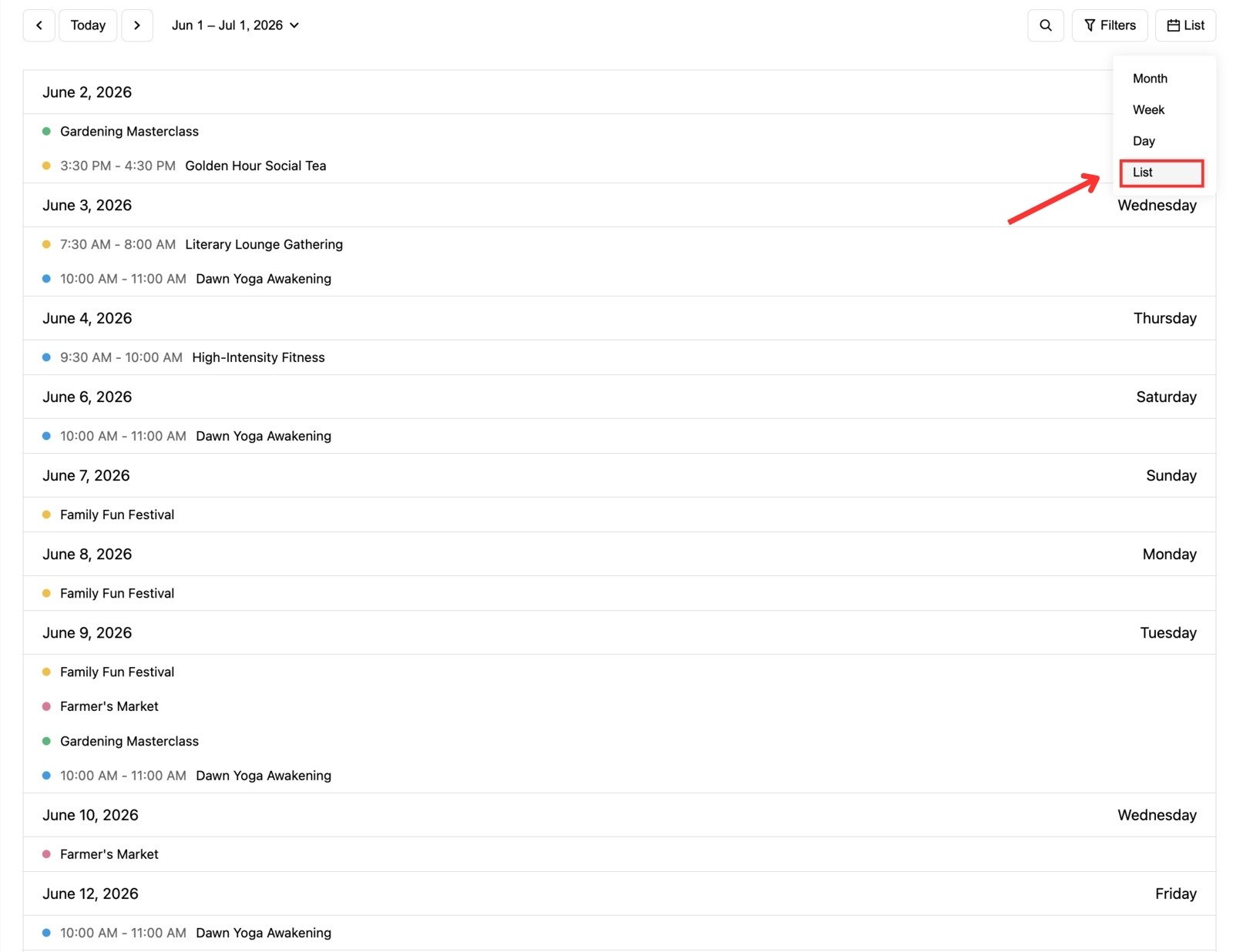
If visitors don’t like navigating traditional calendars, the list view displays upcoming events chronologically. They see a straightforward timeline of upcoming activities.
How to Customize the Events Calendar Widget?
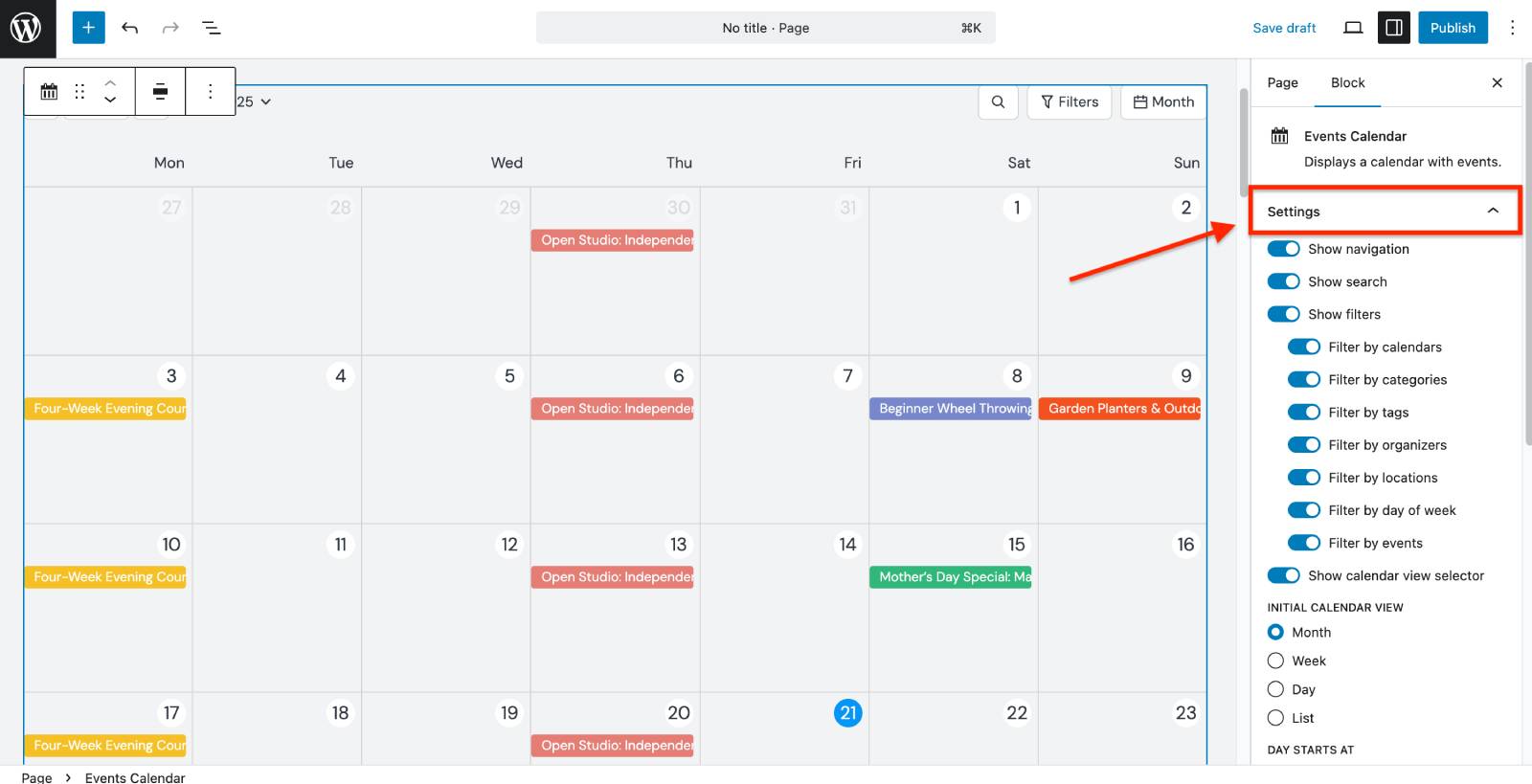
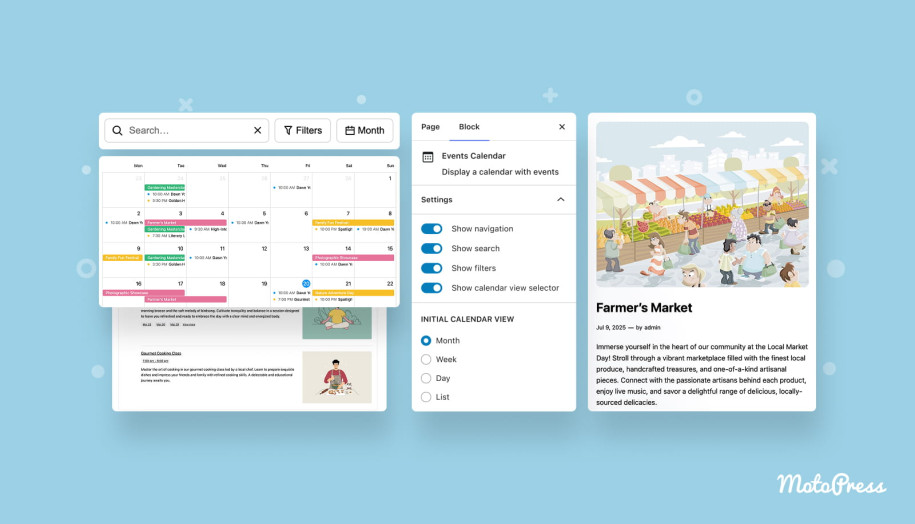
The Events Calendar block offers extensive customization options. In the block settings, you can:
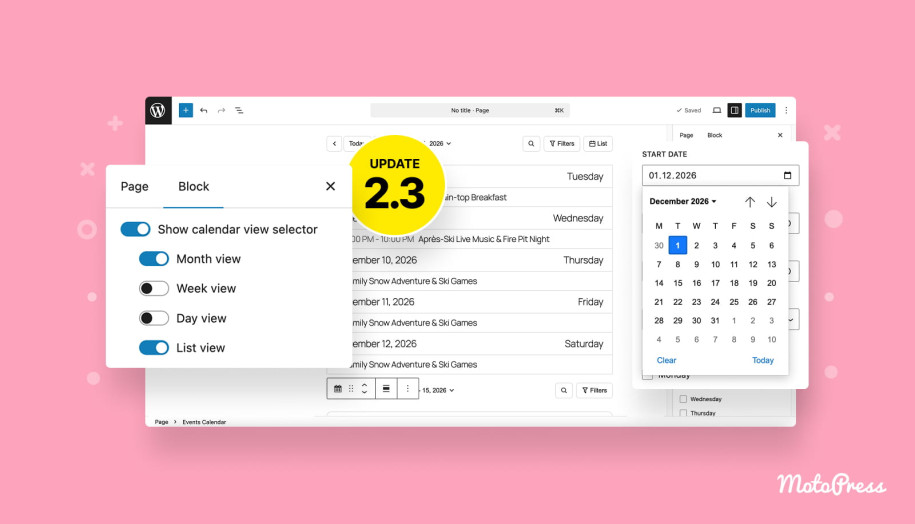
- Decide whether visitors see navigation, search, filter, and calendar view selector options.
- Set initial WordPress event calendar widget view.
- Choose the start/end days and hidden weekdays.
- Define the Time Interval for monthly and daily views.
- Limit which events to show in the calendar via the Filters menu (by calendar, category, tag, organizer, location, day of week, or specific events).
When Do I Use a Website Calendar Widget?
Calendar layouts remain one of the most intuitive ways to explore event schedules. They come in handy if:
- You publish many events.
- Events repeat regularly.
- Visitors plan weeks or months ahead.
- Multiple events happen simultaneously.
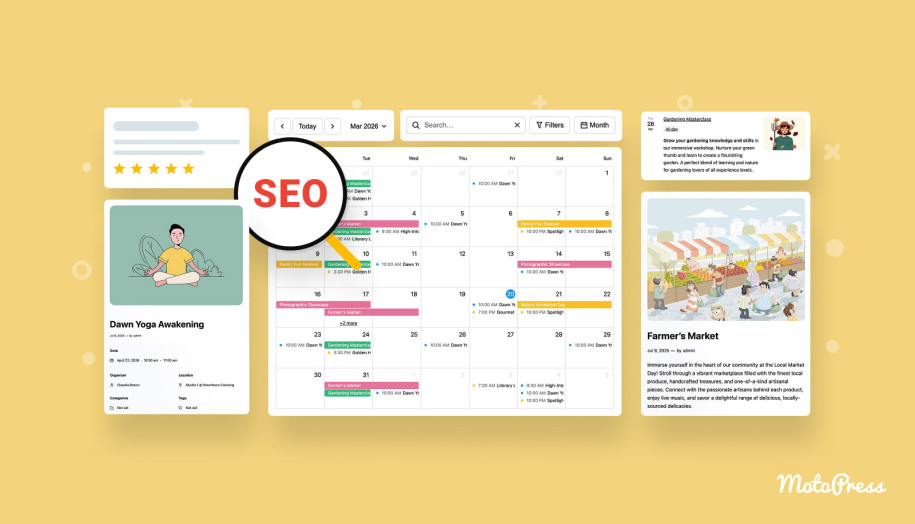

Events List Block: Showcase Events as Visual Cards
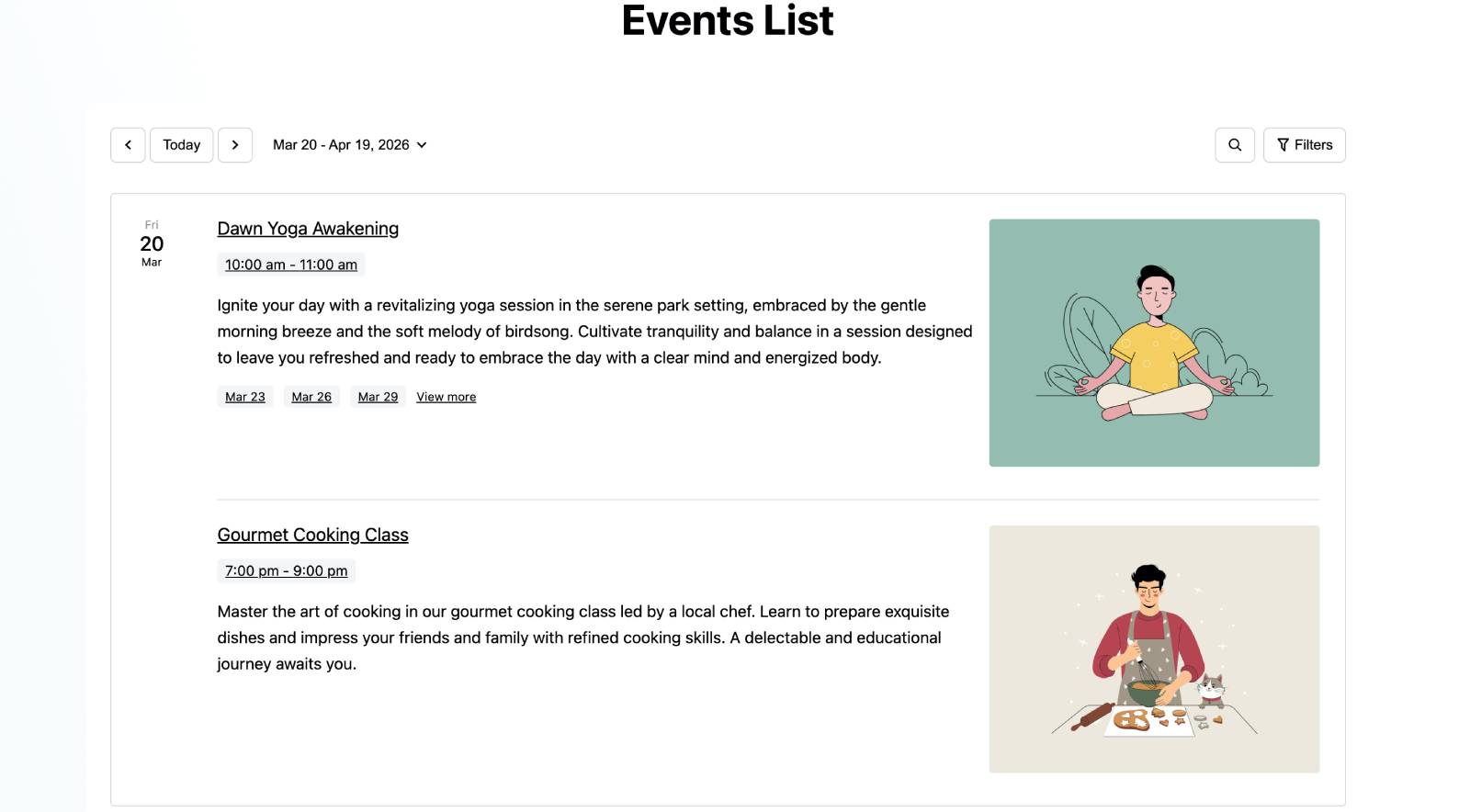
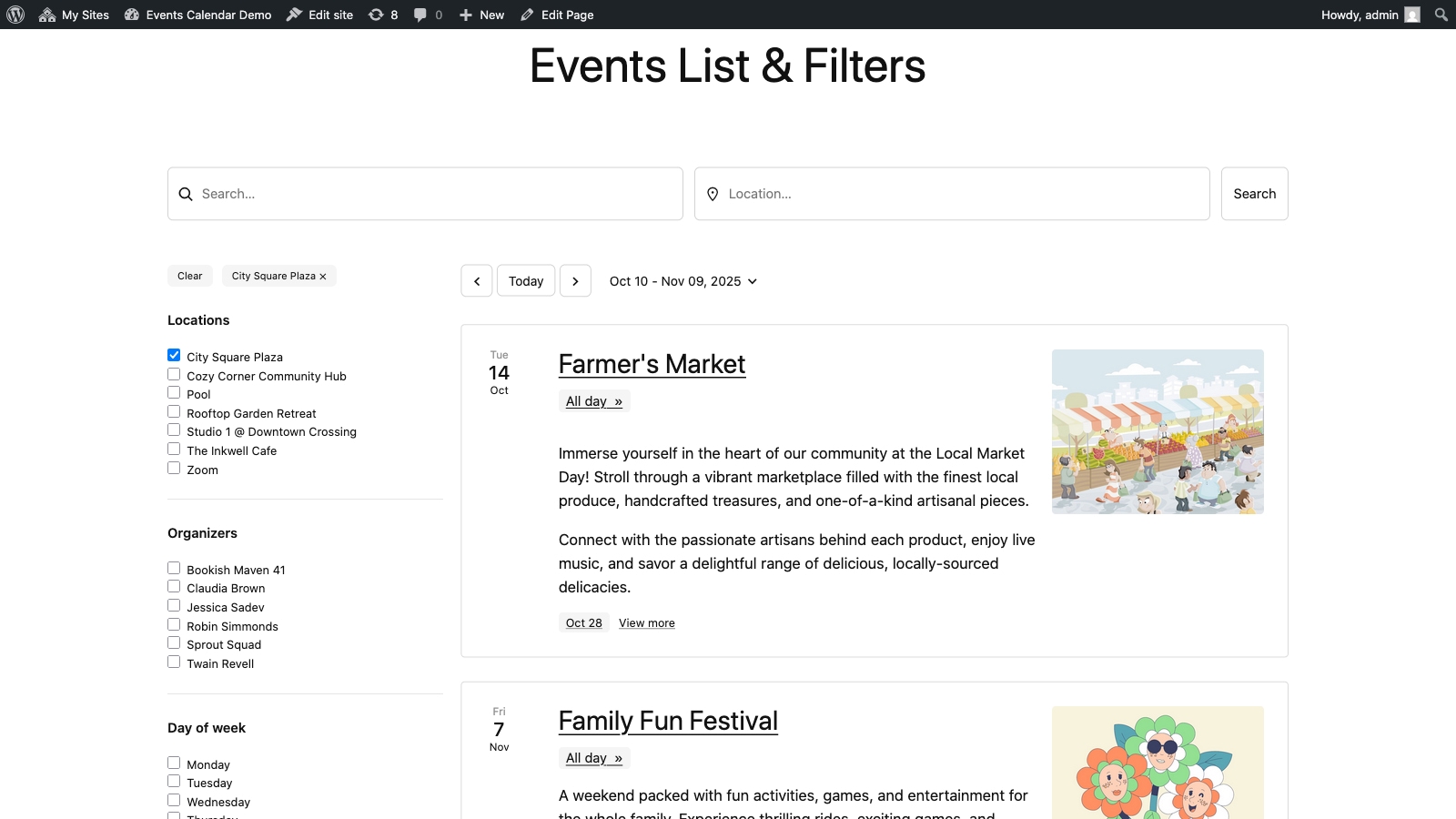
The next event widget in the MotoPress WordPress events plugin is Events List. Instead of displaying events within a calendar grid, it presents them as informative cards containing:
- Featured image;
- Event title;
- Description;
- Date and time;
- Upcoming occurrences for recurring events.
This format is suitable for homepage sections, landing pages, featured events, and promotional campaigns.
How to Customize the Event Listing Layout?
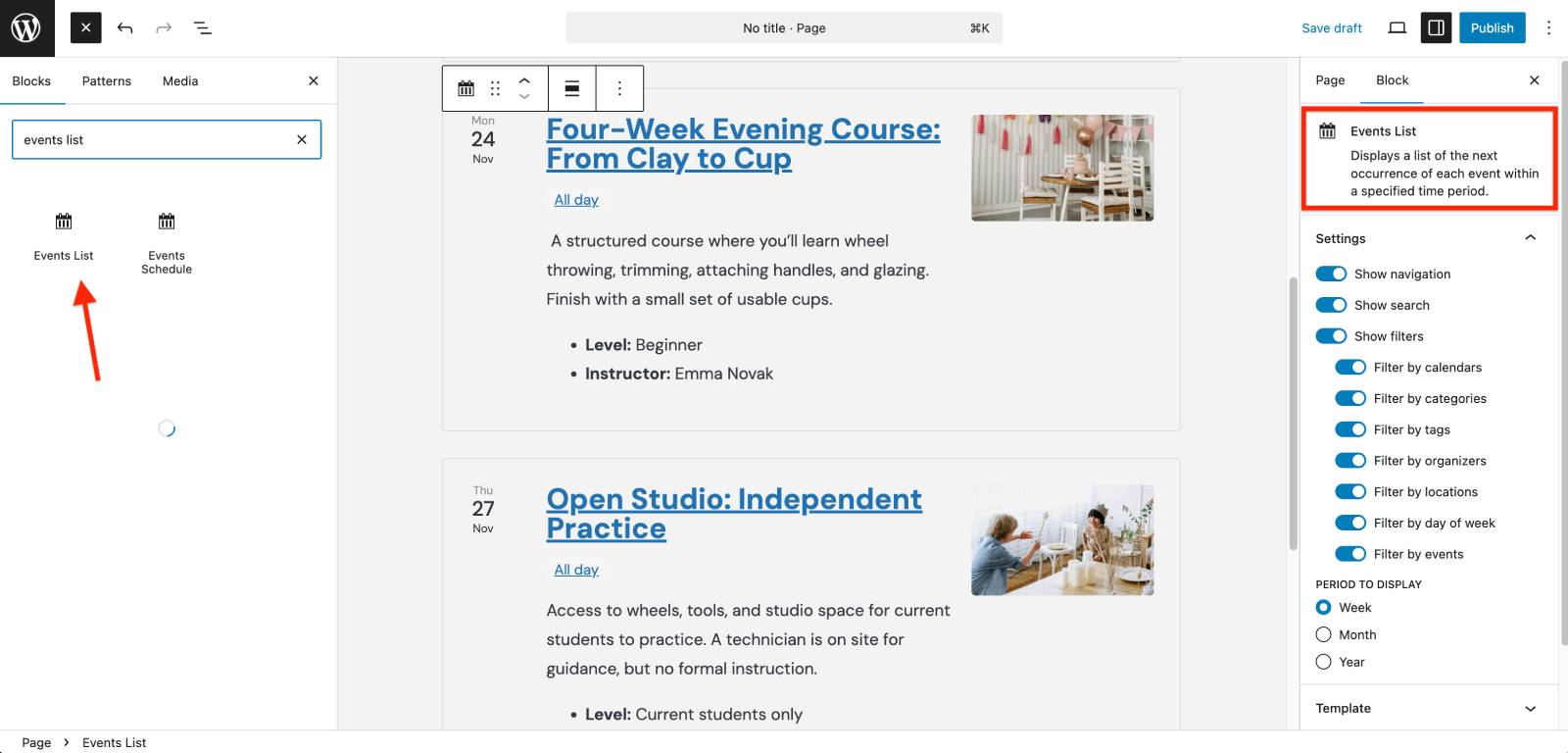
The Events List block includes several layout controls. It allows you to:
- Enable or disable navigation, search bar, and filters selector.
- Define the display period.
- Set the start date.
- Show or hide event title/description/image/time in the Template section.
- Control description length.
- Display upcoming recurring dates.
- Filter events by categories, tags, locations, organizers, and more.
- Enable the “Show upcoming dates” for recurring events.
When Do I Use an Events List?
Some of the use cases for the Events List block include:
- Event promotion.
- You want to highlight featured events.
- You need homepage event sections.
- Visitors should read event details before clicking.
Many websites use both the Events List and Events Calendar widget WordPress layouts to combine schedule navigation with event promotion.
Events Schedule Block: A Compact Agenda View
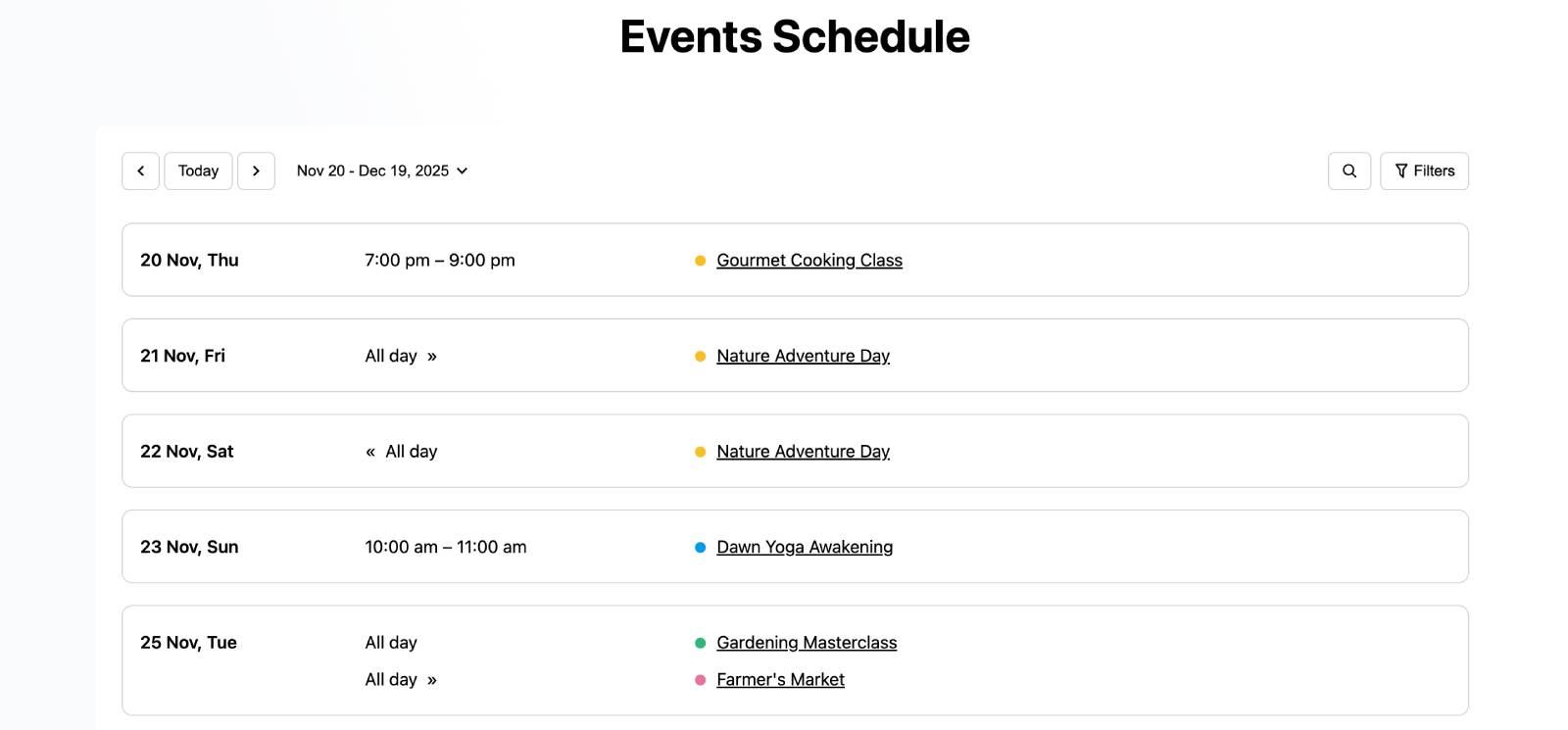
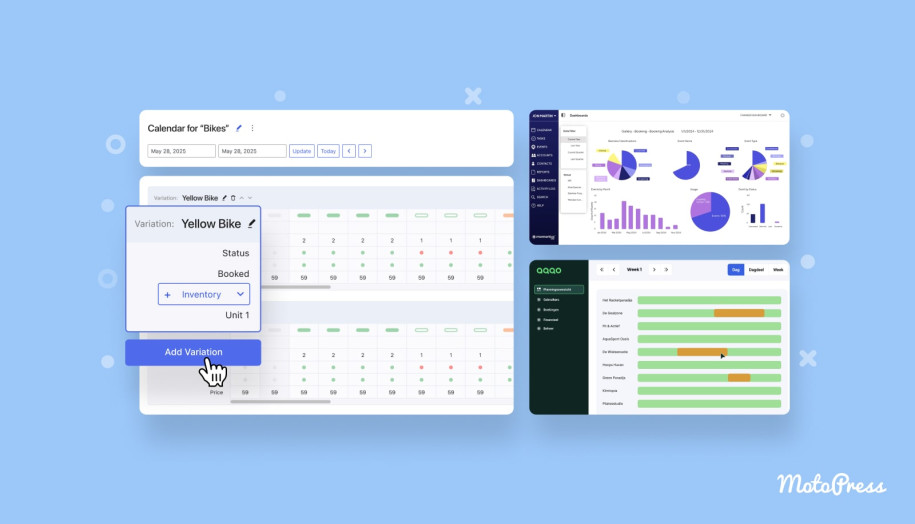
Sometimes visitors simply want to know what is happening and when. The Events Schedule block creates a simple chronological agenda for a clean and compact schedule.
How Does This Event Widget Differ from the Events List?
Although both blocks display events outside of a traditional calendar view, they serve different goals in the event page design.
| Feature | Events List Block | Events Schedule Block |
|---|---|---|
| Primary Focus | Visual promotion & event details | Quick, time-focused chronological scanning |
| Key Elements | Featured images, long descriptions, cards | Event names, times, compact lines |
| Best Used For | Homepages, landing pages, featured events | Conference agendas, timetables, and school schedules |
How to Customize the Events Schedule in WordPress?
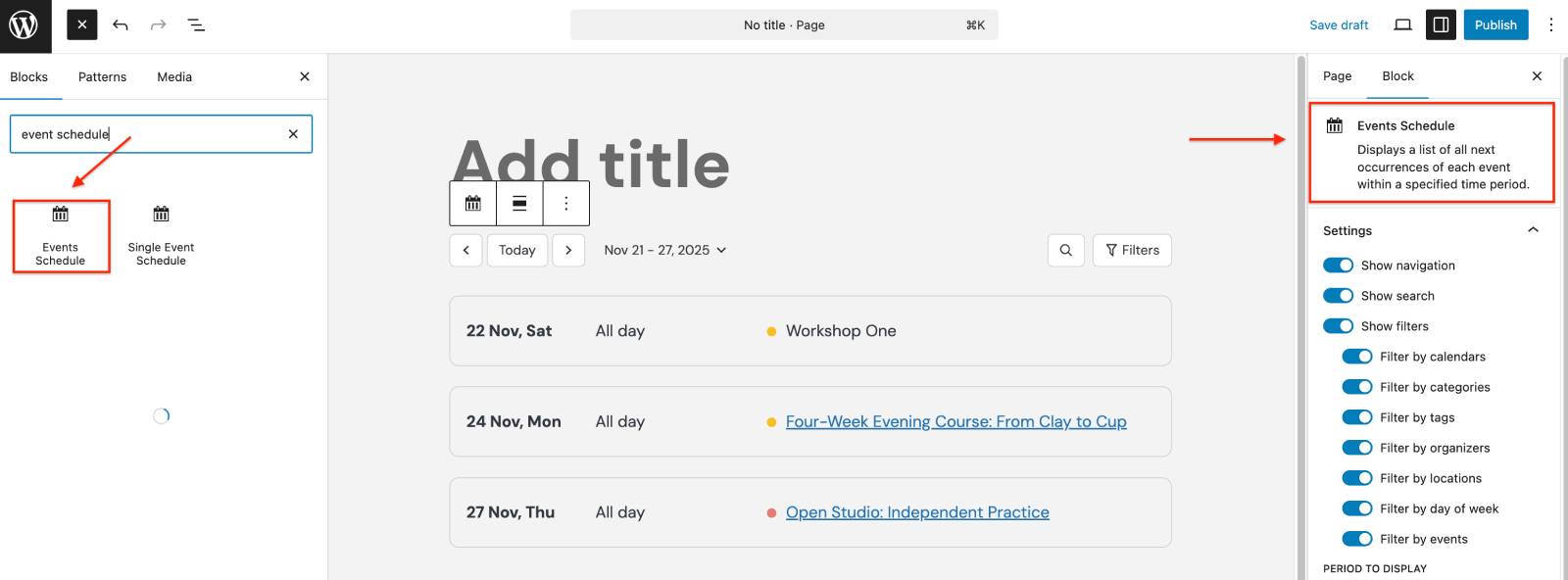
After adding the block to a page, open its settings panel in the WordPress editor to access the available customization options. You’ll be able to:
- Enable or disable interface elements: navigation controls, search bar, and filter selector.
- Set a custom start date.
- Choose the display period.
- Control how far ahead events are displayed.
- Show events scheduled for the next week/month/year.
- Limit which events appear in the schedule, using the Filters section in the block settings.
When Do I Use an Events Schedule Block?
Visitors can quickly scan the schedule without navigating between calendar dates or opening event cards. This option is useful for:
- Conference agendas;
- School timetables;
- Church schedules;
- Educational programs;
- Training centers;
- Recurring classes.
Search and Filter Widgets for Better Event Discovery
As your event catalog grows, finding the right event can become like looking for a needle in a haystack. That’s where the Events Search and Events Filters blocks come into play.
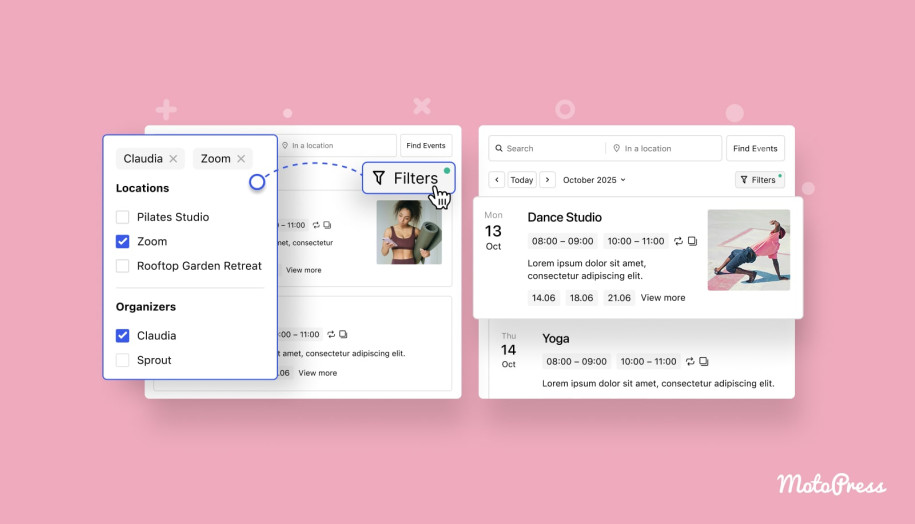
The Events Search block allows visitors to search events by name or location.
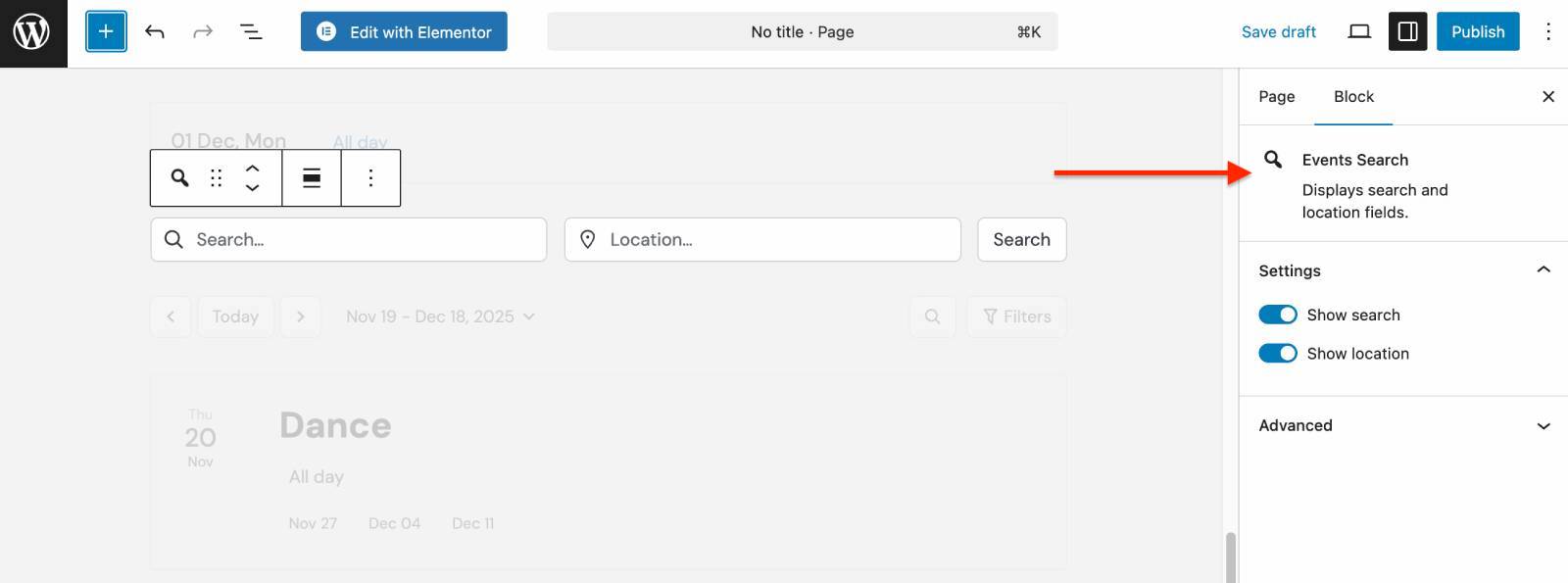
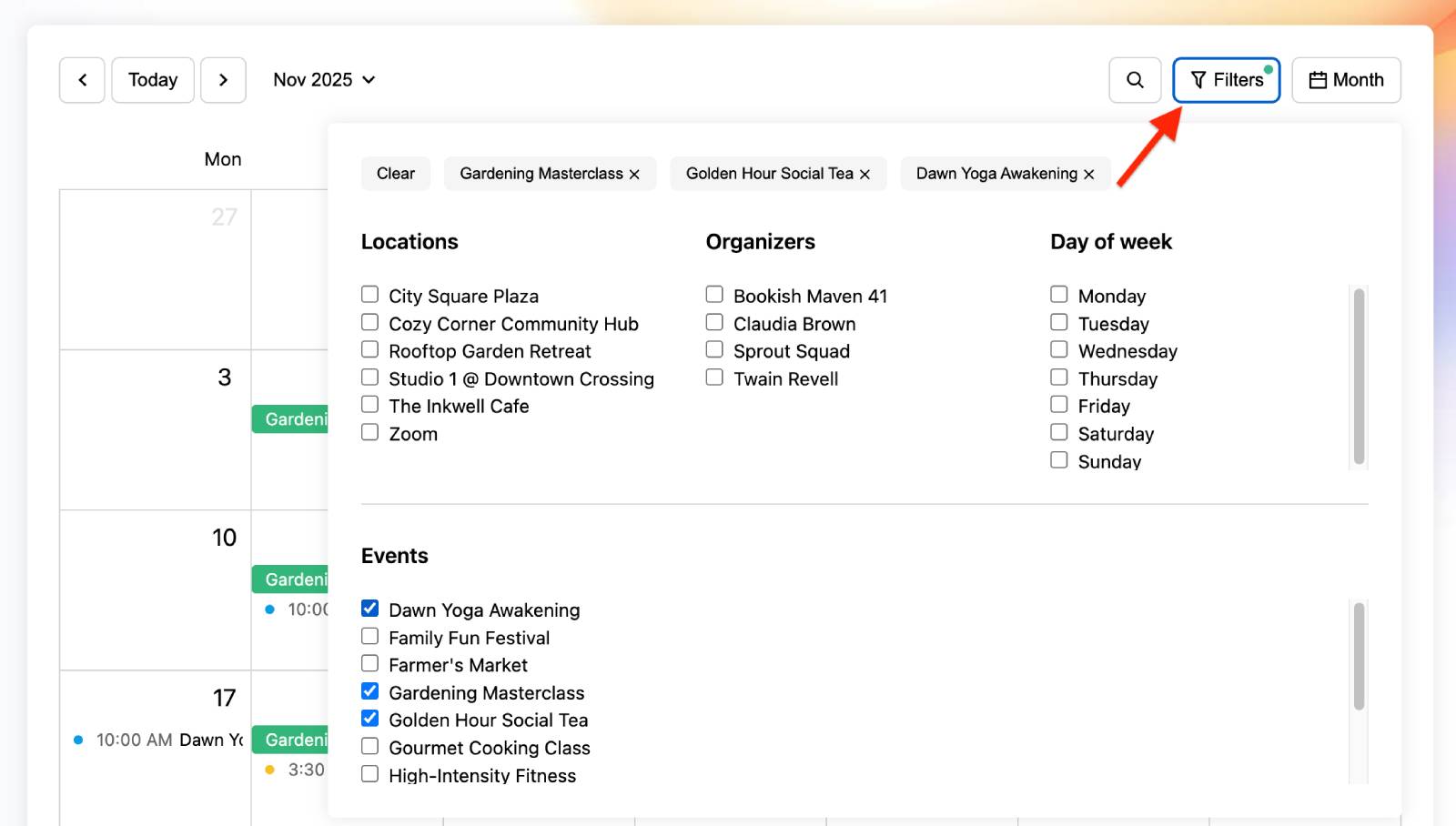
Instead of manually browsing through large schedules, visitors can filter events that match their interests. The Events Filters block allows visitors to narrow event results based on:
- Calendars;
- Events;
- Locations;
- Organizers;
- Day of week;
- Categories;
- Tags.
Do These Event Widgets Work Together?
One of the most powerful aspects of the MotoPress Events Calendar plugin is that its event widgets can be connected.
For example, you can break your layout apart and place the Events Search block in the header, the Events Filters in a sidebar, and the Events Calendar in the main body. The moment a visitor types a keyword or checks a filter box, the calendar updates instantly.
Can I Build Event Landing Pages?
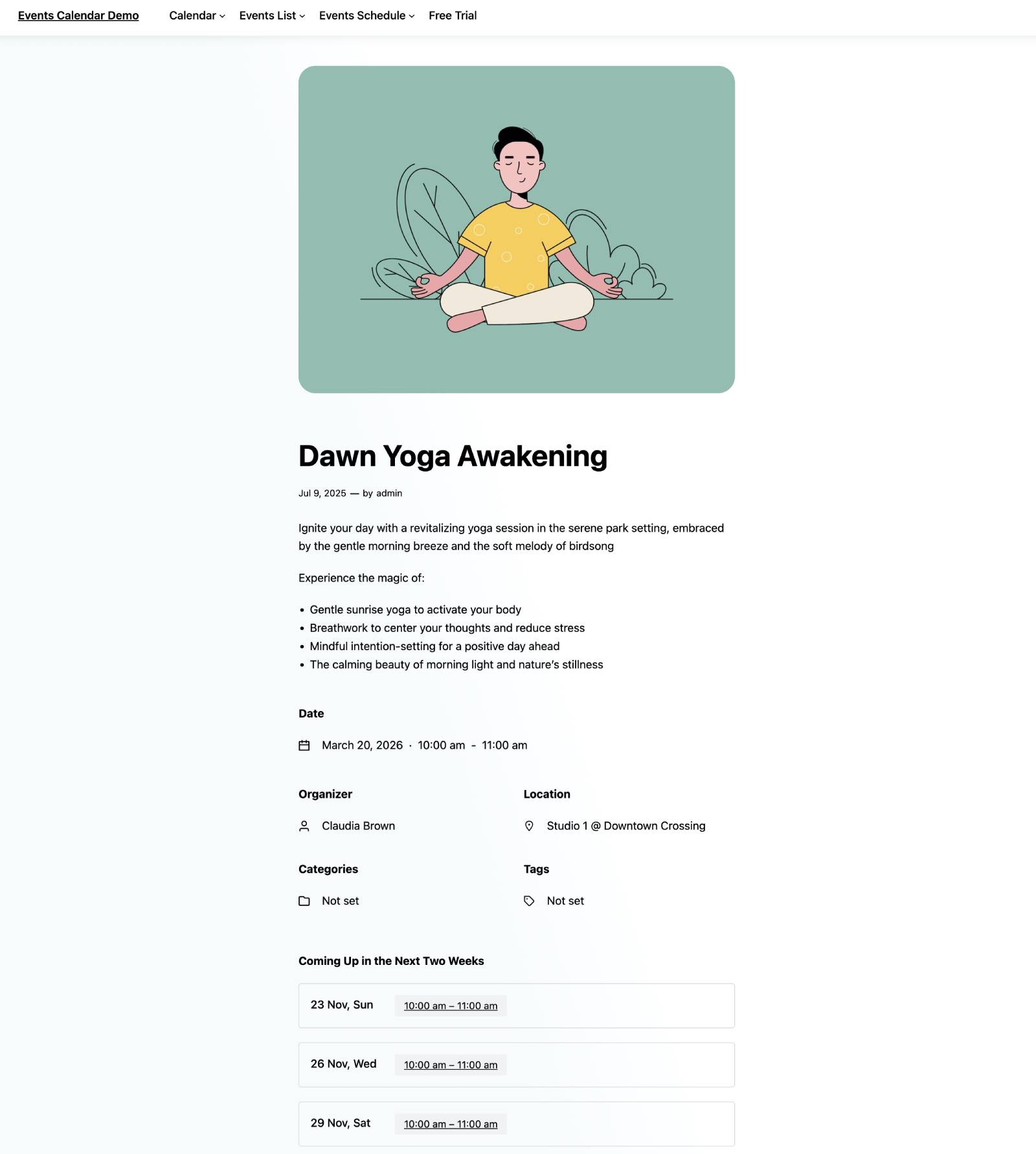
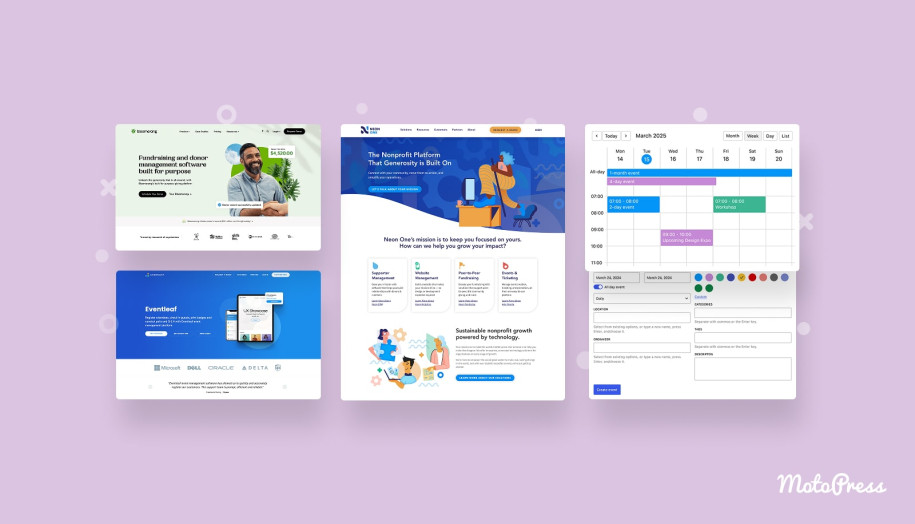
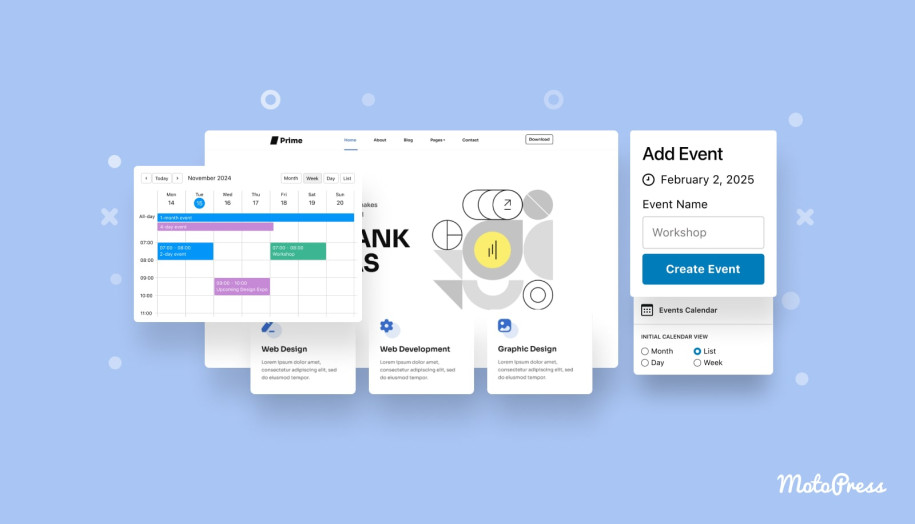
To create an event landing page design with the MotoPress Events Calendar plugin, you can build dedicated single-event pages. They support several event-specific blocks, including:
- Single Event Schedule (shows upcoming events);
- Event Date;
- Event Location;
- Event Organizers;
- Event Categories;
- Event Tags.
Event pages don’t have to follow a rigid template. Since they’re built with the WordPress block editor, you can customize both the content and layout.
It’s possible to combine event-specific blocks with Gutenberg patterns, columns, images, buttons, testimonials, or registration sections to create an engaging website event page design.
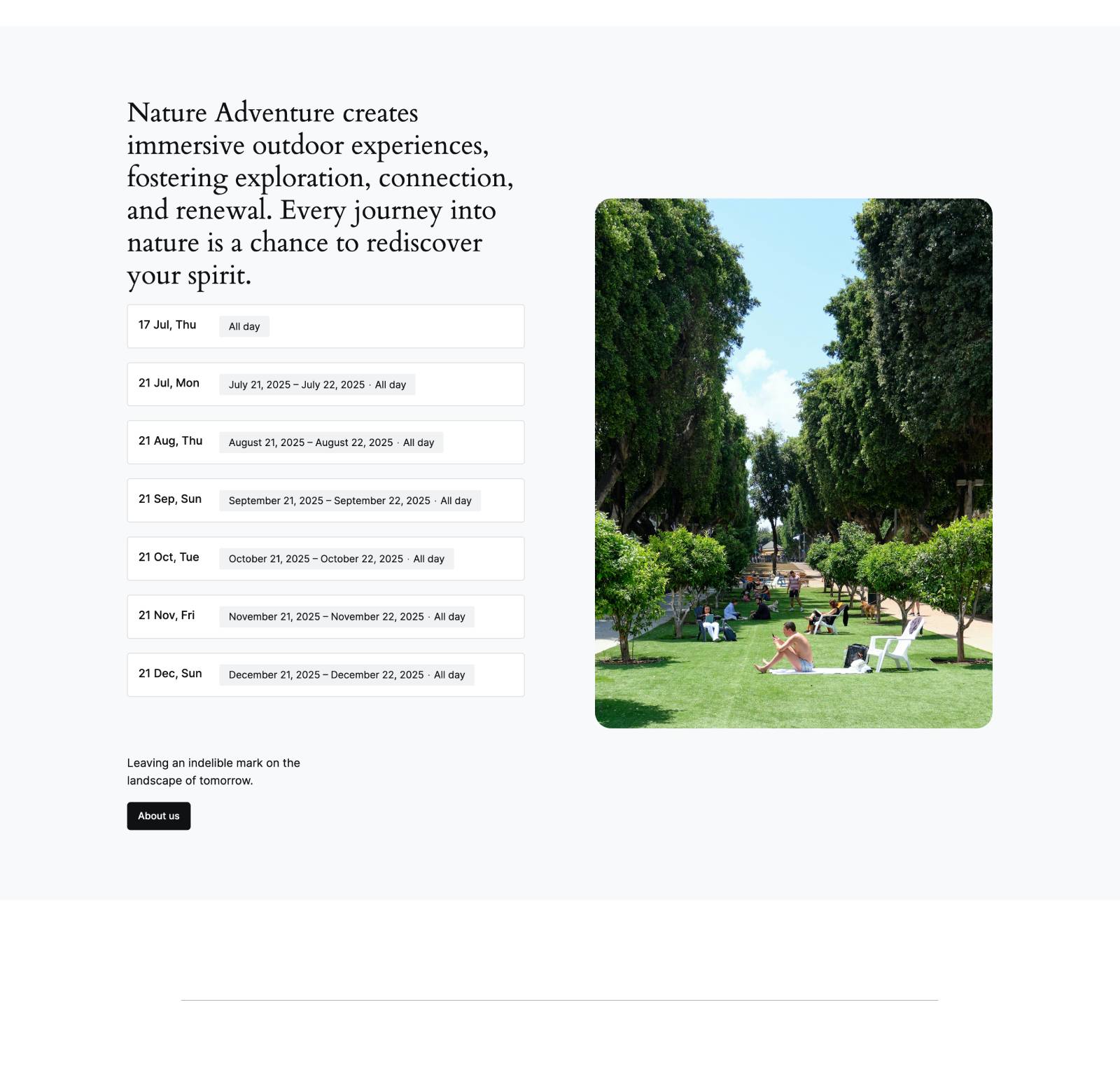
How to Display Event Details with MotoPress Events Calendar?
MotoPress Events Calendar gives you three ways to display event details:
- Event information pop-up;
- Dedicated event page;
- Custom event URL.
You can configure these options individually for each event.
Step 1: Open an Event
In your WordPress dashboard, go to Events and click on the event you want to edit. You can either create a new event or modify an existing one.
Step 2: Enable a Public Event Page (Optional)
If you’d like visitors to access a dedicated page for the event, enable the Create a Public Page for This Event option when editing the event.
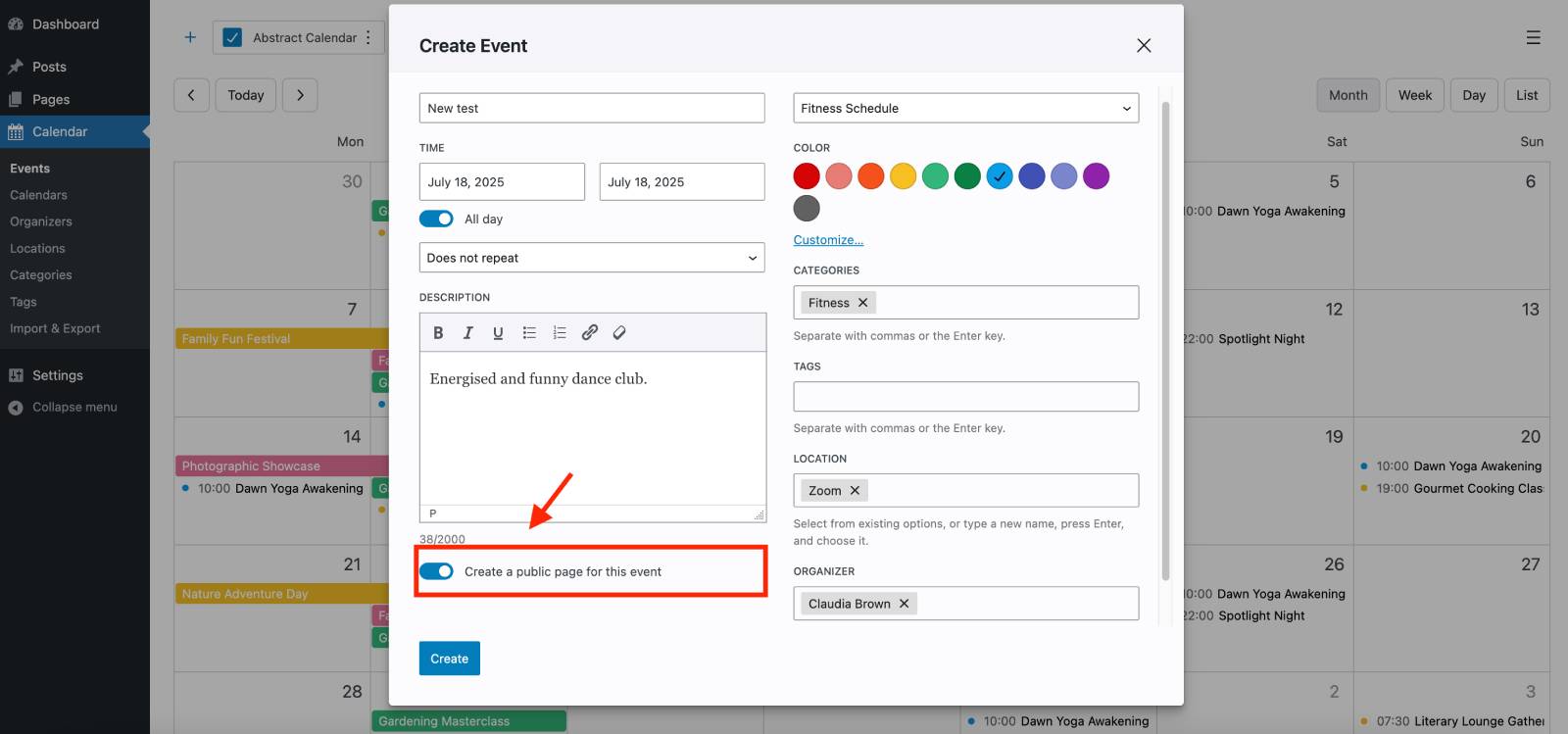
Once enabled, the plugin automatically generates a WordPress page for that event.
Step 3: Configure the Event Link Destination
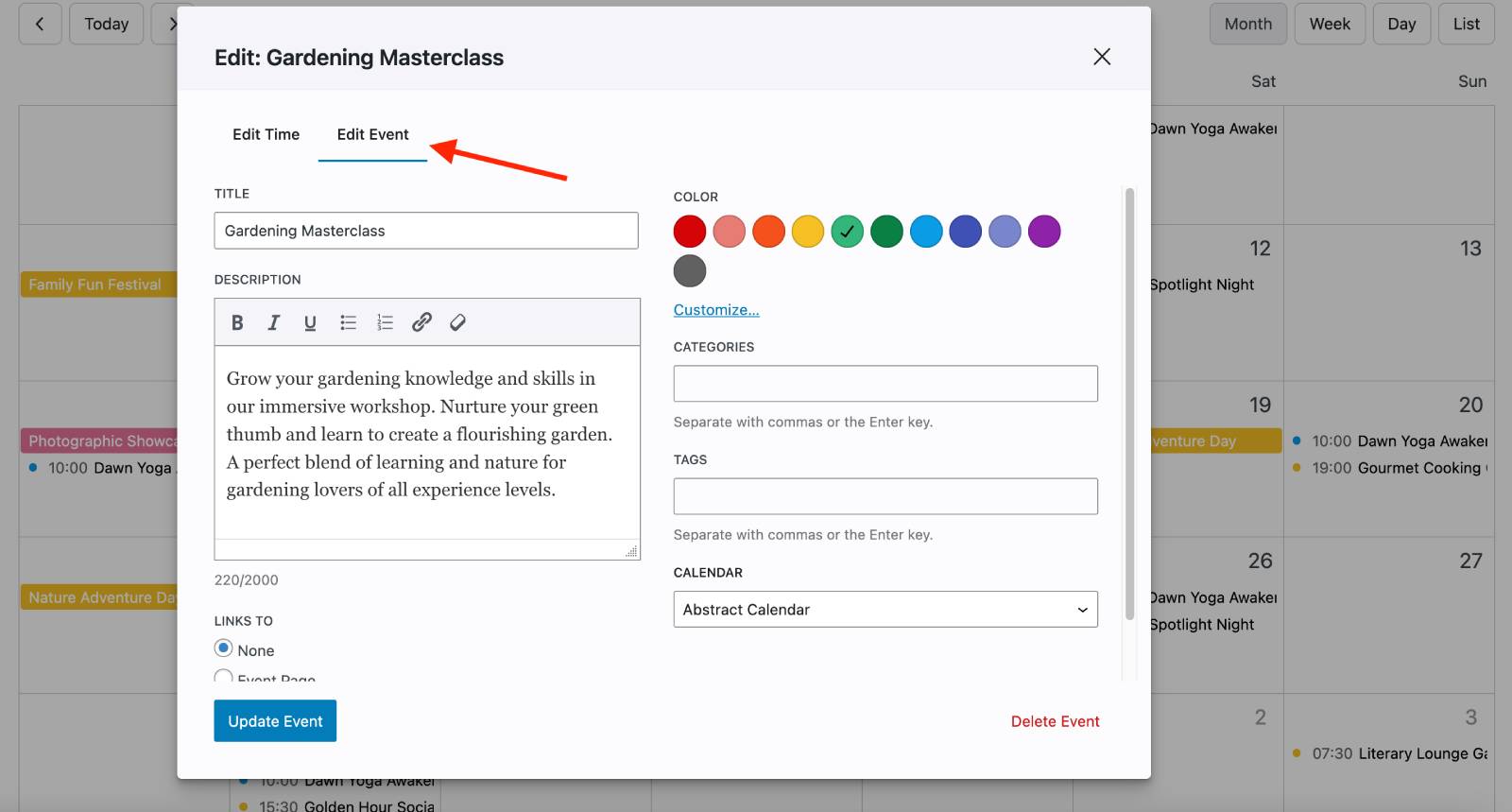
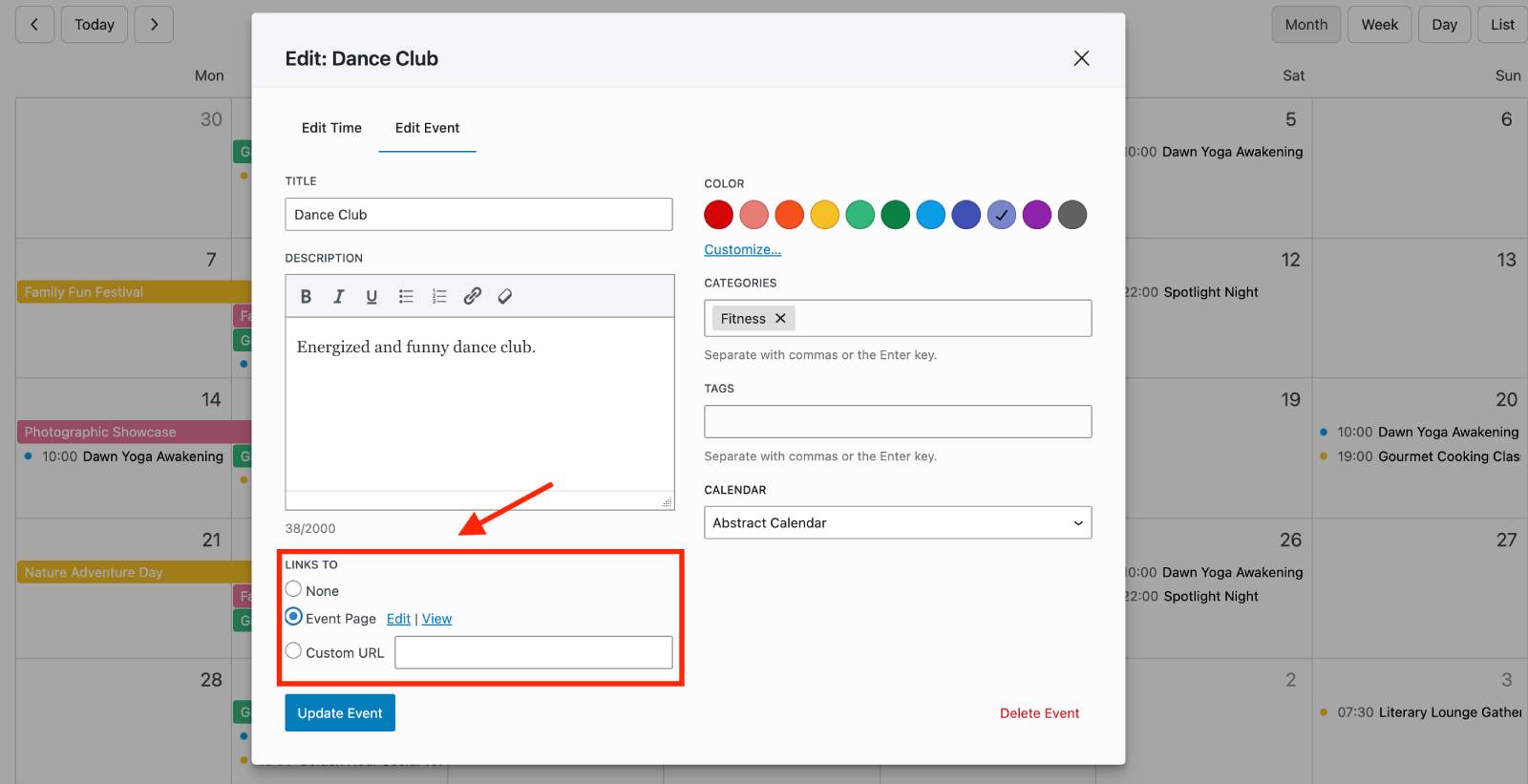
After opening the event editor, scroll down to the ‘Links to’ section.
Here you’ll find two available options:
- Event Page – opens a dedicated page on your website. You can click ‘View’ to preview it instantly on your site or click ‘Edit’ to jump to the event page in Gutenberg.
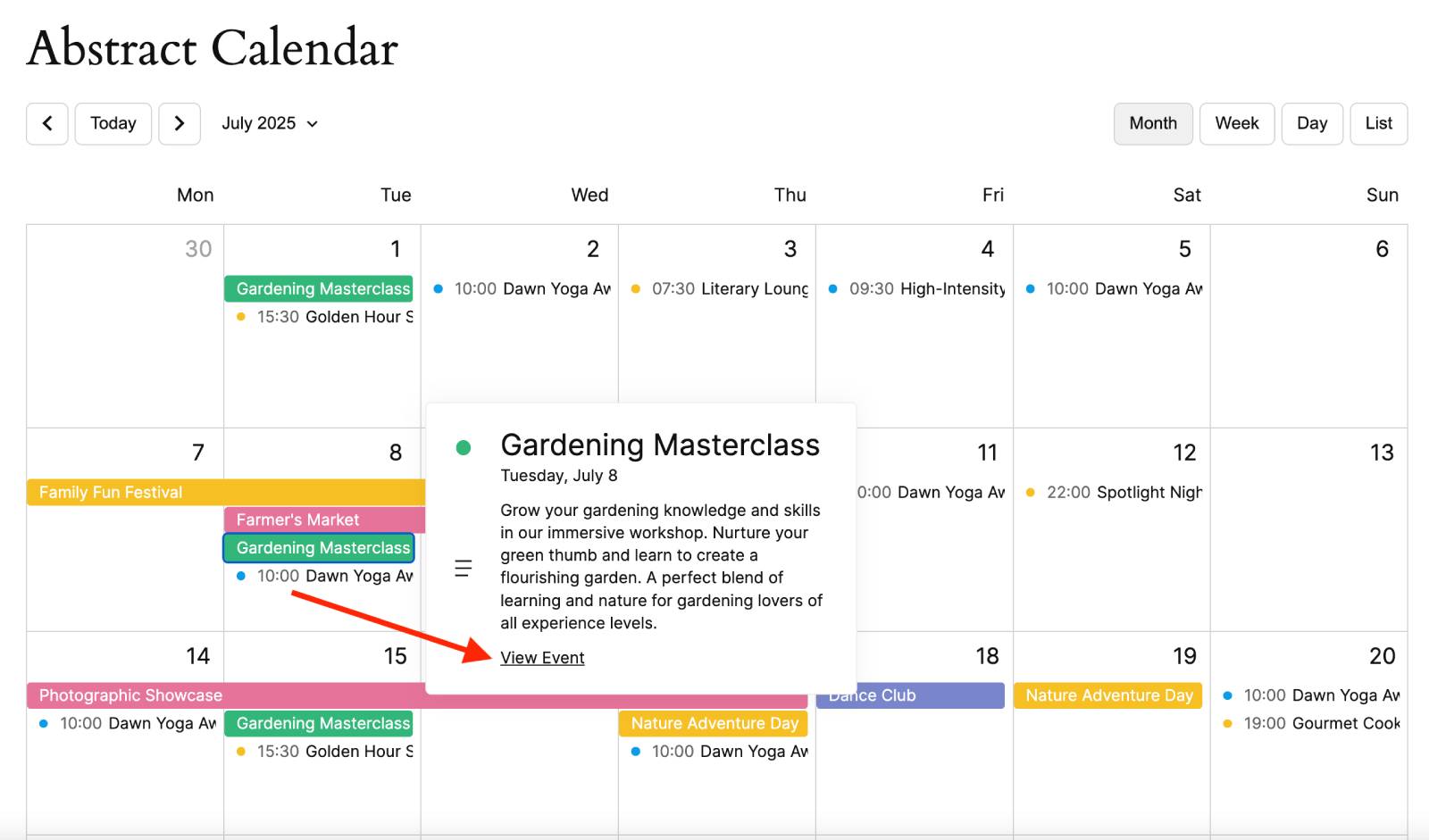
- Custom URL – clicking View Event under the event details in the calendar will redirect visitors to any external or internal URL you specify.
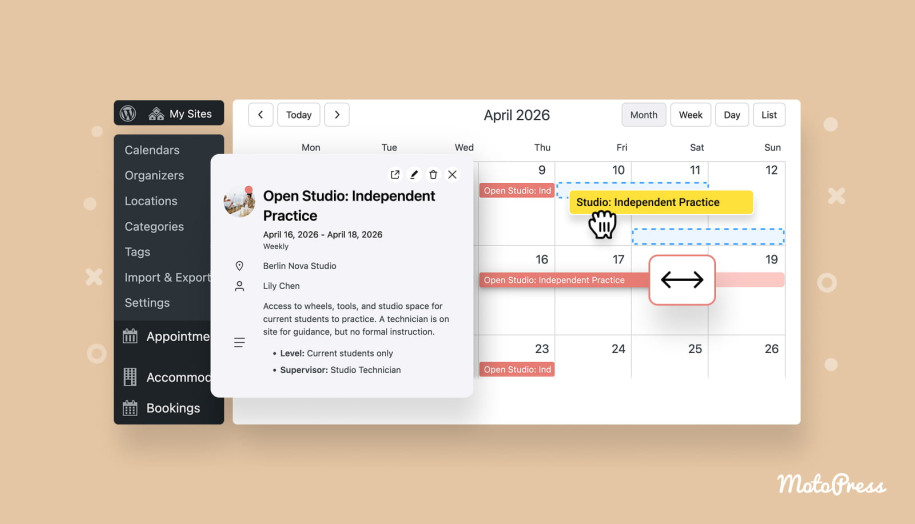
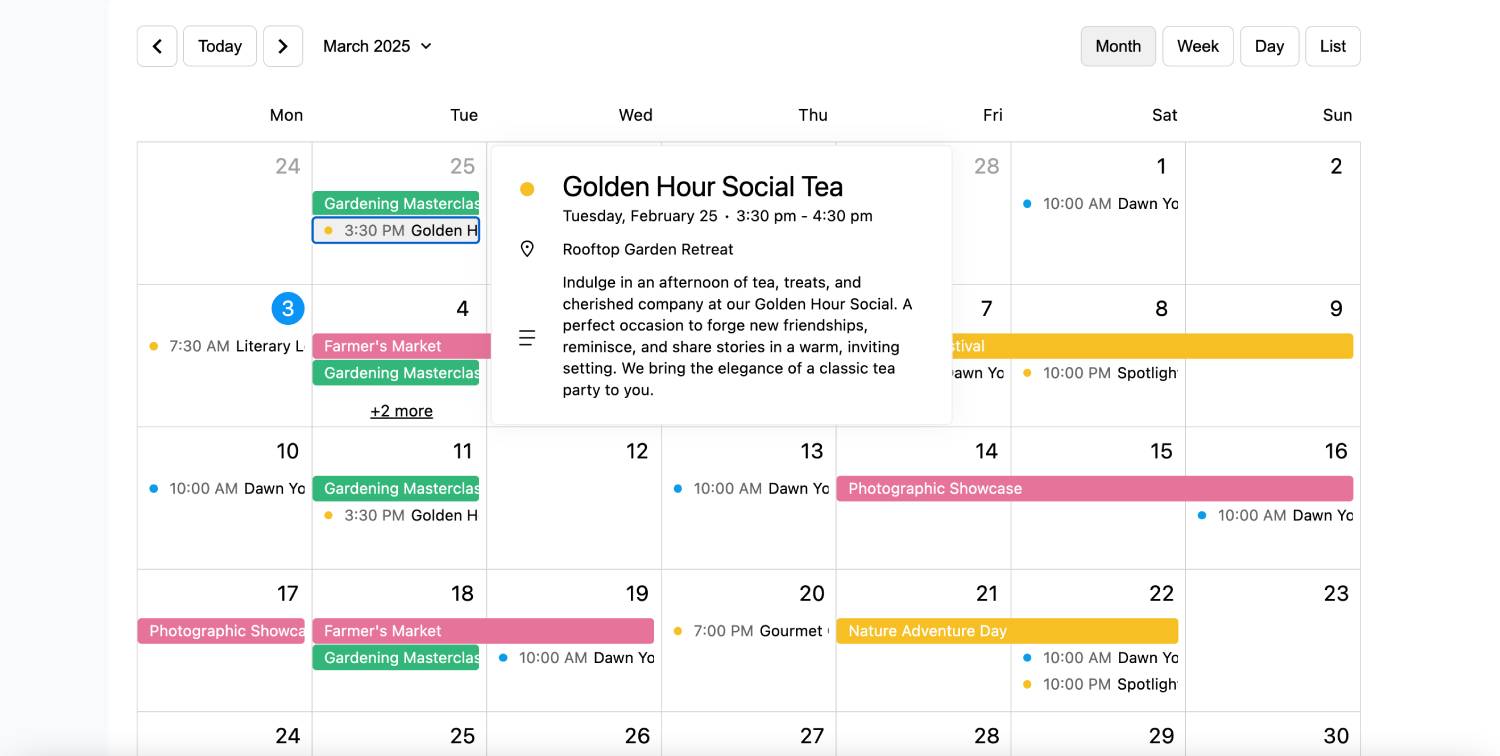
So, when visitors click on an event, they’ll see its information pop up.
If the event has a page or custom URL assigned, a View Event button will also appear inside the pop-up.
Which Display Option Should I Choose?
- Pop-up only – best for simple events that need minimal information.
- Dedicated Event Page – ideal for conferences, workshops, webinars, fundraisers, and other events that require more details.
- Custom URL – perfect when registration, ticket sales, or event information is managed on a third-party platform.
How to Add Any Event Widget to a WordPress Page?
With MotoPress Events Calendar, adding event widgets is straightforward.
- You should open the page or post where you want to display events, click the block inserter, and add the desired MotoPress Events Calendar block.
- Each event calendar widget for website includes its own settings panel where you can customize appearance, filtering, layouts, and displayed content.
- If you’re using another page builder or prefer shortcodes, the plugin’s shortcode builder allows you to generate shortcodes.
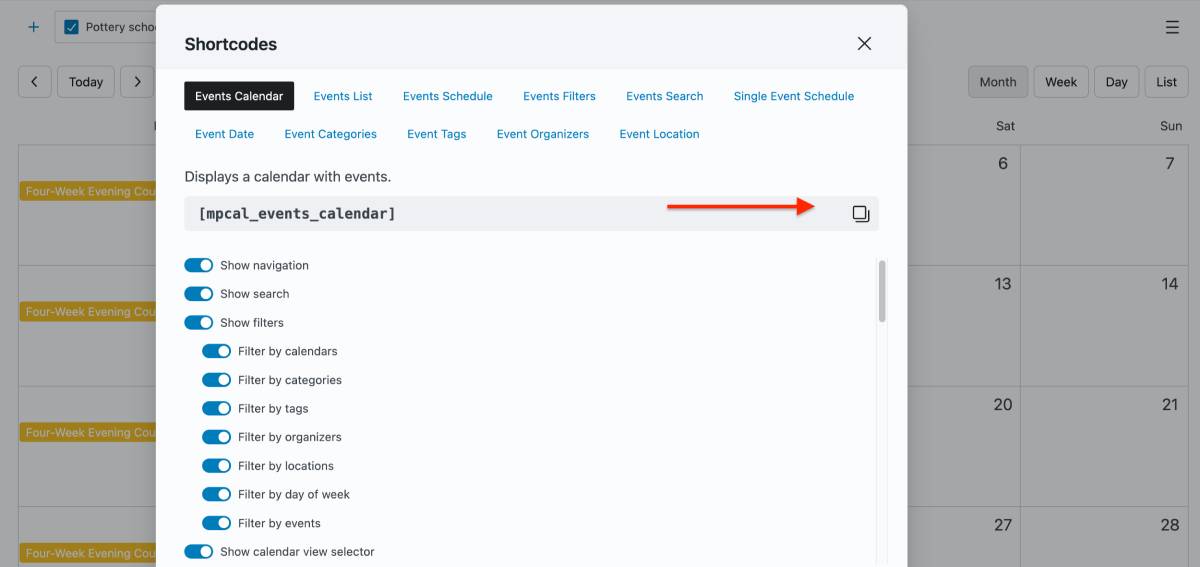
Read a detailed guide in the plugin’s documentation – Docs
8 Best Practices for Building Effective Event Pages

How do you organize and present your event information? Since it impacts visitor engagement, we’ve included some tips to create more effective event experiences.
- Combine any WordPress event calendar widget with Gutenberg Patterns: Use Gutenberg patterns, columns, groups, cover sections, and other layout tools. For example, you can place featured events in a grid layout or combine a calendar with testimonials and call-to-action sections.
- Use High-Quality Event Images: A picture is worth a thousand words. Strong visuals can immediately capture attention and help visitors identify events that interest them.
- Combine Calendars with Search and Filters: Search and filtering tools help visitors narrow down results and find the events most relevant to them.
- Organize Events with Categories and Tags: They let you group similar events and make filtering far more effective. For example, you might categorize events by type, audience, department, or location.
- Offer Multiple Ways to Browse Events: Some people like monthly calendars, while others prefer event cards or agenda-style schedules. Your event page design should provide multiple paths to the same information to accommodate different browsing habits.
- Create Dedicated Pages for Major Events: Event landing pages provide space for:
- Detailed descriptions;
- Speaker information;
- Event schedules;
- Venue details;
- FAQs;
- Registration forms;
- Media galleries.
- Keep Event Information Up to Date: Outdated schedules, broken registration links, incorrect locations, or outdated speaker information can erode trust and confuse. Regularly review event pages and calendars, especially for recurring events and long-running programs.
- Think Mobile First: Many users will discover your events on their phones. Before publishing your event pages, test how calendars, a selected WordPress event calendar widget, event lists, images, and registration buttons appear on smaller screens. Ensure that text remains readable, buttons are easy to tap, and layouts don’t become cluttered.
Final Thoughts
The best event websites do more than display dates on a calendar. They help visitors find events, explore schedules, and take action.
With the MotoPress Events Calendar plugin, you can choose from multiple event widgets designed for different purposes. The toolkit includes interactive calendars, visual event listings, compact agendas, and dedicated event pages.
Whether you’re managing a conference, church, school, community center, nonprofit organization, training business, or festival website, these widgets provide the flexibility needed to create a user-friendly event experience.
Try different layouts, combine multiple widgets, and build an event hub on your WordPress website!
FAQ
What is the difference between an event calendar and an event list?
Which event widget is best for recurring events?
Should every event have its own page?
How do I make a WordPress event calendar easier to navigate?
Can I use multiple event widgets on the same page?
What information should event display?
Are event landing pages good for SEO?