
Decide Which Events Show First on Your Calendar (MotoPress Events Calendar 2.3.0)
Table of Contents
In the latest version 2.3.0 of the MotoPress Events Calendar plugin, we’ve rolled out a few small but helpful UX updates: you can now use a custom default date instead of “today” for your calendar! This way, the site visitors see the events you want them to see first.
On top of that, you can remove any calendar view modes (month, week, day, or list) that don’t contribute to showcasing your events in the best possible way.
Now, let’s see how you can do that!
New feature #1: Default the calendar to the custom date
This makes sense when your business operates around specific, non-continuous, or future-focused schedules. This will also serve event calendars with seasonal openings, when you’re closed or inactive for part of the year. For example:
- Conferences, summits, expos
- Festivals or seasonal events
- Theater productions with a defined run
- Ski resorts
- Beach clubs
- Summer camps
- Holiday attractions.
So, if your festival starts on June 10 and the visitors land on your events page in April, showing April dates just creates empty states. Defaulting to June 10 immediately shows relevant content.
For example, I created a sample calendar that automatically shows ski resort events starting in December when visitors open the page. Even if they visit it in April – they see relative winter events right away!
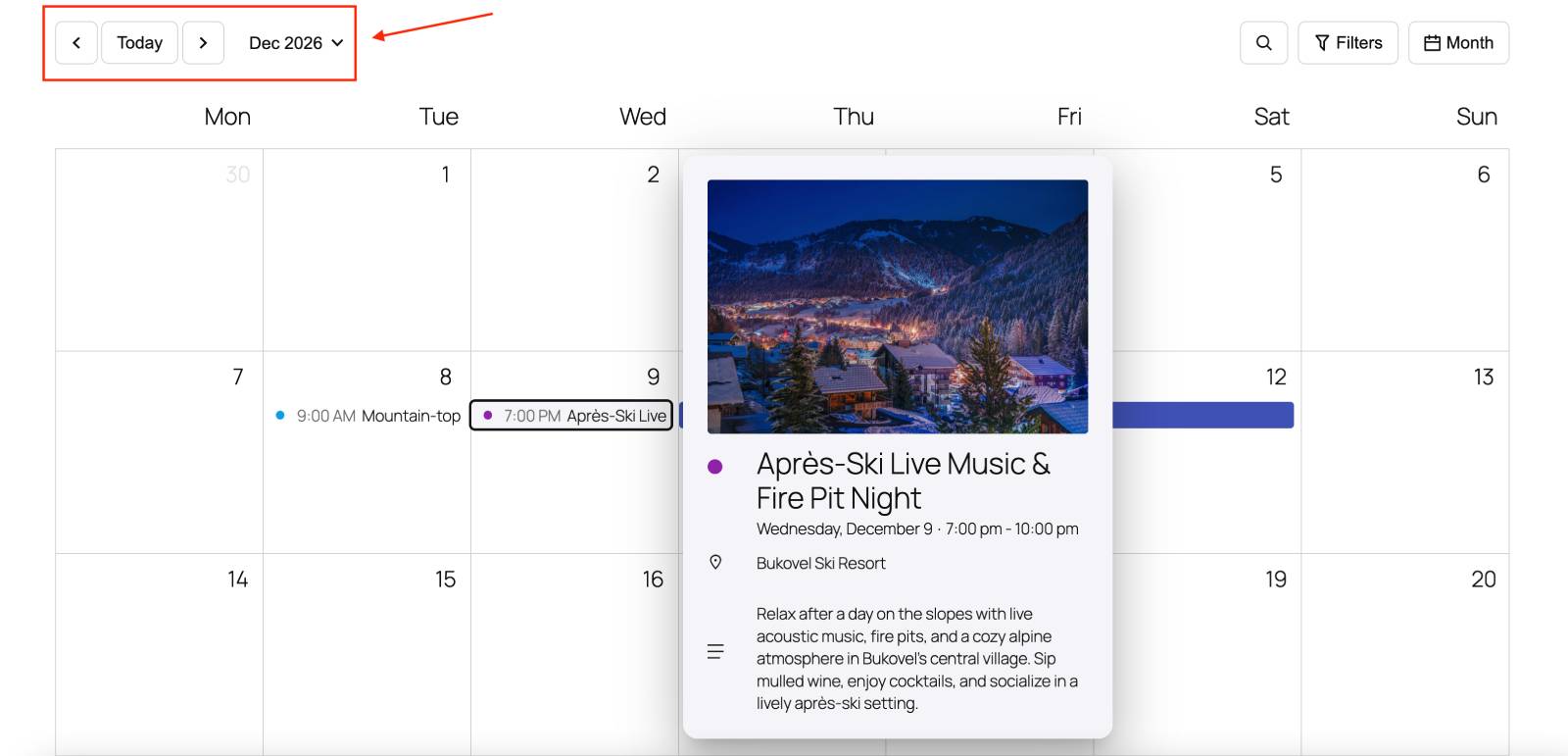
By the way, I really like how nicely the Twenty Twenty-Five theme (which I used for the screenshots in this article) works with the MotoPress Events Calendar plugin!
How to default the events calendar to the needed date & which blocks support this
It’s really simple – you can apply the needed display date as usual in the block settings in the WordPress editor.
So, go to the page where you have a calendar > then click on the block > find its Settings in the right panel > find the Start Date field > set up the custom date > update the page. The calendar will show events starting this date on the site!
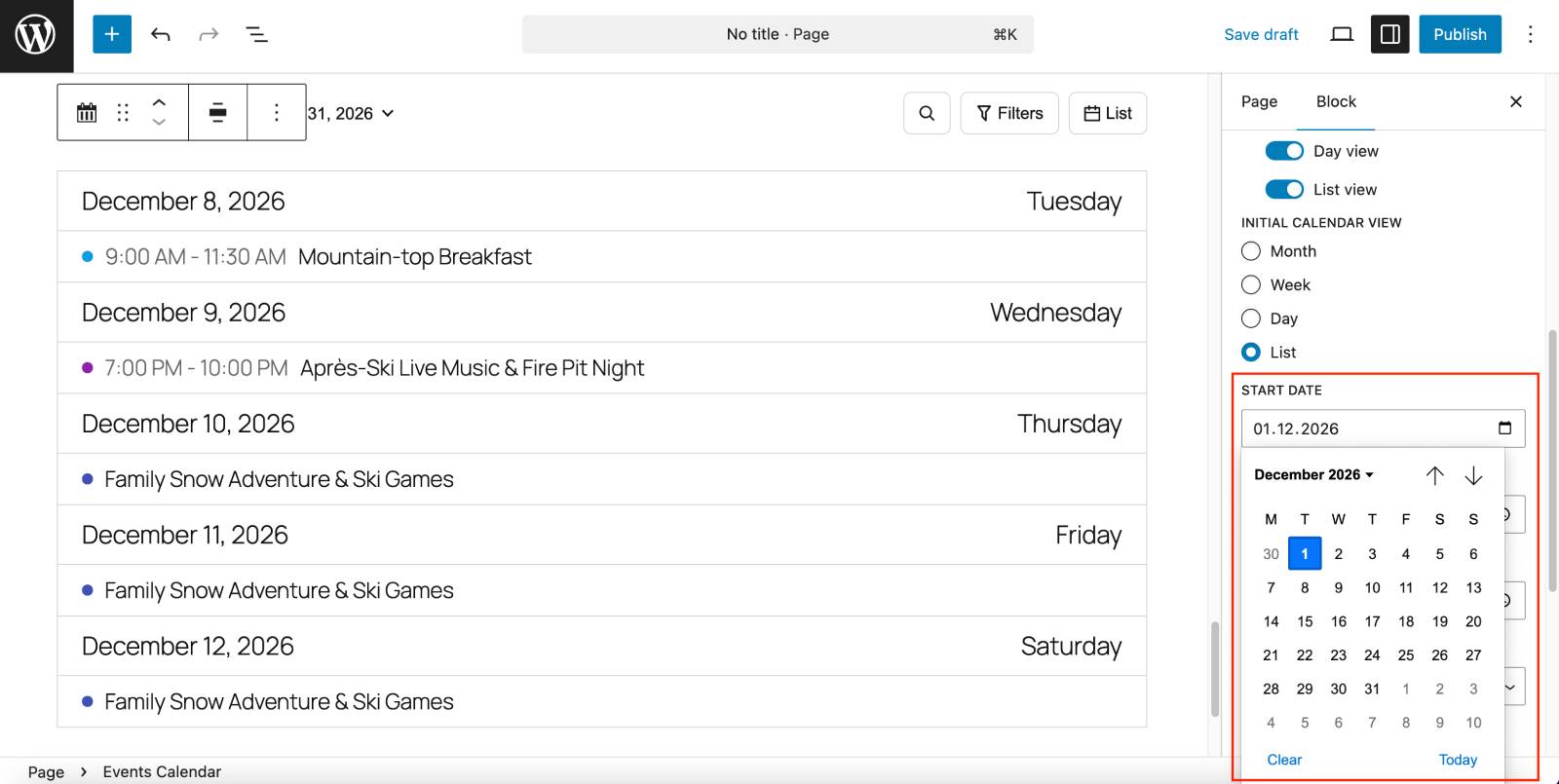
Which events calendar widgets / blocks can you also default to the custom date? Here is a full list:
- Events Calendar block (your events in a calendar or list view).
- Events Schedule block (shows a simple list of upcoming events).
- Events List block (a list of events with descriptions and images).
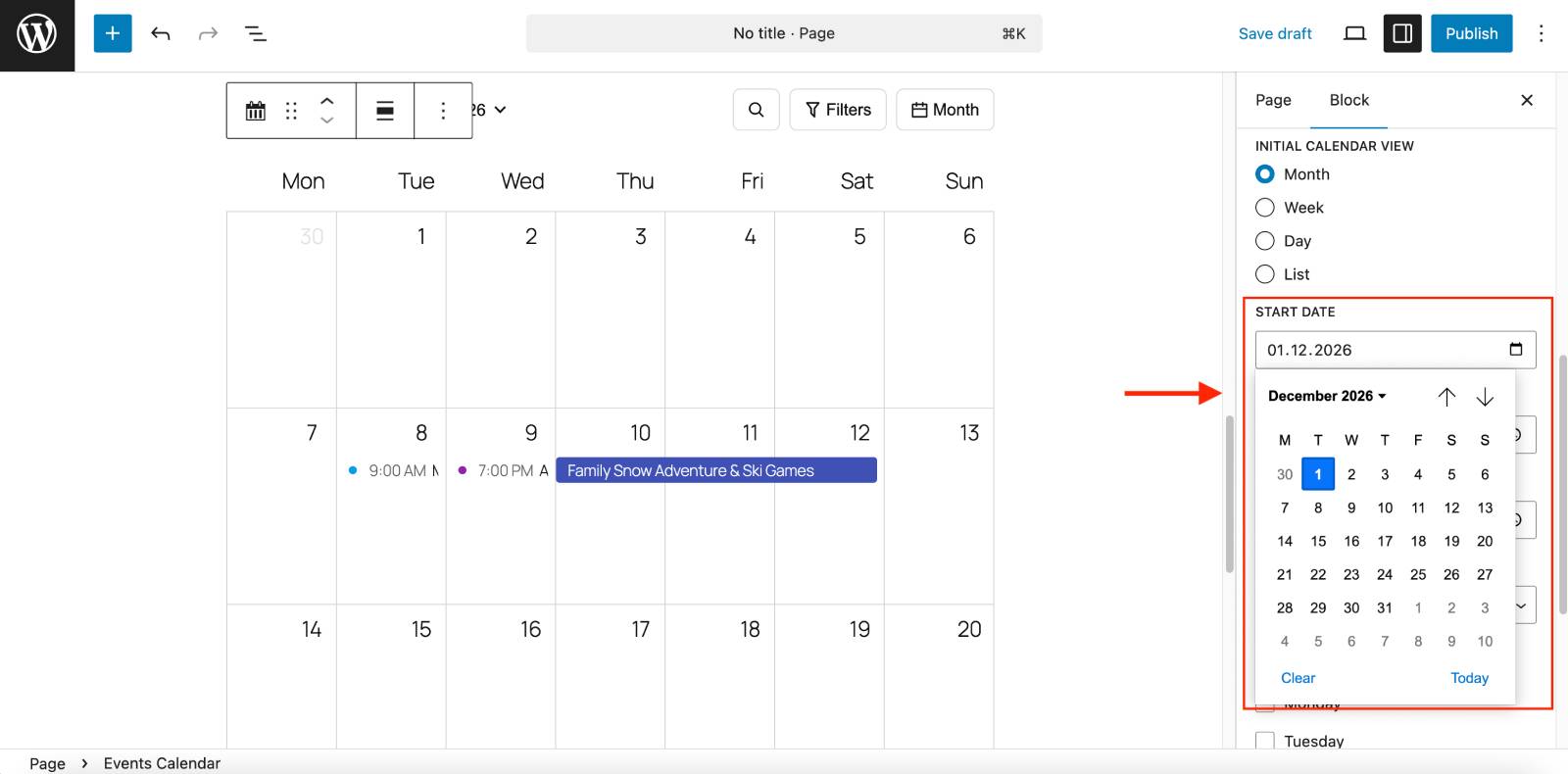
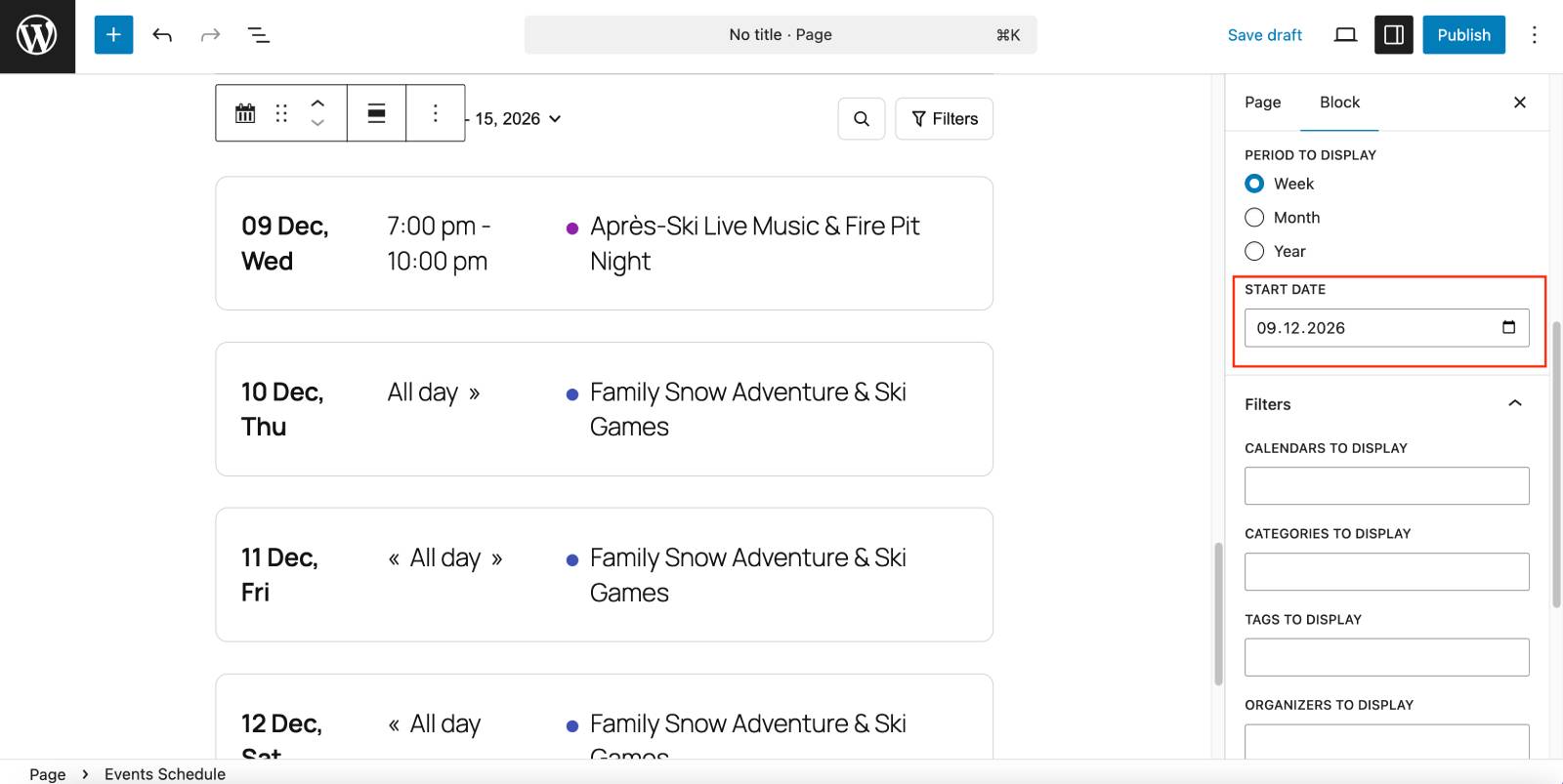
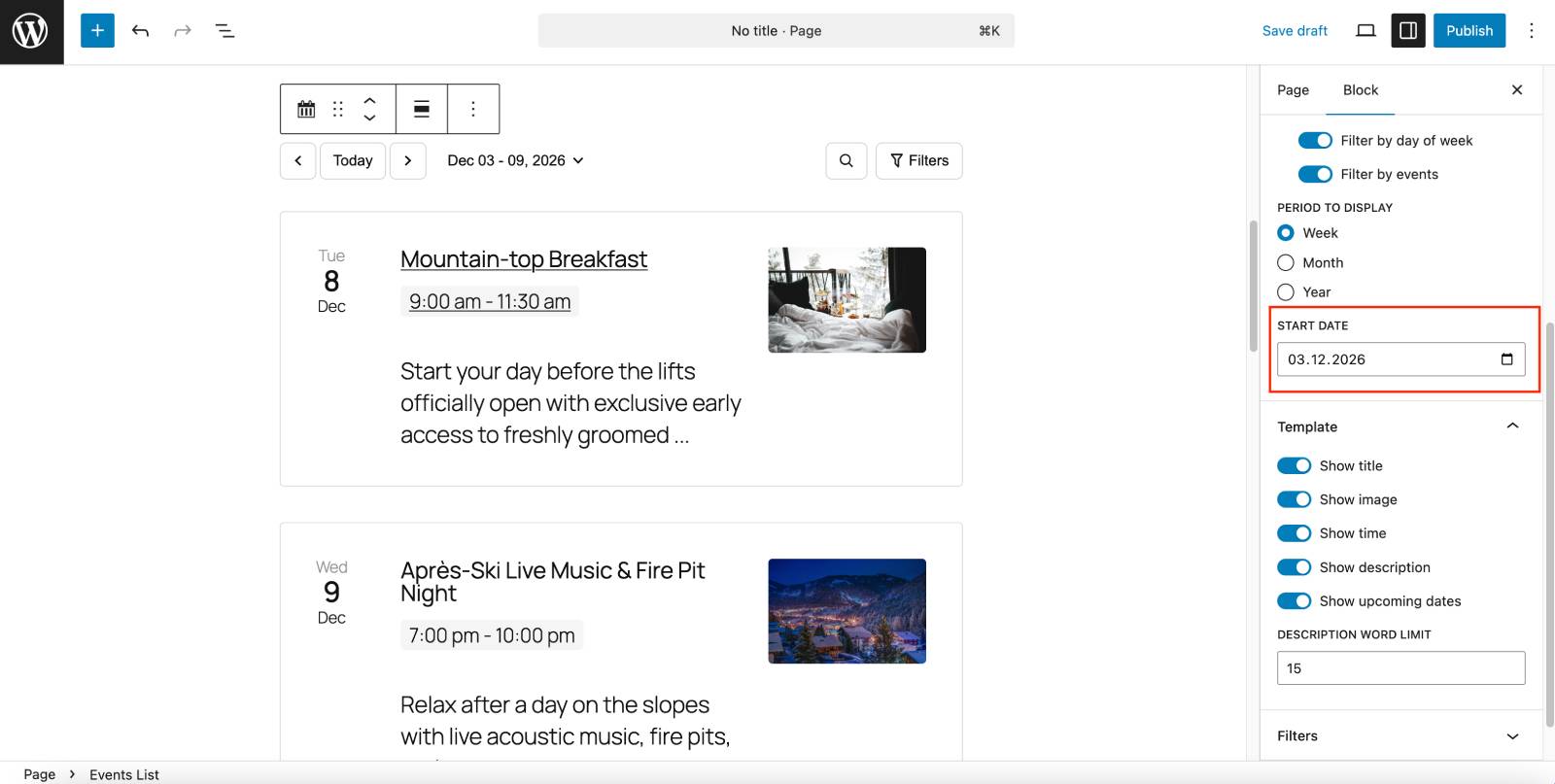
Basically, just place the needed block to the page, then find the Start Date field and pick the date in the calendar.
If you implement a custom default date, you want to try to make it more explicit. For example, on the page where you have a calendar, show a label like: “Showing events from June 10 (Festival Opening Day)”.
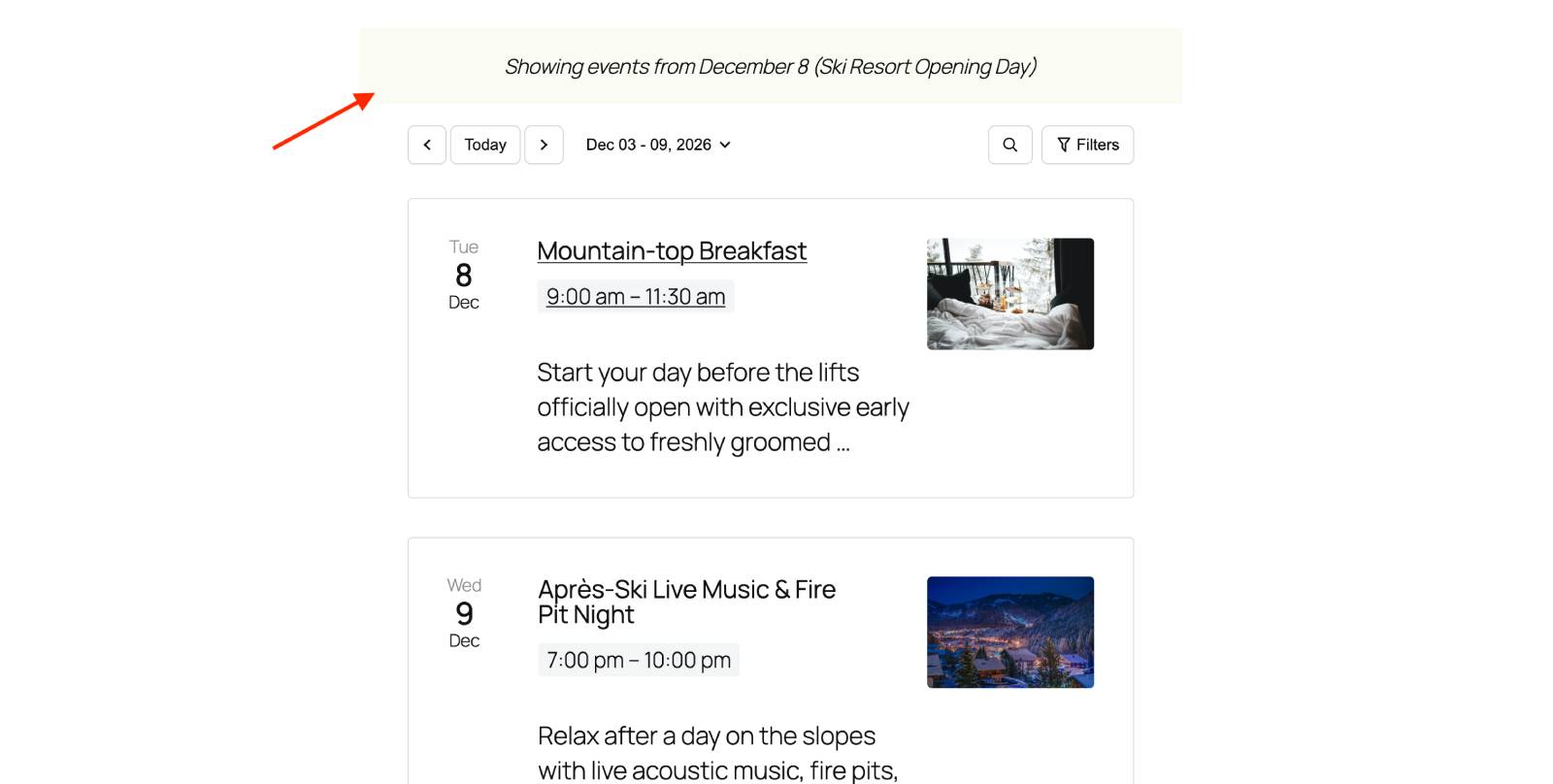
Also, there is always a clear “Today” button, which allows for quick navigation back to the current date, so no worries about the user’s experiences on your site.
New feature #2: Hide chosen calendar view modes
Some of you don’t need a view mode selector, e.g. if you operate a yoga studio and want to show a weekly schedule only, you may hide the rest of the modes that customers can normally choose – month, day, and list.
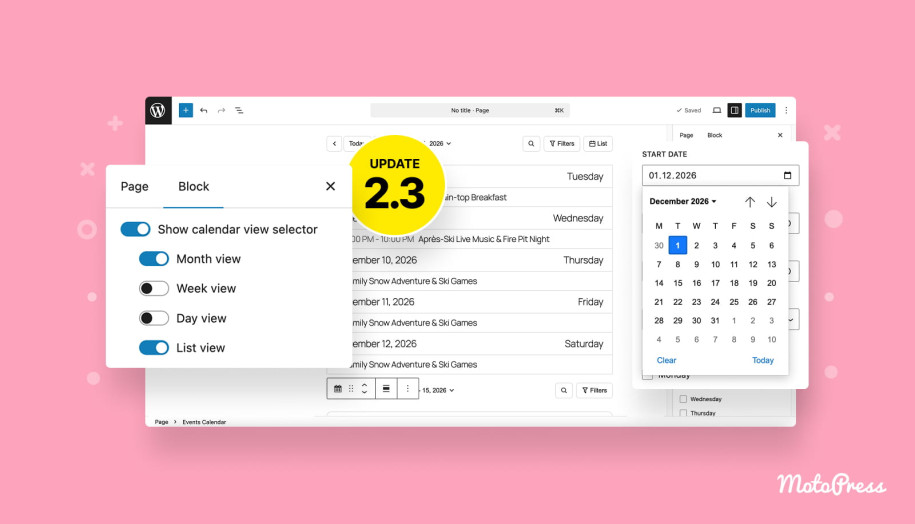
In this case, you basically choose the ‘initial calendar view’ in the block settings and then simply toggle off the ‘Show calendar view selector’. Optionally, of course, you may leave only the view modes you find suitable.
To set up your preferences, go to the calendar page where you’ve placed the Events Calendar block > go to Settings in the right panel > apply your options in the “Show calendar view selector”.
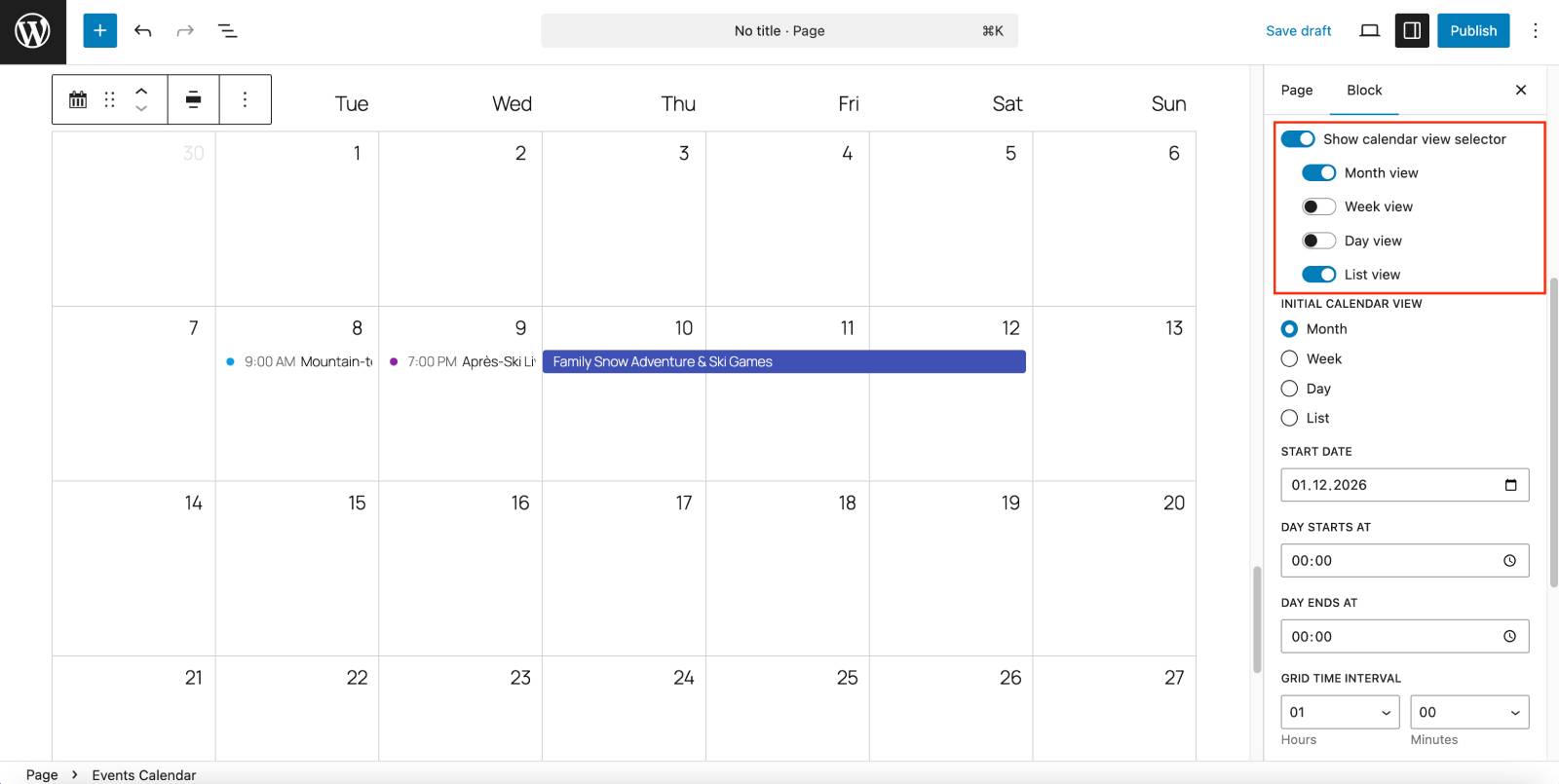
For example, I may leave only a few view modes:
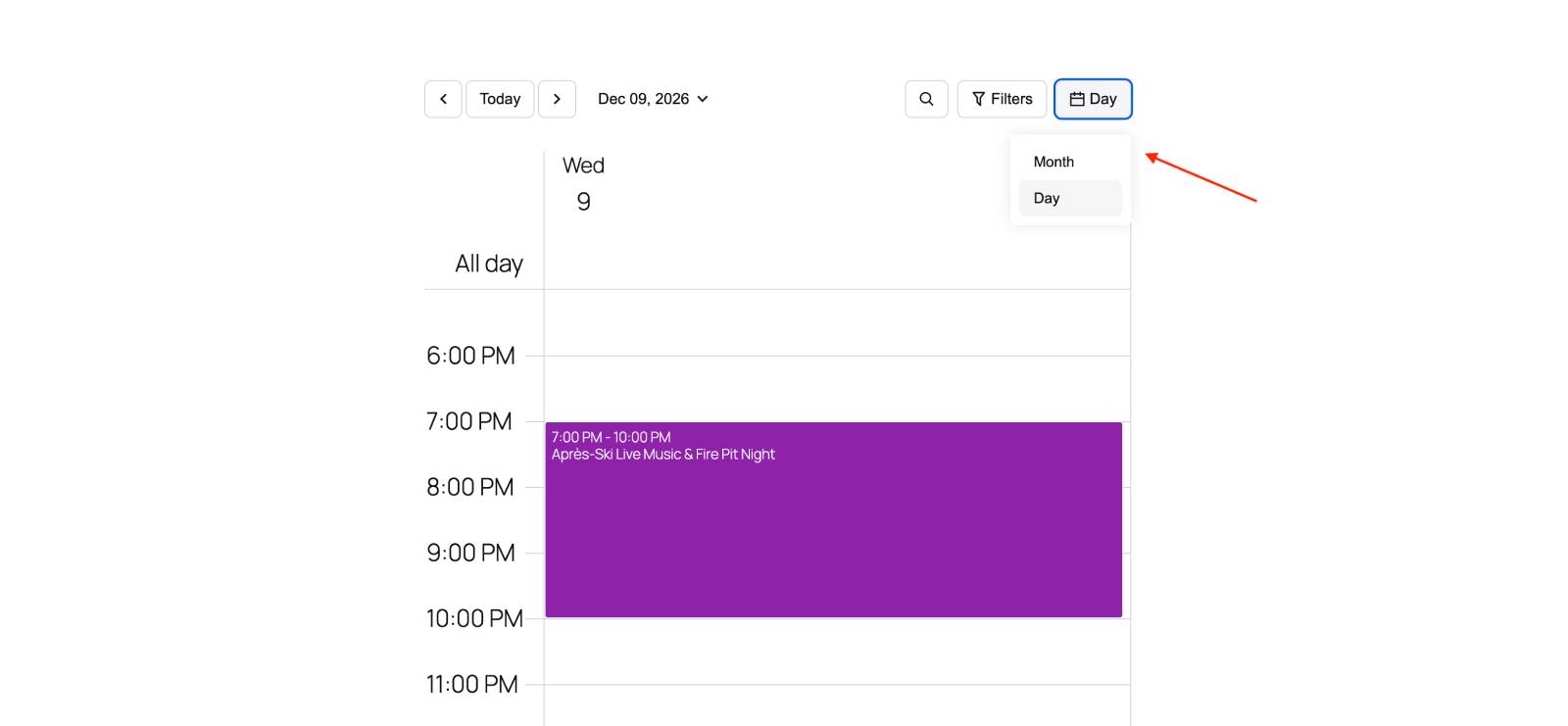
Toggle off the selector to completely hide a choice and only leave one more you need! This options is supported only in the Events Calendar block.
Concluding
So, what does all this mean in practice?
With version 2.3.0 of the MotoPress Events Calendar plugin, you get a bit more control over how your events are presented right from the first second someone lands on your site. You’re no longer stuck with showing “today” if it doesn’t make sense for your business and your key events are coming up far in the future. You can guide visitors straight to the dates you need.
Moreover, simplifying the calendar view helps you optimize your actual schedule, finding the best angle for displaying events. If you don’t need all those view options, you can just remove them and show your events in the format that works best for your audience.
All the preferences can be applied in a few clicks in the block settings of the needed event blocks!
Overall, these updates are small, but they make a real difference in how clear, relevant, and user-friendly your events calendar feels.