
Automate Direct Guest Messaging with the New Hotel Booking Add-on (+Early Bird Discount)
Table of Contents
We have a long-awaited addition to the MotoPress Hotel Booking extensions family: the SMS Messaging add-on.
For a limited time, the beta version of the add-on is available at a special introductory price while we evaluate its performance across countries and SMS carriers:
Message credits are purchased separately, starting at 1,000 credits for $10.
Think of the introductory discount as our little trade for your feedback 🙂
As you know, Hotel Booking already offers several ways to automate communication with your guests. The core plugin can send emails to guests and administrators when important booking updates happen, while the Notifier add-on also lets you create extra custom scheduled emails before or after arrival and departure.
Now we are extending these possibilities beyond email with automated SMS messages sent directly to a guest’s phone or your website administrator!
And a really great thing about the new add-on: you don’t need to create an account with a separate SMS provider or configure a complicated third-party integration. We’ve already taken care of the SMS service under the hood. You simply connect your email address from the plugin, verify it, add credits, and start sending notifications to the mobile phones of your guests.
So, if you’ve wanted to add direct guest messaging to your Hotel Booking website without having to set up another external service, this add-on is what you need.

What can you automate with the SMS Messaging add-on?
The primary job of the add-on is simple – keep guests informed about important reservation events without requiring you to send every message yourself (you can send these messages in addition to emails).
For example, you can automatically send an SMS when:
- Booking is confirmed.
- Booking is canceled.
- Payment is successfully completed.
- A certain number of days remain before check-in or check-out.
- A specified number of days have passed after arrival or departure.
You do need SMS for information that guests might need to see quickly. Hotel guest text messaging gives you another way to deliver short, time-sensitive updates straight to the phone number provided during checkout.
But such booking status alerts are only one part of it. You can also create your own notifications with completely custom content. For example:
- Check-in reminders.
- Door or lockbox instructions.
- WiFi information.
- Directions to the property.
- House rules.
- Checkout reminders.
- Local event information.
- Special offers.
- Review requests.
That means the add-on can work both as a practical reservation notification tool and as part of your vacation rental sms marketing strategy!
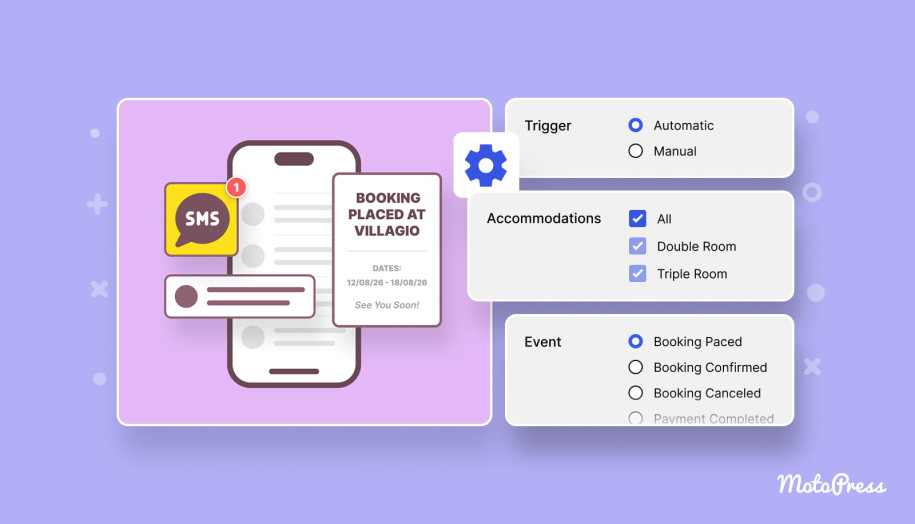
You can create as many SMS notification types as you need and decide whether each one should be sent automatically or manually.
We hope direct guest messaging helps you with predictable communications that can run on autopilot and for situations where you want to decide yourself when a particular message should go out – and send it with a click from the Bookings menu.
Send SMS based on booking dates
For custom automated notifications, you can decide exactly when a message should be sent in relation to a guest’s stay.
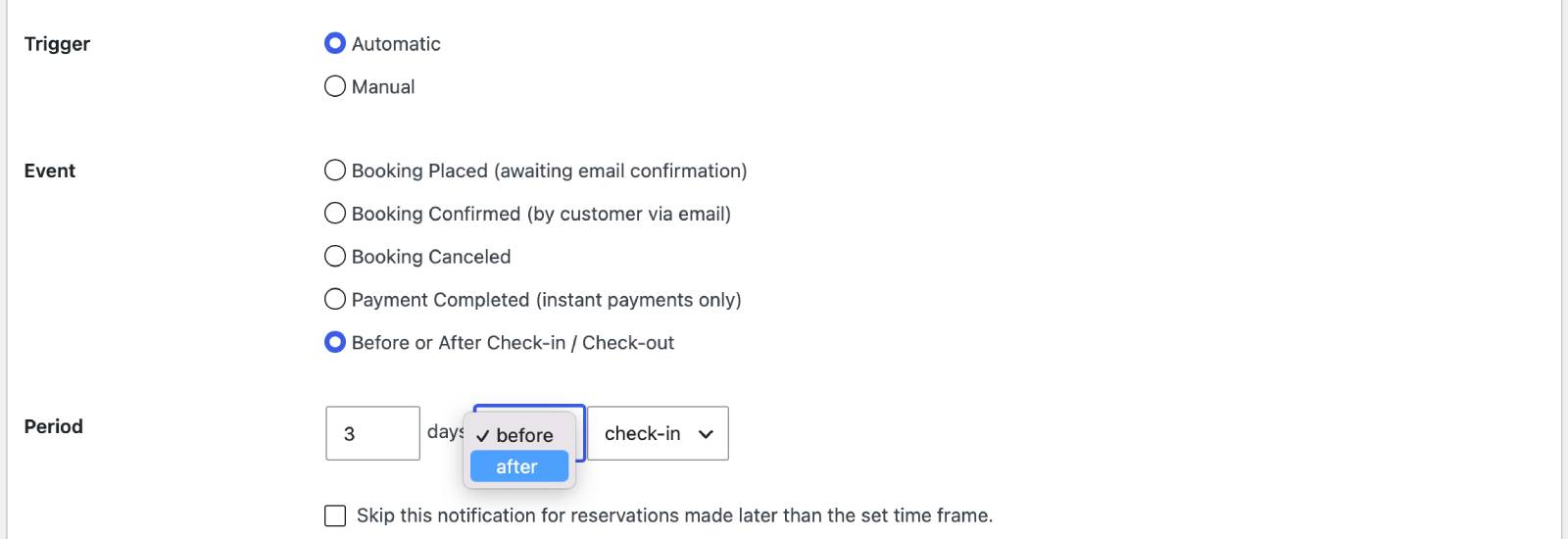
For example, you could create:
- An arrival reminder 3 days before check-in.
- Door access instructions 1 day before check-in.
- A checkout reminder on the day of departure.
- A thank-you message 1 day after check-out.
- A review request 3 days after check-out.
You can fully create an automated guest messaging workflow because you can build your communication flow once and let Hotel Booking handle the timing for upcoming reservations.
You can also send notifications manually (automation doesn’t take full control from you).
All the notifications you created can be sent either with an automatic trigger or if you need to do that for a particular booking right now, you can do that with a click.
Send payment confirmation SMS
If your Hotel Booking confirmation mode is based on payments, your messages can also be sent on successful ones. It’s when a reservation becomes confirmed once the required payment has successfully gone through on your website.
You could therefore send a simple vacation rental sms such as:
“Payment received. Your booking is confirmed. See you!” (keep it as short as possible for the minimum number of credits to charge your balance). However, the actual text is completely up to you.
If you use other confirmation modes, it’s also fine – there is no single message that fits everyone. You can customize your SMS content according to your own booking workflow, whether you want to emphasize the payment, booking confirmation, arrival details, or another next step.
Send messages to guests or the administrator
Smooth guest messaging is the primary goal of this add-on but you can also update your staff/yourself. When creating a notification, you can select the recipient depending on its purpose. This can be the guest, the administrator, or both.
For example, guests can receive arrival instructions while your administrator receives an internal notification related to the reservation.
Please note that you can add one administrator phone number in the add-on settings. This number can also be used when testing your notifications before sending them to real guests.
Your hotel guest mobile messaging is fully under your control because the same add-on supports guest communication and important internal alerts.
How you can customize every SMS
There are a few ways you can customize your messages in addition to the actual text content that suits the context.
Customize with real booking details
Along with the text message, you can insert tags that Hotel Booking automatically replaces with information from the associated reservation.
There is a list of available tags for dynamic information, so you may simply let the plugin fill in the correct value when the notification is generated. For example, your messages can contain relevant booking or customer information while still using one reusable SMS template.
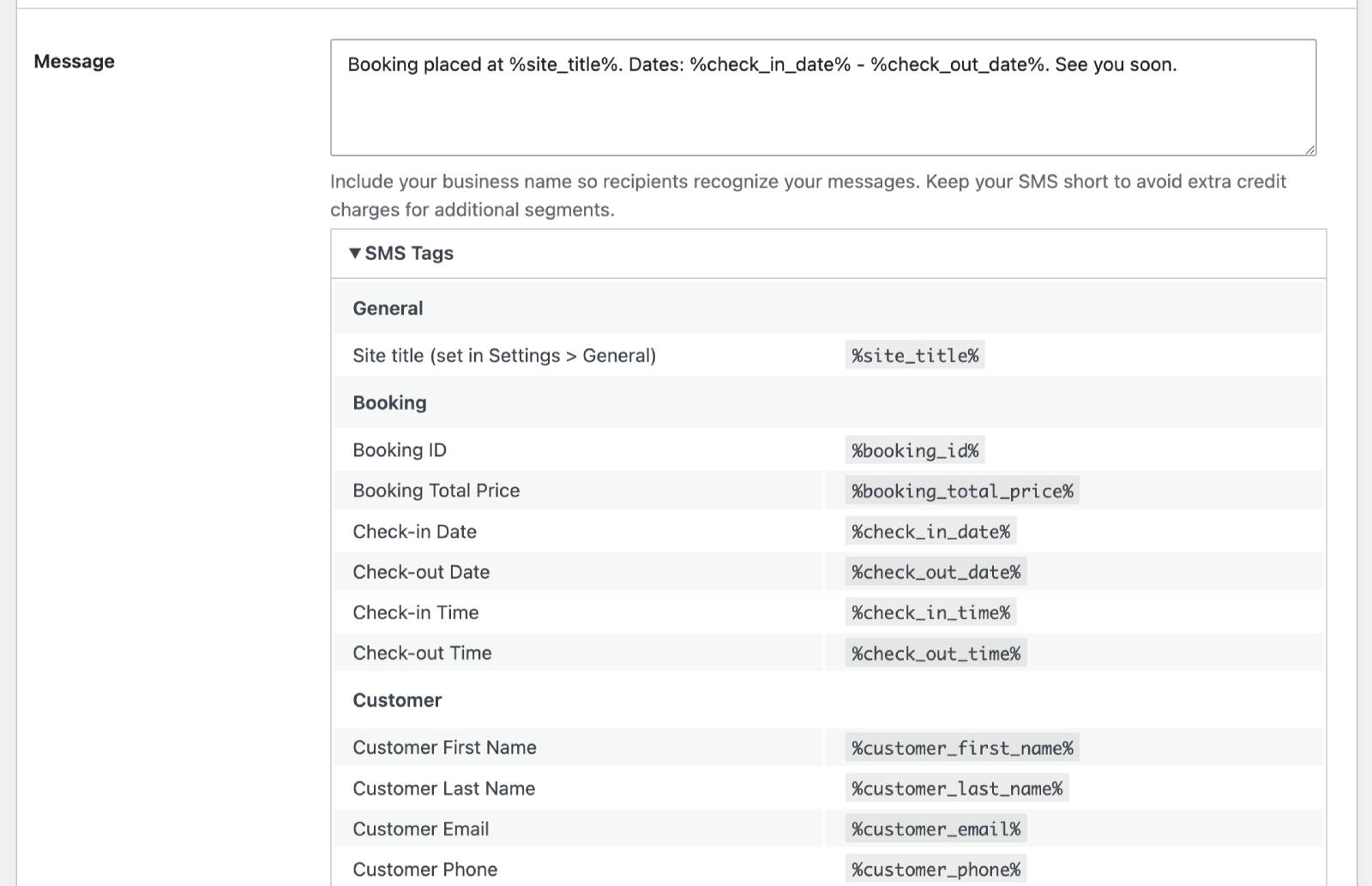
This is one of the biggest advantages of direct guest messaging tied directly to your booking plugin: messages can use the information Hotel Booking already has instead of requiring you to copy reservation details into another platform.
For those researching a guest messaging service for vacation rentals, this direct connection between reservations and notifications is a cool boost to the daily workflow.
Create different SMS content for individual accommodation types
There is another accommodation-based level of customization for your SMS. Use it when you want to send the same type of notification but include different information depending on the booked accommodation.
If you need vacation rental guest messaging support for multiple rentals without creating completely separate templates for each one, this is a great solution.
Door codes are a perfect example. Imagine that every guest receives a check-in SMS, but:
- Property A uses door code 1245.
- Property B uses another code.
- Property C requires different access instructions altogether.
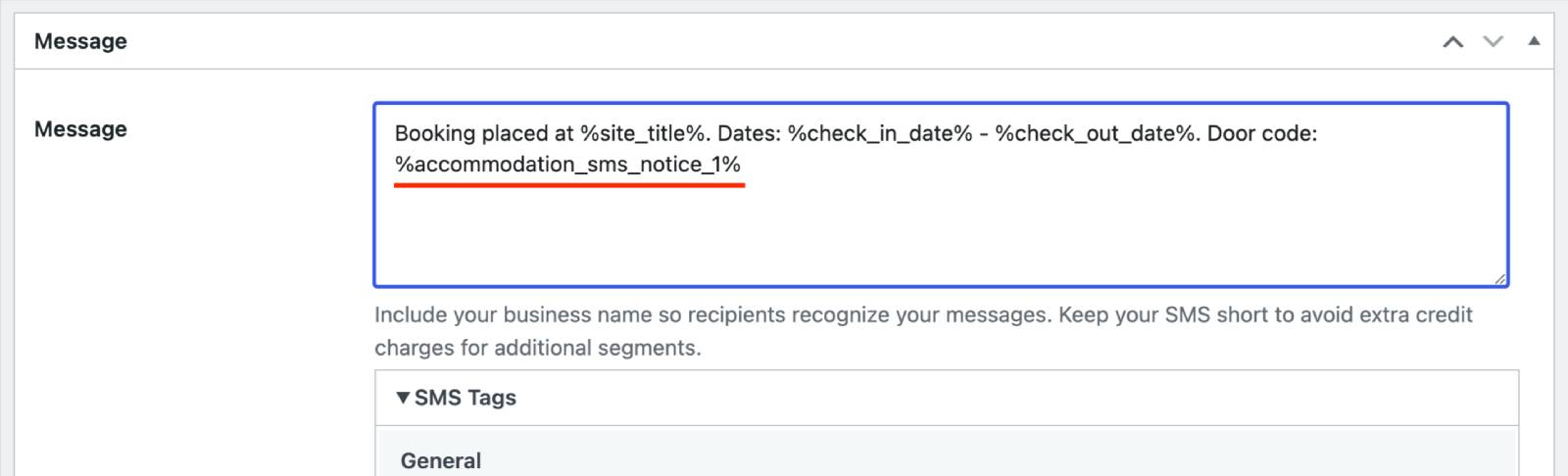
For this, you may simply add different details for the same notification by going to Accommodation → Accommodation Types → your accommodation type → SMS Notification Customizer.
Here you can add custom information to the SMS Notice 1 and SMS Notice 2 fields.
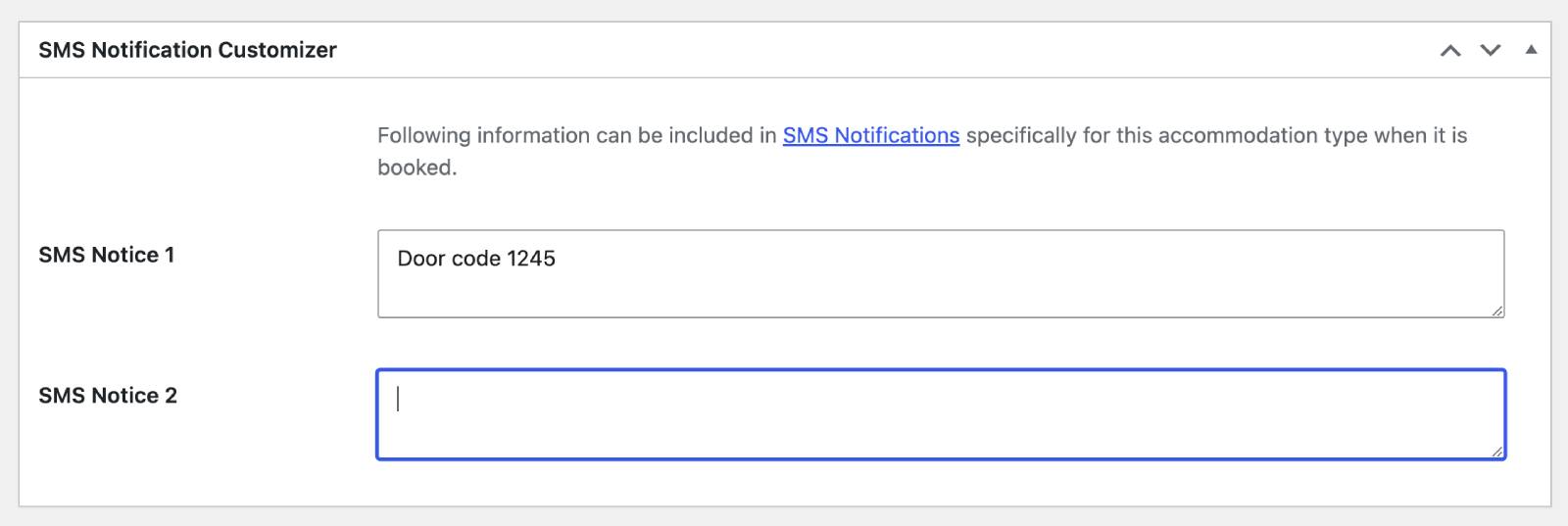
Then, to have this property-specific information in the SMS content, your SMS template should simply contain the respective tag: %accommodation\_sms\_notice\_1% or %accommodation\_sms\_notice\_2%
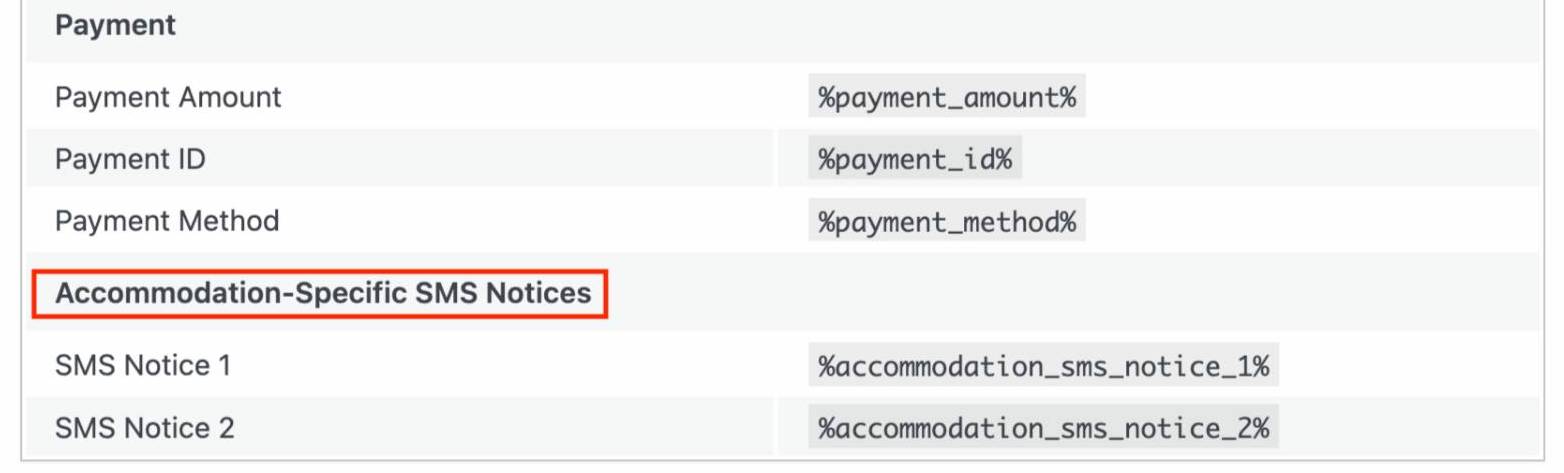
It follows a similar idea to the property-specific notices available with the Hotel Booking Notifier add-on: one common notification can automatically contain different details accommodation-wise.
Choose which properties receive each SMS
When creating an SMS notification, you can choose whether it applies to all accommodation types or only selected ones.
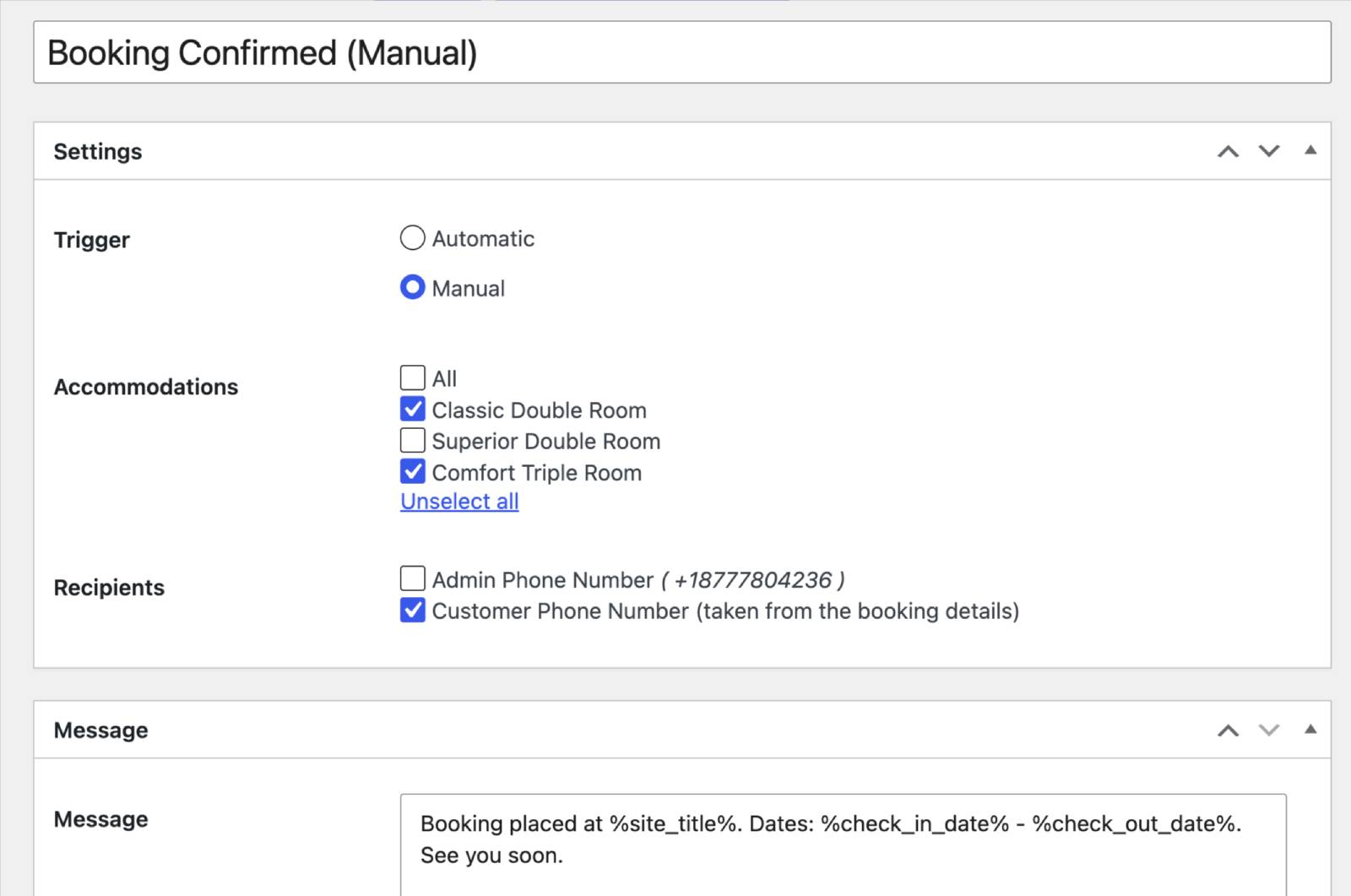
Suppose you manage five vacation rentals but want to implement SMS communication step by step. You can initially enable it for one or two properties while continuing to use your regular Hotel Booking emails for the others.
Or perhaps one property requires detailed arrival instructions because it uses self-check-in, while another has a receptionist who handles everything in person.
You can create different communication approaches for both.
And if you simply want every property to have several communication channels, nothing prevents you from combining Hotel Booking emails, scheduled Notifier emails, and SMS notifications.
For property managers comparing different guest messaging software, this flexibility is important.

How to get started with the SMS Messaging add-on
If you want to get a better idea of how it all works, there are just a few steps after you installed and activated the add-on.
1. Activate your license and connect your email
Open the SMS Messaging settings under Hotel Booking → Accommodation → Settings → Extensions → Messaging → and add your add-on license key → Save changes.
Next, enter the email address you want to associate with the SMS service (click ‘Connect’ for that).
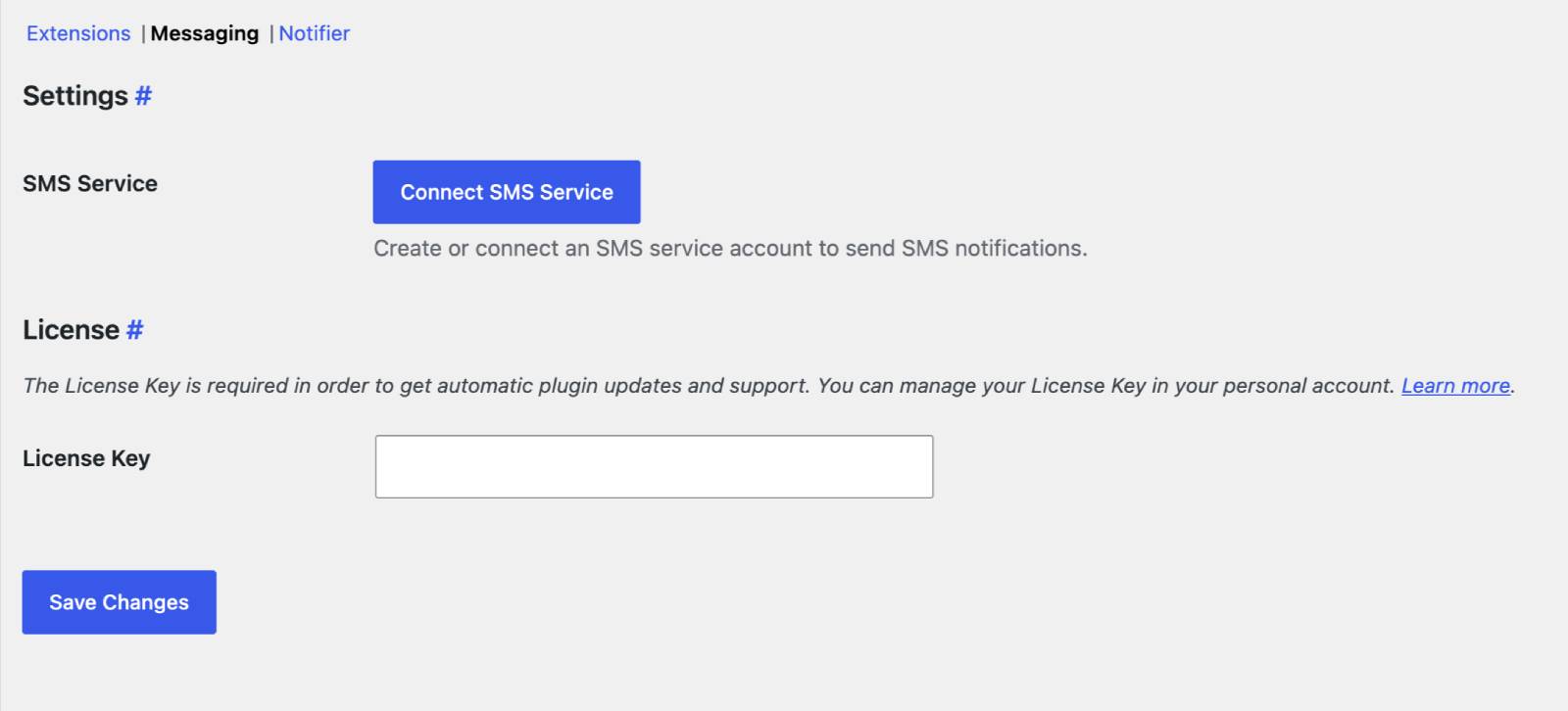
This is the only registration-like step required to connect your website to the service we use behind the scenes. You don’t need to separately sign up with an external SMS provider.
A verification message will be sent to the email address you entered. Confirm it, and your SMS account will be connected.
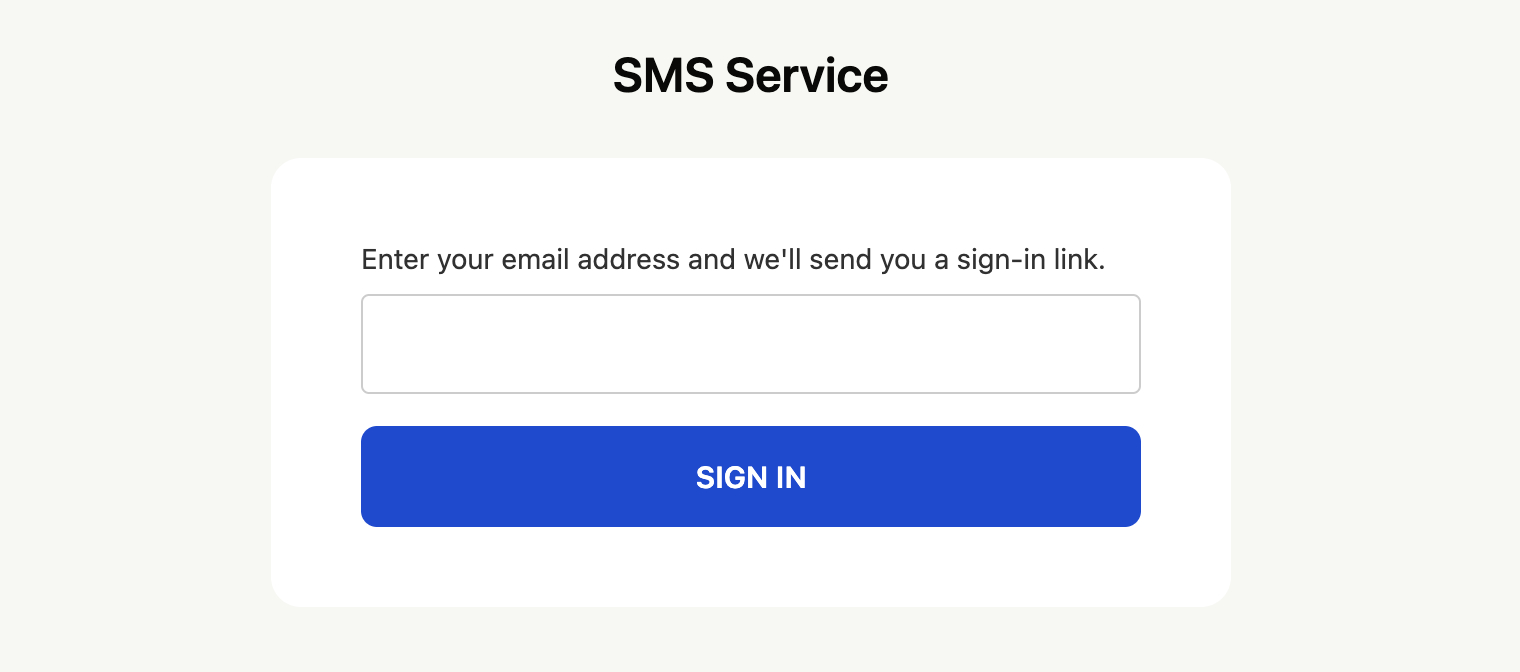
If you’ve previously looked for an SMS plugin for WordPress for the booking needs, but didn’t want to register with and configure another messaging platform, great, our plugin solves that for you.
2. Buy SMS credits
SMS sending is credit-based, so you’ll need to add credits to your balance before automatic notifications can be delivered.
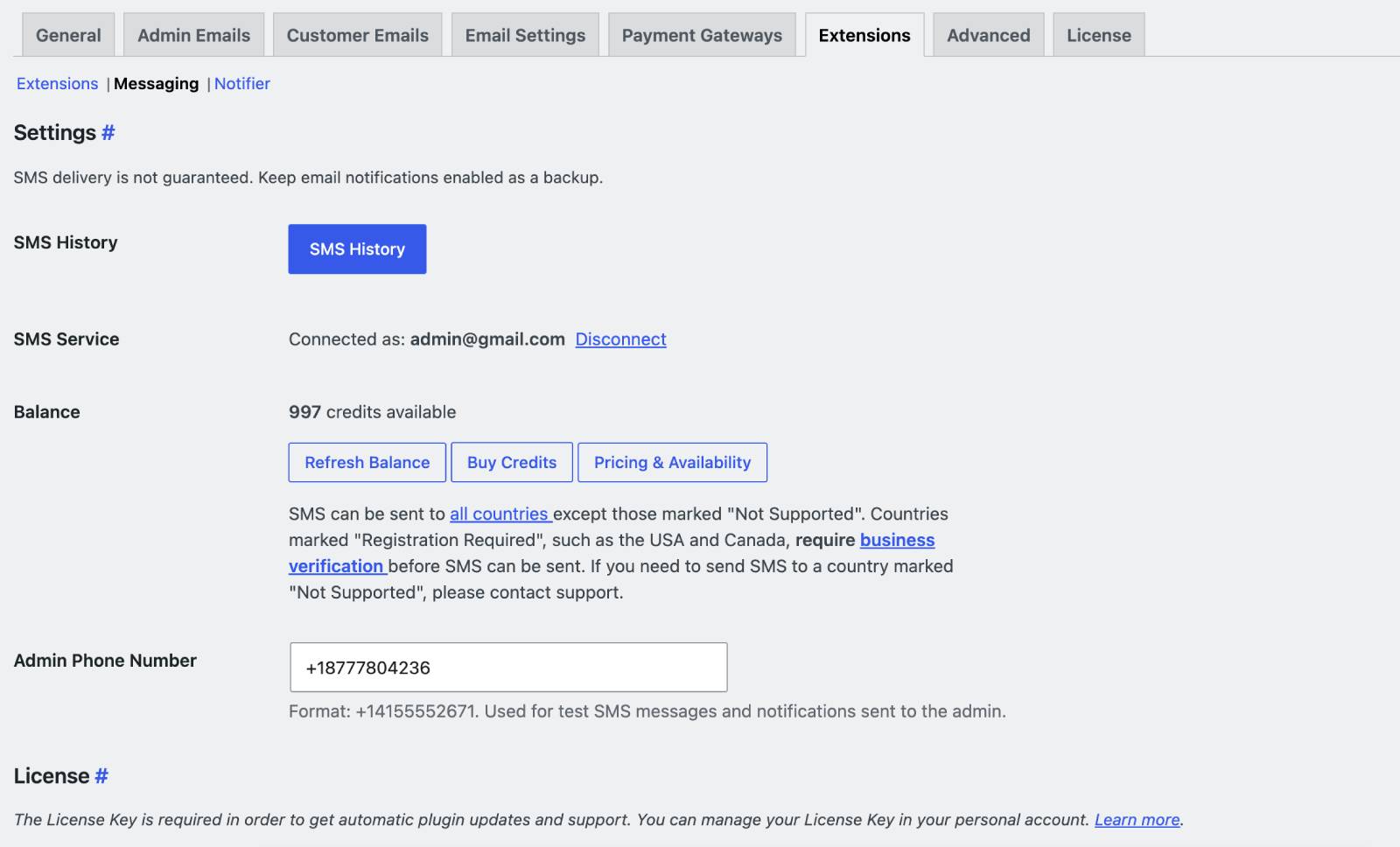
Click ‘Buy Credits’ from the add-on settings and choose a package. The currently available packages are:
- 1,000 credits – $10
- 2,700 credits – $25
- 5,500 credits – $50
Credits can be purchased through our platform using a credit card or PayPal.
It’s important to understand that one credit doesn’t necessarily equal one complete SMS.
The actual number of credits charged are influenced by the destination, message length, delivery conditions, and other things.
3. Add an admin’s phone number
An administrator phone number if you want to receive SMS notifications yourself. Or, you may simply use it to send test SMS messages.
4. Create an SMS notification
You may add any number of notifications you need. For this, go to Bookings → SMS Notifications → Add New.
For each notification, you can:
- Choose whether it is automatic or manual.
- Choose sending rules (a trigger).
- Select the recipient.
- Write your SMS content.
- Add available dynamic tags.
- Select which accommodations it applies to.
For an automatic notification, also select the booking event or date-based condition that should trigger the message.
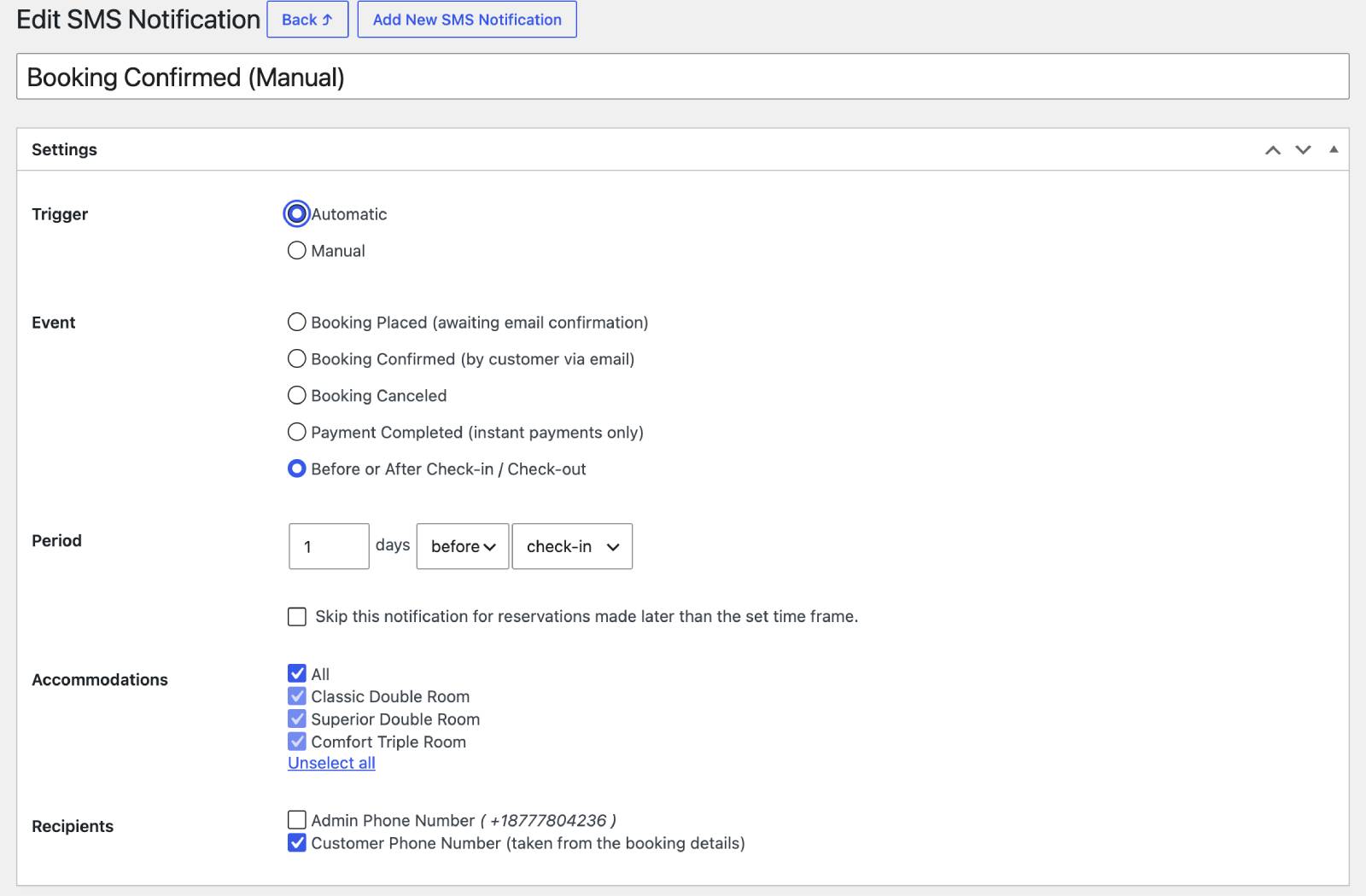
For example, you might create one notification triggered by booking confirmation and another scheduled for two days before arrival.
This transforms the extension from a simple WordPress SMS plugin into a messaging system connected specifically with your Hotel Booking reservations.
5. Add property-specific content if needed
If some properties need unique instructions (a door code, property contact), open the required accommodation type and find:
SMS Notification Customizer → SMS Notice 1 / SMS Notice 2
Add the information that should be unique to this accommodation and then insert the SMS Notice tags into message templates (those that you add via SMS Notifications menu).
6. Send a test SMS
Before enabling an important notification for guests, we recommend sending yourself a test.
Add your administrator phone number and use it to verify:
- Message text.
- Formatting.
- Dynamic information.
- Sender details.
- Message length.
- Approximate credit usage.
Keep in mind that test messages consume credits, and failed delivery attempts may also use them. After testing, you can open SMS History to review the result, in particular, how much you were charged.
How much does sending SMS cost?
This is probably one of the first questions you’ll have, but there isn’t one universal cost per message.
The number of credits required depends primarily on the destination country, but other factors can influence delivery and cost as well.
For example, sending an SMS to a guest in the United States can cost significantly less than sending one to Austria – check out the SMS prices and availability to see approx cost. If you welcome guests from different countries, predicting an exact monthly credit requirement in advance can therefore be difficult.
The final charge for every message is recorded in SMS History after sending, so over time you’ll get a much clearer picture of your normal credit usage.
This is also why we recommend keeping messages concise. Longer SMS content may be divided into multiple SMS segments, increasing the number of credits required.
What sender will guests see?
By default, SMS messages use our “Booking Info” sender name, which is free for you to use, in countries where this option is supported.
Sometimes, local mobile carrier rules and country-specific regulations may take place, replacing or modifying our default name.
If you want to use your own hotel name, vacation rental brand, company name, or phone number as the sender, additional verification may be required. But please note that it may also take more effort:
- Business verification.
- Country-specific requirements.
- Additional setup.
- Setup fees.
- Recurring charges.
If branded SMS sending is important for your business, contact us!
Use the same SMS account across multiple websites
Running more than one Hotel Booking website?
You can connect the same SMS service account to the Messaging add-on on multiple websites using the email address associated with your account. This can make direct guest messaging easier if you are operating several separate websites.
Connected websites can share the same credit balance, however, SMS history remains website-specific.
That means each WordPress installation keeps its own message records inside its add-on settings even when several sites are drawing credits from the same account.
Guests must consent to SMS messages
SMS communication also comes with rules that don’t normally apply to ordinary booking emails.
A guest can receive your SMS notifications only if they provide consent through the SMS consent checkbox on the checkout page generated by the Hotel Booking plugin.
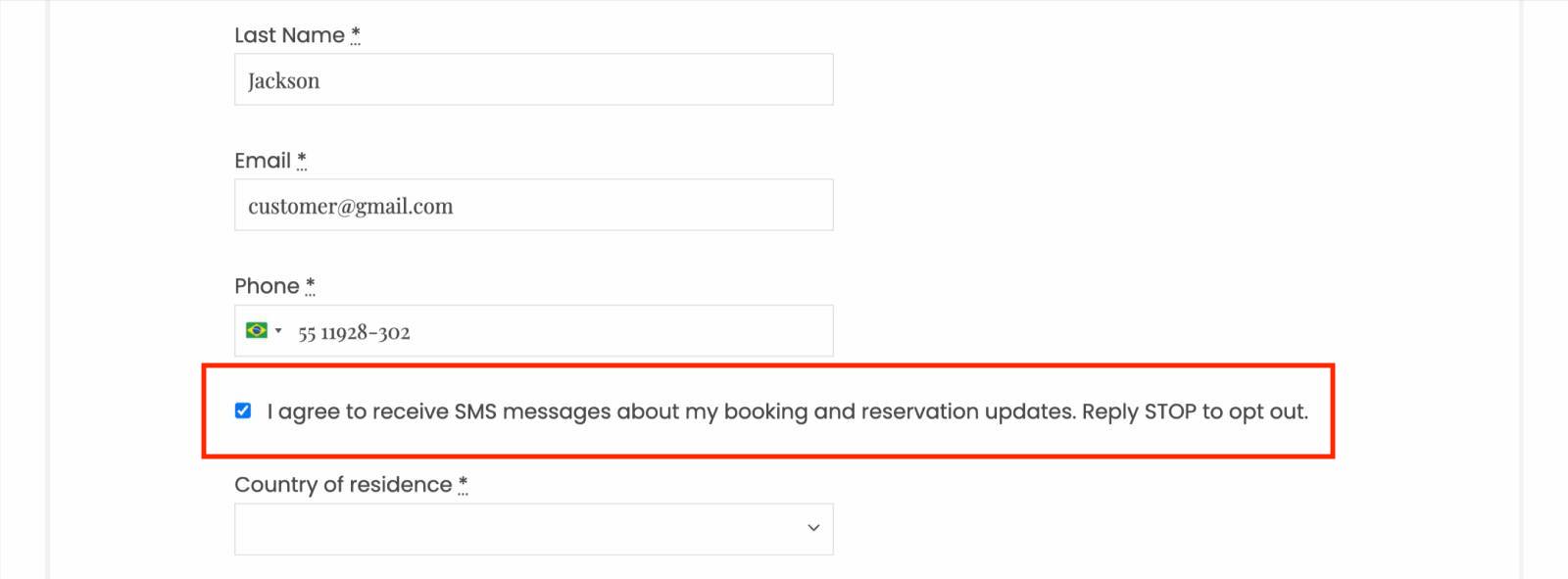
This is needed to prevent unwanted messages and supports compliance with messaging and carrier requirements.
Since the add-on was made to make reservation-related communication more immediate, guests should be fine with that message.
Check every message in SMS history
The SMS History screen is one of the most useful places to check after your notifications start running.
For each SMS, you can review details such as:
- Delivery status.
- Destination phone number.
- Destination country.
- Message content.
- Sending time.
- Number of credits charged.
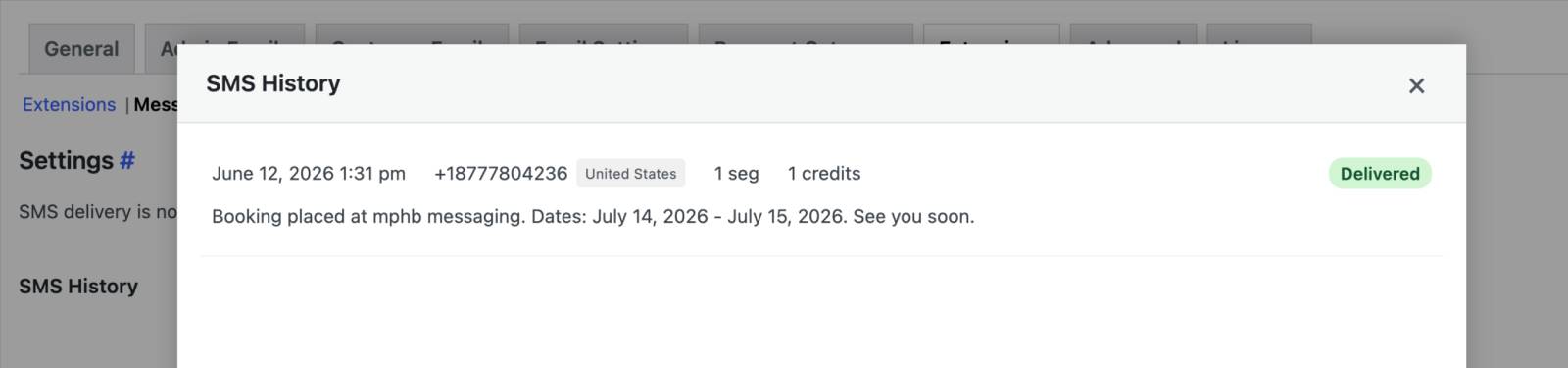
The messaging service may return different statuses in real time: a notification might be shown as delivered, failed, pending, or with another status.
If you’re dealing with international guests, and because SMS delivery is influenced by destination networks, carriers, and regulations, this is the most accurate method to understand your expenses on text messages.
Let’s sum up: Improve guest communication without extra platforms
The new SMS Messaging add-on gives you a great direct guest messaging channel closely connected with reservations.
Create booking status notifications, confirm successful payments, schedule messages around arrival and departure, send property-specific instructions, notify your administrator, or manually send an existing notification with an instant SMS.
You don’t have to build the technical connection with an SMS provider yourself – a simple email connection + credits on your balance are required as a baseline.
For any hotel, several apartments, or a small vacation rental business, SMS can complement the emails you’re already sending (and in some cases even replace them).
If you’ve been looking for a simpler way to introduce SMS communication without moving your reservations to separate guest messaging software, the new MotoPress SMS Messaging add-on is the solution.
Check the product page and FAQ for more details, including current SMS availability, pricing, sender requirements, and other technical questions. And if your particular messaging workflow needs something more specific, don’t hesitate to send us your questions!