SMS Messaging Add-on Highlights: Guest Messaging Service for Vacation Rentals
The direct guest messaging add-on allows you to automate SMS communication for your property. Get full control over every guest text message, condition, recipient, and cost.
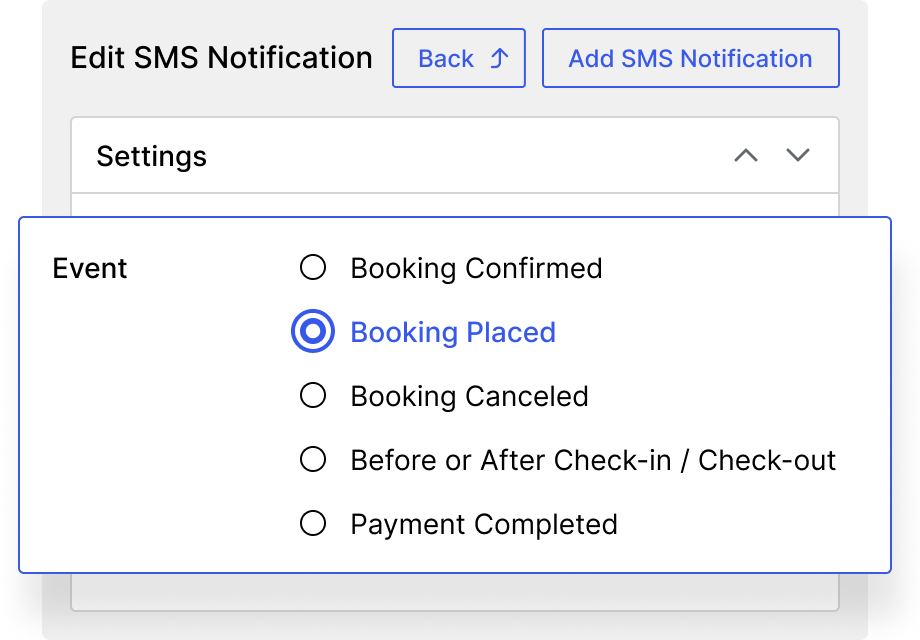
 Automate SMS for Booking Updates
Automated guest messaging can be triggered by important booking updates: when a reservation is placed and awaits confirmation, when a booking is confirmed, or when it is canceled.
You can notify the guest, the administrator, or both recipients. This SMS WordPress plugin add-on gives you flexibility to set each notification to have its own recipients, content, and property settings.
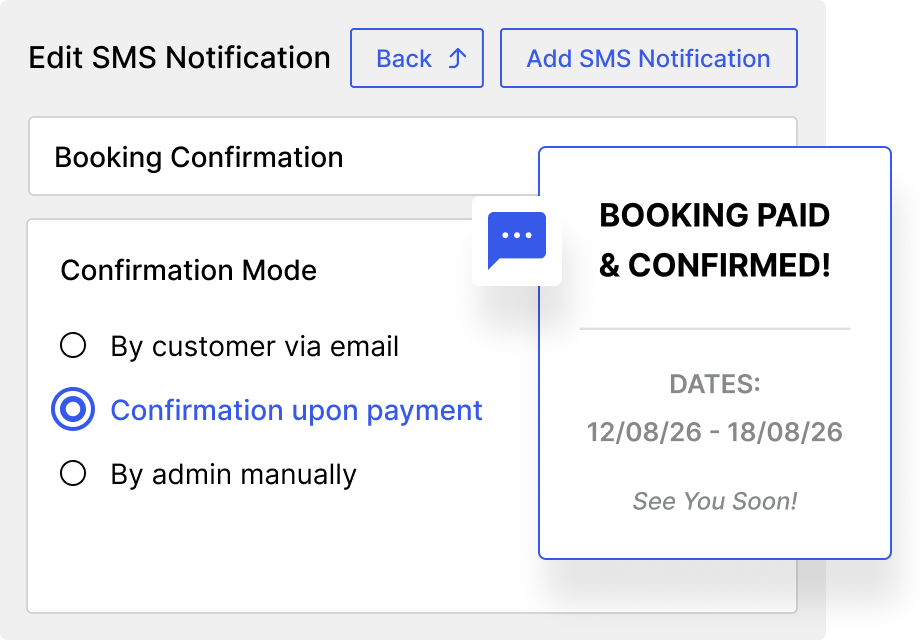 Notify Guests About Successful Online Payments
If you use online payments in the MotoPress Hotel Booking plugin, you may also send an SMS when an instant online payment for a booking is successfully completed. This will reassure the guest that their transaction was processed.
It works for all online payment processors available through Hotel Booking and can be used for both full payments and deposits. However, note that offline payment methods such as direct bank transfers or payment on arrival can’t trigger such SMS.
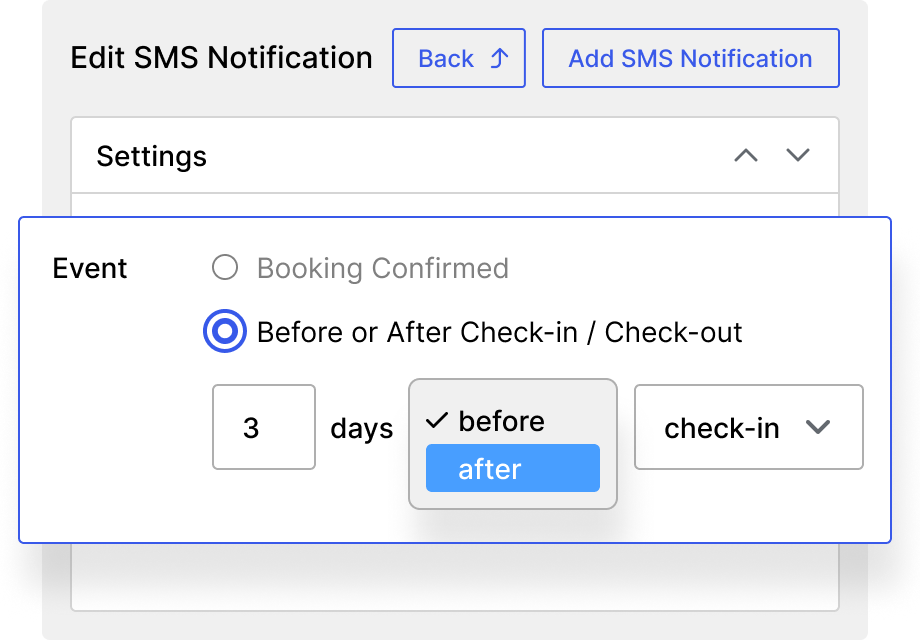 Schedule Messages Around Check-In and Check-Out
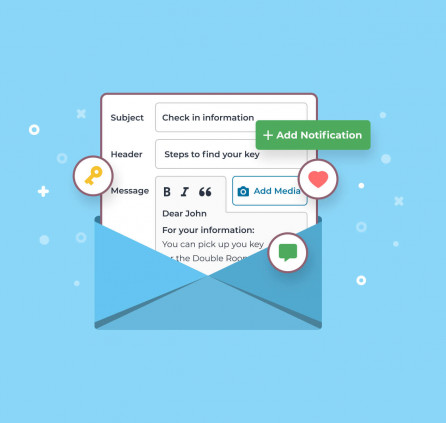
In addition to default booking updates, you may create custom SMS notifications that are not tied to a booking status. Share door codes, directions, parking information, house rules, late checkout offers, or simply improve your vacation rental SMS marketing.
Simply choose how many days before or after check-in or check-out the message should be sent. For example, you can send arrival instructions one day before check-in, a reminder on the morning of departure, or a review request two days after checkout.
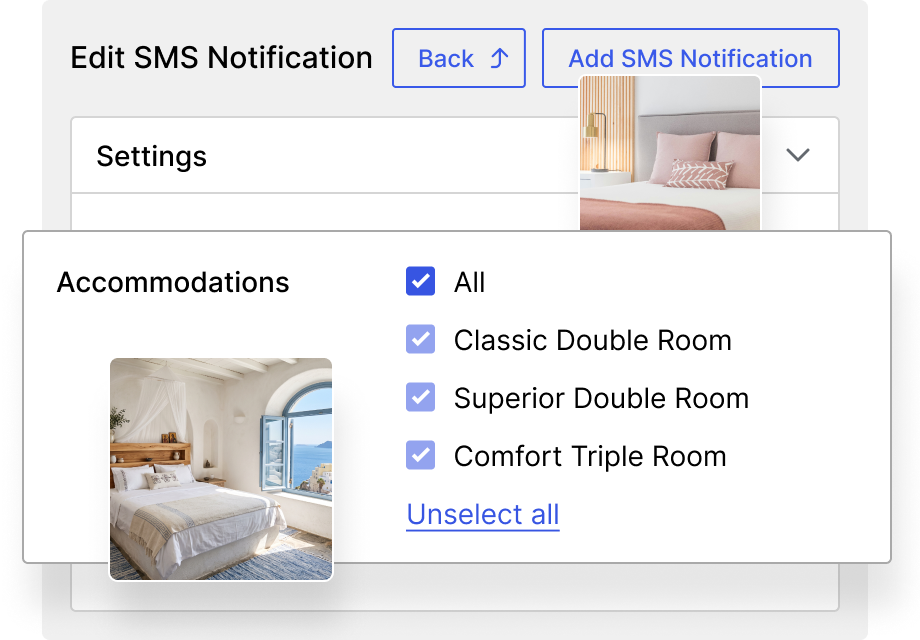 Create Notifications for All or Selected Properties
We’ve made sure your vacation rental SMS creation is super quick. You can apply an SMS notification to every accommodation or limit it to selected properties. General messages, such as booking confirmations or payment notifications, can be shared across all your accommodations.
At the same time, you can create unlimited property-specific notifications with different instructions and content.
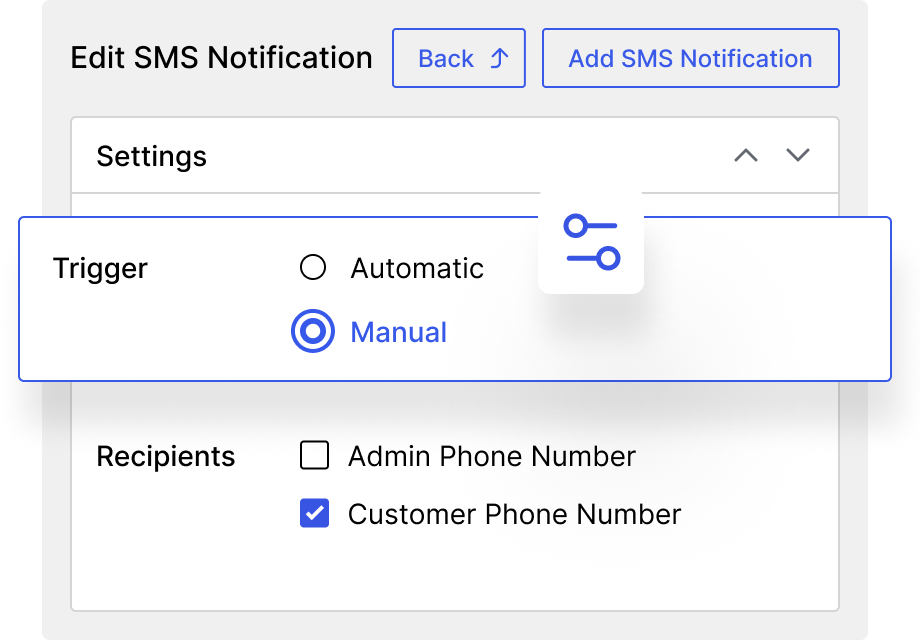 Send Manual SMS Notifications When Needed
In addition to the automated text message triggers, it’s easy to send manual SMSs when needed. These are great for any unexpected changes, personal updates, urgent requests, or information that cannot be scheduled beforehand.
When you need to send one, you simply open the relevant booking or payment, choose a notification, and click “Send SMS Notification”.
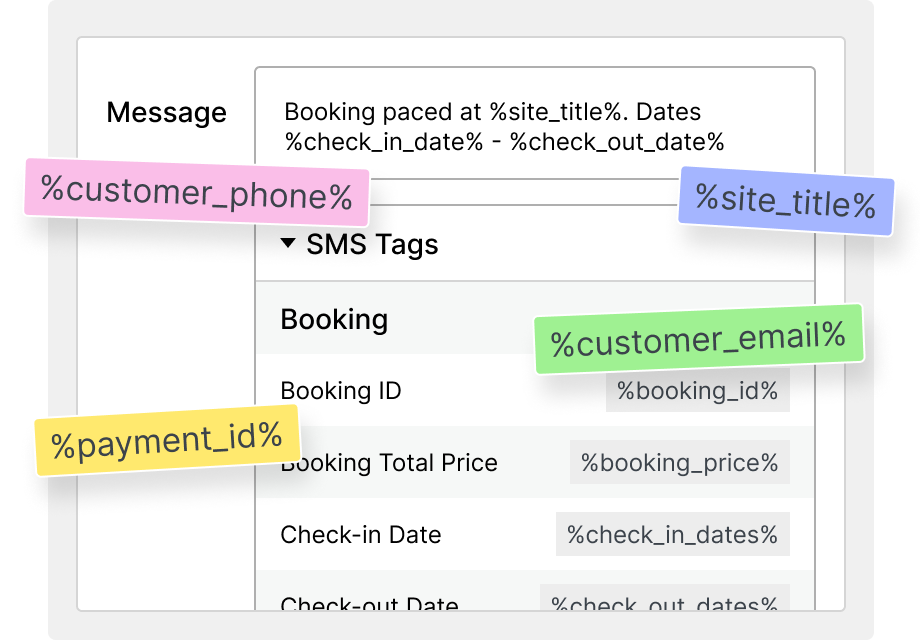 Personalize Messages with Automated Tags
Each guest SMS is actually a personalized message. Thanks to automated tags that you may want to insert, reservation information will differ for each text message.
These tags can be replaced with details such as the booking ID, guest information, check-in and check-out dates, or other reservation data. You can also include property-specific information to send different details to different guests. For example, each property can have its own address, access instructions, or WiFi information even for the same notification type.
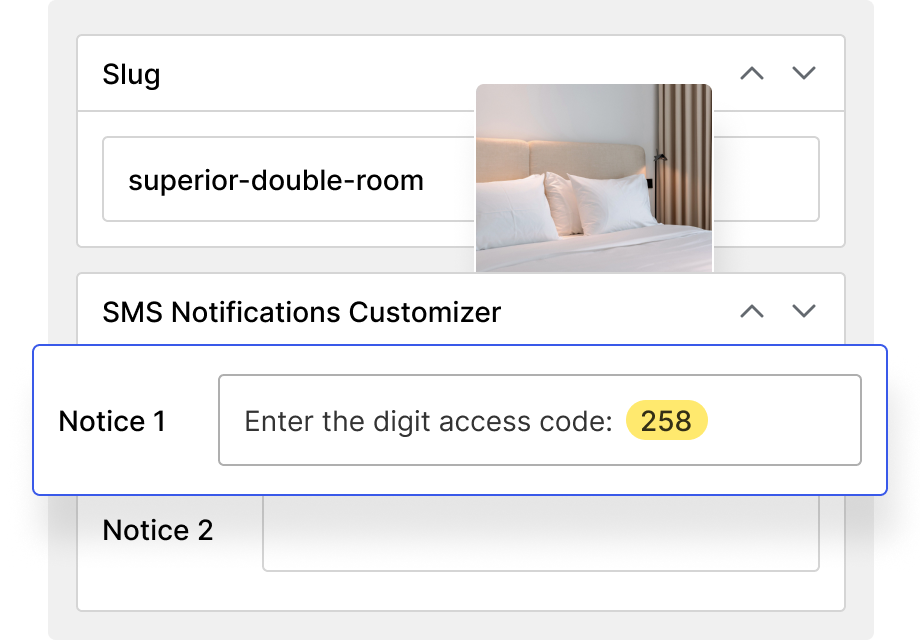 Alter the Same Messages for Different Properties
The add-on allows you to create general booking notifications for your entire business, while keeping arrival instructions, access codes, directions, promotions, and other property-related information specific to each accommodation.
For example, guests booking different properties may need different:
- Key collection instructions or door and lockbox codes
- WiFi details
- Local partner discounts
- Directions or public transport instructions
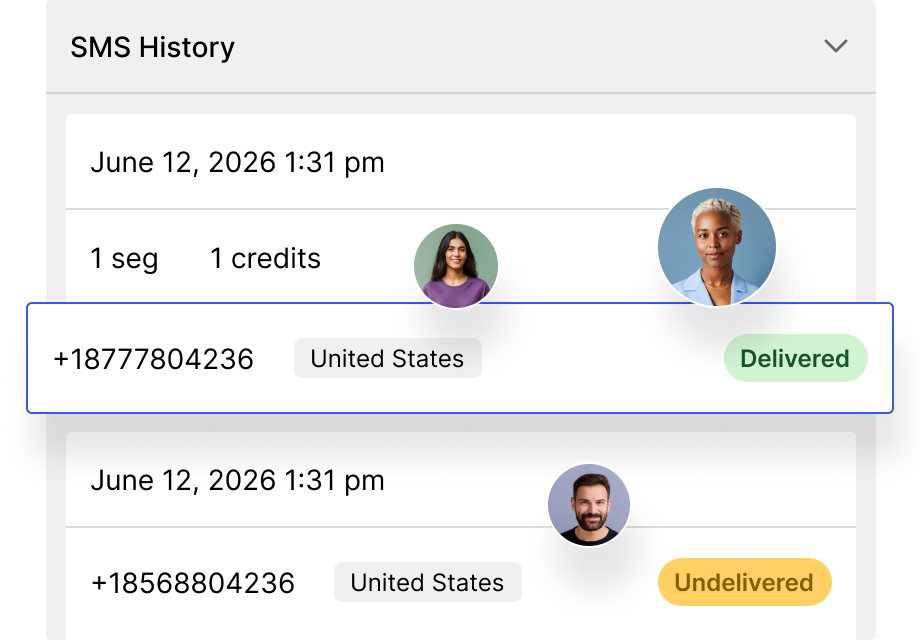 Review the Complete SMS History
In this WordPress SMS plugin’s settings, you can view the SMS history for all previously sent messages. The log shows when an SMS was sent, its delivery status, its destination country and phone number, and the exact message content.
You can also see how many credits were charged for the message to understand its actual cost. Failed, delivered, and other available message statuses are also recorded in the history.
How the Hotel Booking SMS Messaging Add-on Works
How do you set up and customize the MotoPress Hotel Booking SMS Messaging add-on with vacation rental guest messaging support? Here is the step-by-step process, without the need for separate guest messaging software.
Install and Activate the Add-on
Purchase the Hotel Booking SMS Messaging add-on, install it on your WordPress website, and activate it together with its license. The MotoPress Hotel Booking plugin must also already be installed and activated.
Connect Your Email Address
Go to Accommodation → Settings → Extensions → Messaging → Settings.
In the SMS Service section, click Connect and enter your email address. You will receive a confirmation email to activate your account. After you confirm the address, the add-on settings will display a message similar to: Connected: [email protected].
This account is used for service verification, credit purchases, and managing your SMS balance.
Purchase SMS Credits
SMS messages are paid for with credits. Once your account is connected, you can purchase credits directly through the add-on settings and add them to your account balance by clicking “Buy Credits”.
The currently available credit packages include:
- 1,000 credits for $10
- 2,700 credits for $25
- 5,500 credits for $50
Available packages and prices may change. The number of credits used by an SMS depends on the destination country, carrier fees, sender type, and number of SMS segments, which is mainly determined by the length of the SMS.
Country Cost in Credits Approximate Cost Australia 15 credits $0.14 Brazil 19 credits $0.18 Canada 9 credits $0.08 France 23 credits $0.23 Germany 32 credits $0.32 Greece 19 credits $0.19 India 25 credits $0.25 Italy 26 credits $0.26 Netherlands 32 credits $0.32 Spain 25 credits $0.25 United Kingdom 16 credits $0.16 United States 3 credits $0.03 View the full SMS Pricing & Availability list.
The prices shown are approximate costs per SMS segment based on a package of 1,000 credits for $10. A single SMS may contain multiple segments, depending on its length and the characters used.
Add an Administrator Phone Number (Optional)
You can optionally enter an administrator phone number in the add-on settings. This number can be used to receive test messages and any SMS notifications for which the administrator is selected as a recipient.
The administrator phone number is used for receiving messages only and cannot be used to send SMS. To comply with mobile carrier requirements and messaging regulations, messages are sent using a service sender name or a service phone number, depending on the destination country and available sender options.
Create an SMS Notification
You can create unlimited SMS notification types. Go to Bookings → SMS Notifications → Add New.
Create a new notification, choose whether it should be automatic or manual, select its recipients, and enter the message content using automated tags. These tags are replaced with the relevant details from the booking.
For an automatic guest SMS notification, configure the booking event or custom date-based condition that should trigger it. You can also select whether the notification applies to all accommodations or only specific properties. Don’t forget to save the changes.
Customize Messages per Property (Optional)
You may also add property-specific information when different accommodations require different details.
Go to Accommodation Types → open the chosen accommodation type → SMS Notification Customizer → fill in the SMS Notice 1 and SMS Notice 2 fields with the required content.
Send a Test SMS
Add an administrator phone number and send a test message before activating the notification for guests. Test messages allow you to check the message length, formatting, tags, sender information, and approximate credit use.
Please note that test and failed messages may still consume credits. Click “SMS History” to view the details.
Frequently Asked Questions
Which SMS service provider powers the add-on?
Which countries are supported?
SMS messages can be sent to many countries. Make sure to check the table of supported countries. Some destinations may be marked as unsupported, while others may require business registration or verification before messages can be delivered.
Countries such as the United States and Canada may require business verification under local messaging and carrier regulations to confirm that the sender is a legitimate business. If you need to send real-time guest messages to a destination currently marked as unsupported, contact the MotoPress support team to discuss the available options.
How do I buy SMS credits?
You can buy credits directly from the SMS Messaging add-on settings (once it’s installed and activated). From there, you’ll be redirected to our website, where you can choose from three packages ranging from 1,000 to 5,500 credits and pay online using PayPal or a credit card.
Once the payment is completed, the credits are added to your balance, and you can start sending automated SMS notifications right away.
How much does one SMS cost?
There is no universal fixed price for every SMS. Your balance is charged according to the message’s destination country, sender type, applicable carrier fees, and number of SMS segments. As a result, messages sent to guests in different countries may consume different numbers of credits.
For example, what can you send for $10? Let’s say one SMS uses about two segments and you buy 1,000 credits for $10:
- In Austria, one segment costs about 28 credits, so one SMS may take around 56 credits. This gives you roughly 17 messages.
- In the United States, one segment costs about 3 credits, so one SMS may use around 6 credits. This gives you roughly 166 messages.
- In the United Kingdom, one segment costs about 32 credits, so one SMS may use around 64 credits. This gives you roughly 15 messages.
These are estimates only. For example, if a message takes one segment instead of two, you can send twice as many SMS messages for the same $10.
The actual cost may vary depending on the message length, characters used, destination carrier, sender type, and applicable carrier fees. Longer messages may be divided into more segments and therefore consume more credits.
The exact cost is recorded in the SMS history after the message is sent. If you regularly welcome international guests, it may be difficult to predict the precise number of credits you will need in advance. You can replenish your balance through the plugin settings at any time.
What is an SMS segment?
An SMS that appears as one continuous message in the editor may be divided into several segments during delivery. Each SMS segment is charged separately.
The number of characters that fit into one segment depends partly on the alphabet and characters used in the message. Messages containing certain special characters or non-Latin alphabets may have a different segment length.
Do test or failed SMS messages consume credits?
Yes. Test messages and messages that fail during delivery may still use credits because the service has already attempted to process and send them.
It is best to review the phone number, country code, message content, and estimated segment count before sending.
What sender name will guests see?
By default, messages use the free “Booking Info” sender name where it is supported. Please note that local carriers and country-specific regulations may replace or modify the displayed sender information.
To use a custom hotel name, vacation rental brand, company name, or phone number, you may need to complete business verification. Custom sender names or numbers may involve additional setup fees, recurring charges, or country-specific requirements. Contact us if you need to use a custom sender name.
Who can receive SMS notifications?
SMS notifications can be sent to the customer’s phone number, the administrator’s phone number, or both. The recipients are configured separately for each notification. This applies to both automatic and manual messages.
What can trigger an automatic SMS?
An SMS can be triggered when:
- A booking is placed and awaits confirmation by email.
- A booking is confirmed.
- A booking is canceled.
- An instant online payment is completed.
- A specified number of days before or after check-in is reached.
- A specified number of days before or after check-out is reached.
You can create multiple hotel guest messaging notifications with different conditions, recipients, accommodation settings, and message content.
Can I send messages manually?
Yes. Using our SMS WordPress plugin, you can open a particular booking or payment and send any needed notification message manually. This is useful for individual updates or situations that cannot be predicted in advance.
Can I use one SMS account on several websites?
Yes. The same SMS service account can be connected to the Messaging add-on on multiple websites using the email address associated with the account. All connected websites can use the same shared credit balance.
However, each WordPress website will have its own SMS history inside the add-on settings. This means you can use one balance across several sites while reviewing message activity separately for each website.
Is guest consent required?
Yes. A guest receives your SMS notifications only when they provide consent through the SMS consent checkbox during booking checkout in the Hotel Booking plugin. This helps you follow carrier rules and avoid sending unwanted messages to guests.
In some countries, guests may also opt out after receiving a message by replying with the word “STOP”.
Which guest phone number does the add-on use?
The add-on uses the default phone number field provided by the MotoPress Hotel Booking checkout form.
Phone fields created with the Hotel Booking Checkout Fields add-on are not supported as SMS recipient fields. The SMS Messaging add-on works only with the standard checkout phone number.
Does the payment notification work with every payment method?
No. Payment-triggered SMS notifications work only for instant payments processed through online payment gateways supported by the MotoPress Hotel Booking plugin. They can be sent after either a deposit or a full payment is successfully completed.
The payment condition does not work with offline methods such as direct bank transfer or payment on arrival because these methods are not confirmed instantly by an online payment processor.
Can I see whether an SMS was delivered?
The SMS history displays the available delivery status for every message. Depending on the service response, a message may appear as delivered, failed, pending, or with another applicable status.
You can also review the destination phone number, country, message content, sending time, and number of credits charged.
Requirements:
- Hotel Booking version 5.2.0 or greater.