
Send Hotel Booking Attachments Automatically with the New Add-on!
Table of Contents
Welcome guides, check-in instructions, parking maps, promo leaflets – anything that can be sent in an attachment file to your guests, is now available with the Hotel Booking Email Attachments add-on!
We’re happy to introduce this simple yet multipurpose add-on for the MotoPress Hotel Booking plugin that makes this easier. The new add-on enables you to upload your files to WordPress, assign them to the relevant accommodation types, and they will be included in your booking emails automatically.
For example, if you are managing multiple properties, guests staying in a villa can receive a villa-specific welcome guide, while guests booking an apartment get their own check-in instructions. You can also reuse a single file across several accommodations whenever it makes sense.
There are two convenient ways to manage everything:
- Open an accommodation type and select the attachments it needs in the Email Attachments field.
- Go to Bookings > Email Attachments, create or select an attachment, and assign accommodations to each file.
Overall, we’ve created the Email Attachments add-on to Hotel Booking for everyday guest communication, important documents, marketing materials, and even custom notifications.
Let’s look at what you can do with it and how to get started.
When will you find Email Attachments useful?
What files do you need to regularly send to guests? Here are a few common routines you can automate.
Send a welcome guide for each property
A digital welcome guide is a convenient way to share everything guests need to know about their stay. You may use templates, create the guides yourself, or use simple AI tools to structure the most important details: Wi-Fi passwords, appliance instructions, house rules, amenities, attractions, etc.
If your properties have different layouts, facilities, or local recommendations, you can prepare a separate guide for each accommodation type.
Share check-in instructions and property-specific details
You can also send shorter versions of your property details. Does one apartment have a key lockbox, while another uses a smart lock? Do some properties have private parking, while others require guests to use a nearby public car park?
Now, you don’t need to manually select the right instructions for every reservation. Assign the relevant documents to each accommodation type, and guests receive information that matches the place they booked.
Send policies, agreements, and other important documents
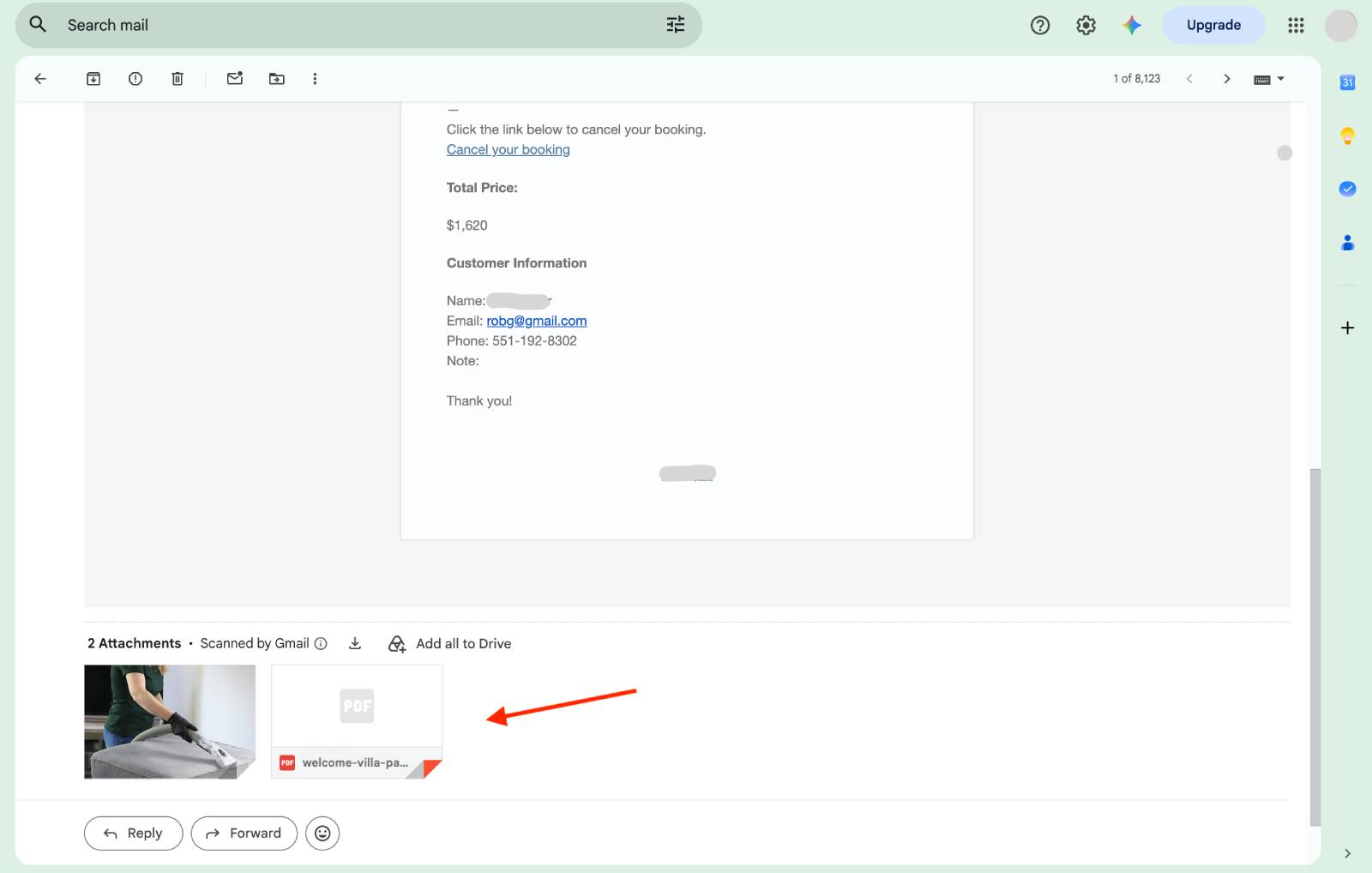
If you need to share a rental agreement, additional property policies, or safety information, you can use this option as well.
Once again, the Email Attachments add-on gives you an option to assign the same document to several accommodation types if the rules apply to all of them.
Share marketing offers and upgrades
It’s not just operational documents that matter to your rental accommodation business. Want to send seasonal brochures, destination guides, vouchers, or information about additional services that guests can order? Include them in your booking emails as well.
For example:
- Send a PDF with local experiences.
- Share a special offer for a returning guest.
- Promote extras and upgrades.
If you want to build a more comprehensive email marketing workflow, the MotoPress Hotel Booking Mailchimp integration can help connect your booking business with email marketing.
The brand-new Email Attachments add-on, meanwhile, takes care of the actual files you want to deliver alongside your booking emails.
How to set up your first email attachment
Follow these simple steps. There’s no need to upload the same file repeatedly or configure a separate attachment for every booking.
1. Install and activate the add-on
First, make sure the MotoPress Hotel Booking plugin is installed and activated on your WordPress website. Then install and activate Hotel Booking Email Attachments. If you are new to Hotel Booking, one of the best ways to get the add-on along with the core plugin is through a bundle option.
Once activated, you’ll find a new menu item under Bookings > Email Attachments.
2. Create an attachment
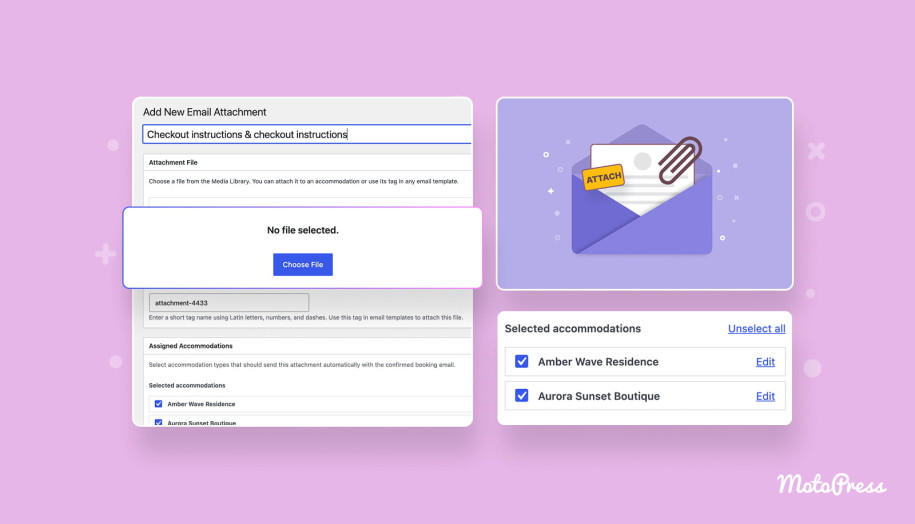
Open Bookings > Email Attachments > Add New.
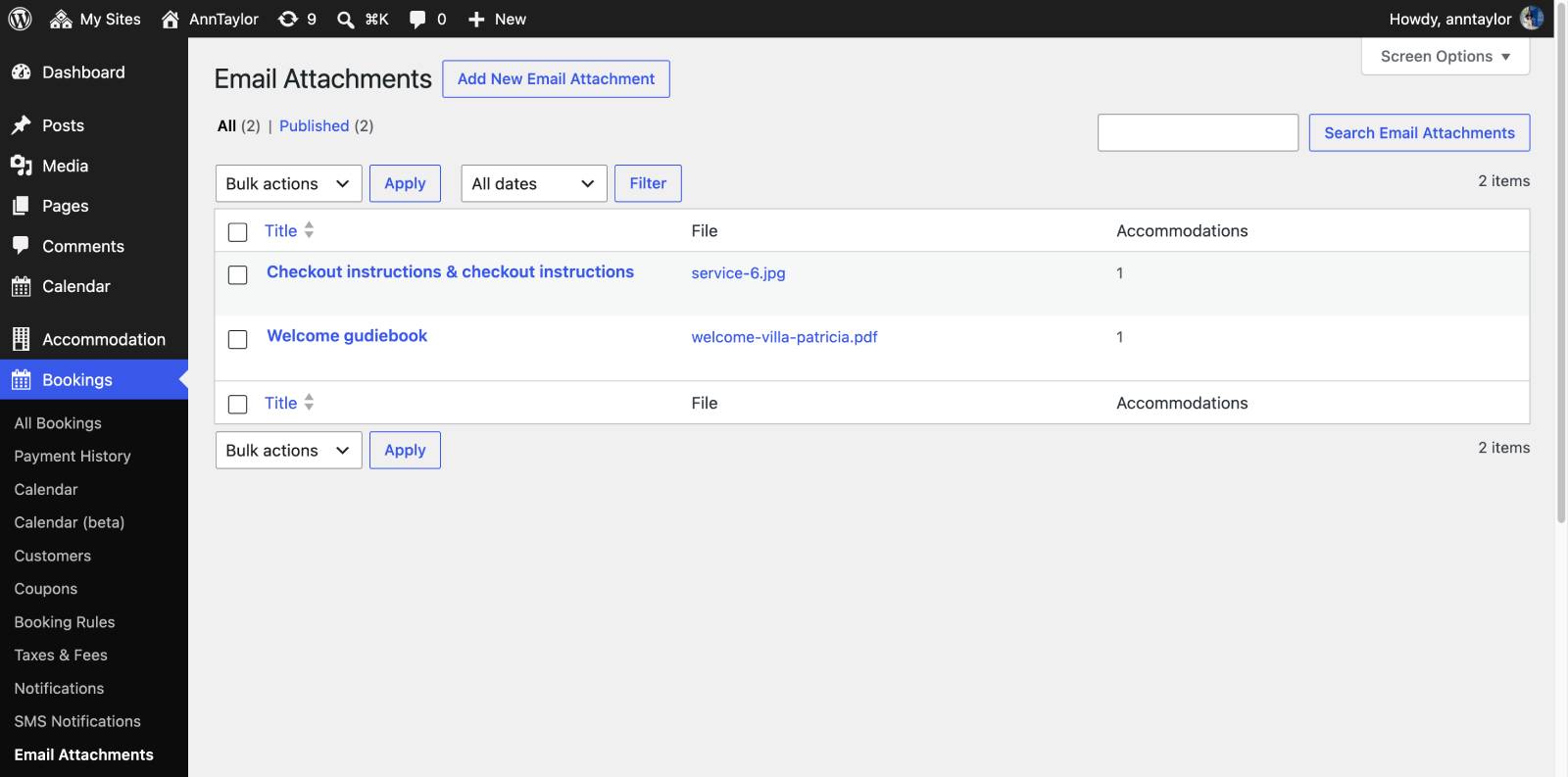
Give your attachment a title that helps you recognize the file in your WordPress dashboard. For example:
- Villa welcome guide
- Apartment check-in instructions
- Parking map
- House rules
- Local attractions brochure
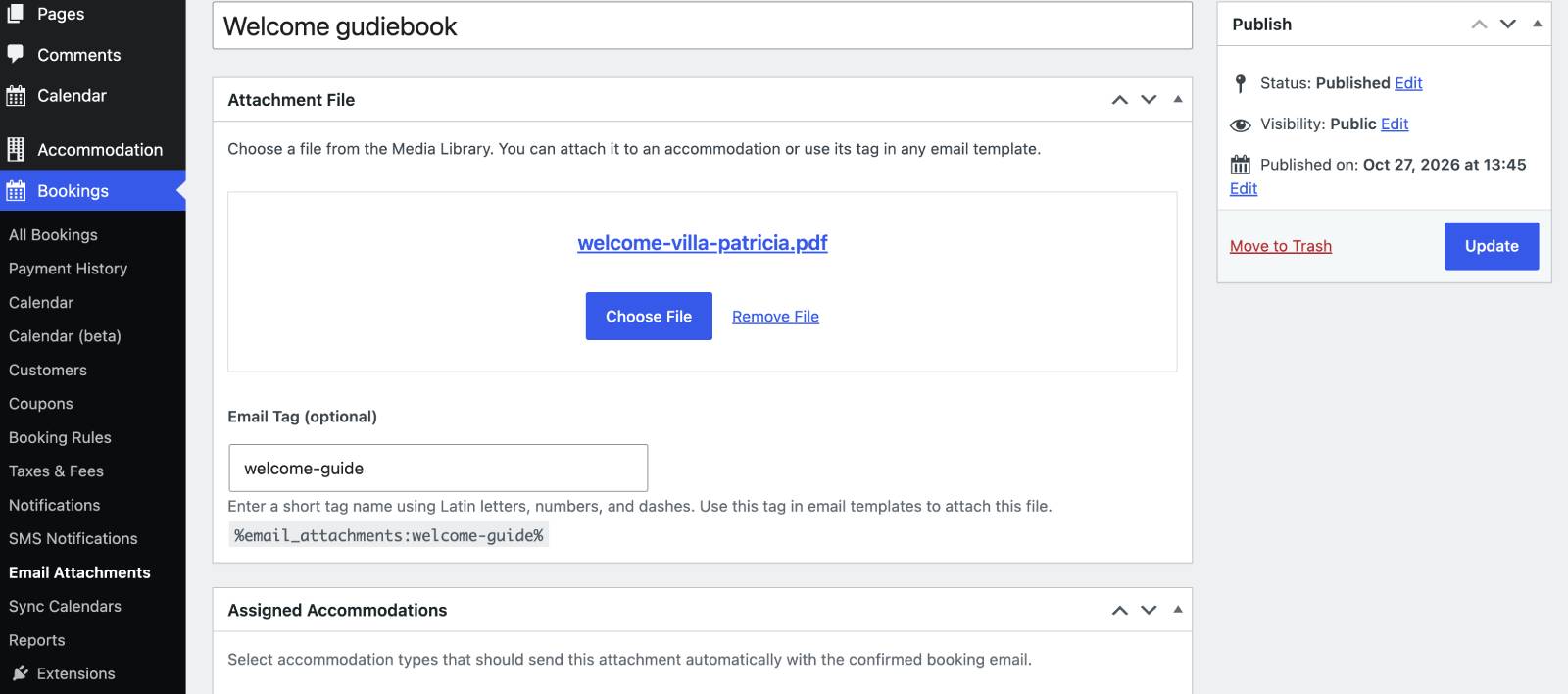
Next, find the Attachment File section and click Choose File to select the file from your WordPress Media Library.
If your document hasn’t been uploaded yet, add it to the Media Library first. You can then select it when creating the attachment.
Each Email Attachment is linked to one file, so you should create a separate entry for each file.
You’ll also see the Email Tag field, which is generated automatically for each attachment. You can use these tags later in email templates.
You can leave the generated tag as it is or customize its key using Latin letters, numbers, and dashes.
3. Publish the attachment
Click Publish to save the attachment.
That’s it! Your attachment is ready to be assigned to accommodation types or inserted into an email template.
4. Choose which accommodations should receive the file
You can manage assignments from either side.
Option 1: Assign attachments from an accommodation type
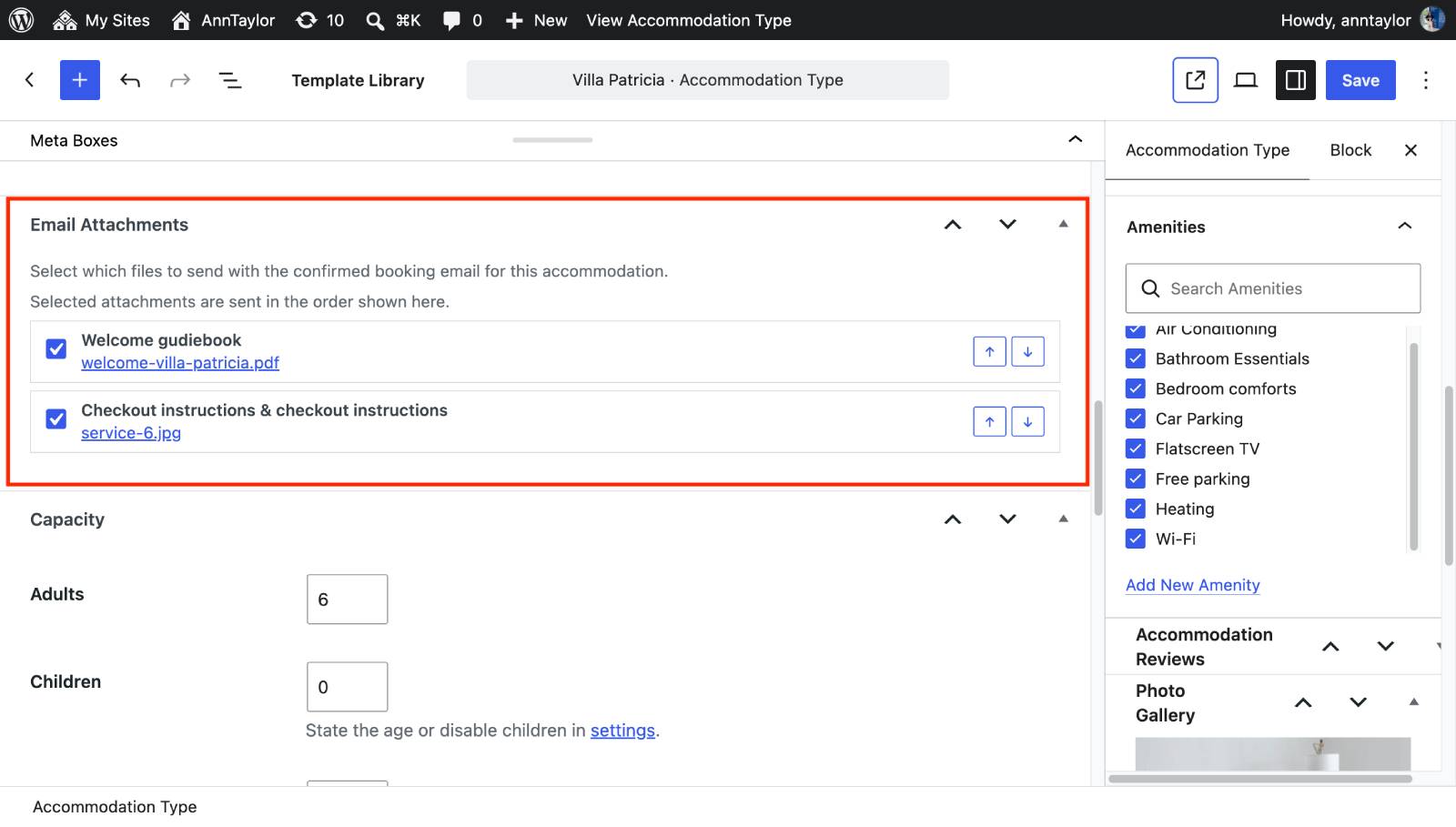
- Go to Accommodation > Accommodation Types.
- Edit the accommodation type you want to configure.
- Find the Email Attachments field.
- Select the files that should accompany bookings for this accommodation. You can select multiple files.
- Arrange the attachments in the desired order using the available arrows.
- Save your changes.
For example, if you’re editing your two-bedroom apartment, select its welcome guide, check-in instructions, and parking map.
Option 2: Assign accommodations from an attachment
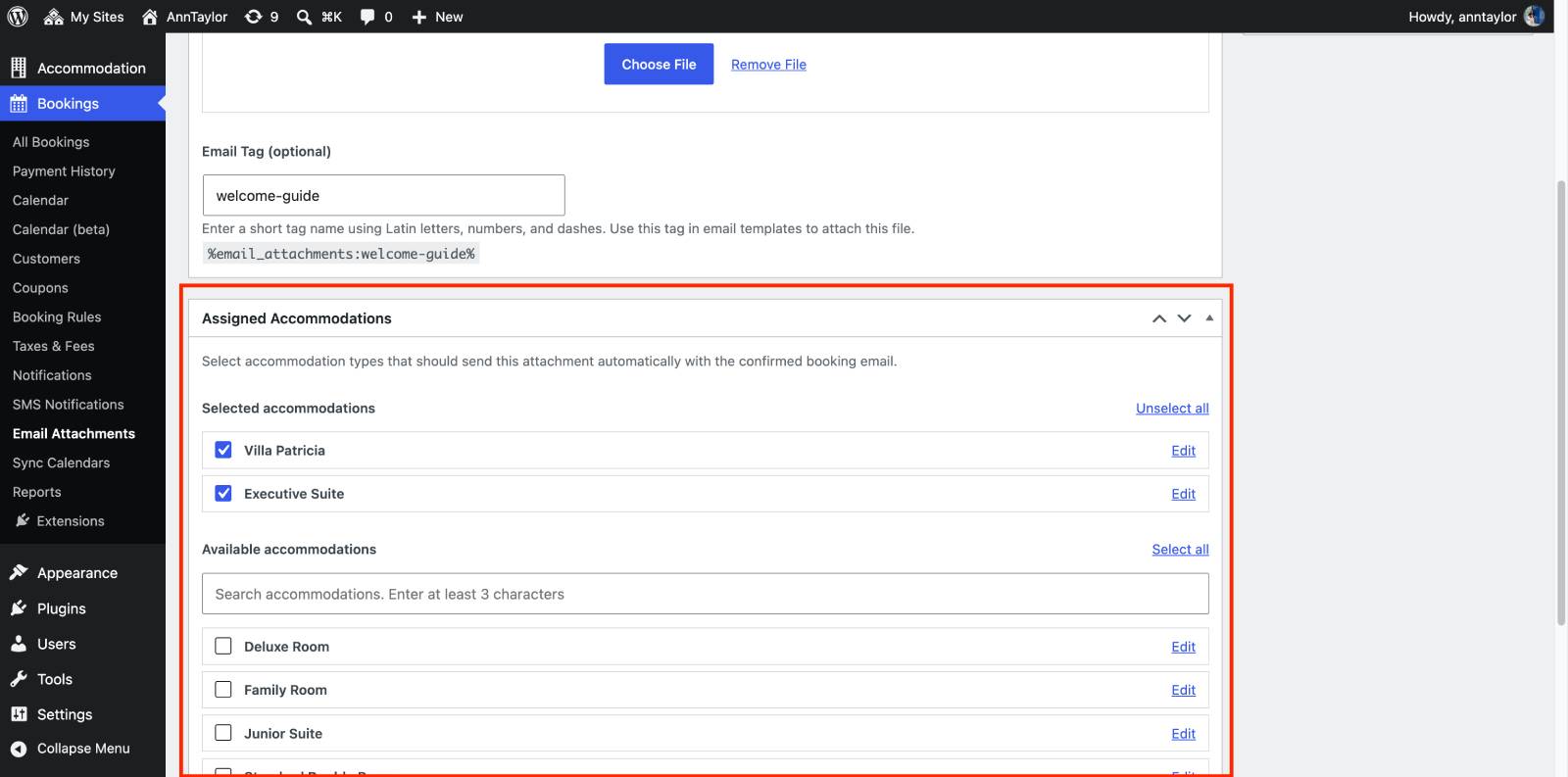
If you prefer to organize files first, open Bookings > Email Attachments and edit the attachment you created.
From there, you can assign the accommodation types to which the file applies. This is a convenient option when managing multiple properties.
5. The rest is automation
When a booking is confirmed, the files assigned to the booked accommodation type are automatically included in the relevant booking email.
Note: Accommodation-specific attachments are automatically added to the configured booking email. If you want a file to accompany another email template or a custom notification, use the manual attachment method described below.
How to attach a file to a specific email manually
If you need to include a file in a pre-arrival reminder, a follow-up email, or another custom notification, you can use the email tag associated with the attachment.
An email tag is a small placeholder that tells Hotel Booking which file to attach when sending an email.
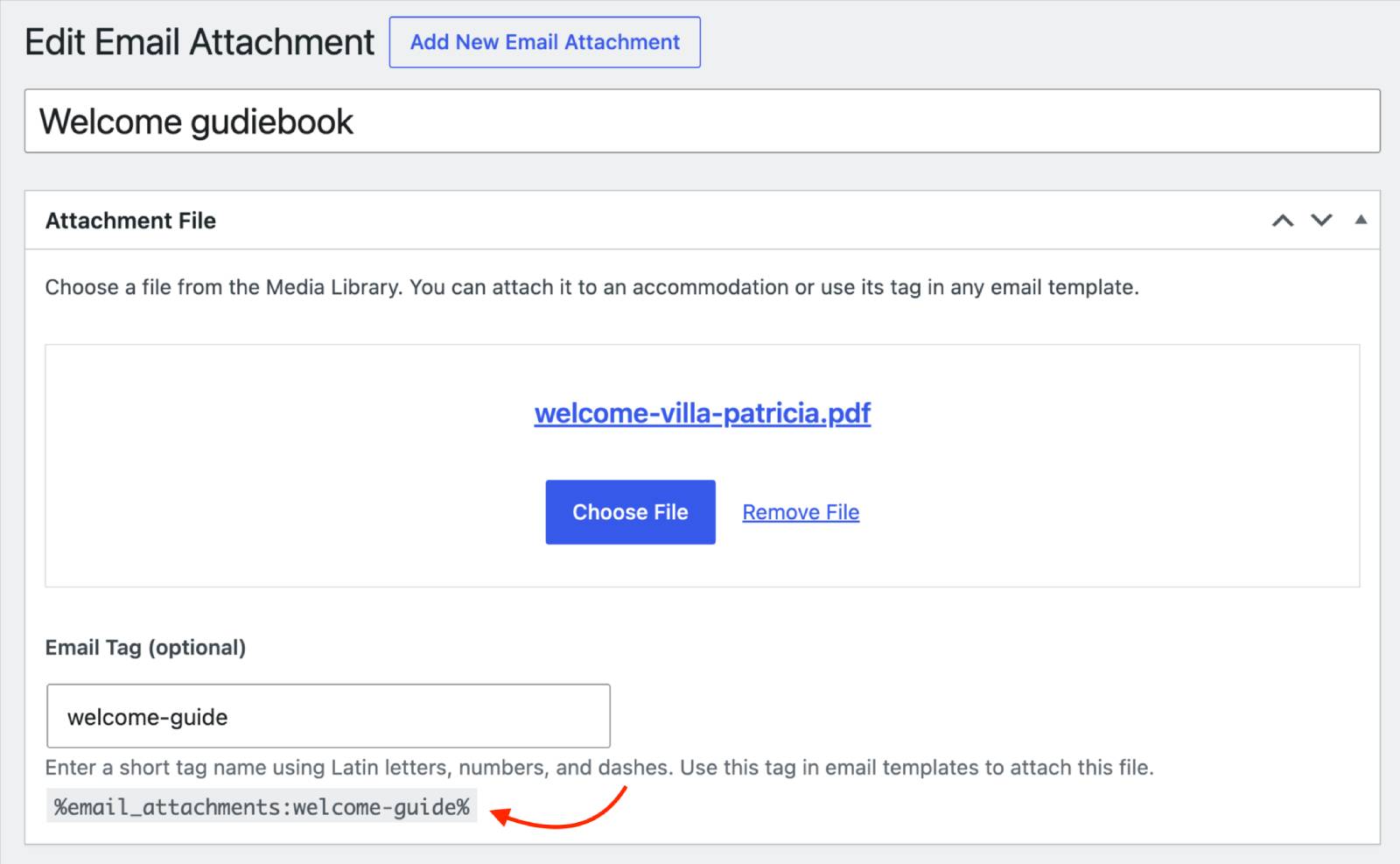
Here’s how to use it:
- Go to Bookings > Email Attachments and open the attachment you want to use.
- Find the Email Tag field and copy the tag. For example:
%email_attachments:digital-guidebook%. - Open the email template where you want the file to be attached.
- Paste the tag into the template and save your changes.
When that email is sent, the tag is processed and the corresponding file is attached to the message.
For example, you could add a tag for your local attractions brochure to an email you send before arrival, or include a document with additional property information in a custom notification.
Using it with the Hotel Booking Notifier add-on
If you already use Notifier, Email Attachments is a natural addition to your workflow.
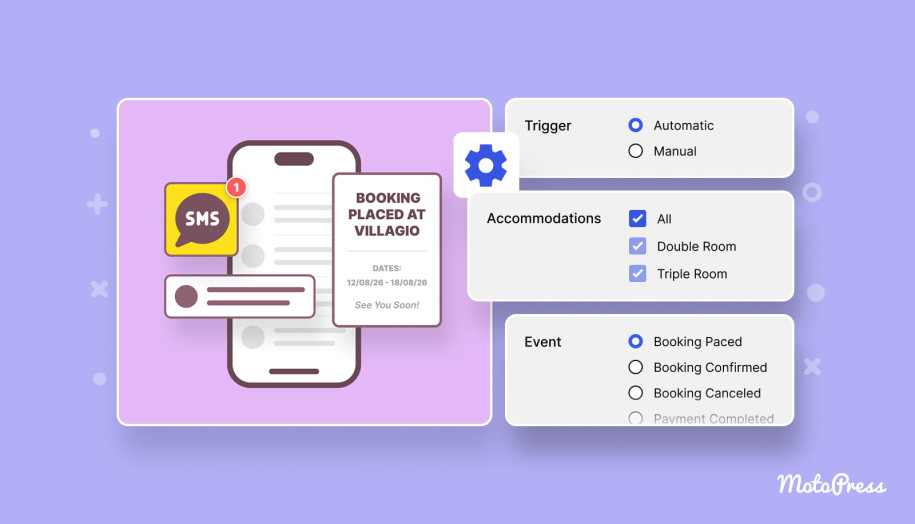
The Hotel Booking Notifier add-on lets you schedule custom email notifications around booking and stay events. For example, you can send a reminder several days before check-in, share arrival information, or follow up with guests after checkout.
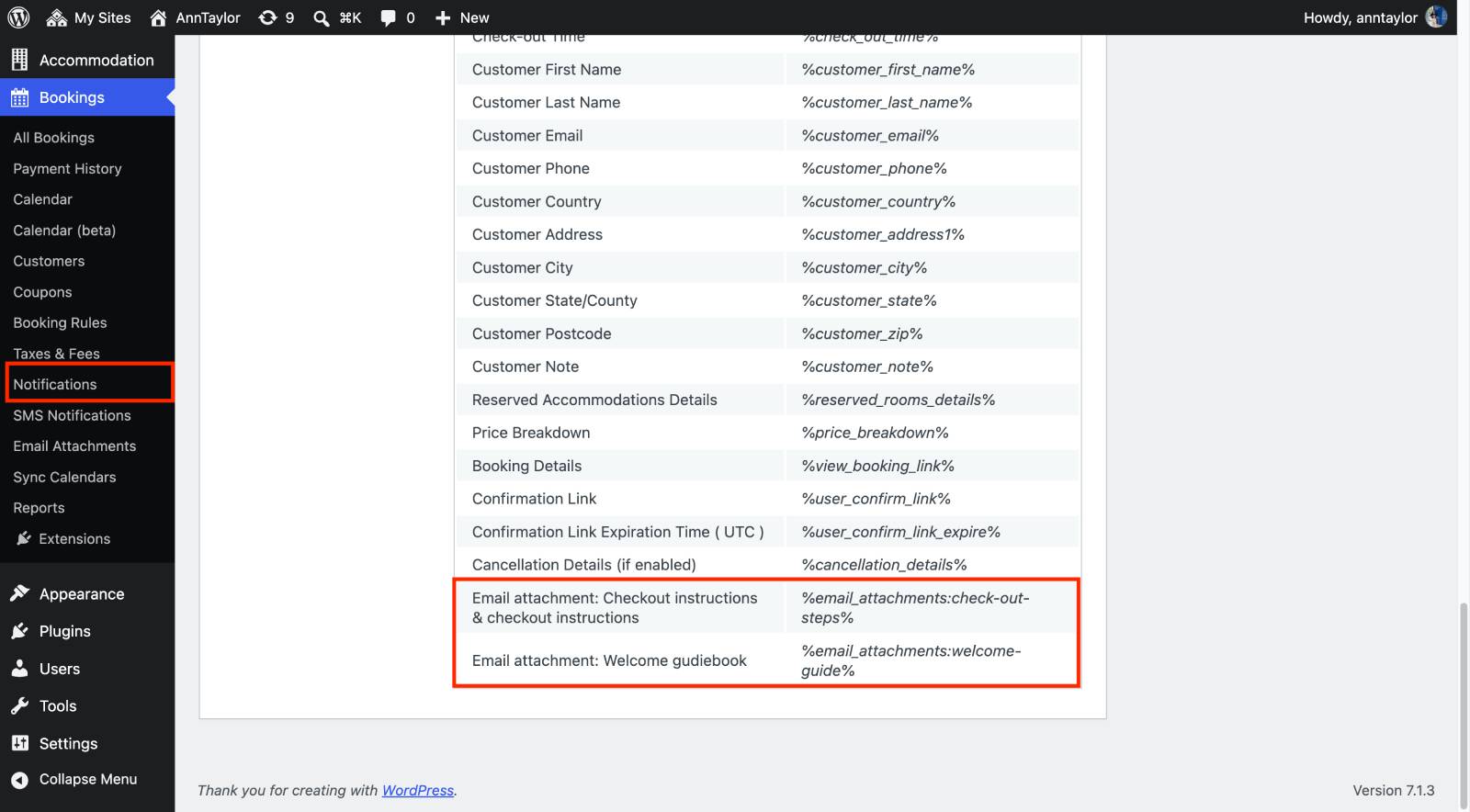
With Email Attachments, you can include a file in these custom notifications, too. Simply add the attachment’s email tag to the notification template. Each attachment has its own tag, so copy the relevant one into the email template generated by the Notifier add-on.
Can you use email attachments on a multilingual website?
Yes, if you use the WPML plugin. You can create translated Email Attachment entries and associate them with the appropriate files and email tags.
WPML doesn’t translate the file’s contents automatically – you need to provide the required language versions yourself.
When WPML is active and configured correctly, the add-on can resolve the translated attachment and file for the booking language.
For example, you could maintain an English welcome guide and a German version, helping guests receive the relevant document for their language.
Make guest communication a little easier!
Hotel Booking Email Attachments is a simple, multipurpose tool for automatically attaching the right files to the right emails. You can have many attachments in one email, and you can send a variety of file types, including PDFs and JPEG/PNG images.
Here are a few key benefits you surely get:
- Automatic delivery: Upload files once and let Hotel Booking attach them to the relevant booking emails.
- Property-specific communication: Send different documents to different accommodation types without manually choosing files for every reservation.
- Less manual work: No need to repeatedly upload files, find cloud links, or remember which document belongs to which property when processing bookings.
Create your attachment library, decide which properties need which documents, and use the add-on to automate your guest communications right away.