
Table of Contents
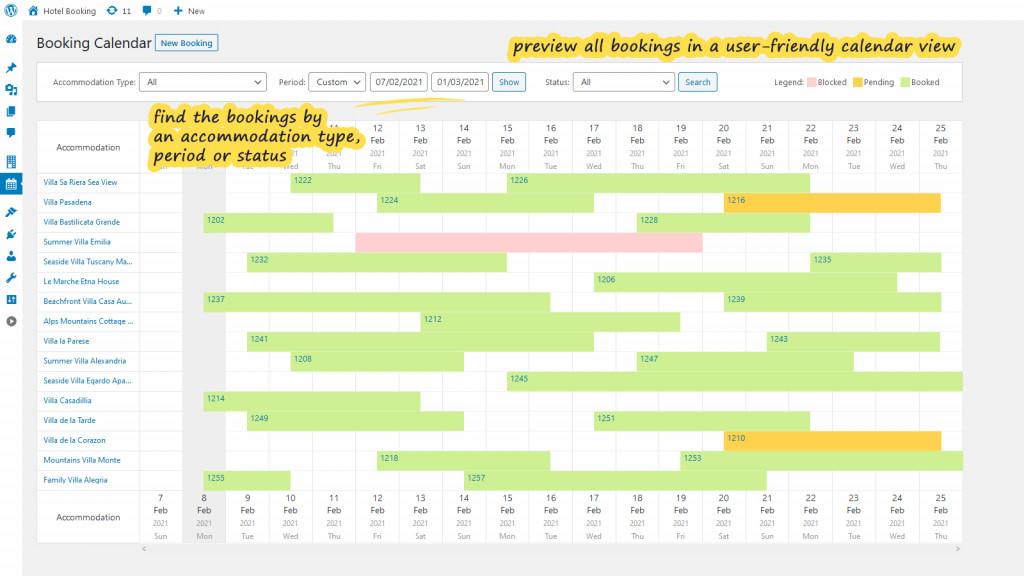
To preview all bookings in a user-friendly calendar view, go to Bookings → Calendar. Here you may find the bookings by an accommodation type, by period or status.
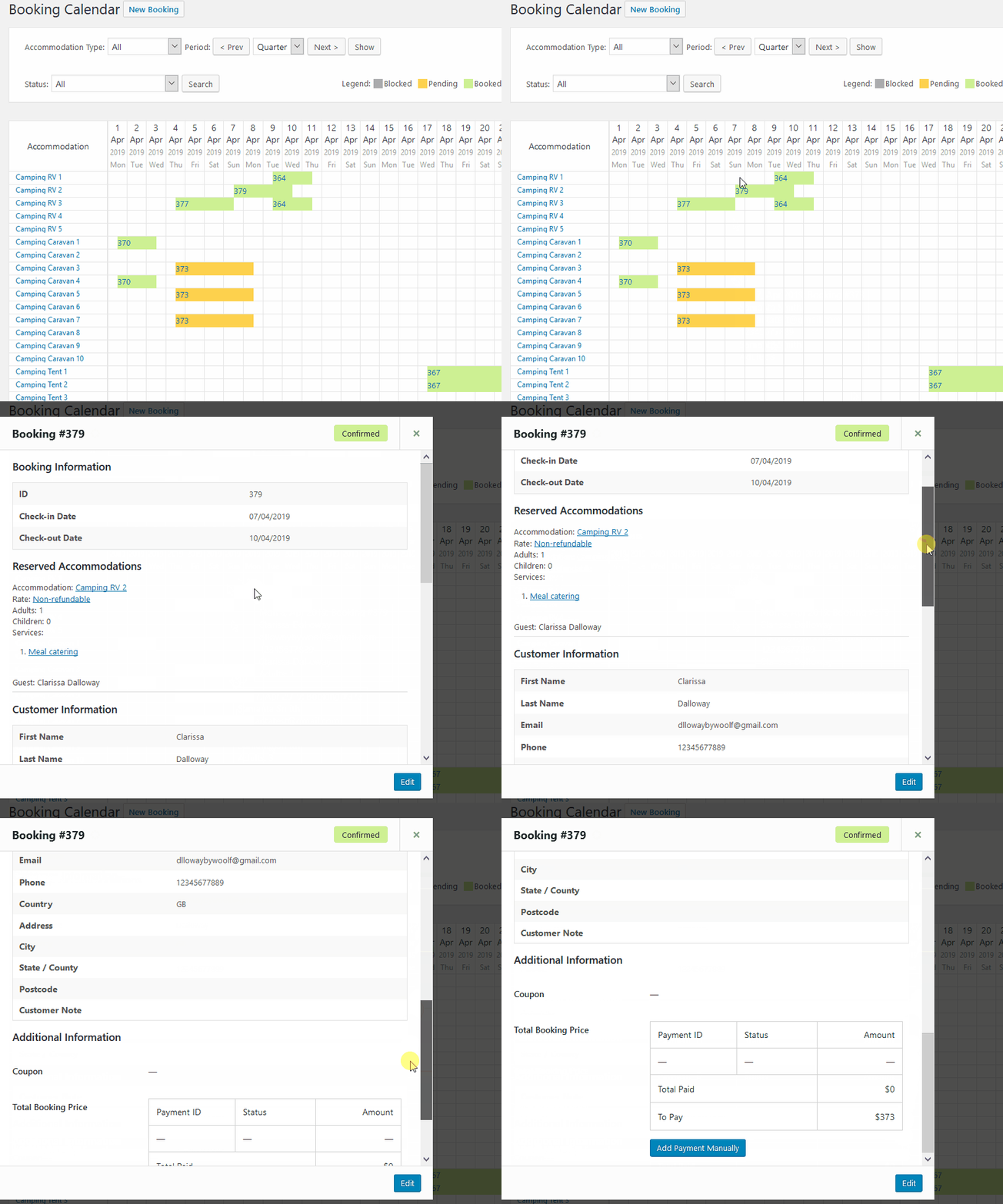
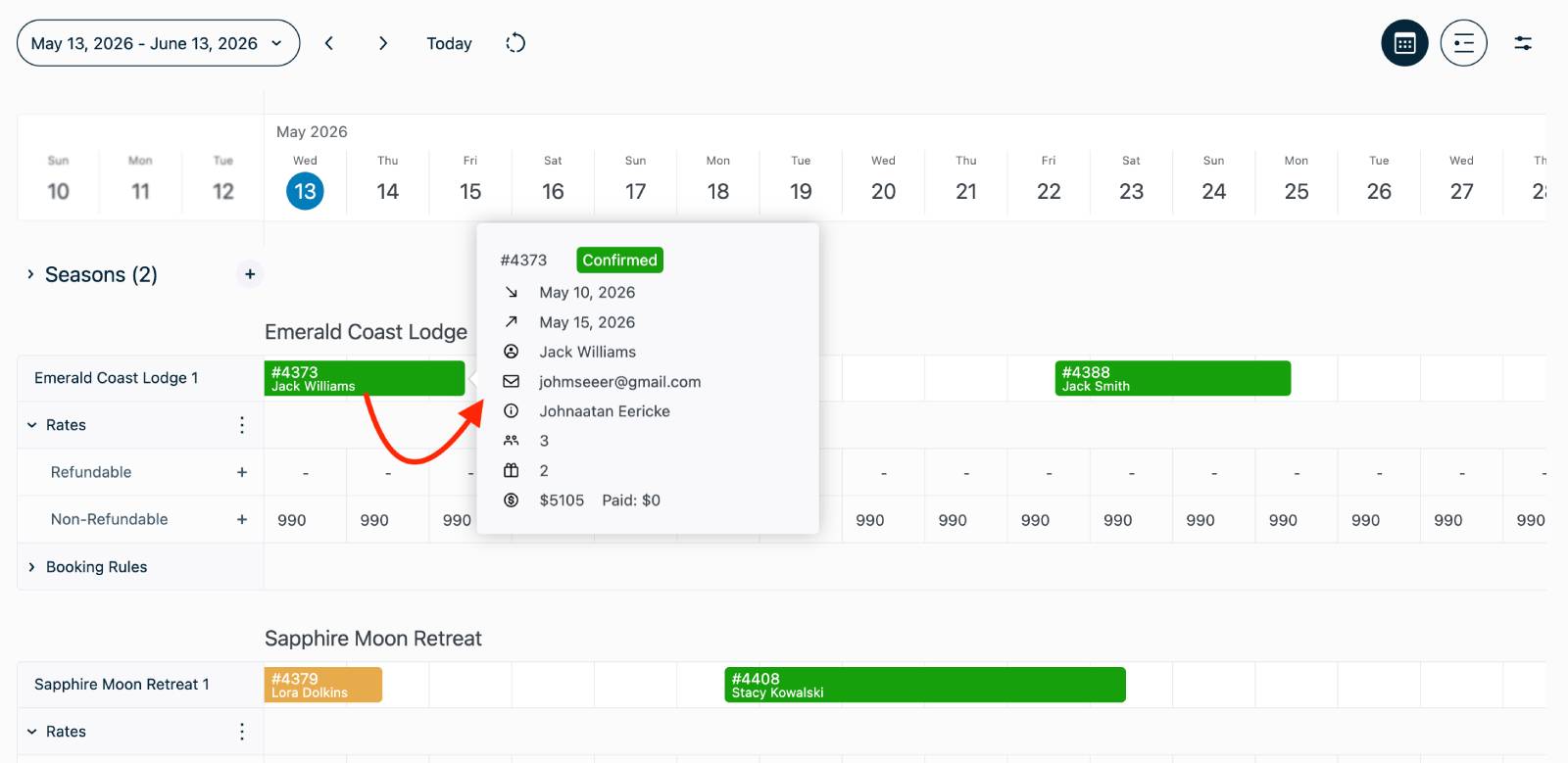
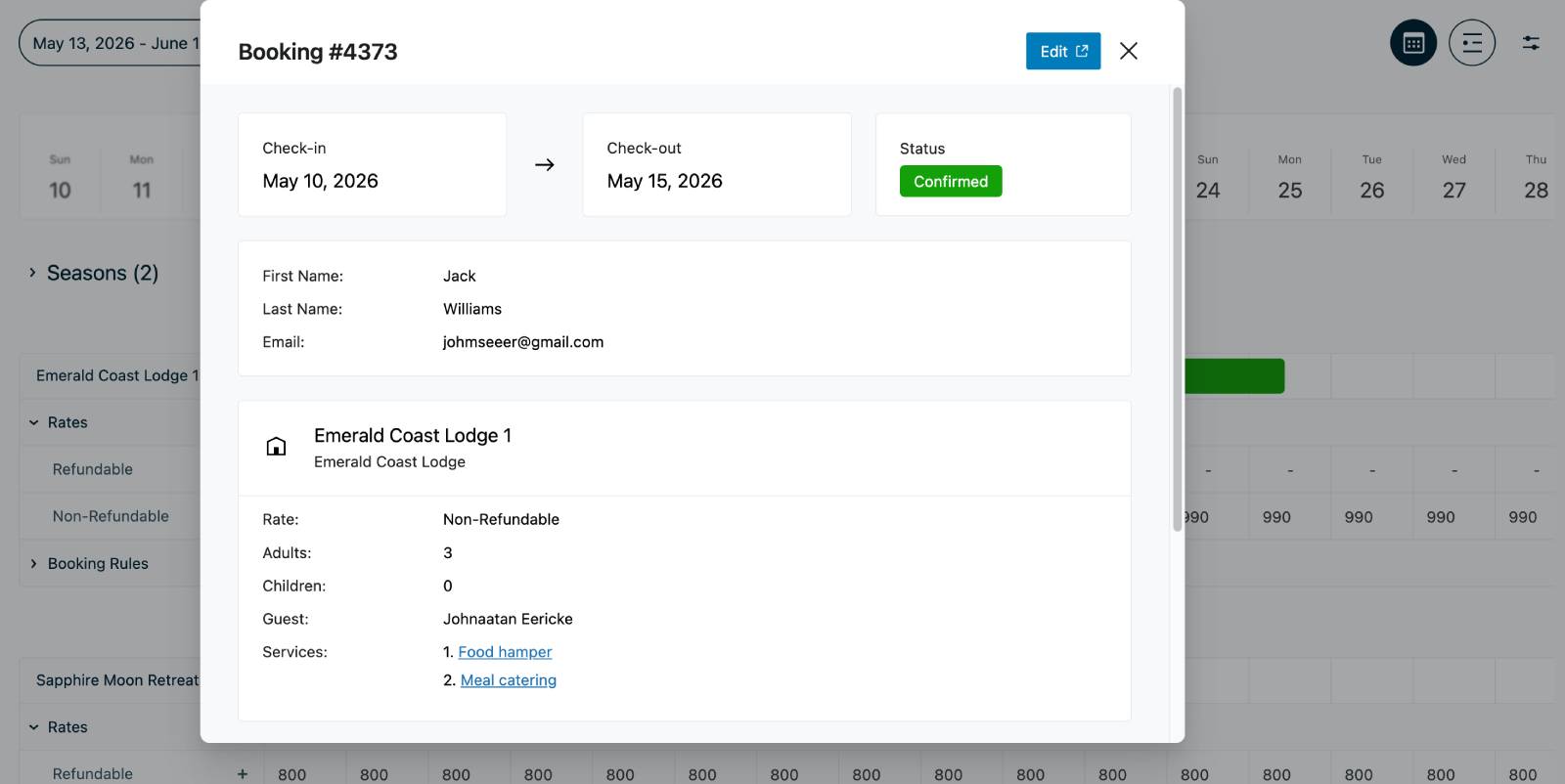
To view details of each booking from the bookings calendar, hover your mouse over the booking or simply click on the needed booking to see all details:
Calendar (Beta)
The Calendar (Beta) is an advanced property management dashboard that provides a visual timeline for managing bookings, availability, rates, pricing, seasons, and booking rules from a single screen.
Access the Calendar
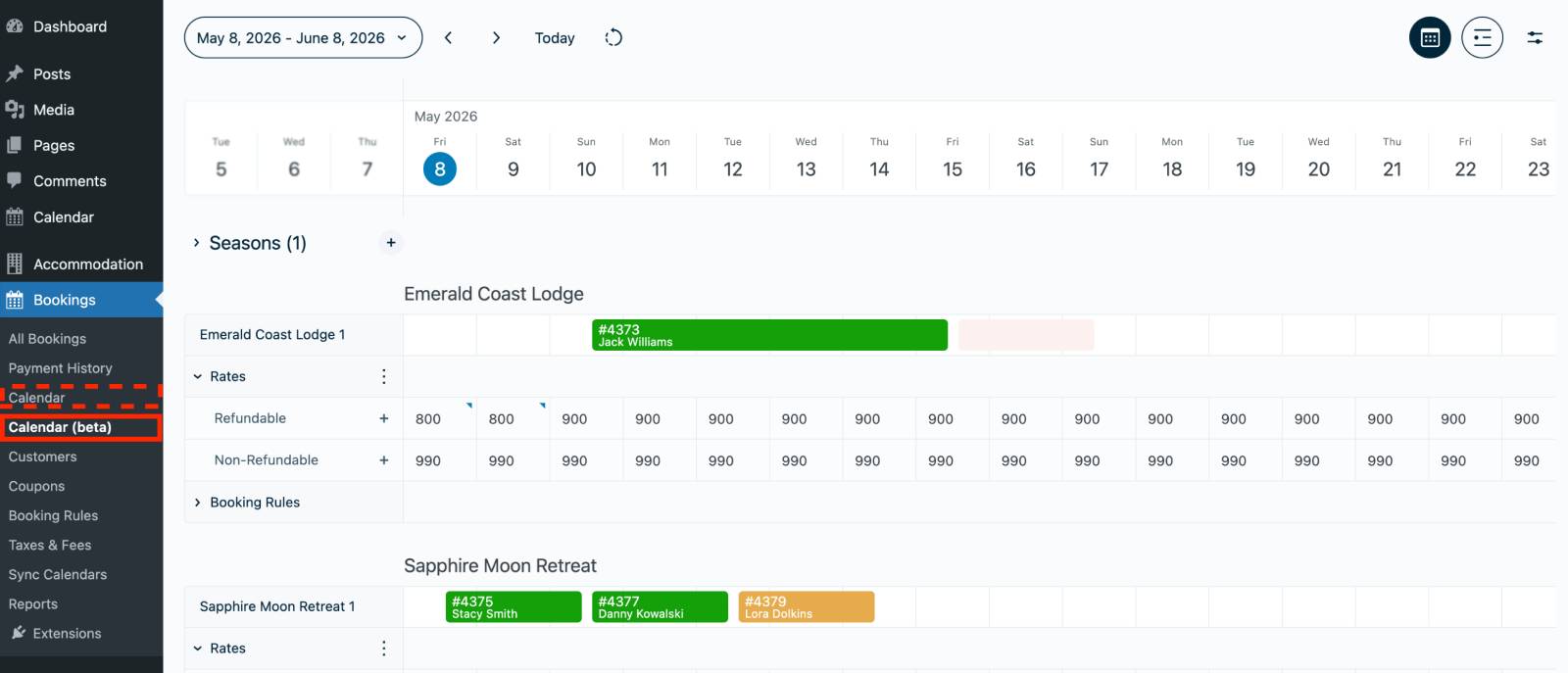
- Go to Bookings → Calendar (Beta).
- Use the date picker to select the period you want to view.
- Choose between Calendar View or List View.
- Use filters to sort bookings by accommodation type.
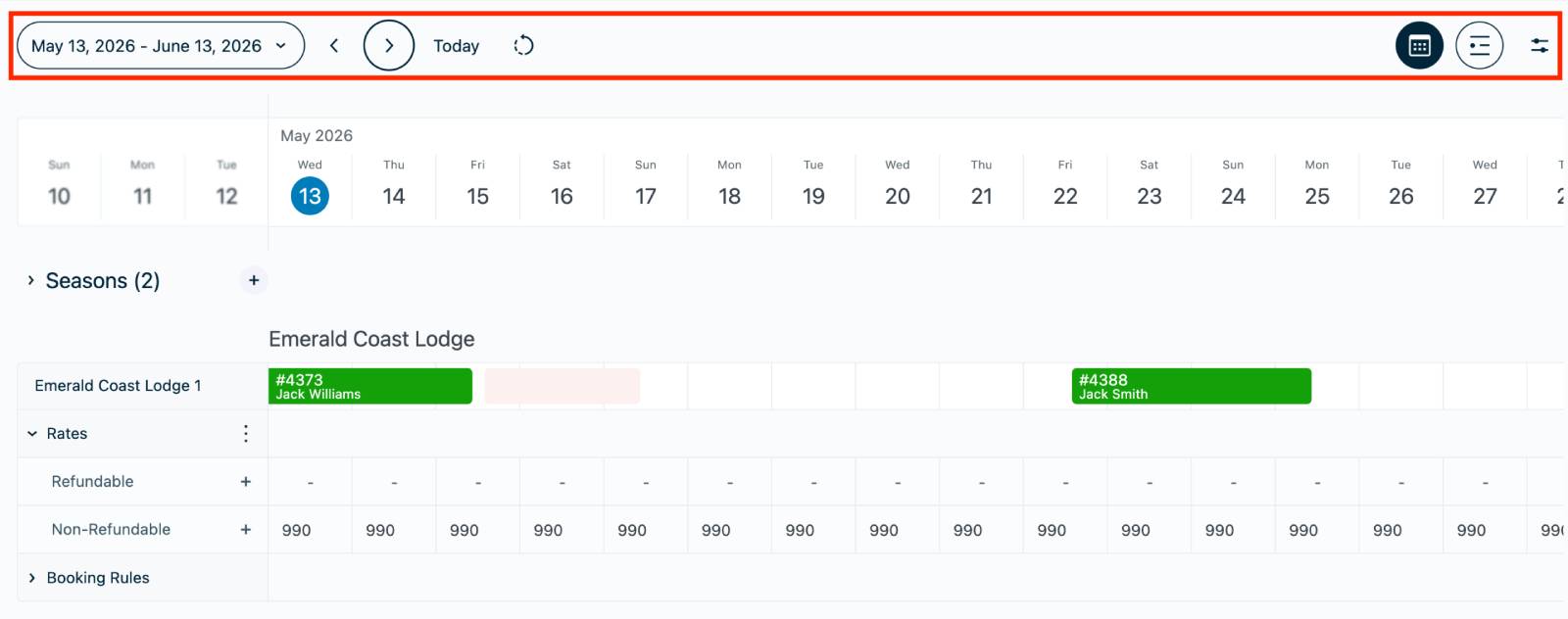
Navigate the Timeline
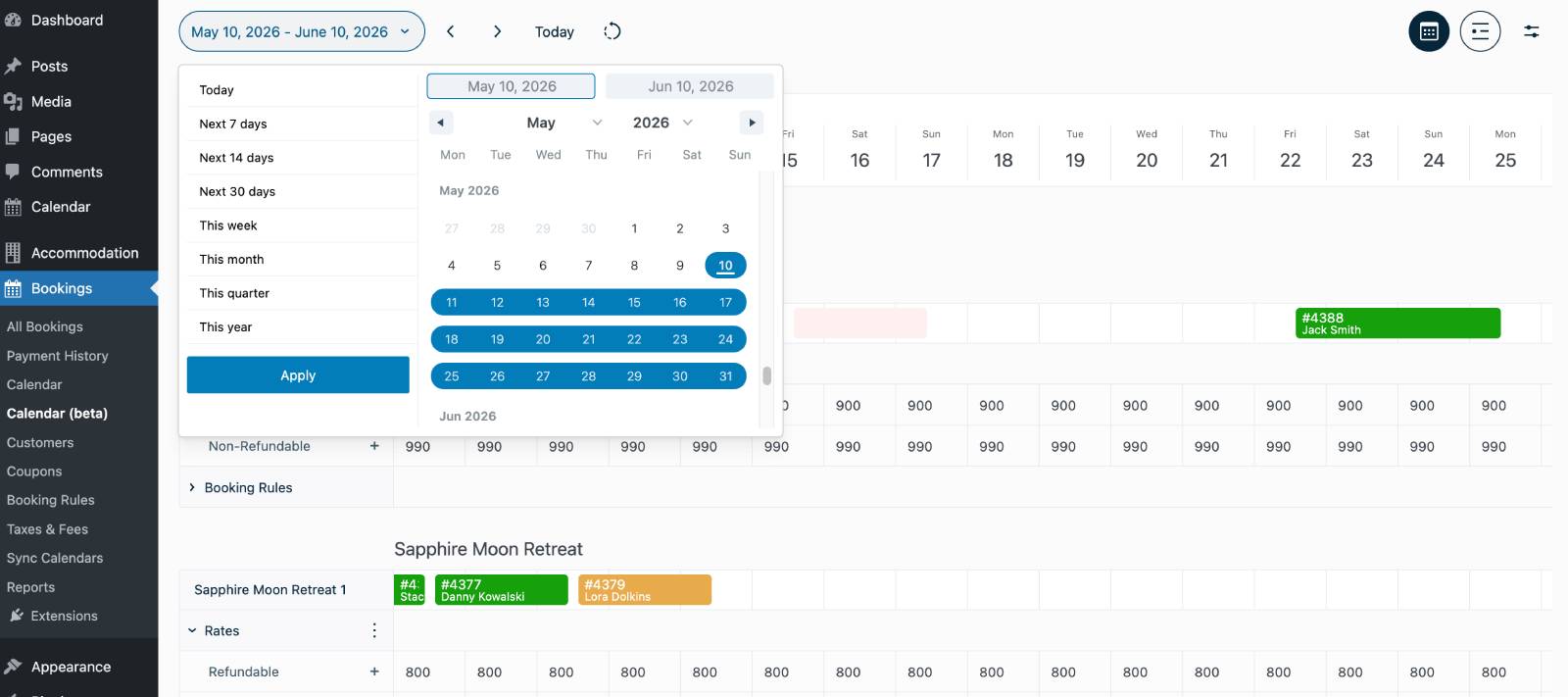
- View all properties in a single timeline.
- Jump to predefined periods such as Today, Next 7 Days, This Month, or This Year.
- View bookings, rates, seasons, and availability directly on the timeline.
- Click timeline entries to manage bookings, rates, and restrictions.
Manage Seasons
Seasons define date ranges used for seasonal pricing and booking rules.
Create a Season
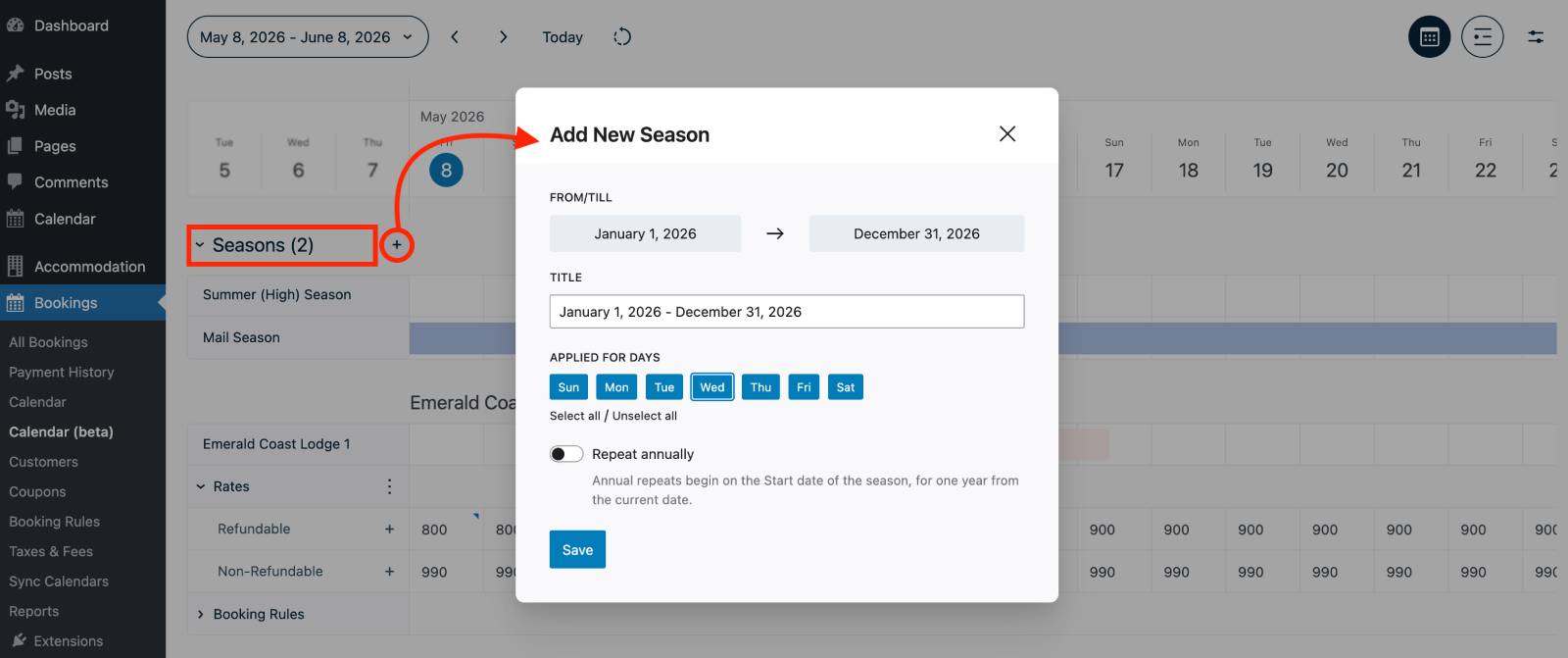
- Expand the Seasons section.
- Click the + icon.
- Enter a season name.
- Select the start and end dates.
- Optionally exclude specific days of the week.
- Add booking restrictions if needed.
- Save the season.
View Existing Seasons
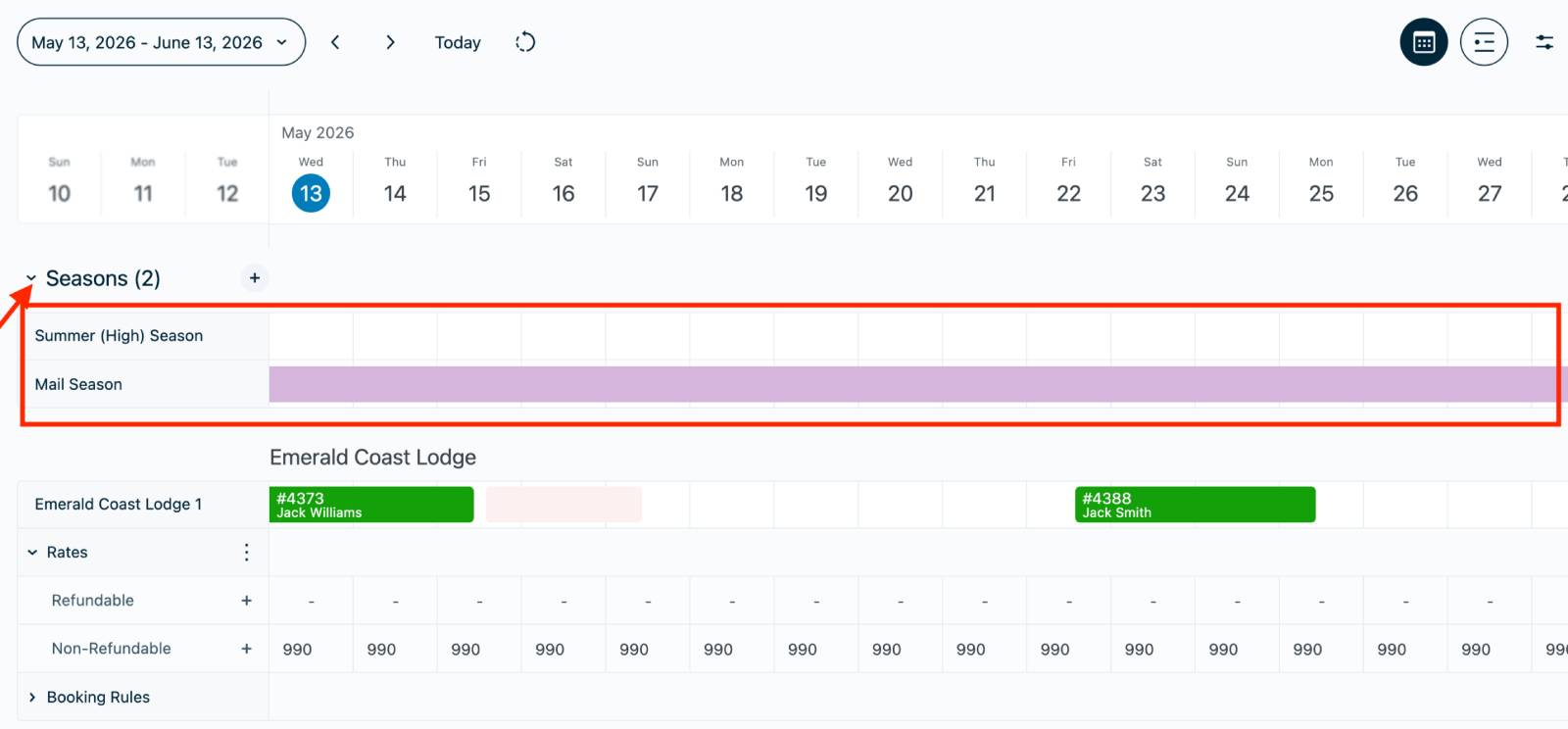
- Open the Seasons section.
- All created seasons are displayed in the list.
Edit a Season
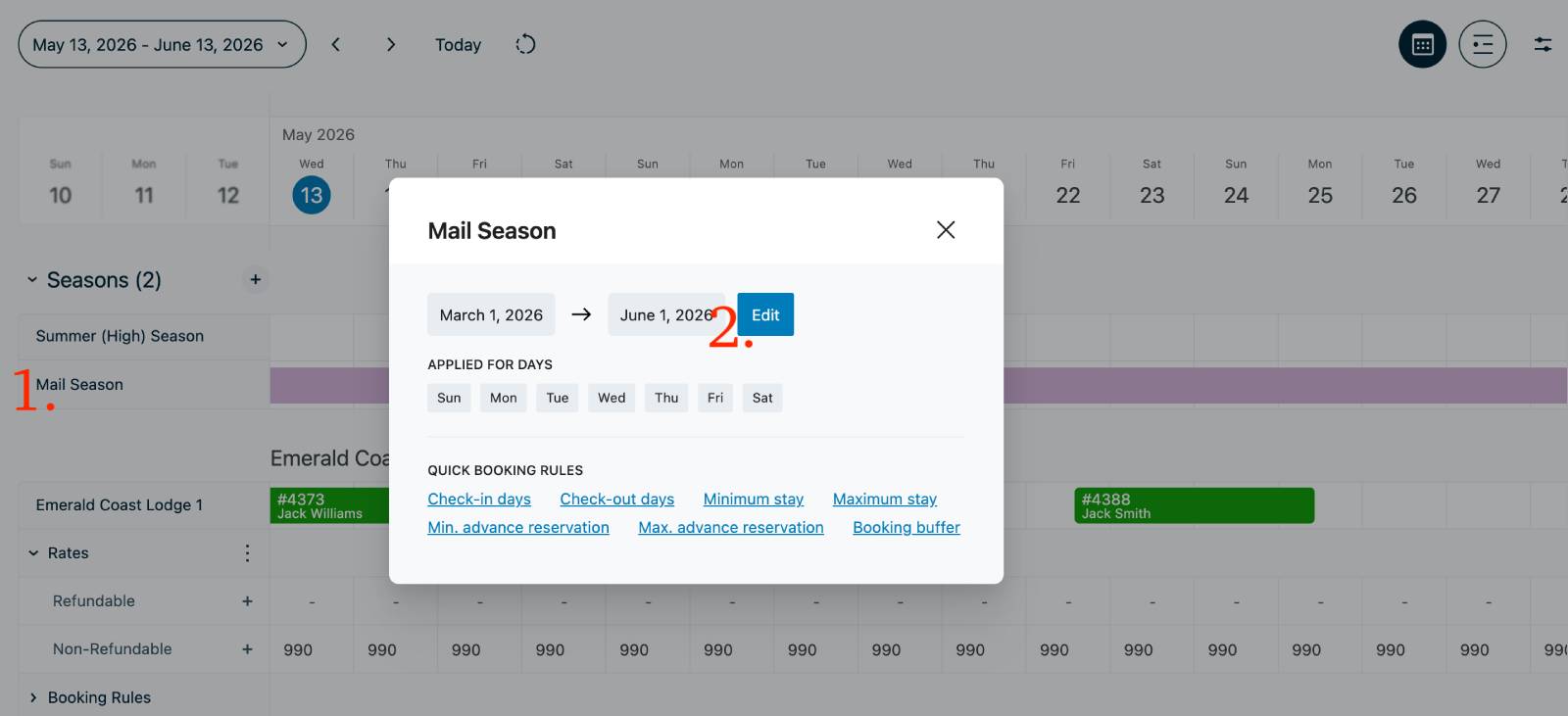
- Open the Seasons section.
- Select the season.
- Click Edit.
- Update the settings and save.
Delete a Season
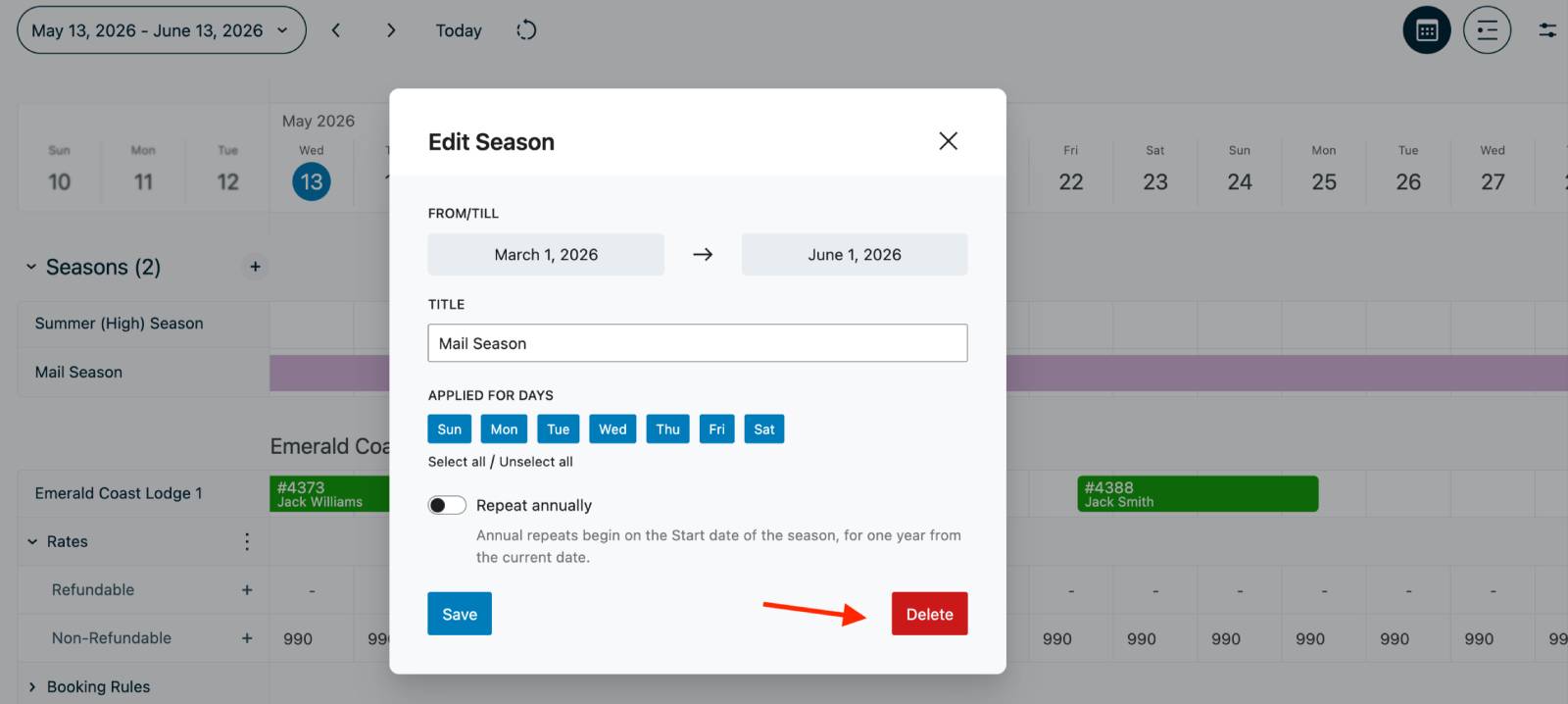
- Open the season.
- Click Edit.
- Select Delete.
Season Indicators
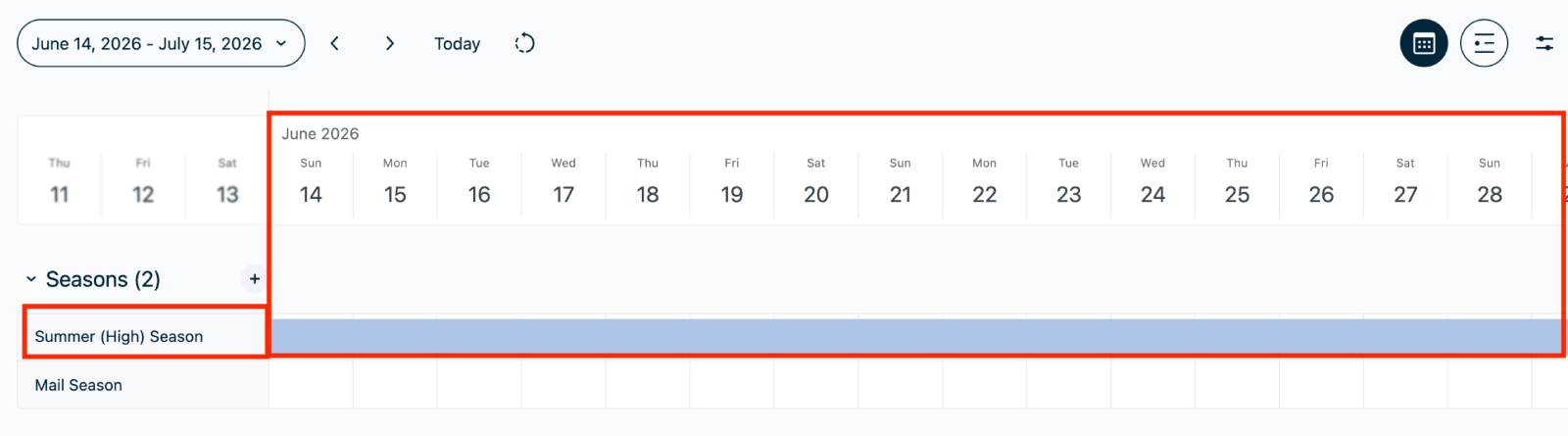
- Color-coded seasons indicate periods that are active within the currently displayed timeline.
- Inactive seasons remain visible in the list but are not highlighted.
Manage Rates
Each accommodation type includes its own Rates section for managing seasonal and daily pricing.
Create a Rate
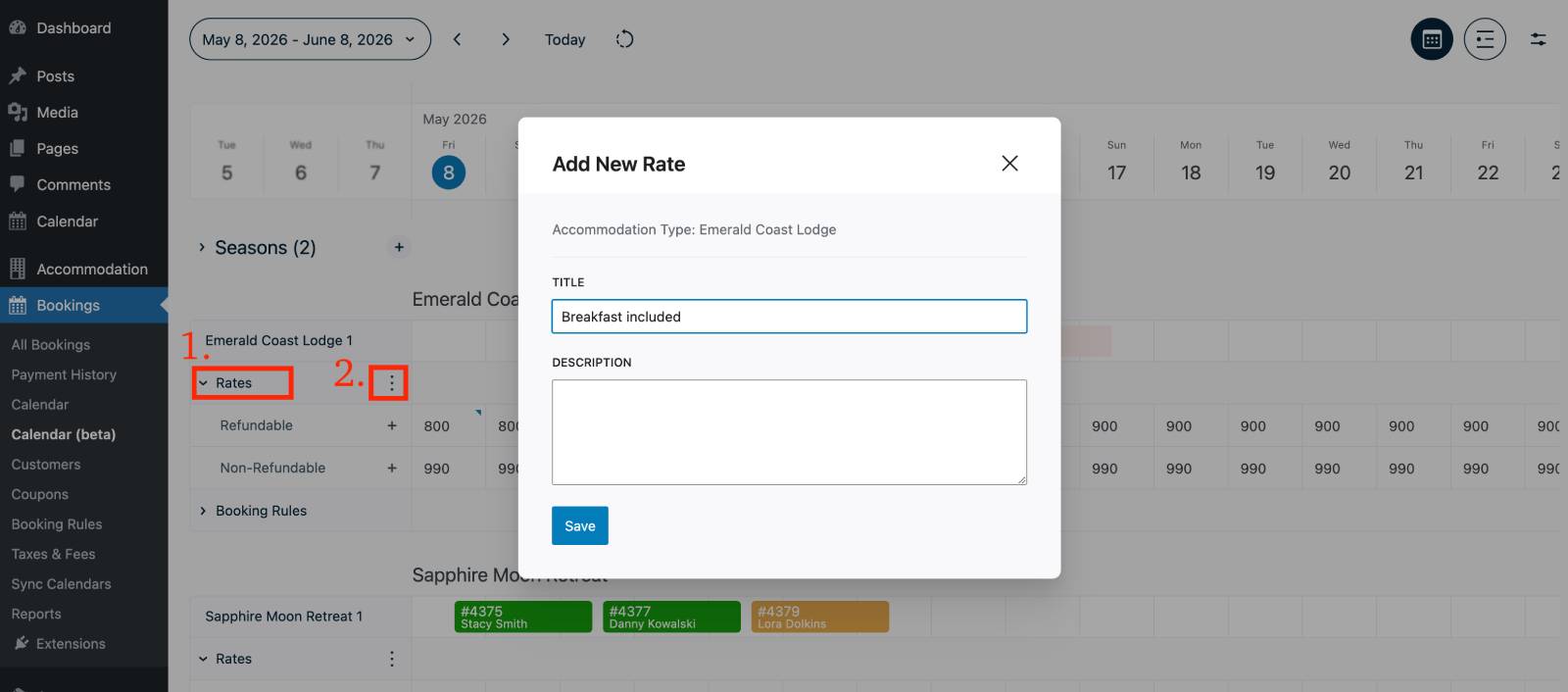
- Expand a property.
- Open the Rates section.
- Click the three-dot menu.
- Select Add New Rate.
- Save the rate.
Add Seasonal Pricing
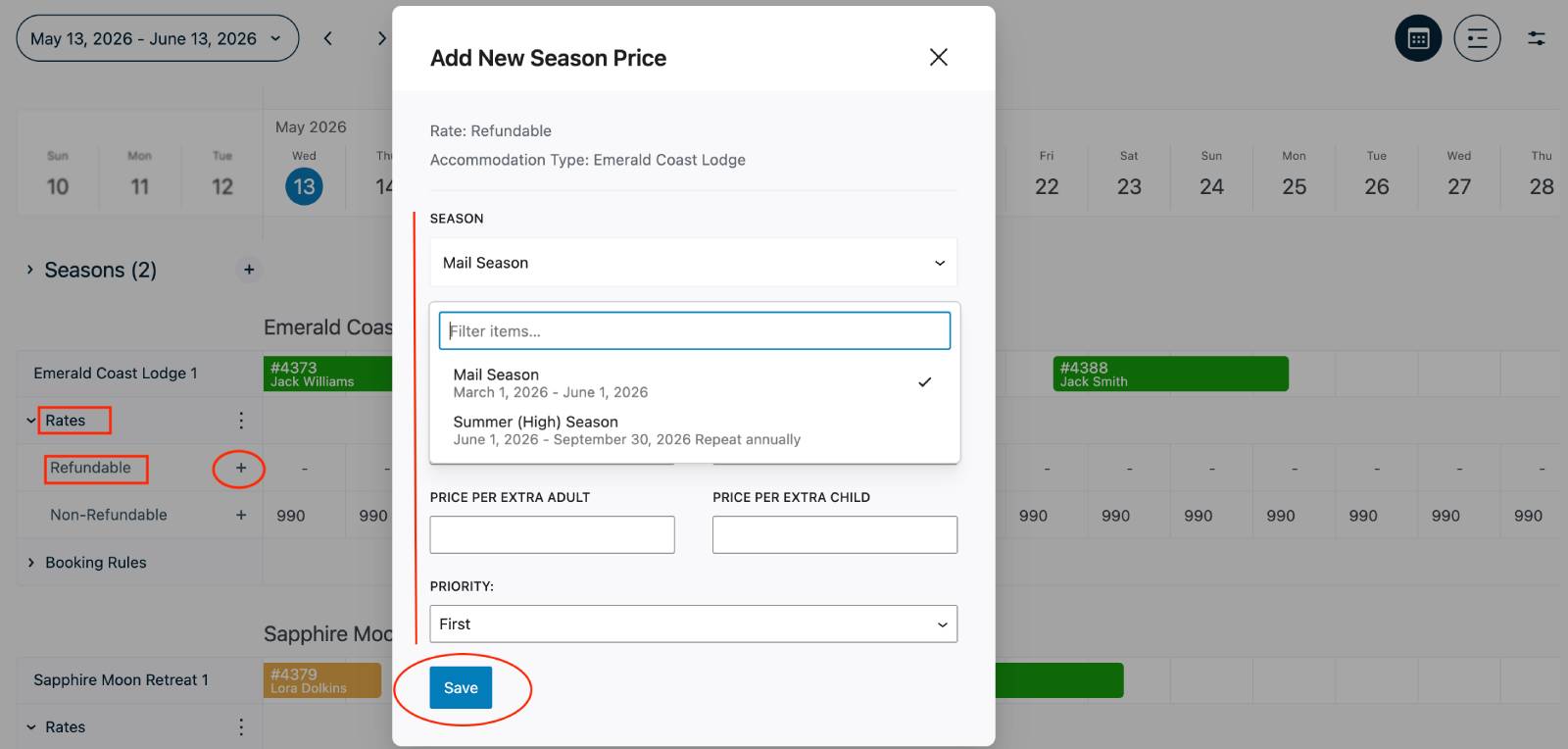
- Open a rate.
- Click the + icon.
- Select a season.
- Enter pricing and booking conditions.
- Save the changes.
Rates based on the length of stay │ Rates based on the number of people
View Rate Prices
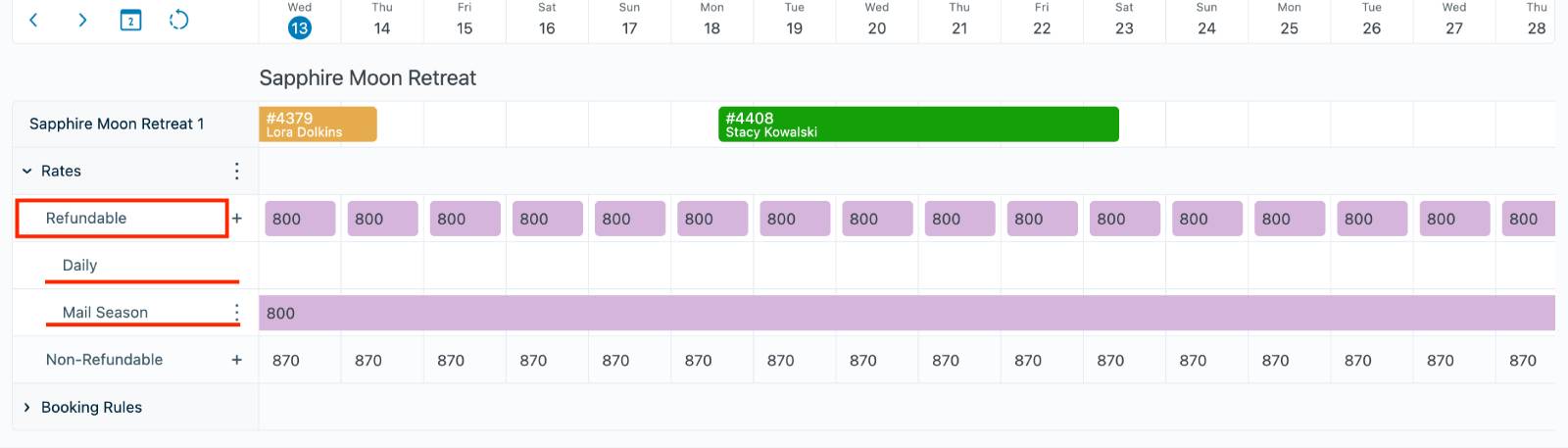
- Expand the Rates section.
- Select a rate.
- Review prices assigned to seasons and daily pricing entries.
Change Rate Priority
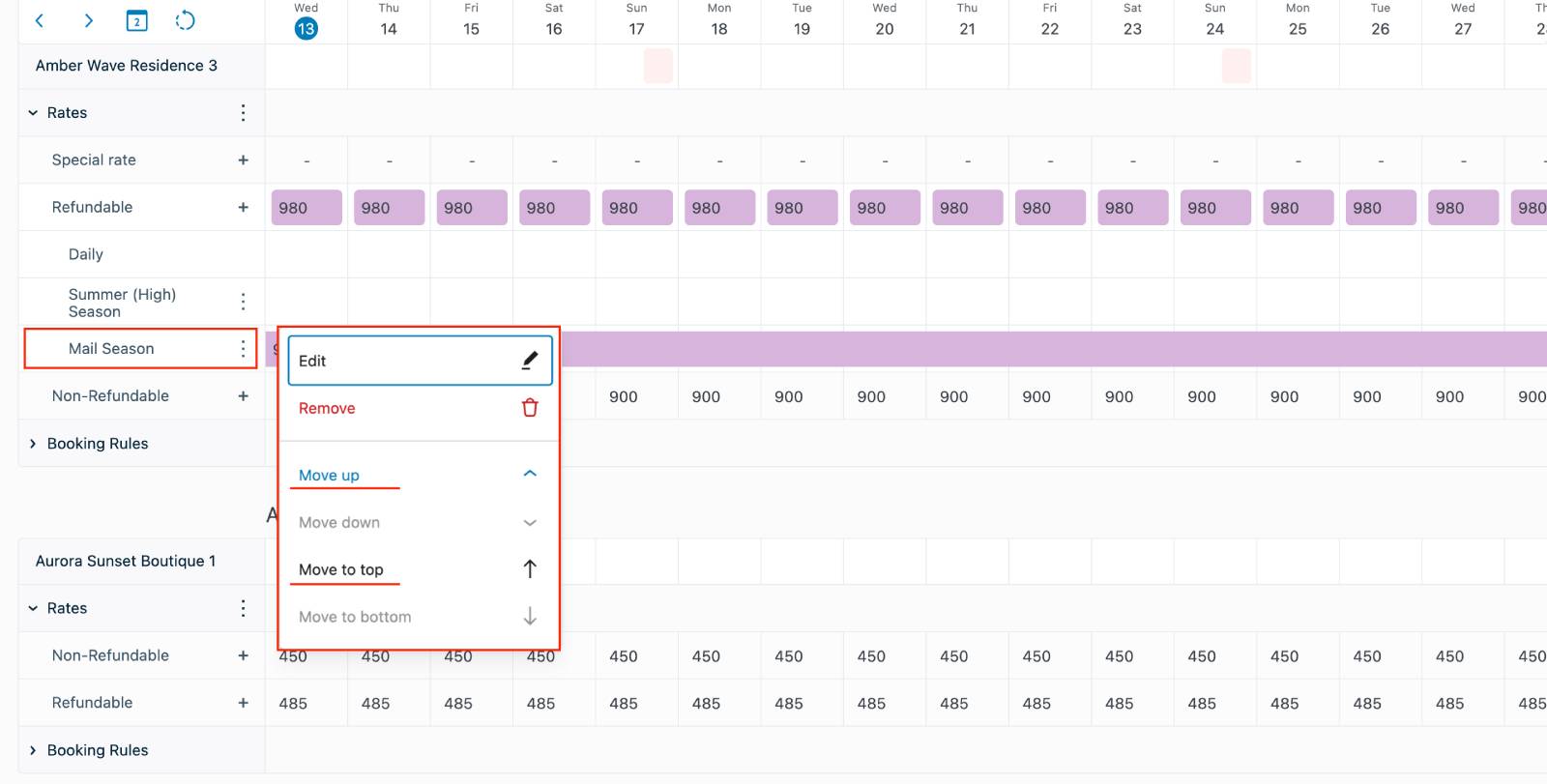
- Open a rate.
- Locate the pricing rule.
- Click the three-dot menu.
- Select Move Up or Move Down.
- Higher priority rates are applied first.
- Daily pricing always has the highest priority.
Use Daily Pricing
Daily Pricing allows date-specific prices without creating a season.
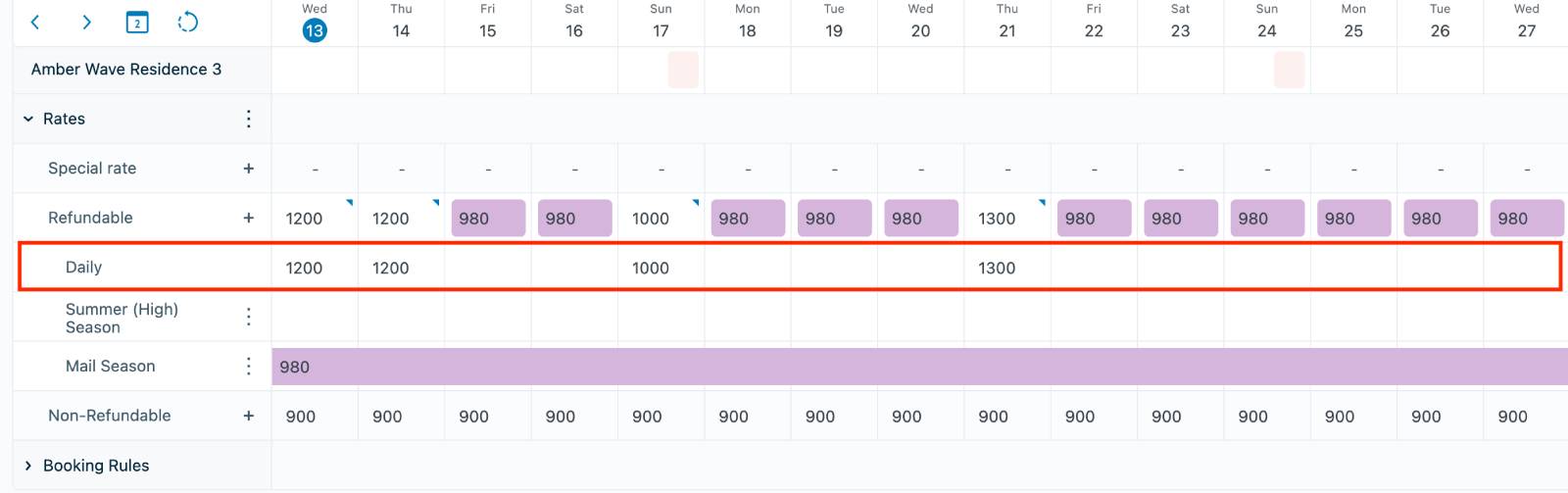
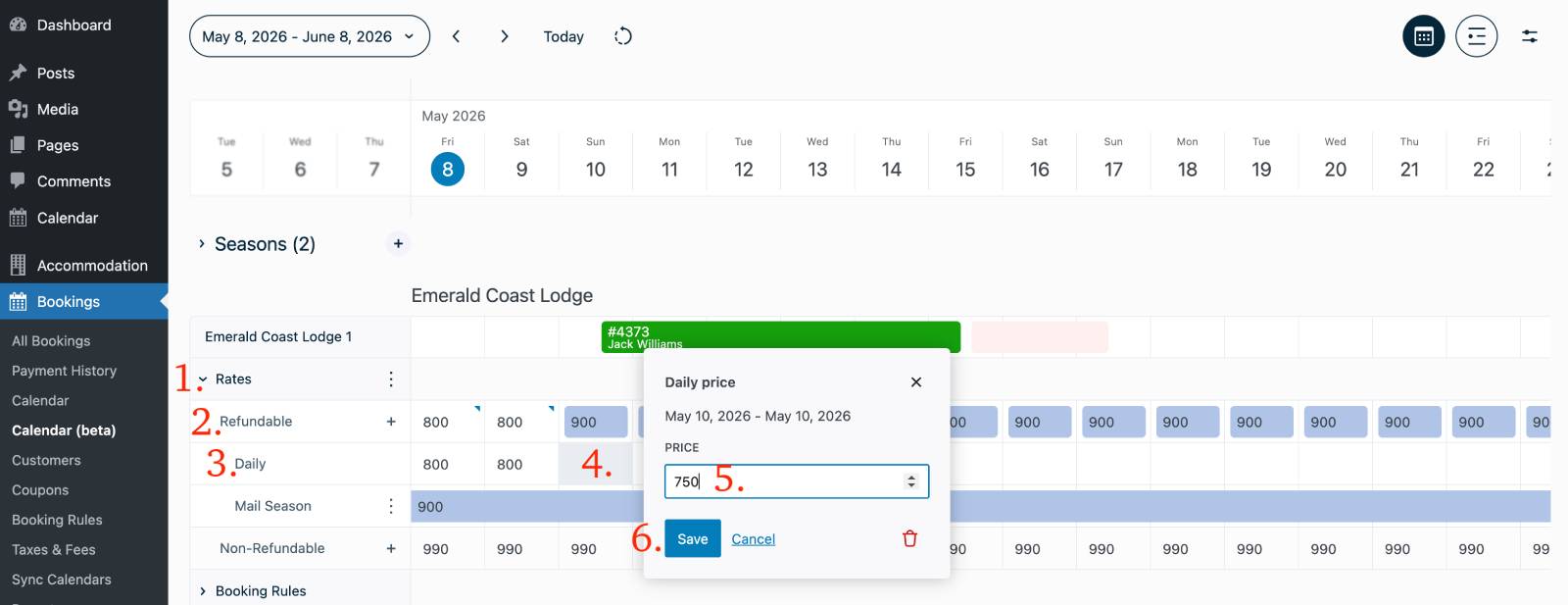
Add Daily Prices
- Open a property.
- Expand the Rates section.
- Select a rate.
- Open the Daily pricing row.
- Click a date or drag across multiple dates.
- Enter the custom price.
- Save the changes.
Daily Pricing Notes
- Overrides seasonal pricing for selected dates (takes priority).
- Can be used even when no seasons exist.
- If PriceLabs synchronization is enabled, imported prices replace manual daily pricing.
Manage Booking Rules
Booking rules can be configured directly within the calendar for each accommodation type.
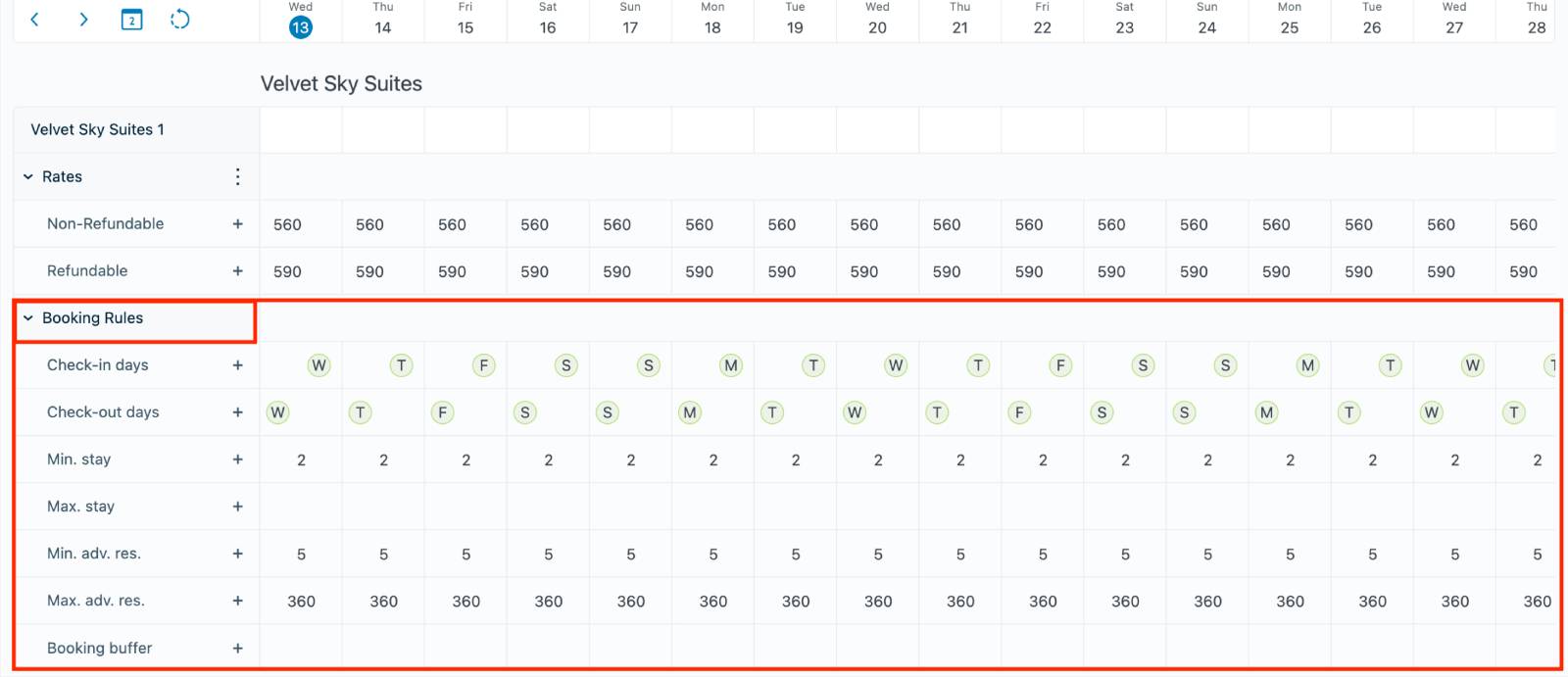
Available Rule Types
- Check-in days
- Check-out days
- Minimum stay
- Maximum stay
- Minimum advance reservation
- Maximum advance reservation
- Booking window
- Booking buffer
Create a Booking Rule
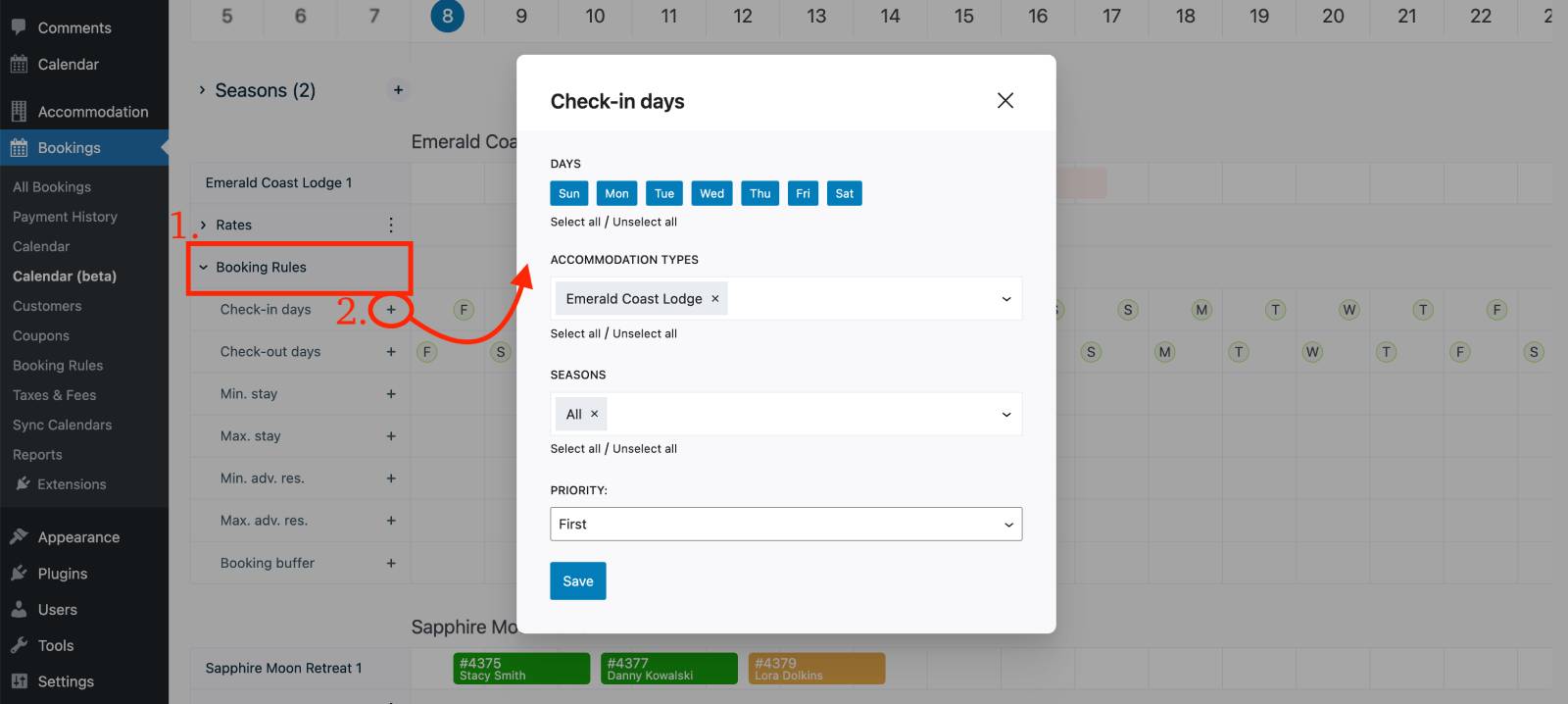
- Expand a property.
- Open the Booking Rules section.
- Click the + icon next to the desired rule type.
- Configure the rule settings.
- Save the rule.
Set Rule Priority
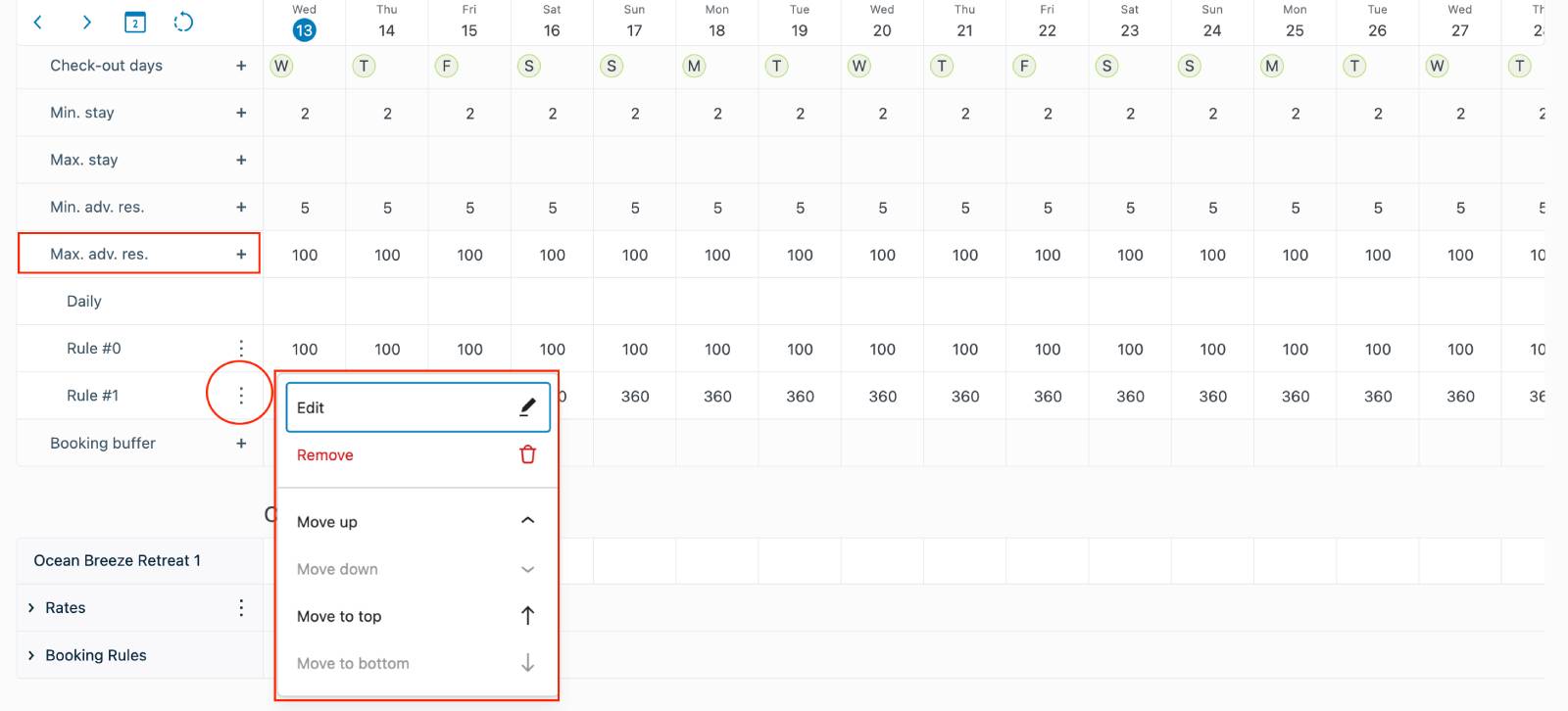
- Open the Booking Rules section.
- Select a rule.
- Click the three-dot menu.
- Choose Move Up or Move Down.
Add Daily Rule Overrides
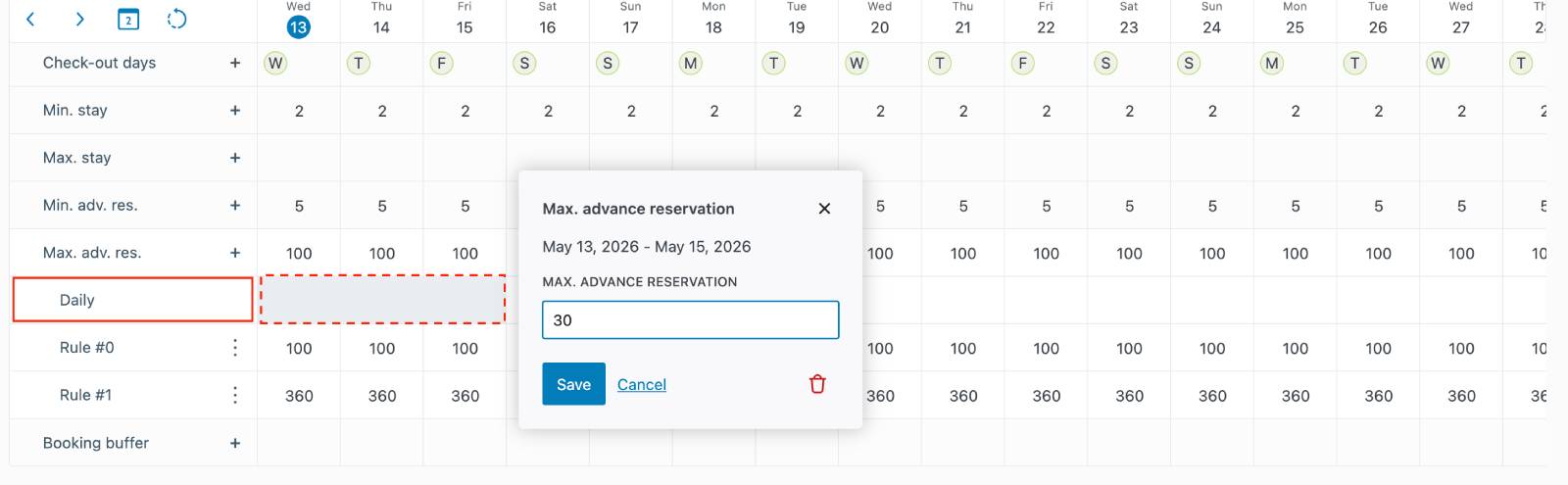
- Open a booking rule.
- Select the Daily row.
- Choose a date on the timeline.
- Apply custom rule settings.
- Save the changes.
Rule Indicators
- Green dates indicate allowed check-in/check-out days.
- Red dates indicate restricted check-in/check-out days.
Add Bookings and Block Dates
Create a Manual Booking
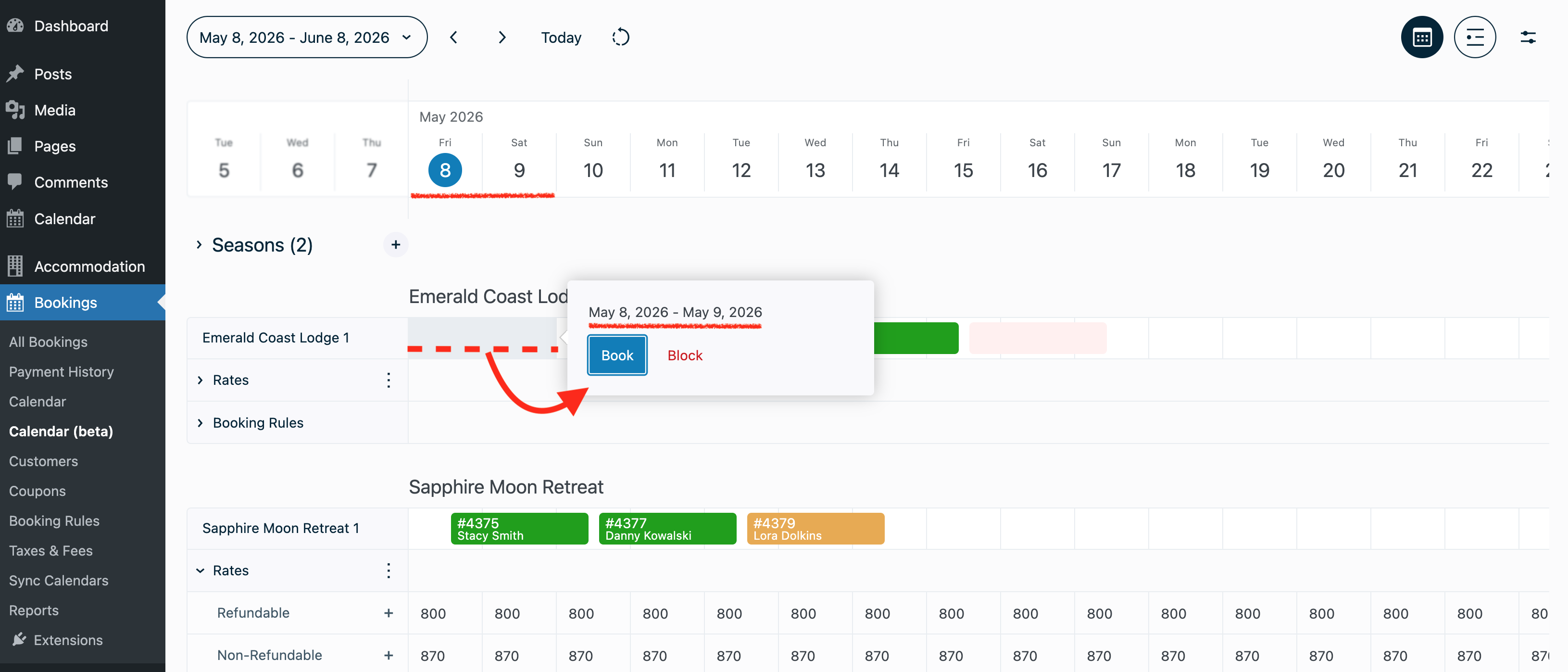
- Click an available date or drag across multiple dates on the timeline grid.
- Select Create Booking.
- Enter booking details.
- Save the booking.
Block Dates
- Click an available date or drag across multiple dates in the grid.
- Select Block Dates.
- Save the restriction.
Book or Block Multiple Accommodations Simultaneously
- Drag across dates horizontally and accommodation units vertically.
- Create a booking or block for all selected accommodations.
If you want to add different accommodation types into one booking:
– For existing bookings, click on a booking > Edit > Edit accommodations.
– For new bookings, use the old Calendar menu > click New booking.
Booking Status Colors
- Green – Confirmed bookings.
- Orange – Pending bookings.
- Pink – Manually blocked dates.
- Violet – Imported bookings from external calendars or OTAs.
Manage Existing Bookings
- Hover over a booking to view a quick summary.
- Click a booking to open its details.
- Edit booking information, update accommodations, or add payments.
Manage Blocked Dates
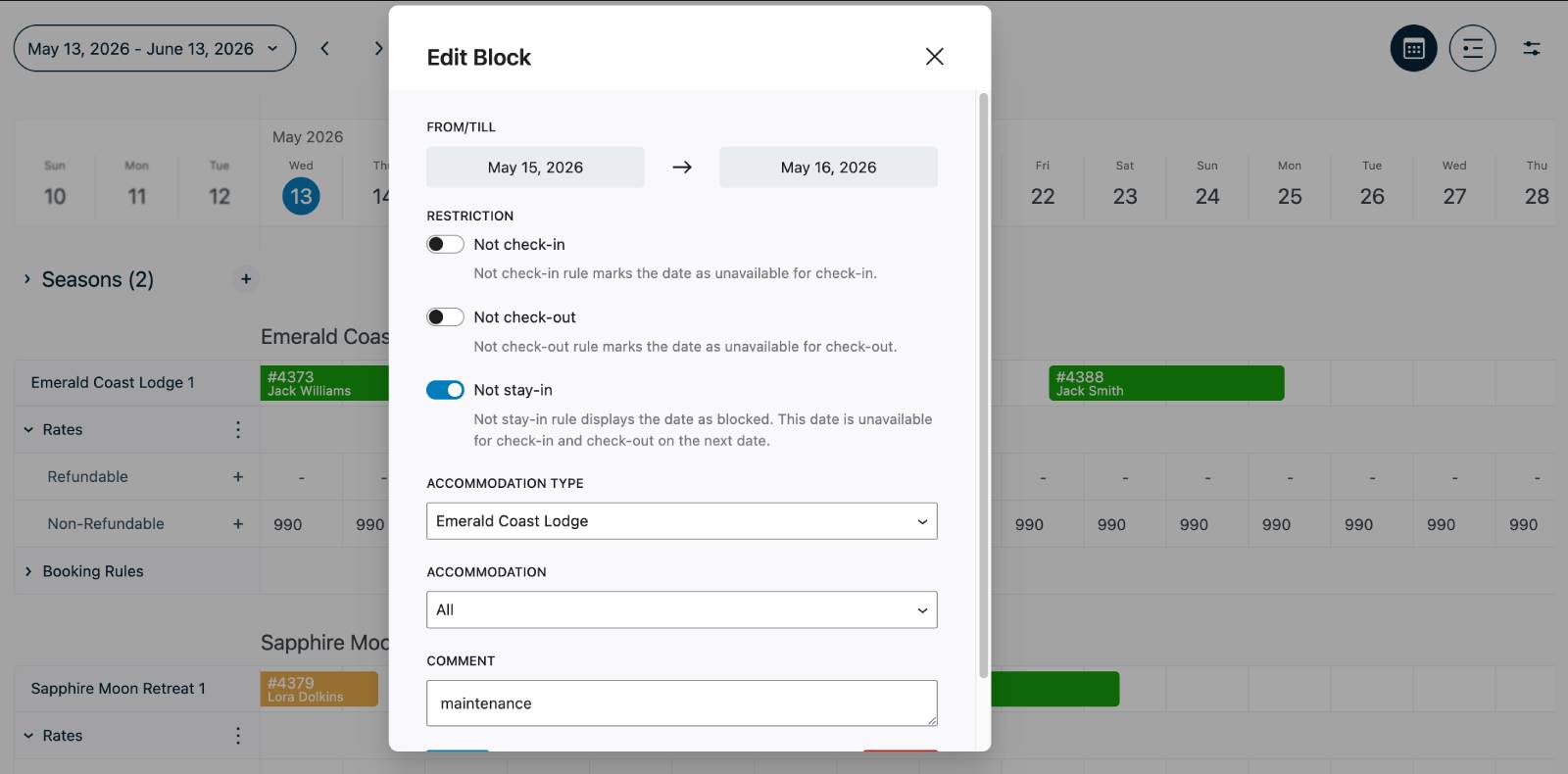
- Click a blocked date.
- Edit the restriction or remove it.
- Save the changes.
Use List View
List View provides a simplified booking overview for daily operations.
Switch to List View
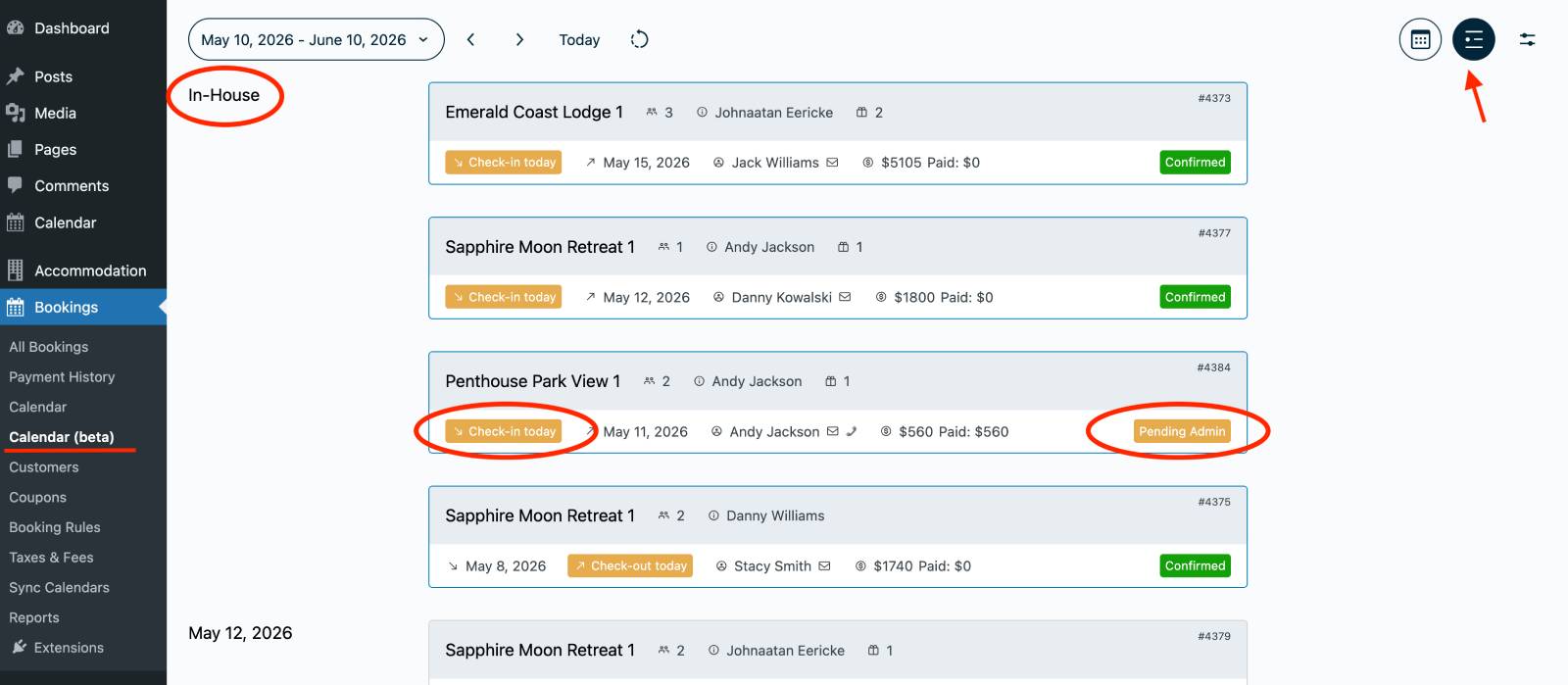
- Open the Calendar (Beta).
- Click the List View icon in the top-right corner.
Information Available in List View
- Current in-house guests.
- Upcoming arrivals.
- Booking statuses.
- Payment information.
- Guest details.
- Check-in and check-out dates.
Manage Bookings from List View
- Select a booking.
- View booking details.
- Edit the booking or record payments.