
Table of Contents
What you will create:
An eligible accommodation business’s Google Business Profile and improve the information potential guests see on Google Search and Maps.
In this practice, you will:
- Check whether your accommodation business qualifies for a profile.
- Create or claim your listing and complete verification.
- Add accurate business information, photos, and amenities.
- Review real hotel profiles for configuration ideas.
- Monitor profile performance and identify areas for improvement.
Why guests can’t find accurate information about your property
Travelers use Google Search and Maps to compare accommodation, check locations, browse photos, and read reviews. If your hotel’s listing is incomplete or outdated, potential guests may miss important details and choose a competitor instead.
For example, your hotel might offer free parking and a recently renovated breakfast area, but your profile contains old photos and doesn’t mention parking. Travelers comparing nearby properties may overlook these advantages.
A Google Business Profile lets eligible businesses manage the information travelers see on Google Search and Maps, including:
- Business name, address, and contact details.
- Property photos, reviews, and ratings.
- Available hotel amenities and attributes.
- Links to the official website and, for eligible hotels, booking options.
However, before you set up or update a profile, there are two important things to understand:
- How Google Business Profile works: Your Business Profile is the listing you manage, and its information can appear on both Google Search and Maps.
- Whether your accommodation qualifies: Google excludes individual rental properties, including vacation homes and vacant apartments, from Business Profiles. Hotels and some property management or leasing offices may qualify if they meet Google’s requirements.
Check Google’s eligibility guidelines before proceeding.
Check your eligibility
Use the table below to check how Google’s general eligibility rules apply to different accommodation businesses.
| Business type | General eligibility |
|---|---|
| Hotel with an eligible business location | Generally eligible |
| Bed and breakfast or guesthouse | Depends on the business and applicable requirements |
| Individual vacation home or holiday rental | Ineligible as an individual rental property |
| Vacant apartment offered for rent | Ineligible |
| Property management or leasing office | May qualify if requirements are met |
Managing a rental website or accepting online bookings doesn’t automatically make an individual vacation rental eligible. Once you’ve confirmed that your business qualifies, you can move on to creating or claiming its profile.
How to set up and optimize your profile
Step 1. Find your listing or create a new one
Search for your accommodation business on Google Search and Maps using its real name and location. If a listing already exists, determine whether you can manage it before creating anything new, using the list below:
- You already manage the listing: Sign in to the Google Account associated with it.
- Someone else manages it: Follow Google’s process to request access or ownership.
- Your eligible business has no listing: Visit Google Business Profile and follow the instructions to add your business.
Here’s a short instruction on how to add your listing in case your hospitlaity business isn’t yet on Google:
- Create a Google Account or log in to an existing one for this step.
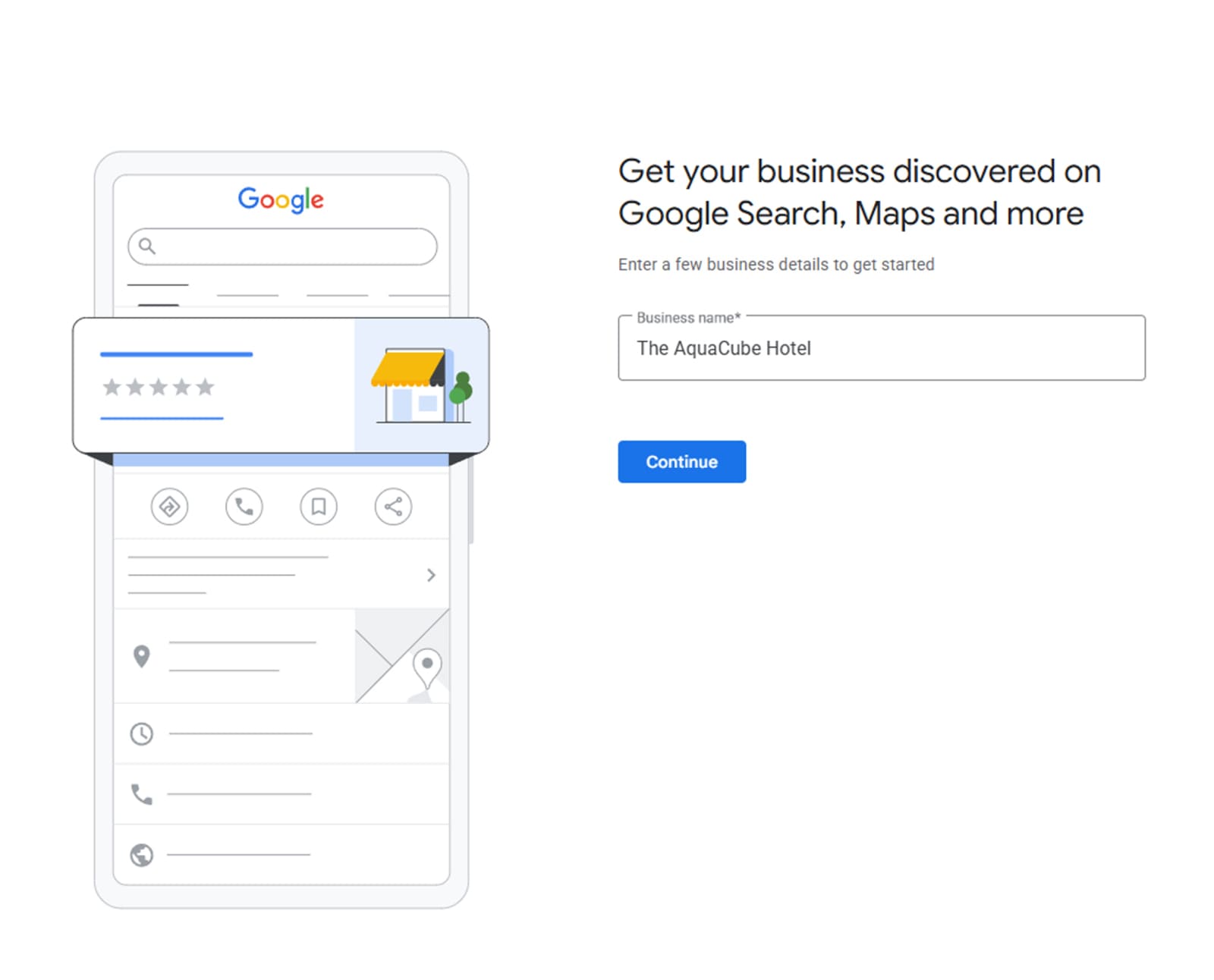
- Navigate to the Business Profile Manager and press Start Now.
- Enter the name of your hotel.
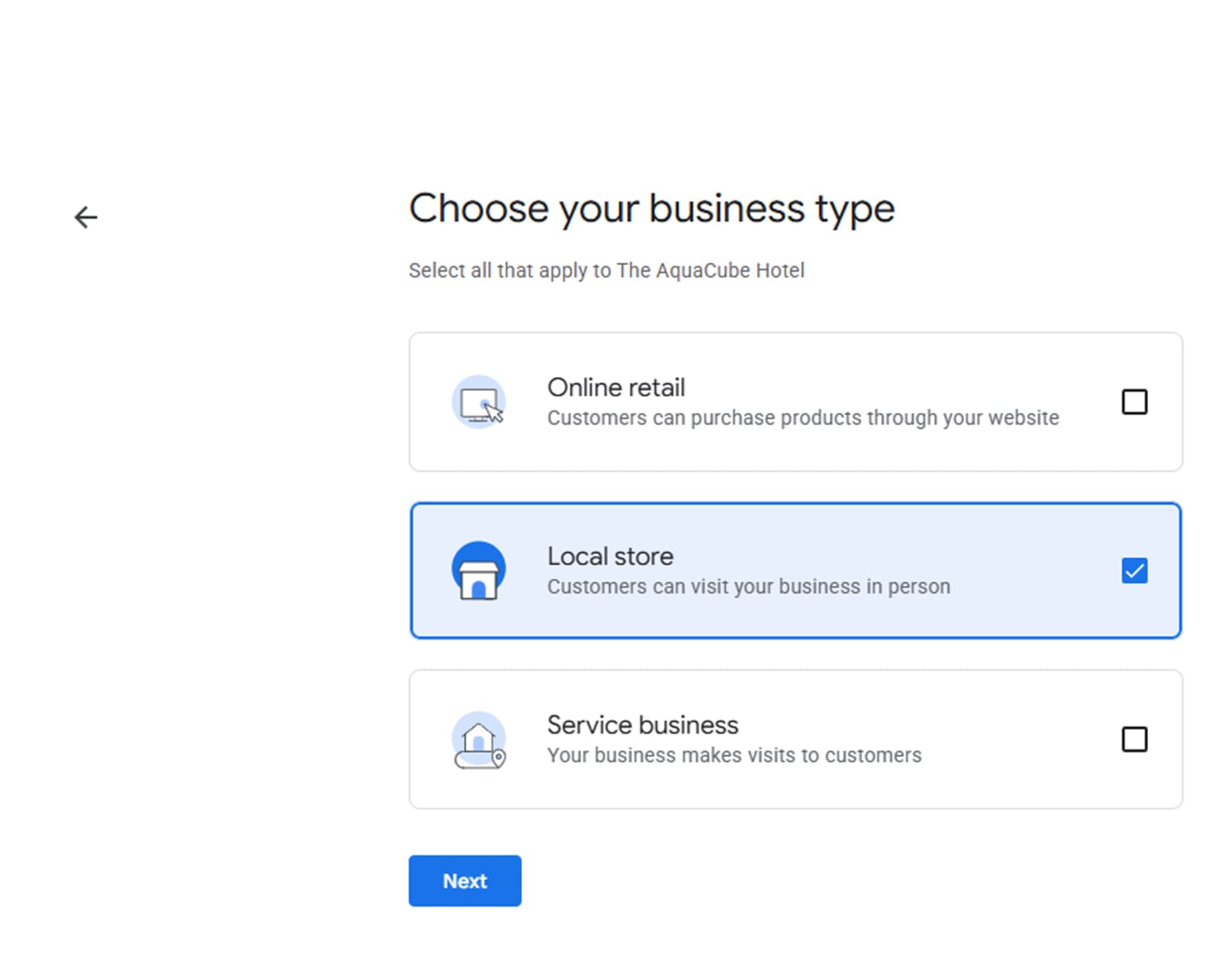
- Out of the available options, choose “Local Store”. Since your hotel provides accommodation services and customers need to visit your business in person, this is the most suitable option.
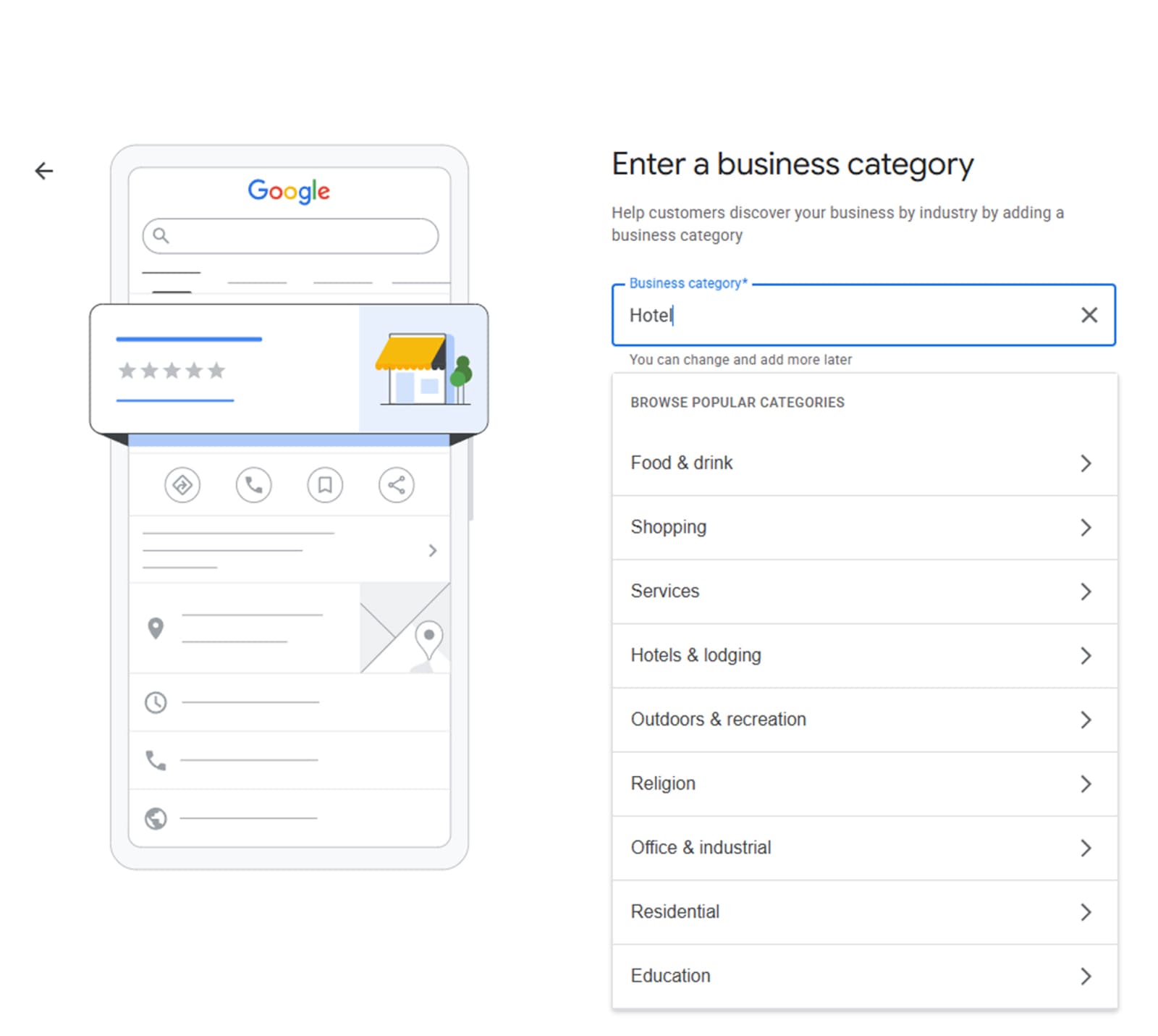
- On the next page, you’ll need to select a fitting category for your hotel. Click on the “Business category” field to start. You’ll see a dropdown list consisting of numerous categories.
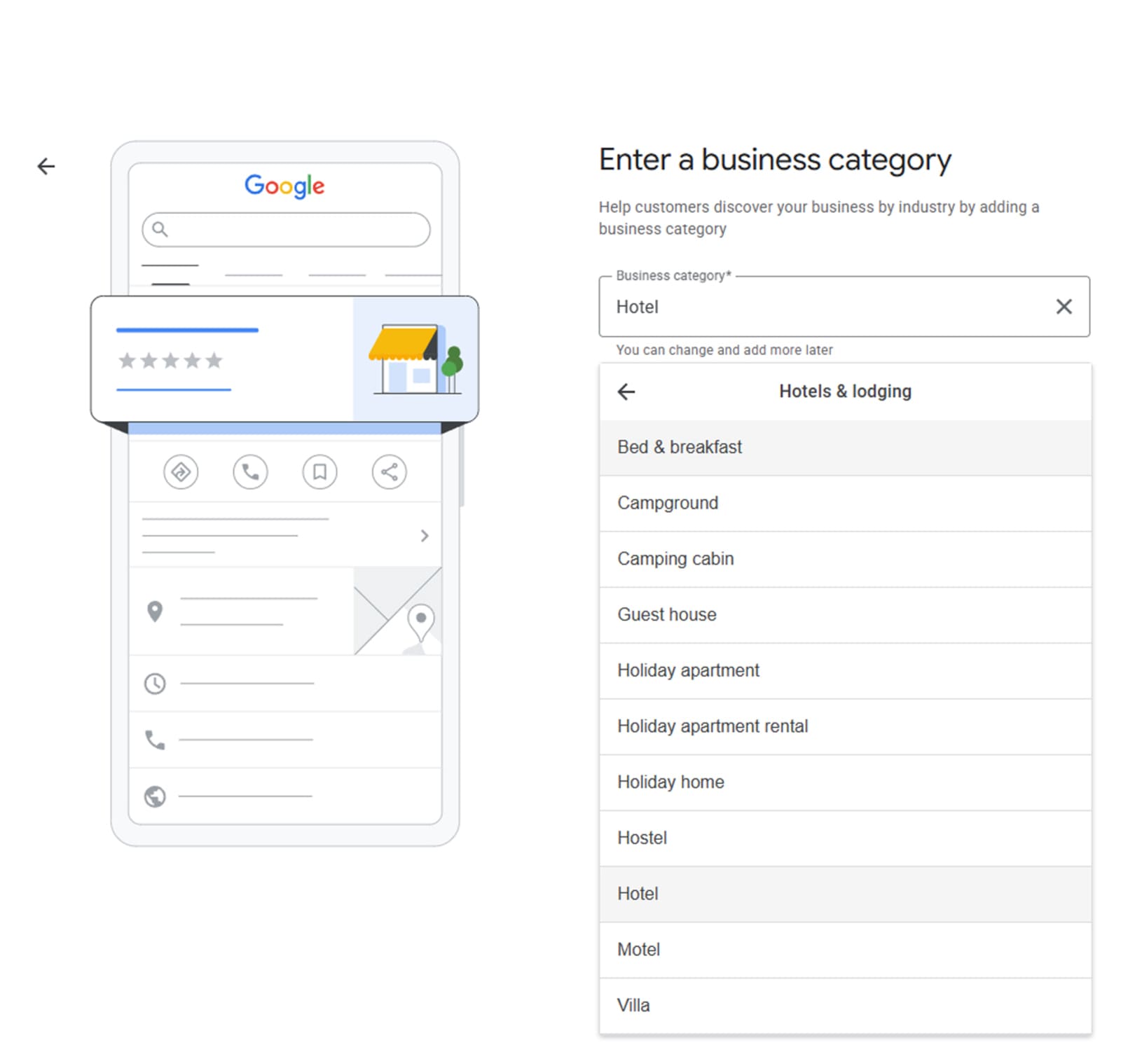
- Choose “Hotels & lodging” and then pick the hotel type. Some of the available options are:
- Bed & breakfast
- Campground
- Guest house
- Holiday apartment
- Hotel
- Villa
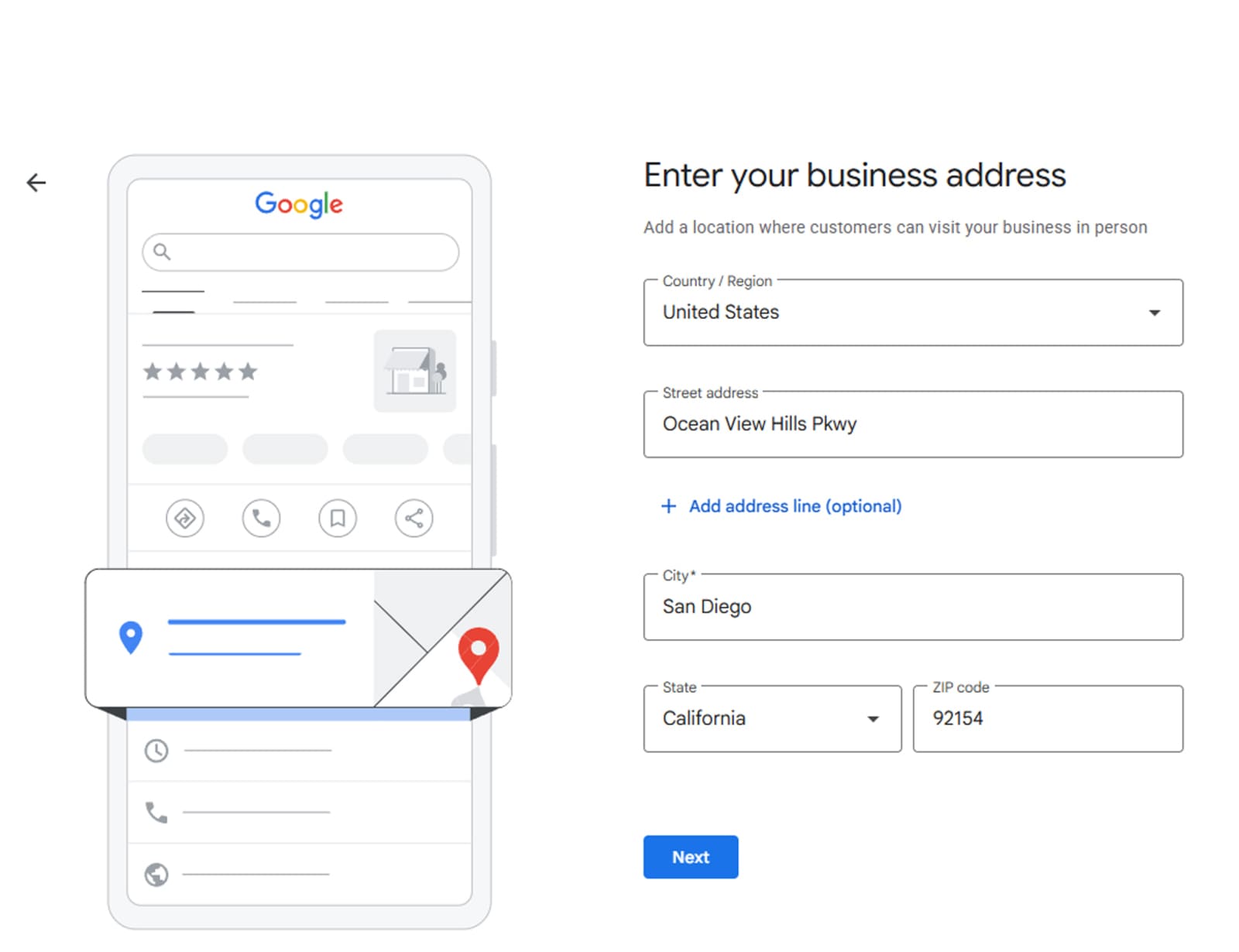
- Next, enter your hotel’s address. You’ll need to specify:
- Country
- Street address
- City
- State (if applicable)
- ZIP code
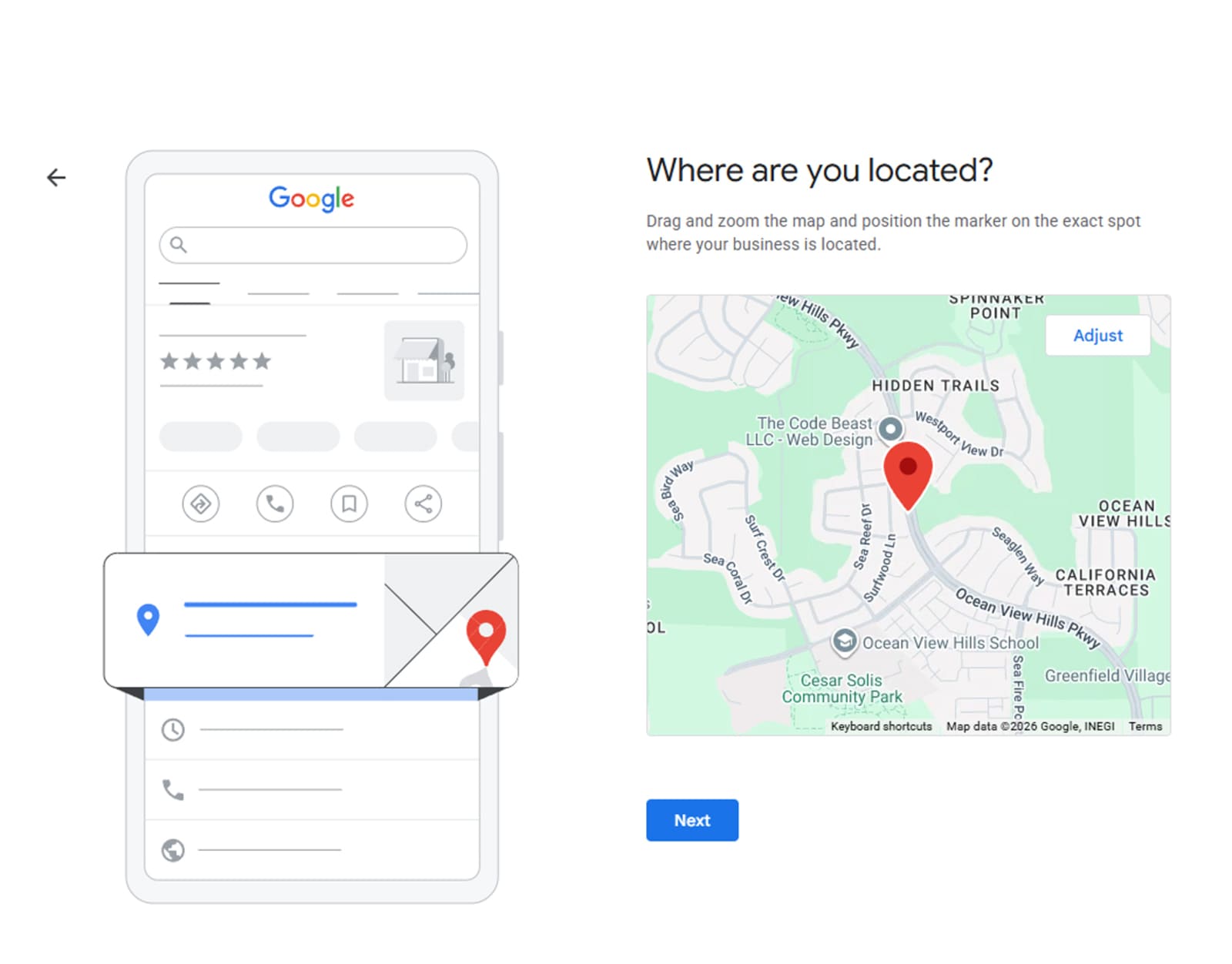
- Now, you’ll need to pinpoint your business’s exact location before you proceed. This will help you define how your business will be shown on Google Maps during search.
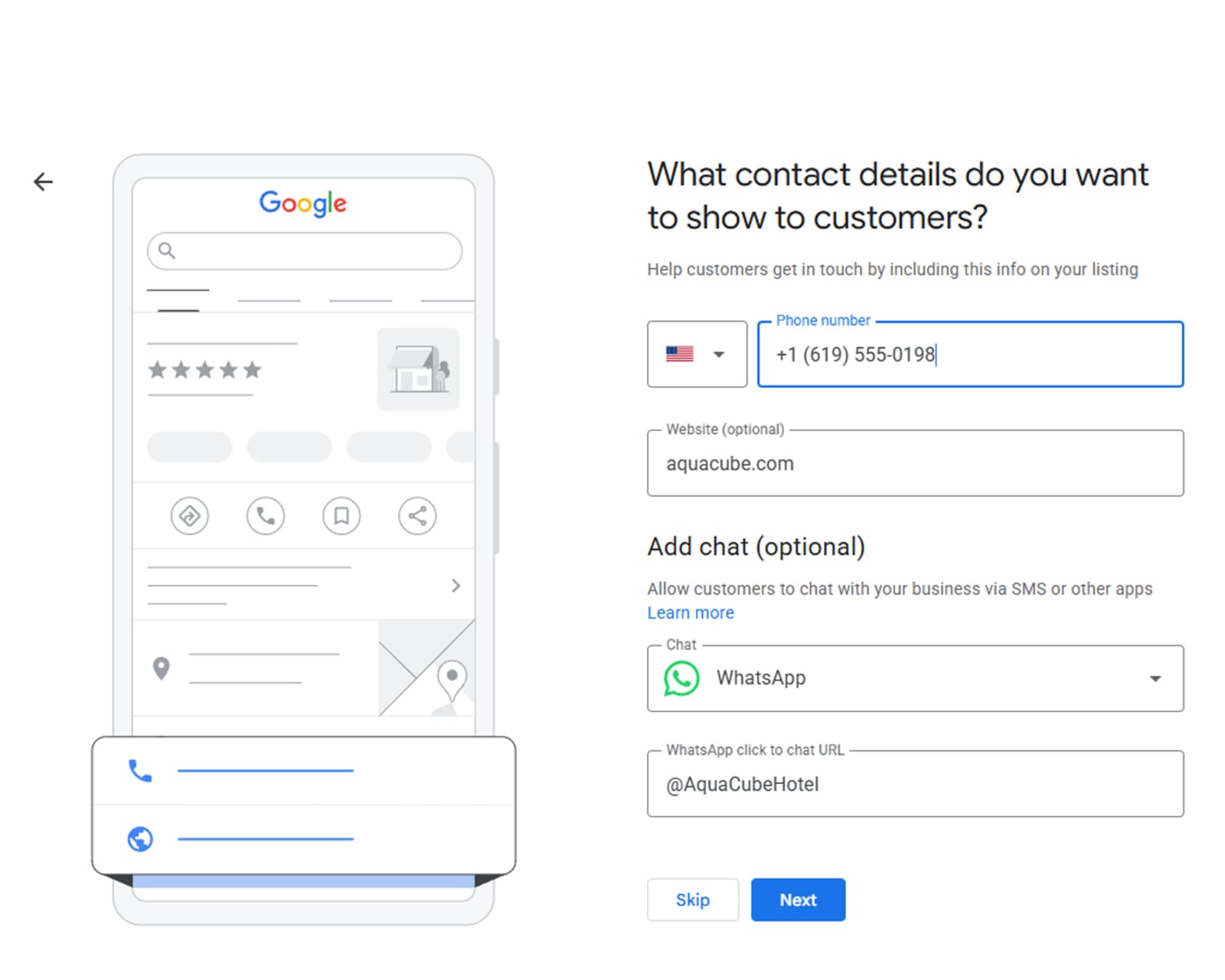
- Add contact details, such as phone number, website, and an optional number for chatting (text messages or WhatsApp). You can skip this step if you don’t have any communications yet.
- Finally, you can get your business on the map by simply pressing Continue. On this last page, you may agree to receive news and tips from Google and get invitiations nad invitations to surveys and pilots.
Important: Don’t create a duplicate profile just because you cannot access the existing one. Follow the ownership process instead.
Step 2. Verify your business
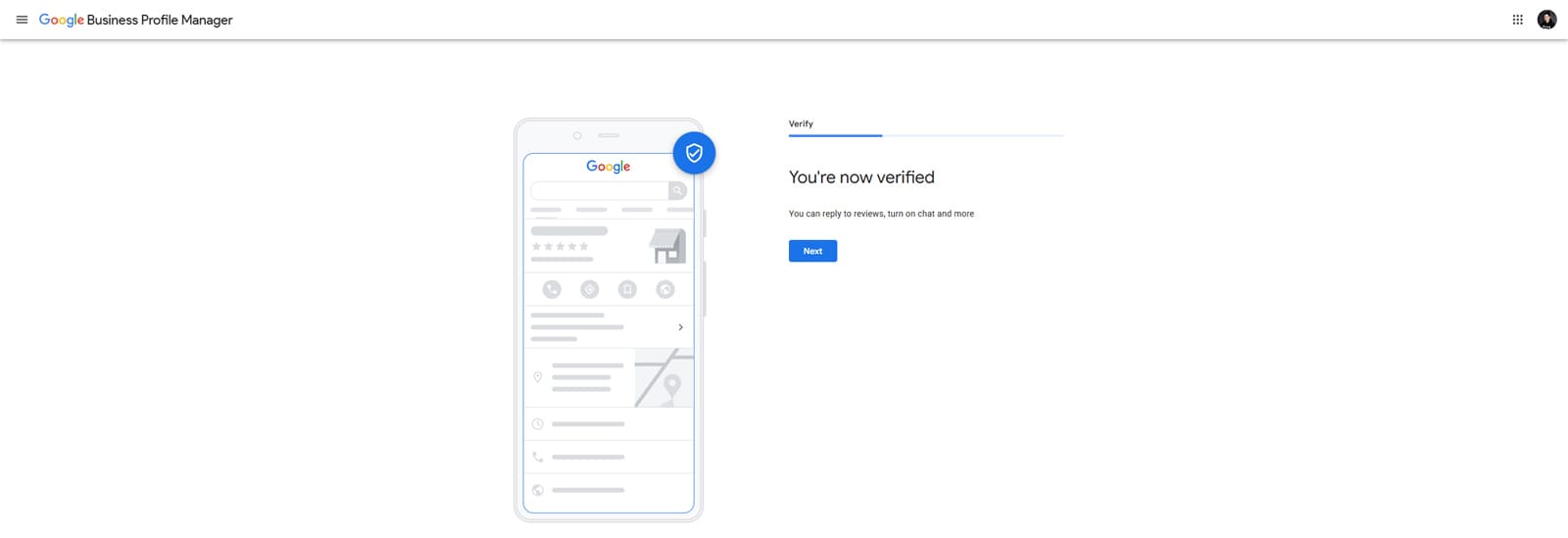 Verification confirms that you’re authorized to manage the profile. Available methods depend on the business and Google’s verification process, so follow the options presented during setup.
Google may offer verification by phone, email, video, or another method, depending on your circumstances.
Follow the official verification guide if you need help. Once verified, you’ll be able to manage available profile information and access performance data.
Step 3. Complete your business information
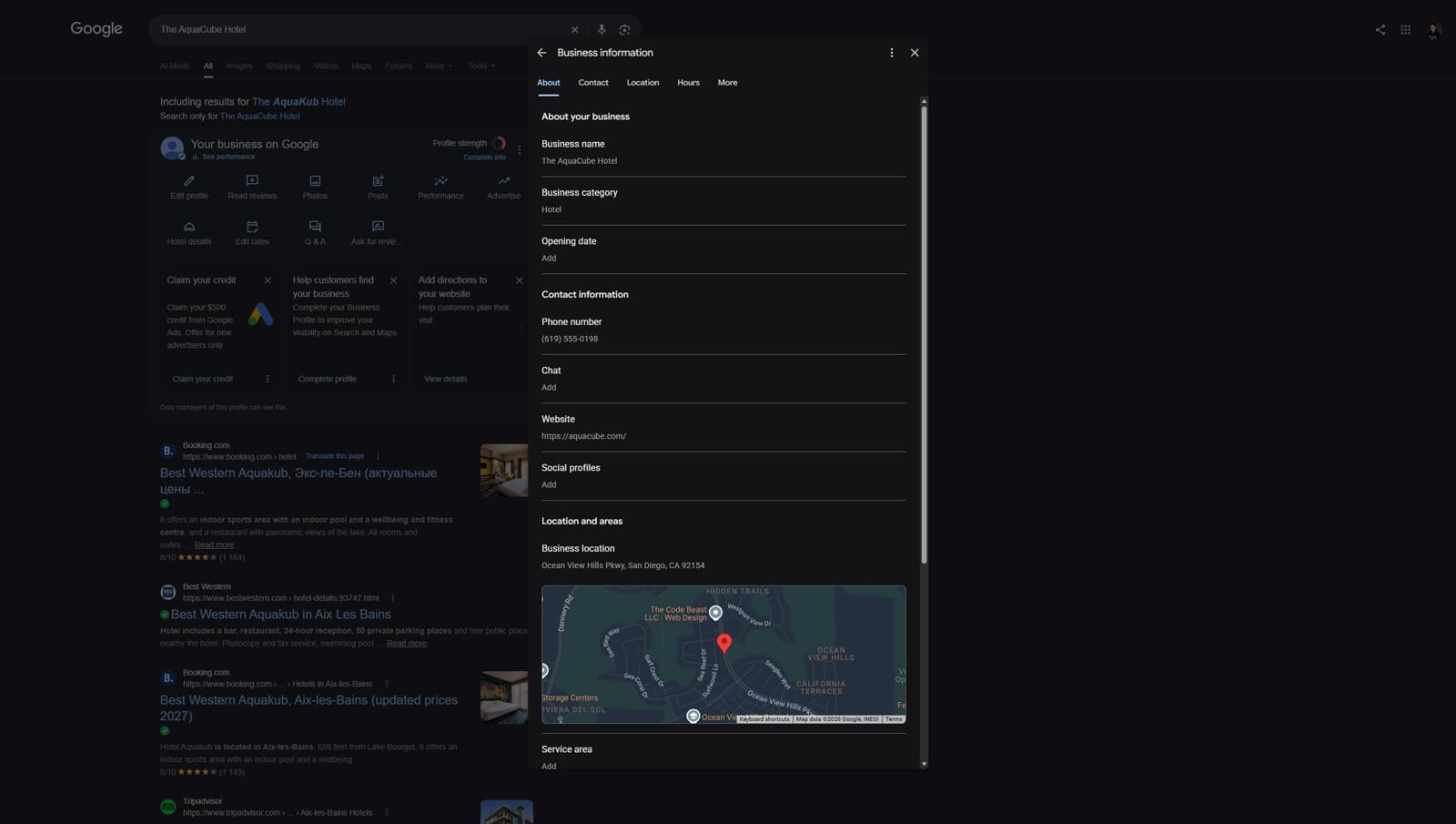
Review every available field and make sure it accurately represents your accommodation.
| Profile detail | What to enter or check |
|---|---|
| Business name | Your real-world name, without extra keywords |
| Category | The most accurate primary category, such as Hotel |
| Address | Correct street address and map pin |
| Phone number | A number the business controls |
| Website | Link to your official business website |
| Description | A concise explanation of your accommodation and its main features |
| Amenities and attributes | Only facilities and services genuinely available |
For example, a family-run hotel near the historic city center could highlight its location and family-friendly facilities in its description.
Follow Google’s business representation guidelines. Avoid adding promotional phrases or search keywords to your business name.
Hotel profiles also differ from many other business categories. Google generally treats hotels as open around the clock for guests, so owners cannot edit the main business hours in the same way as many other businesses. Where available, check that the hotel’s check-in and check-out information is accurate.
Step 4. Add current, genuine photos
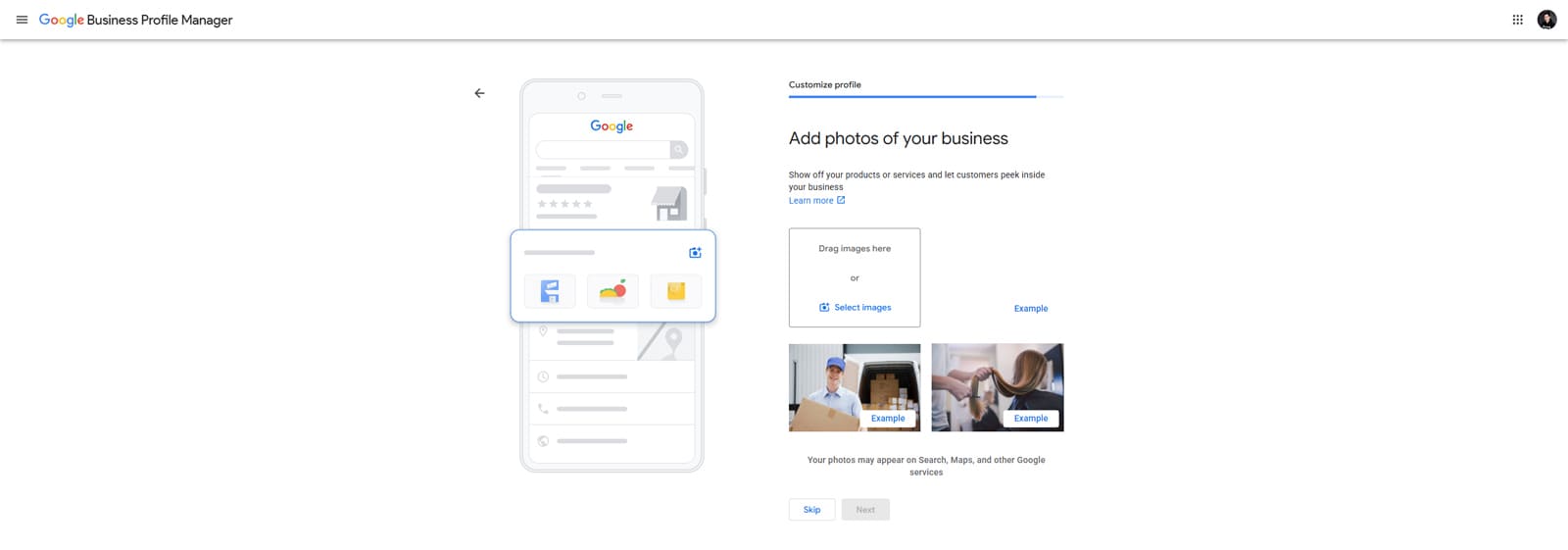 Photos help travelers understand what your property looks like before booking. Use clear images that reflect its current condition rather than heavily edited pictures that create unrealistic expectations.
Prioritize these photo types:
- Exterior: Building, entrance, and signage.
- Guest rooms: Different room types, including standard options.
- Common areas: Lobby, breakfast room, lounge, or garden.
- Amenities: Pool, gym, restaurant, or parking area.
- Team: Staff or management photos, where appropriate.
Google recommends JPG or PNG files between 10 KB and 5 MB, with a recommended resolution of 720 × 720 pixels. Your profile must be verified before you can add photos through its management tools. See Google’s photo guidelines.
Update photos after renovations or other significant changes. Keep the images on your profile consistent with those on your website so guests receive an accurate impression of the property.
Step 5. Review your hotel amenities and attributes
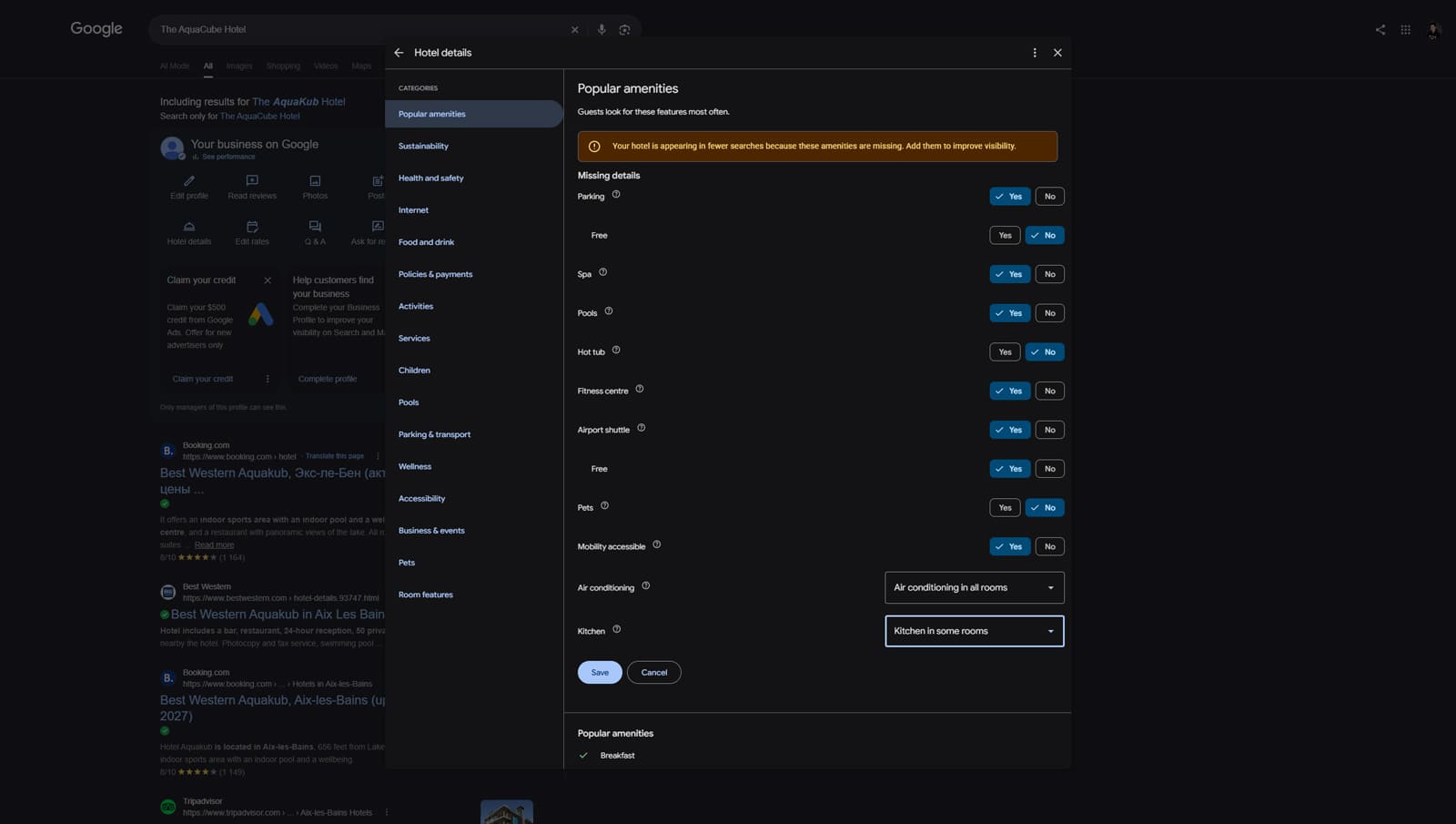 Amenities help travelers decide whether your property meets their needs. Depending on your profile and available fields, you may be able to manage these details in the Hotel details section.
- Open your verified hotel Business Profile.
- Find Hotel details.
- Review the available amenities and attributes.
- Correct the information wherever editing is available.
- Save your changes and check the information displayed to users.
For example, confirm whether Wi-Fi, parking, breakfast, and a pool are available. Don’t list seasonal or temporarily closed facilities as if they’re always accessible. Where possible, clarify additional charges.
Google controls which attributes can be edited and which highlights appear. If you cannot change a field, consult Google’s hotel details guide.
Step 6. Learn from real hotel profiles
While you may complete the Google Business Profile and be done with it quite quickly, it is always useful to learn from your competitors. For example, reviewing other hotels’ listings can help you understand how information, photos, reviews, and website links appear to travelers. The following examples are starting points; available details and layouts may vary by device, location, and Google’s interface.
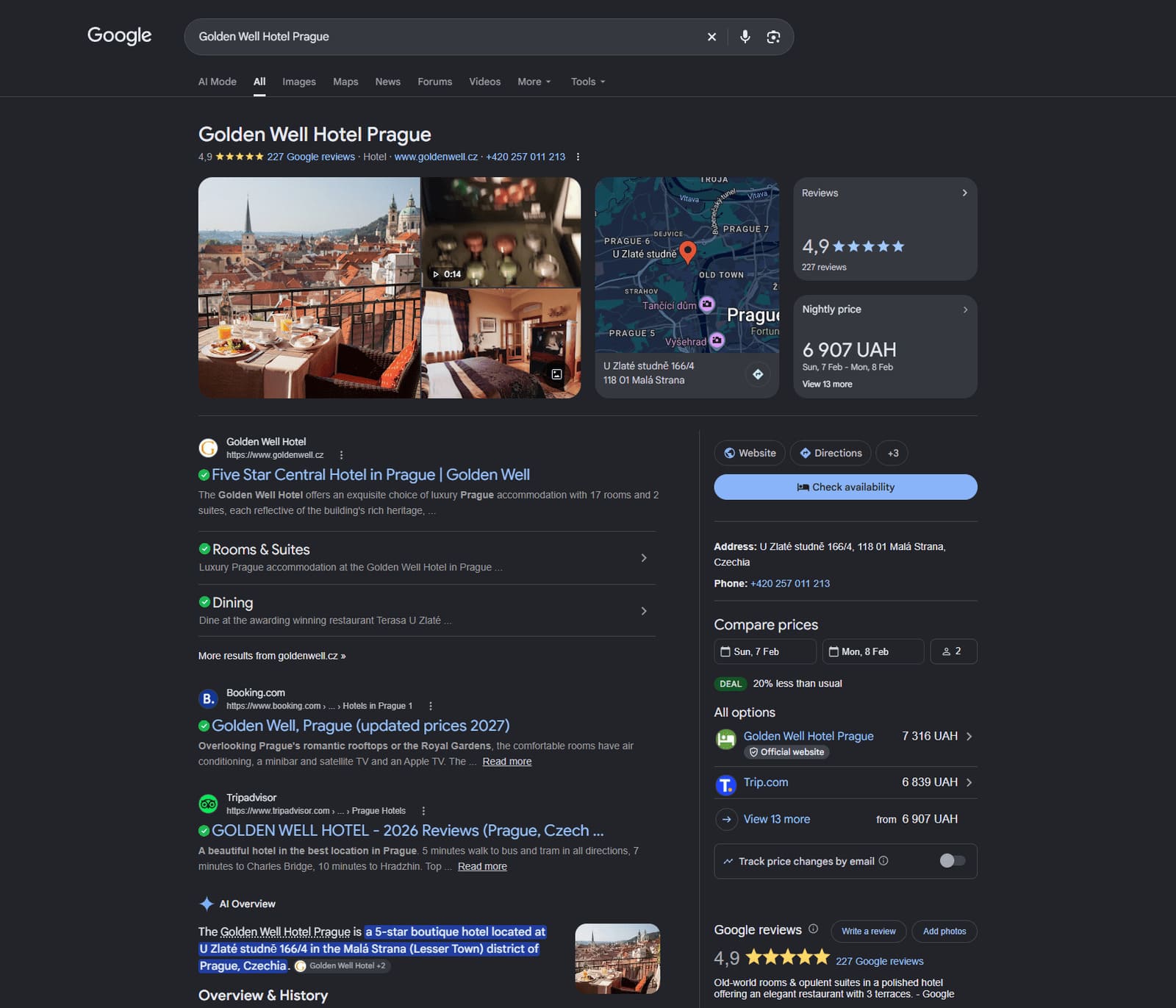
Examine the business name, photos, and reviews. Compare the name displayed on Google with the one on the hotel’s official website. Consistent branding helps travelers recognize the correct property.
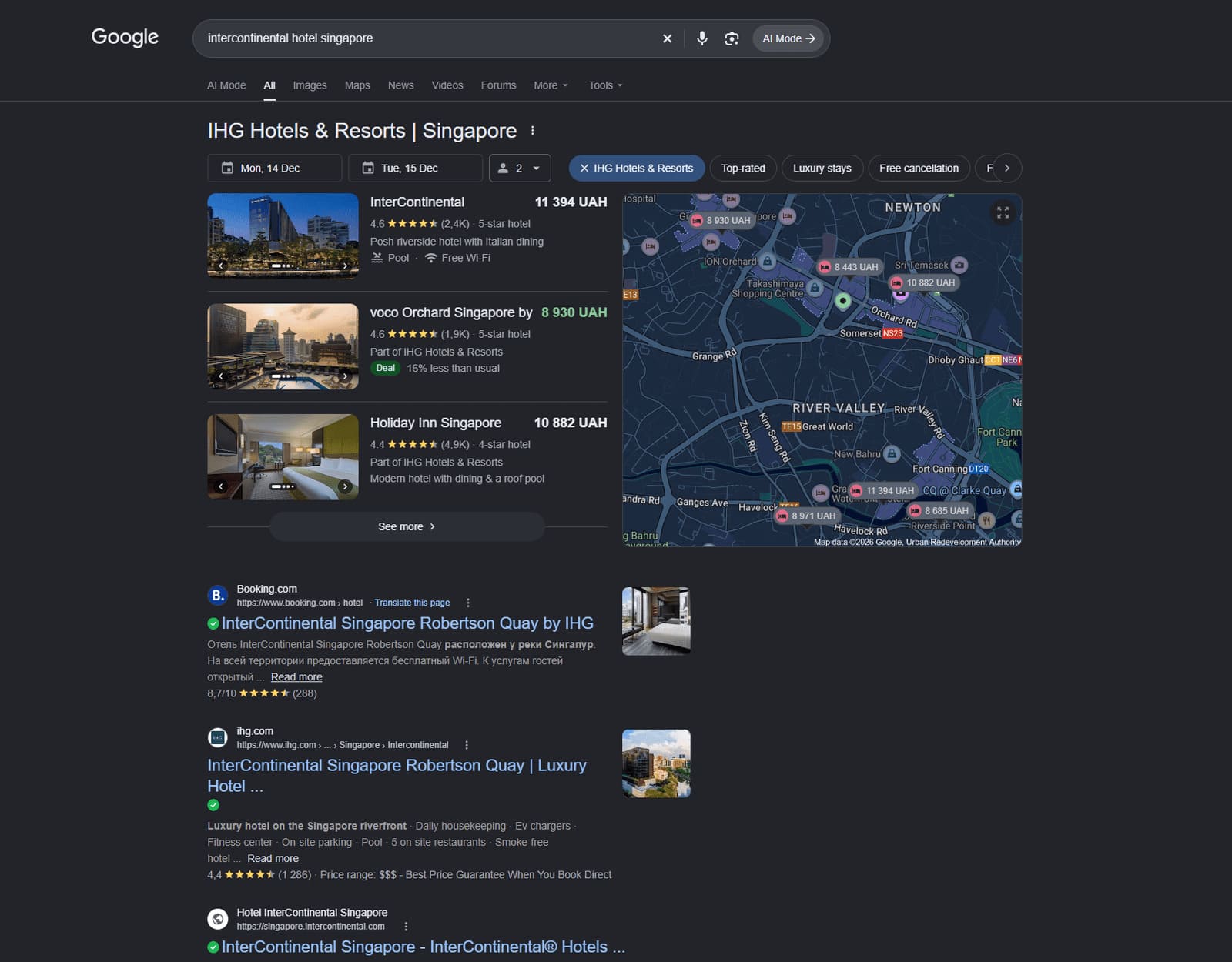
Review the available property photos and accommodation details. Compare the information visible on Google with the hotel’s official website to see how its listing supports the guest’s research process.
- Google Maps — hotels in your destination
Search for two or three well-presented hotels that serve a similar audience to yours. Compare properties in the same neighborhood or with similar facilities rather than using a large luxury resort as your only reference.
As you review these listings, ask yourself:
- Is the business name consistent with its website?
- Do photos show the rooms and important facilities?
- Are amenities easy to find?
- Does the website link work?
- Are reviews receiving thoughtful responses?
- Can travelers quickly find the information they need?
Use these examples for inspiration, not to copy another hotel’s content or claim amenities your property doesn’t offer.
Step 7. Connect discovery with direct bookings
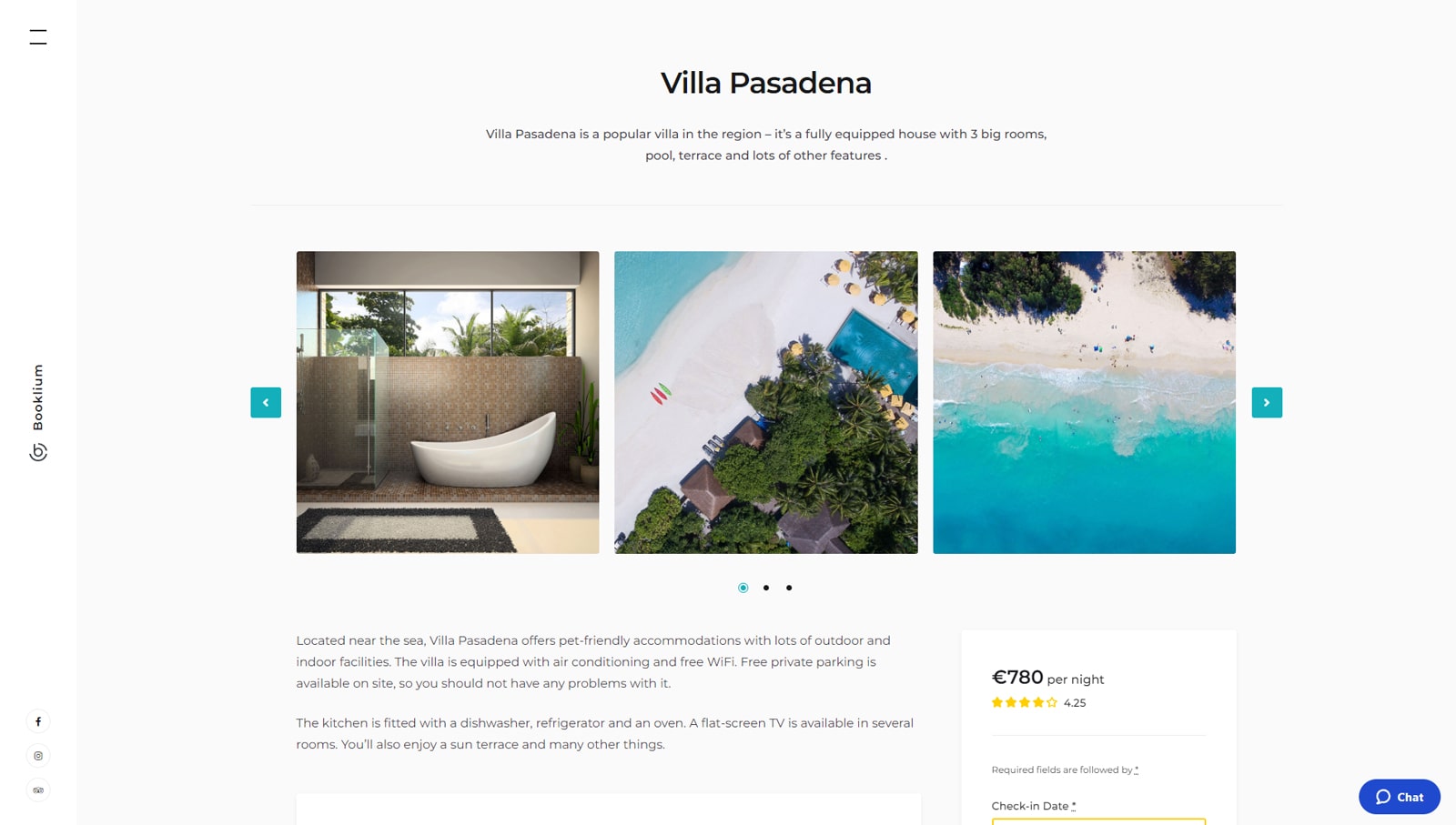
Your Google profile helps travelers discover and evaluate your business. Once they visit your website, make it easy to explore accommodation, compare rates, check availability, and complete a reservation.
For WordPress websites, booking plugins help accommodation businesses display properties, manage rates and availability, and accept direct reservations. It supports the booking process on your website but doesn’t directly improve Google Maps visibility or make an otherwise ineligible rental eligible for a Business Profile.
Make it easier for guests to book directly from your website with MotoPress Hotel Booking — a WordPress plugin for managing accommodation, rates, availability, and reservations.
Checklist: Before you finish setting up your business profile
- Confirm that your business qualifies.
- Check for an existing listing before creating a new one.
- Claim or create the correct profile and complete verification.
- Review your business name, category, address, phone number, and website.
- Add current photos of rooms and facilities.
- Check amenities and attributes where editing is available.
- Compare the listing with your official website.
- Review how your profile appears on Google Search and Maps.
What to check afterwards
Profile setup is only the beginning. Review your listing periodically to keep its information accurate and understand how people interact with it.
If your profile is verified, open it through Google Search or Maps and find the Performance section. Select a date range and review the available metrics.
| Metric | What to check |
|---|---|
| Profile views | Compare visibility across similar periods |
| Search terms | Check whether people find you through relevant searches |
| Website clicks | See whether visitors proceed to your website |
| Calls | Confirm that contact details are correct and calls are handled |
| Direction requests | Check that the address and map pin are accurate |
| Booking-link clicks, where available | Review whether the booking destination works as expected |
Not every metric is available for every business. A booking-link click also doesn’t mean that a reservation was completed. See Google’s performance guide.
Compare results over time instead of drawing conclusions from a single day. If website clicks increase but direct bookings don’t, check your website analytics and booking records to identify where potential guests may be dropping off.
Common mistakes during profile creation
Avoid these errors when managing your profile:
- Creating a profile for an ineligible rental: Check Google’s rules before adding individual vacation homes or apartments.
- Creating duplicate listings: Request access to an existing profile instead.
- Adding keywords to the business name: Use the real-world name, not promotional phrases.
- Leaving outdated photos online: Replace images that no longer reflect the property.
- Listing unavailable amenities: Keep information accurate, including seasonal facilities and additional charges.
- Ignoring reviews and contact details: Check reviews regularly and ensure guests can reach your team.
- Expecting the profile to guarantee bookings: Your website, rates, availability, and booking process still influence conversion.
The next steps to take care of
Make profile maintenance part of your regular marketing routine. Review key details, respond to new reviews, and update photos when your property changes. Check performance monthly or at another suitable interval, comparing Google interactions with website traffic and booking records.
If you manage an eligible hotel, you can also investigate Google’s hotel booking links and rate-display options. These are separate from basic profile setup and may require additional arrangements or a supported booking provider. Start with Google’s hotel Business Profile information to understand which options apply to your property.