
Table of Contents
What you will create: A checklist of problems affecting your main website pages, with practical fixes you can make yourself and clear instructions for anything your website provider needs to resolve.
In this practice, you will:
- Test the route from your homepage to checking availability.
- Find broken links, mobile obstacles, and slow-loading pages.
- Check whether Google can access your accommodation pages.
- Fix common problems using your website editor and free tools.
- Recheck your changes and identify anything that needs further help.
Basic SEO checks help you remove obstacles that make your accommodation harder to find or your website harder to use. Start with your most important pages and follow the same route a guest takes before booking.
The problem
Your website is published, but you are unsure whether everything works properly.
A room button might lead to a missing page. Large photos might slow down loading. A promotional banner might cover your booking calendar on a phone. A setting left over from development might prevent Google from indexing an accommodation page.
These problems are easy to miss when you usually work inside your website editor.
Why it happens
As you add accommodation, replace pages, update software, or change offers, old links and settings can remain behind.
Some problems affect whether Google can access your pages. Others prevent guests from finding information or continuing toward a reservation.
Related Lessons:
- SEO for hotels and vacation rentals: what actually matters
- How Google decides which accommodation pages to show
What to check before you start
Have these ready:
- Access to your website editor.
- A computer and a smartphone.
- Access to your verified Google Search Console property.
- A spreadsheet or document for recording findings.
- A recent backup before changing website settings.
If you have not connected Search Console, follow the guide:
- Set up Google Search Console
What to do
You do not need to understand every technical SEO term to begin. The following checks will help you identify the problems that deserve attention first.
Step 1. Choose your main pages and create a checklist
Start with three pages:
- Your homepage.
- Your rooms or properties overview.
- One important individual room or rental page.
For a single-property website, use the pages you already have. You do not need to create an accommodation overview for this exercise.
Record your findings in a simple table (these examples are illustrative):
| Page | Problem found | Priority | Planned action | Status |
|---|---|---|---|---|
| Rooms overview | “View family room” opens an error page | High | Replace the old link | Not started |
| Family room | Mobile banner covers the calendar | High | Adjust banner placement | Not started |
| Homepage | Expired seasonal offer is displayed | Medium | Update the offer | Not started |
Step 2. Test the guest journey on desktop and mobile
Open your website in a private browser window while signed out of your website editor.
Follow this route:
Homepage > Rooms or properties > Individual accommodation > Check availability
Check these four things:
| Check | What to look for |
|---|---|
| Page access | Pages open without errors or browser security warnings. |
| Navigation and links | Menus, room photos, and buttons lead to the correct pages. |
| Information | Capacity, policies, facilities, and offers are accurate and current. |
| Booking access | Guests can enter dates and guest numbers and see the appropriate availability results. |
Repeat the route on your phone. Check that text is readable, buttons are easy to tap, and banners do not cover the booking controls.
Add any problems to your checklist. If the website or booking process is completely unavailable, contact your provider immediately.
Give guests a clear route from browsing to booking
Once travelers find suitable accommodation, make it easy to check dates and reserve their stay.
MotoPress Hotel Booking lets you display accommodation details, availability calendars, and booking forms on your WordPress website. Guests can search available options, review rates, and complete a direct reservation with online payment.
AI help: spot unclear or missing information
Paste your page text and verified property facts into the AI tool you use:
| Review this accommodation page from a guest’s perspective. Identify missing details, unclear wording, and contradictions against the property facts below. Do not invent amenities, policies, prices, or distances. Separate quick corrections from information I need to provide. Page text: [paste text] Verified property facts: [paste facts] |
Use the suggestions to support your review. AI cannot confirm that a calendar or button works by reading the page text.
Step 3. Check mobile loading speed
Open Google PageSpeed Insights.
- Paste the URL of your homepage or accommodation page.
- Click Analyze.
- Select the Mobile results.
- Record the main findings and save the report link.
The report may contain real visitor data and a simulated performance test. Smaller websites may not have enough real visitor data available.
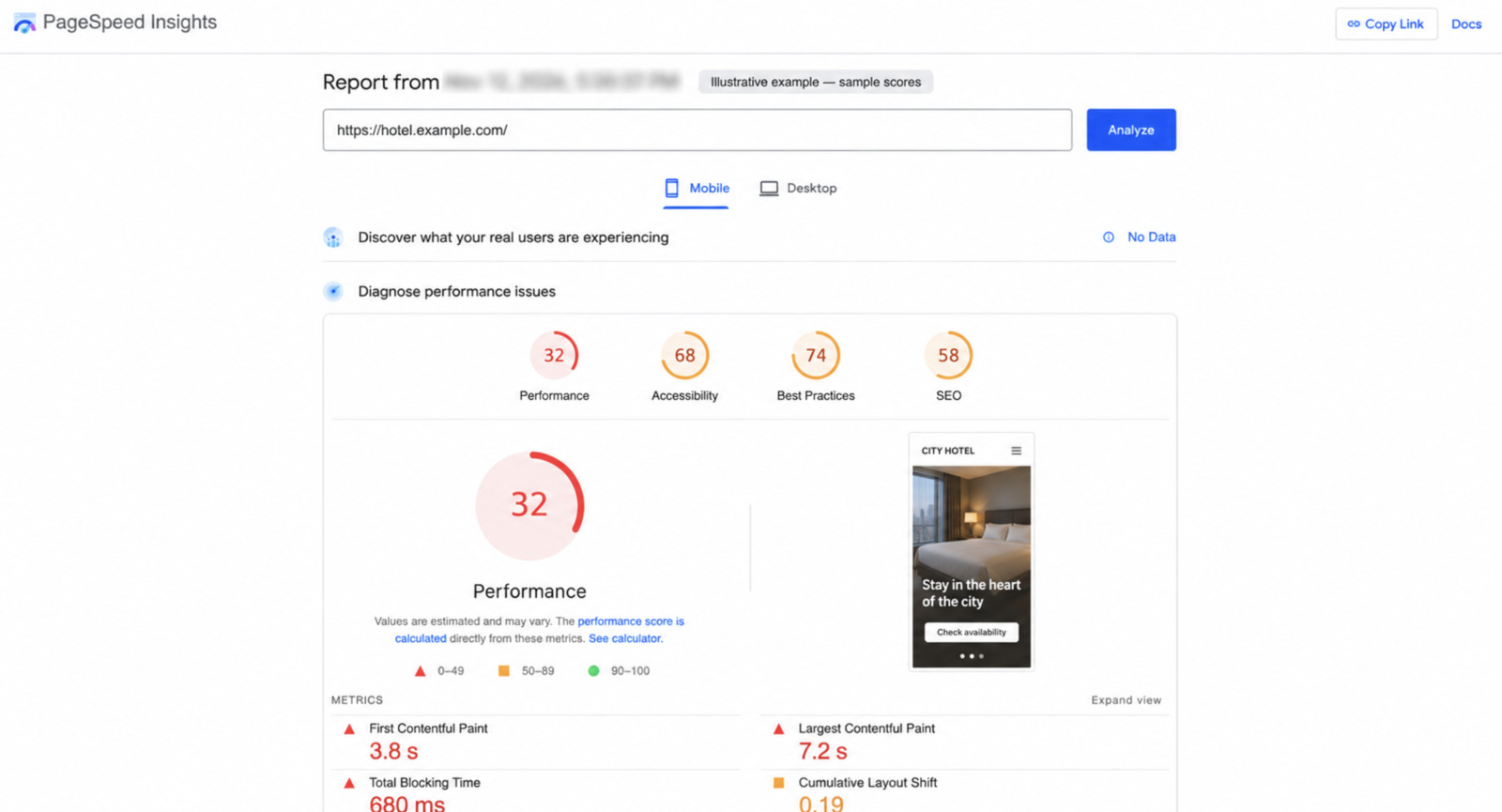
Focus on problems that affect guests:
| Problem | Practical action |
|---|---|
| Large photos delay loading | Resize and compress the images, then check their visual quality. |
| Content jumps while loading | Ask your provider to check whether space is reserved for images and other elements. |
| Menus or booking controls respond slowly | Share the report and affected action with your provider. |
| Unnecessary videos or widgets slow the page | Review whether you need them before removing or changing them. |
There is no universal file-size limit for every website image. Aim for smaller files that still look clear at their displayed size.
Do not change caching or JavaScript settings you do not understand. Ask your provider to review those recommendations and test the booking process afterwards.
Step 4. Check Google’s access in Search Console
Open Google Search Console.
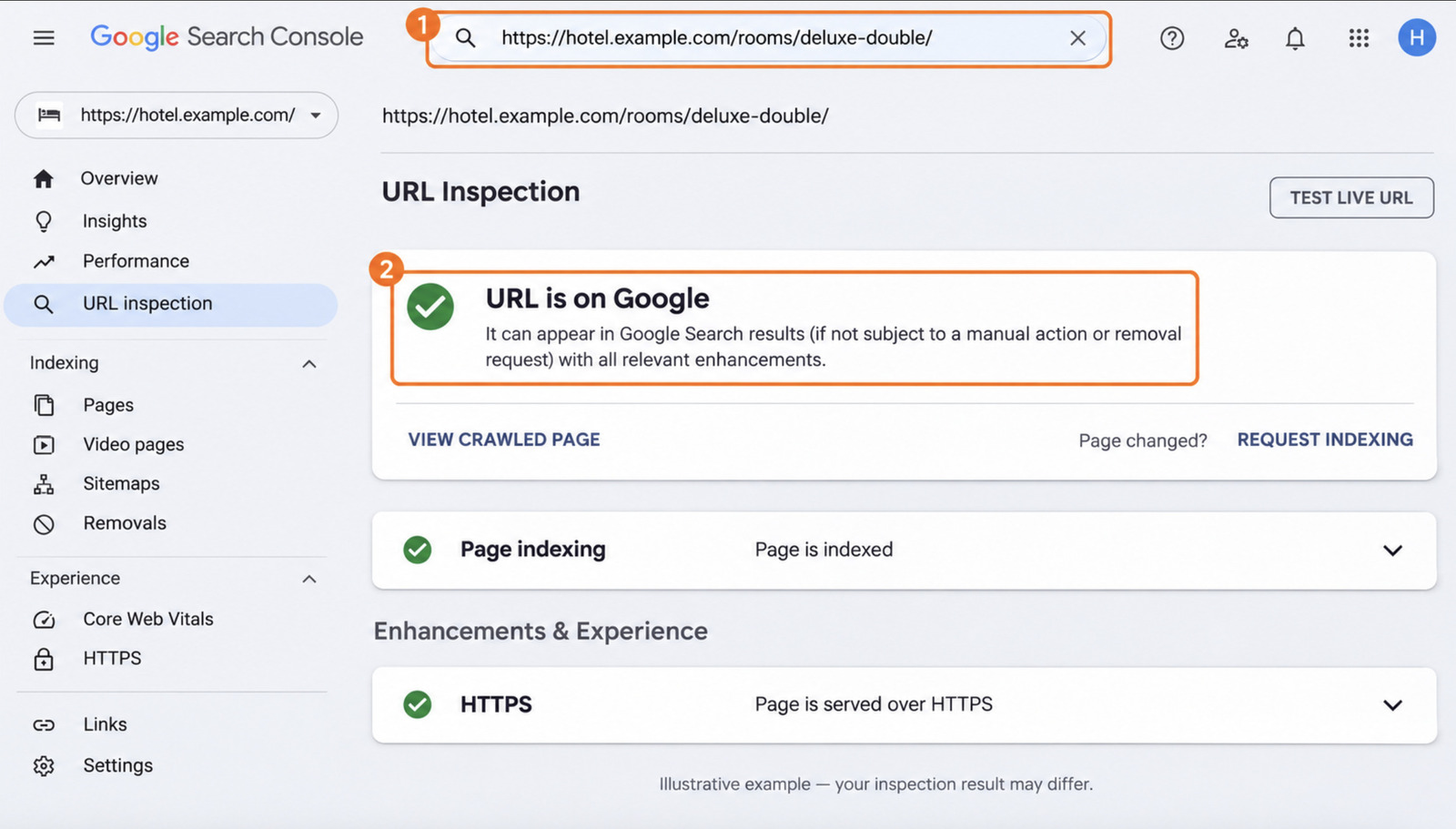
- Select your website.
- Paste a page’s full address into the URL Inspection bar.
- Review the result.
- Repeat for your other selected pages.
Use normal public page URLs, rather than booking-search addresses containing dates or guest numbers.
| Result | What it means | Your next action |
|---|---|---|
| URL is on Google | The page is indexed and eligible to appear in search. | No indexing fix is identified by this status. |
| Excluded by ‘noindex’ tag | A setting tells Google not to index the page. | Check whether this is intentional. |
| Blocked by robots.txt | A rule prevents Google from crawling the page. | Ask your provider to review the rule. |
| Not found (404) | The page is missing. | Check whether it moved, was removed, or should be restored. |
| Server error (5xx) | Your server could not deliver the page properly. | Contact your hosting provider. |
| Discovered/Crawled – currently not indexed | Google knows the page but has not indexed it. | Review its content, internal links, and similarity to other pages. |
Focus on public pages that guests should find. Booking confirmations and account pages may correctly be excluded.
Related Guide:
- Set up Google Search Console
Step 5. Fix the important problems
Start with problems preventing access or booking. Then address indexing restrictions, broken links, missing information, and loading issues.
1. Replace broken links
Open the page in your editor, select the broken link or button, and replace its destination with the correct published URL. Save and test it.
If a page has been permanently moved, use your platform’s redirect feature or ask your provider to create a 301 redirect from the old address to the relevant replacement.
Do not redirect every missing page to your homepage. An intentionally removed page without a suitable replacement can correctly return a 404.
2. Remove accidental indexing blocks
For a public accommodation page marked noindex, open its SEO or search-visibility settings and check whether indexing is disabled. Enable it only if the page should appear in search.
If you cannot identify the setting, or Search Console reports a robots.txt block, send the URL and message to your provider. Do not remove all website restrictions.
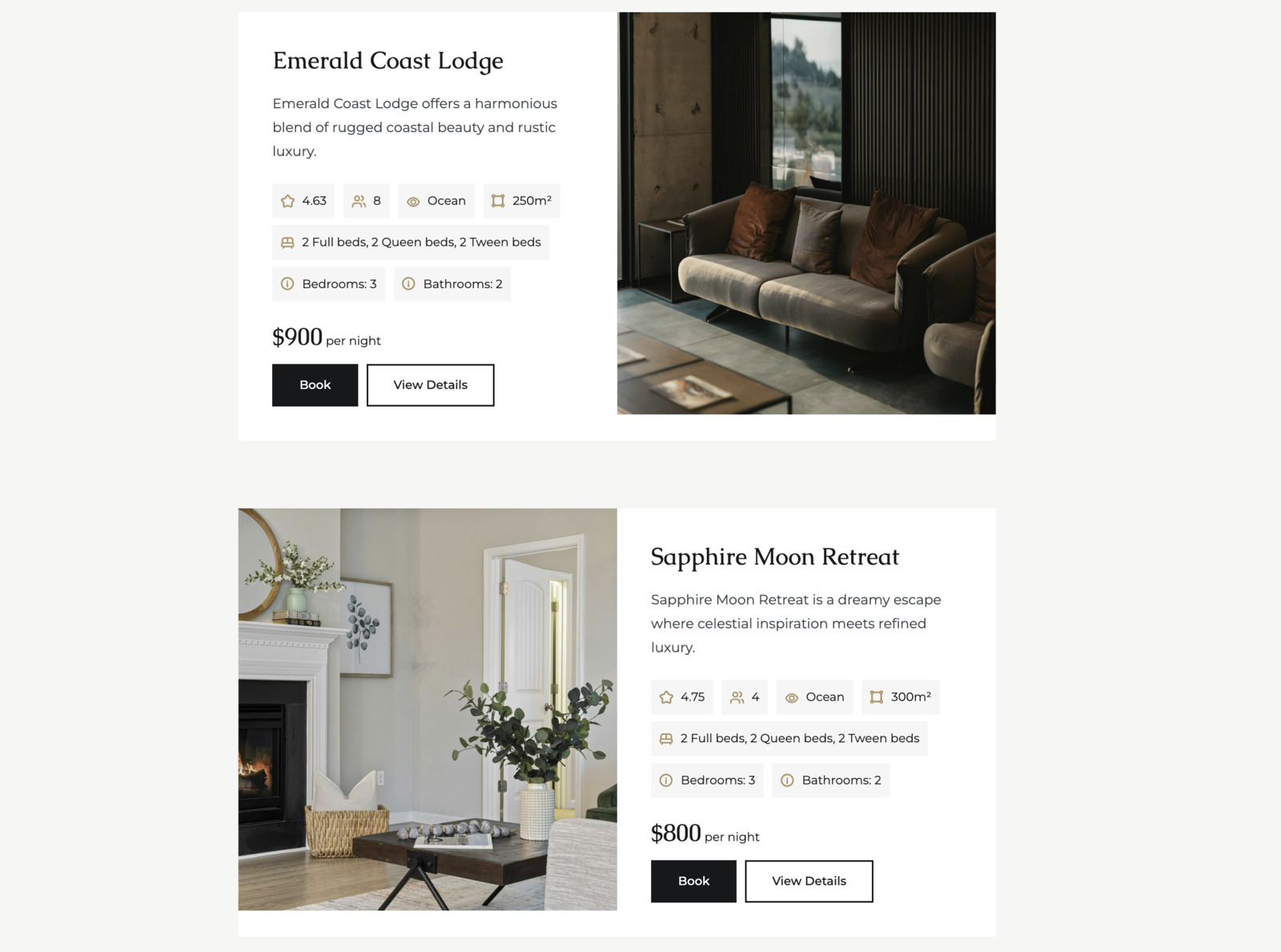
3. Add missing links to accommodation pages
Make sure guests can reach each important room or rental from your accommodation overview or another relevant page.
Add a descriptive link such as:
- View the family room
- Explore the two-bedroom apartment
- See our available cottages
Do not rely on a sitemap as the only way to connect your pages.
4. Correct unfinished titles and outdated information
Replace placeholder titles and remove inaccurate content.
For example:
| Before | After |
|---|---|
| Room 3 | Family Room with Two Double Beds | [Property Name] |
| Page copy | Parking and Directions | [Property Name] |
Check that the revised wording accurately describes the page. Update expired offers, changed policies, and missing accommodation facts.
For larger improvements, use the relevant academy guide:
| What needs work | Relevant Academy Guide |
|---|---|
| Search terms and page wording | Find the search terms your potential guests actually use |
| Several pages covering the same topic | Build a keyword map for your website |
| Homepage title, introduction, or location details | Optimize your homepage for your main location and property type |
| Room descriptions, facilities, or booking conditions | Optimize your accommodation/property pages for search |
| Information for a particular guest need | Customize website pages based on traveler intent and audience segment |
5. Remove mobile obstacles
Adjust the problems found in Step 2:
- Move banners away from booking controls.
- Increase text that is too small.
- Make buttons easier to tap.
- Fix sections extending beyond the screen.
Use your editor’s mobile settings where available. Send booking-calendar or payment-interface problems to the relevant provider.
Step 6. Re-test your changes and request help where needed
Repeat the original journey on your computer and phone.
Confirm that:
- Updated links open the correct pages.
- Accommodation is accessible through your navigation.
- Corrected information appears on the live website.
- Mobile controls are visible and usable.
- Images remain clear.
- Availability searches still work.
Update each checklist item to Fixed and checked, Waiting for Google, or Needs provider help.
Example: a small hotel’s website cleanup
The following hypothetical example shows the result of checking a homepage, rooms overview, and family room page.
| Problem found | Action taken | Result checked |
|---|---|---|
| Room button leads to an old address | Updated the link and redirected the old URL to its replacement | Guests reach the current room page. |
| Public room page has an accidental noindex setting | Removed the restriction and ran a live test | Google can access the page; indexing still needs monitoring. |
| Mobile banner covers the calendar | Changed the banner placement | Guests can select dates and guest numbers. |
| Large room photos delay loading | Uploaded smaller versions | Photos remain clear and load more smoothly in the owner’s checks. |
| Homepage shows an expired offer | Replaced it with current information | The published offer matches what guests can book. |
What to measure afterwards
Check the fixes immediately, then monitor the affected pages over the following weeks.
| Where to look | What to check |
|---|---|
| Your website | Links, mobile controls, and availability searches continue working. |
| Search Console | Indexing restrictions are resolved, and important pages become indexed. |
| PageSpeed Insights | The loading problems you addressed improve. Real visitor data takes time to reflect changes. |
| GA4 | Visitors reach accommodation pages and use tracked availability or booking actions, where configured. |
Record the date of significant changes. Consider seasonality, advertising, and availability when comparing results.
Related Guides:
- Audit your website’s current traffic [GA4]
- Set up Google Search Console
Common mistakes
- Fixing every warning at once. Prioritize important public pages and the booking journey.
- Changing settings without a backup. Keep a way to restore the previous version.
- Removing every indexing restriction. Some pages should stay outside search results.
- Redirecting all missing pages to the homepage. Use a relevant replacement where one exists.
- Accepting AI explanations as confirmed diagnoses. Verify findings in your tools or with your provider.
- Testing only in the editor. Check the published website while signed out and on a real phone.
- Assuming a better score guarantees bookings. Guests still need suitable accommodation, clear information, and a working reservation process.
The next logical step
Resolve the highest-priority items, then repeat these checks for your remaining accommodation pages.
Once those pages work properly, address any information gaps you recorded. Keep your checklist and reuse it after major website updates, accommodation changes, or changes to your booking system.