
Table of Contents
What you’ll create: A basic conversion tracking setup that records completed direct bookings in Google Analytics 4 (GA4) and makes this information available in Google Ads. You’ll also learn how to test your tracking before launching an advertising campaign.
In this practice, you will:
- Understand which booking actions you should track and which ones should count as conversions.
- Prepare Google Analytics 4, Google Tag Manager, and Google Ads for conversion tracking.
- Identify the booking confirmation event or page that should trigger conversion tracking.
- Configure your website or booking engine to send completed booking information to Google.
- Test whether booking events and their values are recorded correctly.
- Check whether Google Ads can use your conversion data to measure and optimize paid campaigns.
Why do this before running Google Ads?
Imagine you launch a Google Ads campaign and spend €300 attracting visitors to your holiday rental website. You receive 150 clicks, but you don’t know how many visitors actually make a reservation.
Without conversion tracking, you can see that people clicked your advertisements, but you cannot reliably connect those clicks with completed bookings. You might assume that the campaign is working because it attracts visitors, even though nobody books. Or you might stop an effective campaign because you cannot see the reservations it generates.
Conversion tracking helps you understand what happens after someone clicks an advertisement. It connects advertising activity with valuable actions on your website, such as completed reservations, so you can evaluate cost per booking, booking value, and campaign profitability.
It also gives Google Ads information about the actions you want to generate. When you use automated bidding strategies, Google can use your conversion data to find more people likely to complete those actions.
In other words, don’t start advertising without knowing how you’ll measure its results. Even a small campaign needs reliable conversion tracking if you want to make informed decisions about your advertising budget.
1. Understand what you need to track
Before configuring any tools, decide what should count as a conversion for your accommodation business.
A conversion is an action that you consider valuable to your business. For a hotel or vacation rental owner running a direct booking website, the most important conversion is usually a successfully completed reservation.
However, travelers take several steps before reaching that point.
For example, a typical direct booking journey might look like this:
- A traveler clicks your Google advertisement.
- They visit your accommodation website.
- They browse the property and room descriptions.
- They check availability for their travel dates.
- They start the booking process.
- They enter their guest details and proceed through checkout.
- They complete the reservation and see a booking confirmation.
You can measure several of these actions, but they don’t all represent the same business result.
Distinguish between completed bookings and intermediate actions:
| Website action | What it tells you | How to treat it |
|---|---|---|
| Page view | Someone visited your website or a particular page. | Not a booking conversion. |
| Availability search | A visitor entered dates and checked whether accommodation was available. | Useful secondary measurement. |
| Booking process started | A visitor showed an intention to reserve accommodation. | Useful secondary measurement. |
| Booking request submitted | A visitor requested a reservation that may still need approval. | Lead or booking-request conversion, not necessarily a confirmed booking. |
| Booking confirmed | A reservation was successfully created and confirmed. | Main booking conversion. |
For this tutorial, we’ll focus on tracking the last action: a successfully completed direct booking.
One important distinction: the guest doesn’t necessarily have to pay online for the reservation to count. If your booking system confirms a reservation and allows guests to pay on arrival or by bank transfer later, you can still count the confirmed reservation as a conversion.
However, if your website only collects a booking request and you manually approve it later, don’t count the initial request as a confirmed booking. You can track it separately as a lead and measure the final confirmation as another business outcome.
What booking information should you collect?
For each completed reservation, ideally send the following information to Google:
- Event name: An identifier of the action, such as
purchasefor a completed booking. - Transaction ID: A unique reservation or confirmation number that identifies the booking.
- Conversion value: The monetary value assigned to the reservation.
- Currency: The currency in which the reservation value is recorded, such as EUR, USD, or GBP.
For example:
| Parameter | Example |
|---|---|
| Event | purchase |
| Transaction ID | BOOKING-10482 |
| Booking value | 460.00 |
| Currency | EUR |
A unique transaction ID is particularly important. It helps prevent the same reservation from being counted multiple times if a guest reloads or revisits the booking confirmation page.
You should also agree on how the booking value is calculated. For example, you could use the accommodation revenue before taxes, provided that the calculation is consistent. A booking value is not automatically the same as your profit or the amount the guest pays as a deposit.
Do not send guest names, email addresses, phone numbers, or payment card details as ordinary Google Analytics event parameters. Google Analytics prohibits sending personally identifiable information through its standard measurement data.
Further reading: Google’s data protection guidelines.
2. Understand the tools you’ll use
You don’t need a complicated marketing technology setup to start measuring direct bookings. Three Google tools form the foundation of this tutorial.
Google Analytics 4 (GA4)
Google Analytics 4 is a website analytics platform that helps you understand how visitors interact with your website.
It records events such as page views, availability searches, and completed bookings, allowing you to analyze website activity and see which marketing channels attract visitors and generate valuable actions.
For example, you can use GA4 to compare visitors and bookings coming from:
- Organic Google search.
- Google Ads.
- Social media.
- Email campaigns.
- Other referral websites.
GA4 is where you’ll examine your website activity and the booking events being recorded.
Google Tag Manager (GTM)
Google Tag Manager is a tag management tool that lets you install and manage tracking tags without repeatedly editing your website’s code.
Think of it as a container for tracking tools and instructions.
For example, you can use Google Tag Manager to:
- Install the Google tag used by GA4.
- Set up Google Ads conversion tracking.
- Define when a booking conversion should be recorded.
- Send booking values and transaction IDs to tracking platforms.
You install the Tag Manager container on your website, then manage your tracking configuration through its interface.
Some parts of the setup, especially connecting your booking engine to the container and making reservation details available, may still require your booking platform’s integration or a developer.
Google Ads
Google Ads is where you create your advertising campaigns and define which website actions should count as conversions.
After configuring conversion tracking, you can see how many reservations are attributed to your advertisements, how much they cost to acquire, and what conversion value they generate.
Google Ads can also use this information to optimize campaigns when you select automated bidding strategies.
How these tools work together
| Tool | Its role in conversion tracking |
|---|---|
| Google Tag Manager | Manages tracking tags and the rules that trigger them. |
| Google Analytics 4 | Records and analyzes website events, including completed bookings. |
| Google Ads | Measures advertising conversions and uses them to evaluate and optimize campaigns. |
You don’t necessarily need to install three completely separate tracking systems. They can work together through the Google tag and Tag Manager integrations.
3. Prepare your Google accounts and website
Before configuring conversion events, make sure you have access to the necessary accounts.
Step 1. Check your Google Analytics 4 account.
Go to Google Analytics and check whether your property already has a GA4 account and a web data stream for your accommodation website.
A web data stream is the source through which GA4 collects activity from your website.
To find your measurement ID:
- Open your GA4 property.
- Go to Admin > Data streams.
- Select your website’s web data stream.
- Find the Measurement ID, which starts with
G-.
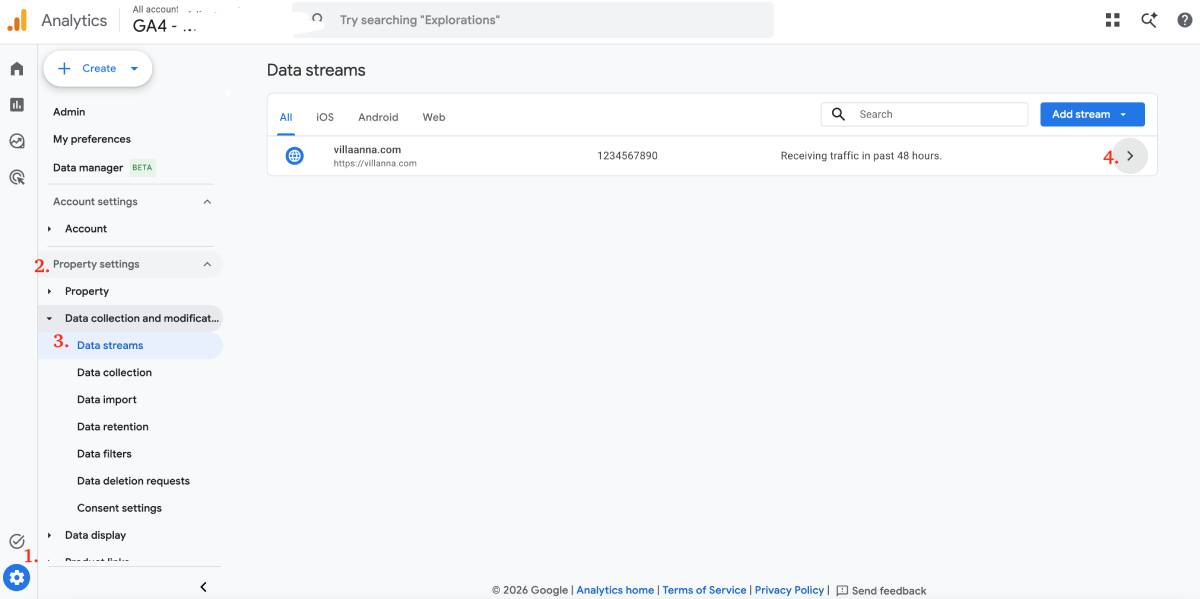
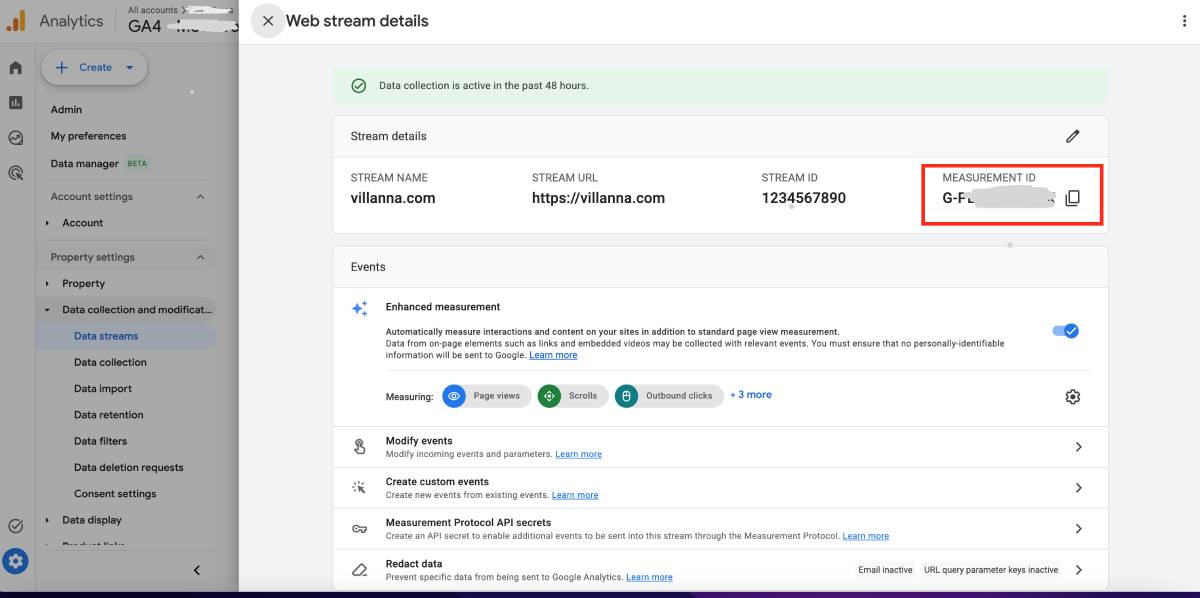
Keep this ID available. You’ll need it when configuring the Google tag.
If you don’t have GA4 yet, create a property and add your website as a web data stream.
Step 2. Check your Google Tag Manager account.
Go to Google Tag Manager.
If you don’t already have an account:
- Sign in with your Google account.
- Create an account using your business or website name.
- Create a container for your website.
- Select Web as the target platform.
- Save the container and note its ID, which starts with
GTM-.
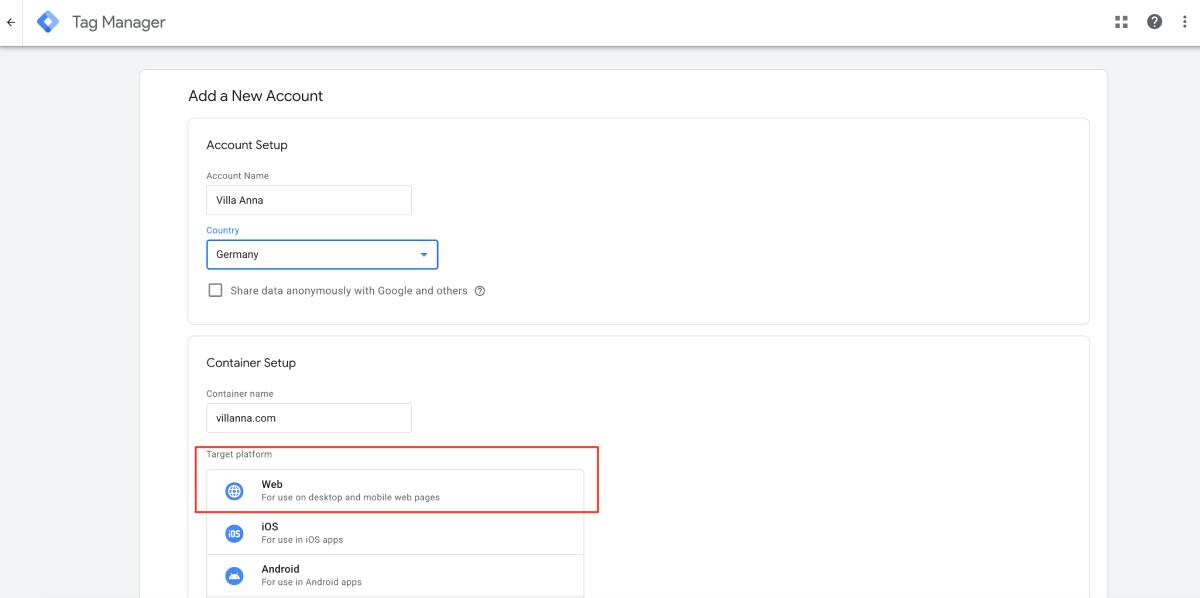
You’ll use this container to manage tracking tags.
You can also get your code by specifying the website builder platform you use (click ‘Select your platform’).
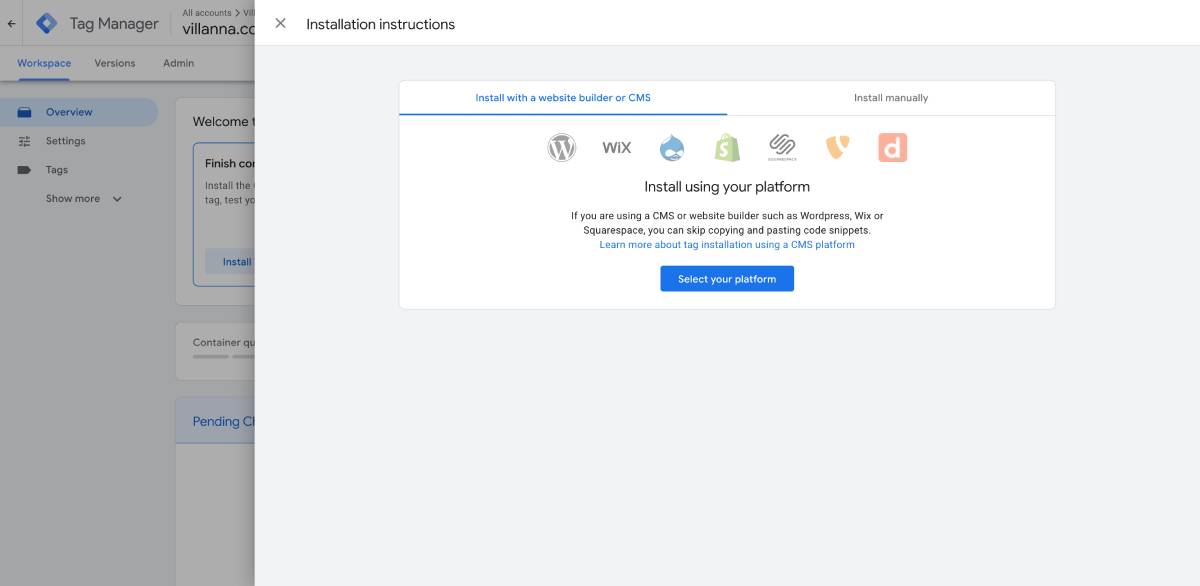
This will generate you a code you can insert into your site according to the instruction.
Step 3. Check your Google Ads account.
If you haven’t already created one, open Google Ads and set up an account.
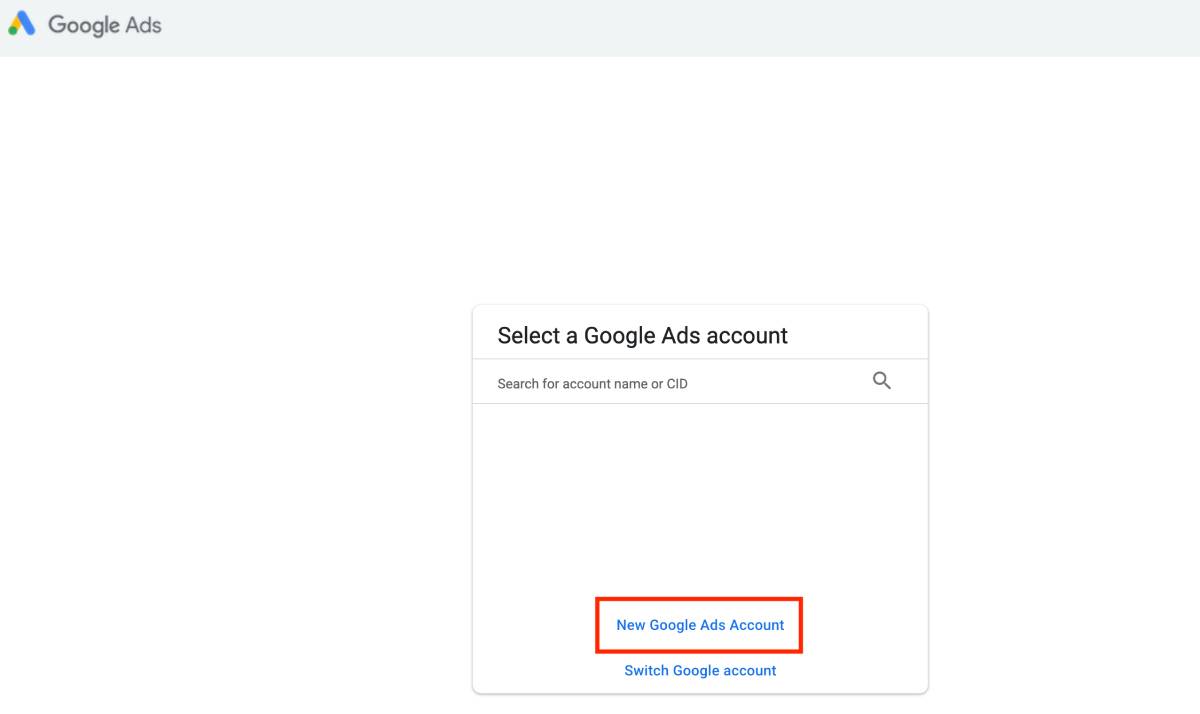
You don’t need to launch a campaign or spend advertising money to configure conversion tracking.
Step 4. Connect Google Analytics and Google Ads.
Linking these accounts allows you to share relevant measurement information between the platforms.
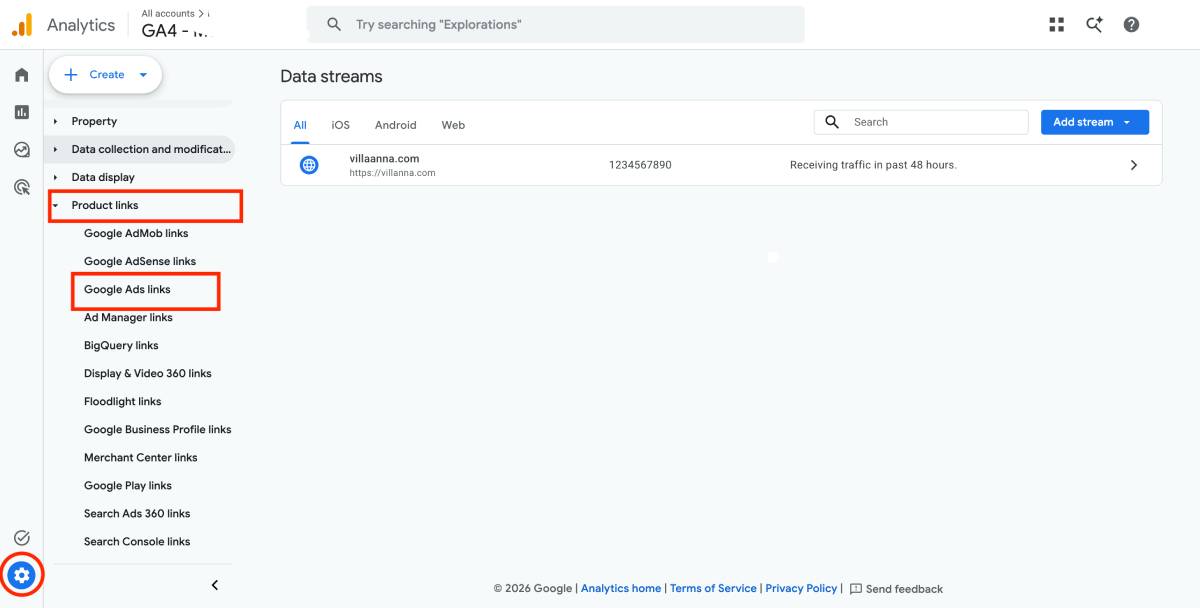
In Google Analytics:
- Open Admin.
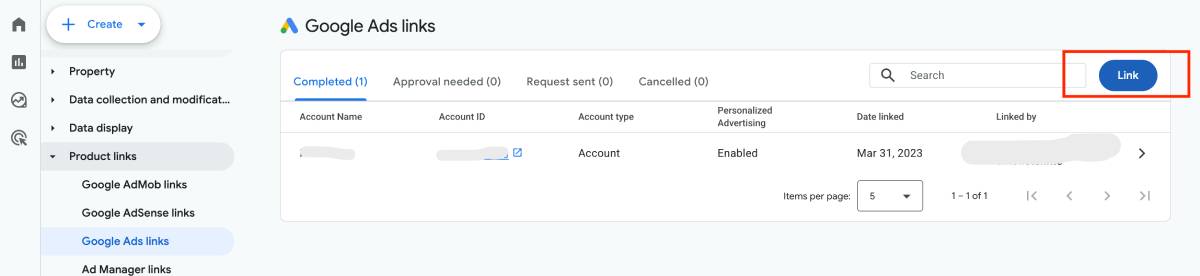
- Find Product links > Google Ads links.
- Select Link.
- Choose the Google Ads account you want to connect.
- Review the settings and complete the linking process.
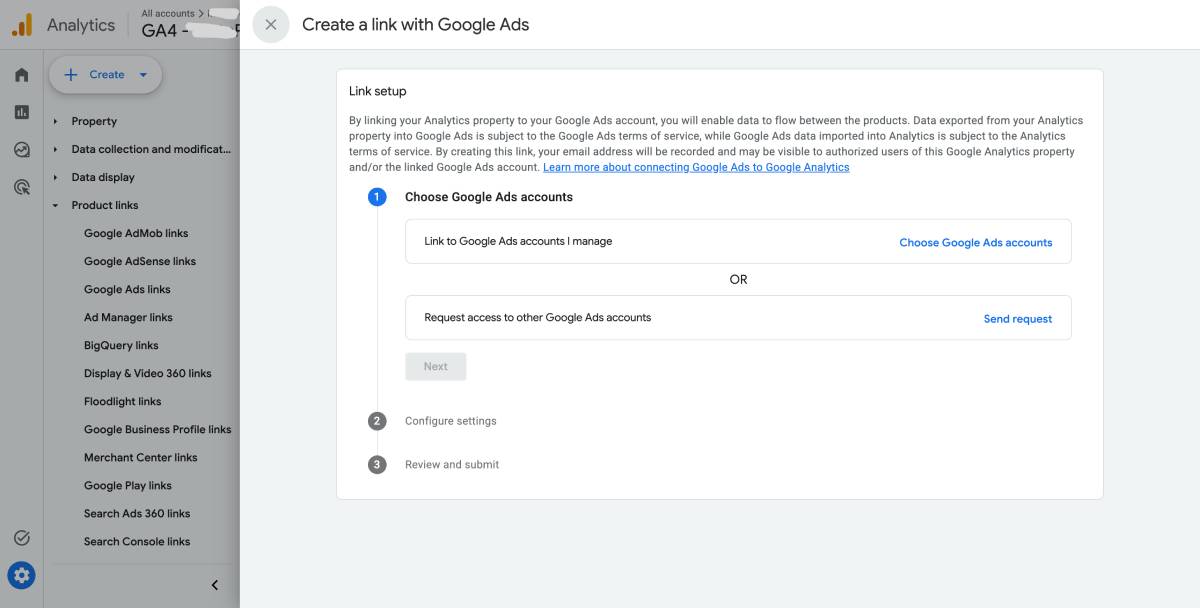
You can then use GA4 events to create conversion actions in the linked Google Ads account.
Also, check that auto-tagging is enabled in Google Ads. Auto-tagging adds information to advertisement landing page URLs so Google can associate website activity with advertising clicks. You can check it under Admin > Account settings > Auto-tagging in Google Ads.
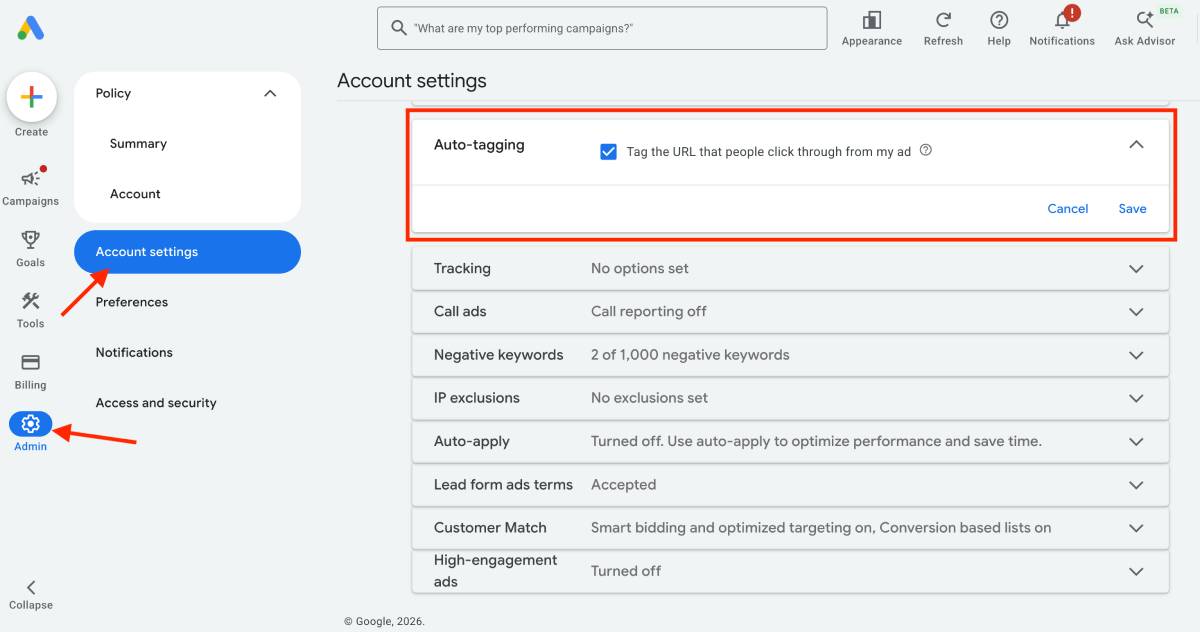
4. Install Google Tag Manager on your website
Your website needs to load the Tag Manager container on the pages where you want to measure activity.
Step 1. Find your container installation instructions.
In Google Tag Manager:
- Open your website’s container.
- Click your container ID or select the installation option in the workspace.
- Google will provide instructions for adding the container to your website.
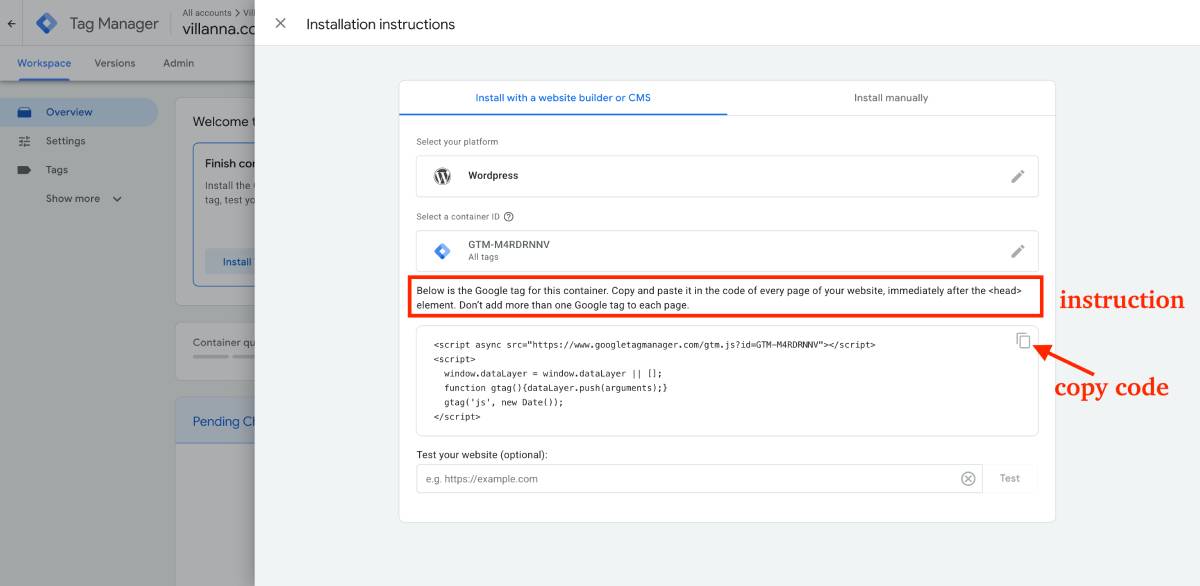
You normally receive two code snippets: one intended for the website’s <head> section and another for the beginning of the <body> section.
Step 2. Install the container throughout your website.
If you use WordPress, you can:
- Use a suitable Google Tag Manager integration provided by your website setup or a trusted plugin.
- Add the container code through your website’s theme or a site-wide code management solution.
- Ask your website developer to install it.
Do not paste the container code into an ordinary WordPress post or individual page. It needs to load across your website, not just on one page.
Also, check whether Google Tag Manager or the Google tag is already installed through a plugin, theme, or another integration. Avoid installing the same container or measurement tag twice, as this can lead to duplicate event collection.
Step 3. Check whether the installation works.
Open your website and use Google Tag Manager’s Preview mode to connect your site to Tag Assistant.

You should be able to see whether the Tag Manager container loads on your website.
Read Google’s instructions for installing a web container.
5. Install the Google tag and connect it to GA4
With Tag Manager installed, you can configure the Google tag that sends website activity to Google Analytics.
Step 1. Create a Google tag in Tag Manager.
In your Google Tag Manager workspace:
- Open Tags.
- Select New.
- Click Tag Configuration.
- Choose Google tag.
- Enter your GA4 Measurement ID, beginning with
G-. - Under Triggering, select All Pages.
- Save your tag.
This tells Google Tag Manager to load the Google tag across your website and send the configured data to GA4.
If you already have a working GA4 tag installed through another integration, don’t automatically create another one. Decide whether to keep the existing implementation or consolidate your tracking through Tag Manager.
Step 2. Publish and check the configuration.
Use Tag Manager’s Preview mode to check that the Google tag fires when you visit your website.
Once you’ve confirmed that the configuration works, publish the container.
You now have the basic website measurement infrastructure in place. However, this only measures general website activity. It does not automatically tell GA4 when a guest completes a reservation.
For that, you need a booking event.
6. Configure tracking for completed bookings
This is the most important and potentially the most technical part of the practice.
Your tracking setup needs to recognize when a reservation is successfully completed and send that information to GA4 and Google Ads.
There are two common approaches, depending on how your booking engine works.
Option A. Track a dedicated booking confirmation page
This is the simpler approach.
Some booking systems redirect guests to a separate confirmation page after completing a reservation.
For example:
yourproperty.com/booking-confirmed/
You can use a visit to this page as a conversion trigger, provided that:
- The page can only be reached after a successful reservation.
- It is not displayed after unsuccessful or incomplete booking attempts.
- It is not simply a generic thank-you page used for multiple actions.
In Google Ads, you can create a website conversion action based on the confirmation page URL without manually adding a separate event snippet.
To do this:
- Open Google Ads.
- Go to Goals > Conversions > Summary.
- Select + Create conversion action.
- Choose the website conversion source.
- Enter your website address and continue with the setup.
- Choose the URL-based setup option, sometimes shown as Set up with a URL or Automatically without code.
- Select the page-load trigger.
- Choose an appropriate URL matching rule, such as an exact confirmation page URL.
- Name the conversion, for example, Confirmed direct booking.
- Review the conversion settings and save.
This method is useful for basic measurement if every visit to that unique page represents a completed reservation.
However, it has limitations.
A URL-based conversion generally cannot capture a different booking value and transaction ID for every reservation through the basic URL-only configuration. It can also overcount bookings if guests reload the confirmation page and the same conversion fires again.
For accommodation businesses, where booking values and reservation IDs are important, an event-based approach is preferable.
Read Google’s guide to setting up conversions with a URL.
Option B. Track a booking confirmation event (recommended)
Instead of treating a page view as the conversion, your booking engine sends an event when the reservation is successfully completed.
For example, it can send a standard GA4 event called purchase.
This event can contain:
- The unique reservation ID.
- The total booking value you have defined for measurement.
- The currency.
- Information about the booked accommodation.
For example, your booking system might send information in this format:
{
  event: "purchase",
  ecommerce: {
    transaction_id: "BOOKING-10482",
    value: 460.00,
    currency: "EUR",
    items: [{
      item_id: "COTTAGE-01",
      item_name: "Two-bedroom cottage",
      price: 460.00,
      quantity: 1
    }]
  }
}
This is a sample example, not code you should paste into your WordPress page. Your booking engine or developer needs to generate the event using the real reservation details.
GA4 provides a recommended purchase event for completed transactions. It uses parameters such as transaction_id, value, and currency to record transaction information. The items array can provide additional accommodation details.
The unique transaction ID helps Google Analytics identify duplicate purchase events. See GA4’s recommended events documentation.
How do you implement this with your booking engine?
Start by checking whether your booking system or booking engine already supports GA4 or Google Tag Manager integration.
Look for:
- A built-in GA4 integration where you can enter your Measurement ID.
- An integration that sends the recommended
purchaseevent after a completed reservation. - A Google Tag Manager integration or support for sending custom data layer events.
- Documentation explaining which booking events, transaction IDs, values, and currencies are available.
If your booking engine already sends the required purchase event to GA4, you may not need to build a custom event yourself. Configure the integration, then test that it sends the correct information.
If it doesn’t support this functionality, contact your booking platform provider or developer. They may need to add a data layer event or another integration that exposes the completed reservation details to your tracking tags.
Why can’t you simply track the Book Now button?
Because clicking a booking button doesn’t mean a reservation has been completed.
A traveler might click the button, check availability, start checkout, and then leave without making a reservation.
If you count every booking button click as a completed booking, Google Ads will receive misleading conversion data and might optimize campaigns for people who click rather than people who book.
Always connect your main booking conversion to the actual successful reservation.
What if you use an external booking engine?
Many hotels and vacation rentals use booking engines hosted on a different domain from their main website.
For example:
www.myproperty.com > booking.provider.com
A traveler starts on your WordPress website but completes the reservation on the booking provider’s website.
This creates an additional tracking consideration: Google needs to recognize that the person who visited your website and the person who completed the reservation in the booking engine belong to the same measurement journey.
Otherwise, GA4 might treat the booking engine as a new referral source rather than recognizing the original visit from Google Ads.
To address this, you may need cross-domain measurement.
In Google Analytics:
- Open Admin > Data streams.
- Select your website’s web data stream.
- Open Configure tag settings.
- Find Configure your domains.
- Add your main website domain and the booking engine domain, where supported by the provider.
- Save your configuration.
For this to work, the same compatible Google tag and measurement setup must be implemented across the relevant domains. The booking engine must also allow the measurement information to be passed through the booking journey.
Cross-domain measurement uses a linker parameter, commonly visible as _gl in a URL, to help preserve the visitor’s measurement information when moving between domains.
Google Tag Manager’s Conversion Linker can also be configured for cross-domain linking when needed for Google Ads conversion measurement.
Read Google’s cross-domain measurement guide.
What if your booking provider doesn’t allow you to install tracking tags?
You cannot reliably track a completed booking simply by installing GA4 or Google Tag Manager on your WordPress website if the reservation is completed elsewhere and the booking engine does not send the final booking event back.
Ask your booking provider whether it offers:
- GA4 purchase-event tracking.
- Google Tag Manager support.
- Conversion tracking integrations for external booking confirmations.
- A supported method for sending booking confirmation events and transaction details to your analytics tools.
If none is available, you may need the provider or a developer to implement an alternative integration.
This is worth checking before launching paid search. Otherwise, you could spend advertising money without being able to connect the resulting bookings to your campaigns.
7. Make your booking event available in Google Ads
After configuring a completed booking event, you need to make it available to Google Ads.
There are two main ways to do this. Choose one method for your main booking conversion rather than creating two independent conversion actions that measure the same reservation.
Method 1. Create a Google Ads conversion using Google Tag Manager
This method sends a dedicated Google Ads conversion event when a guest completes a reservation.
Step 1. Create a conversion action in Google Ads.
- Open Google Ads.
- Go to Goals > Conversions > Summary.
- Select + Create conversion action.
- Choose your website as the conversion source.
- Select the manual code or Google Tag Manager setup option, where available.
- Create a conversion action for a completed booking.
Configure the main conversion settings:
| Setting | Suggested configuration |
|---|---|
| Conversion name | Confirmed direct booking |
| Category | Purchase |
| Value | Use different values for each conversion, if your booking engine can provide them |
| Count | Every, because each confirmed reservation has value |
| Action optimization | Primary, when this is the main result your campaign should optimize for |
If your booking engine cannot send individual booking values, you can initially use a consistent value or set the conversion value according to the available setup. However, dynamic booking values provide more useful revenue measurement.
Step 2. Copy your conversion ID and conversion label.
After creating the conversion action, open its tag setup instructions and select Use Google Tag Manager.
Google Ads provides two identifiers:
- Conversion ID: Identifies your Google Ads conversion destination.
- Conversion label: Identifies the specific conversion action.
Keep these values available for the next step.
Step 3. Create a Google Ads conversion tag in Tag Manager.
In Google Tag Manager:
- Open your website’s container.
- Go to Tags > New.
- Click Tag Configuration.
- Select Google Ads Conversion Tracking.
- Enter your Google Ads Conversion ID and Conversion Label.
- Connect the conversion value, currency, and transaction ID to the corresponding booking information supplied by your booking engine, where available.
- Set the triggering rule to fire only when a reservation is successfully completed.
- Save the tag.
Your developer or booking integration may need to configure the data layer variables that supply the booking value, currency, and reservation ID.
Step 4. Configure the Conversion Linker.
The Conversion Linker helps Google Ads associate advertising clicks with subsequent website activity.
In Google Tag Manager:
- Open Tags > New.
- Select Tag Configuration > Conversion Linker.
- Set the trigger to All Pages.
- Save the tag.
If your container already loads a suitable Google tag on every page, an additional Conversion Linker tag may not be necessary. Check your existing configuration before adding another one.
For an external booking engine, check whether conversion linking across domains is also required and supported.
Step 5. Save and publish your container.
Once your tags and triggers are configured, test them in Preview mode before publishing the changes.
Google provides a detailed guide to setting up Google Ads conversions with Tag Manager.
Method 2. Create a Google Ads conversion from a GA4 key event
This is an alternative if your booking engine already sends a suitable booking event to Google Analytics.
For example, if GA4 already receives a properly configured purchase event, you can create a corresponding conversion in your linked Google Ads account.
Step 1. Check your event in GA4.
Open Google Analytics and go to:
Admin > Data display > Events
Find the event that records a completed booking.
GA4 automatically treats the standard purchase event as a key event. If you use a custom event such as booking_confirmed, mark it as a key event using the star beside the event name.
Step 2. Create a conversion in Google Ads.
Open Google Ads and:
- Go to Goals > Conversions > Summary.
- Select + Create conversion action.
- Choose your Google Analytics property as the source, where available.
- Select the completed booking event or key event.
- Review the conversion settings and save.
The GA4 event can now be used as a conversion in Google Ads.
Google also provides conversion management through the GA4 interface under Advertising > Tools > Conversion management.
Read Google’s guide to creating and managing conversions from Analytics events.
Which method should you choose?
If your booking engine already sends a correctly configured GA4 purchase event, creating a Google Ads conversion from that event can be a convenient option.
If you need more direct control over the Google Ads conversion tag and its parameters, the Tag Manager method is another suitable choice.
The important thing is to avoid creating duplicate primary conversions for the same completed booking. For example, don’t count one reservation through both a direct Google Ads tag and an imported GA4 conversion as two separate booking actions in your campaign goals.
8. Test whether conversion tracking works
Never assume that conversion tracking is working simply because you installed the tags.
You need to test the full booking journey and check whether the correct event reaches the right platform.
Step 1. Test your tags using Google Tag Manager Preview
Open your Google Tag Manager container and:
- Click Preview in the upper-right corner.
- Enter the address of your accommodation website.
- Click Connect.
- Browse your website and go through the booking process using a suitable test environment, if your booking engine provides one.
- Return to Tag Assistant and inspect the events and tags that fired.
Pay attention to the following:
- Does the Google tag fire on your website pages?
- Does the booking completion event appear after a successful reservation?
- Does the Google Ads conversion tag fire only when that event occurs?
- Are the booking value, currency, and transaction ID available and correct?
- Does the same booking event fire only once?
Tag Assistant also helps you identify tags that are missing, firing unexpectedly, or configured incorrectly.
See Google’s Tag Manager Preview and debug guide.
Important: A test reservation made on a live website can be sent to your actual GA4 and Google Ads accounts. Prefer a booking engine’s sandbox or test environment. If you need to test on your live website, coordinate the test with your booking provider and make sure the test reservation can be identified and excluded or adjusted in your internal reporting.
Step 2. Check the booking event in GA4 DebugView
GA4 has a tool called DebugView that lets you inspect events collected from your website in real time while testing.
To use it:
- Open Google Analytics.
- Go to Admin > Data display > DebugView.
- Enable debug mode for your test session using Google Tag Assistant or Tag Manager Preview.
- Perform the relevant booking actions on your website.
- Watch the events appear in DebugView.
- Click the
purchaseevent to inspect its parameters.
Check whether the event contains:
- A unique transaction ID.
- The correct booking value.
- The correct currency.
- Relevant accommodation information, if configured.
If you see the purchase event multiple times for a single reservation, investigate the trigger and transaction ID before publishing your setup.
Note that consent settings may prevent Analytics events from appearing in DebugView when analytics consent has not been granted.
See Google’s DebugView instructions.
Step 3. Check your conversion action in Google Ads
After publishing your configuration, open:
Google Ads > Goals > Conversions > Summary
Find your completed booking conversion action and review its status.
Google Ads provides conversion diagnostics and status information that can help identify missing or inactive tags.
Remember that conversion information may not appear immediately. Allow time for Google Ads to process the measurement data. Google notes that conversion status updates can take up to 48 hours after tag implementation or correction.
See Google’s conversion tracking troubleshooting guide.
9. Set up your main and secondary conversions
Once your tracking works, decide which actions should actually influence your Google Ads campaigns.
Google Ads distinguishes between primary and secondary conversion actions.
Primary conversions are the actions included in the main Conversions reporting column and used for campaign bidding optimization when their goal is selected.
Secondary conversions are generally used for observation and reporting in the All conversions column. They aren’t normally used for automated bidding.
For a direct booking campaign, a sensible basic setup is:
| Conversion action | Suggested setting |
|---|---|
| Confirmed direct booking | Primary |
| Availability search | Secondary |
| Booking process started | Secondary |
| Contact form submission | Secondary, unless generating leads is the campaign’s main goal |
This distinction matters because you want Google Ads to optimize for actual reservations rather than intermediate actions.
For example, if you accidentally set every availability search as a primary conversion, Google Ads might learn to attract people who frequently check dates but don’t necessarily book.
Start with completed reservations as your main conversion. Use other actions to understand where visitors are dropping out of the booking process.
Read Google’s explanation of primary and secondary conversion actions.
10. Check privacy and consent requirements
Conversion tracking also needs to respect visitors’ privacy preferences.
If your accommodation website receives visitors from the European Economic Area (EEA), you need to pay particular attention to Google’s EU User Consent Policy and the applicable privacy requirements.
Google’s Consent Mode allows your tracking tags to adapt their behavior according to the visitor’s consent choices.
Before launching campaigns, check that:
- Your website has an appropriate cookie and consent management solution.
- Your consent banner communicates visitors’ choices to the relevant Google tags.
- Google Consent Mode is implemented where required.
- Your analytics and advertising tags respect the consent settings.
Many consent management platforms (CMPs) offer integrations with Google Tag Manager and Consent Mode, making implementation easier.
Consent Mode doesn’t replace the need to obtain appropriate consent or meet your legal obligations. Consult your CMP provider or a qualified privacy professional if you’re unsure how to configure your website.
Google provides more information in its consent banner and Consent Mode guide.
Key takeaways and common mistakes
- Conversion tracking tells you whether advertising clicks result in valuable actions, especially confirmed direct bookings. Without it, you cannot reliably evaluate campaign profitability.
- Google Analytics 4 records website events, Google Tag Manager manages tracking tags, and Google Ads uses conversion information to measure and optimize campaigns.
- Track completed reservations rather than treating every booking button click or availability search as a booking conversion.
- An event-based setup with a unique transaction ID, booking value, and currency is more informative than simply tracking a thank-you page view.
- If your booking engine uses a different domain, check cross-domain measurement and make sure the booking confirmation event is also available from that system.
- Test the entire booking journey before spending money on advertising. Check that events fire once, contain the correct values, and reach the right Google accounts.
- Use completed bookings as your primary conversion and keep intermediate actions as secondary measurements, unless your campaign has a different main objective.