
Table of Contents
What you will create: A verified Google Search Console property for your direct-booking website.
In this practice, you will:
- Connect your website to Google Search Console.
- Check your homepage and accommodation pages.
- Understand clicks, impressions, click-through rate, and average position.
- Explore the searches, pages, countries, and devices behind your search traffic.
Google Search Console helps you see whether your accommodation pages appear in Google and which searches bring people to your website. Begin with the setup, then check your homepage and one important room or property page.
The problem
Your website is live. Photographs load, accommodation details are published, and guests can check availability.
But when you search Google, you cannot tell whether it has discovered your pages or whether potential guests see them for relevant searches.
Related Lessons:
- How Google decides which accommodation pages to show
- How travelers use Google when choosing accommodation
Why it happens
A page being published and a page being indexed by Google are different things. Indexing means Google has processed the page and included it in its search index. An indexed page can appear in search results, but that doesn’t guarantee a high position.
Search Console helps you check this and review your search performance. If you already use Google Analytics 4, the tools work together:
| What you want to know | Tool to use |
|---|---|
| Has Google indexed my accommodation page? | Google Search Console |
| Which Google searches show my website? | Google Search Console |
| Where do website visits come from, including email, social media, and search? | GA4 |
| Do visitors check dates or complete reservations? | GA4, with verified event tracking, and your booking system |
Related Guide:
- Audit your website’s current traffic [GA4]
What to check before you start
Make sure you have:
- A Google account your business can continue to access.
- The exact address of your live homepage.
- Access to your domain’s DNS settings or your website’s verification settings.
- The public address of one important room or property page.
If someone manages your website: Ask whether Search Console is already connected. If it is, ask the owner to add your Google account through Settings > Users and permissions. You can then continue with the sitemap and page checks below.
What to do
First, connect your website and verify ownership. Then use the reports to check whether Google can find your accommodation and whether its search results bring people to your site.
Step 1. Add your website and choose the property type
- Open Google Search Console and sign in.
- If you see another website, open the property selector in the upper-left corner and select Add property.
- Choose between Domain and URL prefix.
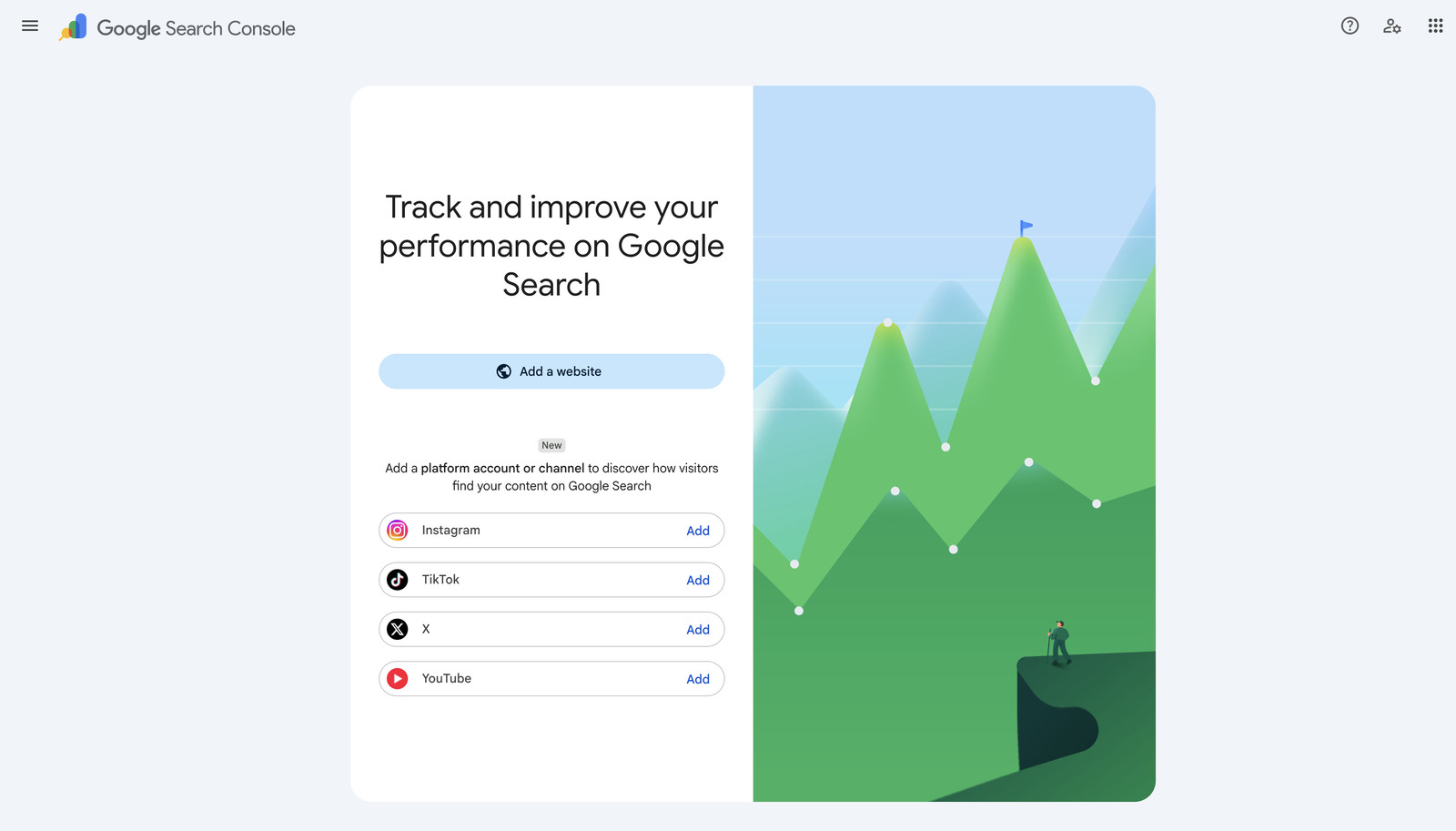
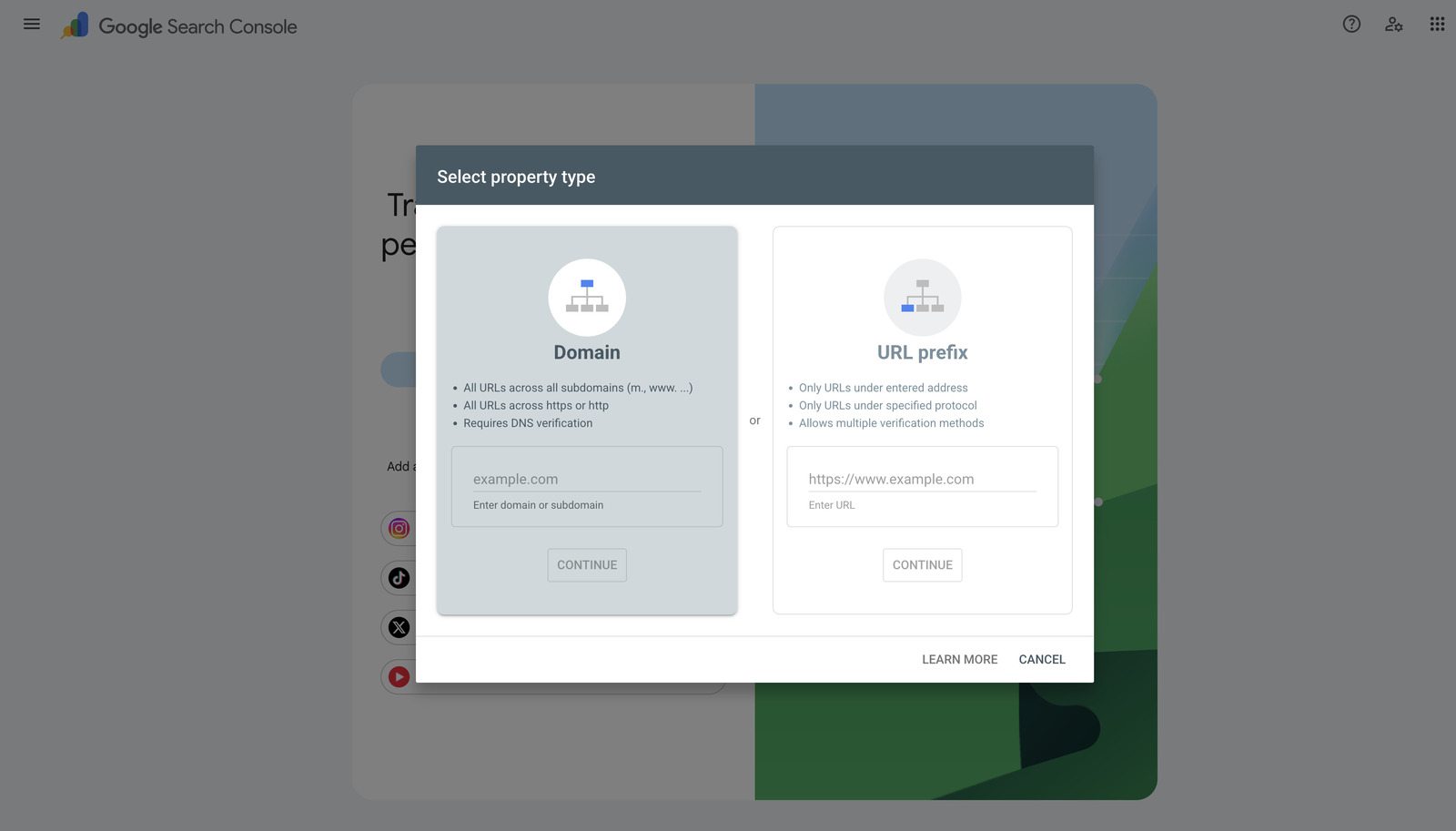
In Search Console, a property means the website or part of a website you are monitoring, not an individual vacation rental.
| Option | What to enter | What it covers | Choose it when… |
|---|---|---|---|
| Domain | example.com | The domain across HTTP, HTTPS, and subdomains such as www.example.com | You can access the domain’s DNS settings or ask someone to update them. |
| URL prefix | https://www.example.com/ | Addresses beginning with that exact prefix | You can edit your website but do not have DNS access. |
A domain is a useful default when you control the domain. Enter it without https:// or a page path.
For the URL prefix, open your live homepage and copy the final browser address, including https:// and www if present.
Step 2. Verify ownership
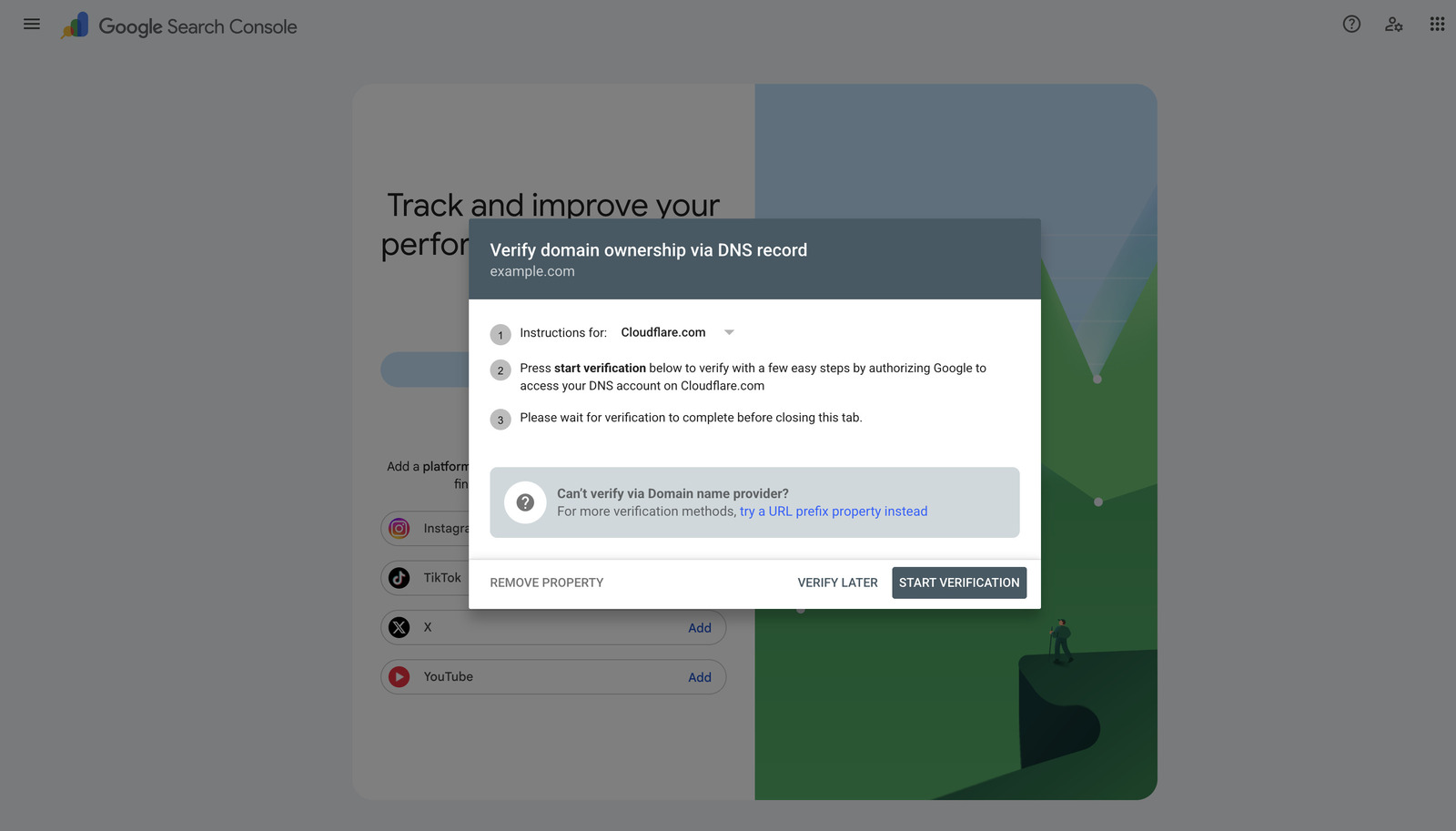
Verification confirms that you control the website. Follow one of these routes.
Option A: Domain verification through DNS
DNS settings are usually managed by your domain registrar, hosting company, or another domain service.
- Copy the TXT verification value provided by Google.
- Open your domain’s DNS settings.
- Add a new record with the type TXT.
- For Host/Name, follow the provider’s instructions for the root domain – often @ or a blank field.
- Paste Google’s complete value into Value/Content and save.
- Return to Search Console and click Verify.
Add a new record without replacing existing records. If verification does not work immediately, allow time for the DNS update and try again.
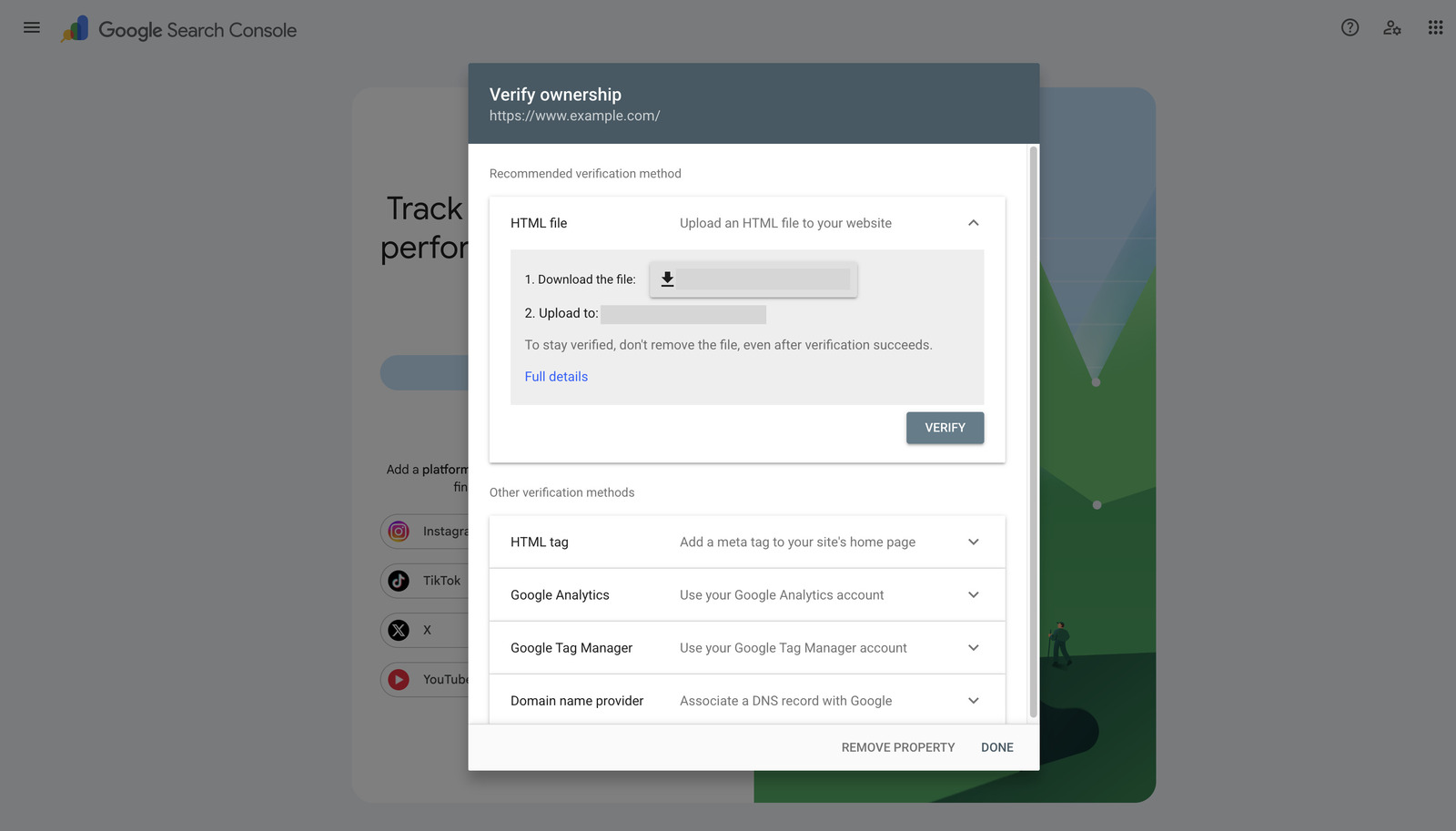
Option B: URL-prefix verification with an HTML tag
- In Search Console, select the HTML tag verification method.
- Copy the tag.
- Open your website’s SEO, Site verification, or Google Search Console settings.
- Paste the full tag or just its verification code, depending on what the field requests.
- Save and publish.
- Return to Search Console and click Verify.
If your platform does not offer a verification field, follow its instructions for adding the tag to the homepage’s
, or ask your website provider.Keep the verification record or tag after setup. Google can recheck ownership.
Step 3. Find and submit your sitemap
A sitemap lists pages you want search engines to discover, such as your accommodation pages and local guides. Your website platform or SEO plugin may generate it automatically.
- Find the sitemap address in your platform’s SEO settings or documentation.
- Open it in your browser to check that it exists.
- In Search Console, select Sitemaps.
- Enter the address under Add a new sitemap. If your domain is already displayed, enter only the remaining path.
- Click Submit.
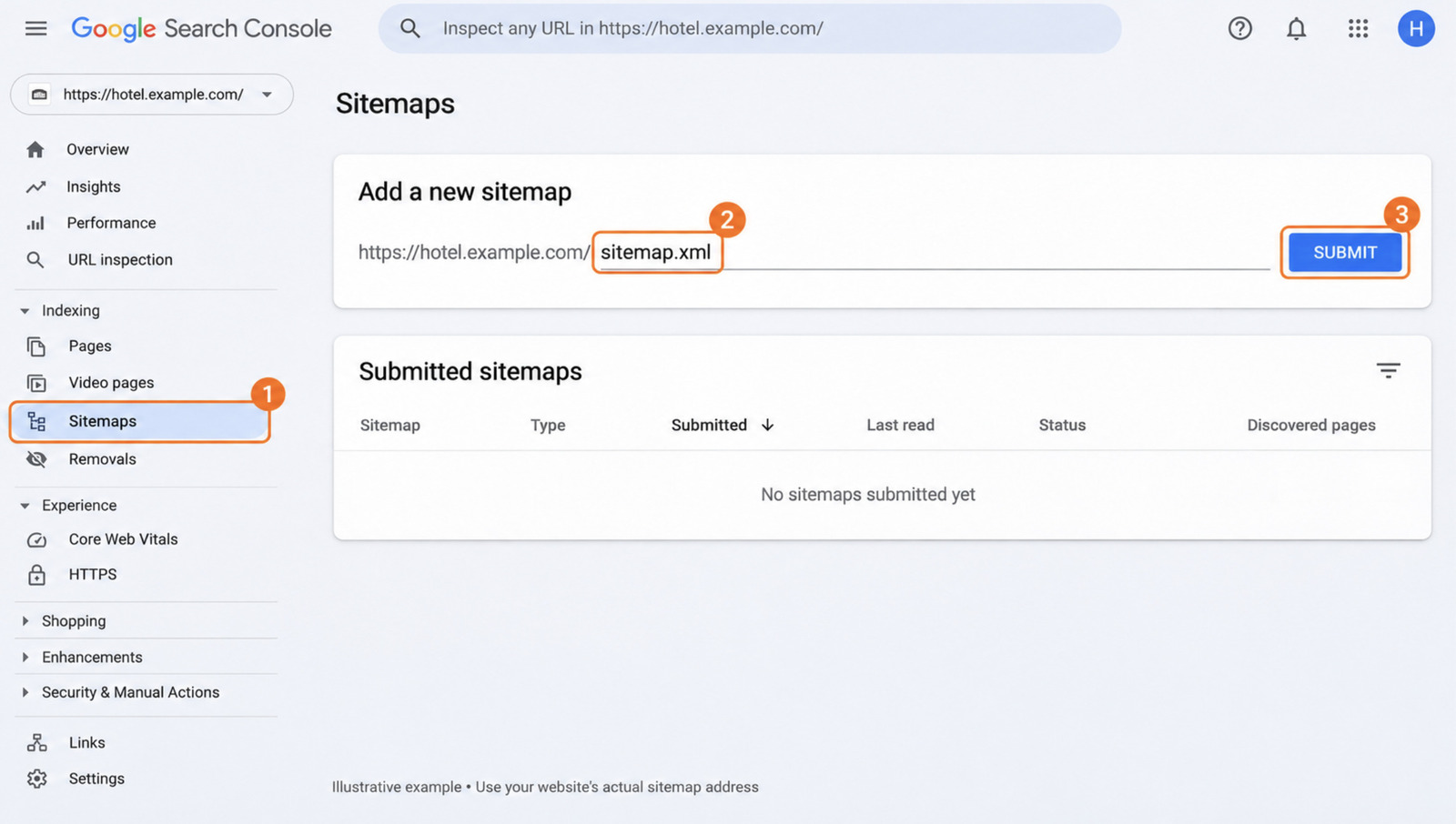
Common paths include sitemap.xml, sitemap_index.xml, and wp-sitemap.xml, but use the actual address provided by your website.
If you see a sitemap index listing several smaller sitemaps, submit the index. If the correct sitemap is already listed successfully, you do not need to add it again.
| Status | What it means | What to do |
|---|---|---|
| Success | Google read and processed the sitemap. | Continue to inspect individual pages. |
| Couldn’t fetch | Google could not retrieve the sitemap. | Check the address and whether it opens publicly. |
| Has errors | Google found a problem while processing it. | Open the report for details and ask your website provider if needed. |
Sitemap success does not mean every listed page is indexed. It also does not guarantee immediate discovery.
Step 4. Inspect your homepage and one accommodation page
Use URL Inspection to check a specific page.
- Open your live homepage and copy its full address.
- Paste it into the inspection bar at the top of Search Console.
- Press Enter and read the result.
- Repeat with one important room or property page.
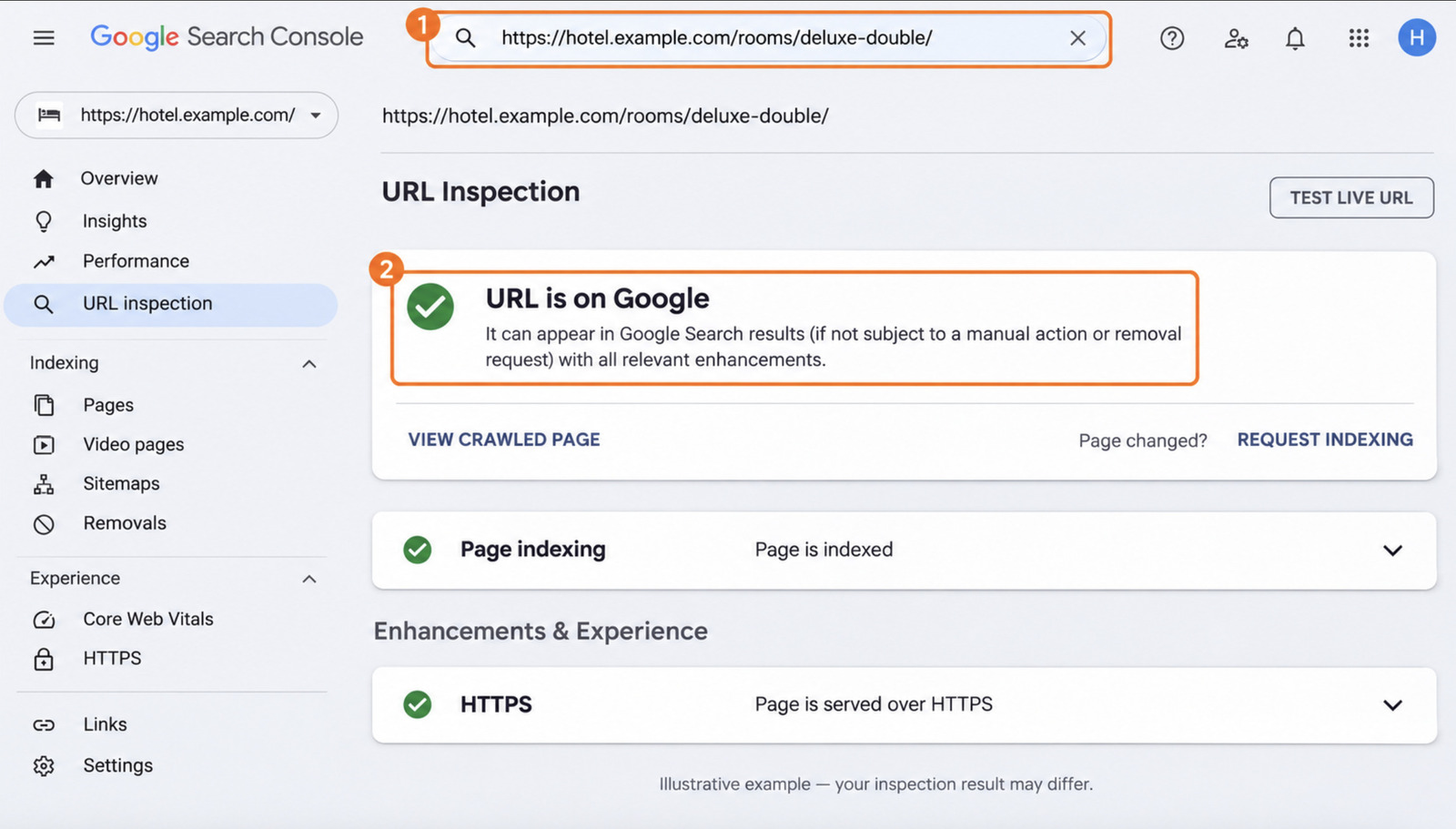
Use public page addresses, not editor previews or temporary booking-search results.
| Result | What it means | Your next action |
|---|---|---|
| URL is on Google | The page is indexed and eligible to appear in search. | Check its search performance when data is available. |
| URL is not on Google | The URL is not currently indexed. | Open Page indexing and read the reason. |
| URL is outside the property | The address does not belong to the selected property. | Check the domain, protocol, and www version. |
For a new or recently fixed page, click Test live URL. This checks the current page rather than only Google’s stored information.
If the page is accessible and intended for search, select Request indexing. This asks Google to crawl it; it does not guarantee indexing.
Step 5. Understand your search performance metrics
When data becomes available, open Performance > Search results. In some accounts, the menu may simply say Performance.
- Keep Search type: Web for your first review.
- Select a complete period, such as the last 28 days.
- Enable the four metric boxes above the chart.
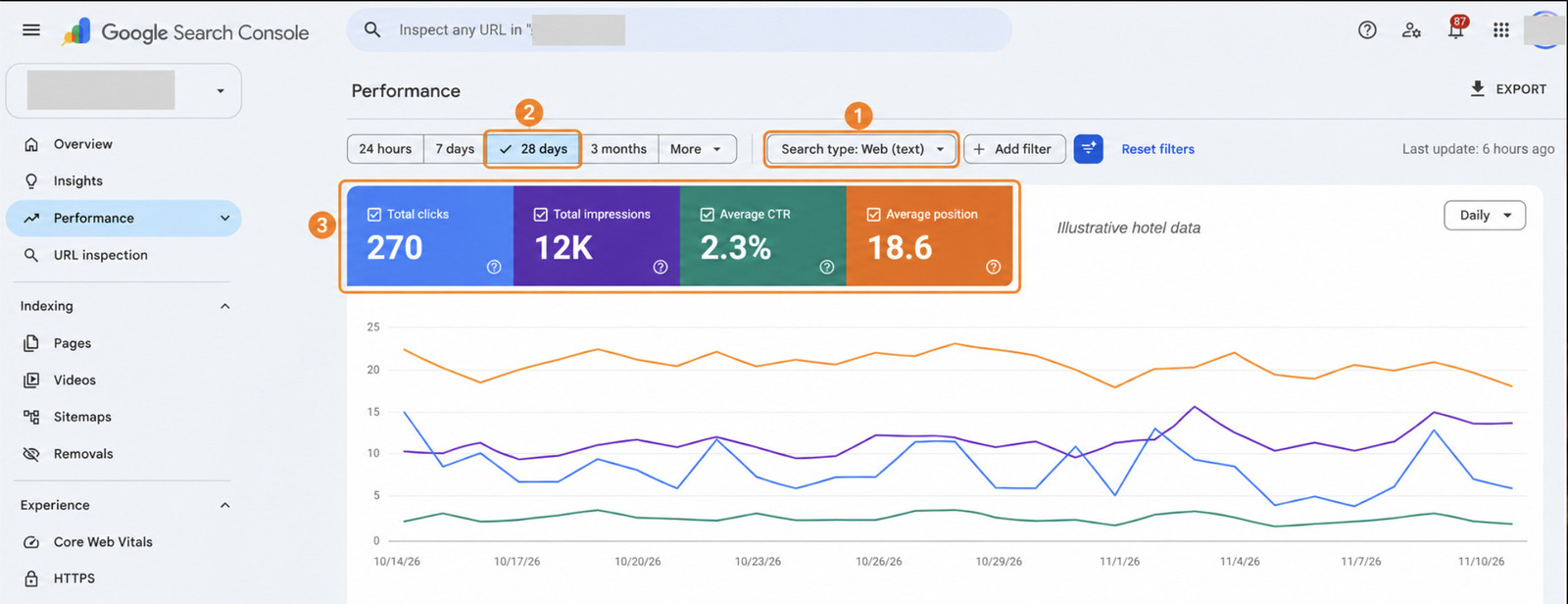
| Metric | What it means | How to use it |
|---|---|---|
| Clicks | Clicks from Google results to your website | See whether search is bringing people to your pages. |
| Impressions | How often links to your website were shown under Google’s counting rules | See which pages and searches generate visibility. |
| Average CTR | Clicks divided by impressions | Review how often an appearance leads to a click. |
| Average position | The average position of your highest result for the impressions included | Use it as context alongside clicks, impressions, and queries. |
A newly added property may take several days to populate reports. A small website may also need more time to collect enough activity for useful comparisons.
Step 6. Explore Queries, Pages, Countries, and Devices
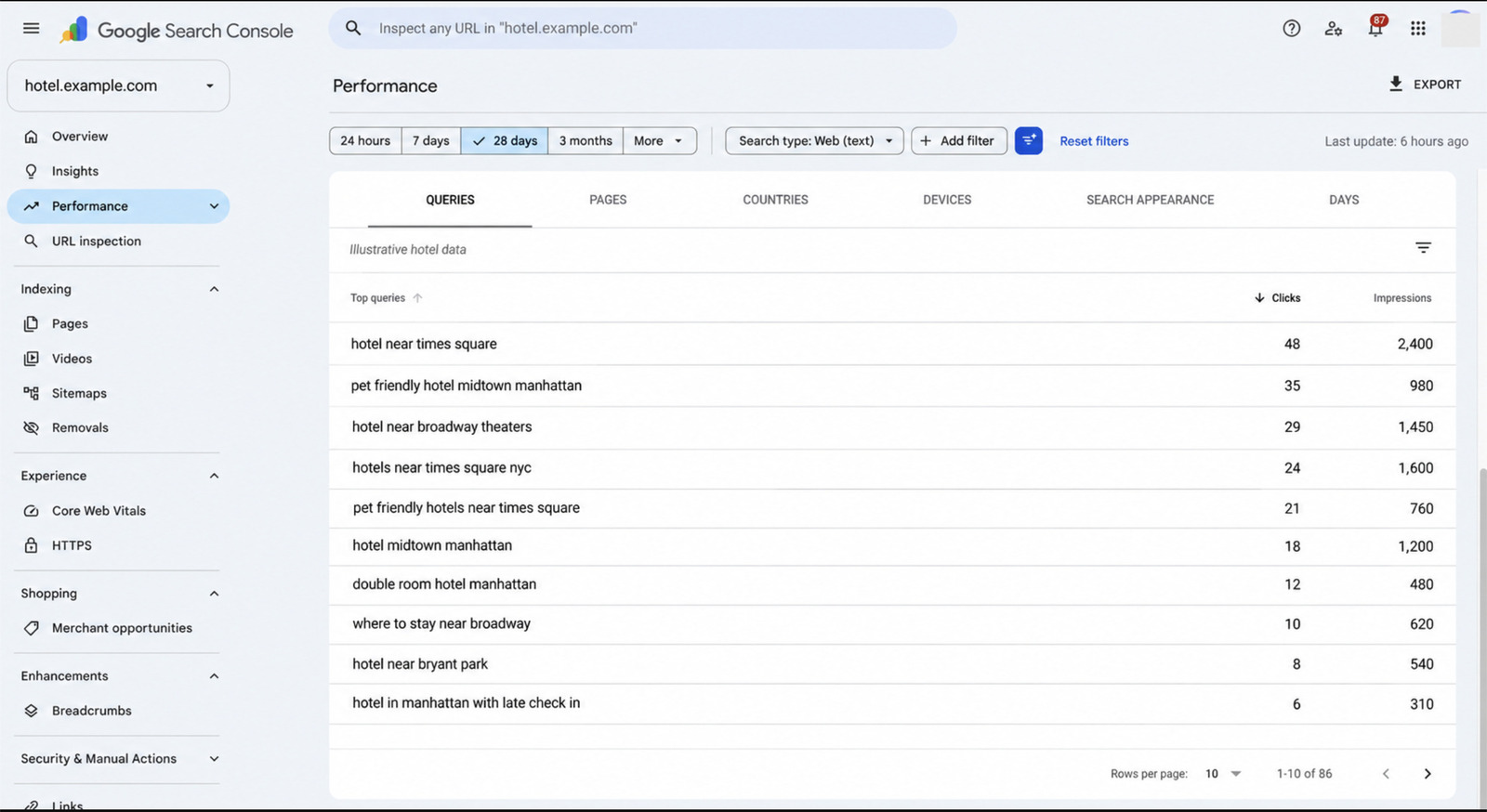
Scroll below the performance chart. The table tabs let you examine the same results from different angles.
| Tab | What it shows | A useful question for a property owner |
|---|---|---|
| Queries | Reported searches that showed your website | “Do people find us by name, location, or a particular accommodation feature?” |
| Pages | Website URLs receiving impressions and clicks | “Do guests find only our homepage, or individual accommodation pages too?” |
| Countries | Countries associated with the searches | “Where is our search interest coming from?” |
| Devices | Search performance on mobile, desktop, and tablet | “How much of our Google search activity happens on phones?” |
The Countries tab does not establish a traveler’s nationality or final booking market. The Devices tab shows search activity, not reservation conversion rates.
Check which searches lead to a particular room page.
- Open Pages.
- Click the accommodation URL you want to review.
- Switch to Queries.
- Read the searches now shown for that page.
- Remove the page filter when you want to return to website-wide results.
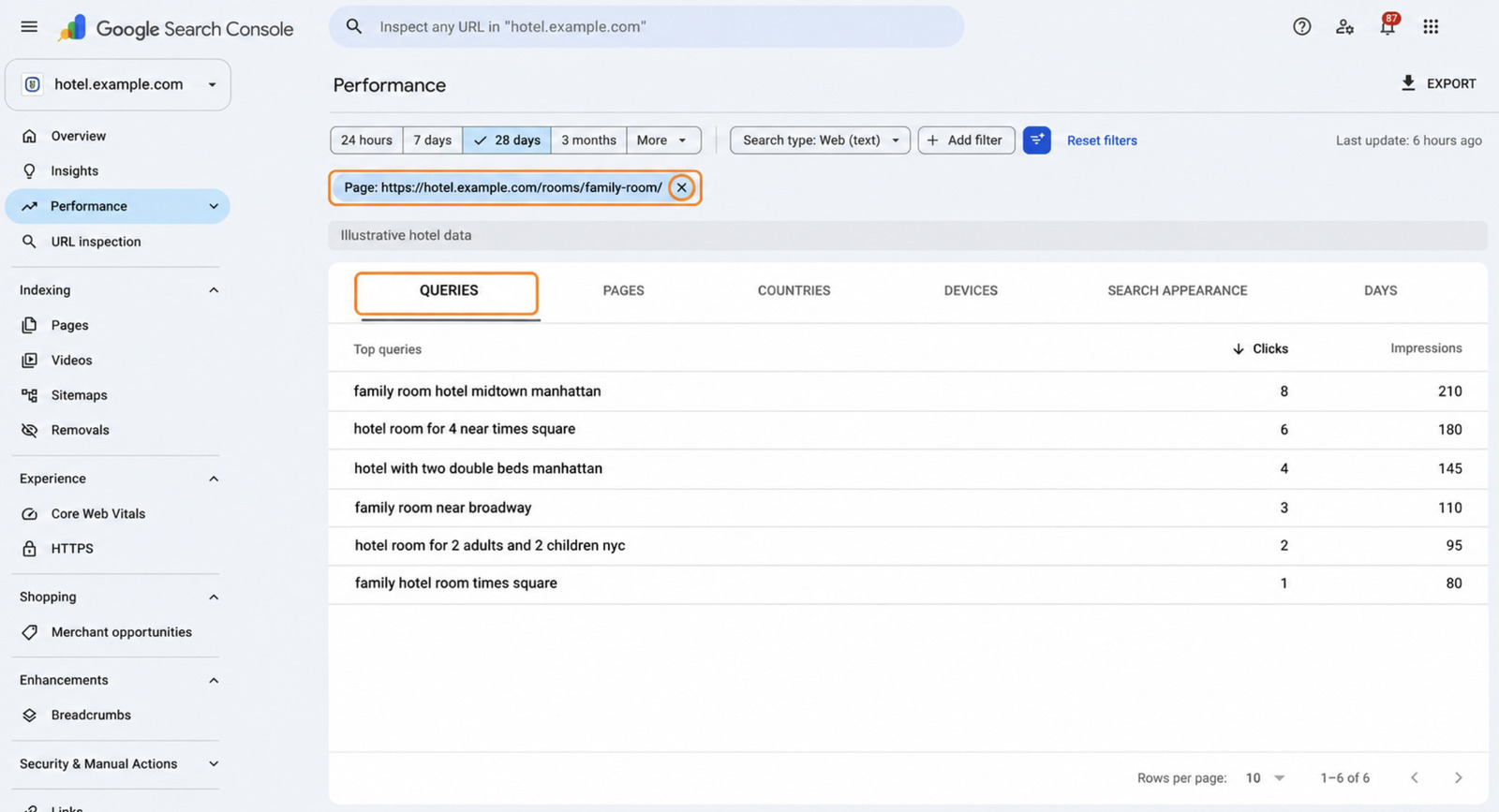
For example, a room page might receive impressions for searches about beds, capacity, or the hotel’s name. Compare those searches with the information the page actually provides.
Search Console does not show every individual query, so treat the table as useful evidence rather than a complete list. Google recommends focusing on trends in clicks and impressions rather than position alone.
Related Guides:
- Find the search terms your potential guests actually use
- Optimize your accommodation/property pages for search
Step 7. Check whether important pages are missing from Google
Open Indexing > Pages.
This report groups URLs Google knows about into Indexed and Not indexed. Some exclusions are expected; your goal is to make useful public pages eligible for search.
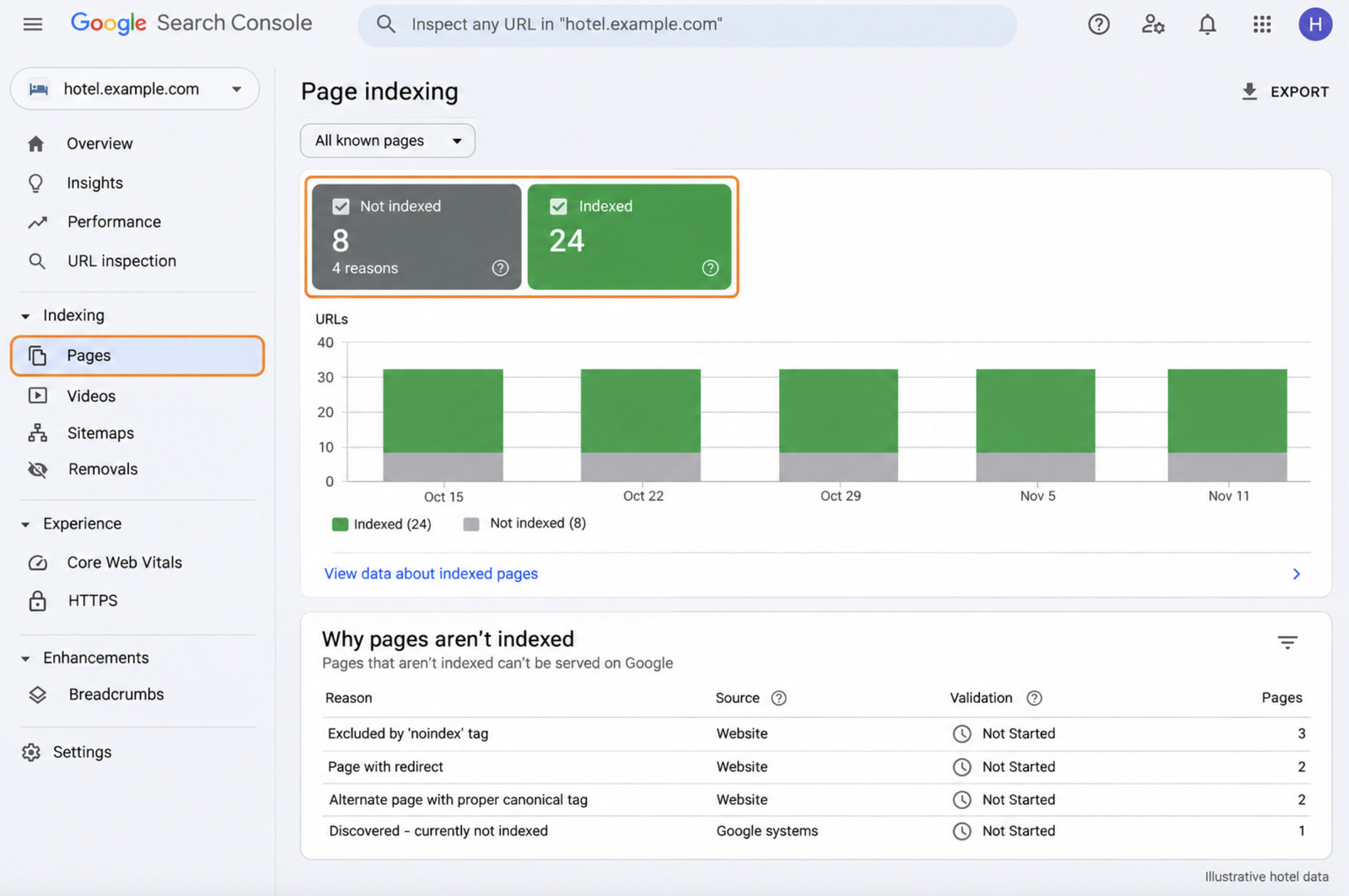
- Open a reason under Why pages aren’t indexed.
- Look at the example URLs.
- Identify whether any are important accommodation pages.
- Inspect those URLs individually before making changes.
| Example | Does it need attention? |
|---|---|
| An old address redirects to its replacement | Usually expected; check that the replacement works. |
| A booking confirmation is excluded | Usually appropriate; it is not a public search destination. |
| A public room page is excluded by a noindex instruction | Check whether the instruction was added accidentally. |
| A property page is “Crawled – currently not indexed” | Review the page, possible duplication, and internal links. The status alone does not identify one definite cause. |
Not every non-indexed URL is an error, and Google does not guarantee indexing for every page. Prioritize the pages that help guests evaluate and book accommodation.
Related Guide:
- Fix the most important basic SEO issues on your website.
Example: A first Search Console review
An independent hotel in Savannah, Georgia, verifies its website, submits its sitemap, and reviews a complete 28-day period once data is available.
The figures below are illustrative.
| Page | Finding | Owner’s next action |
|---|---|---|
| Homepage | Indexed; 1,400 impressions and 180 clicks | Review Queries to distinguish searches containing the hotel’s name from broader searches. |
| Suite page | Indexed; 850 impressions and 4 clicks | Check the queries and positions, then assess whether the title and page clearly describe the suite. |
| New pet-friendly room page | Not indexed; “Crawled – currently not indexed” | Check that the page has distinct room information and is linked from the rooms overview. Investigate before requesting indexing again. |
The owner now has specific tasks. The homepage is receiving clicks, the suite page needs closer review, and the new room page needs an indexing investigation.
What to measure afterwards
Review Search Console monthly and after important website changes.
| Check | What to look for |
|---|---|
| New accommodation pages | Whether important public pages become indexed |
| Relevant searches | Whether impressions and clicks come from searches that match your offer |
| Updated pages | Changes in clicks and CTR, considered alongside queries and positions |
| Indexing problems | Whether an unintended exclusion has been resolved |
| Seasonal trends | How performance compares with an appropriate previous period |
Record the date when you update a page. Avoid judging the result after only a few days or assuming every change comes from your SEO work. Availability, seasonality, events, and search demand can affect the picture.
Common mistakes
- Choosing the wrong URL prefix. Copy the live homepage address, including HTTPS and www where applicable.
- Removing verification after setup. Keep the DNS record or HTML tag so Google can continue confirming ownership.
- Assuming sitemap success means all pages are indexed. Check individual URLs separately.
- Requesting indexing repeatedly. Submit a request after a meaningful publication or fix, then allow time.
- Trying to index every excluded URL. Focus on useful public pages, not booking confirmations or redundant copies.
- Treating low CTR as proof that competitors won the booking. Investigate the query and page; the report does not reveal that outcome.
- Confusing search clicks with reservations. Search Console measures discovery and clicks. Booking results need separate tracking.
The next logical step
Choose one important page and act on what you found. If it is not indexed, use the reported reason to investigate.
If it is indexed but receives little relevant interest, review its queries and content. Record the finding, the action, and the date. Your next Search Console review will then have a clear purpose: checking what changed for that page.