
Table of Contents
What you will create:
You will create a simple maintenance routine for keeping your accommodation business’s Google information accurate across Search and Maps. You’ll learn how to check key details, correct outdated information, review Google-suggested changes, and monitor whether your updates appear correctly.
In this practice, you will:
- Check whether your business has an eligible Google Business Profile.
- Review your business details, contact information, photos, and amenities.
- Correct outdated or inaccurate information.
- Check Google updates and verify that your changes appear.
- Set up a routine for maintaining accurate information over time.
How outdated Google information can cost you guests
Potential guests use Google to check where your property is located, how to contact you, what amenities you offer, and whether your accommodation fits their needs. If this information is outdated or incorrect, they may struggle to reach you, arrive at the wrong location, or choose another property.
For example, a hotel has recently changed its phone number and renovated several rooms. However, its Google listing still displays the old number and photos of the previous interior. Guests who call may not reach the hotel, while those who view the photos may form the wrong expectations.
These problems can also affect how consistently your business is represented online. If your website, Google listing, and other booking platforms show different information, guests may be unsure which details to trust.
Keeping your information accurate is an ongoing task. You need to check it after business changes and review it regularly, rather than assuming that everything remains correct once your profile is set up.
Why your Google listing needs ongoing maintenance
Several issues can cause inaccurate information to remain visible on Google:
- Business changes go unreported. A new phone number, updated check-in procedure, seasonal schedule, or renovated room may not be reflected in the listing.
- Information differs across platforms. Your website may show updated details while older information remains on other services.
- Google receives information from other sources. Google can use user suggestions and other sources to update Business Profile information, so changes may appear without you making them.
- Changes are not checked after submission. An edit may remain pending or be rejected, leaving the old information visible.
- No one is responsible for maintenance. If nobody checks the listing, small errors can remain unnoticed for months.
Before making changes, confirm that you are eligible to manage a Google Business Profile. Hotels and qualifying staffed accommodation businesses may be eligible, but individual, unstaffed vacation rentals generally are not. If you operate an ineligible rental, focus on keeping your own website and relevant booking-platform listings accurate instead.
See Google’s Business Profile eligibility guidelines before proceeding.
Keeping your Google information up to date
Step 1. Review your current Google information
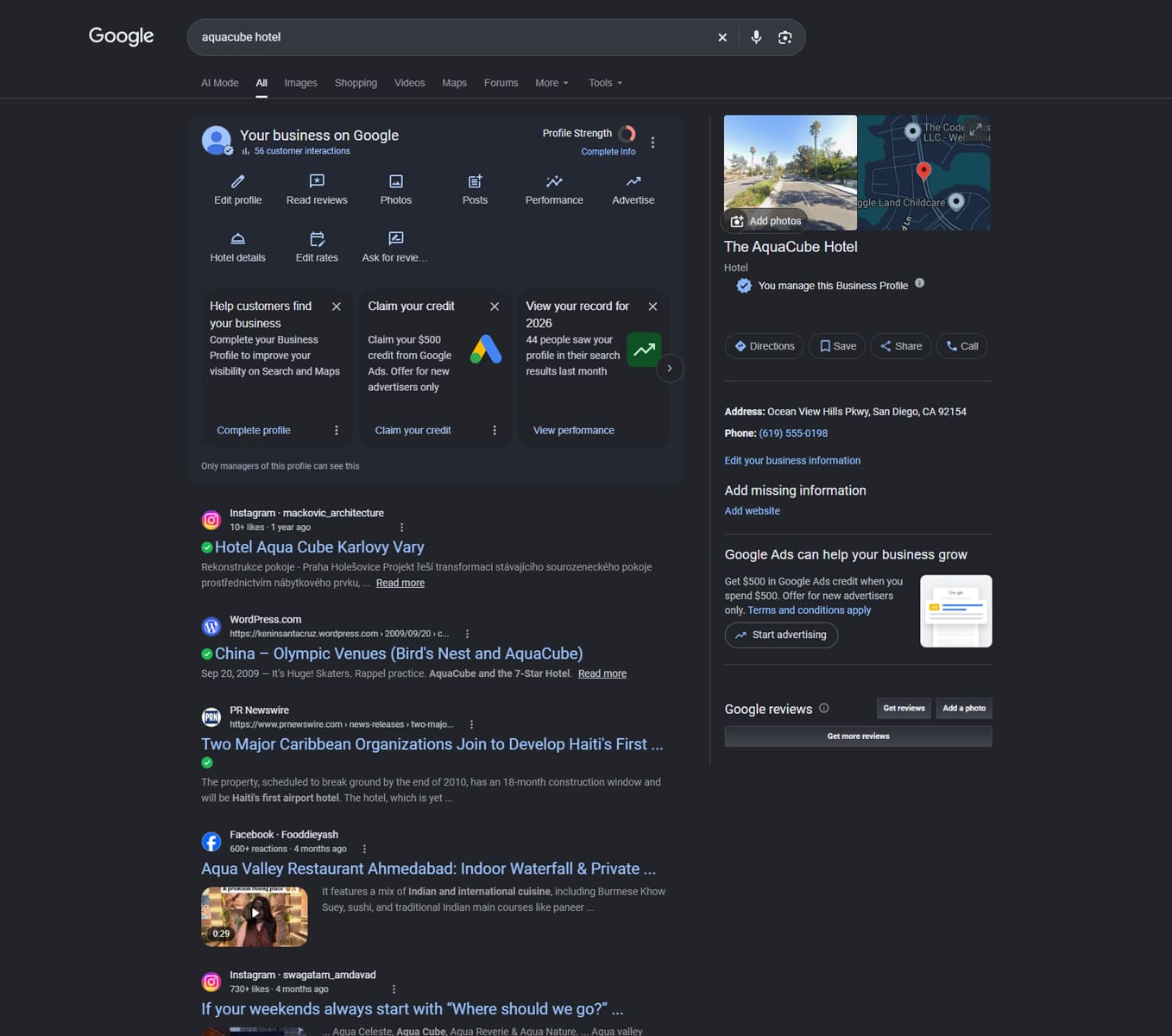 Start by checking what potential guests can see.
- Sign in to the Google Account associated with your verified Business Profile.
- Search for your business on Google or open its listing in Google Maps.
- Compare the public information with your current business details.
- Record anything that is missing, outdated, or incorrect.
Use this table to organize the audit:
| Information | What to check |
|---|---|
| Business name | Does it match your real-world business name? |
| Address and map pin | Is the location correct and easy to identify? |
| Phone number | Can guests reach the right person or reception? |
| Website | Does the link open the correct, working page? |
| Business hours | Are the displayed hours appropriate and accurate? |
| Check-in and check-out | Are the times correct, where this information is available? |
| Amenities and services | Do they reflect what you currently provide? |
| Photos | Do they represent the property’s current condition? |
| Description | Does it accurately explain your accommodation? |
For example, if your hotel has recently introduced a new parking area, check whether the relevant amenity information is available and accurate. Additionally, if you have stopped offering breakfast, ensure your public information does not suggest that it is still included.
Important: Not every field is editable for every business category. Hotel-specific details, attributes, and some other features may have separate controls or availability requirements.
Step 2. Correct essential business details
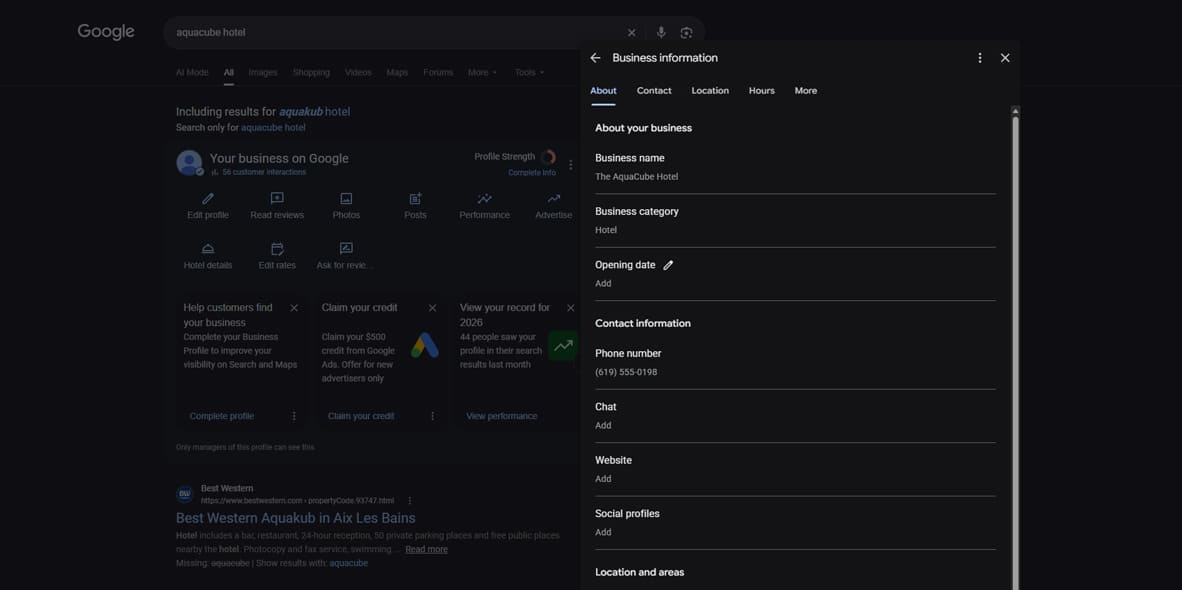 Fix information that could prevent guests from finding or contacting you before working on less urgent details.
To edit your profile:
- Sign in to the Google Account that manages the profile.
- Find your business on Google Search or Google Maps.
- Select Edit profile.
- Open the relevant section and update the information.
- Save the changes.
The available controls may differ between Search, Maps, devices, and business categories. Follow Google’s official profile-editing instructions if you cannot find a particular field.
Prioritize these corrections:
- Address and location: Check the street address and map pin, especially after moving or changing the entrance.
- Phone and website: Test the phone number and open the website link to make sure they work.
- Business name and category: Use the real-world business name and a category that accurately represents the business. Do not add keywords to the name simply to influence rankings.
- Hours and arrival details: Update applicable hours and hotel check-in/check-out information when they change.
- Amenities: Remove services you no longer offer and add accurate, relevant details where the profile allows it.
For hotels, some details are available under the hotel attributes section in Business Profile Manager. Google may also obtain certain hotel information from other sources, so check what is actually displayed rather than assuming every field is controlled in one place.
Step 3. Update photos and property information
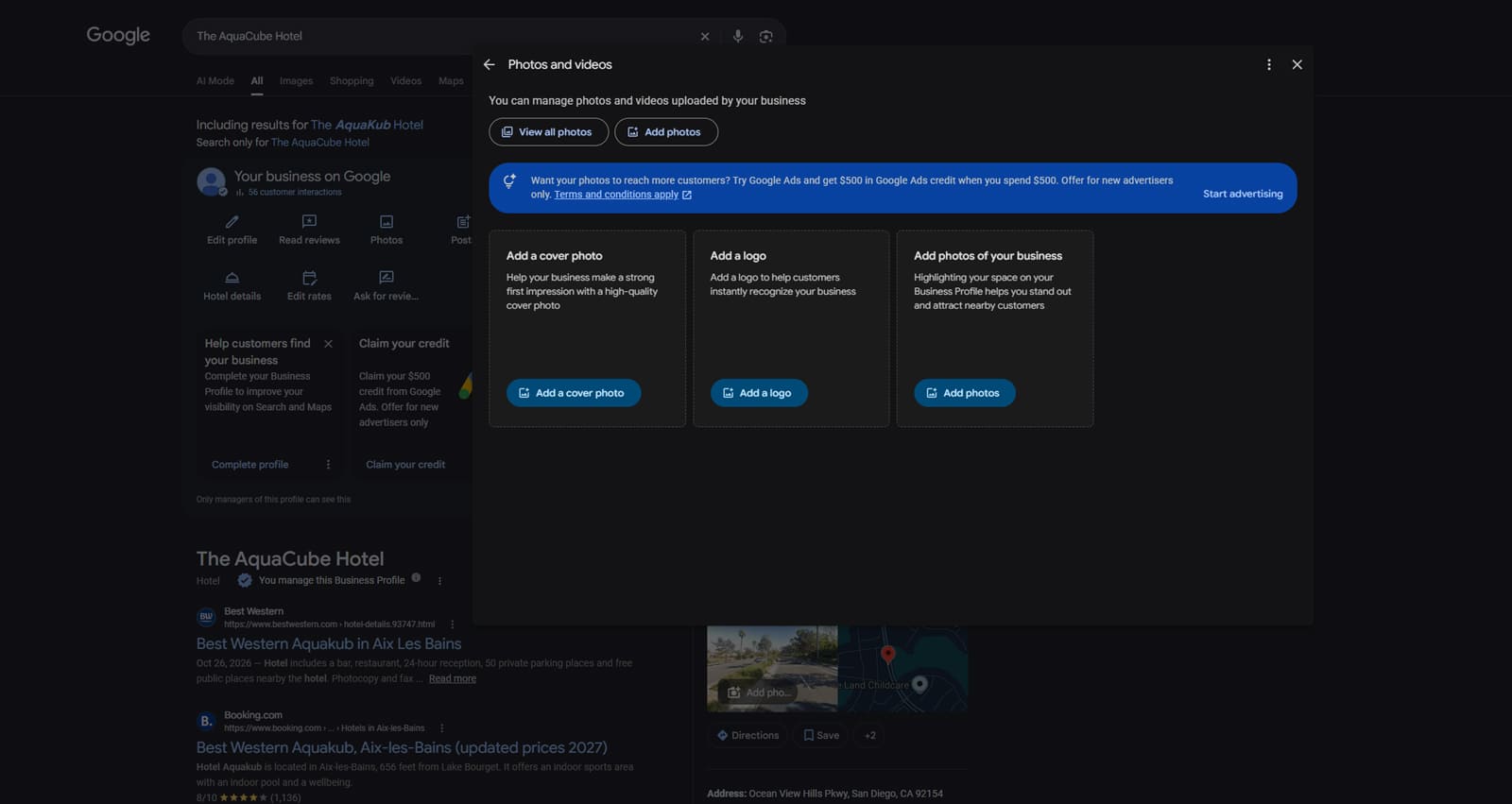 Photos and descriptions help potential guests understand what to expect. Review them whenever you renovate, replace furniture, introduce new facilities, or change the services you offer.
Check the following:
- Exterior and entrance: Can guests recognize the building and find the entrance?
- Rooms and accommodation: Do the photos reflect the current room types, furniture, and layout?
- Shared facilities: Are amenities such as a breakfast area, pool, garden, or workspace shown accurately?
- Business description: Does it explain the accommodation clearly and avoid claims that are no longer true?
Replace outdated images with current, clear photos. If you have renovated only one room type, prioritize updating the images for that room rather than replacing every photo unnecessarily.
Keep descriptions factual. For example, if parking is available only by reservation or for an additional fee, make sure your website and other guest-facing information explain the conditions. Do not describe it as free, guaranteed, or available to everyone if that is not the case.
You can add or manage supported photos and videos through your Business Profile. For guidance, see Google’s instructions for editing a Business Profile.
Step 4. Check for changes made by Google or other users
Updating your profile yourself is not the only maintenance task. Google may receive suggested edits from users or information from other sources and use it to update your listing.
To review possible changes:
- Open your Business Profile while signed in to the account that manages it.
- Look for notifications or alerts about updates.
- Open Edit profile and review the displayed information.
- Compare any changed details with your current business records and website.
- Correct inaccurate information and follow Google’s available review or appeal process when necessary.
Google’s update notifications and controls can vary. Some suggested edits require a response, while other updates may be applied without prior review. If you receive a notification asking you to review a suggested edit, do not ignore it: Google says certain changes may be published automatically if you do not respond within four days.
Read Google’s guide to Business Profile updates to understand how these changes work.
For example, a guest may suggest that your hotel has different opening hours. If the suggested hours are wrong, review the alert and make sure the correct information is displayed. Do not assume that a change is accurate simply because it appears on your profile.
Step 5. Compare Google with your other online listings
Your Google information should agree with the details guests find on your website and other platforms. This is especially important for contact information, location, amenities, and arrival instructions.
Create a simple comparison table:
| Detail | Website or booking platform | Action | |
|---|---|---|---|
| Phone number | Current number | Old number | Update the outdated source |
| Check-in time | 3 PM | 4 PM | Confirm the correct time and update the incorrect information |
| Parking | Available | Not mentioned | Add accurate details where relevant |
| Room photos | Renovated rooms | Older interior | Replace outdated photos |
The entries above are examples. Use your own information and decide which source needs correction.
Do not copy information blindly from one platform to another. First confirm the correct details with the person responsible for the property. For example, if your website and Google profile show different check-in times, check your current policy before editing either one.
Also remember that different platforms may support different fields. If a detail cannot be displayed on Google, make sure it is available on your website or the relevant booking page.
Step 6. Set a maintenance schedule
A regular review helps you catch errors before guests report them. The best schedule depends on how often your business changes, but you can start with a monthly check and add reviews whenever important details change.
Use this routine:
- After a business change: Update contact details, arrival information, amenities, or photos as soon as practical.
- Monthly: Review your public listing and check for incorrect or unexpected information.
- Before busy seasons: Confirm seasonal services, operating arrangements, and any relevant special hours.
- After guest reports: Investigate complaints about incorrect directions, phone numbers, amenities, or other listing details.
- After submitting edits: Check whether the changes were accepted and appear correctly.
If several people manage the property, assign one person to own the Google listing. Other team members can report changes, but one responsible person should verify that the information is correct and monitor the results.
What to check after updating your business profile information
After making updates, confirm that the information you published is visible and accurate.
| Check | What success looks like | What to do if it fails |
|---|---|---|
| Public listing | The correct information appears on Search and Maps | Reopen the profile and review the relevant fields |
| Edit status | Changes are accepted or published | Check for pending or rejected edits |
| Contact details | The phone number and website work | Correct the details and test them again |
| Photos and amenities | They reflect the current property and services | Replace outdated images or correct available attributes |
| Cross-platform consistency | Important details agree across Google and other channels | Confirm the correct information and update the affected sources |
| Guest experience | Guests can find the property and understand the essential details | Investigate recurring questions or complaints |
Google may review your edits before publishing them. Some changes appear quickly, while others can take longer. If an update is pending, avoid repeatedly submitting the same change; check its status and follow Google’s guidance first.
You can also monitor available Business Profile performance data, such as website clicks, calls, and direction requests. These metrics can help you understand how people interact with your profile, but they do not prove that every change has improved rankings or generated bookings.
Mistakes to avoid when managing your Google listing
- Assuming every rental can have a Business Profile. Check eligibility before attempting to manage a listing.
- Changing business details without verifying them. Confirm the correct information with your team before publishing updates.
- Using keywords in the business name. Keep the name consistent with your real-world business identity and Google’s guidelines.
- Ignoring Google notifications. Review suggested edits and other alerts promptly.
- Assuming saved changes are already live. Check the public listing and edit status.
- Updating Google but not your website or booking platforms. Inconsistent information can confuse guests.
- Treating maintenance as a one-time task. New business changes and outside updates can make previously accurate information outdated.
Next steps for keeping your Google listing accurate over time
Save your audit results and assign responsibility for keeping the listing accurate. Correct the most important errors first, verify that the changes appear, and establish a monthly review.
Whenever your property changes its services, contact details, arrival arrangements, or appearance, update the relevant information across the channels guests use. If you do not qualify for a Google Business Profile, apply the same maintenance approach to your website and eligible booking-platform listings.
Accurate information helps potential guests understand what your property offers and how to reach you. It is a basic part of maintaining a reliable online presence, even though it cannot guarantee higher Google rankings or more bookings.