
Table of Contents
What you will create: A connection between your website and Google Analytics 4, followed by a simple traffic audit showing whether people reach your website, where they come from, and whether they explore your accommodation.
In this practice, you will:
- Connect your website to GA4, if it is not already connected.
- Confirm that visits are being recorded.
- Check how much traffic your website receives.
- Identify the sources bringing visitors.
- Find the pages people enter through.
- Check whether visitors reach your rooms or properties.
- Decide what to improve next.
This guide takes you from connecting your website to reviewing its traffic. It focuses on a few reports that answer practical questions about your website.
Already have GA4 connected? Start at Step 5 to verify data collection, then continue with the audit.
The problem
Your direct-booking website is live, but you do not know how much attention it receives.
Perhaps reservations are slow because few people reach the website. Perhaps visitors arrive but struggle to find suitable accommodation. Or perhaps the website contributes to bookings, but those outcomes are not being measured.
These situations require different actions. Before changing pages or spending more on promotion, establish what is happening now.
What can GA4 tell you?
For this audit, you will use GA4 to answer three questions:
| Question | What you will review |
|---|---|
| Are people reaching my website? | Sessions and traffic sources |
| Are they seeing what they can book? | Landing pages and accommodation page views |
| Can I connect those visits with reservations? | Booking events, if they are already configured and verified |
Before you start
You will need:
- A Google account you can continue accessing.
- Your website address.
- Access to your website’s settings, or help from the person who manages them.
Check whether GA4 is already installed. If someone built your website, ask:
“Is Google Analytics 4 connected to my website? If so, please give me access to the correct property and confirm how it is installed.”
If a working installation exists, use it. Adding another installation can cause the same activity to be recorded more than once.
Part 1: Connect your website to GA4
Let’s start this step-by-step guide by connecting your website to the Google Analytics 4 account.
1. Create an Analytics account
Go to Google Analytics and sign in.
If this is your first time:
- Click Start measuring.
- Enter an account name, such as your accommodation business’s name.
- Review the data-sharing settings.
- Click Next.
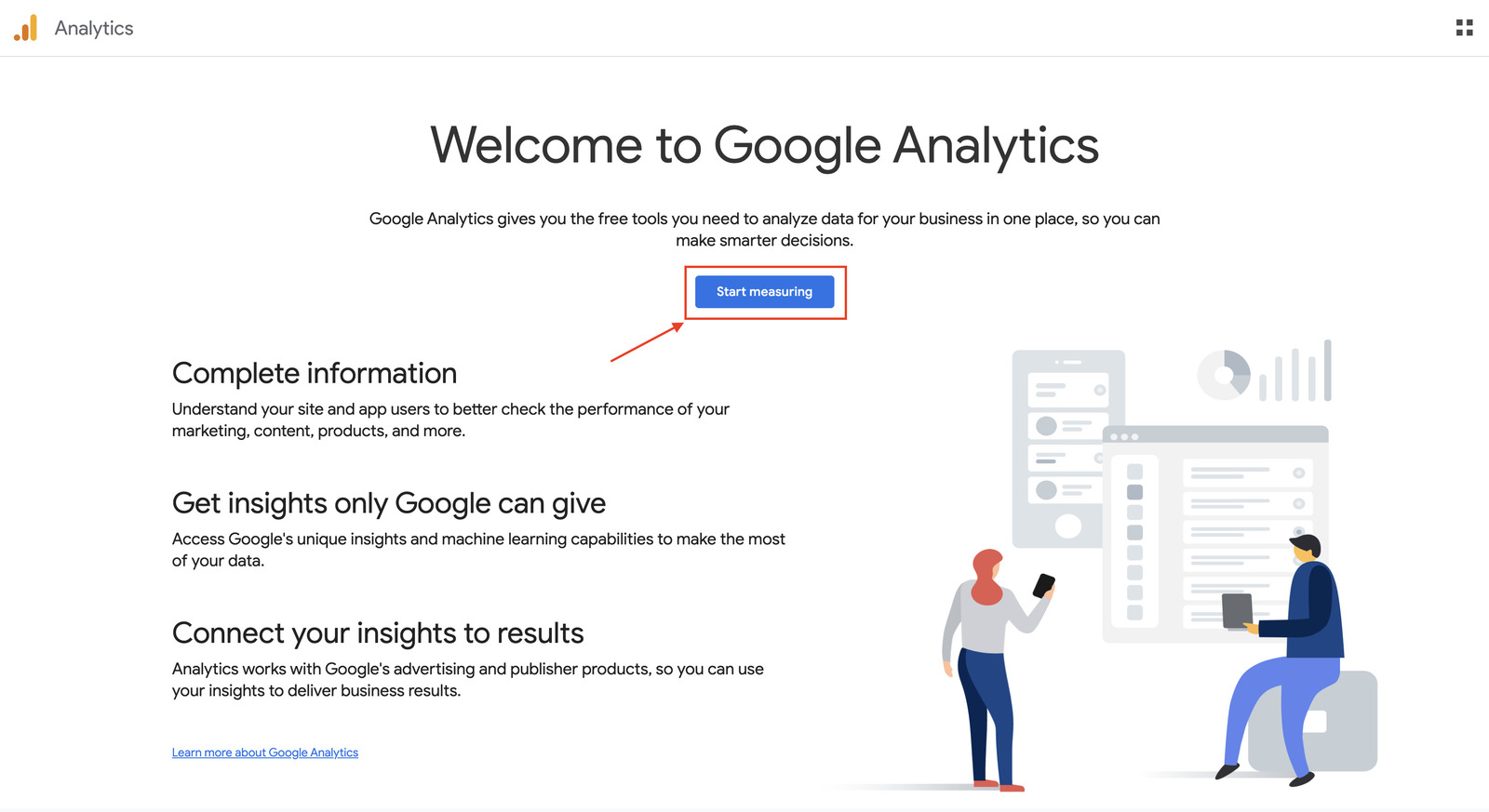
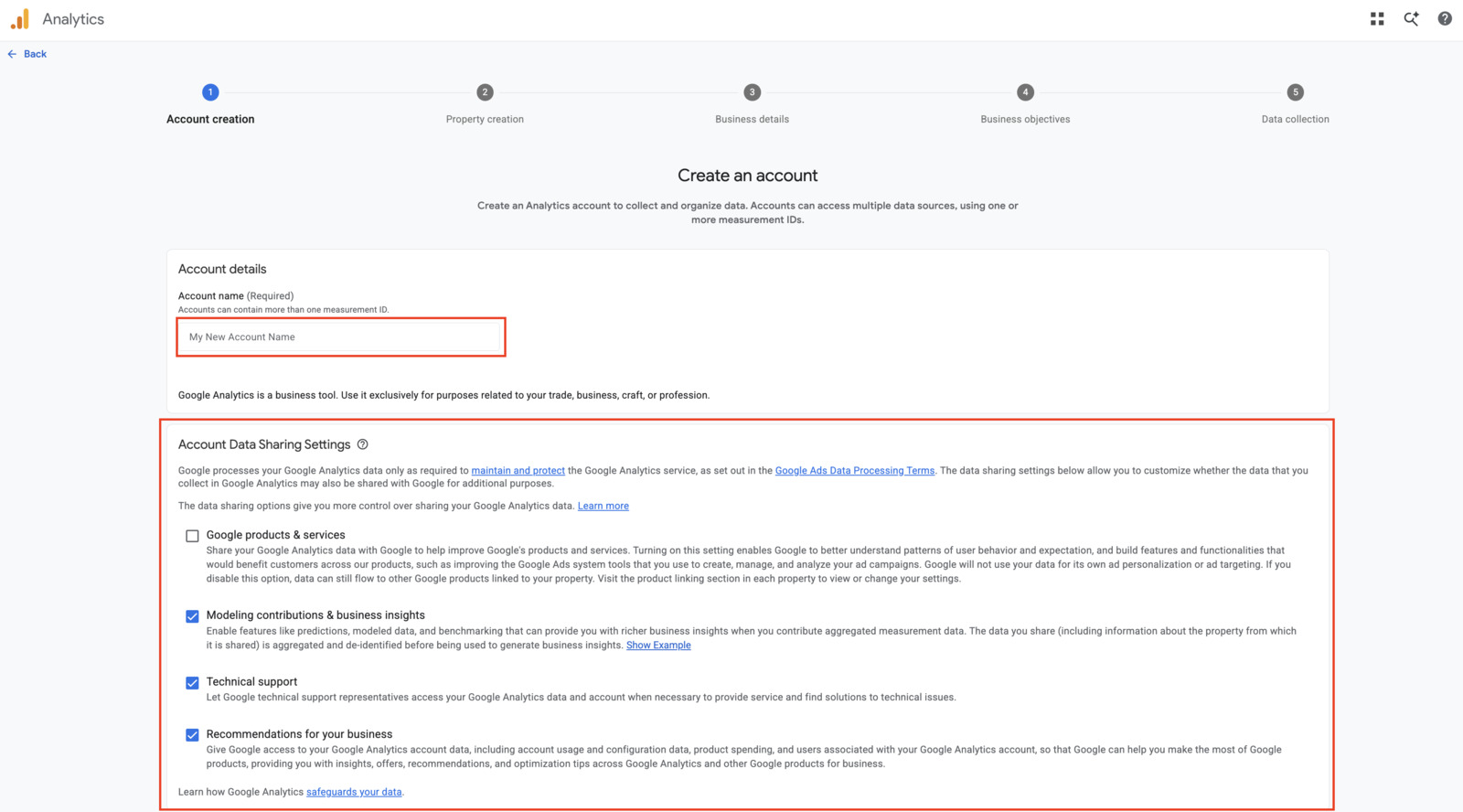
If you already have an appropriate Analytics account, use it. To create a separate one, open Admin > Create > Account.
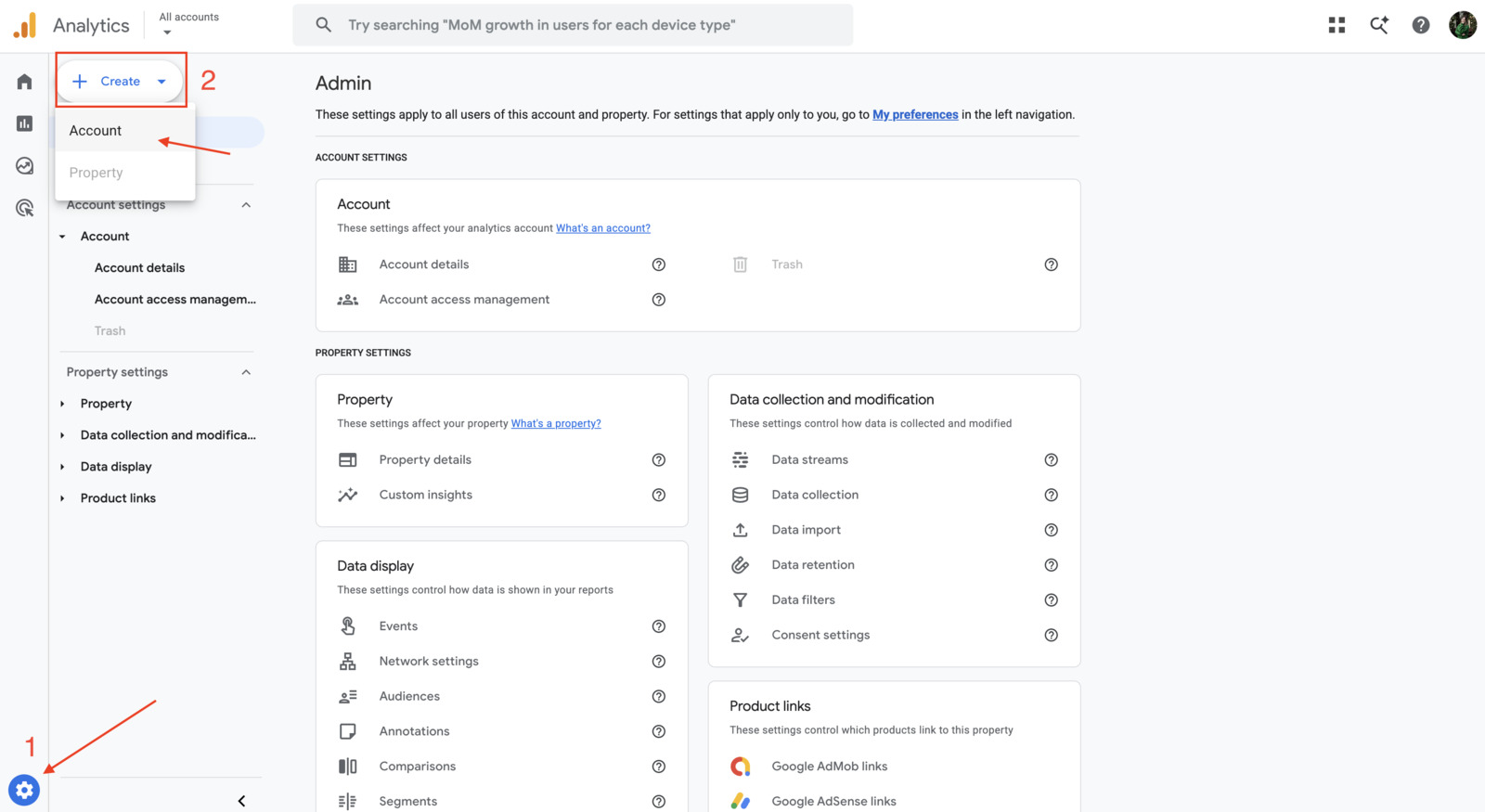
Your Analytics account holds the properties you manage. Next, you will create a property for your website.
2. Create a property for your website
A property is the reporting space where your website’s data is collected.
- Continue from account creation, or open Admin > Create > Property.
- Enter a recognizable name, such as the Main accommodation website.
- Select your reporting time zone and currency.
- Click Next.
- Select your industry category and business size.
- Choose how you intend to use Analytics.
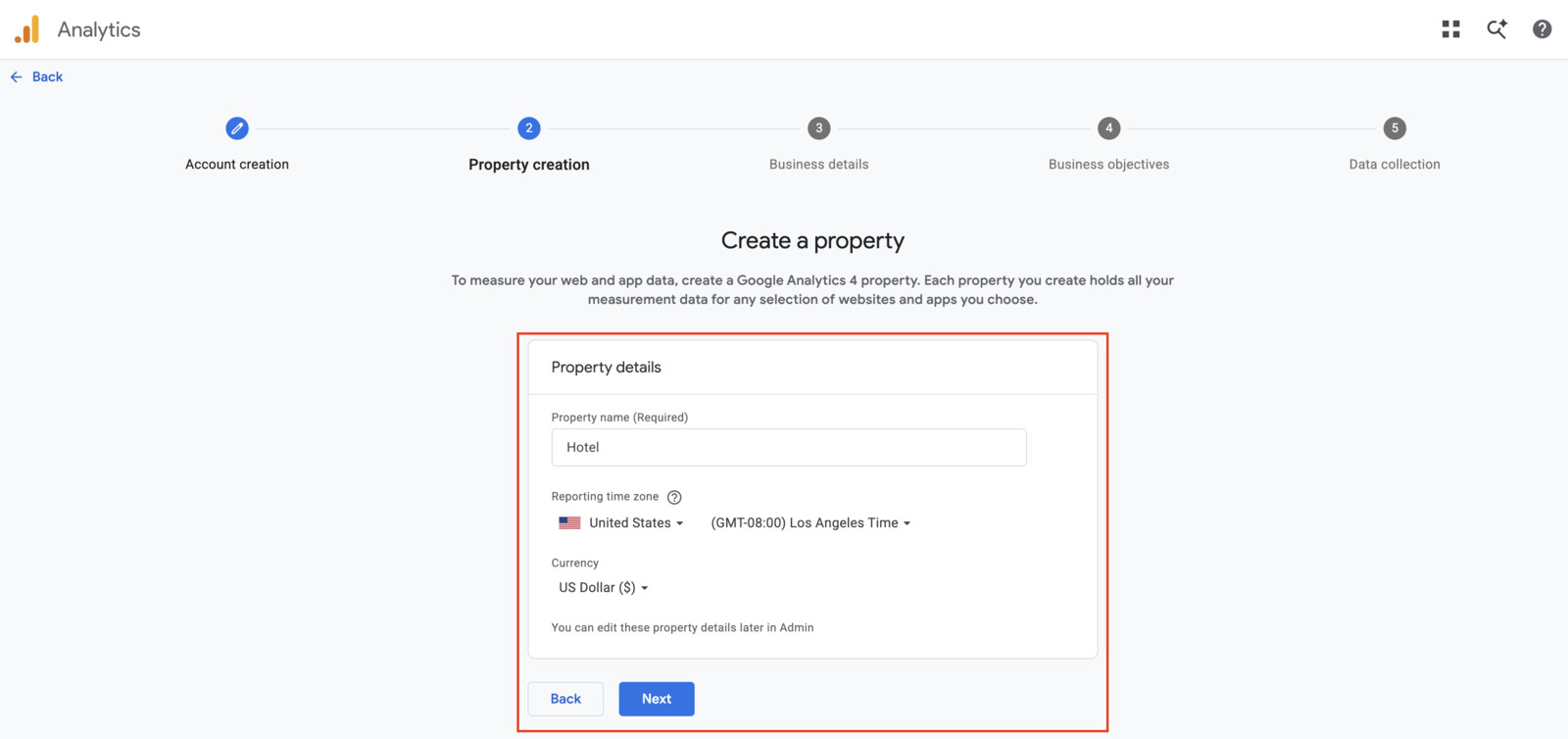
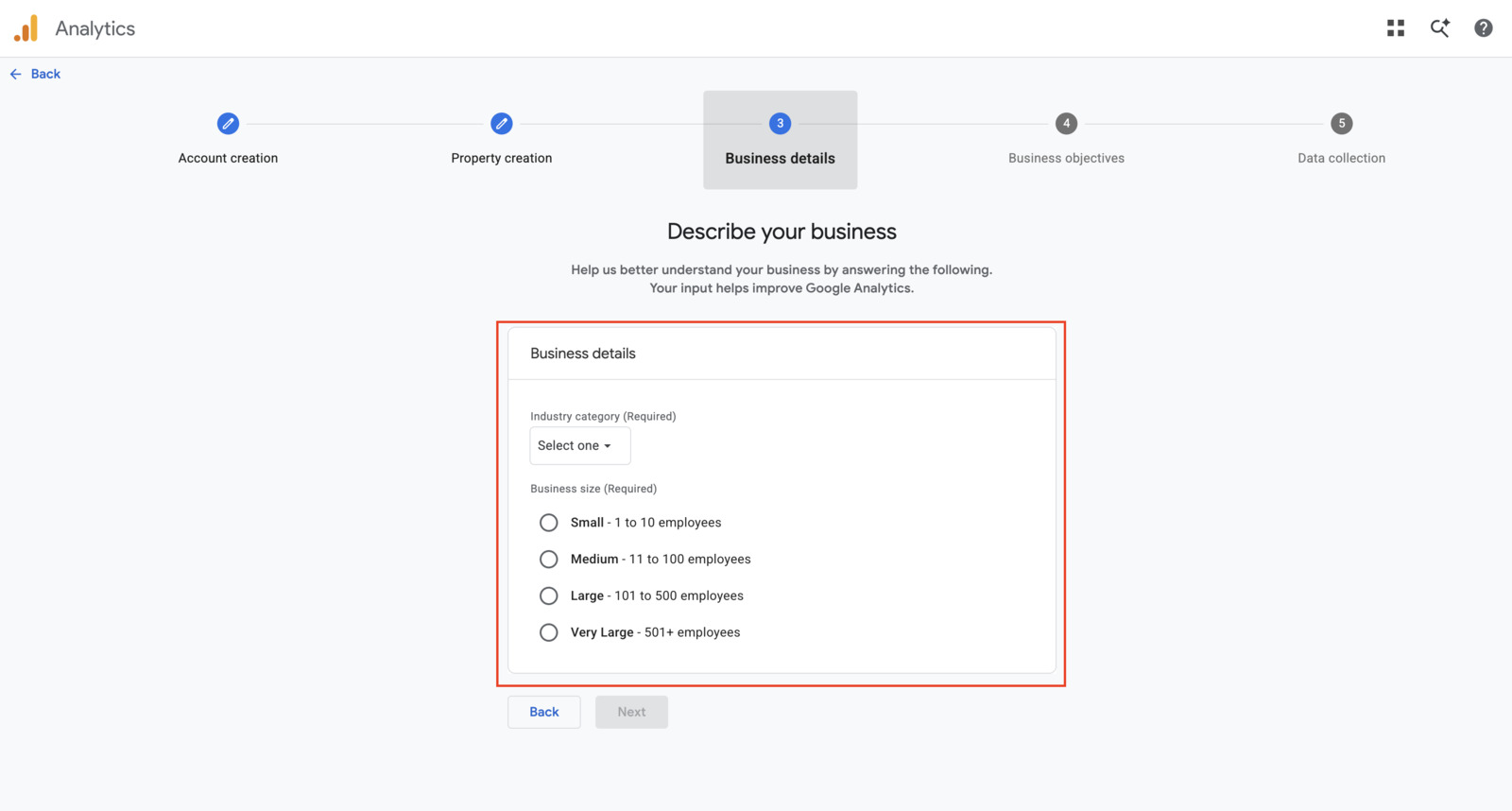
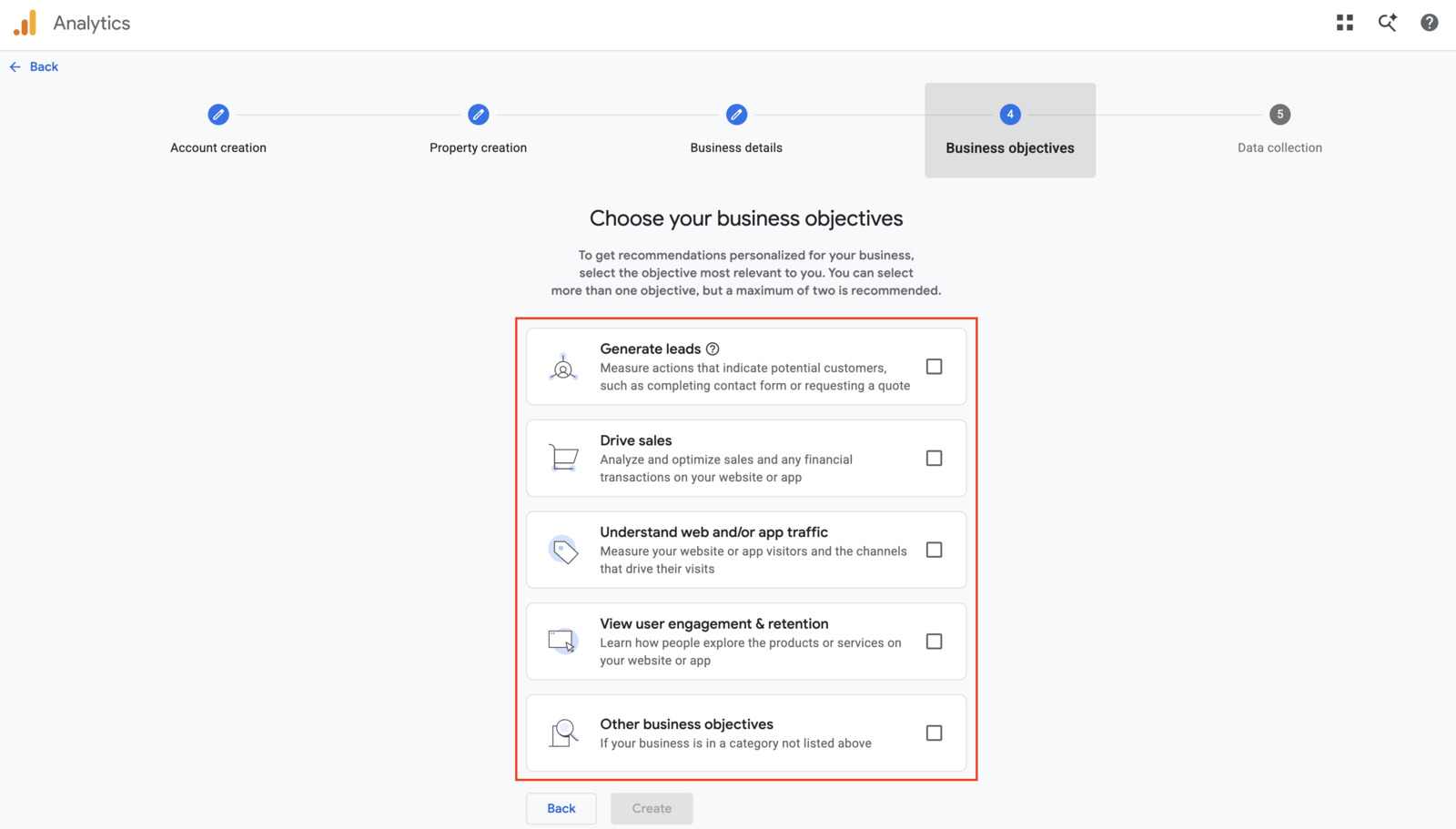
Click Create, then review and accept the applicable terms.
Use the time zone in which you normally review business activity. It determines how visits are grouped into reporting days.
For business objectives, select options that match your needs. These choices help organize your initial reports.
Selecting a sales objective does not automatically set up reservation tracking.
3. Add a web data stream
A web data stream is the connection your website uses to send activity to the property.
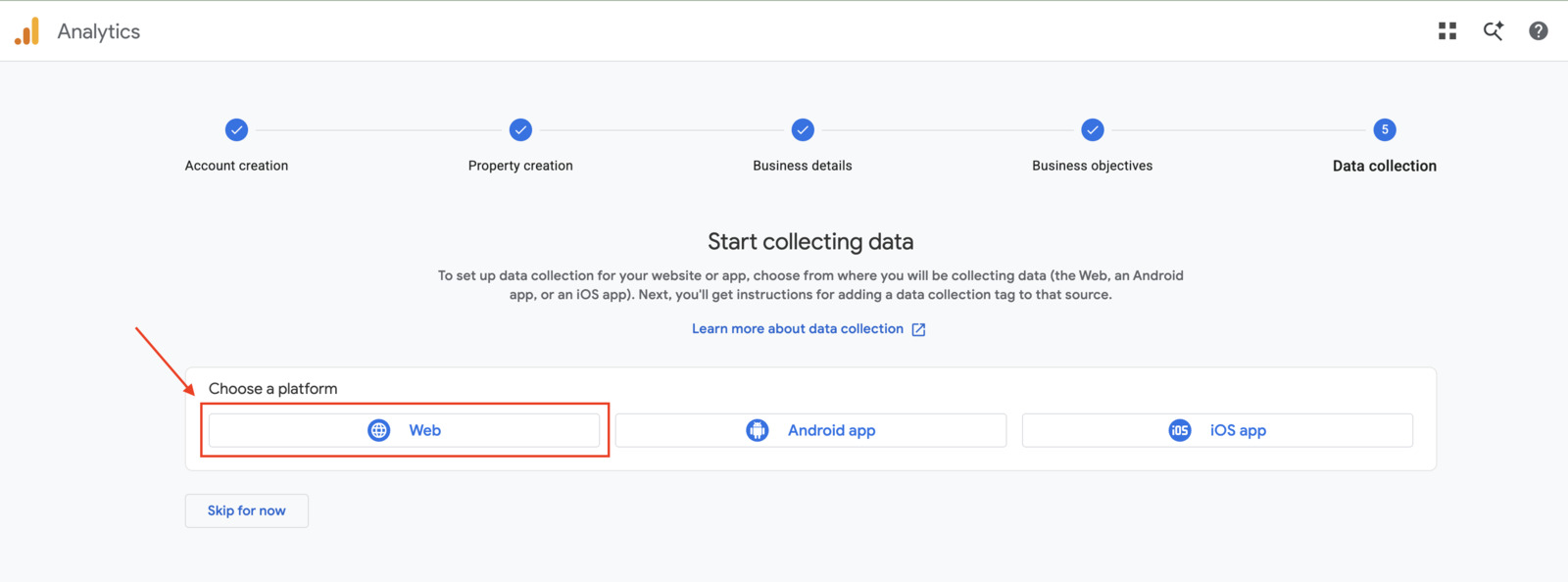
During setup, choose Web. If you are returning to an existing property, open Admin > Data streams > Add stream > Web.
Then:
- Select the correct protocol, usually
https://. - Enter your website’s domain.
- Add a stream name, such as Main website.
- Leave Enhanced measurement enabled for this initial setup.
- Click Create stream.
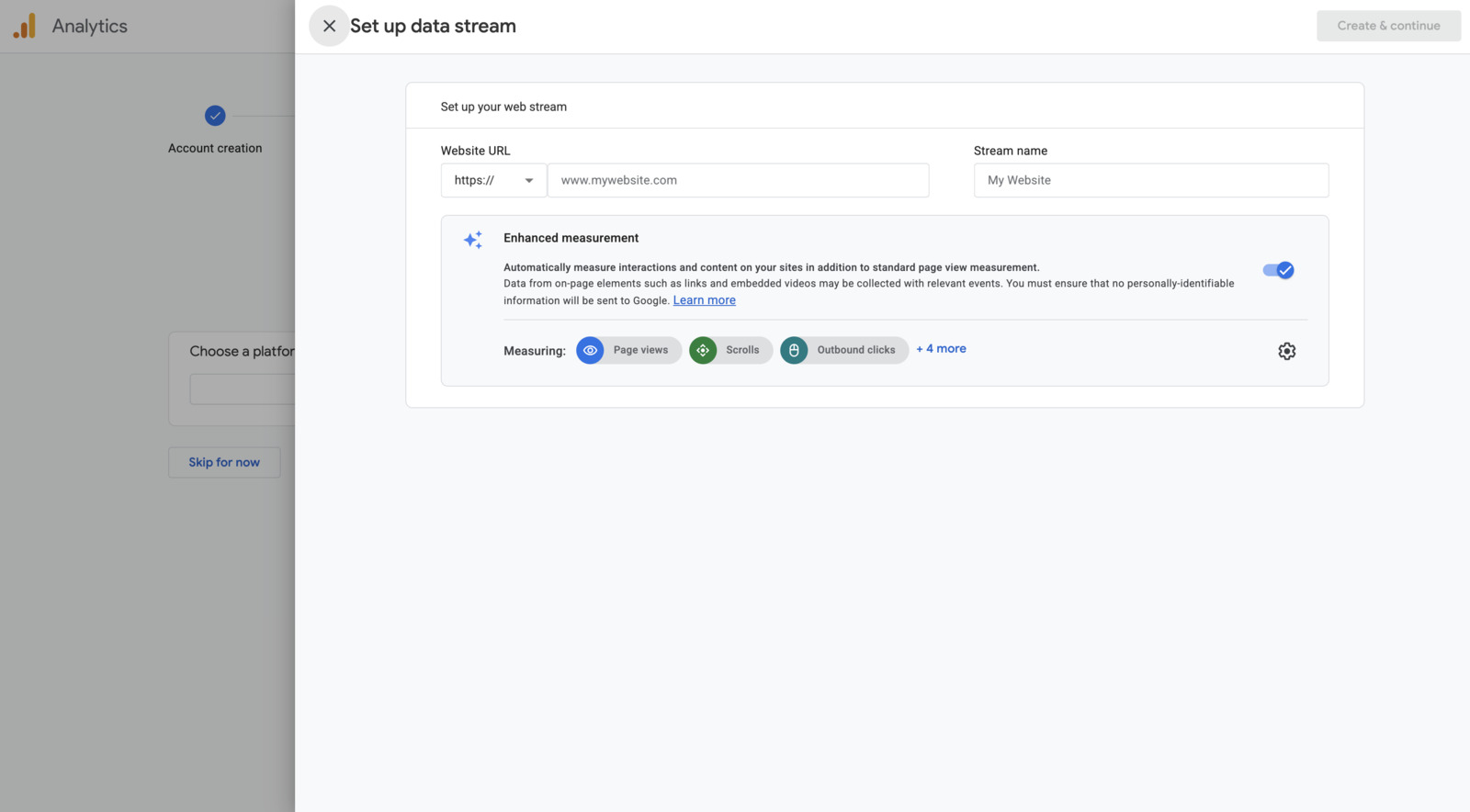
Enhanced measurement collects page views and certain additional interactions. It does not automatically track every availability search or completed reservation.
The stream details include a Measurement ID, typically beginning with G-. You may need this when connecting your website.
Creating the stream alone does not finish the connection. Your website still needs to send data through an integration or Google tag.
4. Connect the stream to your website
Open the installation instructions from your web stream. Use the method supported by your website platform.
If your platform has a Google Analytics integration
- Open your website platform’s settings.
- Find its Google Analytics integration.
- Follow the instructions to connect your account or enter your Measurement ID.
- Save and publish the changes if required.
You can find the Measurement ID under Admin > Data streams > your web stream.
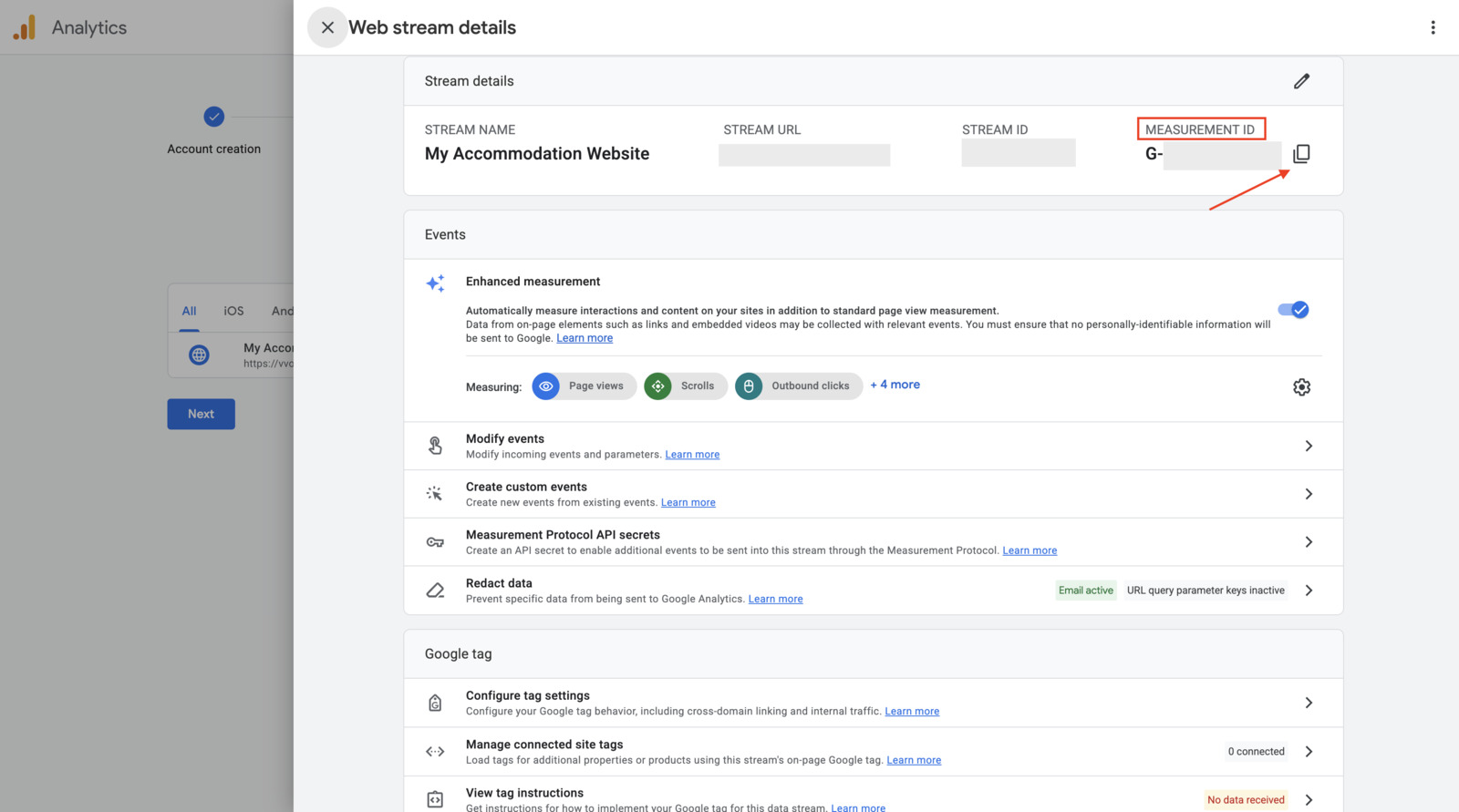
The settings location differs between platforms. Follow your provider’s instructions rather than pasting the ID into an unrelated field.
If your platform uses a tracking-code field
- Open your web stream in GA4.
- Select View tag instructions.
- Choose Install manually.
- Copy the complete Google tag.
- Add it to your platform’s site-wide head-code area, following its instructions.
- Save or publish the change.
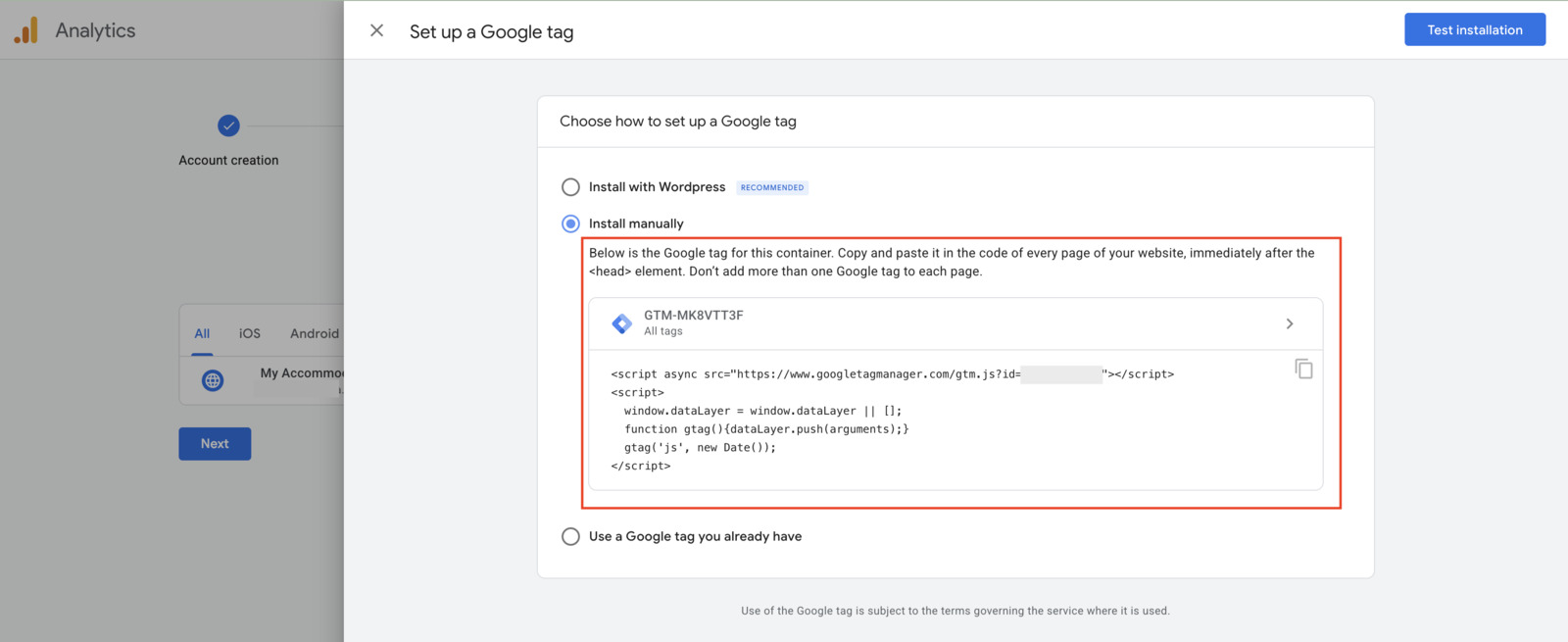
The tag needs to load across the pages you want to measure, not only on the homepage.
If you cannot access these settings, send the installation instructions to your website provider.
If Google Tag Manager is already in use
Ask the person managing it to connect GA4 through the existing setup. Avoid adding a separate installation without checking what already runs.
Google’s website setup guide provides installation options for different platforms.
Check consent settings too: if your website uses a cookie-consent banner, make sure it works with the Analytics installation. Connecting Analytics and configuring consent are separate tasks.
5. Confirm that activity reaches GA4
Make a controlled test visit:
- Open Reports > Realtime in GA4.
- Visit your website in another browser or on your phone.
- Respond to the consent banner as a visitor would.
- Open the homepage and an accommodation page.
- Look for corresponding activity in Realtime.
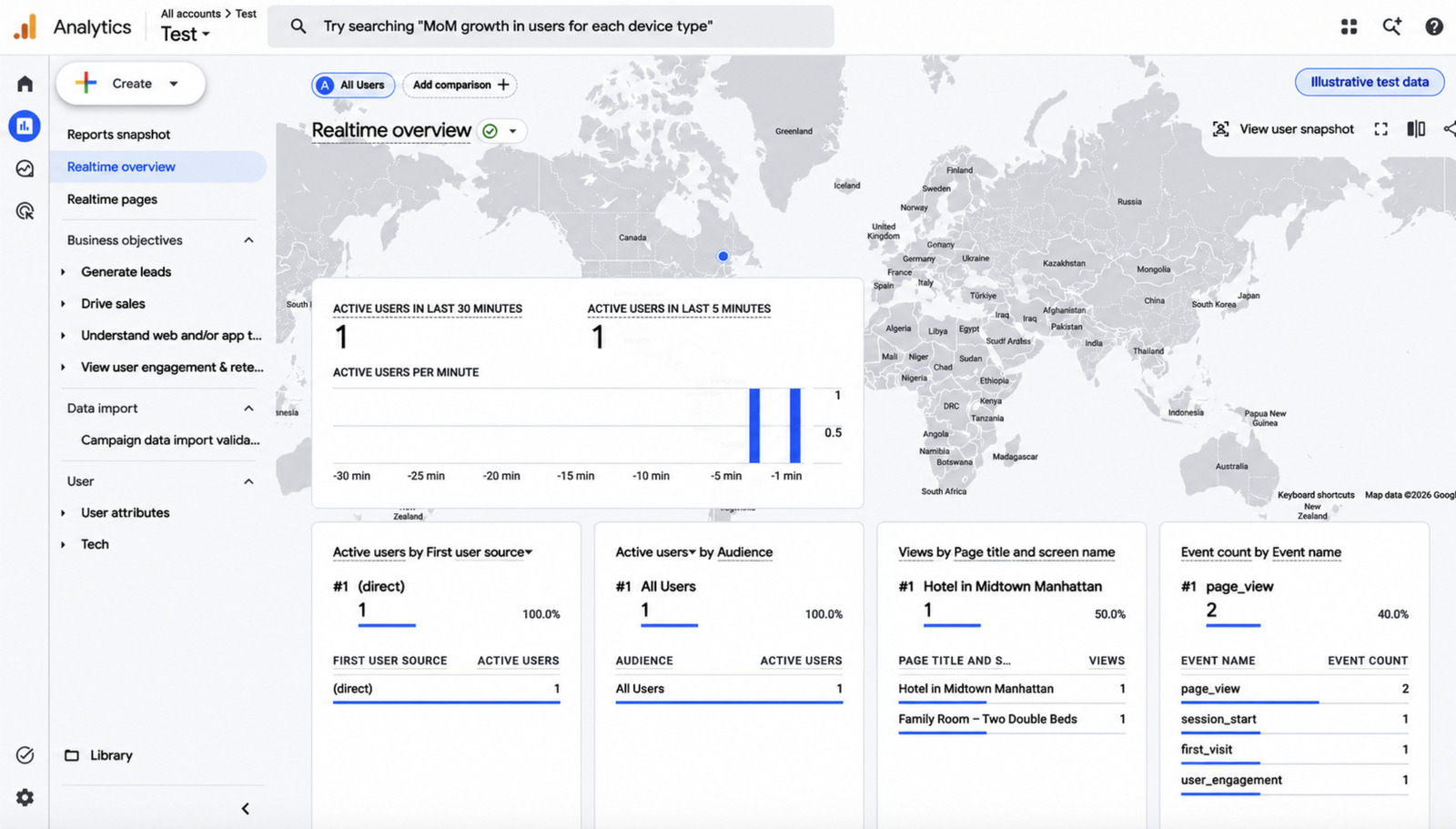
Realtime helps confirm that events are arriving. It does not establish that every booking action is tracked correctly.
If nothing appears, check whether:
- You selected the correct Analytics property.
- The installation was saved and published.
- Your browser is not blocking Analytics.
- Consent settings allow the test visit to be measured.
- Your installation does not exclude your own visits.
Allow time for a new installation to begin collecting. If the problem continues, ask your website provider to verify the connection.
When should you start the audit?
If the property already contains historical data, continue now. If tracking was installed today, let normal visits accumulate. You can inspect early activity after a few days, but a month provides more context. A quieter website may need longer.
GA4 cannot reconstruct visits from before tracking began. Recent figures can also change during processing, which may take 24-48 hours.
Your task: Confirm that data is arriving and record when collection began.
Part 2: Audit your website’s traffic
Use the same date range throughout the following checks.
GA4’s report menu may differ between properties. If you cannot find a report, search for its name in GA4. An Editor or Administrator may need to add it to the menu.
6. Check how many visits your website receives
Open Reports > Life cycle > Acquisition > Traffic acquisition.
If your account uses the Business objectives navigation, open Reports > Business objectives > Generate leads > Traffic acquisition instead.
Both routes open the same report.
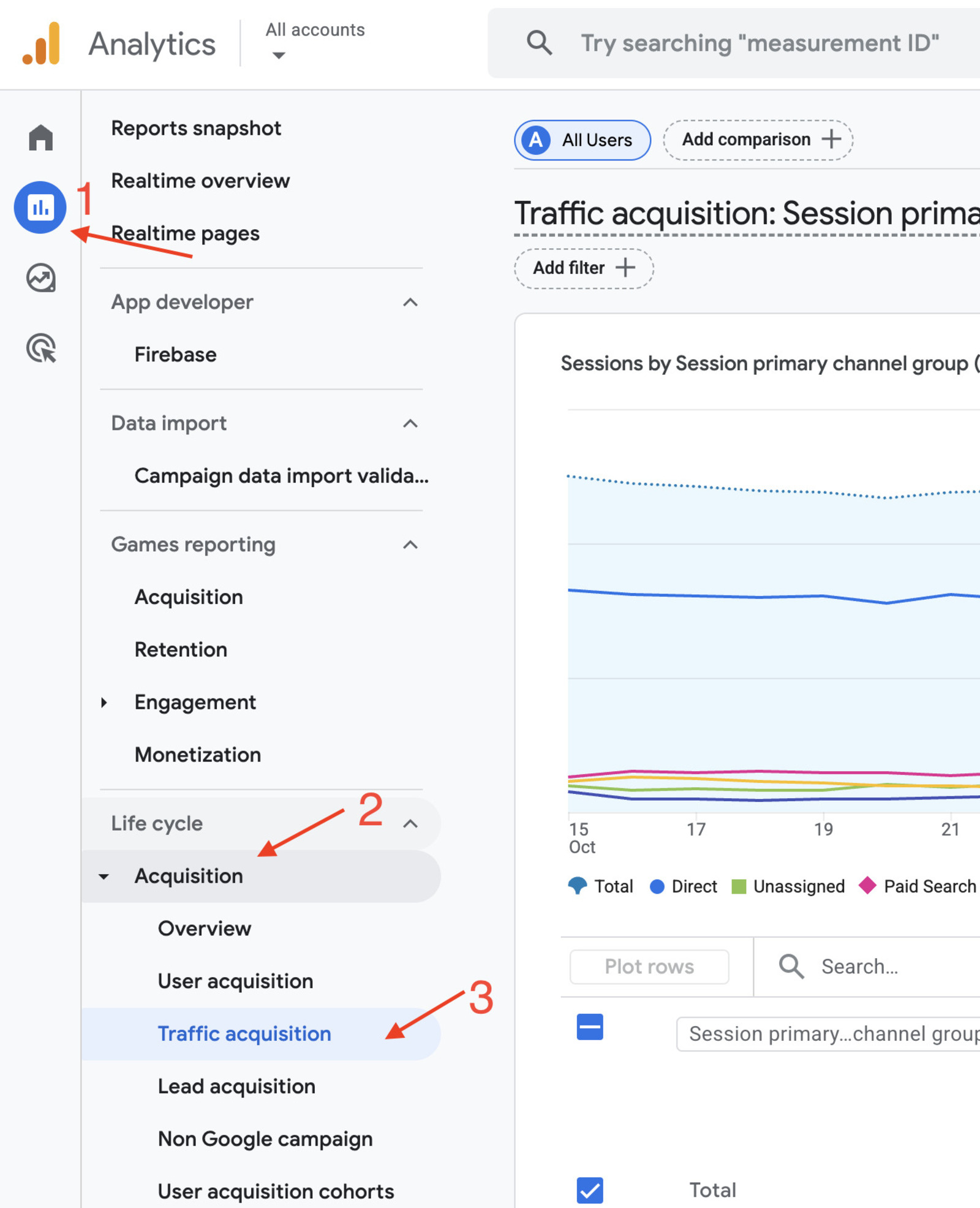
Choose a date range
Using the date selector:
- Select the last complete 30 days.
- Enable comparison with the previous period.
- Apply the selection.
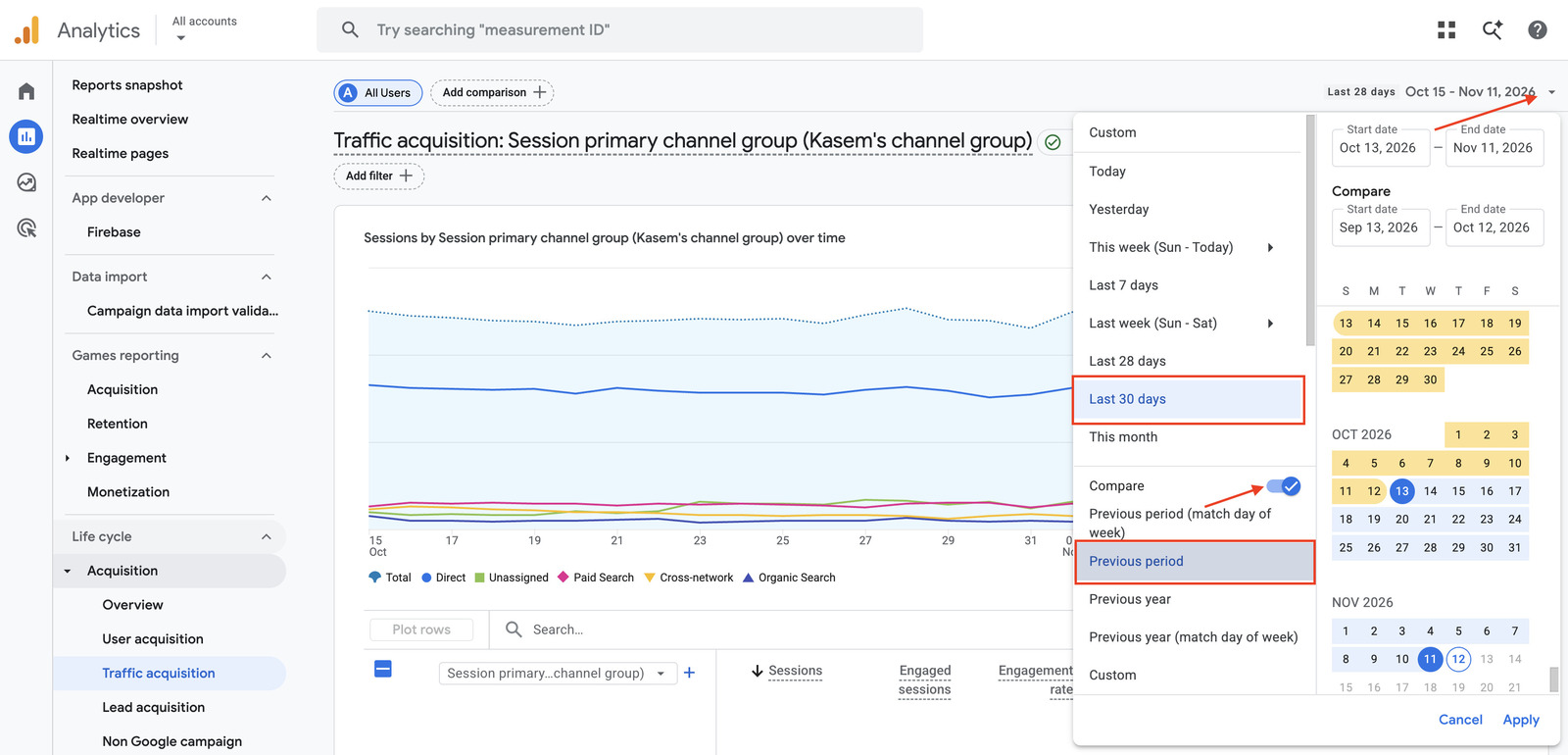
For seasonal accommodation, consider whether the periods represent similar demand. Comparing peak season with a quieter month does not isolate the effect of website improvements.
Find Sessions
A session is a visit containing activity on your website. One person can return several times and generate several sessions.
Find the Sessions total. The Traffic acquisition report includes visits from new and returning users.
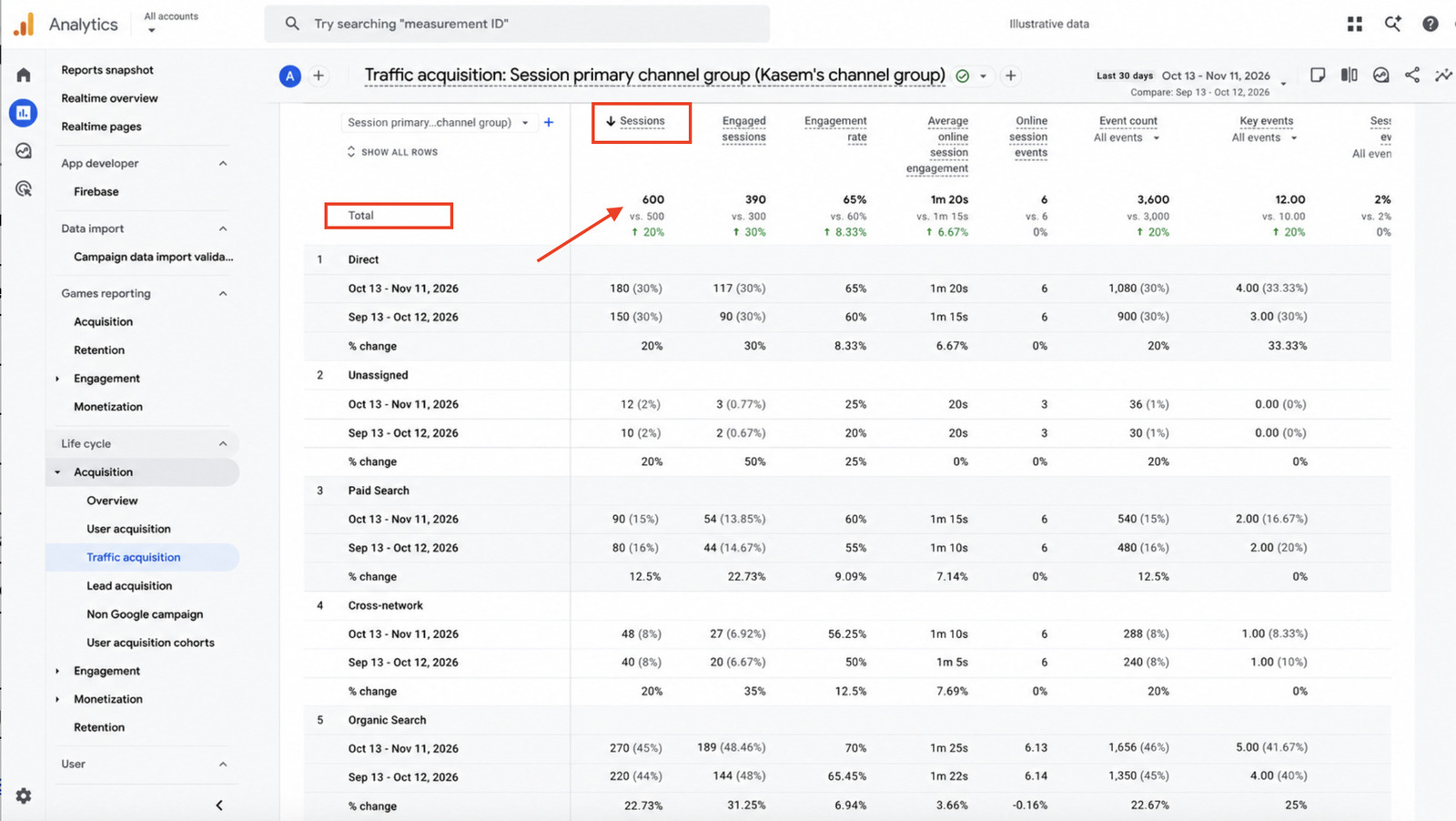
Record:
- Sessions in your selected period.
- Sessions in the comparison period.
- Any noticeable spikes or gaps.
There is no universal traffic target for every property. Your first goal is to establish your own baseline.
7. Identify where visits come from
In the same report, choose Session default channel group from the first-column dropdown if available.
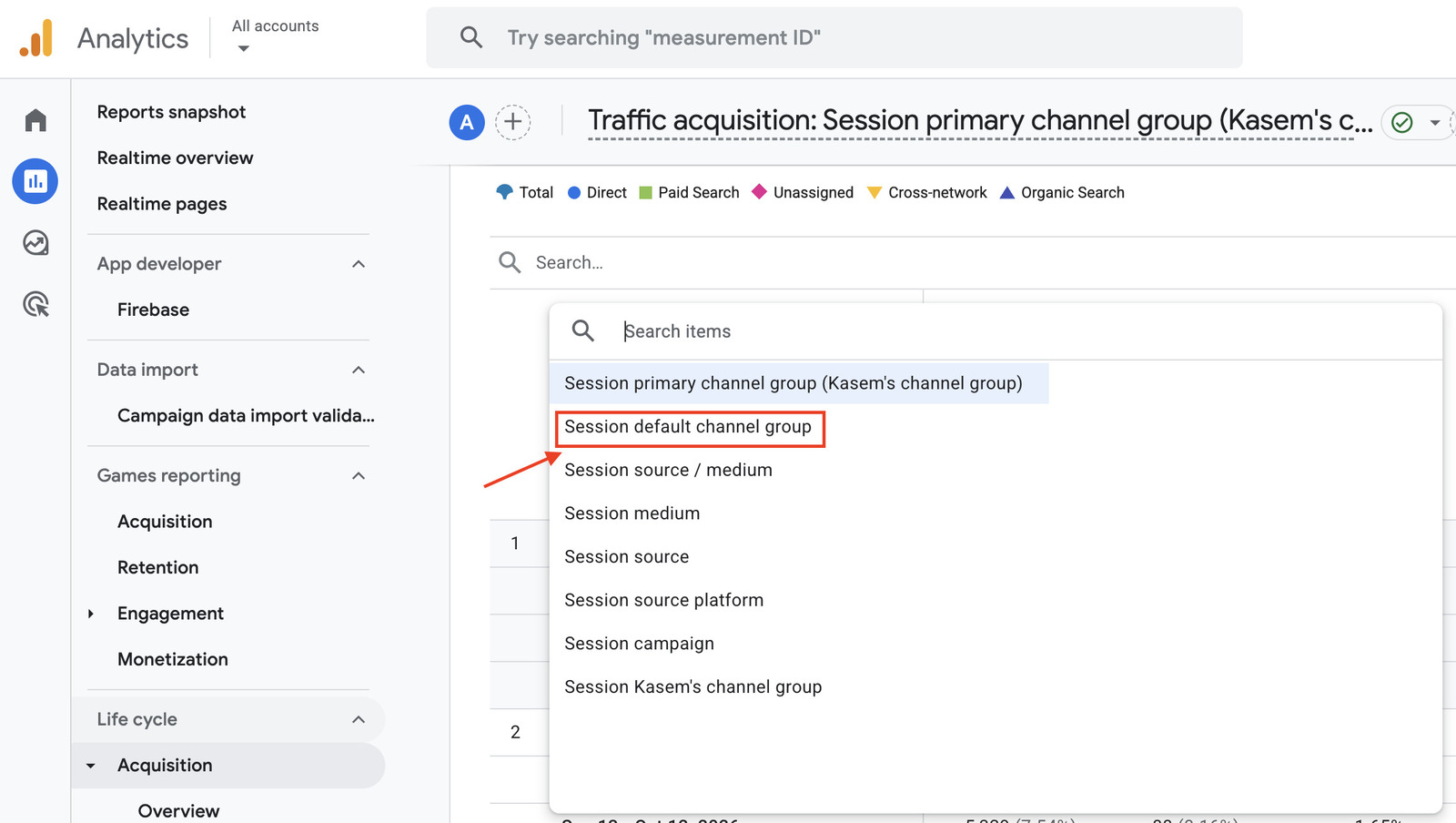
A channel is a broad category describing where visits came from.
| Channel | What it generally represents |
|---|---|
| Organic Search | Visits attributed to unpaid search results |
| Direct | Visits without a clearly attributable source |
| Referral | Visits attributed to links on other websites |
| Organic Social | Visits attributed to unpaid social activity |
| Paid Search | Visits attributed to search advertising |
| Paid Social | Visits attributed to social advertising |
| Visits recognized as coming from email campaigns | |
| Unassigned | Visits that do not match GA4’s channel rules |
The classification depends on the information GA4 receives.
For example, a local wedding venue linking to your property might send referral traffic. An unpaid Google result would normally contribute to Organic Search.
Direct does not only mean someone typed your address. It can include bookmarks and visits where source information is missing. Do not assume all Direct visitors are returning guests.
Identify specific sources
Change the dropdown to Session source/medium when you want more detail.
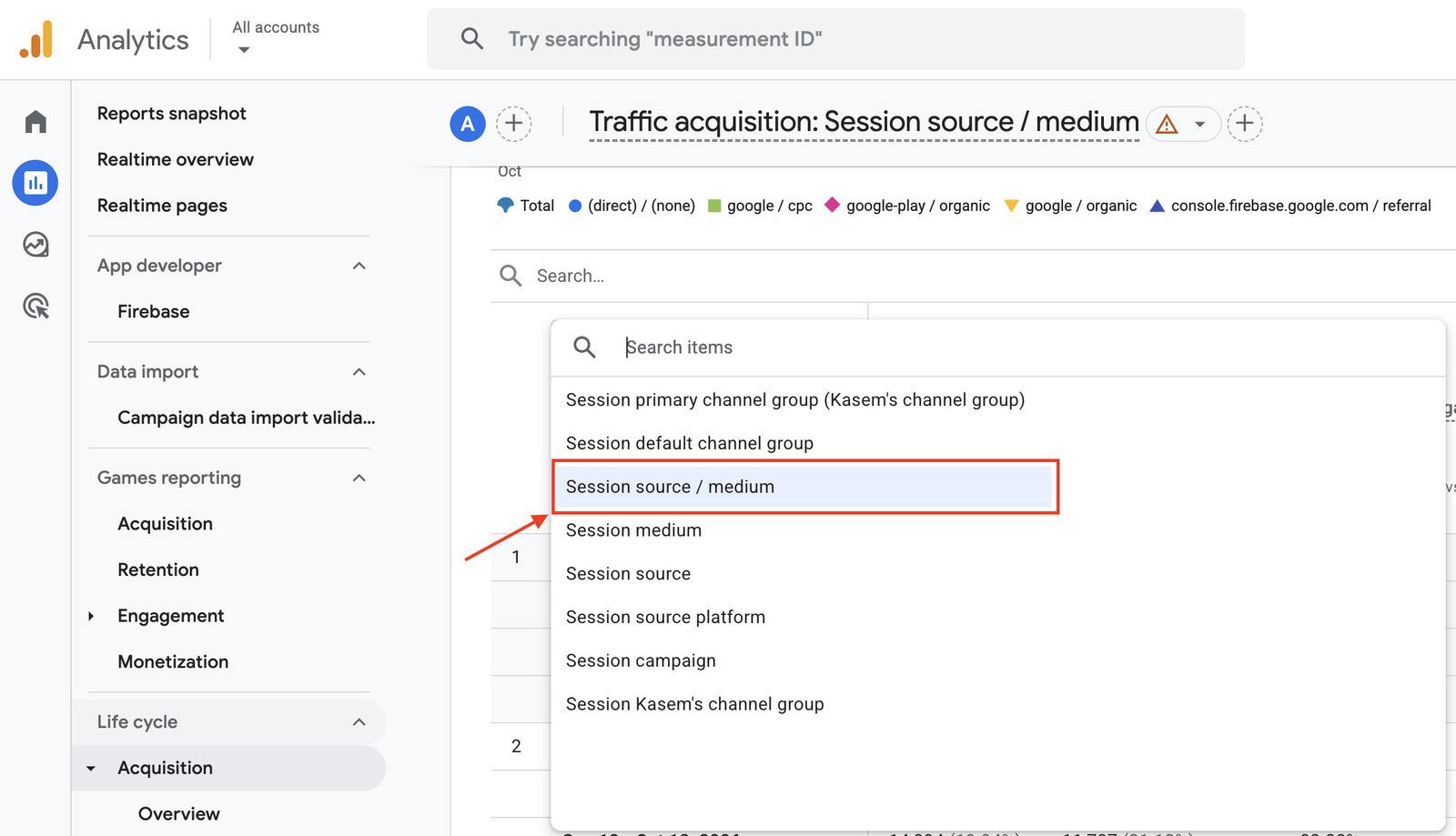
Examples include:
google / organicbing / organicA tourism website followed by / referral
Start with the largest sources and ask:
- Which channels bring the most visits?
- Is unpaid search bringing people to the website?
- Are the channels I actively use producing recorded traffic?
- Did a promotion or partner link coincide with a change?
Organic Search includes searches for your property by name as well as broader accommodation searches. It does not automatically represent new guests discovering you.
Your task: Record your three largest channels and one source to investigate.
Related Lesson:
- Organic search vs. paid search vs. Google Maps
8. Find the pages visitors enter through
Visitors do not always arrive on your homepage. They may first open an accommodation page, a local guide, or an event article.
The first page viewed in a session is its landing page. Knowing where visits begin helps you decide which pages deserve attention first.
Open the Landing page report
- Open Reports.
- Expand Engagement under Life cycle, then select Landing page. If your navigation uses Business objectives, look under Generate leads > Landing page instead.
- Keep the same date range and comparison period used earlier.
- Find the Sessions column. Click its heading until the largest numbers appear first.
- Review the first five pages.
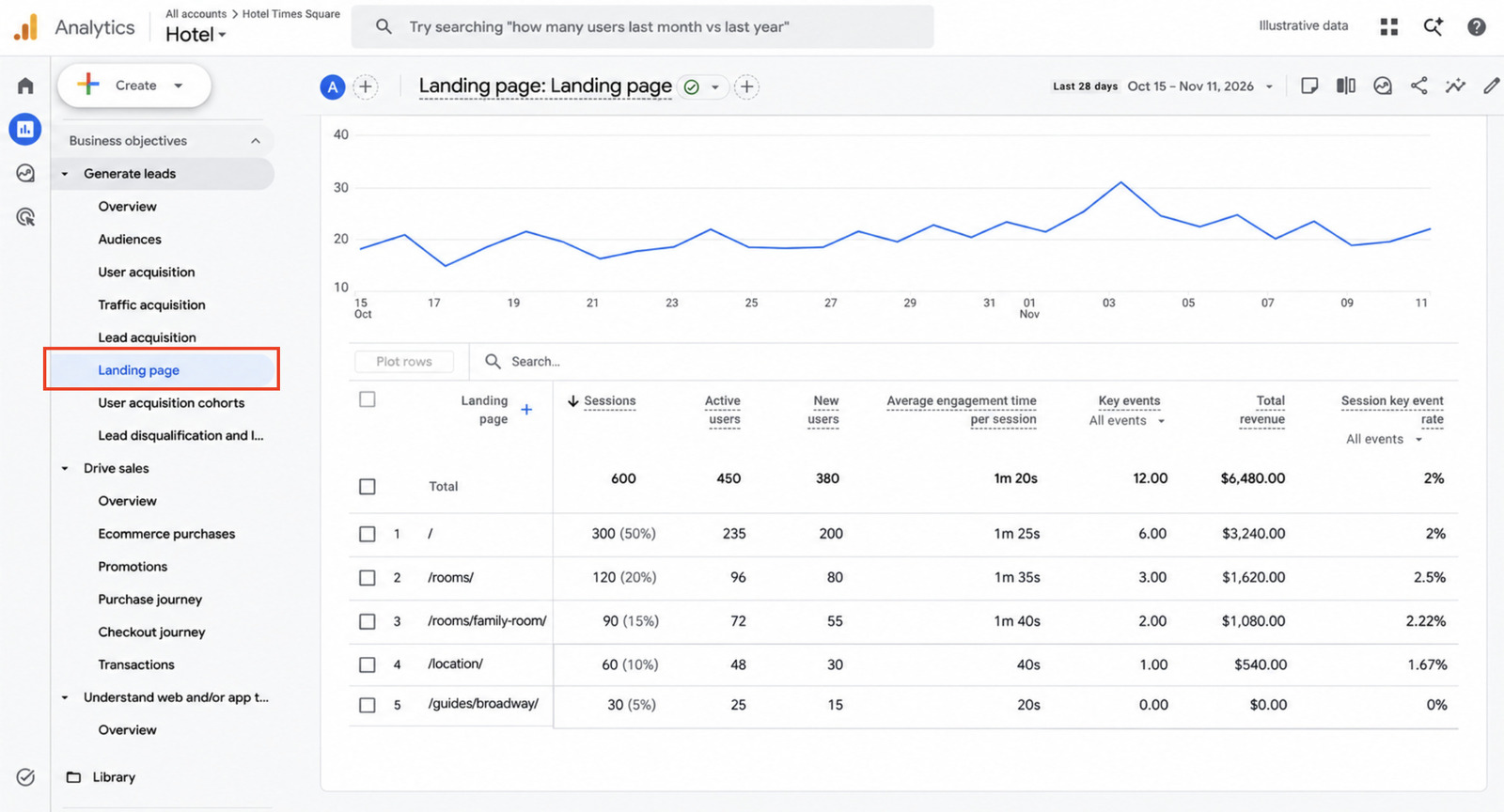
Can’t find the report? Open the Library at the bottom of the Reports sidebar and look for the Landing page. An Editor or Administrator can add the report to your navigation. If the Library is missing, ask the person managing your Analytics account to make the report available.
GA4 usually displays the part of the address after your domain.
| Entry page | What visitors should be able to do |
|---|---|
/ | Your homepage |
/rooms/ | Your accommodation overview |
/rooms/double-room/ | An individual room page |
/location/ | Your location and directions page |
/guides/theater-weekend/ | A local or event guide |
*These paths are examples. Your website will use its own addresses.
This report shows where sessions begin, but not every page visitors view during their visit. A guest who enters through your homepage and then opens three room pages still has the homepage as their landing page for that session.
What to pay attention to
For each of your top five landing pages, record its Sessions total and consider:
- What brought someone to this page? Are they exploring the area, comparing accommodation, or looking for your property?
- Does the page help them take the next step? Can they easily find suitable rooms, check dates, or reach relevant information?
- Has traffic changed? Compare periods and note any substantial increases or decreases.
For example, an event guide receiving many visits could introduce guests to your property. Open that guide and check whether it links clearly to relevant accommodation. Its traffic alone does not tell you whether readers went on to check availability or book.
Likewise, a room page with few landing sessions may still receive visits from people who entered through your homepage. Low landing-page traffic does not mean nobody views the page.
9. Check whether visitors reach accommodation pages
A room page can have few landing sessions but still receive visits from people who first opened your homepage, a local guide, or another page.
Use Pages and screens to see which pages visitors view during their visits.
- Open Reports > Life cycle > Engagement > Pages and screens. If your account uses Business objectives, look under View user engagement & retention > Pages and screens instead.
- Keep the same date range as your traffic audit.
- Above the table’s first column, open the dimension dropdown. It may currently show Page title and screen class.
- Select Page path and screen class to display page addresses.
- In the table’s search box, enter the part of the address used for your accommodation pages, such as
/rooms/or/properties/. Use the paths that actually appear on your website. - Review Views. Click the column heading to sort from highest to lowest.
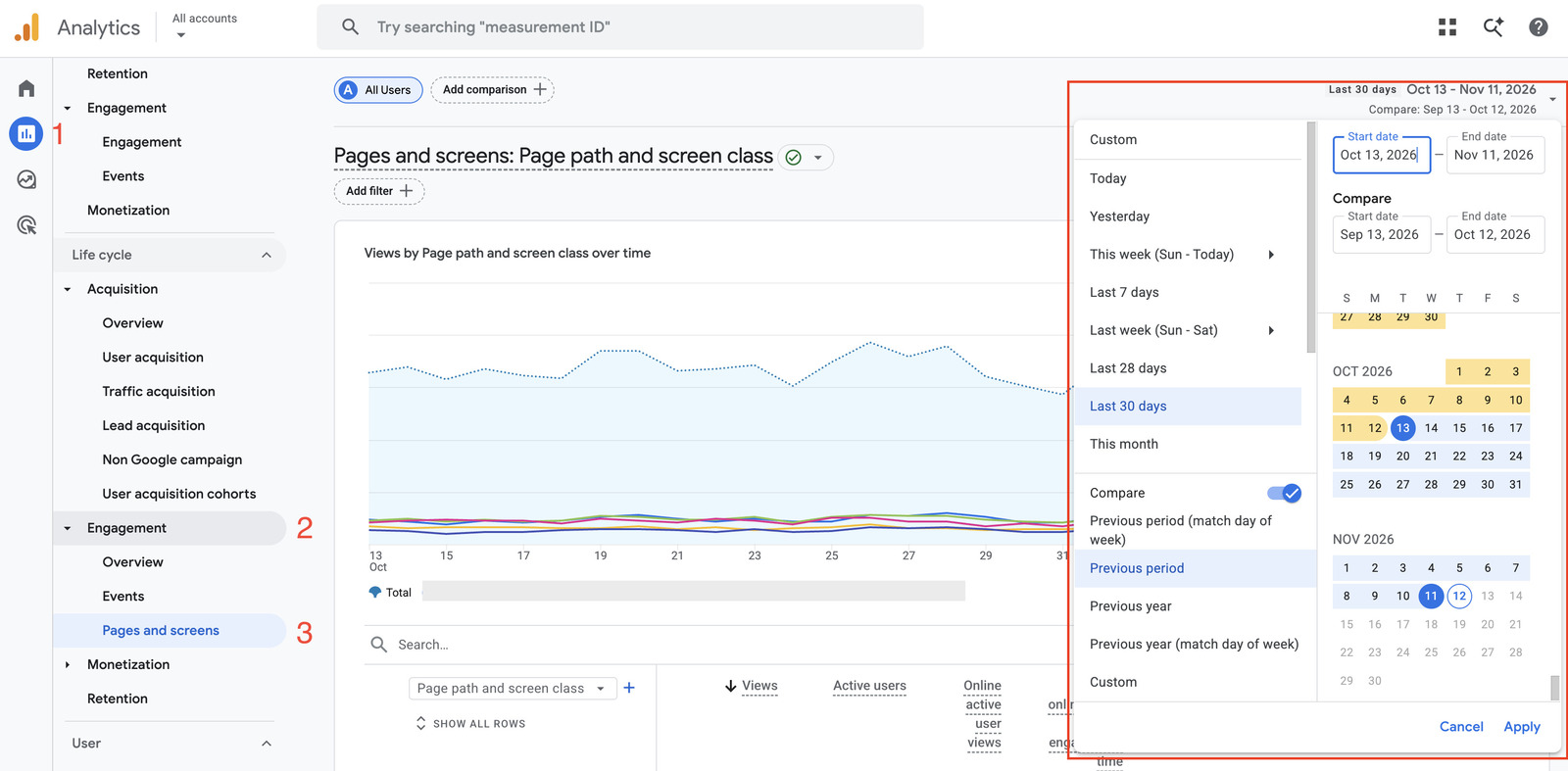
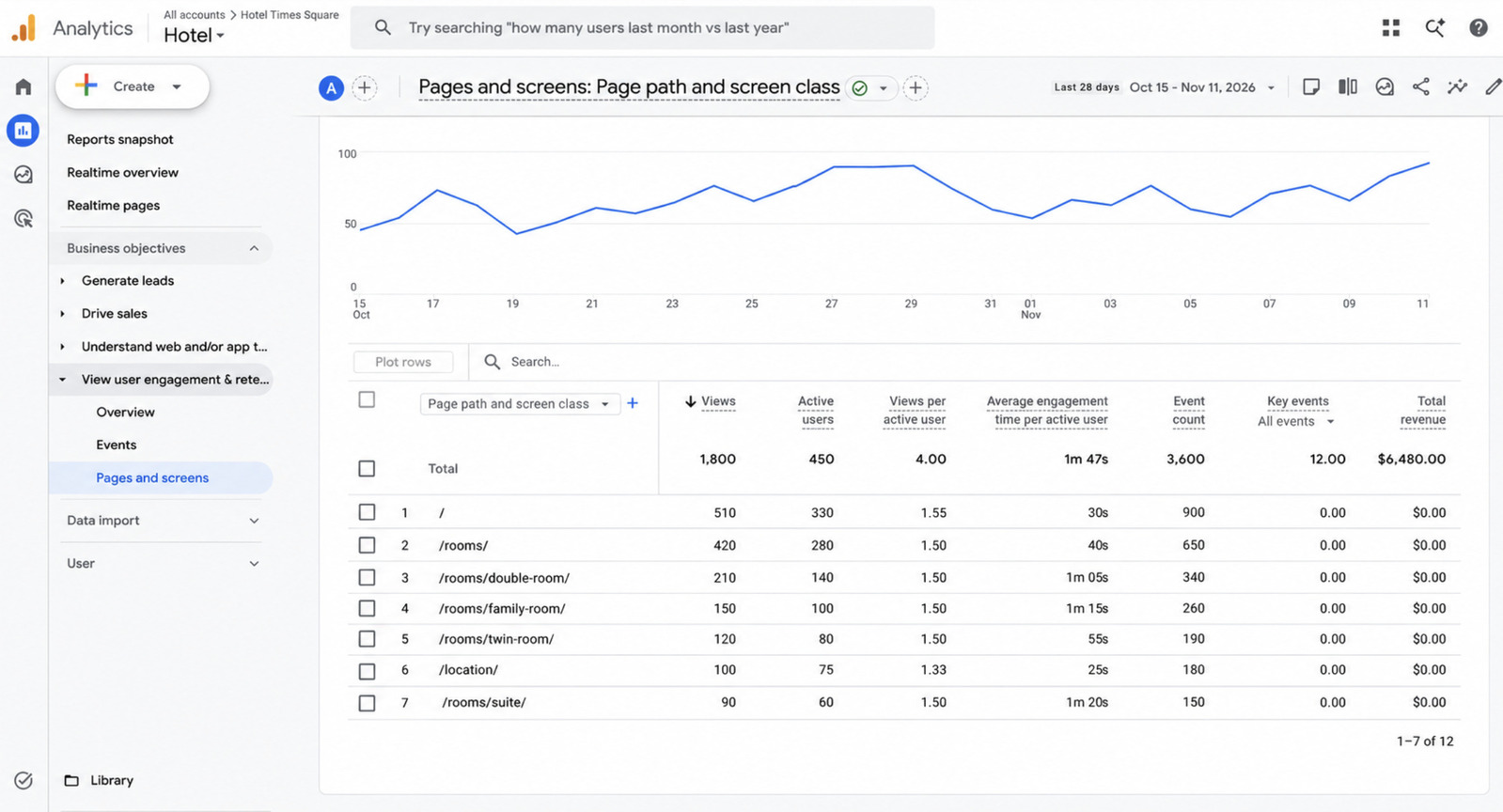
For example, a room page might have 20 landing sessions but 150 views. This means it was viewed more often than it served as the starting page of a visit. Some views may come from visitors exploring your website, and some may be repeat views.
Use this report to check whether your accommodation pages receive attention, then review whether those pages make checking availability easy.
| What you notice | What to investigate |
|---|---|
| Many homepage entries but few room views | Are accommodation links visible and clear? |
| A guide attracts traffic, but accommodation receives little attention overall | Is the guide relevant to potential guests, and does it offer a useful next step? |
| Room pages receive views despite few direct entries | Visitors may be reaching them through other pages |
| An important property page has almost no views | Is it easy to find, and is tracking working there? |
These patterns suggest questions. They do not prove why visitors behave a particular way.
Your task: Record whether your main accommodation pages receive attention.
10. Check whether visitors engage with your website
Visits tell you that people arrive. Engagement rate helps you check whether they spend time on your website or take another meaningful action.
Find Engagement rate
- Return to Reports > Life cycle > Acquisition > Traffic acquisition. If your account uses Business objectives, open Generate leads > Traffic acquisition instead.
- Keep the same date range.
- Find Engagement rate in the table. You may need to scroll horizontally.
- Compare your main traffic sources alongside their Sessions totals.
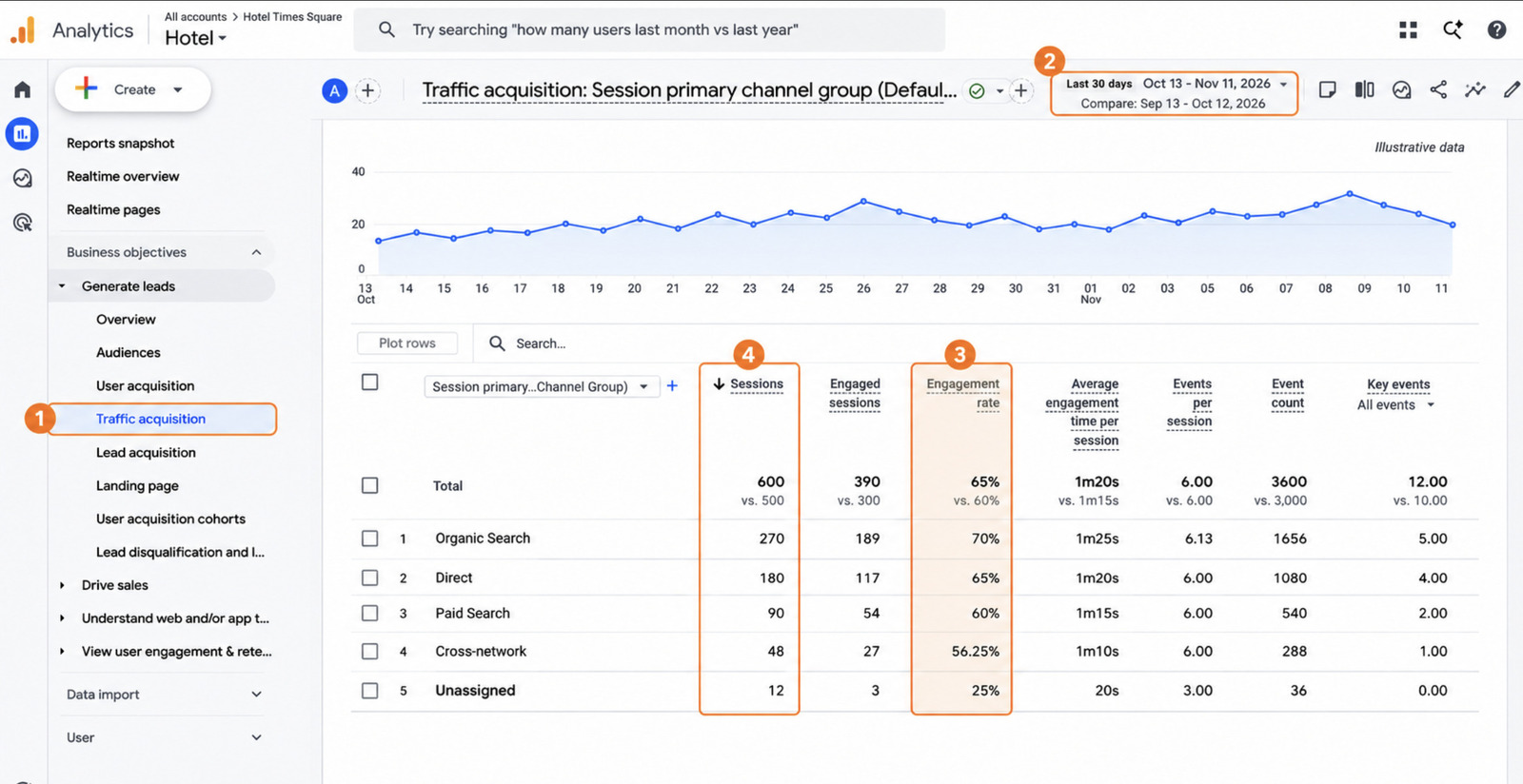
If the column is missing, an Editor or Administrator can add it through report customization. You can complete the other checks without it.
Understand what the percentage means
An engaged session meets at least one of these conditions:
- It lasts longer than the configured engagement threshold – 10 seconds by default.
- It includes at least two page or screen views.
- It includes a key event.
A key event is a tracked action you have designated as important to your business, such as a completed booking. Tracking must be configured before GA4 can record that action.
Engagement rate is the percentage of sessions that meet these conditions. For example, 117 engaged sessions out of 180 sessions gives an engagement rate of 65%. It does not mean 65% of visitors tried to book.
Use the figures to choose what to check
If a source brings many visits but relatively little engagement:
- Identify a landing page receiving visits from that source.
- Open it and check whether it delivers what the link, post, or advertisement promises.
- Look for missing information or confusing navigation.
- Test the page on your phone.
For an accommodation page, try finding room details, entering dates, and viewing the price. For a local guide, check whether it answers the visitor’s question and offers a relevant route to your accommodation.
Compare similar periods and consider the number of sessions behind each percentage. A rate based on ten visits can change considerably after just a few more.
A low engagement rate is a reason to investigate. Likewise, high engagement does not prove that visitors intend to book.
Your task: Record one engagement pattern and the practical check it suggests.
Check whether visits lead to booking activity
So far, you have checked whether people reach your website and explore your accommodation. The next question is whether they take a step toward making a reservation.
GA4 records website activity as events. A key event is an event you identify as particularly important to your business.
For an accommodation website, these actions have different meanings:
| Action | What it tells you |
|---|---|
| Clicking “Check availability” | Someone wants to explore dates and options. |
| Starting the booking process | Someone has moved closer to making a reservation. |
| Submitting a booking enquiry | Someone has asked about a stay, but a reservation may not yet exist. |
| Completing a reservation | A booking has been made, according to your booking system’s confirmation rules. |
A click on “Book now” is not a completed booking. Keep these actions separate so your reports show what actually happened.
1. Check what your booking system already tracks
Before creating new events, open your booking system’s settings or documentation and look for Google Analytics, GA4, or e-commerce tracking.
Check whether the integration records completed reservations or only installs the basic Analytics tag.
If the documentation is unclear, send your provider this question:
“Does your GA4 integration send an event when a reservation is completed? What is the event called, and does it include the booking ID, value, and currency?”
For e-commerce tracking, Google uses the recommended purchase event with transaction details. Simply installing GA4 does not configure this booking information.
If guests complete reservations on a separate booking website, ask the provider how tracking continues between your website and its booking engine.
2. Find the booking event in GA4
If your booking system already sends booking data to GA4, check that its completion event is recognized as a key event.
First, find the exact event name in your booking provider’s instructions. It might be purchase or a custom name such as booking_completed.
- Open Admin using the gear icon at the bottom left.
- Under Data display, select Events.
- Open Recent events and search for the event name your provider specifies.
- Check the star icon beside it. If it is not marked as a key event, click the star. You need suitable editing permissions.
- Open the Key events tab to confirm it appears there.
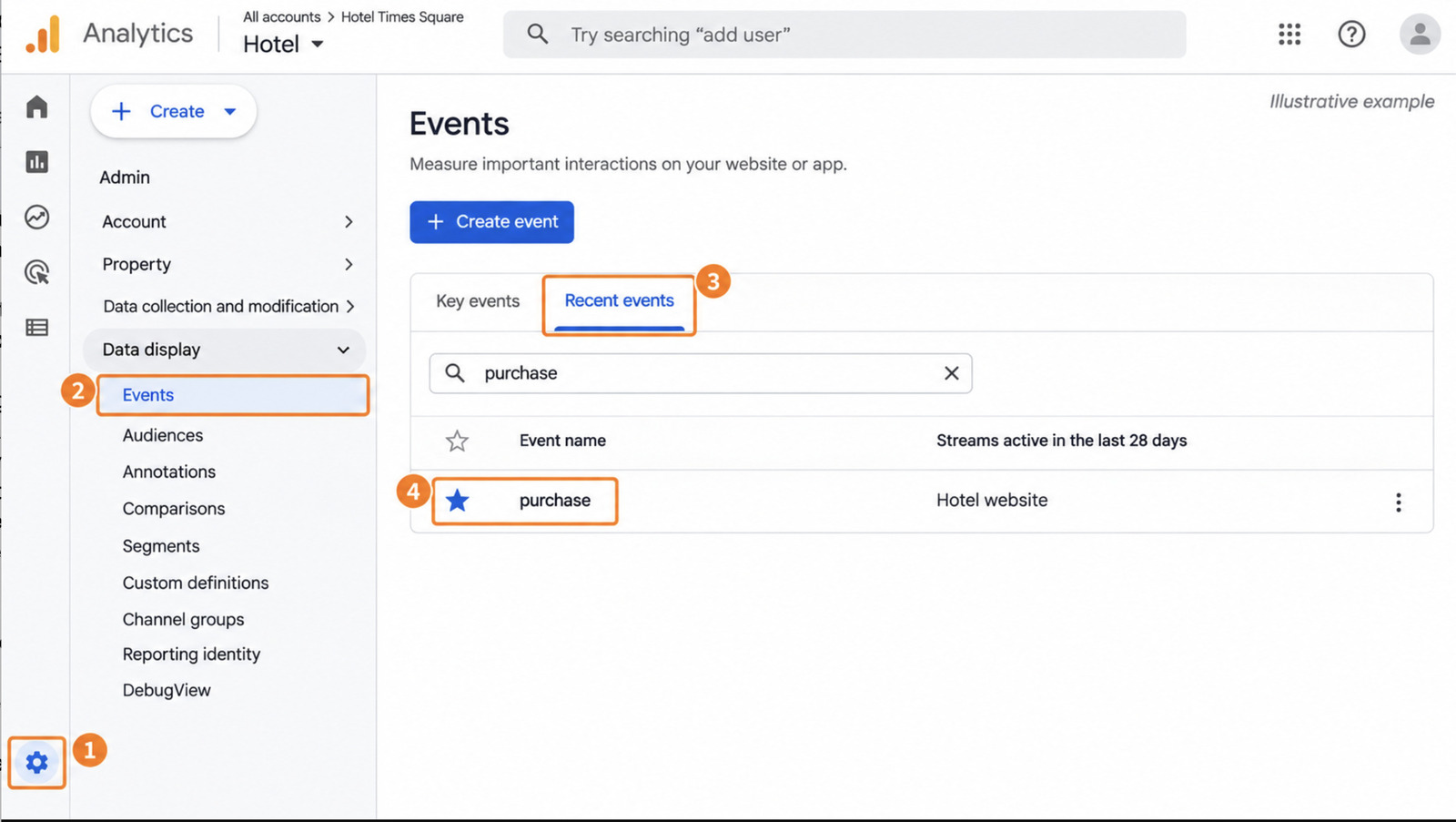
Google marks purchase as a key event by default. Marking another event applies from that point onward; it does not change historical data.
Can’t find your booking event? Check that your booking integration is enabled and connected to the correct GA4 property. Follow your provider’s instructions to complete a test reservation, then check for the event in Realtime. Newly collected events may take time to appear in the Events list.
Marking an event does not install booking tracking. Your website or booking system must send the event when a reservation is completed. A click on “Book now” is a different action and should not be counted as a completed booking.
3. If there is no integration, check whether you can track a confirmation page
A simpler alternative may be available if guests reach a dedicated confirmation page after successfully submitting a reservation.
First, complete a test booking and check:
- Does it open a separate confirmation URL?
- Does this page appear only after the action you want to measure?
- Is GA4 installed on that page?
- Does the page confirm a reservation, or only acknowledge a request awaiting approval?
If the page only confirms an enquiry, label the event as an enquiry.
To create a confirmation-page event:
- Go to Admin > Data display > Events.
- Click Create event.
- Enter a descriptive event name, such as booking_confirmation_view.
- Enable Mark as a key event.
- Choose Create without code.
- Select page_view as the existing event.
- Enter the confirmation-page URL and review the matching condition.
- Click Create.
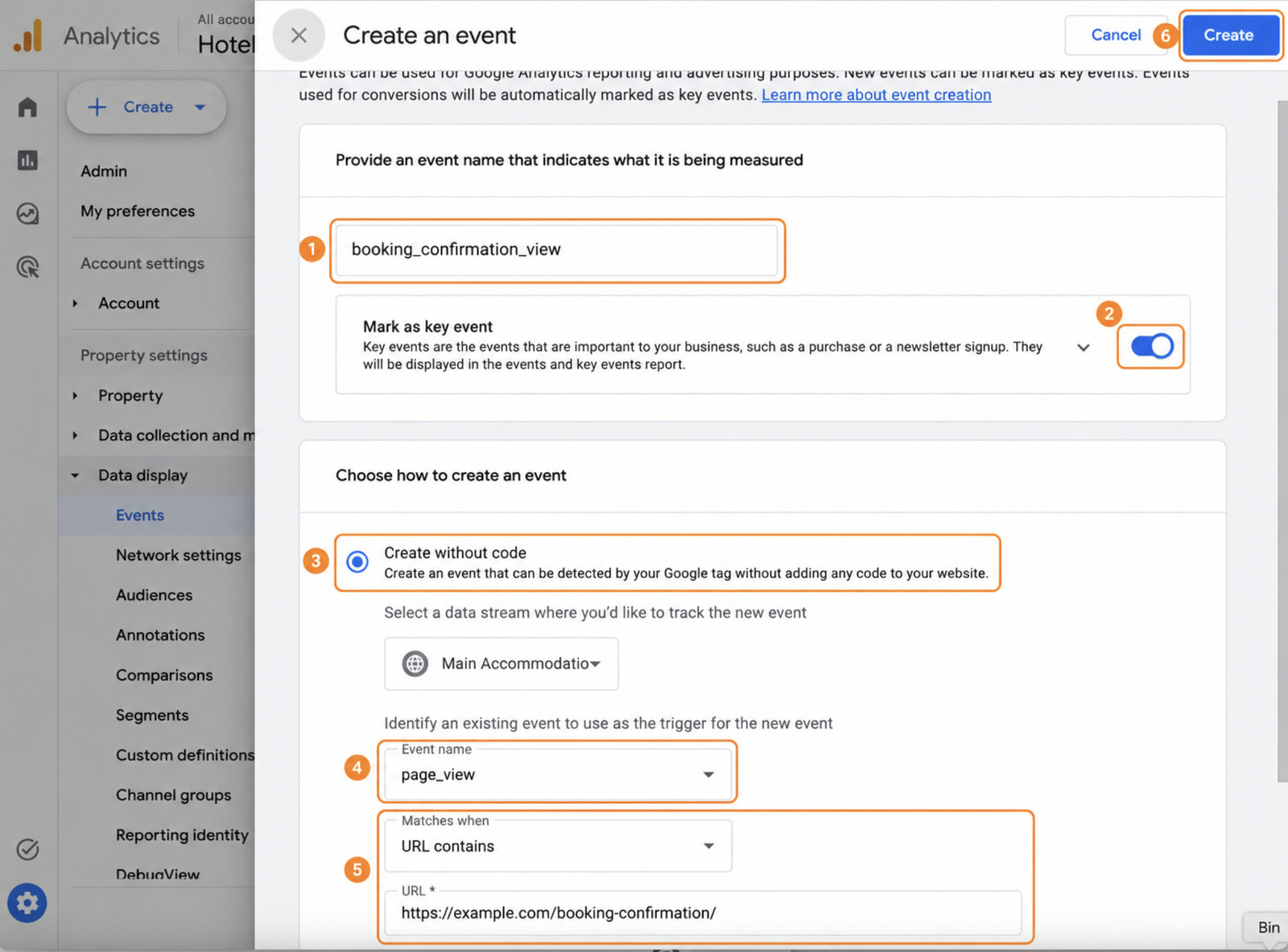
This measures confirmation-page visits, not necessarily unique bookings. Reloading or revisiting the page can trigger it again, and it does not automatically report booking revenue. Use your booking system’s records to verify reservations.
If confirmation appears in a pop-up or on a page whose URL does not change, this method may not distinguish a successful reservation. Ask your booking provider about an event-based integration.
Help interested visitors take the next step
Your audit shows whether people are exploring your accommodation. Give those visitors a clear way to check dates, see available options, and reserve their stay.
If your website runs on WordPress, MotoPress Hotel Booking lets guests search availability and book directly on your website.
4. Test before trusting the numbers
Make one test reservation using your booking system’s testing instructions.
Then:
- Open Reports > Realtime.
- Look for the expected event.
- Confirm that it appears after successful completion.
- Check that opening the booking form without completing it does not trigger the same event.
- If revenue tracking is enabled, verify the amount and currency against your test reservation.
Google notes that a new key-event setting can take time to apply. You can check the Key events by the Event name card in Realtime after the configuration takes effect.
5. See which traffic sources lead to the tracked action
Once verified events have accumulated:
- Open Reports > Acquisition > Traffic acquisition.
- Keep the same date range used for your traffic audit.
- Find the Key events column.
- Select your booking event from the event selector, rather than leaving All events selected.
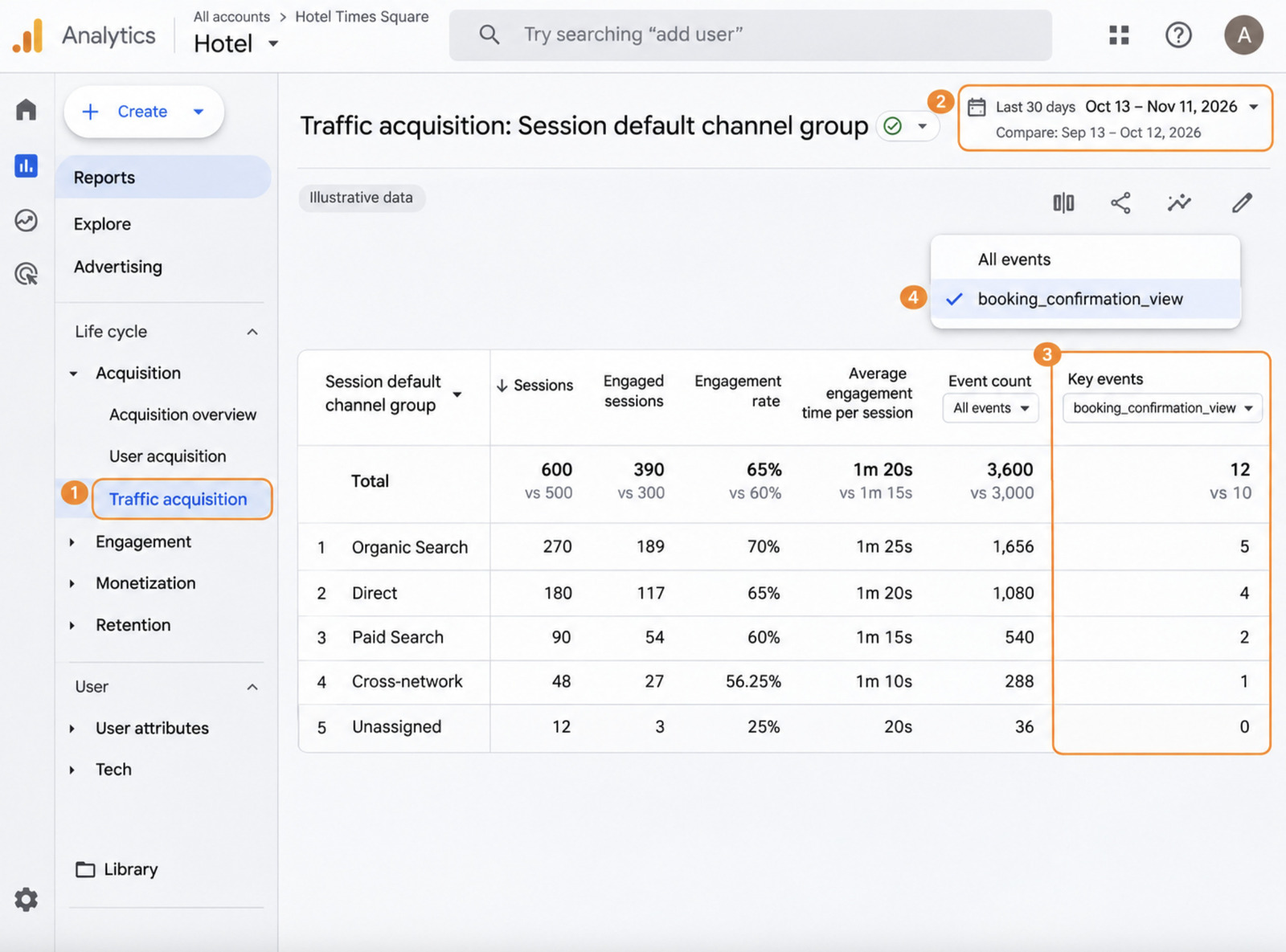
Now you can compare the sources bringing visits with the sources associated with recorded booking activity.
Record in your audit: the event name, what triggers it, whether you tested it, and whether it measures an enquiry, confirmation-page visit, or completed transaction.
If tracking is not configured, write “Booking tracking not yet verified.” A blank or zero booking count in GA4 does not establish that nobody booked.
What does your audit tell you?
Your audit should help you decide what needs attention first. Use the patterns below to choose your next action. Treat them as clues to investigate, rather than proof of a particular problem.
| What you find | What it means | What to do next |
|---|---|---|
| Almost no recorded visits | Few people may be arriving, or measurement may be incomplete | Confirm tracking first, then work on attracting relevant visitors |
| Visits arrive, but accommodation receives little attention | People reach the website but may not explore your offer | Review entry pages and links to accommodation |
| Accommodation pages receive views | Visitors are seeing what you offer | Check room details, prices, availability, and booking access |
| Booking actions are not tracked | You cannot yet connect visits with reservation outcomes in GA4 | Configure and verify booking measurement |
| Verified reservations are recorded | You can begin assessing which visits contribute to bookings | Review the relevant booking event by traffic source |
Record your findings
A simple note or spreadsheet is enough. Here are the questions you might ask:
- Is GA4 connected and receiving activity?
- When did collection begin?
- What dates did you review?
- How many sessions were recorded?
- Which channels bring the most visits?
- Which pages do visitors enter through?
- Do accommodation pages receive views?
- What engagement pattern needs investigation?
- Are reservations reliably measured?
- What will you check first?
Example: What a first traffic audit can reveal
Imagine you manage a small independent hotel. Your website includes room descriptions, a local area guide, and an online booking system.
GA4 has been collecting traffic for several months. Before this audit period, you also tested the events that record availability checks and completed reservations.
You review the last 30 complete days.
All figures below are illustrative.
1. People are reaching the website but through different sources
Your website recorded 900 sessions, compared with 750 during the previous 30 days.
In Traffic acquisition, you find:
| Traffic source | Sessions | Recorded completed reservations |
|---|---|---|
| Organic Search | 420 | 6 |
| Direct | 250 | 5 |
| Referral | 110 | 3 |
| Organic Social | 80 | 0 |
| 40 | 2 | |
| Total | 900 | 16 |
For the reservation column, you selected your verified booking event rather than All events.
Organic Search brought the most visits and recorded reservations. Email brought fewer visits but still contributed booking activity.
The newsletter links used UTM tags. Switching the report’s dimension to Session campaign lets you identify the campaign named weekend_offer and review its results.
What this tells you: Different sources contribute different amounts of traffic and booking activity. These small numbers are a starting point for investigation, not enough to decide that one channel always performs better.
2. Many visits begin outside the homepage
In the Landing page report, you find:
| Landing page | Sessions beginning on this page |
|---|---|
| Homepage | 390 |
| Local area guide | 280 |
| Rooms overview | 140 |
| Individual room pages | 60 |
| Other pages | 30 |
| Total | 900 |
The local guide accounts for almost a third of visits. You open it and notice that it provides useful recommendations but gives readers no clear link to your rooms.
Your action: Add a relevant invitation to explore the accommodation, with a link to the rooms overview. Keep the guide useful for visitors planning their trip.
3. Visitors view rooms and check availability
In Pages and screens, the rooms overview and individual room pages received 460 combined views. These include repeat views and visits that began elsewhere on the website.
Your tested events also recorded:
| Tracked action | Recorded event count | Meaning |
|---|---|---|
| Availability search submitted | 95 | Visitors submitted dates to look for a stay. |
| Completed reservation | 16 | The booking integration recorded a successful reservation. |
The availability-search event measures a submitted search, rather than simply a click on a button.
What this tells you: People are doing more than reading the website; some are actively checking stays and completing reservations.
However, these totals do not show that 95 different people searched or that exactly 79 abandoned a booking. A visitor can search several times. Establishing the sequence requires a separate funnel analysis.
4. Choose a small number of next actions
Based on the audit, you decide to:
- Improve the route from the local guide to your rooms, because the guide already attracts visitors.
- Check social links and their destination pages, because social traffic arrived but produced no recorded reservations during this period.
- Continue using tagged newsletter links to distinguish future campaigns.
- Compare recorded reservations with your booking system, checking for missing or duplicate tracking.
Your audit note reads:
“The website receives traffic, and visitors are reaching accommodation pages and checking dates. The local guide is an important entry point, but its connection to our rooms could be clearer. We will improve that link, review our social landing pages, and compare the next complete month with this baseline.”
You now have specific changes to make and a baseline for evaluating them.
Common mistakes
- Assuming that creating a GA4 account starts tracking visits. Creating an account and property is only part of the setup. You also need to connect GA4 to your website and confirm that visits appear in Realtime. If the reports are empty, check the installation before concluding that nobody visits your site.
- Expecting to see visits from before installation. GA4 cannot show historical visits it did not collect. If you connected it today, start collecting data now and return when you have enough activity to review.
- Treating sessions, people, and page views as the same thing. One person can visit several times and view multiple pages during each visit. Use sessions to understand visits, users to understand the measured audience, and views to understand how often pages were displayed.
- Assuming “Direct” means returning guests. Direct traffic means GA4 could not identify a clear source. It can include typed addresses and bookmarks, but also links without usable source information. A high Direct total does not prove that most visitors already know your property.
- Counting a booking-button click as a reservation. Clicking “Book now,” checking dates, and completing a reservation are different actions. Name and track them separately. Only treat an event as a completed booking after testing that it fires at the correct point.
- Reading zero recorded bookings as zero actual bookings. Booking tracking may be missing, incorrectly configured, or unable to follow visitors into an external booking engine. Compare GA4 with your booking system before deciding that your website generated no reservations.
- Judging a page by engagement rate alone. Low engagement is a reason to investigate, not an automatic instruction to rewrite the page. A visitor might find a phone number quickly or continue into a booking system that is not tracked. Review the page’s purpose and the available booking data together.
- Making big decisions from a few visits. A small property’s results can change noticeably because of a handful of bookings, a local event, or seasonal demand. Review complete periods, consider the number of visits behind each percentage, and avoid changing several things at once.
The next logical step
Use your audit to choose one improvement to work on first.
- If very few people reach your website: Check how potential guests can discover it. Use Google Search Console to investigate your visibility in Google, then review the search terms and pages you have prioritized in your keyword map.
- If people arrive but rarely explore your accommodation: Start with your busiest landing pages. Make relevant rooms or properties easy to find, with clear links and a useful next step.
- If visitors view accommodation but booking activity is unclear: Verify your booking events and test the reservation process yourself, including on a phone.
Record what you change and the date. Review the next complete month against your baseline, allowing for seasonality and differences in demand.
Your goal is to understand where potential guests need a clearer route from finding your website to choosing and reserving a stay.
Related Guide:
- Set up Google Search Console