
Creating WordPress Hotel Booking Calendar: Hands-On Tutorial
Table of Contents
How can hotel owners let guests check availability and reserve a room directly on their website? A hotel booking calendar WordPress plugin comes in handy to display real-time availability and allow visitors to select their stay dates and submit a reservation in just a few clicks. This guide walks you through adding a reservation calendar with the MotoPress Booking Calendar plugin!
Instead of managing bookings manually, you can provide a simple system on your website. Let’s get it started!
What Is MotoPress Booking Calendar?
MotoPress Booking Calendar for WordPress is a plugin designed to create availability calendars and booking forms for rental items or accommodations. This plugin provides a visual calendar interface where you can manage rental availability, update pricing, control inventory, and collect booking information from guests.
Instead of manually managing reservations or relying on external booking platforms, this hotel booking calendar software allows you to handle bookings directly on your WordPress website.
Why is it considered the best WordPress calendar plugin? Its key features include:
- Visual availability calendar for managing bookings;
- Support for nightly, daily, and hourly bookings;
- Rental item management through variations and inventory units;
- Customizable booking forms built with the WordPress block editor;
- Automated email notifications;
- Online payments via Stripe;
- Flexible calendar display using WordPress blocks or shortcodes.
Use Cases
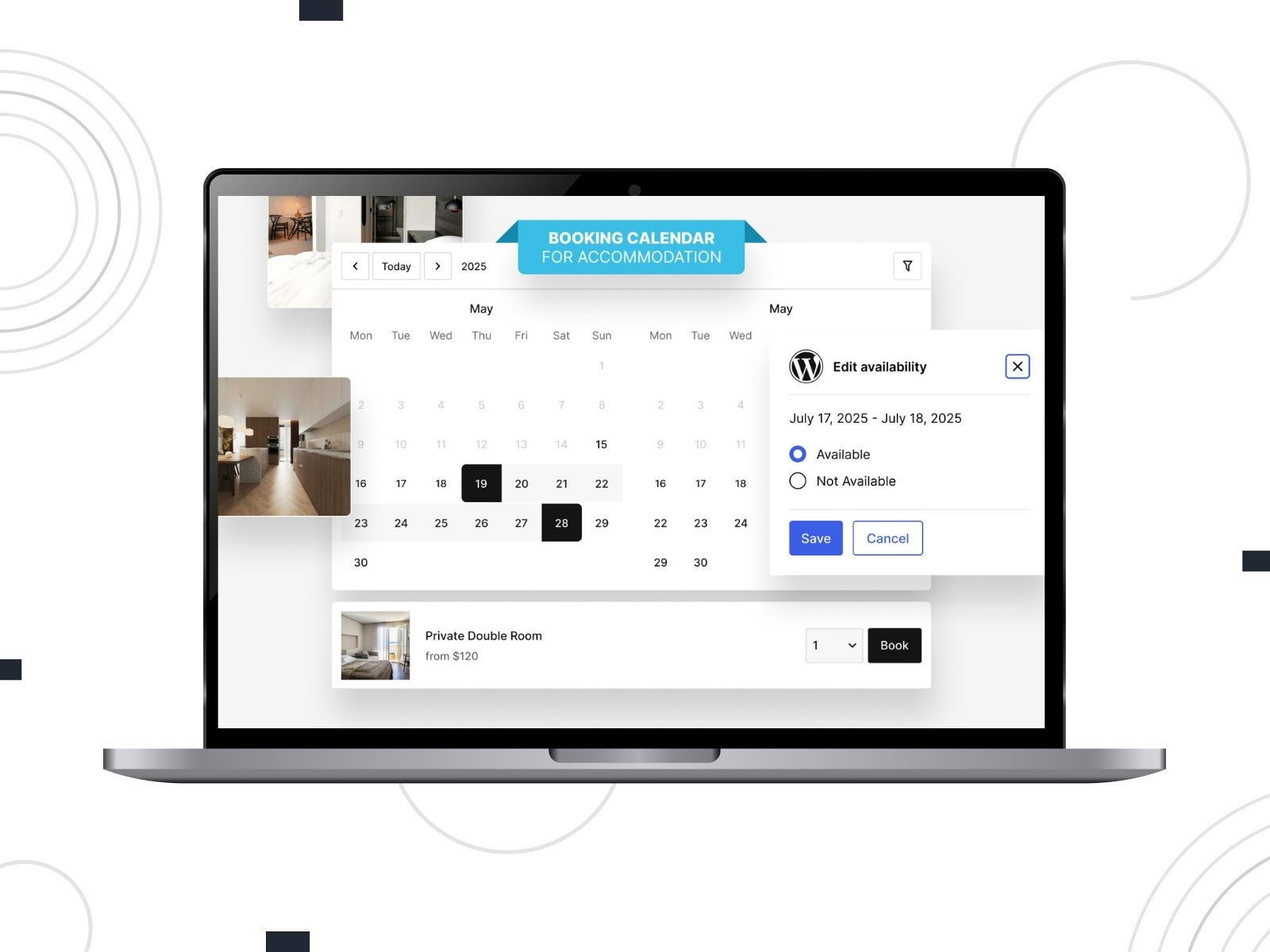
MotoPress Booking Calendar suits various accommodation booking scenarios. Common use cases of this hotel booking calendar WordPress plugin cover:
- Single Accommodation, like a vacation cabin, countryside guesthouse, single apartment rental, etc.
- Hotels and Guesthouses With Multiple Rooms.
- Multiple Apartment Rentals.
- Hostels With Bed Reservations.
- Villas or Holiday Homes.
Now, let’s get down to the booking calendar for WordPress tutorial!
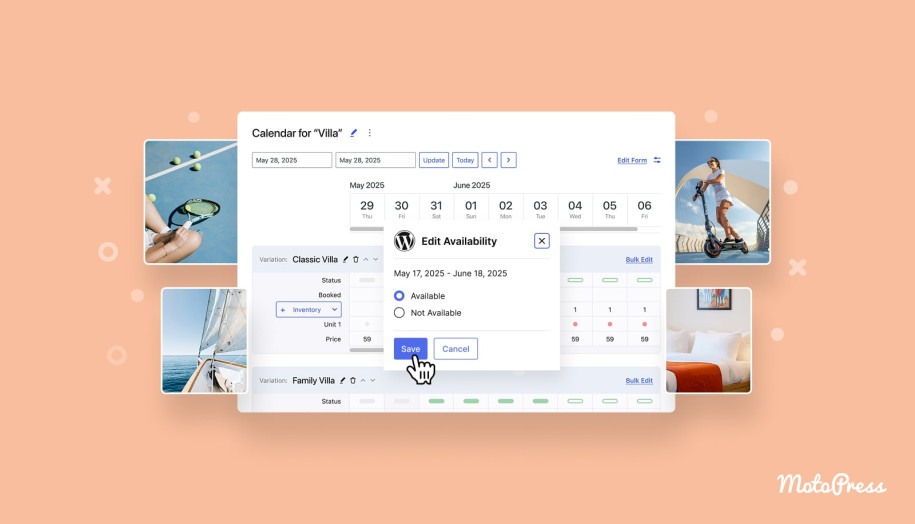
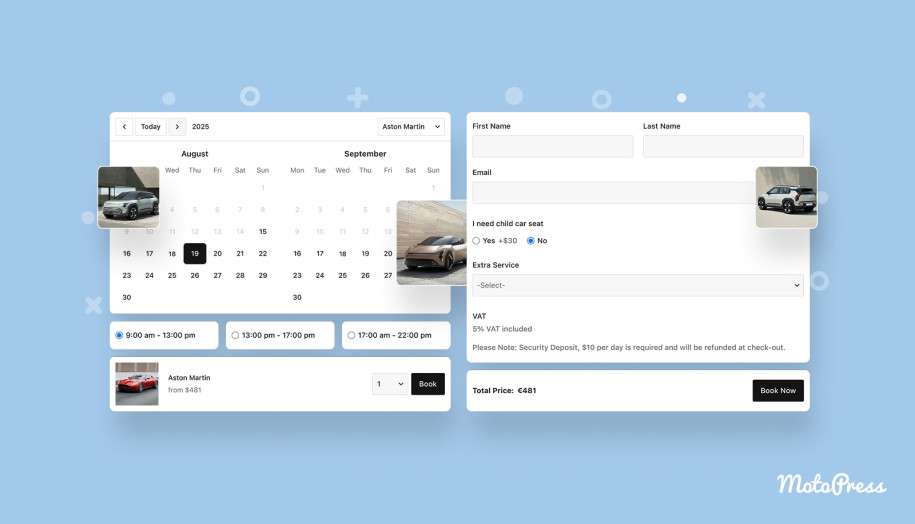

How To Add a Hotel Booking Calendar WordPress: Step-by-Step Guide
Below is a practical workflow for creating a booking calendar for hotel websites with the MotoPress plugin.
Step 1. Install and Activate the Booking Calendar Plugin
Start by installing the plugin on your WordPress website.
- Log in to your WordPress dashboard.
- Go to Plugins > Add New.
- Click Upload Plugin.
- Select the plugin archive file from your computer.
- Click Install Now, then Activate.
After activation, you will see a new Calendars menu in the WordPress dashboard.
Step 2. Create a Calendar
After installing the plugin, the next step is to create a hotel booking calendar WordPress where you will manage availability, pricing, and rental inventory.
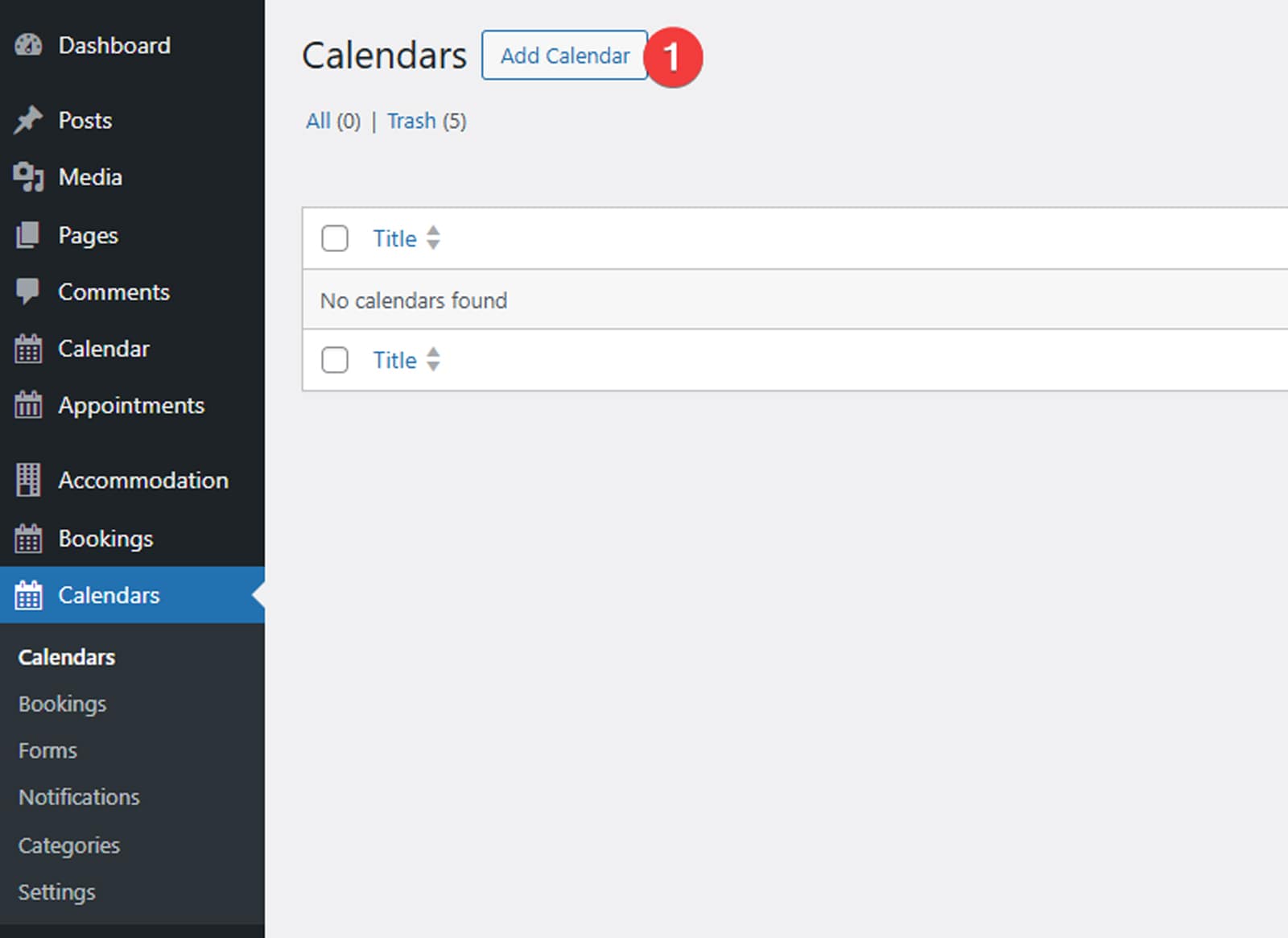
1. Go to Calendars > Add Calendar in your WordPress dashboard.
2. Then, you should enter a calendar label. This is the name used inside the admin panel to identify the calendar. Clear names like Hotel, Villa, or Apartment Rental make it easier to manage multiple calendars.
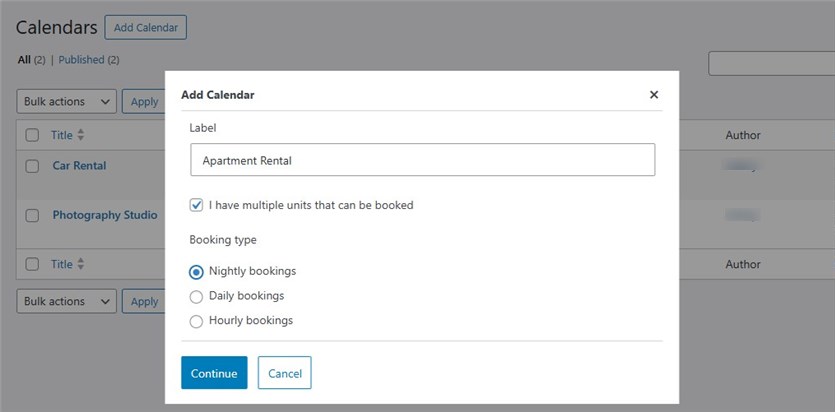
3. Next, decide whether your property includes multiple units that can be booked. If your accommodation offers several identical units, enable the option “I have multiple units that can be booked.”
4. Finally, select the booking type. For accommodation reservations, choose Nightly bookings. Guests will select a start and end date, and the system will calculate the number of nights between them.
5. Once these settings are configured, click Continue to open the calendar management interface.
You can launch a quick start guide that guides you through the visual calendar interface:
- Date Range;
- Edit Calendar Page;
- Rental Items (Variations) & Inventory;
- Bulk Edit Button;
- Adjust Availability and Pricing;
- Edit Booking Form;
- Status Legend.
Step 3. Add Rental Items
The next step is to define the types of accommodations available for booking.
In the MotoPress WordPress calendar plugin, these are called Variations. Each variation represents a rental item such as a room, apartment, or villa.
1. Click Add Variation and provide the details describing the accommodation.
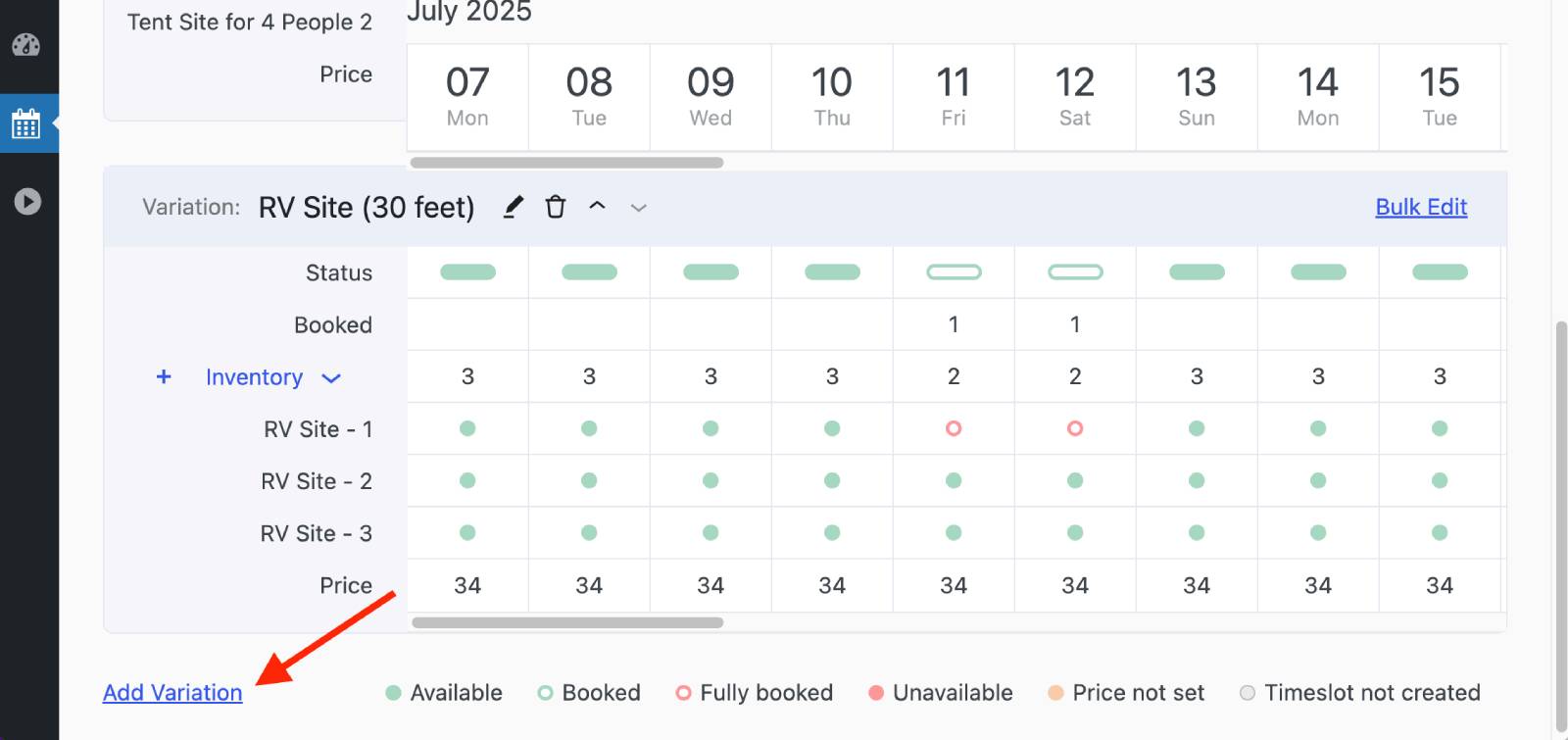
2. Start with the title, which is the name of the accommodation type. For example, Standard Room, Luxury Villa, RV Site, or Family Apartment. You can also upload an image, which helps guests visually identify the accommodation when browsing the booking interface.
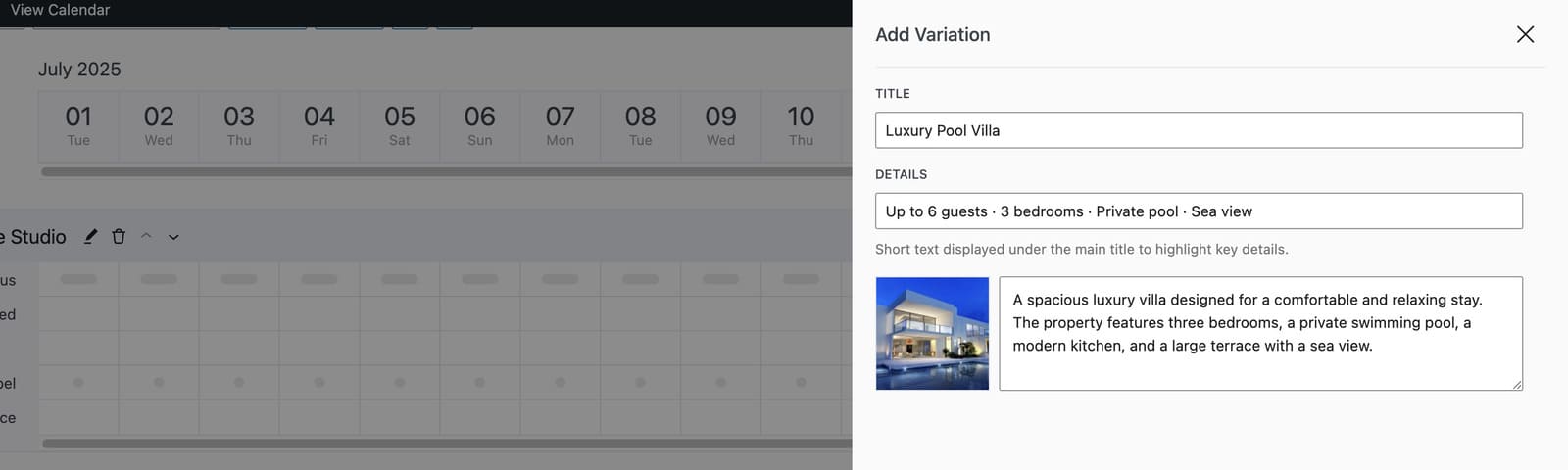
3. The Details field displays short information directly under the accommodation name. This is a good place to show the accommodation capacity. These short descriptions help guests quickly explore the property.
4. You can also add a description that appears in a pop-up when users click the accommodation name or image. This area can include information about amenities, property rules, or other important details.
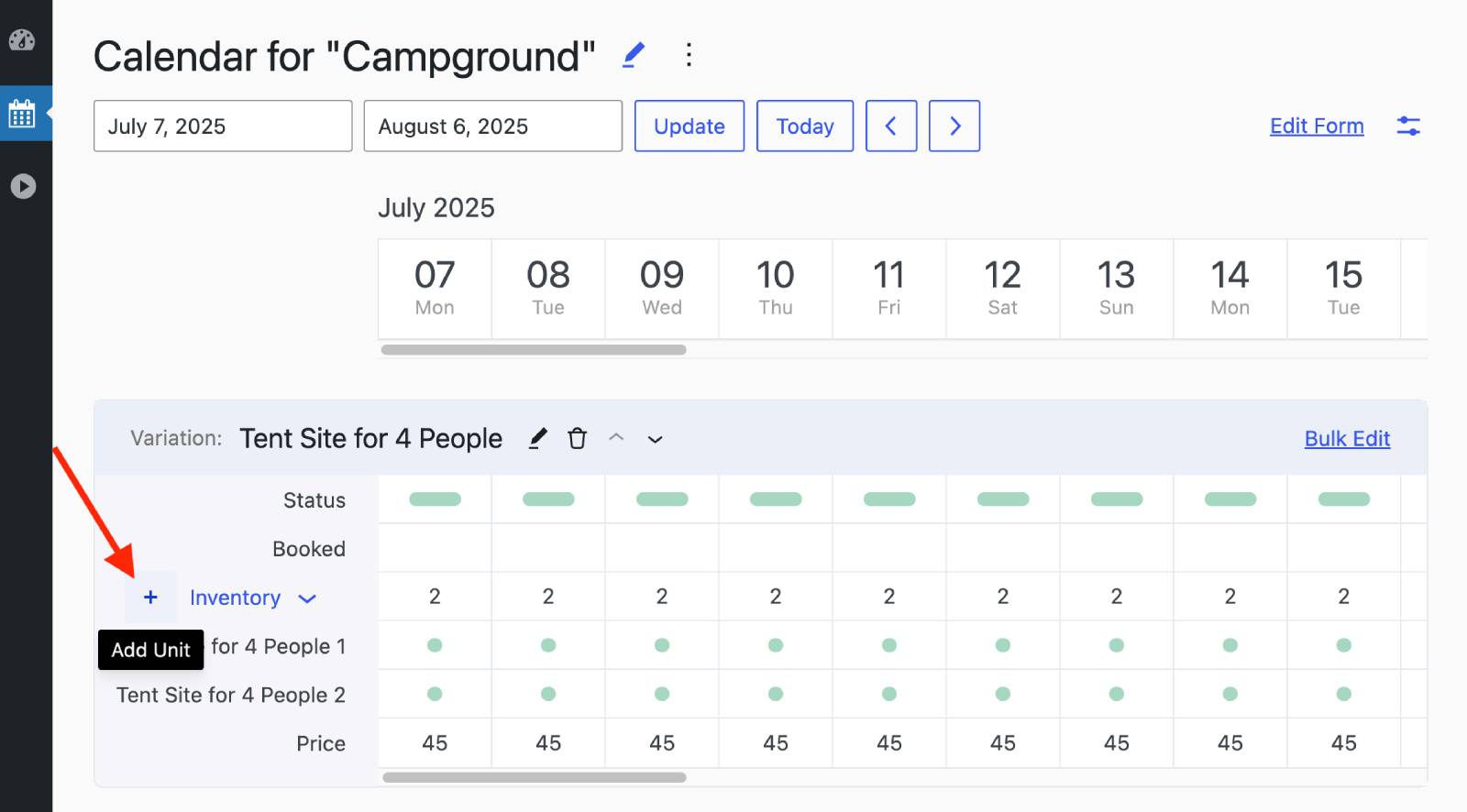
5. After creating the variation, you can define the inventory. It’s the number of available units for that rental type. For example, a hotel might have ten standard rooms and four deluxe rooms. Inventory units allow the calendar to track availability automatically.
Step 4. Set Up Availability and Rental Rates
Once variations are created, you can manage availability and pricing directly inside the calendar for hotel booking.
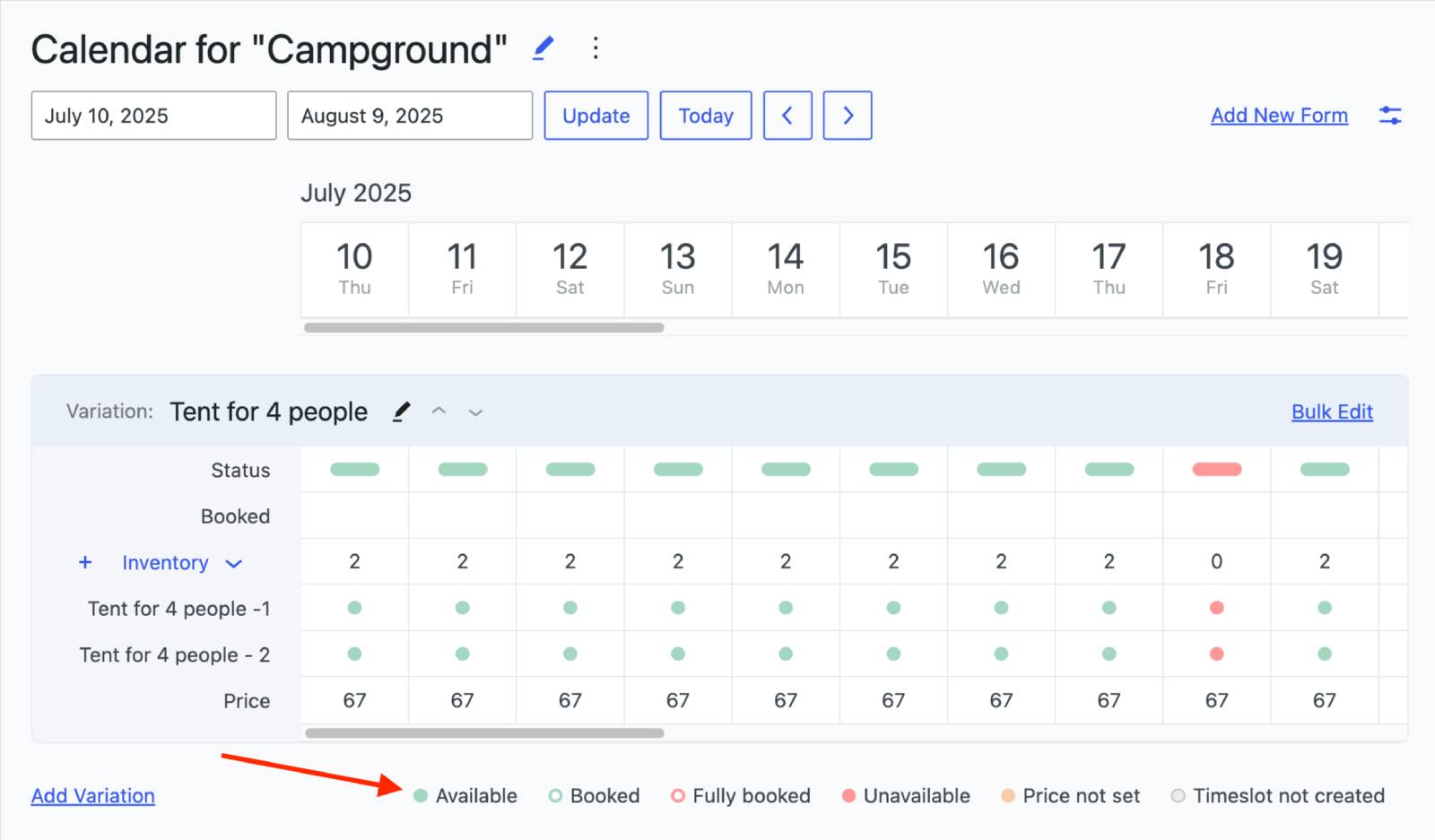
In the calendar interface, you can:
- Click a date to update availability;
- Drag across several dates to change multiple days;
- Click the price field to modify nightly rates.
This visual approach makes it easy to manage reservations and availability.
Seasonal Pricing
Many accommodation businesses adjust prices depending on the season. To apply pricing across multiple dates quickly, use the Bulk Edit tool.
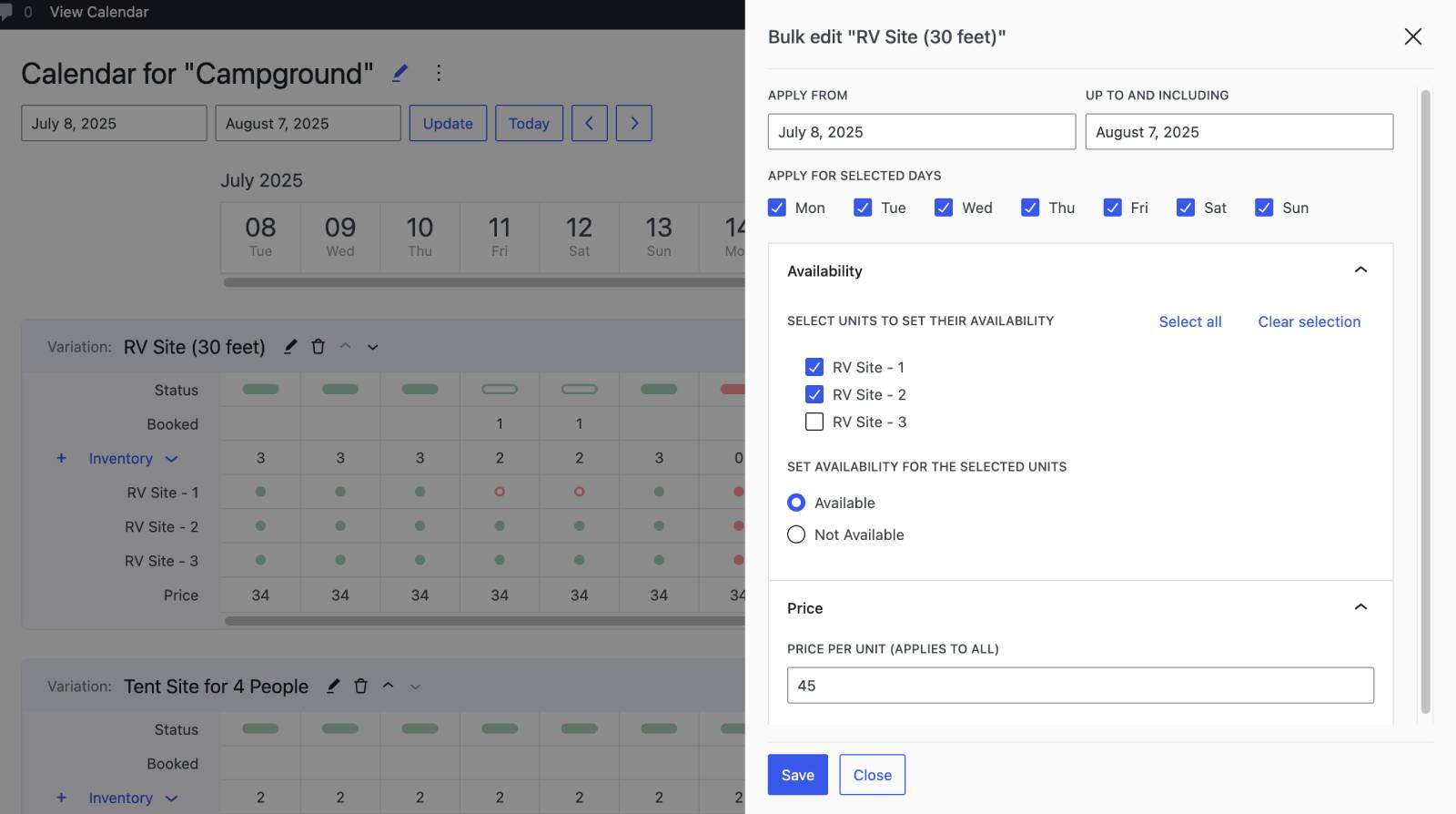
Bulk Edit allows you to select a date range, choose specific days of the week, and apply the base price per night to selected inventory units. This is the most efficient way to set seasonal or holiday pricing.
Step 5. Create a Booking Form
Although the calendar can work with or without a booking form, the form helps rental property owners collect guest details at checkout.
To create one:
- Go to Calendars > Forms.
- Click Add New Form.
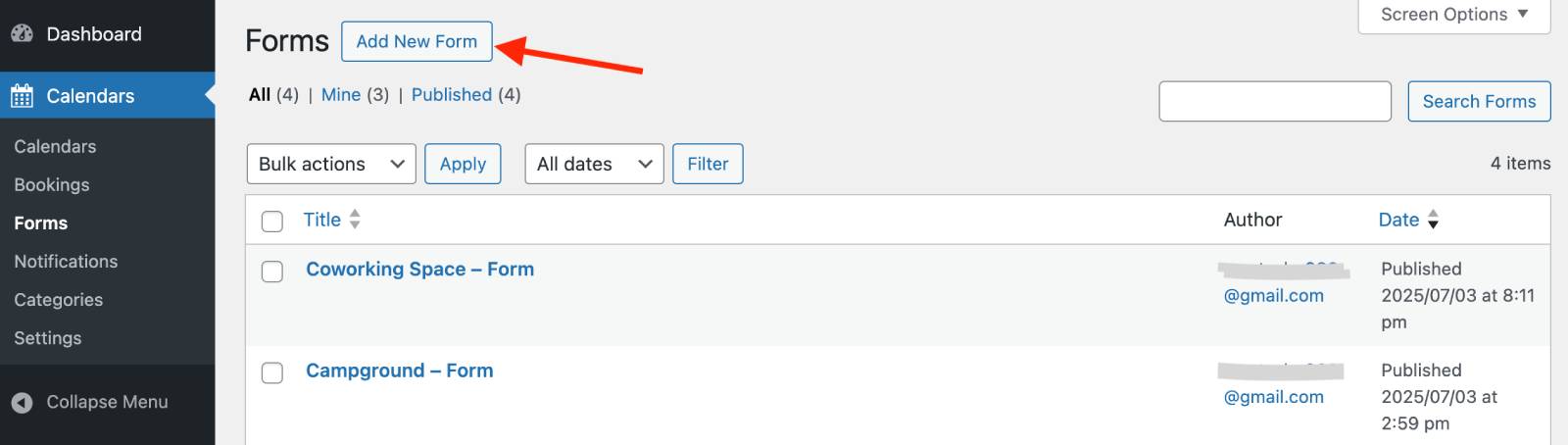
The form builder in the MotoPress hotel booking calendar WordPress plugin uses the WordPress block editor, where you can add and customize fields.
By default, the form includes:
- Customer Name;
- Customer Email;
- Customer Phone.
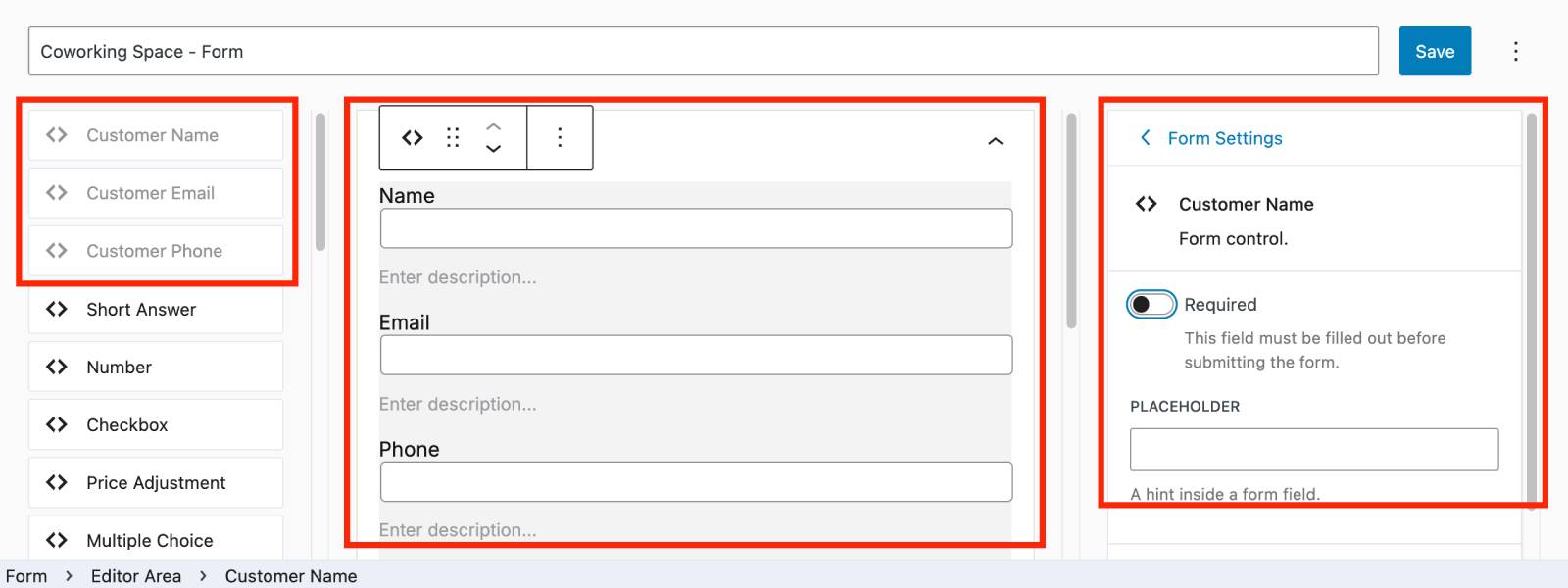
Use the ‘plus’ icon to add the needed fields or blocks to the needed section in your form. For example: short & long answers, price adjustments, number & checkbox, multiple-choice, etc.
Some fields can adjust the total booking price if you assign a flat fee or percentage.
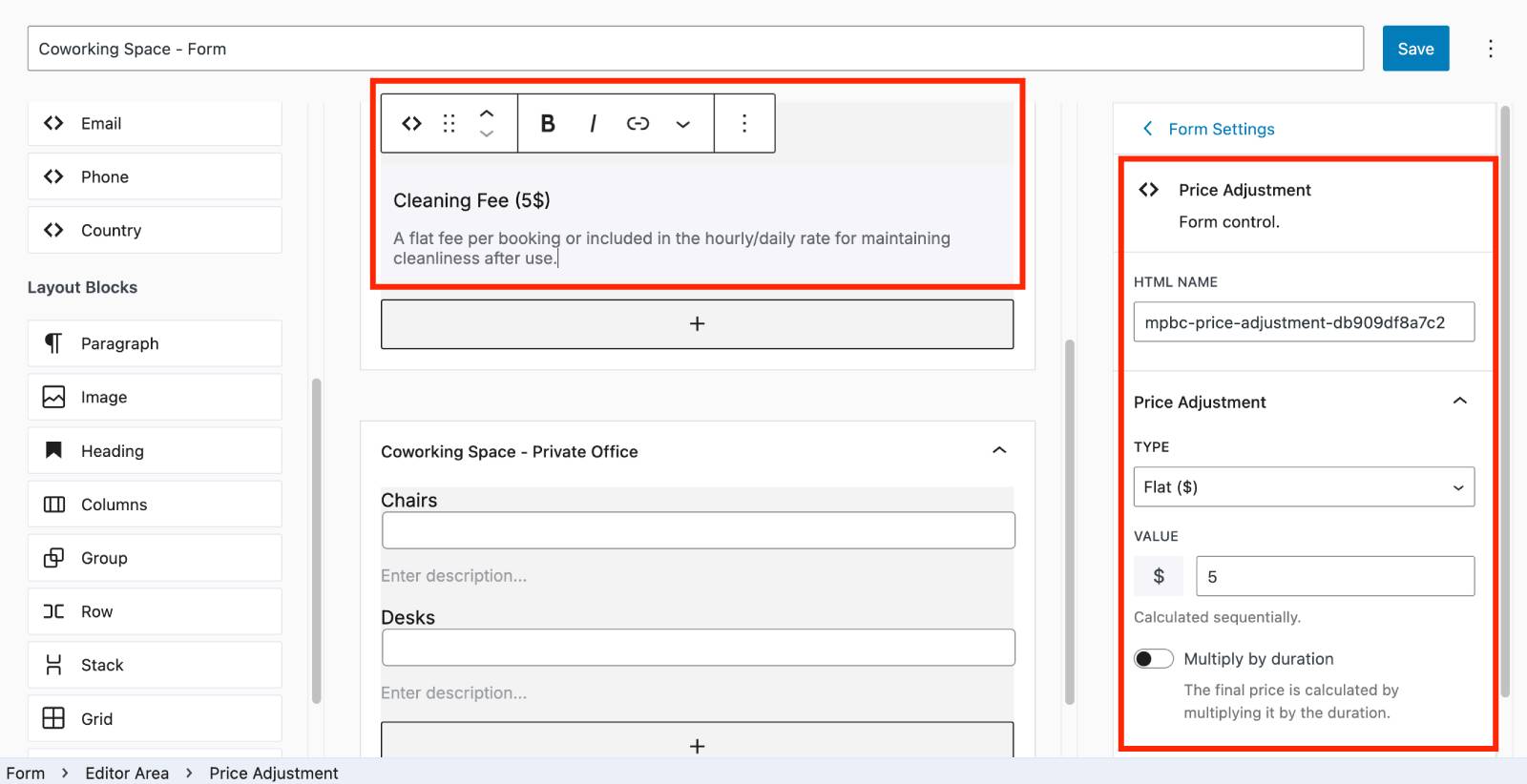
You can also add both common fields (always shown) and unique fields (specific to variations).
You can add additional fields depending on the information you want to collect. We’ve gathered some examples from the hotel industry.
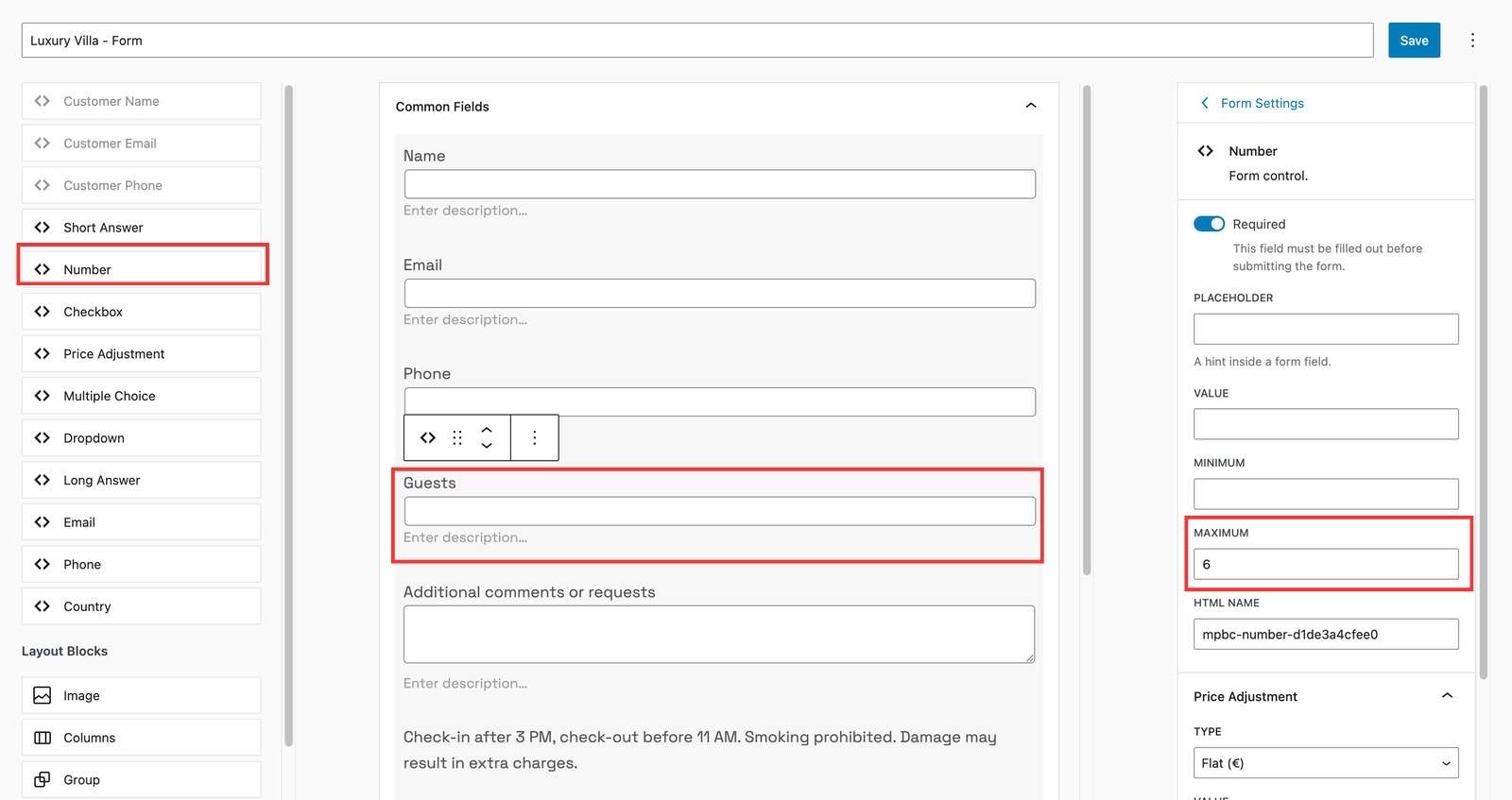
Guest Number Field
If you want guests to specify how many people are staying, you can add a Number field to the form. This field supports minimum & maximum values and charges extra based on the quantity the guest selects.
Add Extra Services
Many accommodations offer optional services such as:
- breakfast;
- airport transfer;
- parking;
- extra beds.
These can be added using form fields that adjust the booking price, including:
- Checkbox;
- Multiple choice;
- Number.
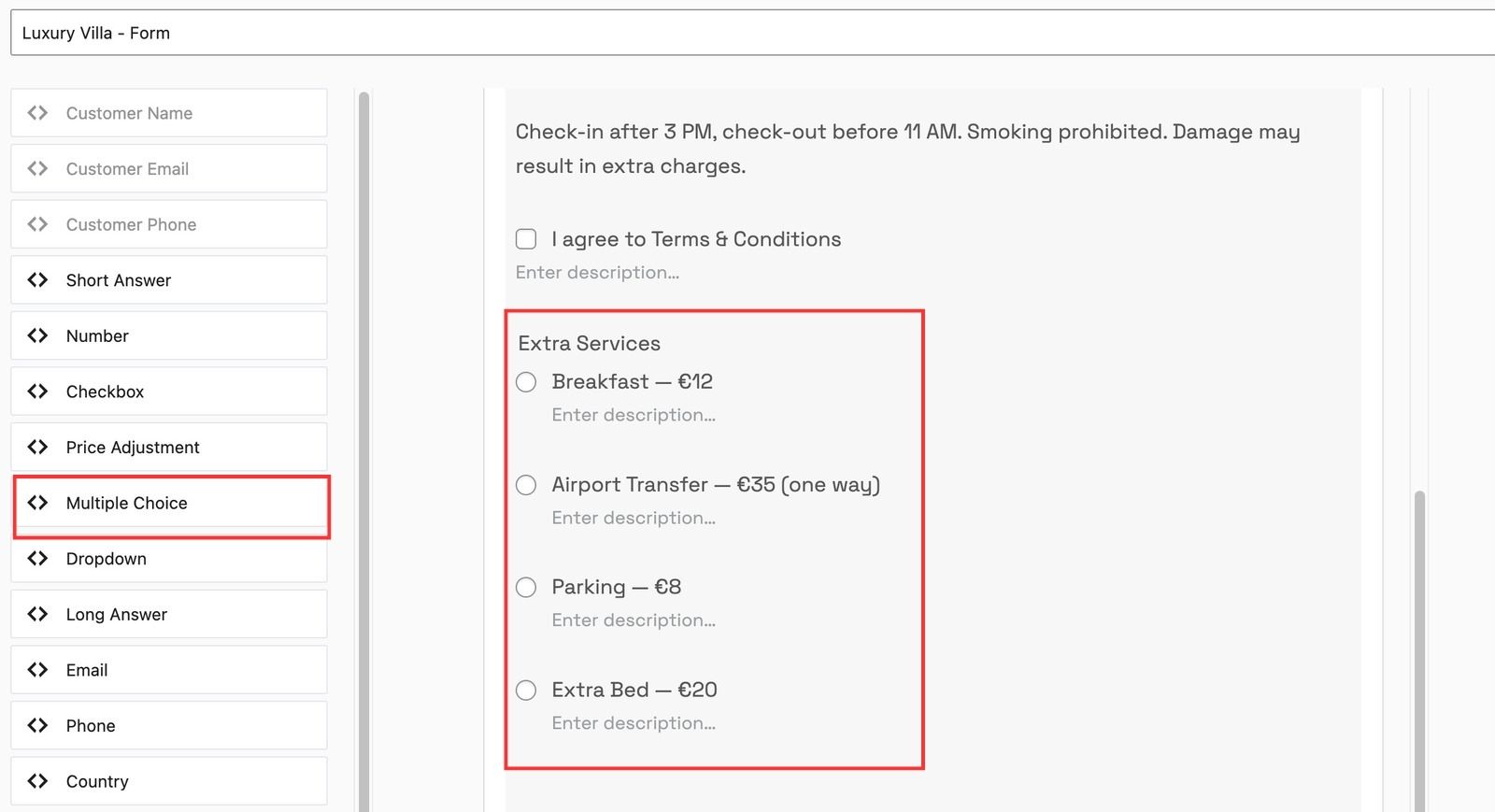
Each option can add a flat fee or a percentage to the total booking cost.
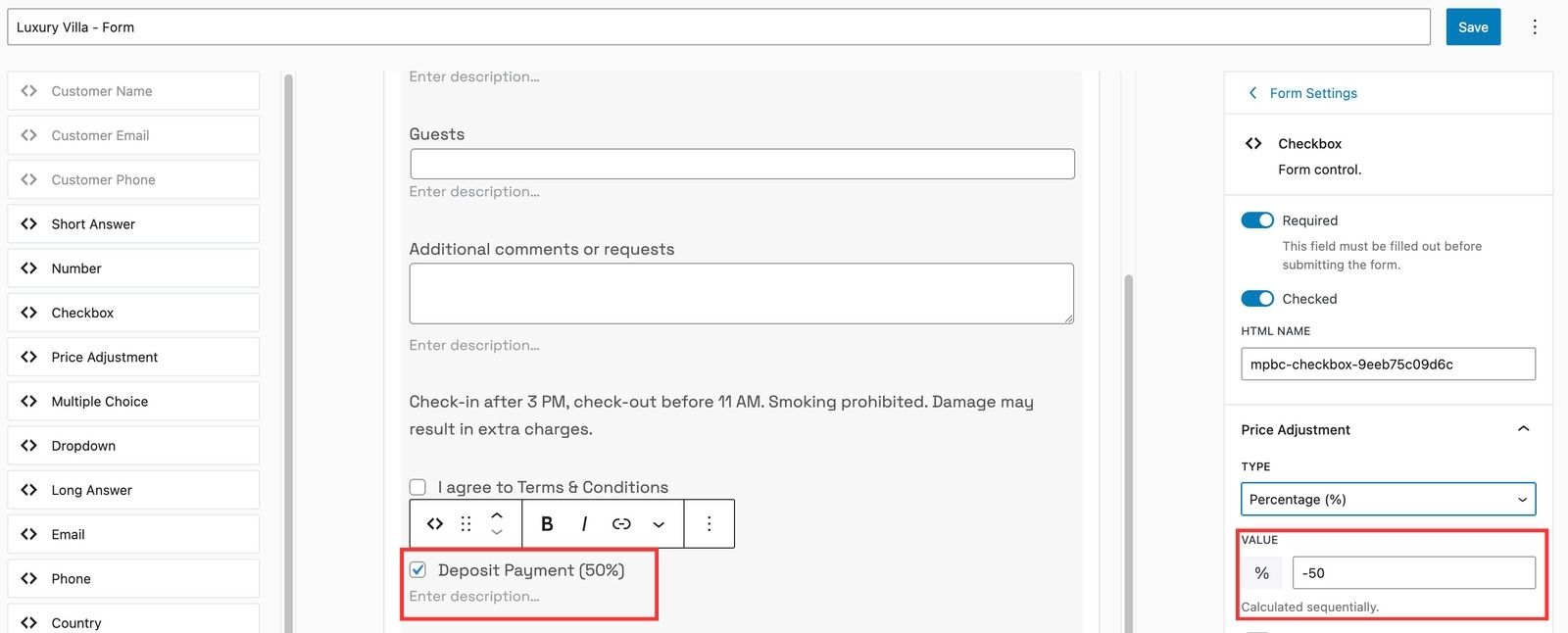
Allow Guests to Pay a Deposit
You can include the Checkbox field with a negative price adjustment value in the booking form to enable the deposit option.
Step 6. Configure Payments
MotoPress Booking Calendar supports online payments via Stripe.
To enable payments in a booking calendar for hotel websites:
- Go to Booking Calendar > Settings > General tab.
- Select “Confirmation upon payment” mode.
- Choose the currency.
- Go to Calendars > Settings > Payments > Stripe.
- Enable Stripe.
- Add your Stripe keys.
- Save settings.
- Go to Calendars > Payments > General Settings to select Stripe as the default payment method.
- Customize payment email notifications.
Note: You need a Stripe account, MotoPress Booking Calendar plugin updated to version 1.2.0 or higher, and connection tokens from your Stripe account to configure online payments.
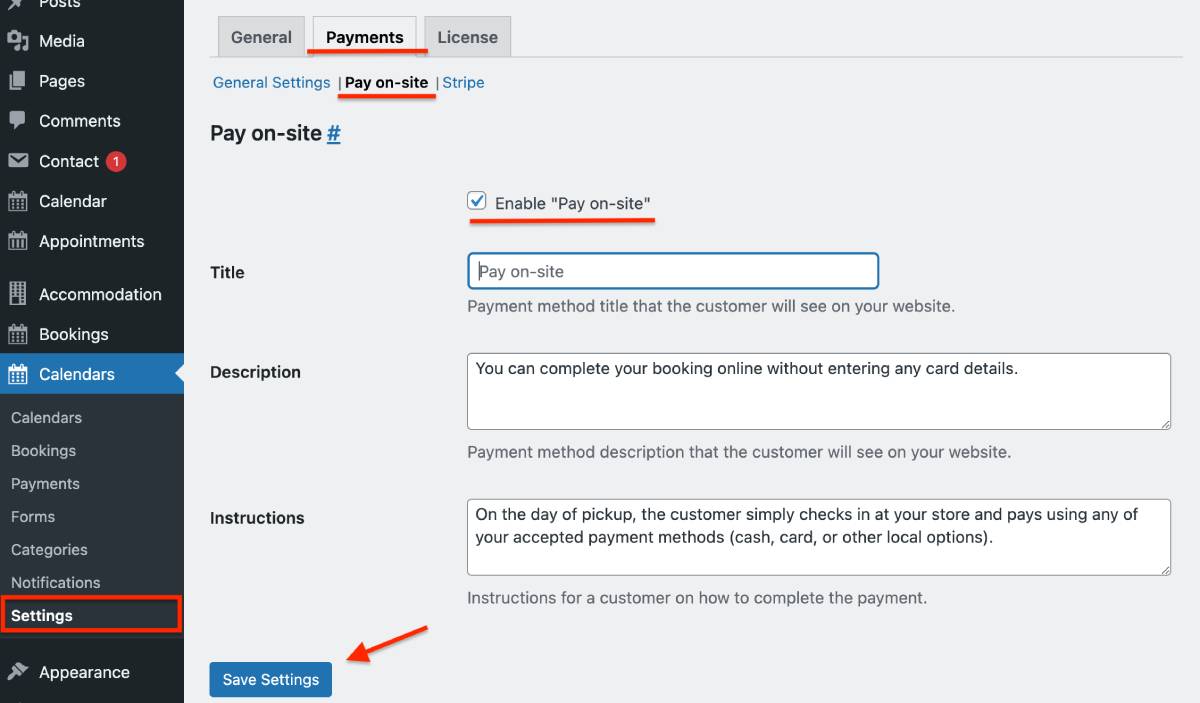
You can also enable Pay on Site to let guests reserve online and pay at the property.
Step 7. Set Up Email Notifications
Email notifications let you automatically inform guests and admins about booking actions.
Go to Calendars > Notifications. Here you can create emails for:
- new bookings;
- canceled bookings;
- successful payments.
To use a ready-to-go hotel email template, click Add Notification, choose a template, and customize it using dynamic tags.
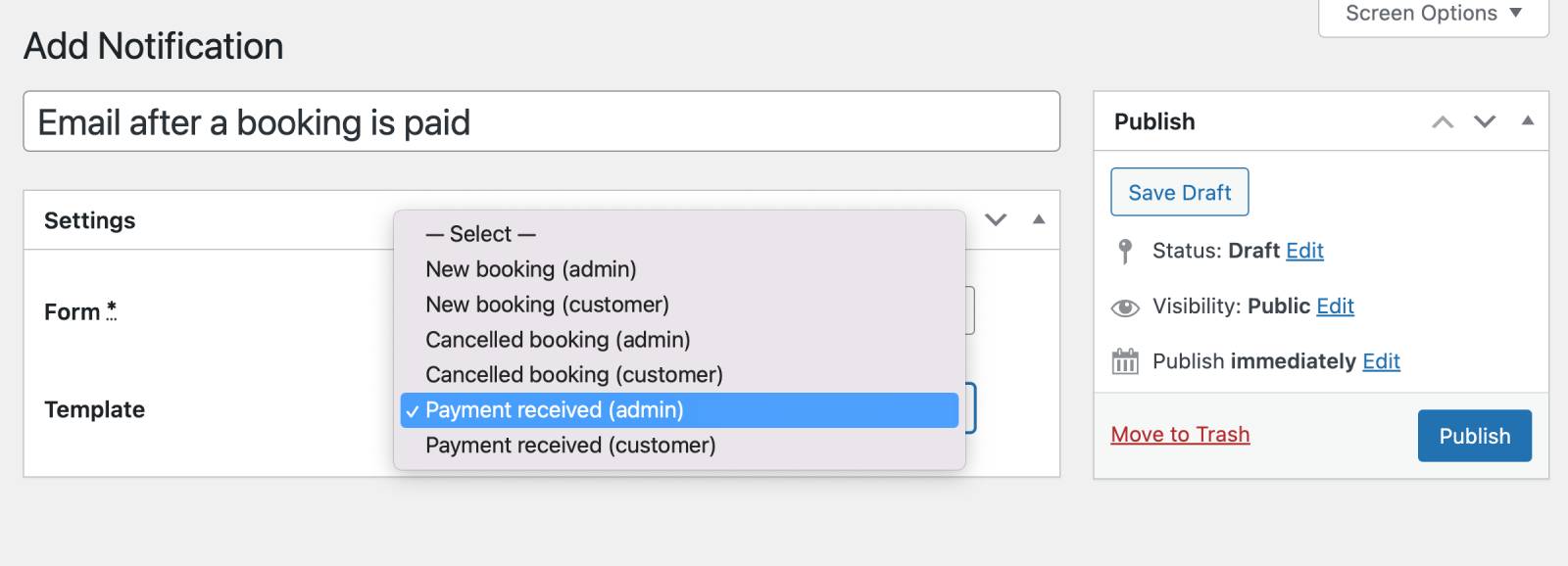
Notifications are linked to booking forms, so you can also manage them via Forms > Select form > Notifications.
Step 8. Display Hotel Room Booking Calendar on Your Website
You can add the booking calendar to any page or post.
Using the Block Editor:
- Open a page in WordPress.
- Add the Booking Calendar block.
- Select the calendar you created.
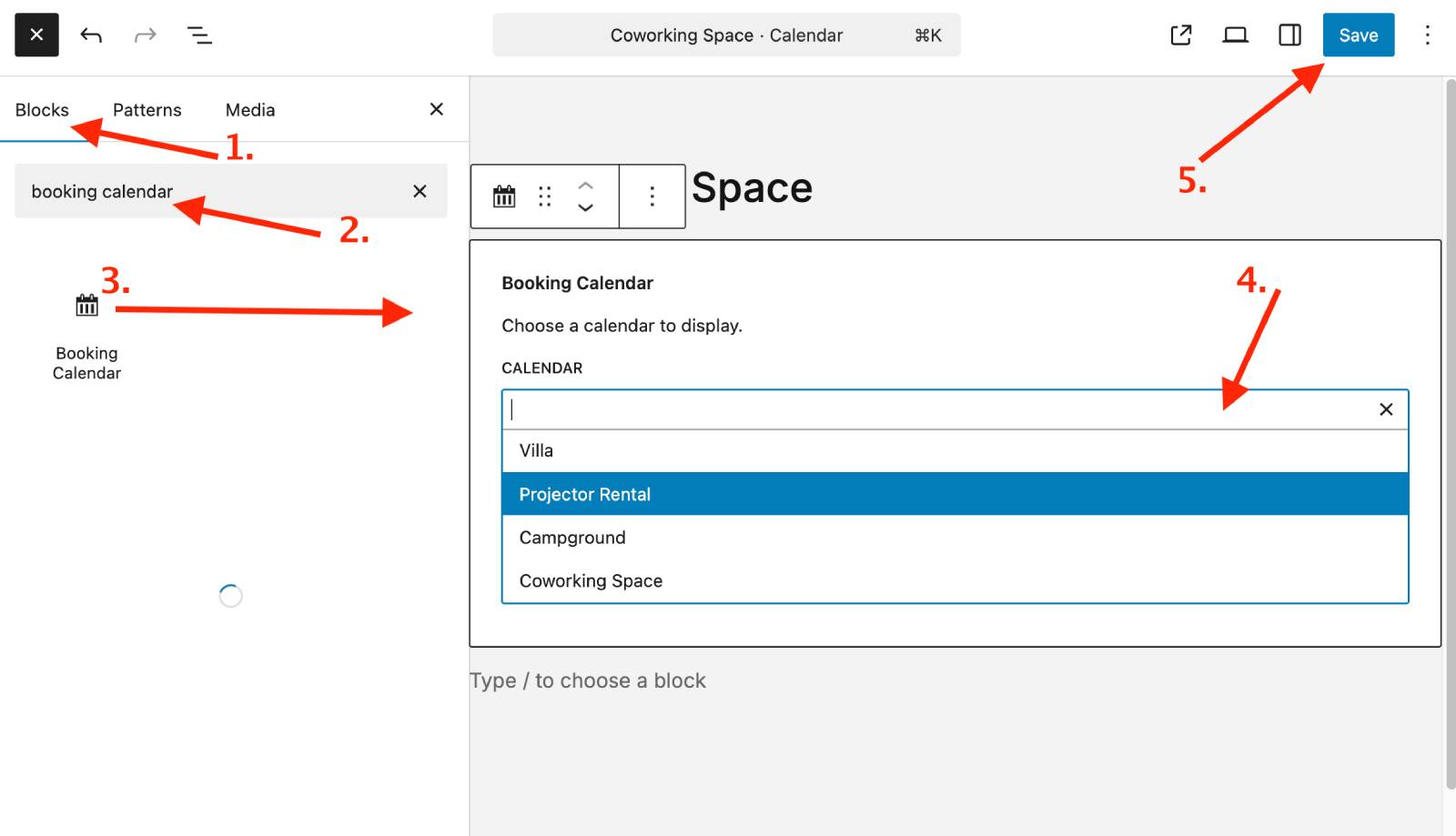
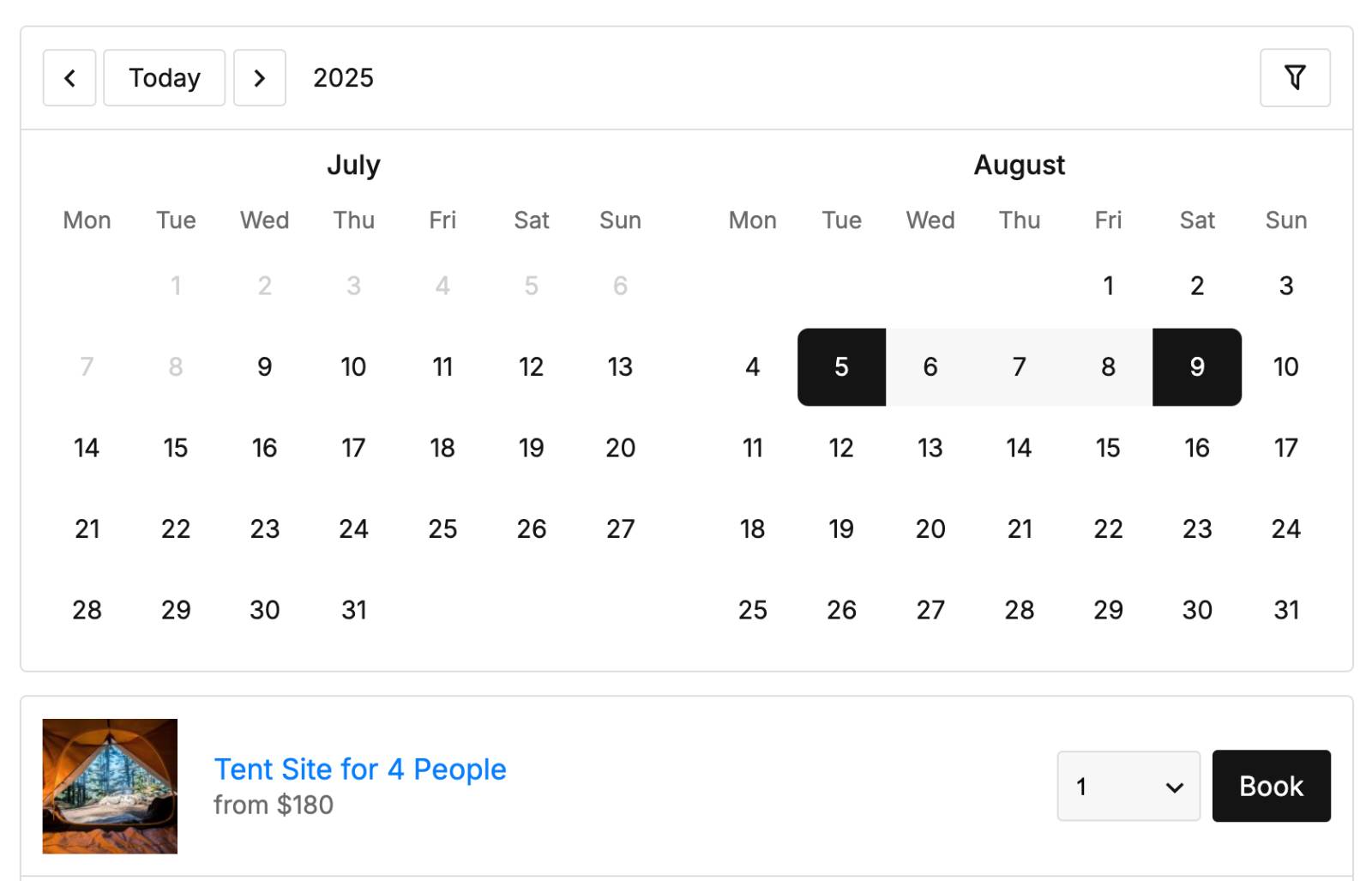
You can configure options such as date selection mode and the number of months displayed. By default, the mode for nightly booking is Range. Customers will select a start and end date.
Using a Shortcode
You can also insert the calendar using the shortcode [mpbc_booking_calendar]. Shortcodes allow you to place booking calendars anywhere on your site.
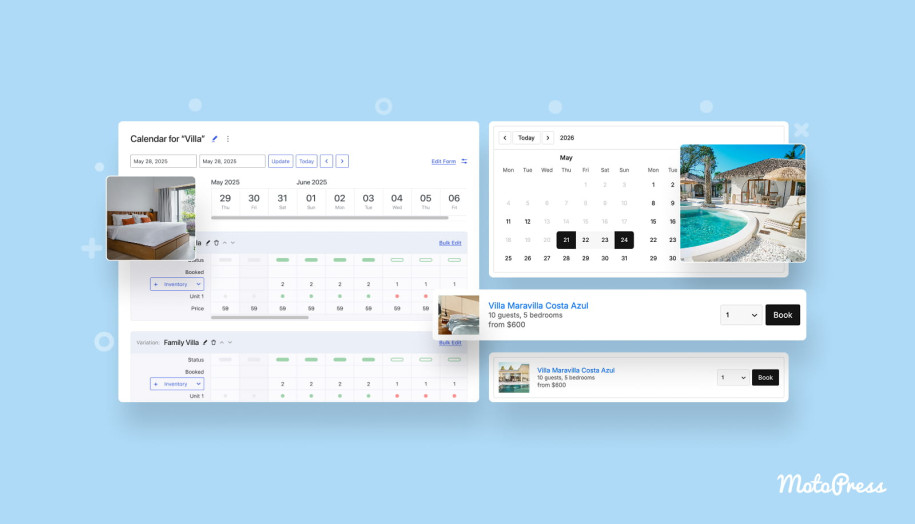
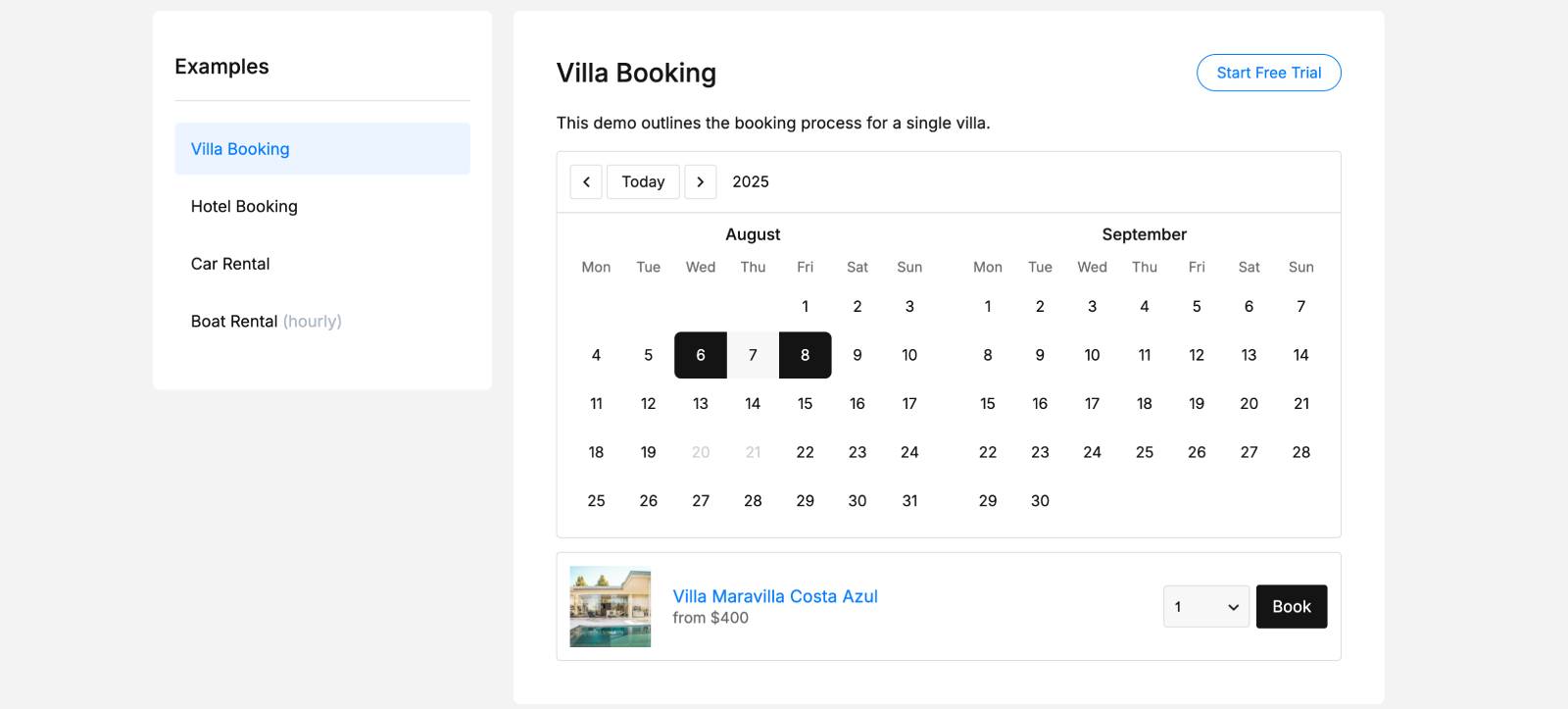
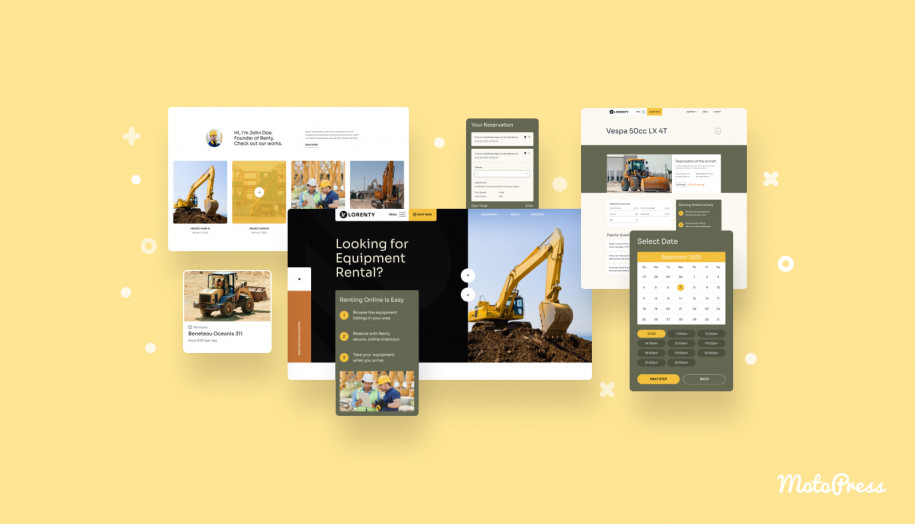
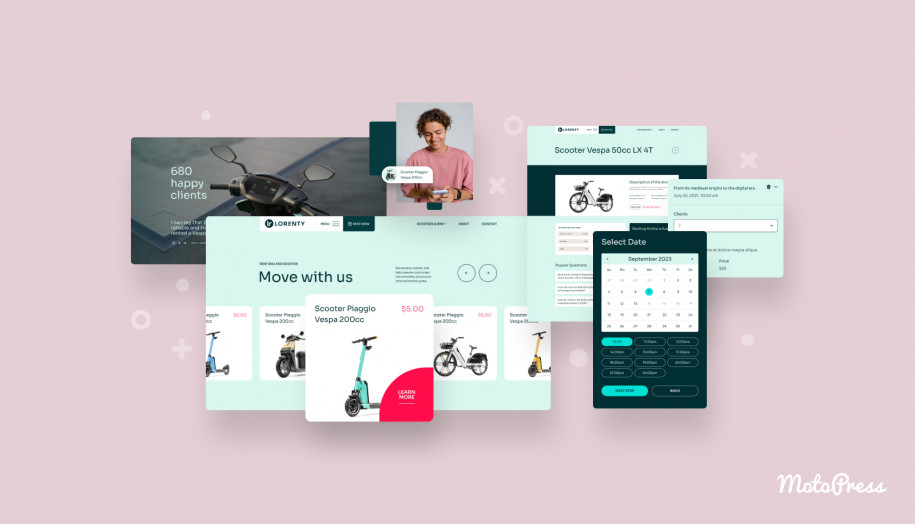
The look of the calendar on your site will depend on the WordPress theme you use. The basic look is like on the demo:
When Is It Better to Use MotoPress Hotel Booking?
MotoPress Booking Calendar is a useful hotel booking calendar WordPress plugin for simple rental booking setups.
However, larger accommodation websites may require more advanced functionality.
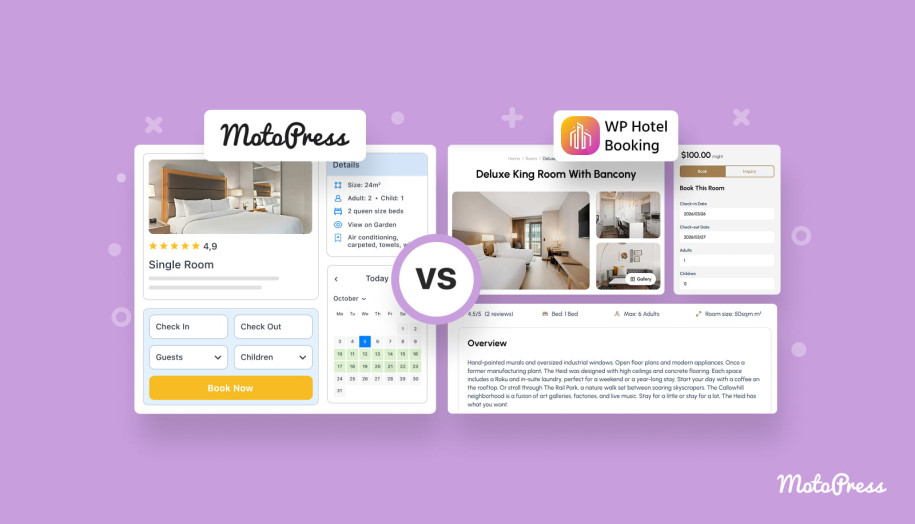
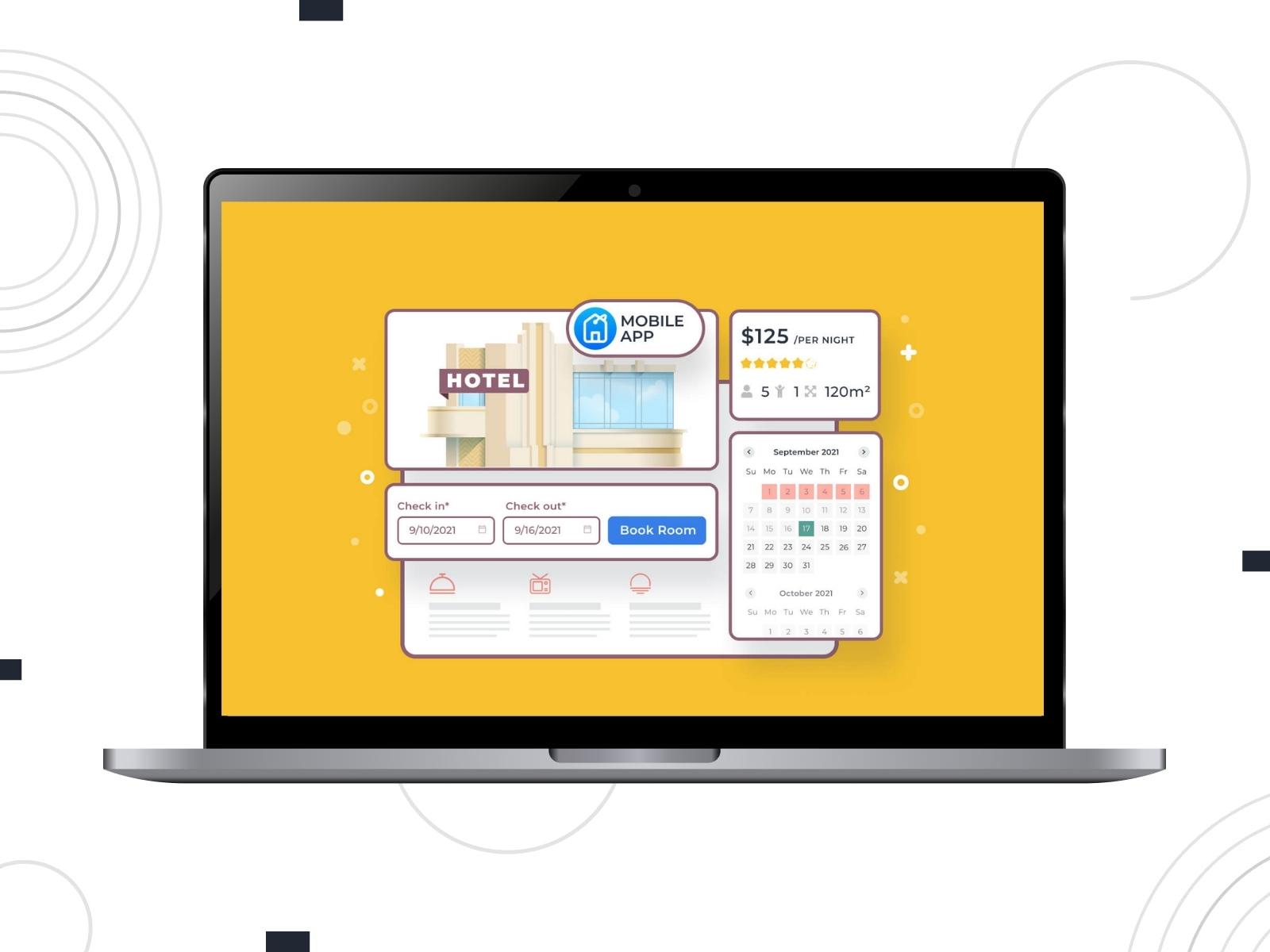
The MotoPress lineup also includes the WordPress Hotel Booking plugin. It’s an all-in-one reservation and property management system for WordPress.
It includes such features as:
- Advanced accommodation management;
- Flexible pricing rules;
- Booking rules and restrictions;
- OTA synchronization with platforms like Airbnb and Booking.com;
- A set of Hotel Booking addons to power up the plugin with advanced features (available separately or within a discounted bundle).
In general:
| Feature | MotoPress Booking Calendar | MotoPress Hotel Booking |
|---|---|---|
| Booking Types | Hourly, daily, and nightly | Nightly |
| Price customization | Global and per-rental type pricing and extra fees | Seasonal and time-based rates, extra guest fees |
| Payment gateways | Stripe, On-site | PayPal, 2Checkout, Braintree, Stripe, Bambora, Pay on arrival, Direct Bank Transfer |
| WooCommerce integration | No | Yes (add-on) |
| Sync to OTAs | No | Yes |
| Page builders integration | Block editor (Gutenberg) | Block editor (Gutenberg), Elementor, Divi |
| Mobile app for site owners | No | Yes |
Compare MotoPress Booking Plugins


Final Thoughts
So, adding a hotel booking calendar WordPress plugin to your website lets guests check available dates and instantly reserve accommodations.
MotoPress Booking Calendar makes it possible to manage inventory, bookings, availability, and prices within a single visual interface. For small hotels, guesthouses, villas, and rental properties, it can be a simple way to start accepting bookings online. Ready to give it a try?
Get MotoPress Booking Calendar Start Free Trial
FAQ
Can I manage multiple rooms or properties with MotoPress Booking Calendar?
Is there a free hotel booking calendar?
The Premium version adds extra features such as:
- Price Adjustment field in a booking form;
- Stripe payments;
- Premium support.
How to build a hotel booking WordPress website?
After installing the plugin, you can:
- create rental types and inventory;
- adjust availability and pricing in the calendar;
- configure booking forms and payment options;
- display booking calendars on your pages.
For larger hotel websites that require more features such as booking rules or OTA synchronization, a more advanced property management plugin like MotoPress Hotel Booking may be a better fit.
Why add a hotel booking calendar to WordPress?