
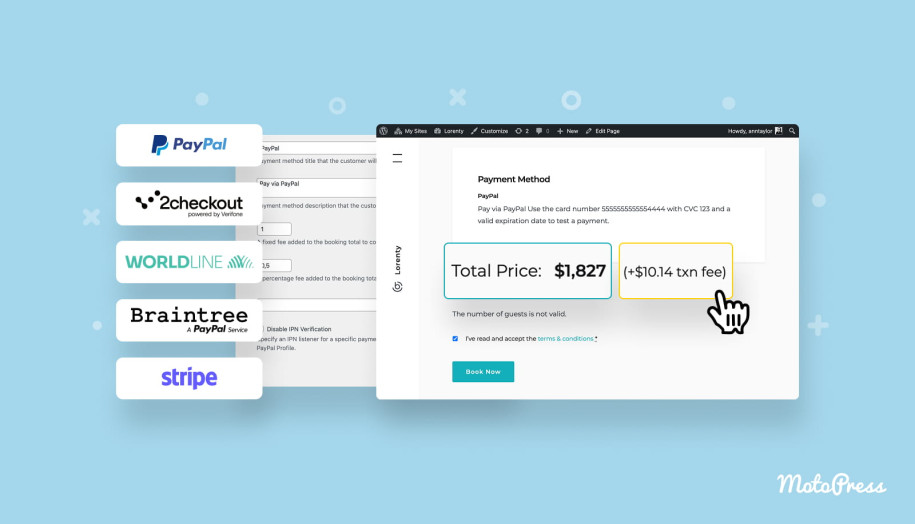

Pass Payment Processing Fees to Guests: New in MotoPress Hotel Booking (5.4.0)
Table of Contents
Tired of losing money on payment processing and want your account to receive the full booking amount?
On most direct booking sites, owners usually cover payment processing fees – mainly because big OTAs do the same, and guests have grown to expect it. But if local regulations allow, you can pass those fees on to the guest, as long as the extra cost is clearly communicated.
With the new option in the MotoPress Hotel Booking plugin’s payment gateway settings, you can easily pass processing fees to guests and keep the total booking revenue!
Since version 5.4.0, you can configure a specific extra fee that a guest will be charged based on the chosen payment method at checkout.
Let’s walk you through how to add the new fee in MotoPress Hotel Booking and make it visible to guests.
What types of payment processing fees can you add?
Following standard payment processing practices, Hotel Booking allows you to configure:
– Percentage of the total booking cost.
– A fixed amount.
The chosen fee is added in addition to the total cost per gateway. If you set both fees, both are applied. Both are very common in PayPal and Stripe. For example, Stripe normally charges 2.9% + 30¢ per successful transaction for domestic cards.
All default Hotel Booking plugin payment gateways are supported
Except for Pay on Arrival and Direct Bank Transfer, all default payment methods are supported, and gateway fees can be configured individually for PayPal, Stripe, 2Checkout, Braintree, and Beanstream/Bambora.
This is what makes the new feature different from the standard Taxes & Fees menu in Hotel Booking. You can still add a general fee there – for example, an Airbnb-style “Service Fee” to cover payment processing – but you can’t set different fees for each payment gateway (so that they dynamically change at checkout based on the selected method).
The new fee changes this!

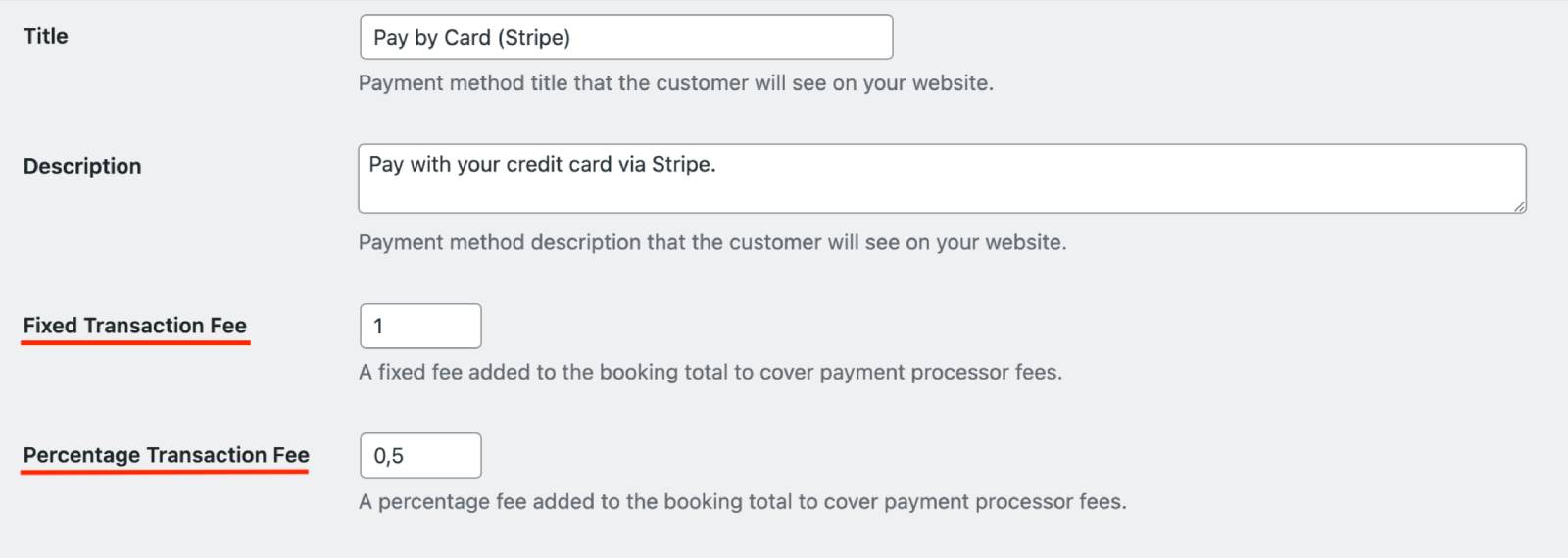
How to set up payment processing fees in Hotel Booking Plugin
All you need to do is go to the payment gateway settings via Accommodation > Settings > Payment Gateways, choose the needed one, find the Transaction Fee fields, and set the desired fee (fixed, percentage, or both) and save the changes.
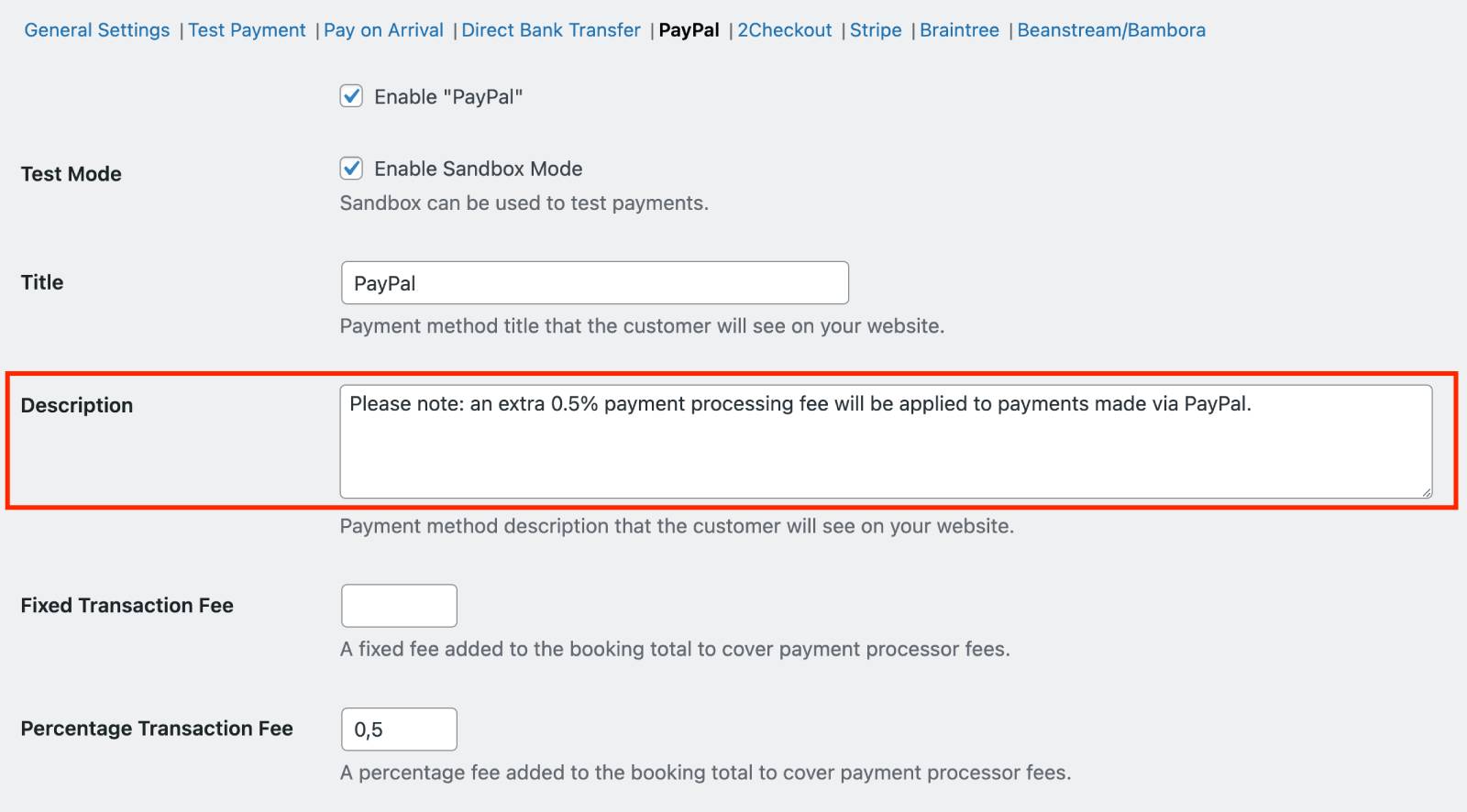
To avoid a “surprise surcharge” effect, we recommend mentioning this in the payment gateway description field:
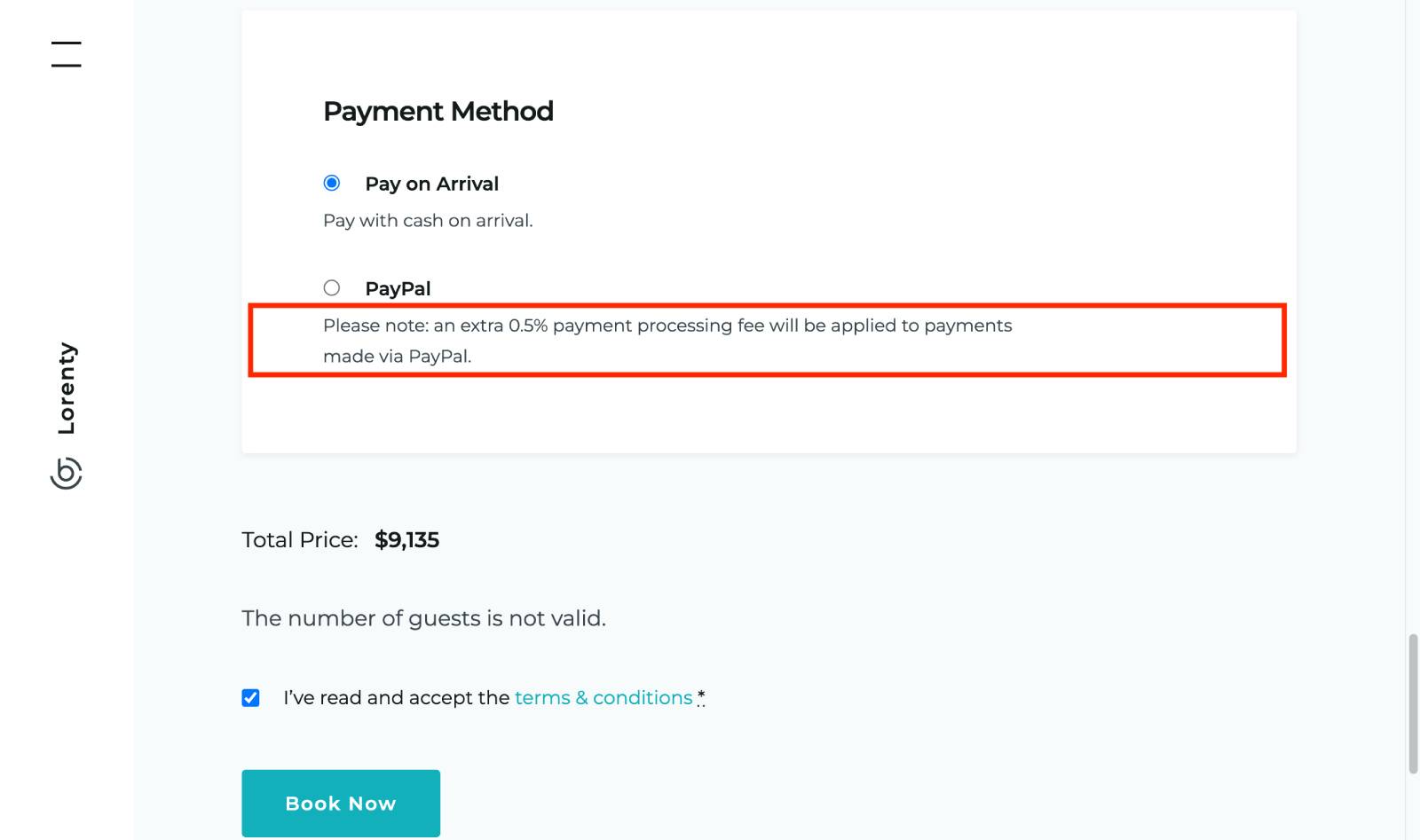
As it appears earlier on the checkout page, it already sounds like a warning:
How are extra transaction fees calculated?
We don’t retrieve fee amounts from payment processors in real time. Instead, you need to manually set a percentage or fixed fee for each gateway (based on the processor’s pricing). Because actual fees may vary based on the guest’s card type, the compensation may not always match the exact cost.
Refund
If you need to issue a refund, the refunded amount will not include the payment transaction fee and will cover only the total booking cost shown on the invoice.
What about deposit-based payments?
Fixed fees are charged in full per each transaction, while percentage-based depend on the amount paid, so:
– Fixed processing fee: The full fee is charged every time an online payment is made — for example, once when the guest pays the deposit, and again if they pay a balance due online.
– Percentage processing fee: The fee is calculated from the amount being paid at that moment. For example, if the guest pays a 10% deposit, the processing fee is based only on that 10% amount.
What guest & admins see
Let’s better understand whether the fee is clearly communicated across your checkout.
Checkout
– An extra fee line titled “+Txn Fee” (short for transaction fee) appears next to the final total cost. If you offer deposit payments, the transaction fee is listed next to “Deposit – Pay Now”.
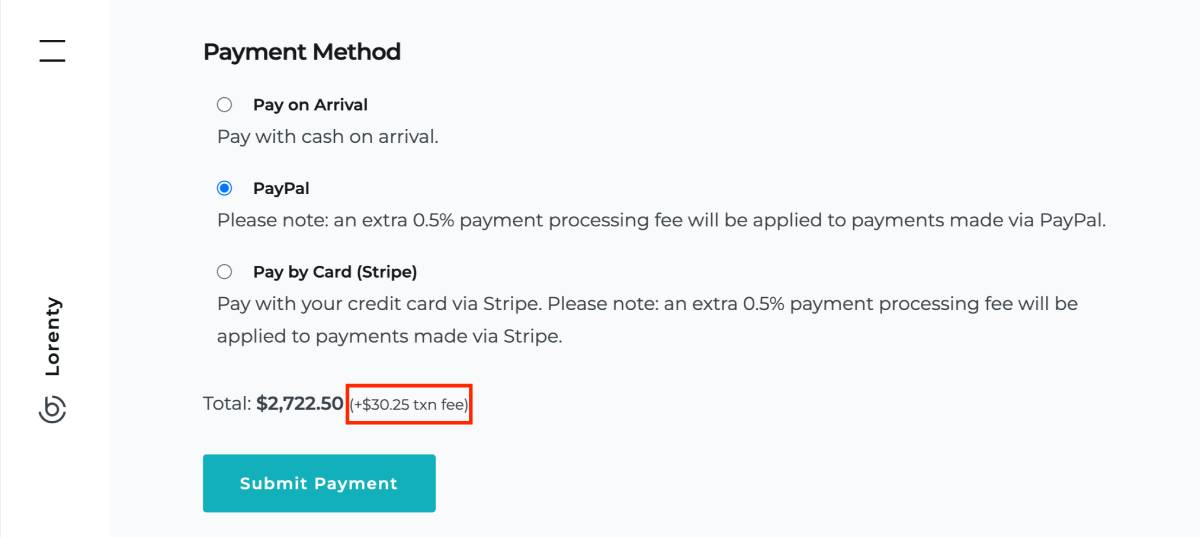
Guests should never feel “surprised” by payment costs.
To add transparency and visibility if you add a surcharge, it must be clearly disclosed and visible at checkout, which is why guests see this message.
Extra payment processor fees are not shown in the price breakdown table at checkout because the fee is based on the chosen payment method, and all of them are listed under the table.
– On the confirmed booking page, the total amount in the payment details is marked with an asterisk. When guests hover over it, they can see the transaction fee details.
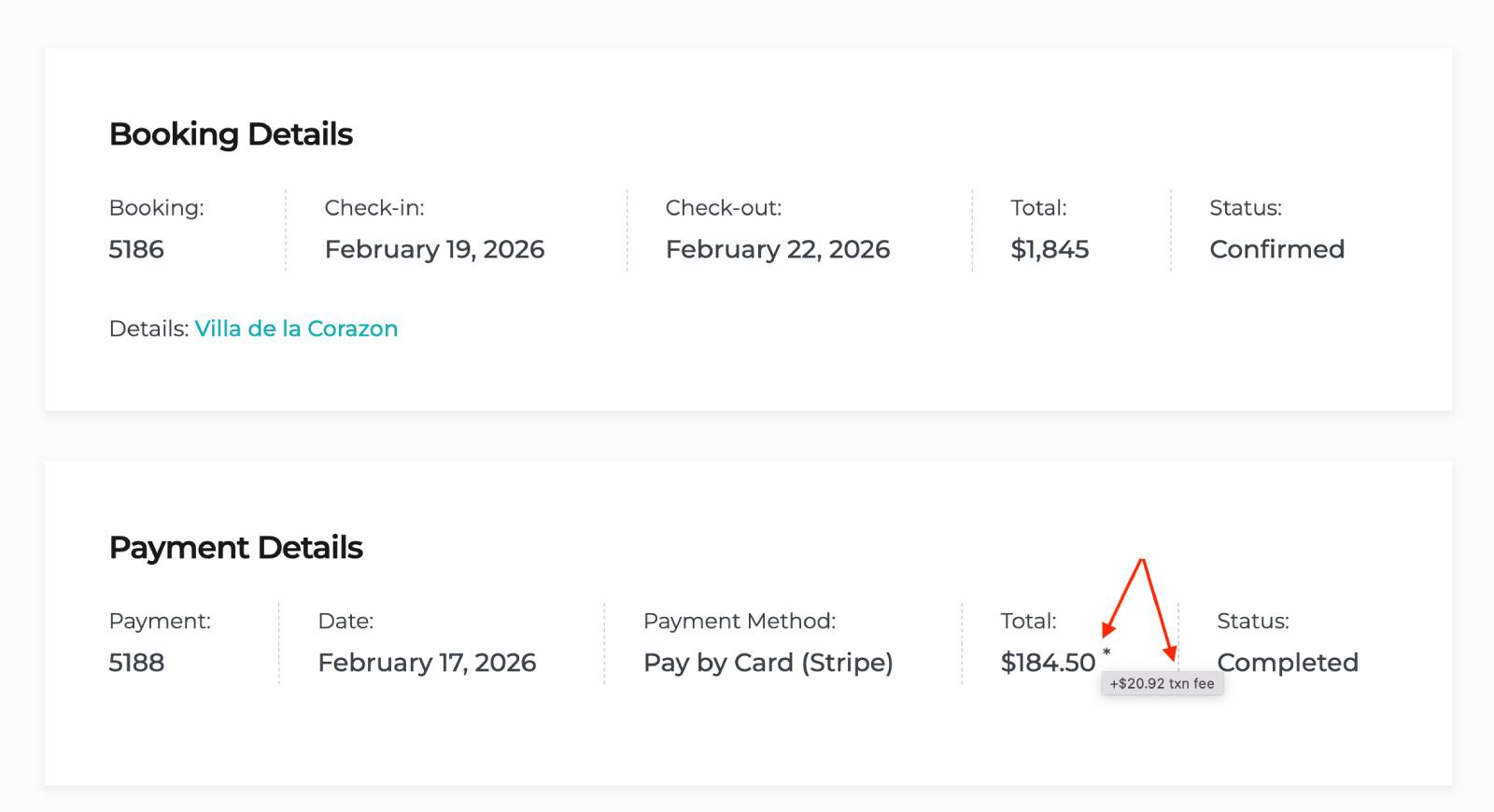
Invoice
Total booking cost without transaction fees.
Accounting
Payment transaction fees are not included in booking confirmation emails or invoices. However, when a guest clicks on the link in the confirmation email, they’re redirected to your site, where this fee is visible by hovering on asterisk.
You as a website owner can also see the exact transaction fee charged if you go to a specific booking via the Bookings menu > click Edit > find this information in the Total Booking Price table.
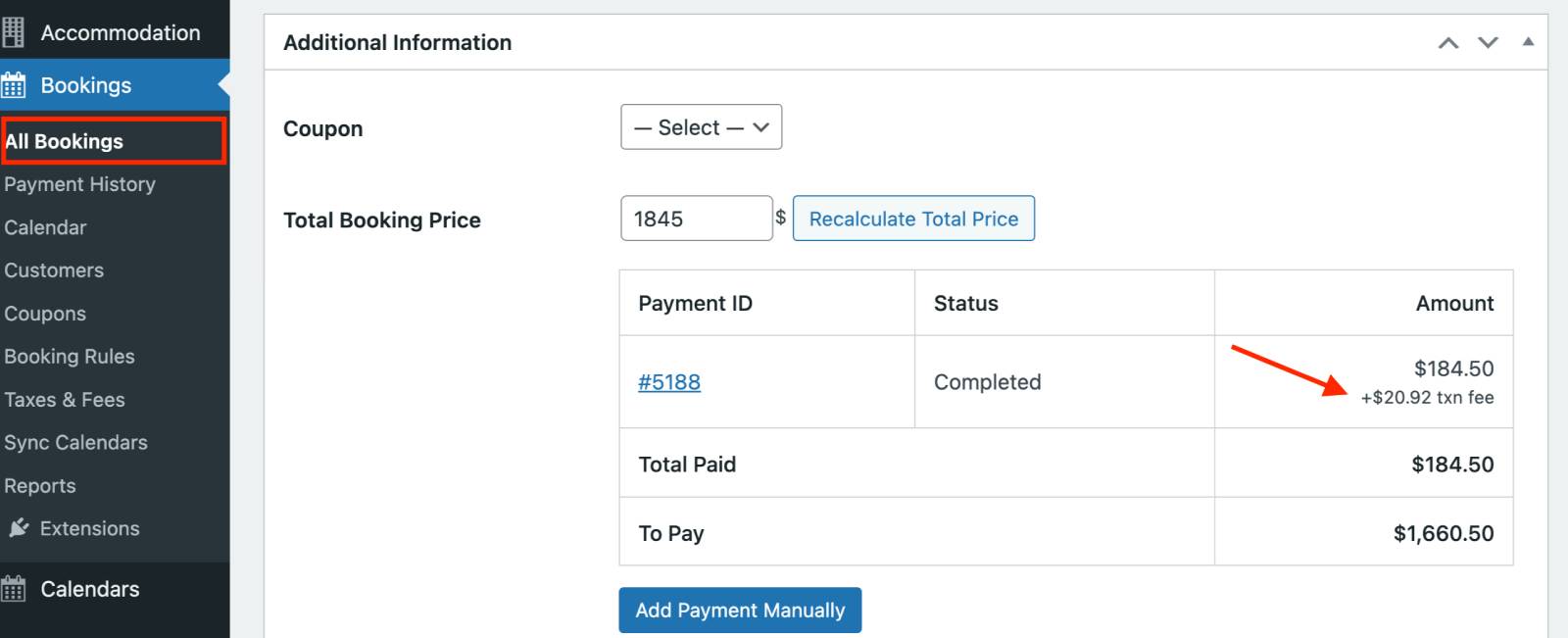
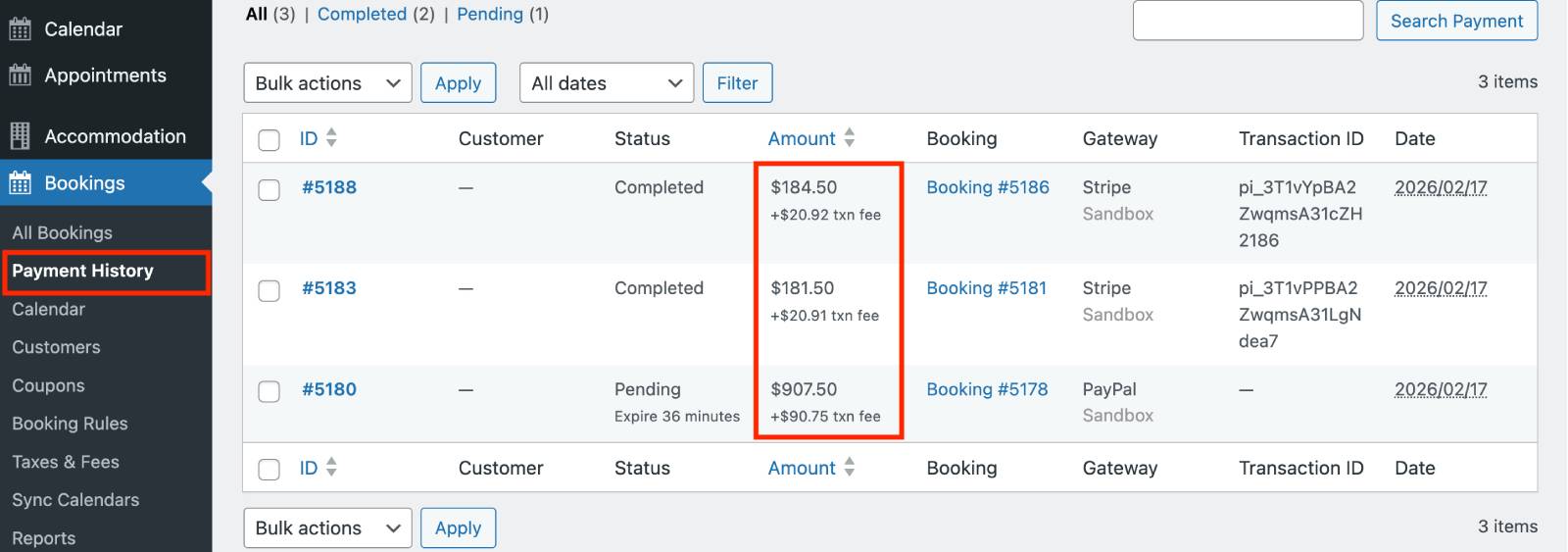
Furthermore, now, each record in the Payment History includes a separate “Added Txn Fee” field for reference. Note that you can’t edit this field.
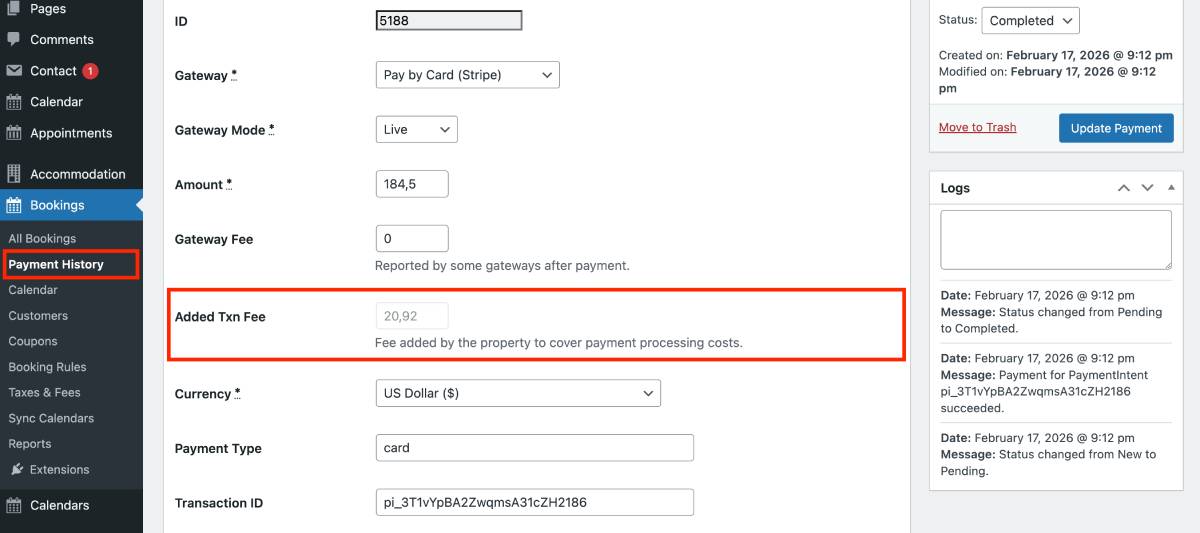
Note the ‘Gateway Fee’ field above this one — this is the total payment processing fee reported by the gateway. Here, you can compare the fee you set up with the actual charge.
Is this psychologically acceptable for guests?
The golden rule in hospitality is “the price they see – the price they pay”, so guests may react if the price increases due to a fee. However, you are not silently increasing rates, the transaction fee is listed before the payment and can be understood as a “service fee,” similar to what guests see on platforms like Airbnb.
The update works with payment-related add-ons
If you’re using the Multi-Currency add-on (since 1.3.0) for the MotoPress Hotel Booking plugin, the transaction fee amount is converted to the selected currency in the “txn fee” message, while the explanation message displays the fee in the original currency.
With the Payment Request add-on (since 2.2.0), this should also work fine – the transaction fee is displayed when the guest is paying the due balance.
The Accommodation-Based Payments add-on (since 1.2.0) also supports transaction fee configuration per property.


Bottom Line:
Payment processing fees can add up and significantly reduce your revenue over time. If you need to pass these fees on to guests as an additional charge, MotoPress Hotel Booking now provides a simple built-in way to do it.
Let’s sum up the changes from version 5.4.0.
- The new update allows you to add an explicit “payment processing fee” to the total booking cost (fixed or percentage).
- Payment processing fees smoothly work with full pre-payments and partial ones (deposits).
- MotoPress Hotel Booking lets you set transaction fees individually for each supported payment gateway.
- Payment processing fees are not included in invoices, email payment details, or other accounting records. Guests see the fee at checkout and on the booking confirmation page on your site only. Website administrators can view it in the Bookings and Payment History menus. Refunds are issued per invoice, excluding transaction fees.
- Such payment-related add-ons as Multi-Currency, Payment Request, and Accommodation-Based Payments fully support transaction fees.


Excellent and done in an easy way to cover providers that include a fixed plus percentage as their fees.
Well done team, I look forward to implementing this with existing and new clients.
Glad it worked for you!