
Hotel Booking 6.0 Overview: Revamped Calendar, Place a Hold on Stripe Payment & More
Table of Contents
MotoPress Hotel Booking 6.0 is one of the most feature-rich releases this year. It delivers a brand-new booking and availability dashboard and more capabilities of Stripe inside your plugin, without extra charges.
In this release overview, we’re looking to provide you with the main details of what’s new; we also have more in-depth tutorials and videos in the works! Stay tuned to the blog and video updates.
Heads up! This update requires a database upgrade. That’s why we recommend backing up your site before updating the plugin to version 6.0 or later. New REST API routes have also been added.
Now, let’s introduce you to all cool features!
Completely Redesigned Calendar: One Interface for All Your Day-to-Day Actions
Let’s start with huge news: we’ve added a more centralized property management dashboard, similar to how property owners work with availability and reservations in OTAs like Booking.com.
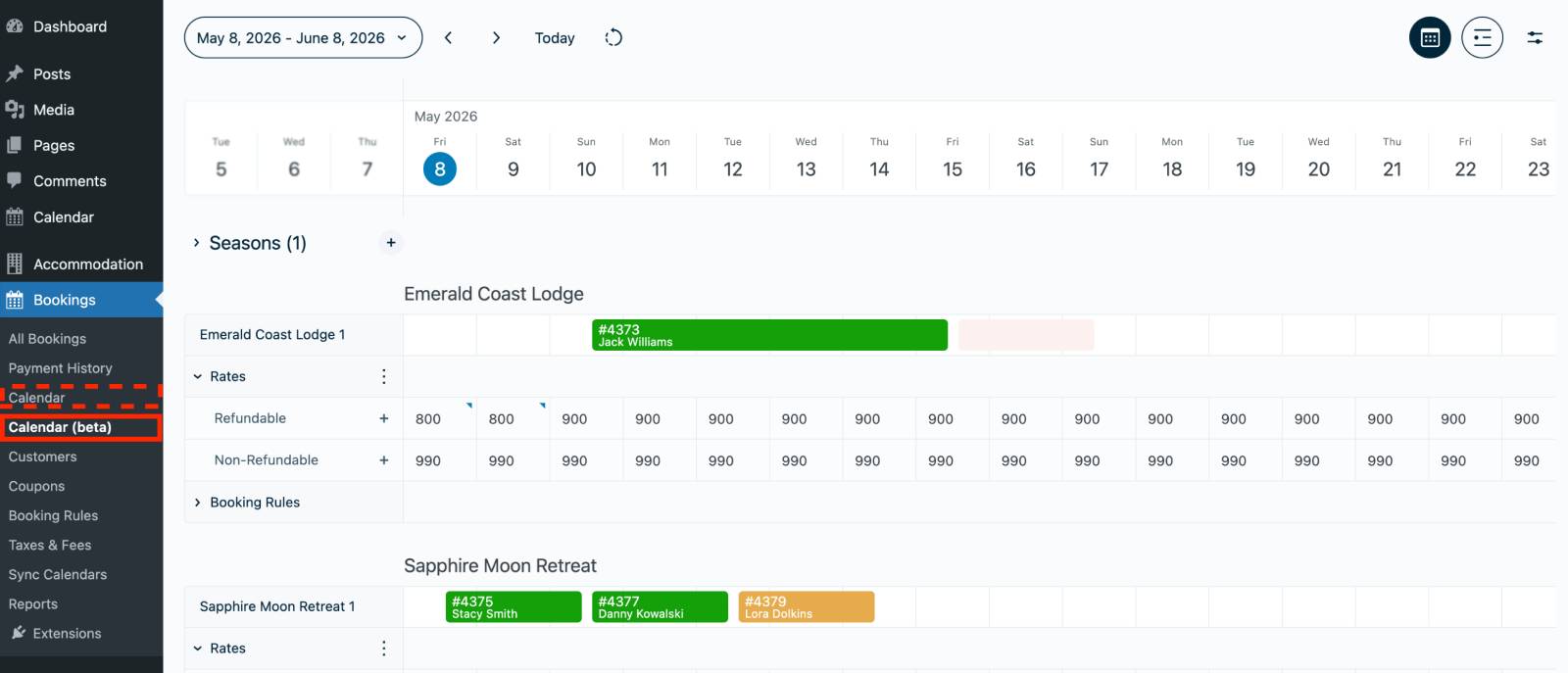
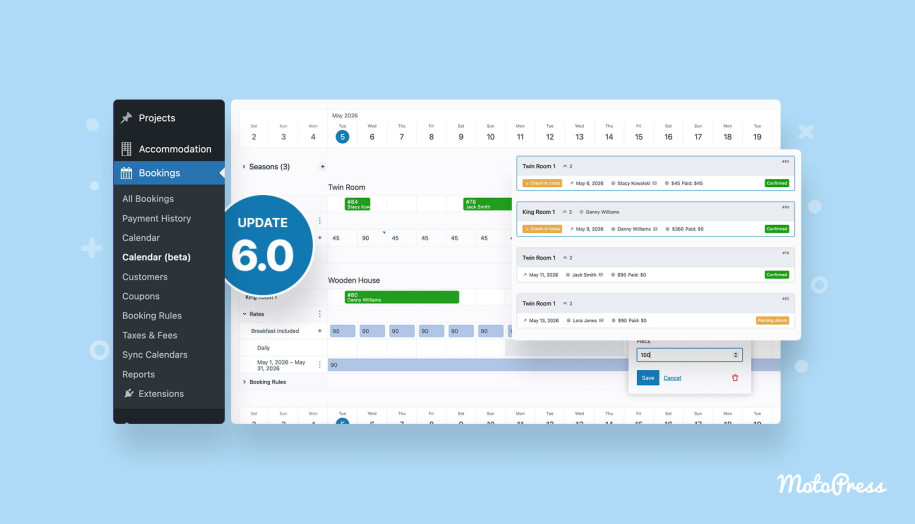
In the Bookings menu of your Hotel Booking Booking plugin, you will now find the new Calendar (beta) menu. This is where you can explore and test the new features of the improved booking calendar experience.
And not just test – but actually start using for booking rates and real-time availability management!
What’s a new calendar (beta)?
This is not a complete duplicated+polished design of the existing Calendar menu you already know, where you can view booked dates, check booking statuses, sort reservations, and add a new booking using the “New Booking” button.
The new calendar inherits the core availability and booking overview functionality from the previous version, but it’s essentially an extra, more advanced management interface.
The new interface brings everything together in one place, allowing you to view and manage all your properties, prices, rates, booking rules, and availability from a single menu.
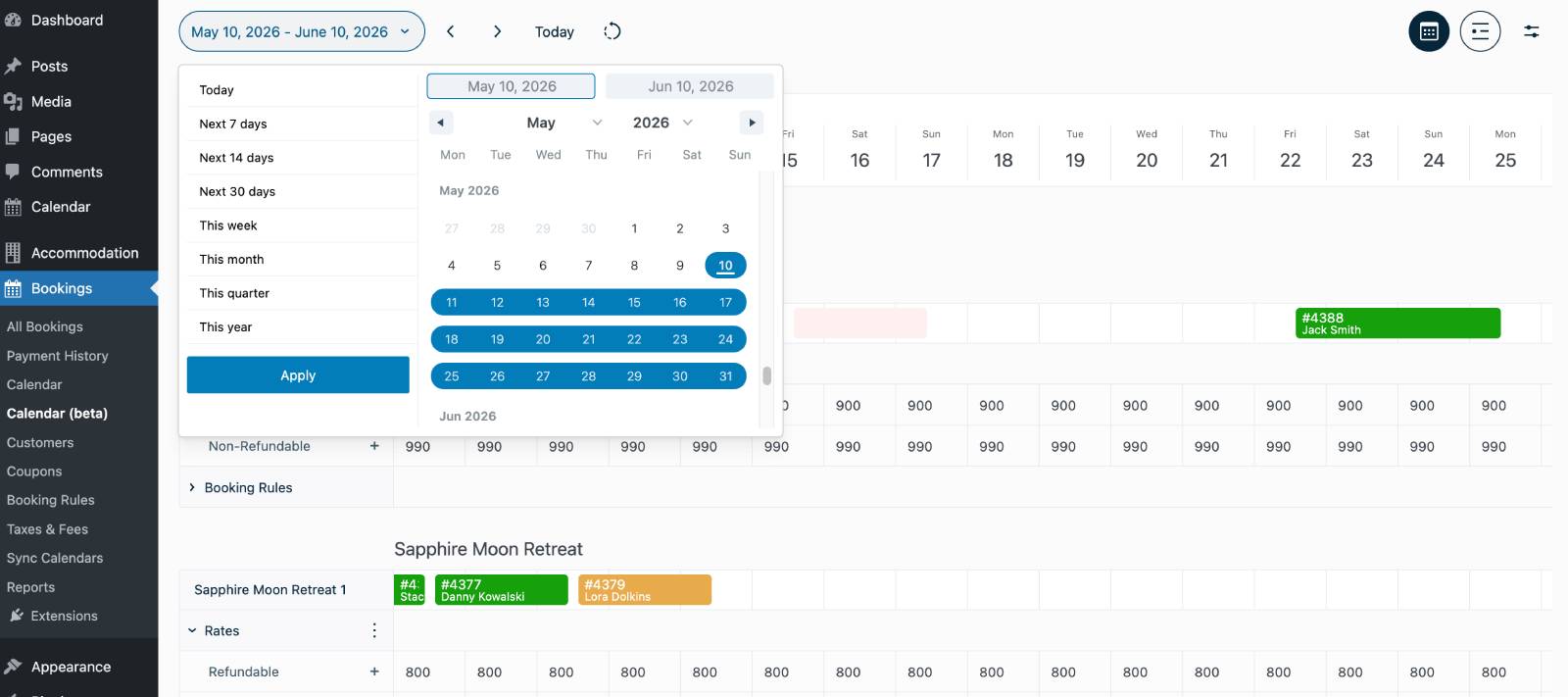
At the same time, you can perform important day-to-day actions without leaving the calendar – including adding bookings, blocking dates, adjusting prices for entire periods or individual days, viewing guest details, editing reservations, adding payments, and updating booking statuses. And we’re just scratching the surface!
Of course, you can still manage seasons, rates, and booking rules through the existing menus as before. The new calendar simply gives you an additional, more visual way to manage everything from one interface, saving you a ton of time.
What can you do in the new dashboard?
Here are the main capabilities of the new Calendar (beta) that you get after updating your MotoPress Hotel Booking to version 6.0:
- View and manage all property bookings from one centralized workspace.
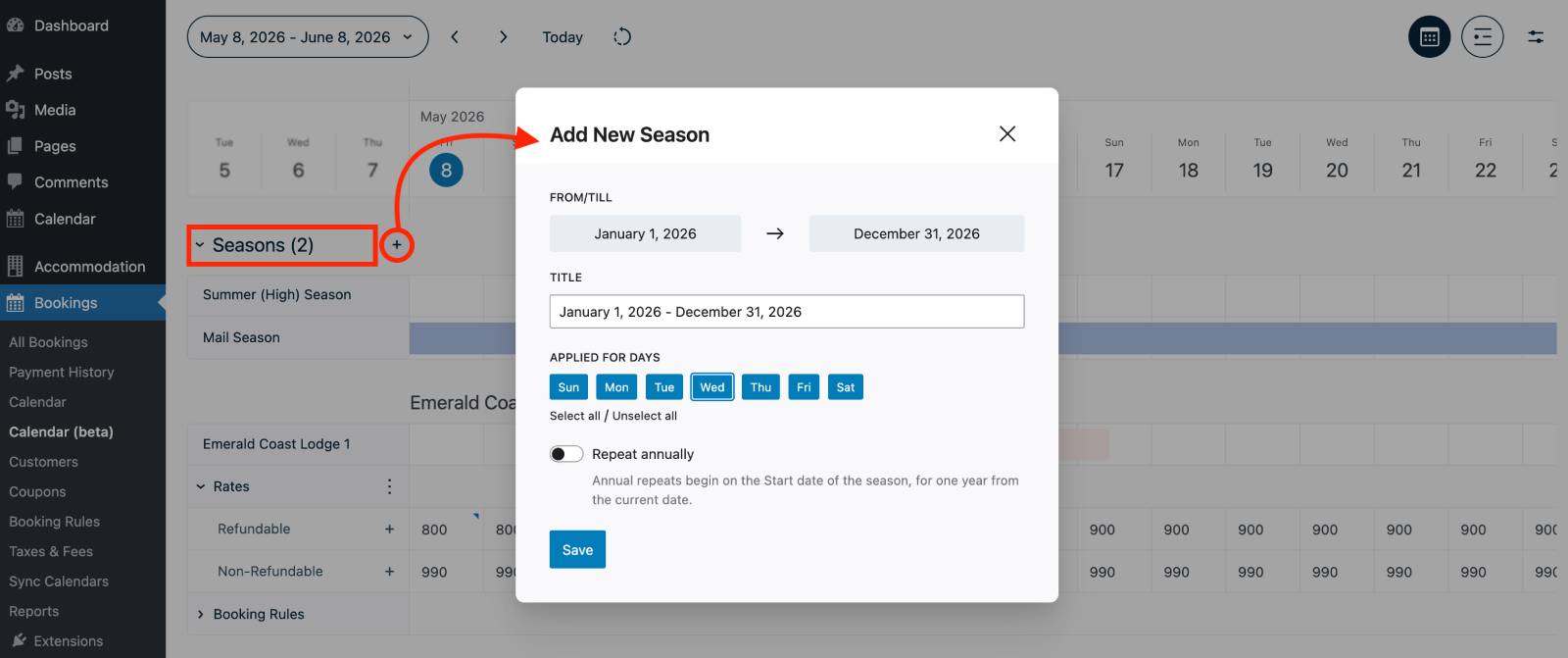
- Create and edit Seasons directly from the calendar (hit + next to Season to add new).
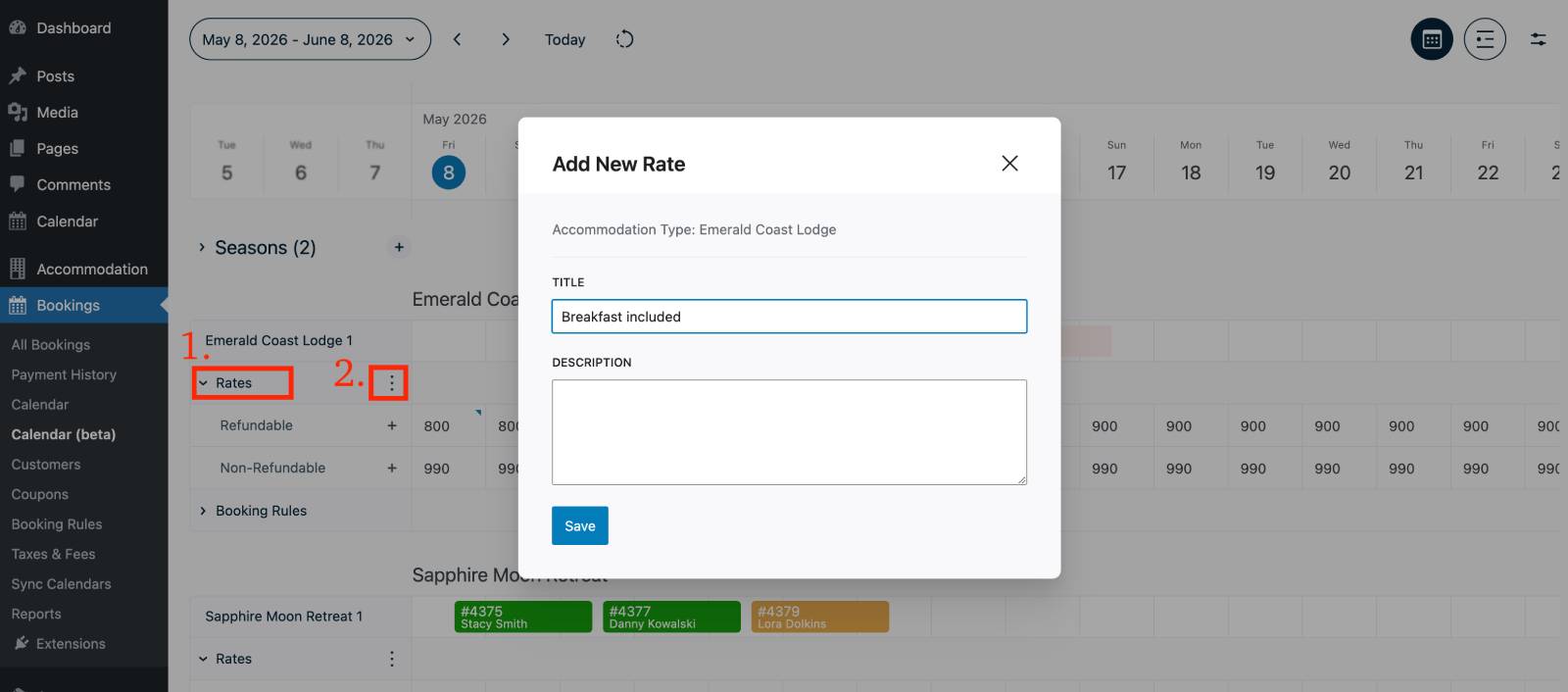
- Add property-specific Rates (hit three dots > +Add New Rate).
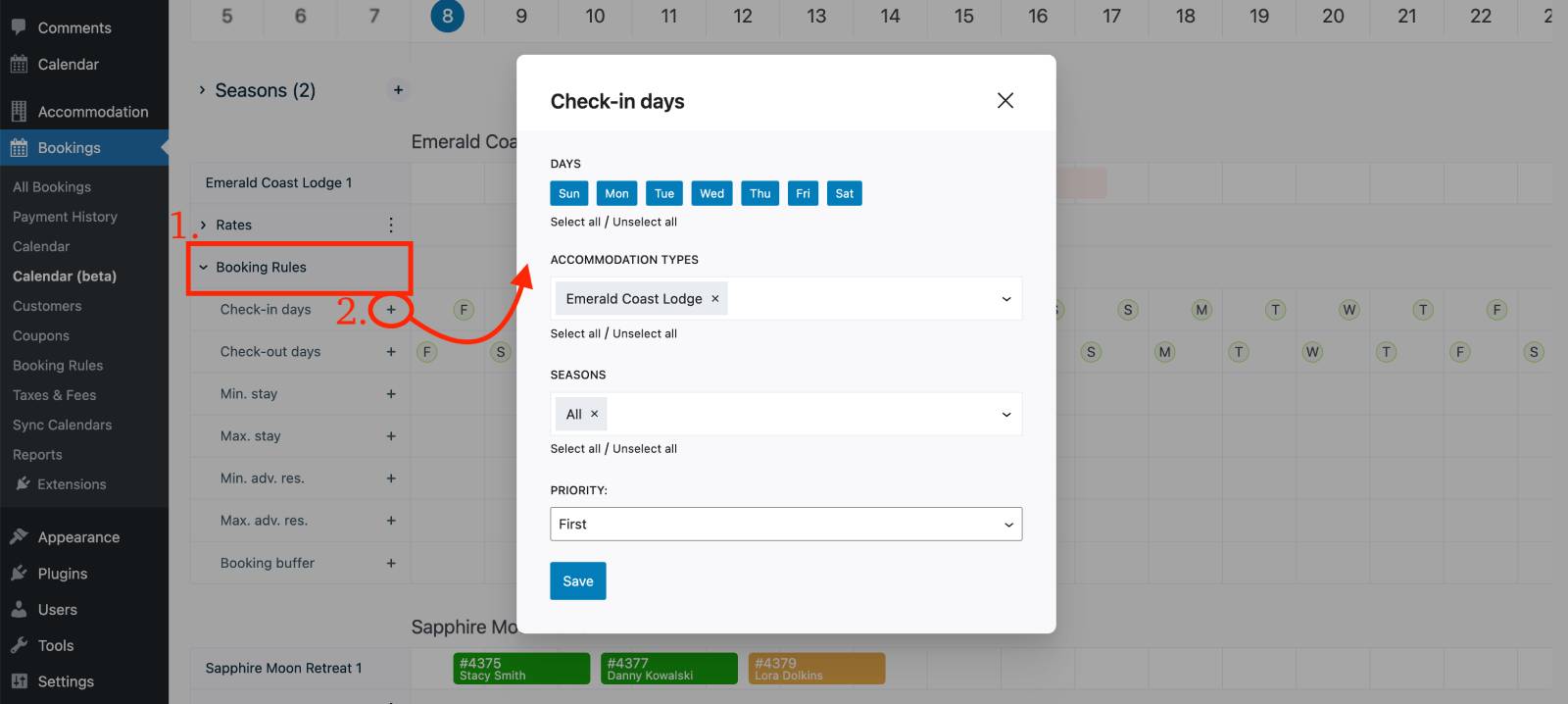
- Configure Booking Rules like minimum stay, check-in/check-out days, booking buffers, and advance reservation windows (Booking Rules and + to add new).
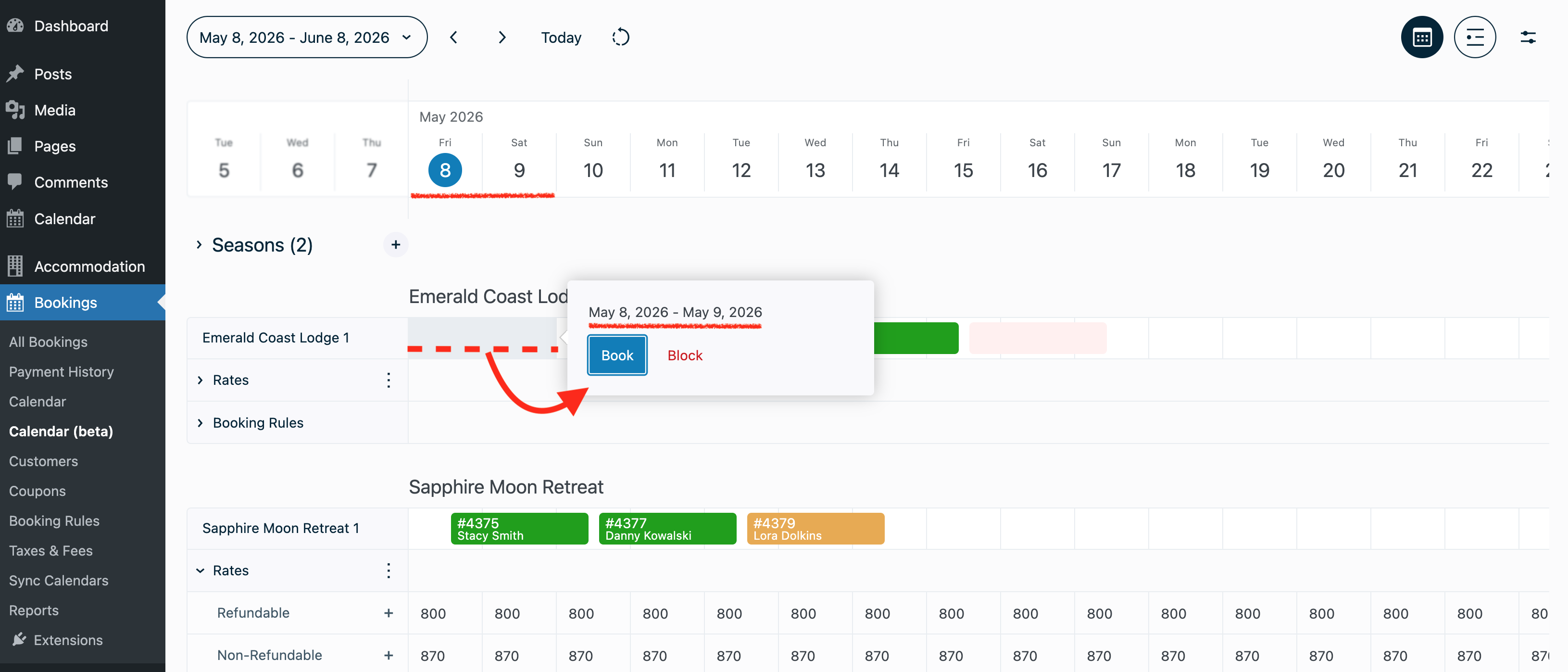
- Add manual bookings or block dates directly on the timeline (select property > click and drag through the needed dates > Book or Block).
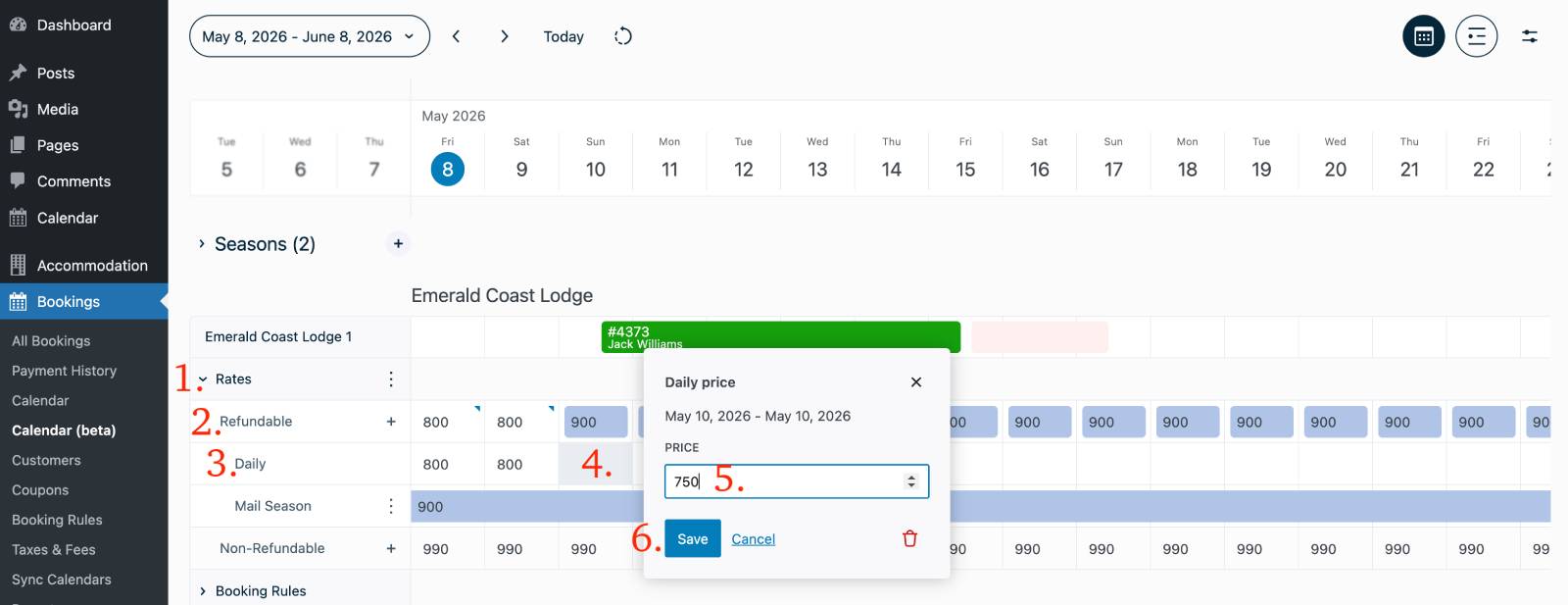
- Use the new Daily Pricing feature to set custom prices for specific dates (choose property > open Rates > click on the needed Rate > find Daily > click on the needed date or drag across multiple dates to set the price > Save).
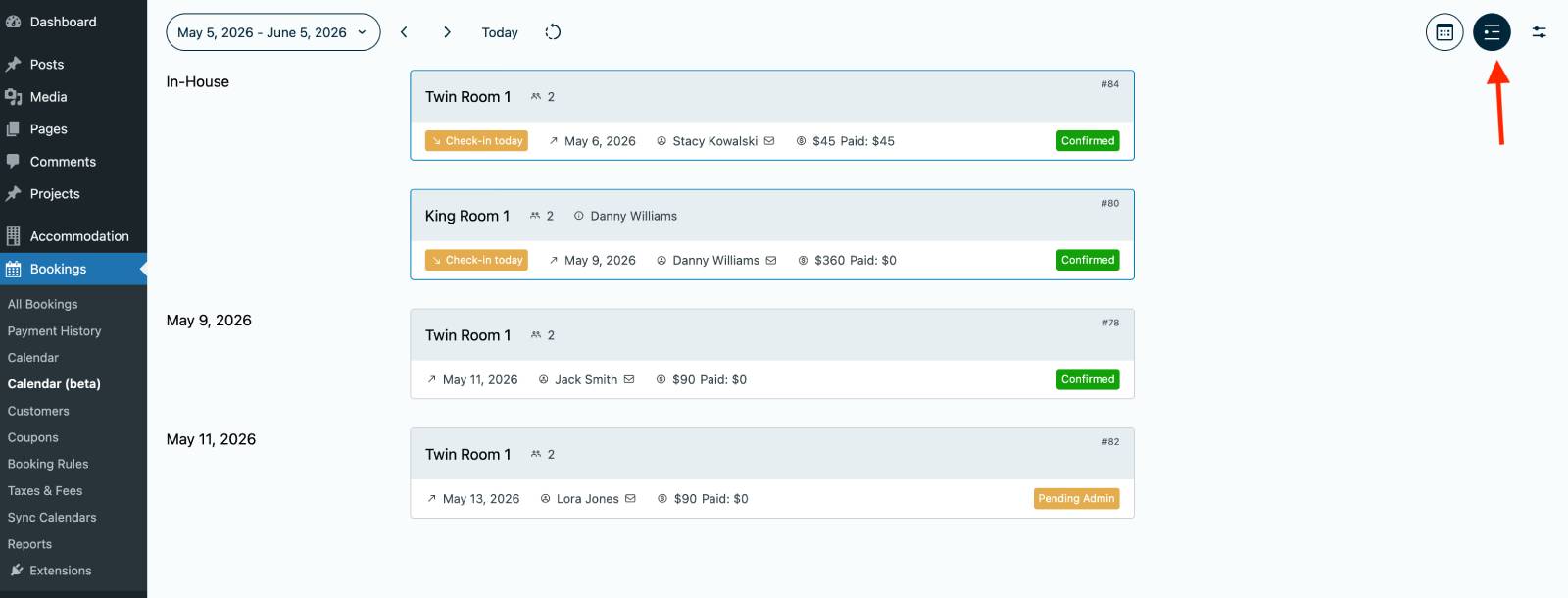
- Switch to the compact List View to quickly see current check-ins, check-outs, and upcoming arrivals in one organized overview.
- Quickly review guest details, booking statuses, payments, arrivals, and in-house stays.
- Sort and organize bookings more efficiently with new filtering and viewing controls.
Let’s take the ‘pay-after-arrival’ payment method to showcase how this workflow can be simplified when the new calendar is used:
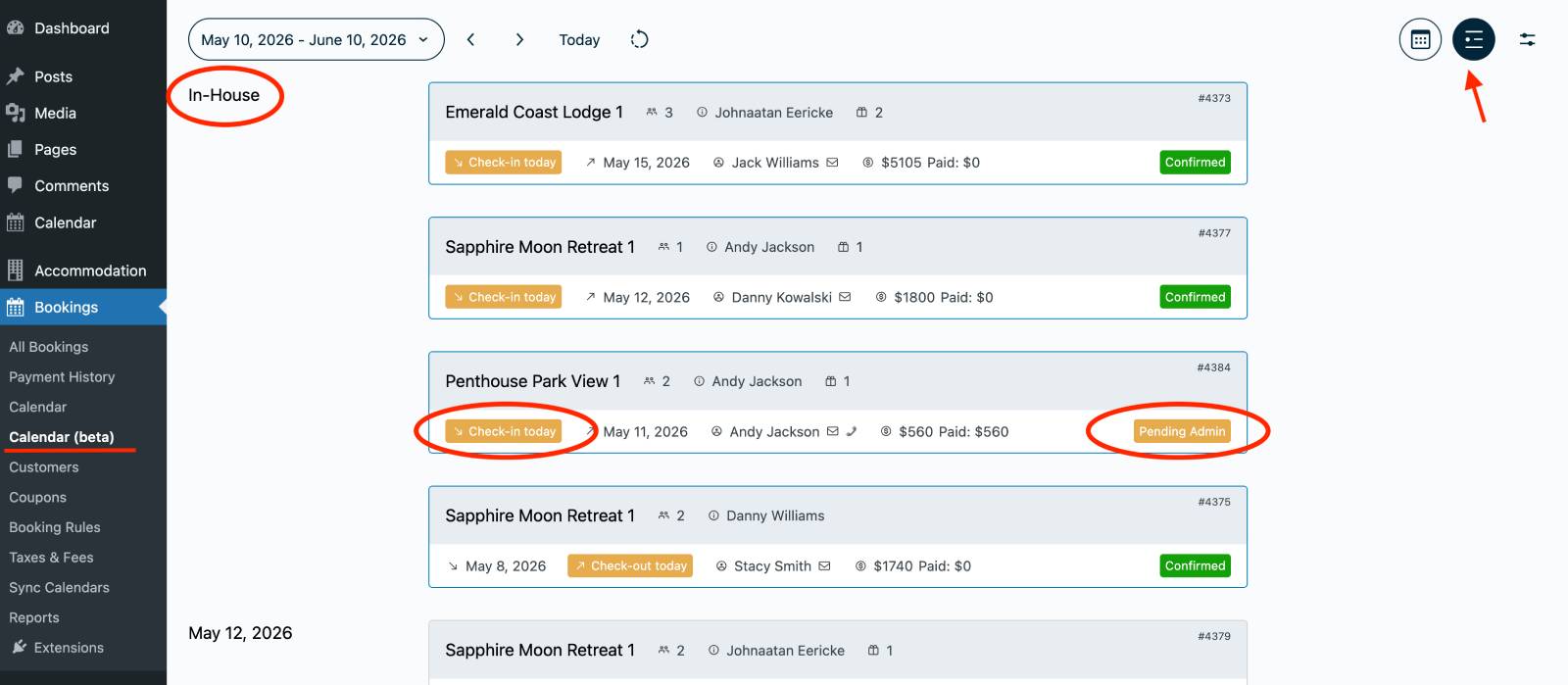
– Simply open your new calendar > switch it to the list > you’ll see all guests arriving ‘today’ > find the needed one.
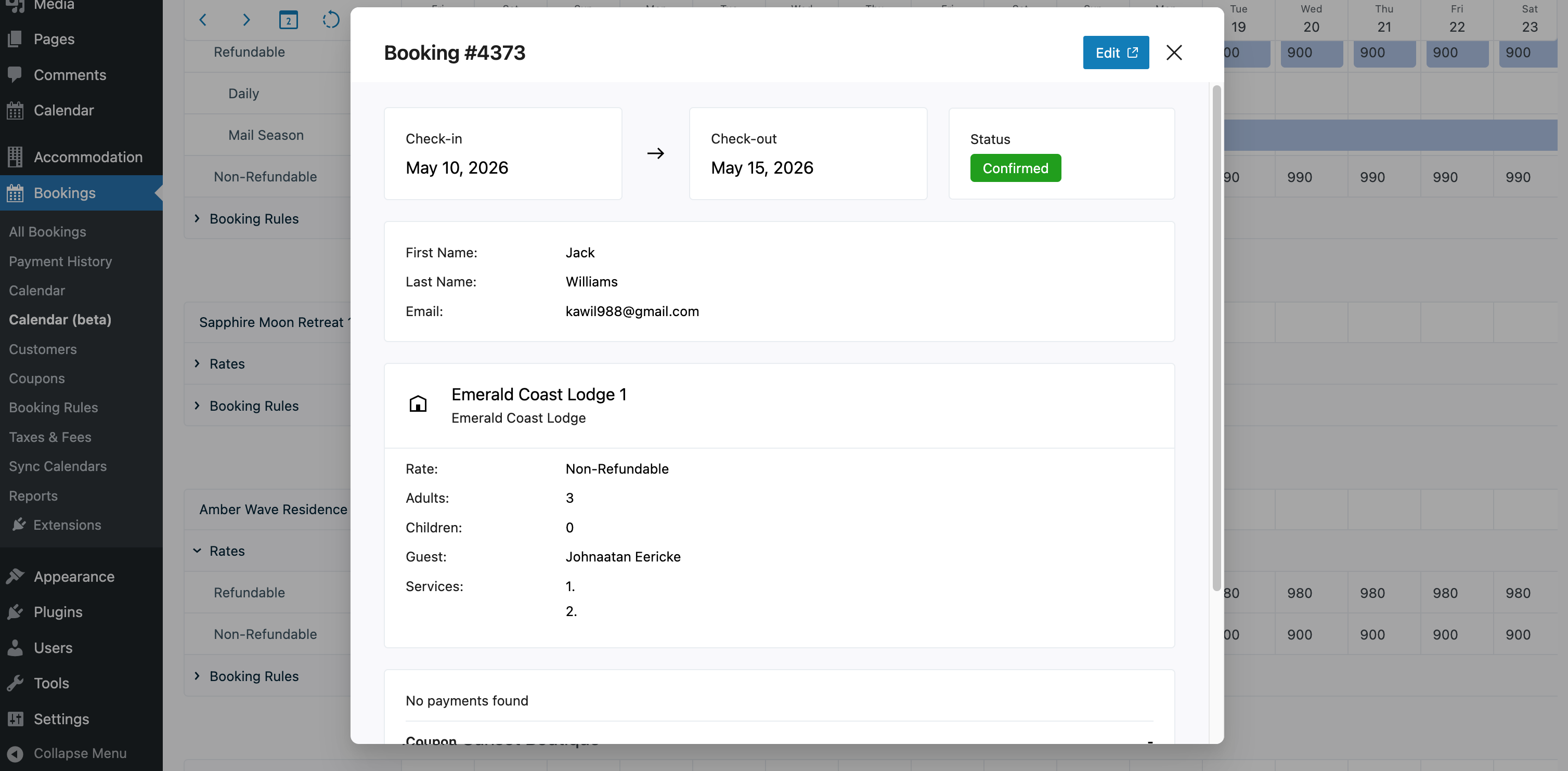
– Open it > click Add Payment.
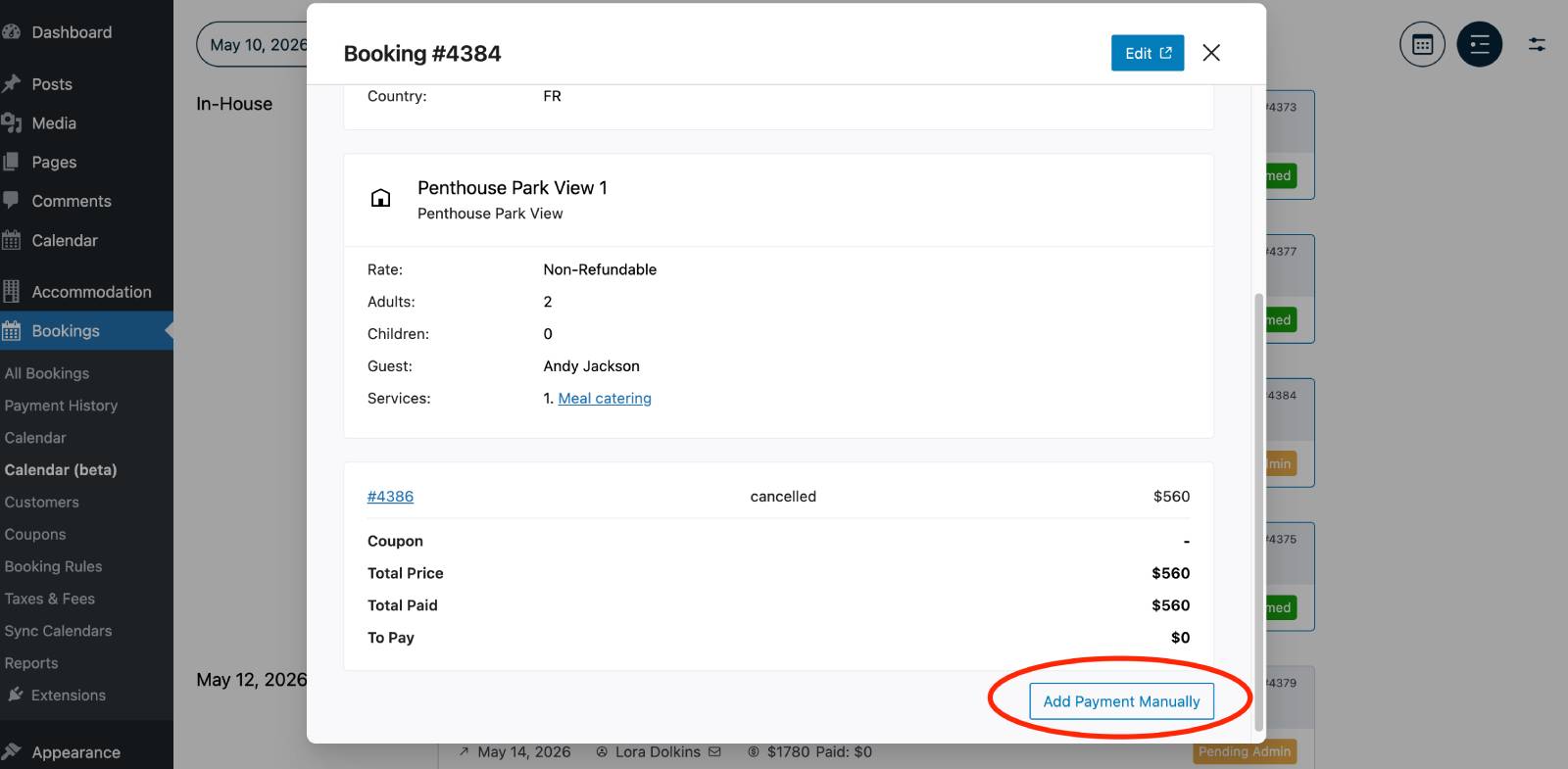
– You’ll be redirected to record a payment > click ‘Add payment’.
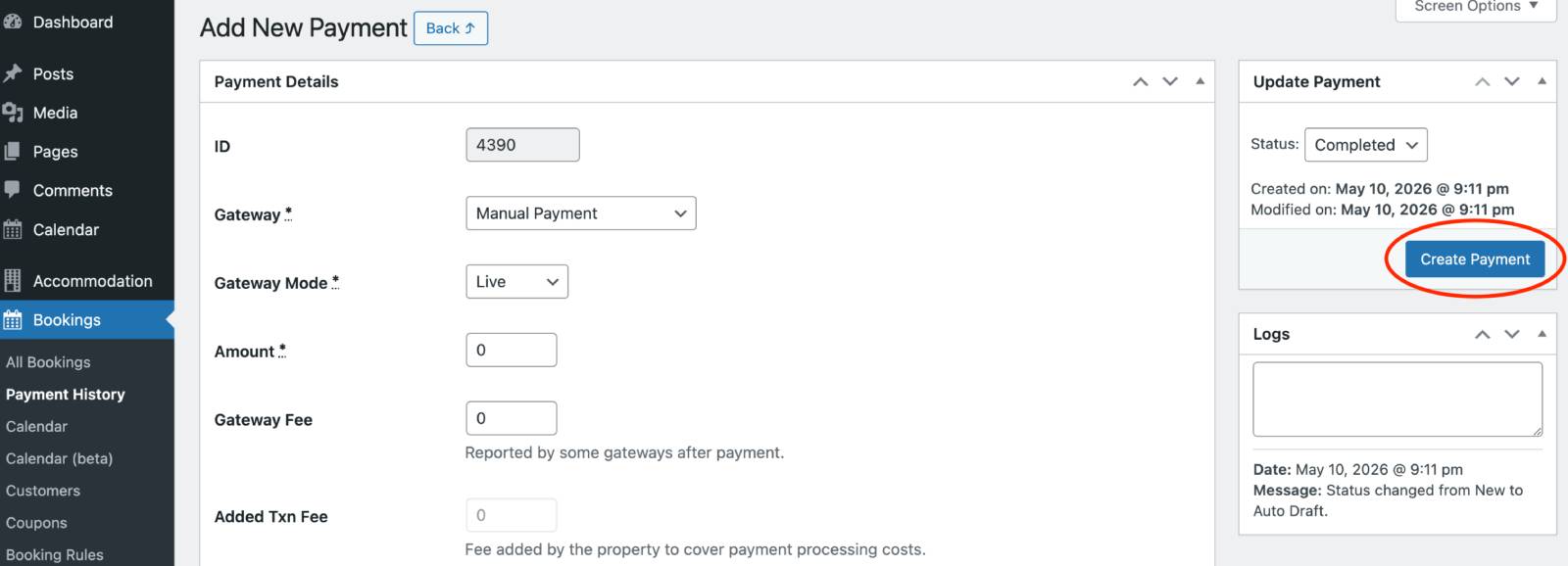
So, you’ve just collected a payment and checked in a guest from a single screen!
As with every new interface, it might take some time to grasp the logic behind it – but I assure you, the learning curve is not that significant. My assumption is that if you actively use it for a few days in a row and see how much time it saves you, you’ll quickly forget about the old Calendar menu or adding rates the old way. At the end of the day, our goal was to make it super intuitive and fast for you!
We’re also gathering more feedback on the new calendar interface, so we hope you can share one, too!
Better Integration with Stripe – More Payment Management Options
Another signature update in the MotoPress Hotel Booking version 6.0 is deeper integration with Stripe, which introduces features like fund authorization with manual capture, as well as smoother support for additional Stripe payment methods, including Apple Pay and Google Pay.
Let’s take a closer look at these two new Stripe features separately.
Enable more Stripe payment gateways for Hotel Booking
If you are managing your payment processing options via the so-called Stripe Configuration ID, you now can enable even more regional gateways, wallets, etc.!
As you know, to use Stripe payments with Hotel Booking, you can either (old way, limited options) select the payments from the list or simply (new way, more options) add the Stripe Configuration ID and then manage all available payments via the Stripe dashboard itself.
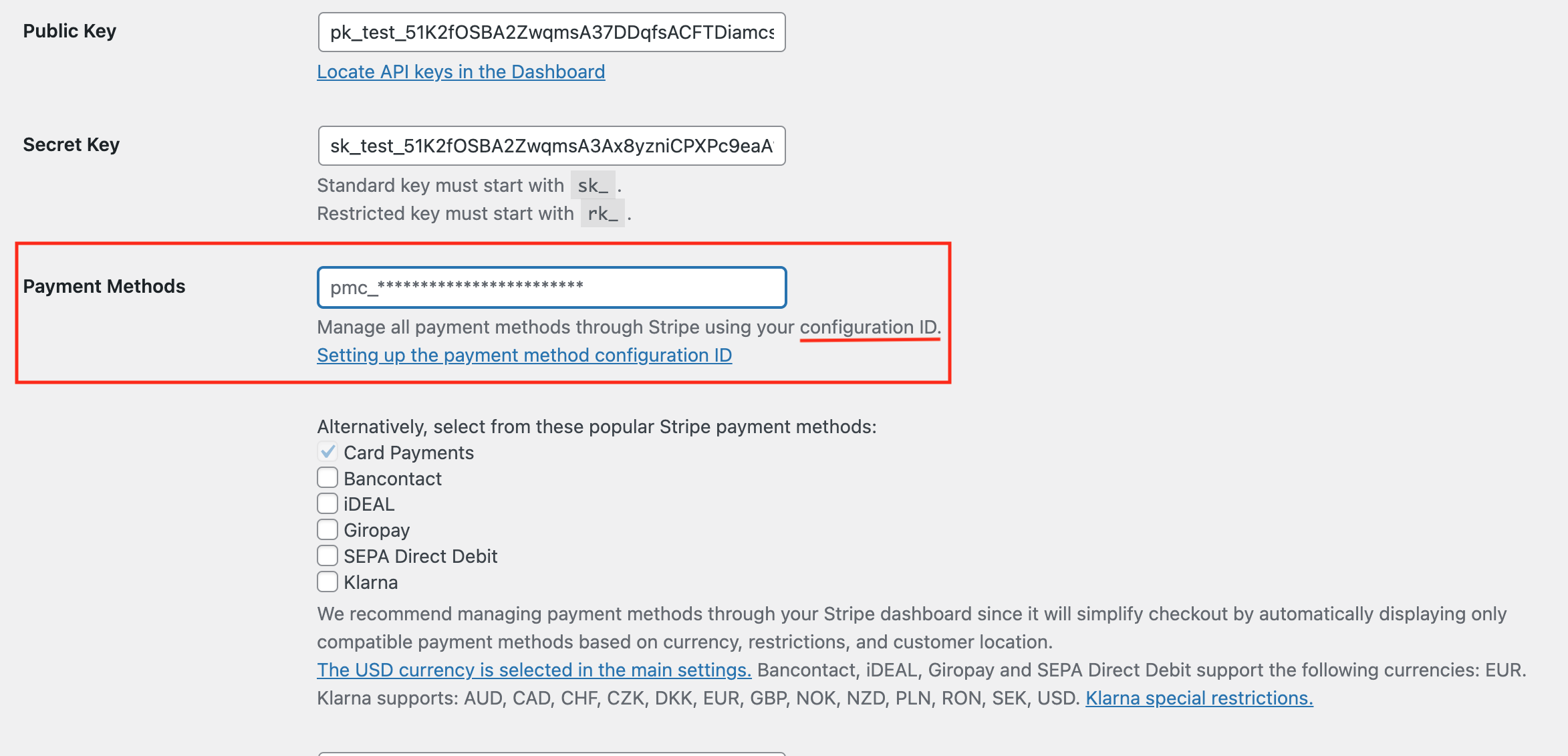
This Hotel Booking update actually unlocks many more regional payment gateways you can use, including Google Pay, Apply Pay, Stablecoins and crypto, Link, WeChat Pay, EPC, Affirm, and more.
Just go to the Payment Methods section in Stripe and turn on the options you want to use:
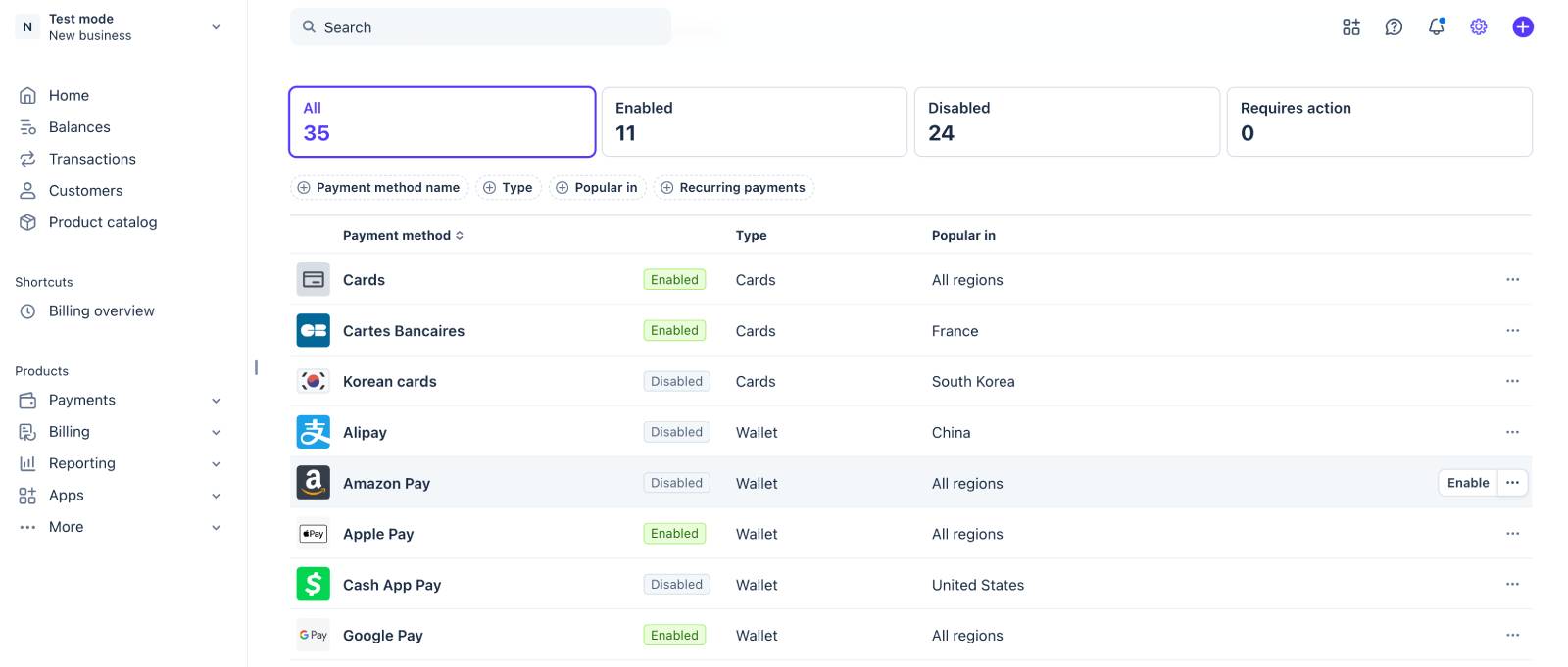
After that, customers will see all available payment methods at checkout – if those methods are supported in their region when they’re completing a booking.
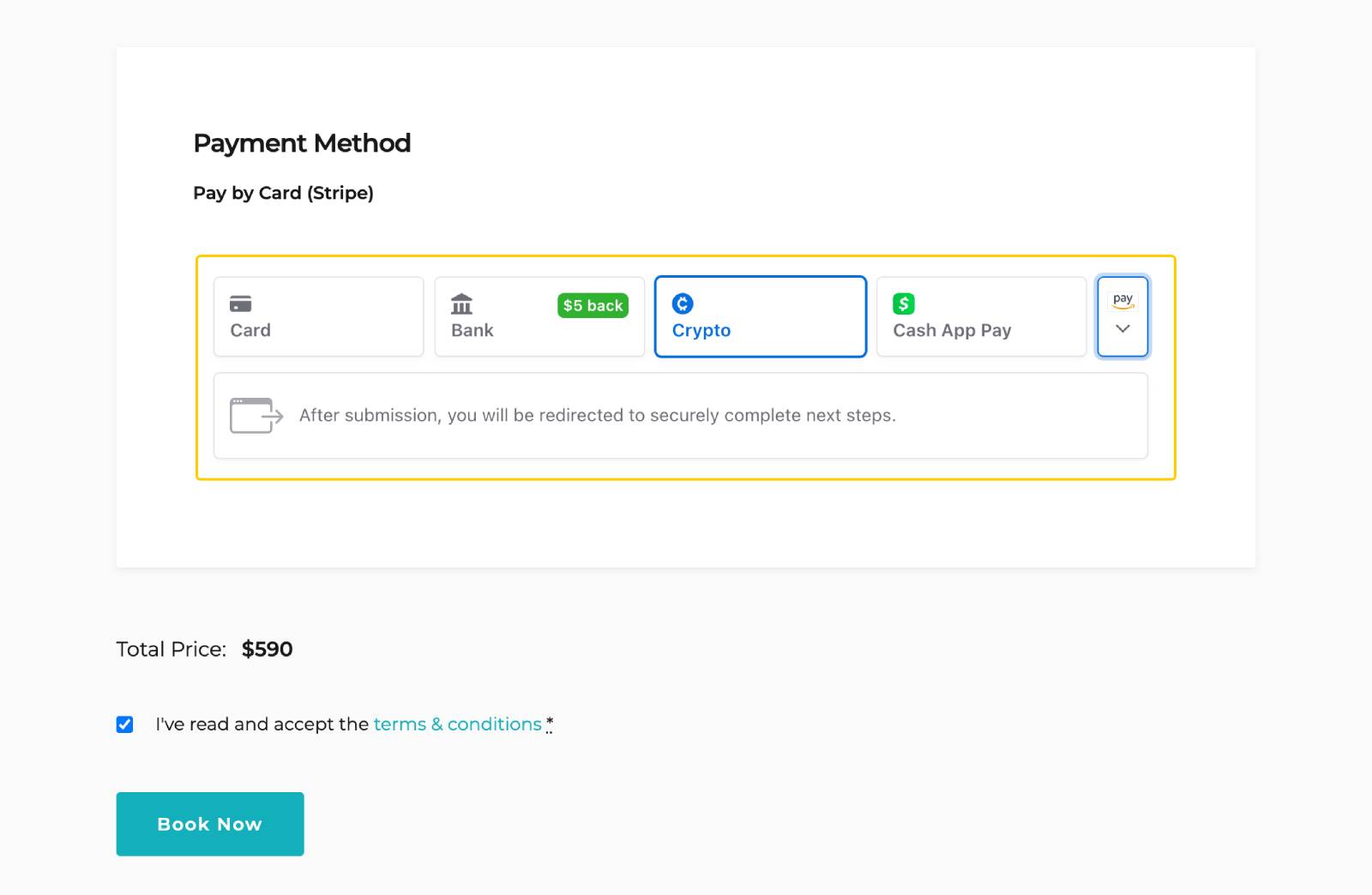
This also means you might not need to use the WooCommerce add-on for more gateways – now you can enable them in Stripe for free!
However, Stripe itself has a few important rules to keep in mind:
- Some methods need extra setup (e.g. Apple Pay requires domain verification and iOS configuration).
- Digital wallets shown at checkout depend on the customer’s device and browser.
- Certain methods, like Klarna, are only available in specific countries.
- Not all payment methods support every currency or region.
- Your Stripe country settings also affect which payment options appear to customers at checkout.
Stripe’s authorize and capture funds feature – now in MotoPress Hotel Booking
You may need Stripe’s authorize and capture feature (blocking funds first, then charging later manually) for several very practical hospitality and vacation rental scenarios.
Instead of charging the guest immediately, this feature by Stripe allows you to temporarily reserve funds on the guest’s card and decide later whether to capture the payment fully or not.
You may need it if you list your property on multiple booking platforms and want to double-check that the dates are still actually available before charging the guest – just in case the calendar sync hasn’t updated instantly yet.
Naturally, it gives you:
- more payment flexibility.
- stronger booking guarantees.
- better fraud protection.
- reduced refund handling.
How to enable this feature in the plugin?
To use manual payment charge workflow (authorize and capture feature), go to Accommodation > Settings > Payment Gateways > Stripe > Charging method > choose Manual > Save the changes.
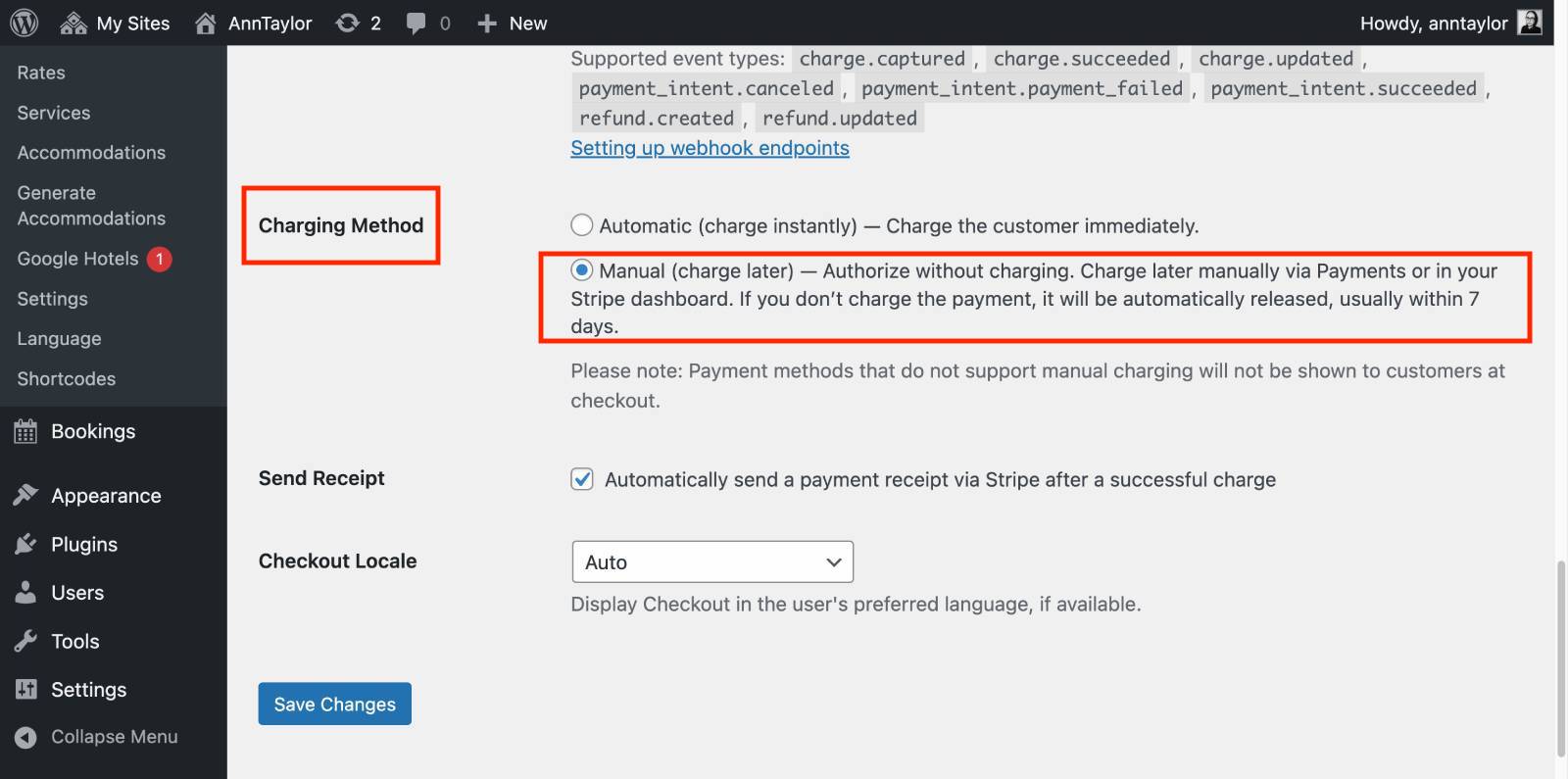
If you have not used online payments before, make sure that your booking confirmation mode is set to ‘Confirmation upon payment’ (Settings > General > Confirmation mode).
What are you able to do?
For bookings that were made when the feature was enabled, here is what you can do:
– create a charge now, but capture funds later.
– if you decide not to capture funds, you can return the funds to the customer.
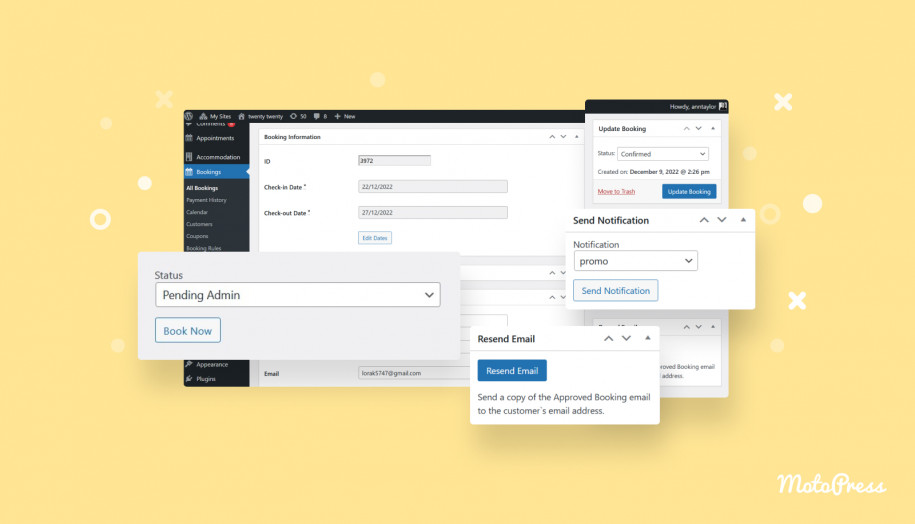
Just open a payment (from the Payment History menu or by clicking on the payment ID inside the booking), find the Reserved Funds table and press the button that works for you – “Charge now” or “Return Funds”!
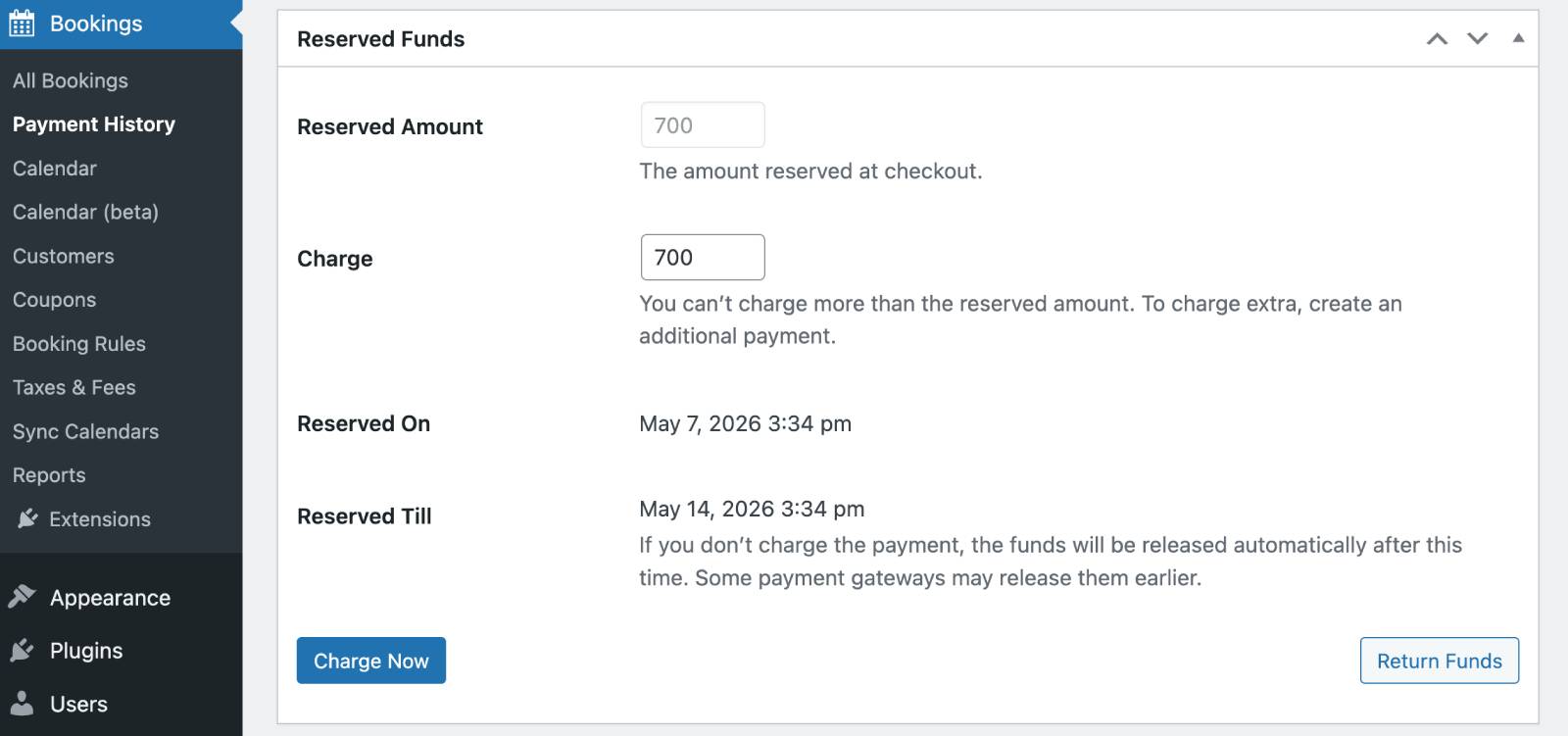
Alternatively, you can do the same in your Stripe account on your payments page. The payment appears in your payments page as Uncaptured. To capture the funds, go to the payment details page and click Capture. If you want to cancel it, simply click ‘Cancel’ (the charge was not finalized yet, so it’s not a refund!).
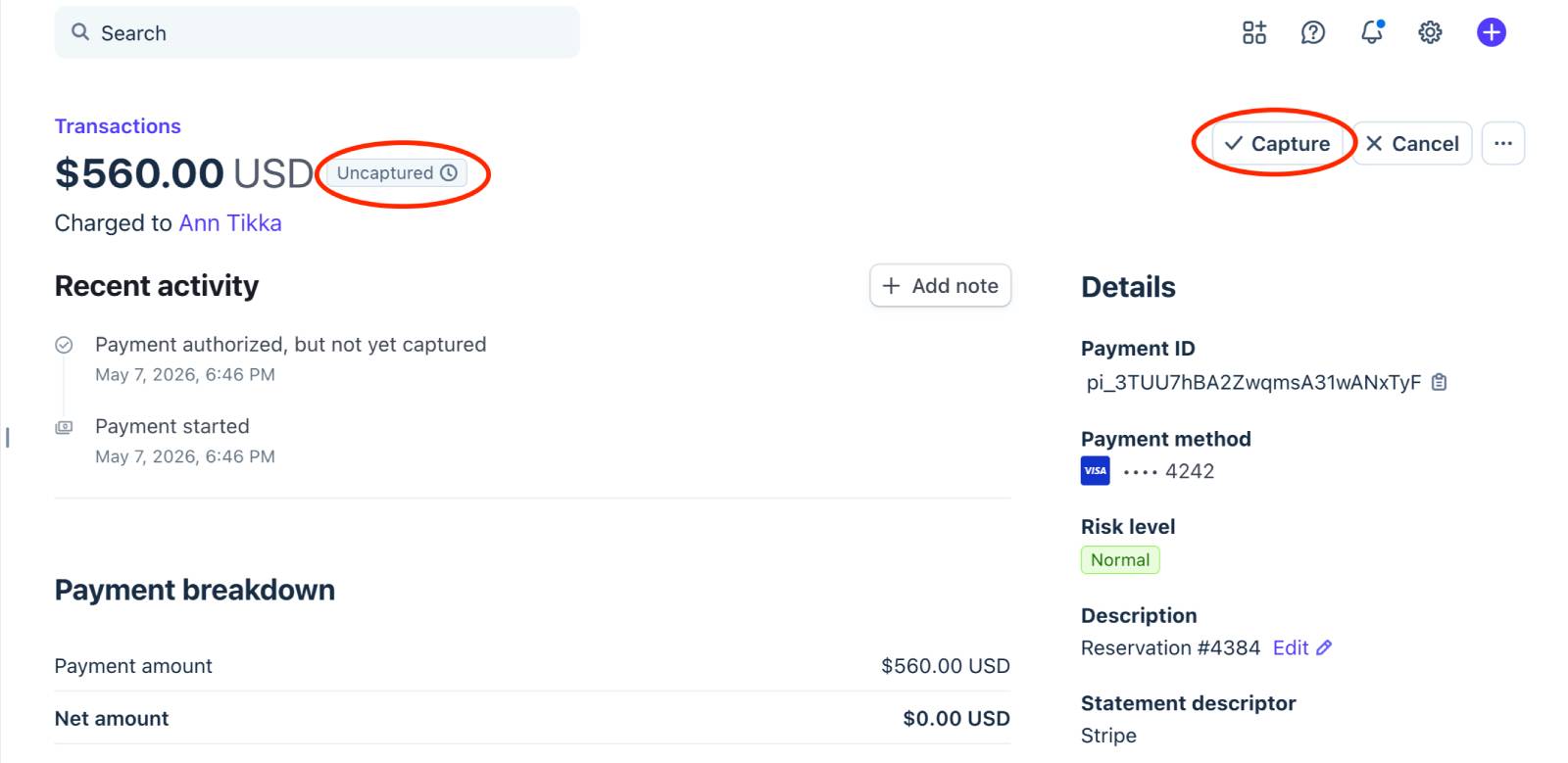
If you capture the funds, it’s all automatic – your account receives a payment, a confirmed booking email is sent to a customer, and the booking status changes to Confirmed.
If you cancel the payment and don’t charge the customer, you need to manually change the status of the booking (it does cancel the payment but doesn’t cancel the booking automatically).
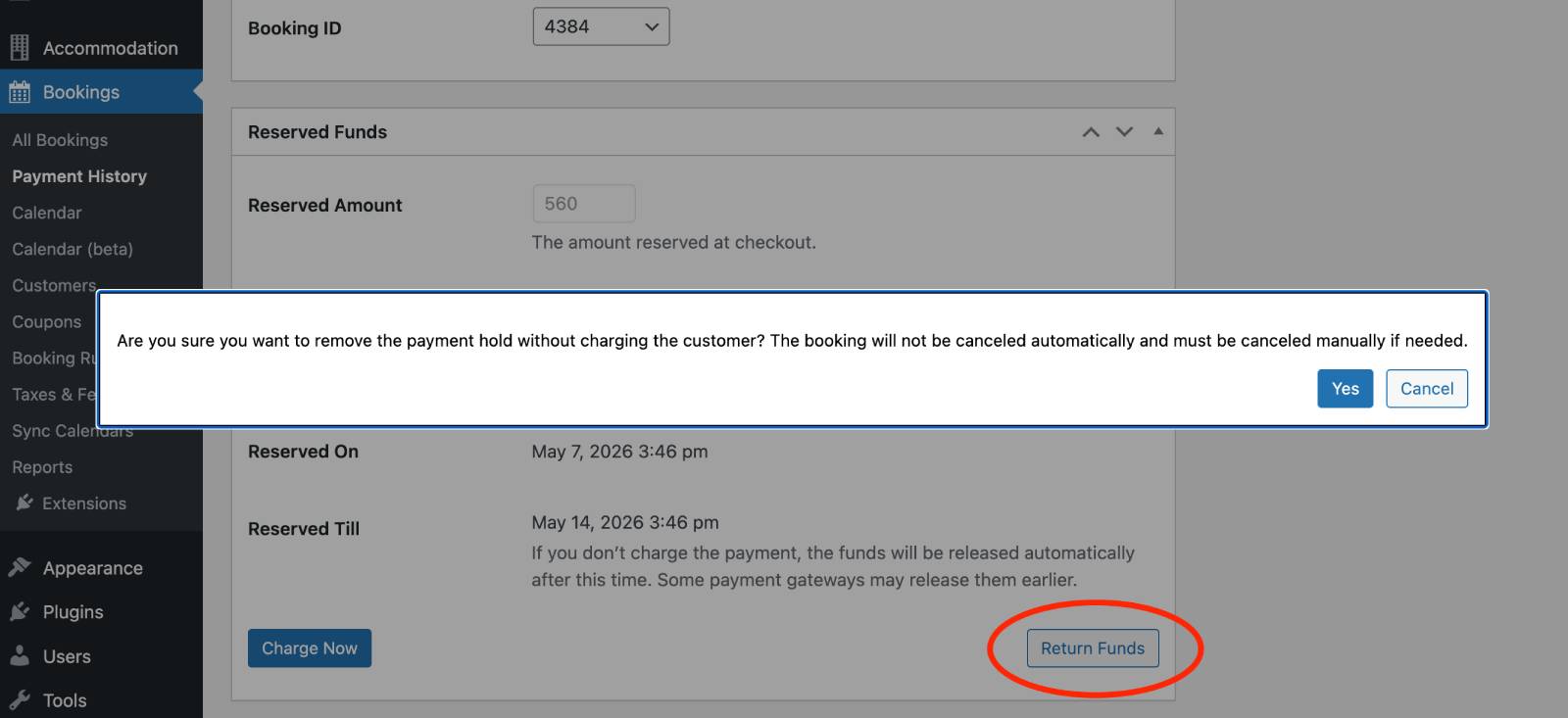
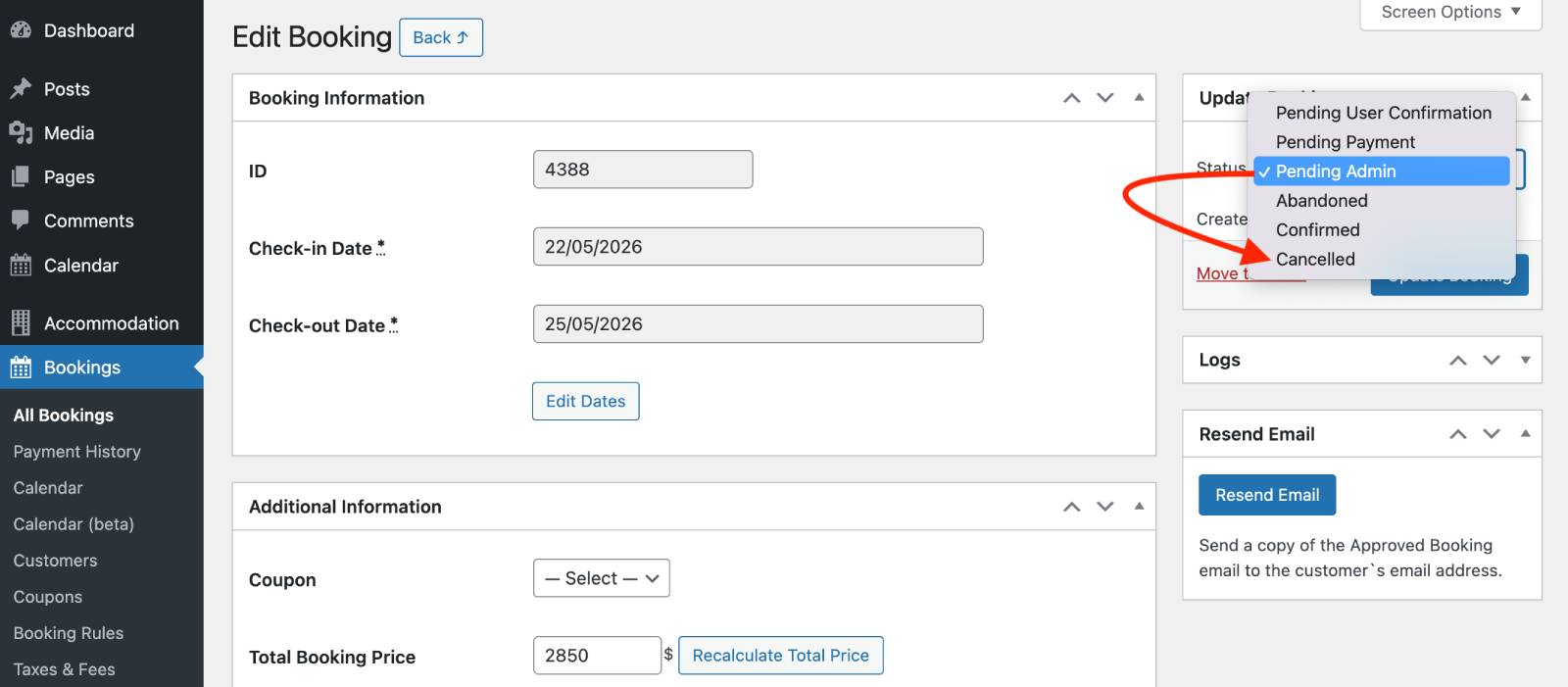
Once you’ve decided not to charge the customer, you can simply update the booking status manually (most likely to Canceled).
For the customer, an automated email (‘your reservation is pending’) is sent, and the booking confirmation page clearly shows that action from the property’s side is still pending and that the payment is on hold:
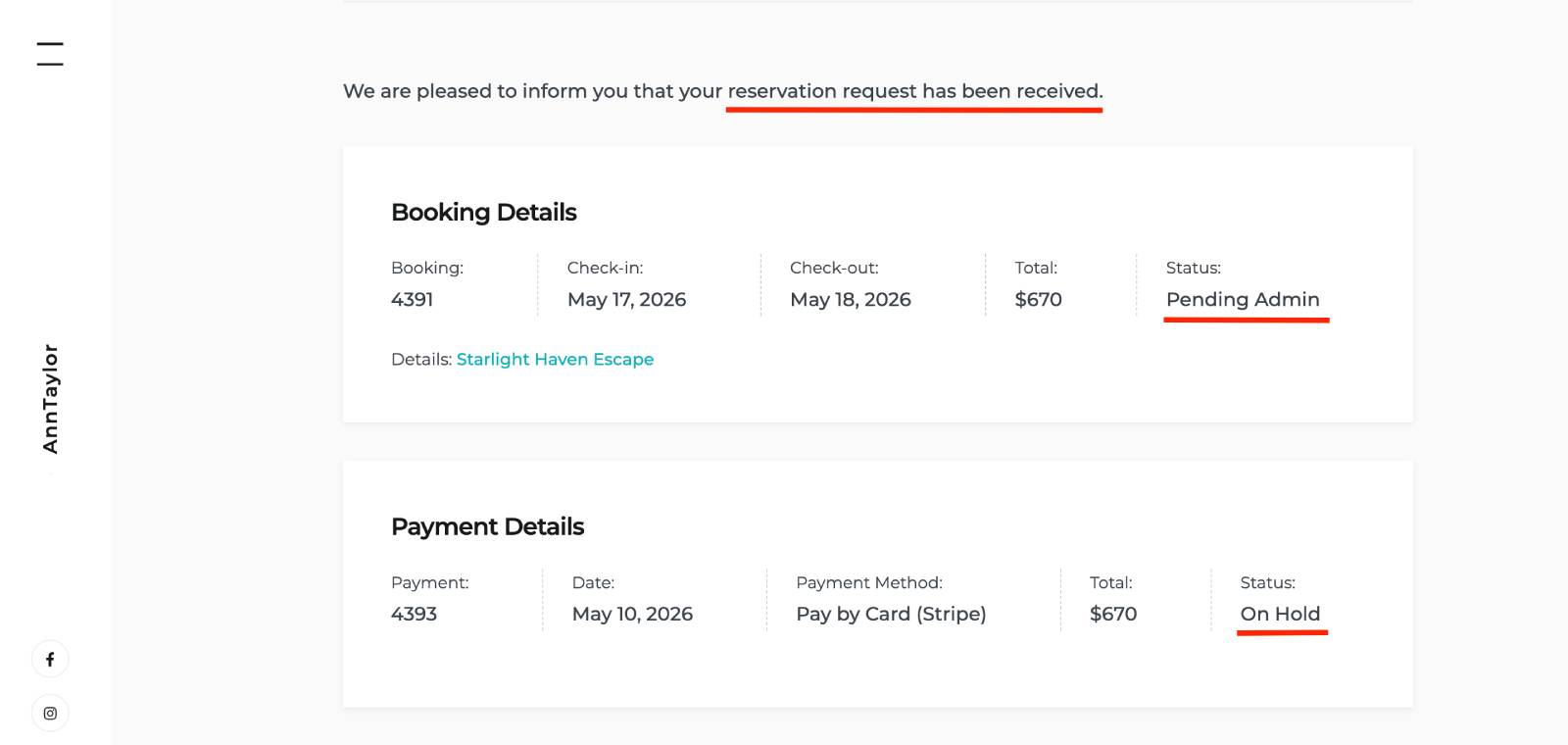
All this gives you more flexibility! It’s not just about easier cancelling without refunds. For example, you may still want to negotiate with the customer, reschedule their stay, or offer an upgrade to a different room before finalizing the booking.
Keep in mind:
- There are payment gateway limitations for authorizing and capturing separately. Only some payment methods support separate authorization and capture. Some payment methods that support this include cards, Affirm, Afterpay, Cash App Pay, Klarna, and PayPal. Also note that they have different authorization windows (e.g. card payments – typically 7 days, Affirm – 30 days, PayPal – 10 days, etc.). Some payment methods that don’t support this include ACH and iDEAL. Read more about payment method feature support.
- It doesn’t really make sense to use payment gateways at checkout that don’t support separate authorization and capture when “Manual charge” is enabled in Hotel Booking.
- Also, even if a payment gateway supports this feature, it may still not appear at checkout if it’s not available in the customer’s region – the browser will simply hide those payment methods
The Update Fully Supports Payment-Related Add-ons
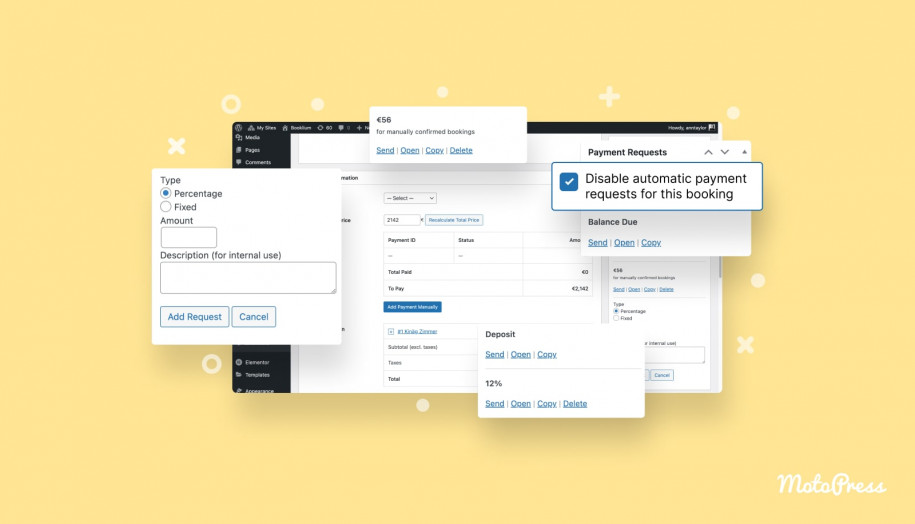
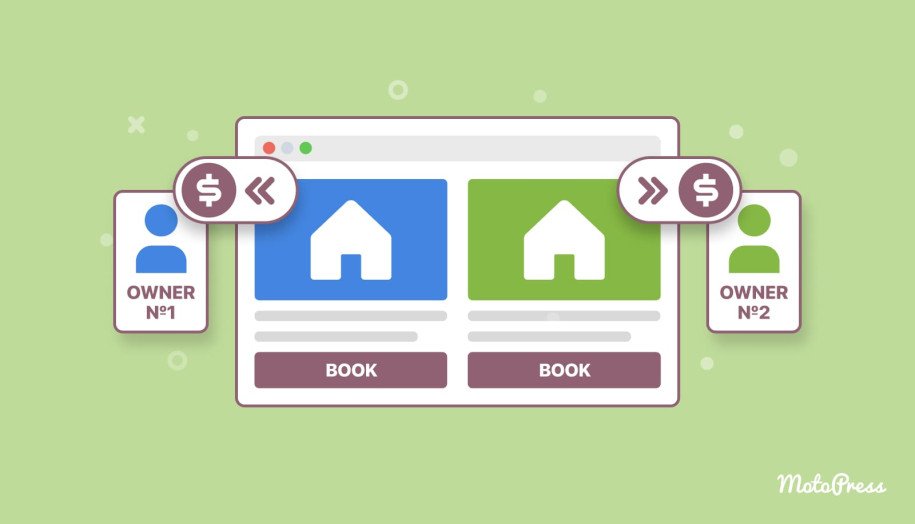
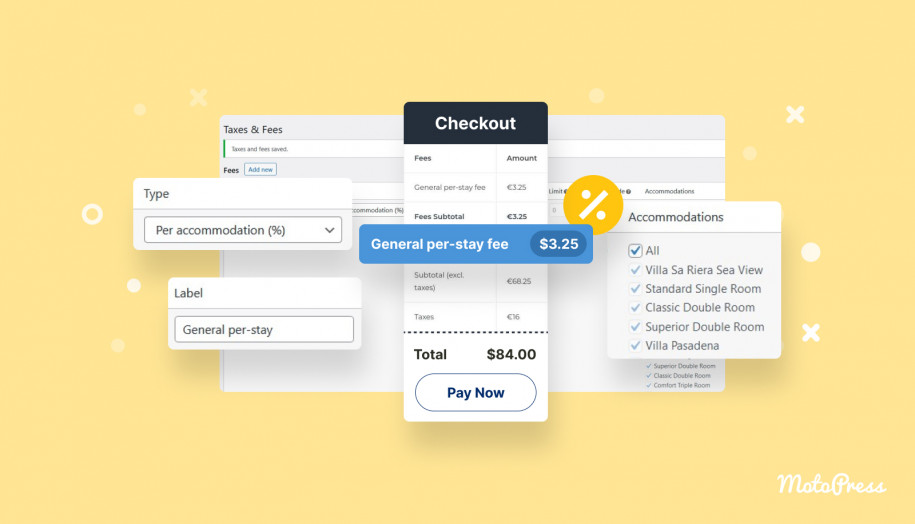
Since many updates deal with payment handling, we’ve updated all the related Hotel Booking extensions, including the Accommodation-Based Payments, Payment Request, and WooCommerce Payments add-ons to ensure you can use all the payment improvements released in the core plugin.
Concluding: MotoPress Hotel Booking 6.0 Saves You Time & Money
Sounds like MotoPress Hotel Booking 6.0 is a huge update? It really is! But I’ll cut to the chase to save you some time and sum up the key things that are totally new:
- The new interface – Calendar (beta) – combines features like Seasons, Rates, and Booking Rules into a single centralized workspace. This means you can manage pricing, availability settings, and reservation restrictions without switching between multiple menus.
- In the Calendar (beta) timeline, you may now set per-day pricing for selected properties that can be different from the main rates. All visual!
- You can now use 15+ more payment gateways without additional charges if you use Stripe. Those include Apple Pay, Google Pay, Affirm, Amazon Pay, and more regional solutions; simply enable the needed payment gateways in your Stripe account (requires adding Stripe configuration ID in Hotel Booking)!
- With Stripe’s authorize-and-capture feature (blocking funds first automatically, then charging later manually), you get better manual control over bookings secured by payment, and fewer situations where you end up needing to issue a refund.
So, the latest main version of the WordPress hotel booking plugin by MotoPress is designed to better adapt to your booking management needs, save you time on handling bookings and availability, and give you more payment processing options through Stripe, without needing extra add-ons.
More tutorials are coming up!