
How to Find Out What WordPress Theme is That? 6 Best Sites
Table of Contents
According to the stats, 43% of all websites on the World Wide Web are powered by WordPress. This equates to over 470 million websites, each using a theme, either off-the-shelf or custom-made. The WordPress theme is a foundation for the layout and design, and a way to provide an interface to the database and code.
Today, I’ll show you how to identify which WordPress theme the site is using with the help of dedicated services.
You’ll also learn what makes a WordPress theme high-quality in terms of performance and SEO, and what the differences and advantages of classic and block-based themes are.
While surfing the Internet and landing on a WordPress website, we could be so amazed by the site design that we start asking ourselves: How is this design delivered? What theme is this? At first, it seems to be rocket science to try to figure it out. But it’s not actually true.
Top Sites to Detect a WordPress theme
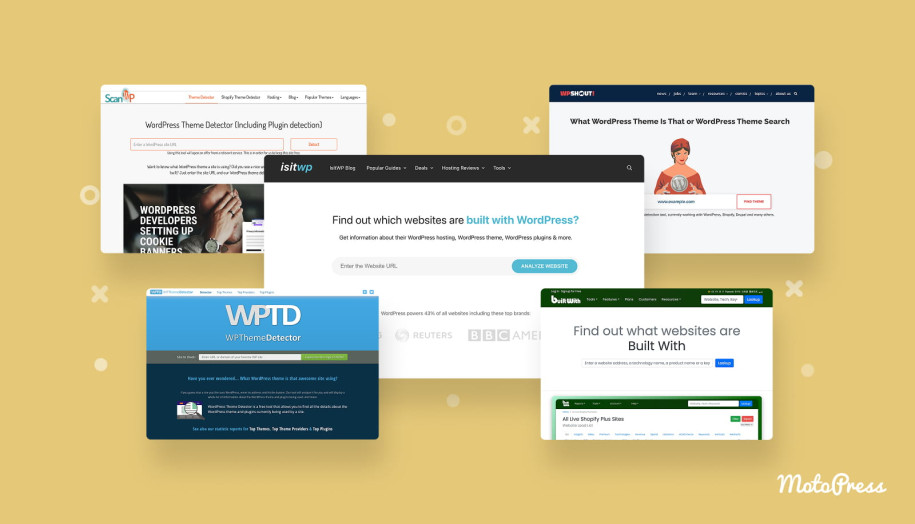
We handpicked the best WordPress resources for you that can deliver that information on a silver platter. Some of the services are rather simple; others can go deeper, and show plugins, frameworks, and sometimes hosting details.
What WordPress Theme Is That (WPTI)
This tool is one of the most recognizable ones in this space. It scans a website and identifies both the theme and the plugins used on it.
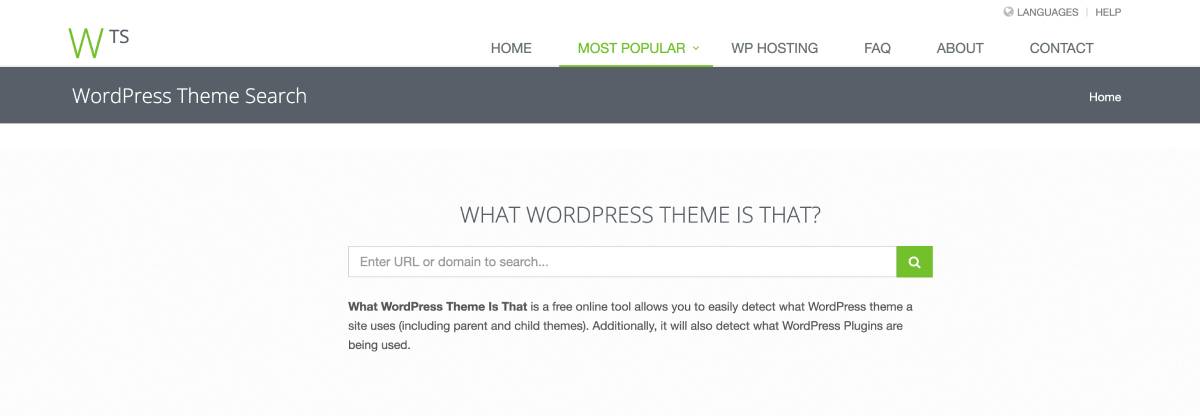
It provides the theme name, its author, version, and a list of detected plugins. In some cases, it can also show the WordPress version or even hints about the hosting provider. The results you get are normally quite detailed when dealing with websites built with standard WordPress setups. This is also particularly helpful for reverse-engineering a site’s functionality, such as its contact forms, SEO tools, or slider builders. It can distinguish between a parent theme and a child theme, too.
Sure, if a site runs a heavily customized or fully custom theme, the tool may not return much information. Or, for example, the site owner has used a security plugin to hide their WordPress footprint. Still, for most cases, it does a solid job.
WPShout Theme Detector
WPShout is a clean and uncomplicated theme detection tool. To start working with it, you paste a website URL, and within seconds, it gives you a clear breakdown of what’s running behind the scenes.
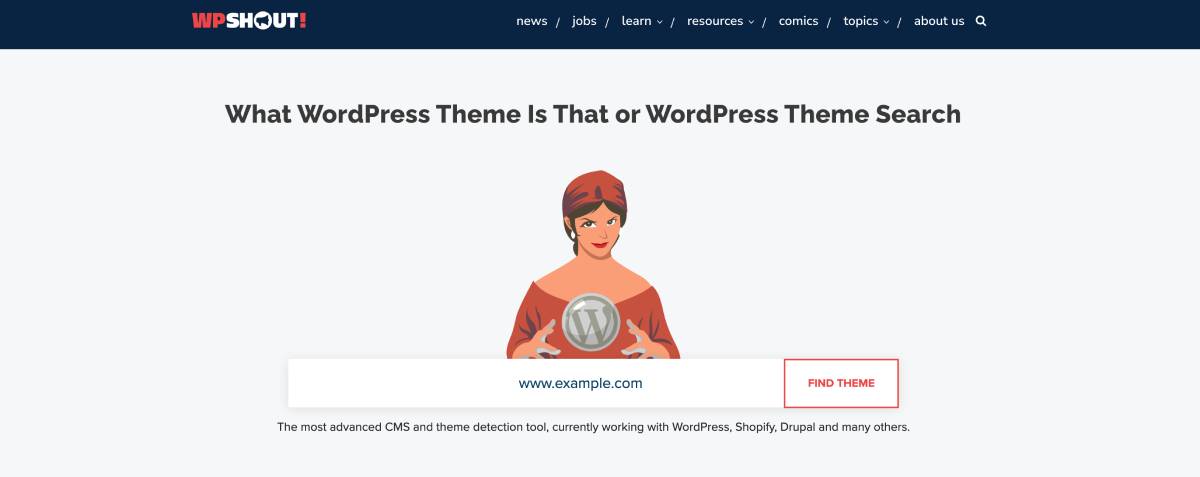
In most cases, you’ll see the theme name (if it’s publicly available), along with details about whether it’s a parent or a child theme. The tool may also highlight plugins and provide a brief note on how confident the result is. What makes WPShout especially inviting is how easy it is to read. It focuses on the essentials and, when possible, even links directly to the detected theme.
So, this is a great starting point for a quick, reliable answer, rather than digging through the code.
IsItWP
A slightly broader approach is used by IsItWP. Its first task is to confirm whether a site is actually built on WordPress. Once that’s established, it moves on to detecting the theme the site is using. Then it proceeds to identify plugins. It can also provide you with more insights, such as hosting and performance tools used on the site. This makes it invaluable when you’re not 100% sure what platform you’re looking at.
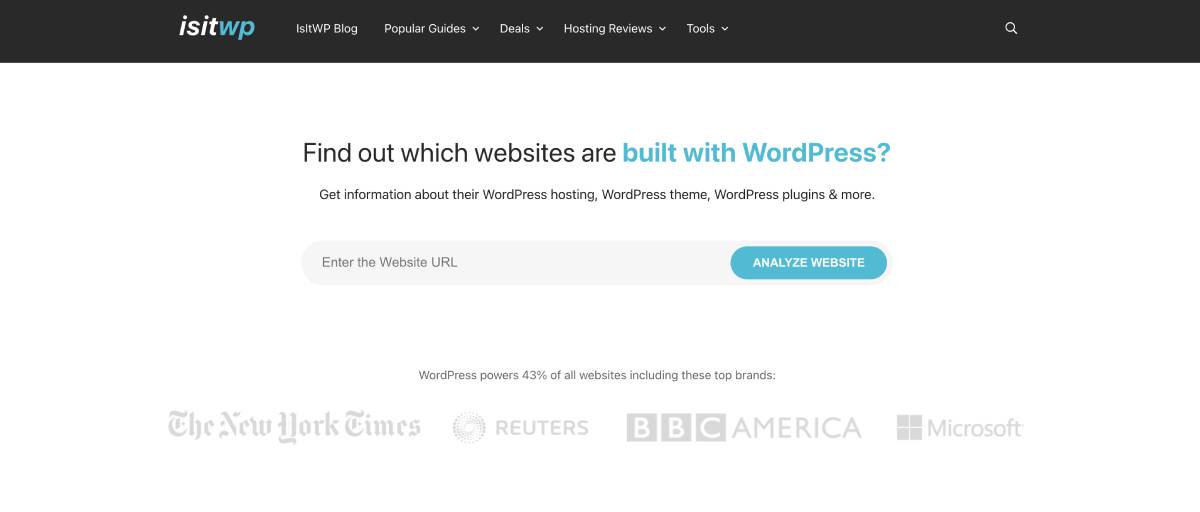
To sum up, it’s not just a theme detector. It’s more of a general WordPress checker with added context.
ScanWP
ScanWP definitely stands out when you’re interested in both functionality and design. While it does identify the theme, it often goes further by detecting plugins, sometimes offering more detailed results than similar tools.
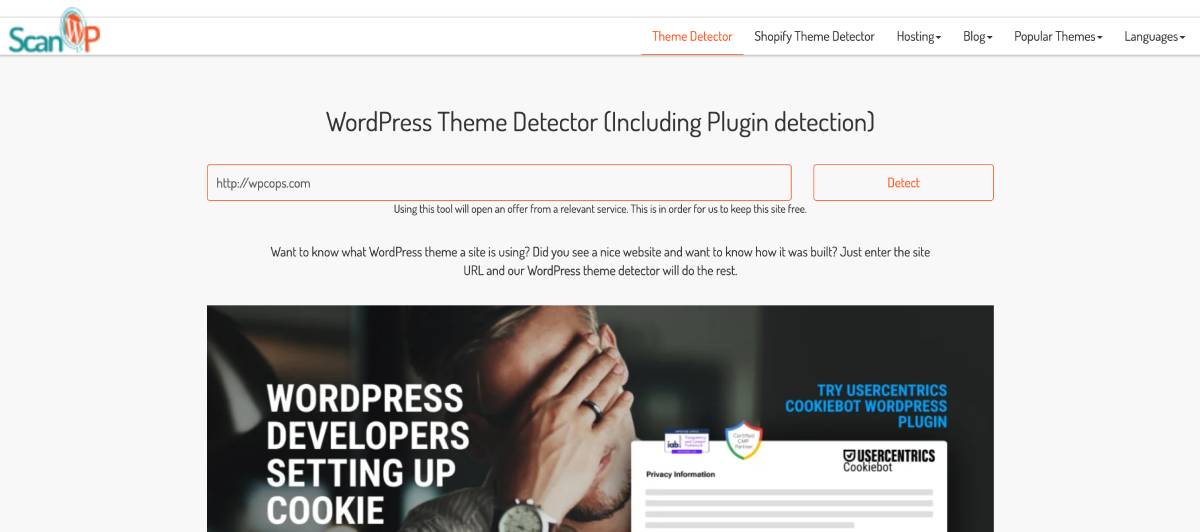
Besides, it may include pricing information for premium themes when available.
ScanWP can be particularly helpful if you’re trying not just to recreate the overall design but also the features of a site, for example, booking forms or dynamic listings.
BuiltWith
BuiltWith is a different kind of tool. It focuses not only on WordPress themes but rather on analyzing the entire technology stack behind a website. It can confirm whether a site uses WordPress, and in some cases, it offers hints about the theme or framework. More importantly, it reveals hosting providers, analytics tools, CDNs, and performance-related technologies.
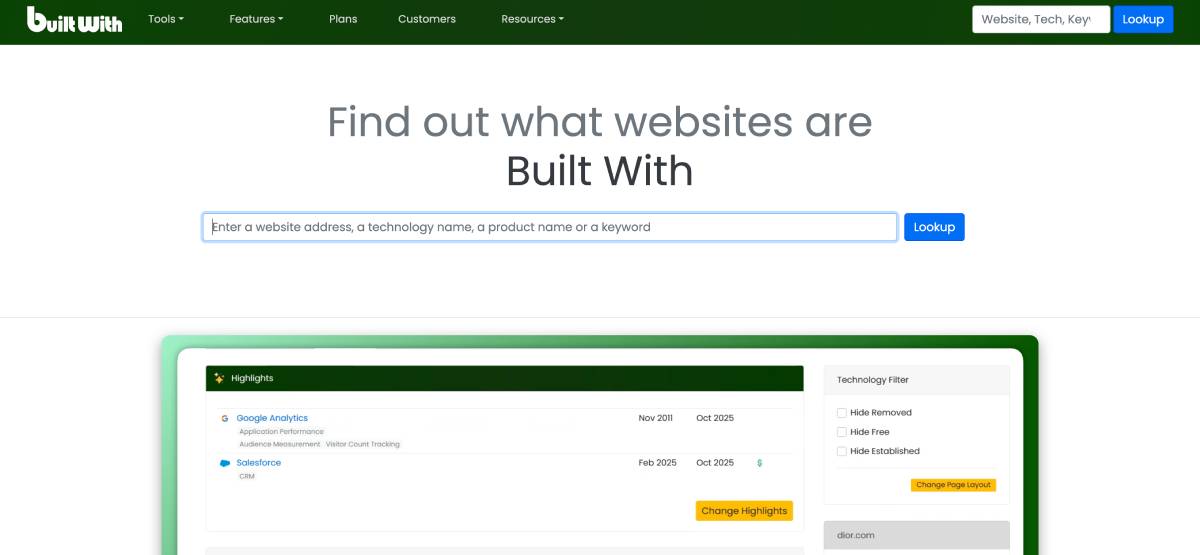
For a free basic report, you just need to enter any URL into the search bar at BuiltWith.com.
Alternatively, you can utilize browser extensions like BuiltWith Chrome Extension or Firefox Add-on to view tech stacks while browsing. For bulk data and advanced filtering, BuiltWith can offer paid plans and a developer API for automated lookups. Starting at approximately $495/month for Pro features, it offers unlimited technology reports and lead generation exports. Developers, sales teams, and researchers widely use this tool to track how websites are constructed and monitor global technology adoption trends.
WPThemeDetector
Unlike BuiltWith, which analyzes a site’s entire technology stack, WPThemeDetector keeps things simple and focuses specifically on the WordPress ecosystem. It reveals the theme name, version, author, and description. It can also distinguish between child themes and their parent themes. If a premium theme is detected, it frequently provides direct links to the official vendor or download page. Moreover, the tool scans for active plugins that it’s able to recognize, often indicating whether they are free or premium.
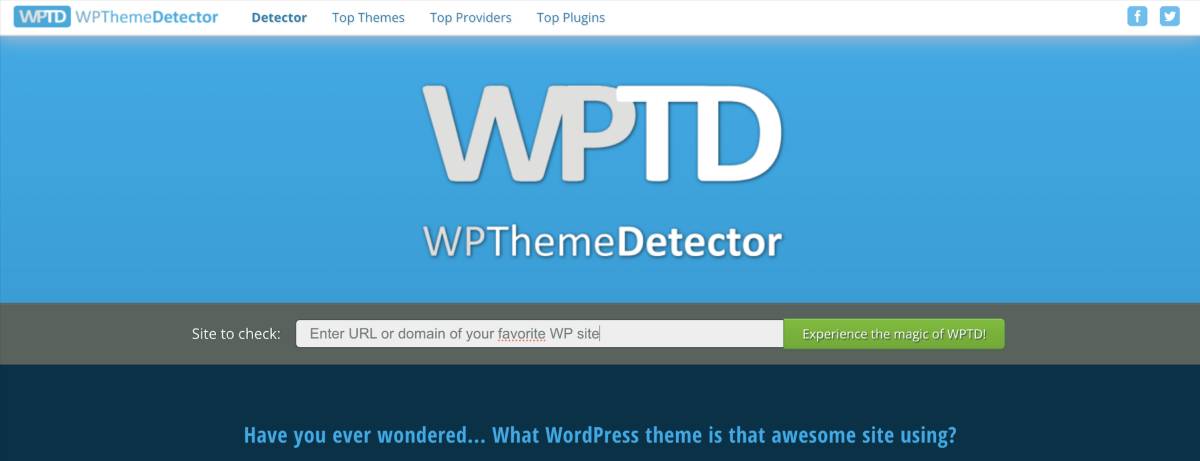
What’s interesting, I’ve noticed, is that it offers statistical reports on the most popular themes, plugins, and theme providers currently being detected across the web.
To sum up, you won’t get an in-depth breakdown here, but that’s not necessarily a downside. The tool is fast, easy to use, and perfect for such cases when you just need a quick confirmation without extra details.
Manual Inspection (The Hidden Option)
Finally, saving the best alternative for last. There’s the method that works when everything else fails. If automated tools don’t return useful results, you can always inspect the website manually.
By viewing the page source and searching for references to “wp-content/themes/,” you can often spot the theme folder name. This approach takes a bit more effort, yet it’s effective for those users who don’t mind looking under the hood.
By this point, you can probably identify a theme with reasonable confidence. But that’s only part of the process.
What to Look For in Theme Detection Results
When reviewing theme detection results, you should first prioritize identifying the theme name, version, author, and parent theme (if a child theme is used).
Parent vs Child Theme
One of the first things to check out is whether you’re dealing with a parent theme or a child theme. The parent theme is the core framework, while the child theme sits on top of it and contains customizations.
This distinction matters more than it seems at first sight. When a site uses a child theme, the design you see is often heavily modified. So if you decide to install the parent theme alone and expect a one-click match, it will never give you the same result.
So whenever a detector mentions a child theme, take a moment to identify the parent as well. That’s where the main structure and functionality live.
Free vs Premium Theme
Another detail worth paying attention to is whether the theme is free or premium. Free themes can typically be downloaded from the official WordPress repository. This makes them easy to install and test out. Premium themes, on the other hand, are sold through marketplaces or directly by developers and often come with more features, design options, and dedicated support.
Knowing this upfront helps you set expectations, especially if you’re planning to recreate the site or if it’s important to stay within a certain budget.
Plugin Dependencies
This is where things get interesting. Many modern WordPress websites rely heavily on plugins, and theme detectors often reveal at least part of that setup. What looks like a “theme feature” is frequently powered by a plugin. Booking systems, advanced search filters, sliders, and even layout builders are often separate tools working alongside the theme. If you want to recreate a site, you’ll need to look beyond the theme and pay close attention to these dependencies. Otherwise, you may end up with the right design but poor functionality.
Theme Frameworks and Builders
Some themes are closely tied to specific frameworks or page builders. Others are built based on the block editor. This affects how you work with the theme. A builder-driven theme may give you more drag-and-drop flexibility compared to a block-based theme that leans into the native WordPress editing experience. Choosing a setup that matches your workflow is still one of the essential priorities.
Custom vs Off-the-Shelf Themes
Sometimes, theme detectors return very little information. When those happen, it means the website is using a heavily customized or completely custom-built theme. In these cases, trying to find an exact match is not realistic at all. A better approach would be to look for a similar theme and then recreate the layout and features step by step. It can save you a lot of time and frustration.
What Makes a High-Quality WordPress Theme?
Now that you know how to identify a theme and what to look for in the results, there’s one more layer to consider. The bigger question is: is it worth using?
You should pay attention to these details and aspects:
Performance and Speed
A good theme should be lightweight and fast. No secret that heavy themes can slow down your site and that affects both user experience and SEO.
Key indicators:
- Minimal CSS and JavaScript
- No unnecessary animations or effects
- Clean code structure
SEO-Friendly Structure
Themes play a bigger role in SEO than many people may think. If the theme creates technical issues, even the best content won’t rank well.
Look for:
- Proper heading hierarchy (H1, H2, etc.)
- Clean HTML markup
- Mobile responsiveness
- Fast loading times
Compatibility with Plugins
A high-quality theme should function well with popular plugins. This includes SEO tools, caching plugins, booking, and eCommerce systems.
Regular Updates and Support
Themes are not “set and forget.” An outdated theme is a potential security risk.
Check:
- How often is the theme updated
- Whether it’s compatible with the latest WordPress version
- Availability of documentation and support
Classic vs Block-Based Themes
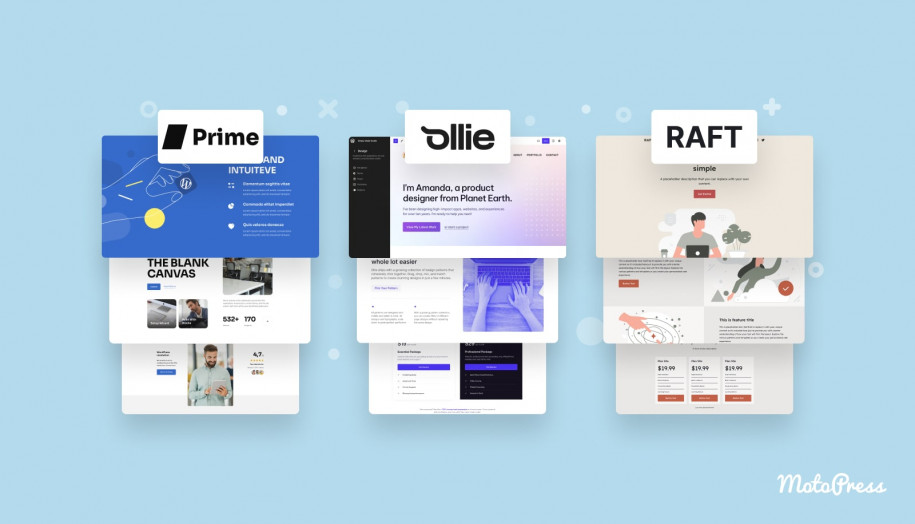
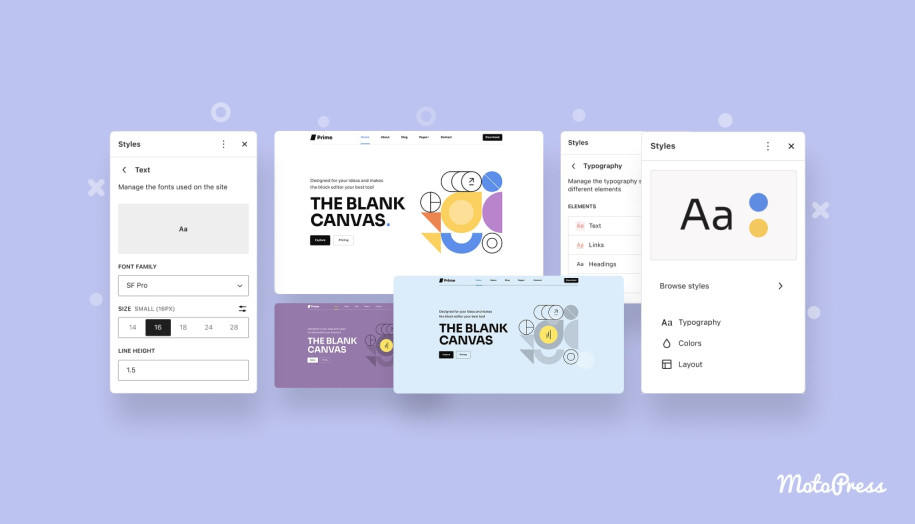
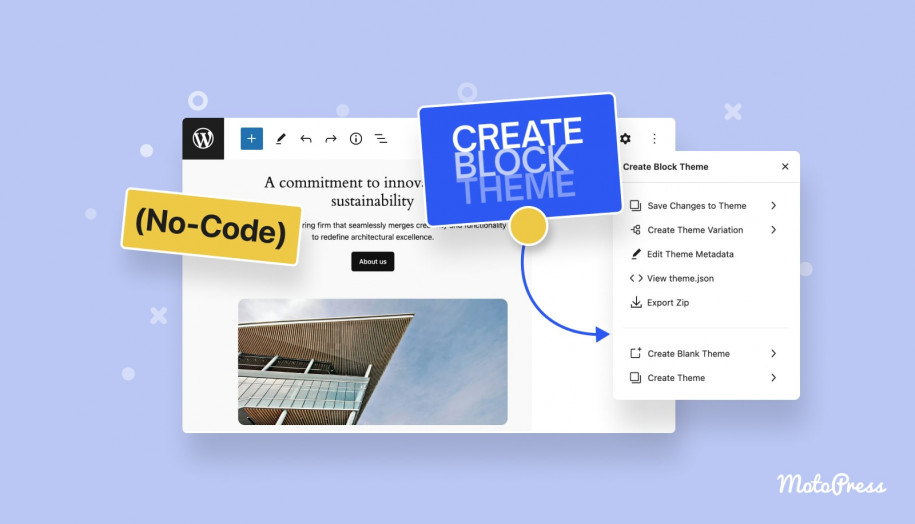
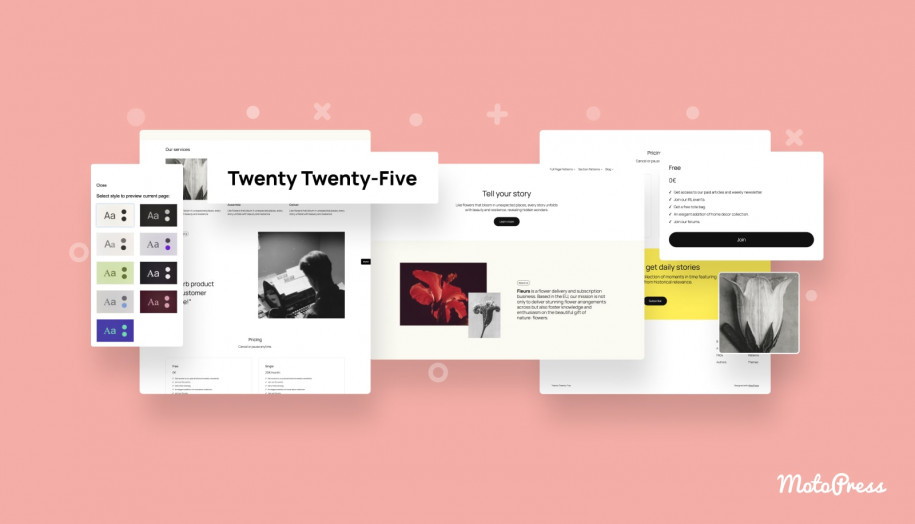
The main difference between Classic and Block-based themes is how they handle site design. Classic themes rely on PHP templates and the Customizer for fixed layouts, while Block themes use HTML templates and the Site Editor for visual, drag-and-drop customization of every part of a website, including the header, footer, and sidebar.
| Aspect | Classic Themes | Block-Based Themes |
| Core Structure | Built with PHP templates (header.php, footer.php, etc.) | Built with blocks and theme.json |
| Customization | Limited in Customizer; extended via page builders | Full-site editing (headers, footers, templates) in Site Editor |
| Editing Experience | Mix of Customizer + backend settings + builders | Fully visual, consistent editing interface |
| Flexibility | High with plugins/builders, but less native | Highly native, fewer external tools needed |
| Performance | Can be heavier (depends on builder/plugins) | Generally lighter, fewer dependencies |
| Design Control | Often depends on theme options or builder | Direct control over layout and global styles |
| Learning Curve | Familiar to long-time WordPress users | Slightly steeper at first, especially with Site Editor |
| Plugin Compatibility | Very broad, works with most plugins | Growing, but not all plugins are fully optimized yet |
| Future-Proofing | Stable but gradually being phased out | Actively developed, aligned with WordPress roadmap |
| Best For | Users relying on builders or legacy setups | Users who want a native, modern WordPress workflow |
Which One Should You Choose?
Choosing between the two types of themes depends on your technical comfort level and how much control you want over the design process. Let’s say you are a beginner who wants to build a website without touching a single line of code. A block-based theme can be the superior choice. With the most modern experience, it will let you visually drag and drop headers, footers, and page layouts. On top of that, the page loading speeds will be much better since it only loads the code needed for the specific blocks you use.
However, a classic theme is still a solid choice for those who prioritize stability and a whole ecosystem of proven tools. If you plan on using a heavy-duty page builder like Elementor or Divi, or if you need a site that works perfectly with older plugins, classic themes are the safer bet. They are also ideal for professional developers who prefer to lock down the design from their clients, so they couldn’t accidentally change the site’s structural layout.
In the end, you should choose a block theme if you want more creative freedom and a lightweight, fast site, but stick with a classic theme if you want a familiar setup that is promised to work with every plugin on the market.

Conclusion
Identifying a WordPress theme can be a piece of cake when using the right tools and knowing the details worth paying attention to. There are a lot of different aspects that shouldn’t be overlooked.
A detected theme might be a child theme, a heavily customized version, or part of a larger setup powered by plugins and builders.
What’s more, factors like speed, SEO structure, plugin compatibility, and ongoing support matter equally as a theme’s design. Understanding the difference between the classic and block themes also helps you choose not just a theme, but a workflow you’re going to experience. In the end, finding a theme is rather easy. The next question becomes whether it’s the right theme for you?
FAQ
How can I find out what WordPress theme a site is using?
Are theme detection tools always accurate?
Can theme detectors identify plugins too?
What is a parent theme vs a child theme?
Why do some tools return no results?
Can I recreate a site by installing the same theme?
When searching ‘what WordPress template is this?’, what should I check after identifying a theme?
What makes a high-quality WordPress theme?
What’s the difference between classic and block-based themes?
Is it legal to check what theme a site is using?