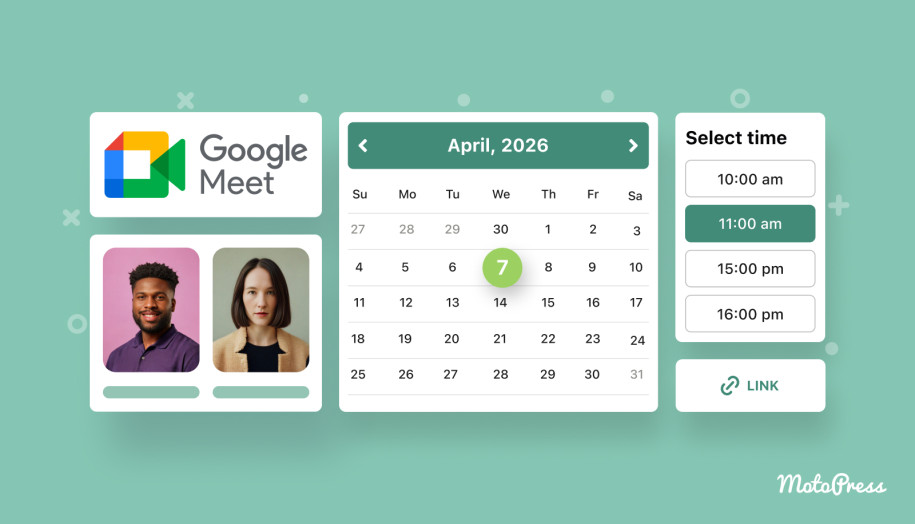

Using Google Meet WordPress Plugin for Bookings with Auto-Generated Meeting Links
Table of Contents
Are you struggling to connect Google Meet video meetings directly to the booking process on your WordPress website? Even when clients can choose a time slot, someone still has to create the video call, send the link, and make sure it ends up in the right calendar. In this article, we’ll look at how to integrate the Google Meet WordPress plugin with an appointment system!
Below, you’ll find an overview of the workflow, typical use cases, and the hands-on setup process. Let’s get down to the basics!
Why Connect Google Meet to Your WordPress Appointment Booking Website?
Using a Google Meet WordPress plugin makes sense when video calls are tied to booked services.
- Meeting links are created automatically once a booking is confirmed.
- These links are attached to booking details, added to the calendar, and shared with participants without any extra steps.
For service providers, this approach keeps scheduling and communication in one place. For customers, it creates a clearer booking experience.

Who Is This Google Meet Booking Solution For?
A Google Meet integration with WordPress is designed for professionals and businesses that rely on scheduled online interactions. This setup is a good fit for:
- Coaches and consultants offering one-on-one or group sessions booked in advance;
- Online teachers and tutors running virtual lessons or classes with fixed schedules;
- Therapists and wellness professionals who work with time-based appointments;
- Service-based businesses providing remote consultations, such as legal, financial, or marketing services.

Now, let’s explore the solutions we vouch for!
What Is the Best Google Meet Plugin for WordPress Bookings?
When choosing a WordPress Google Meet tool, it’s worth looking beyond simple meeting creation. Video calls need to be part of the booking workflow. Scheduling, confirmations, availability updates, and calendar synchronization need to run like clockwork. This is where MotoPress offers a dedicated video conferencing plugin for WordPress.
MotoPress Solutions
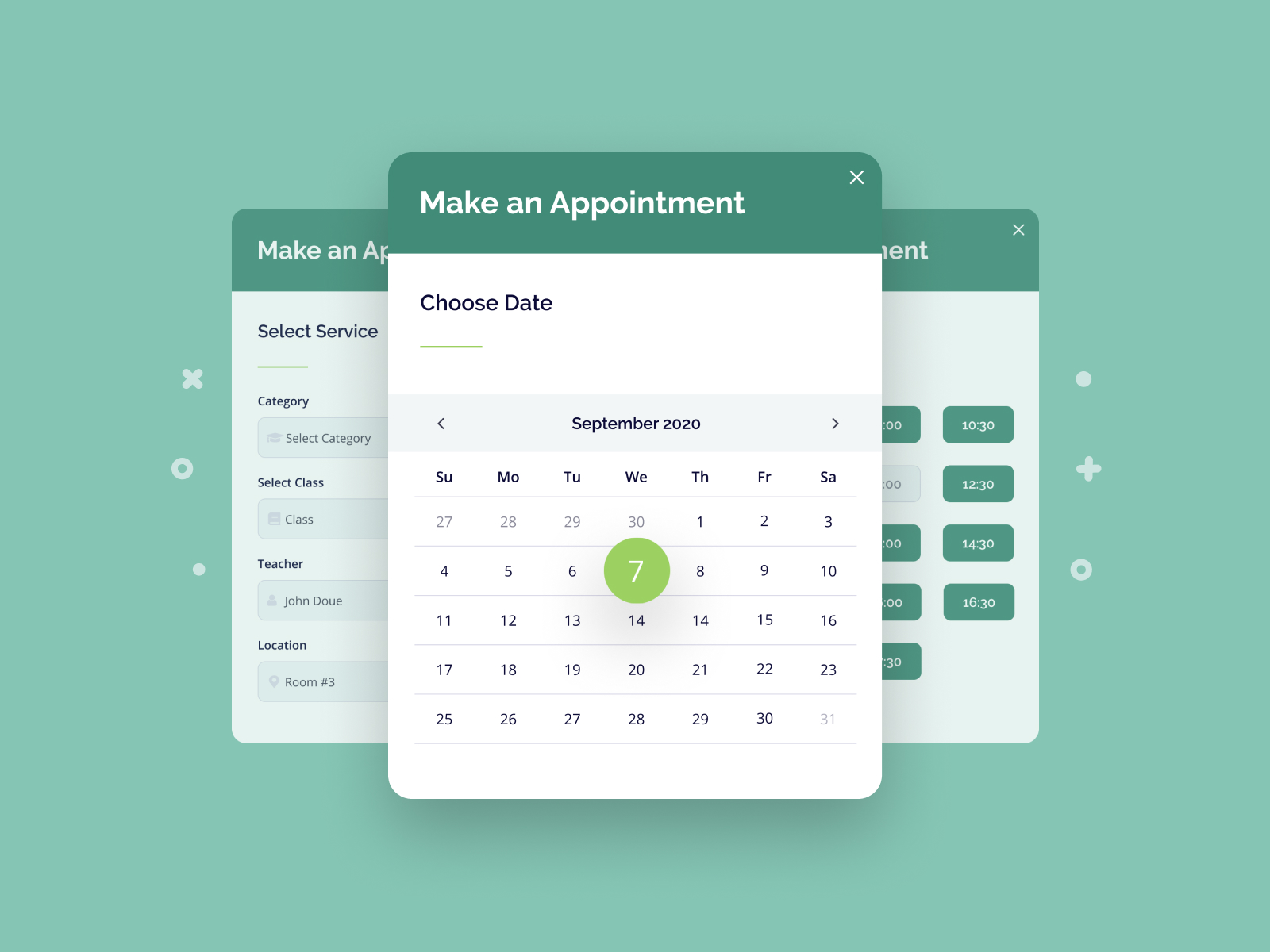
At the core of this setup is the MotoPress Appointment Booking plugin, which handles the full appointment scheduling workflow on a WordPress website. It allows businesses to manage services, staff schedules, and reservations from a single dashboard.
Key features of the Appointment Booking plugin:
- Unlimited services, employees, and locations;
- One-on-one and group bookings;
- Automated booking confirmations and notifications;
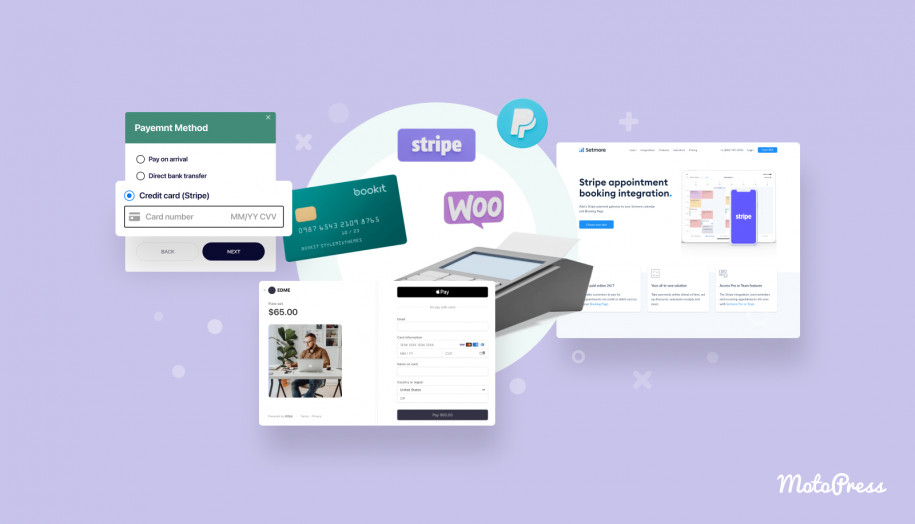
- Online & offline payments (full or partial);
- Synchronization to an employee’s Google Calendar;
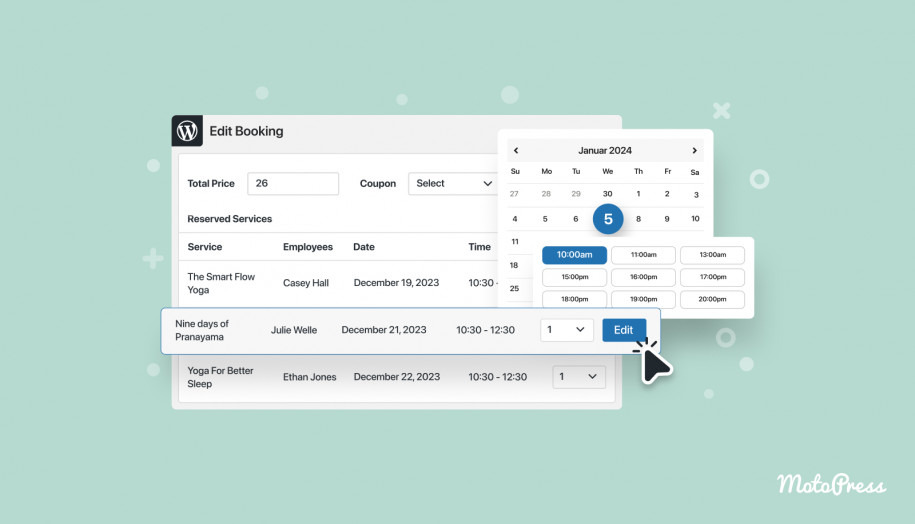
- Centralized appointment management;
- Customer accounts;
- Sync with the client’s Google Calendar, Apple Calendar, Outlook Calendar, and Yahoo Calendar;
- CSV Reports;
- Appointment and revenue analytics dashboard.
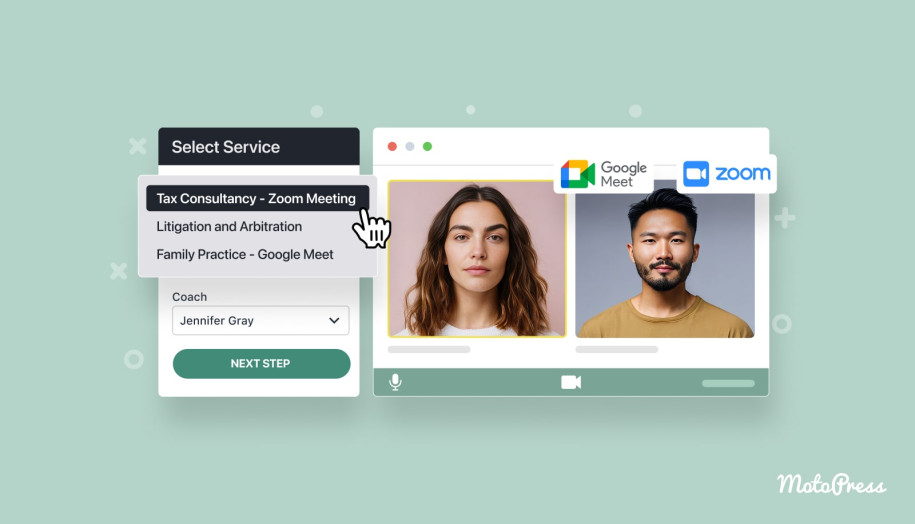
MotoPress Appointment Booking is considered a Google Meet WordPress plugin because it provides the Video Conferencing add-on, which supports Google Meet and Zoom integration.
You can automatically generate online meeting details and send them to customers when they book a virtual appointment.
Key features of the Video Conferencing add-on:
- Support for both Google Meet and Zoom;
- Suitable for one-on-one and group meetings;
- Automated meeting links in confirmations and reminders;
- Tracking logs for meetings;
- Supports multiple hosts.
Together, the plugin and add-on create a unified workflow for running Google Meet WordPress online meetings.
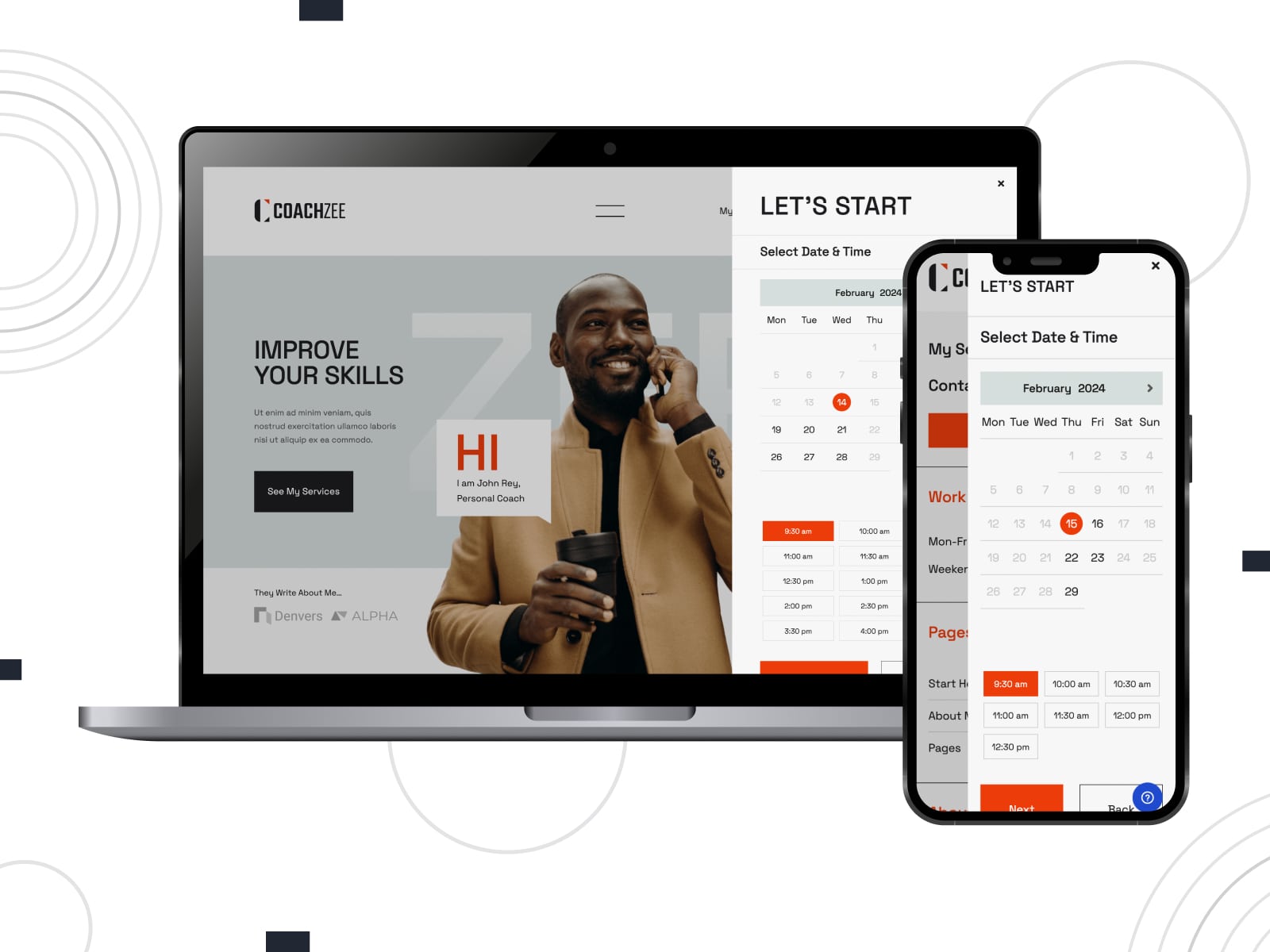
If you prefer a ready-made website layout, MotoPress also offers themes like Coachzee and Edme. These themes are designed for teachers, coaches, and instructors, where online meetings are a core part of the service. They combine the Appointment Booking plugin functionality with a pre-designed structure.
MotoPress Appointment Booking Themes
What Do You Need to Get Started?
To use Google Meet for WordPress with MotoPress, you’ll need a few core components.
- First, install and activate the MotoPress Appointment Booking plugin (version 2.2.0 or greater) and the Video Conferencing add-on.
- You’ll also need a Google account.
There are several ways to access this Google Meet plugin WordPress setup, depending on how you plan to use MotoPress products:
- Purchase the Appointment Booking plugin together with the Video Conferencing add-on.
- Choose the Appointment Booking Bundle, which includes the plugin and multiple add-ons at a discounted price.
- Use the MotoPress Membership, which provides access to all MotoPress products.
How to Set Up Google Meet WordPress Integration: Step-by-Step Guide
Below is an overview of how the WordPress Google-Meet integration setup works in practice.
Step 1: Obtain Google Client ID and Client Secret Key
To connect your WordPress website with Google services, you first need to create API credentials.
Follow the Google Calendar integration instructions to generate a Client ID and Client Secret in your Google account. Make sure to keep both values, as they will be required during the configuration process.
Google Calendar Integration Tutorial
Step 2: Configure Google Calendar Sync
The next step is to enable synchronization between your booking system and Google Calendar.
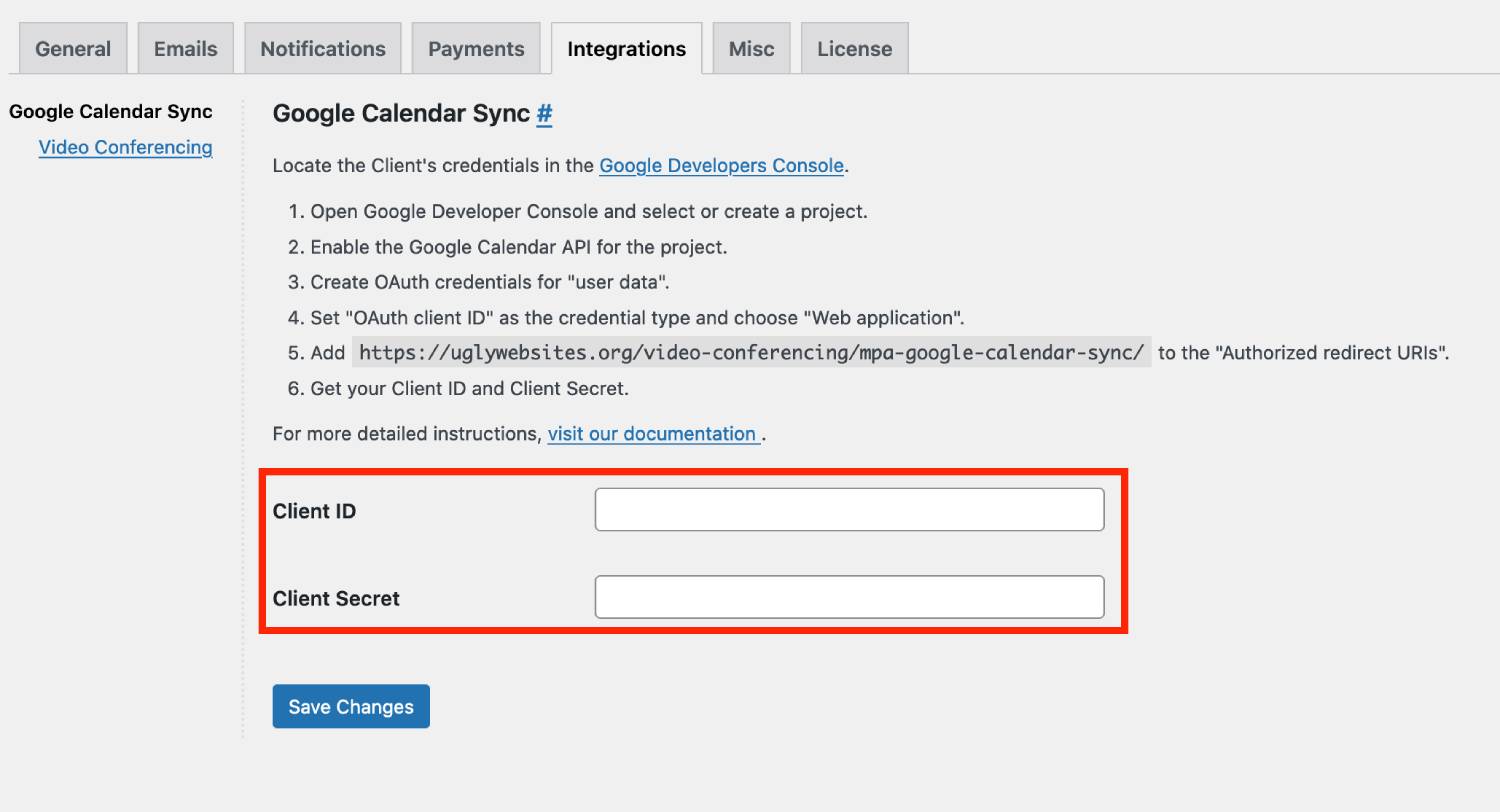
- In your WordPress dashboard, go to Appointments > Settings > Integrations > Google Calendar Sync.
- Enter the Client ID and Client Secret into the corresponding fields and save the changes.
Step 3: Connect Google Meet
Next, you need to connect Google Meet. To complete that:
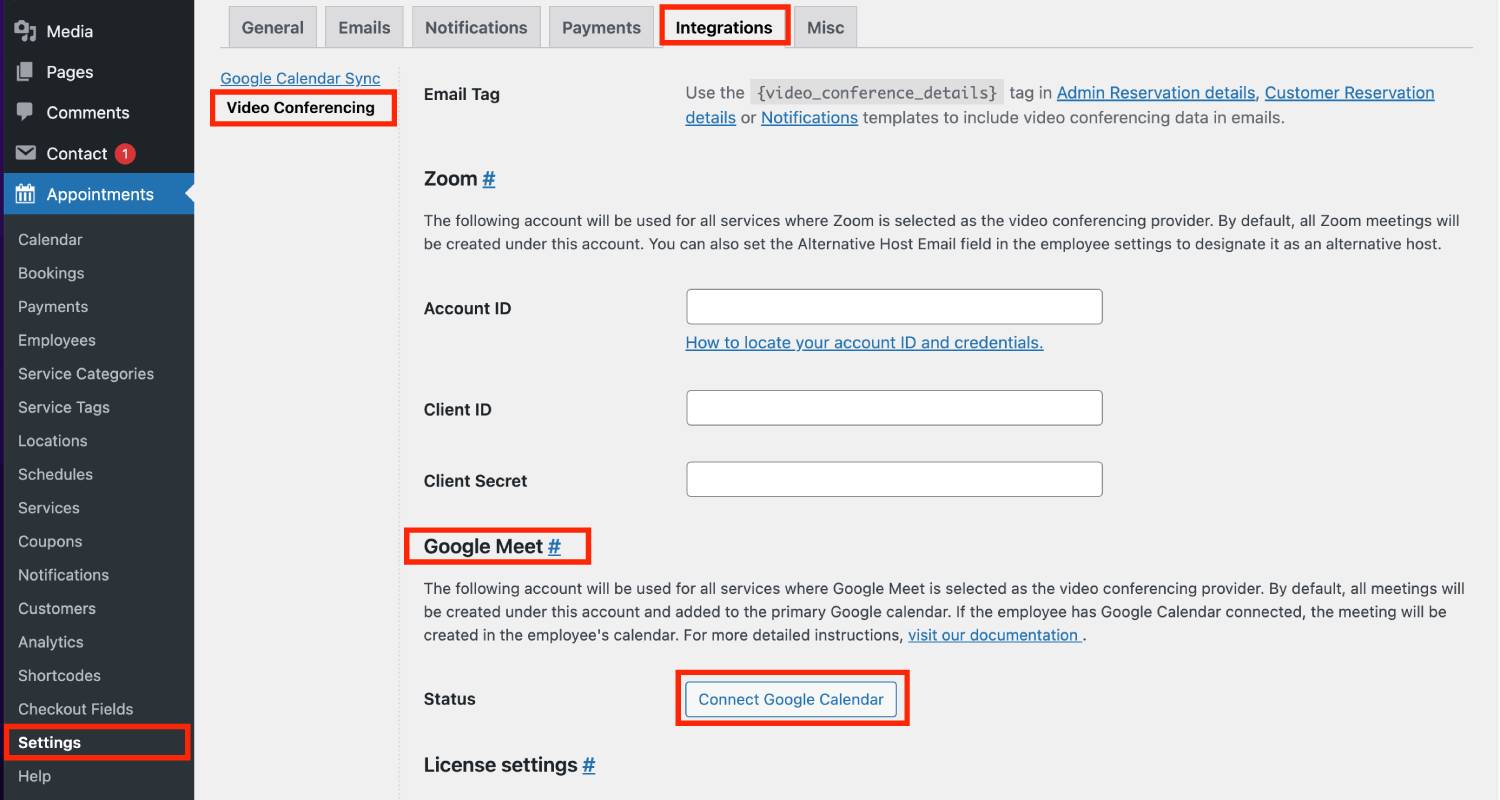
1. Navigate to Appointments > Settings > Integrations > Video Conferencing > Google Meet and click the Connect Google Calendar button.
2. You’ll be redirected to your Google account to verify access.
Note: If Google flags the app as unverified, click Advanced and then select Go to ‘domain name’ (unsafe). This is safe because it’s your website.
3. During authorization, grant the requested permissions to allow calendar access.
4. Once the connection is complete, you’ll be redirected back to WordPress, where the connected Google account email will be displayed in the add-on settings.
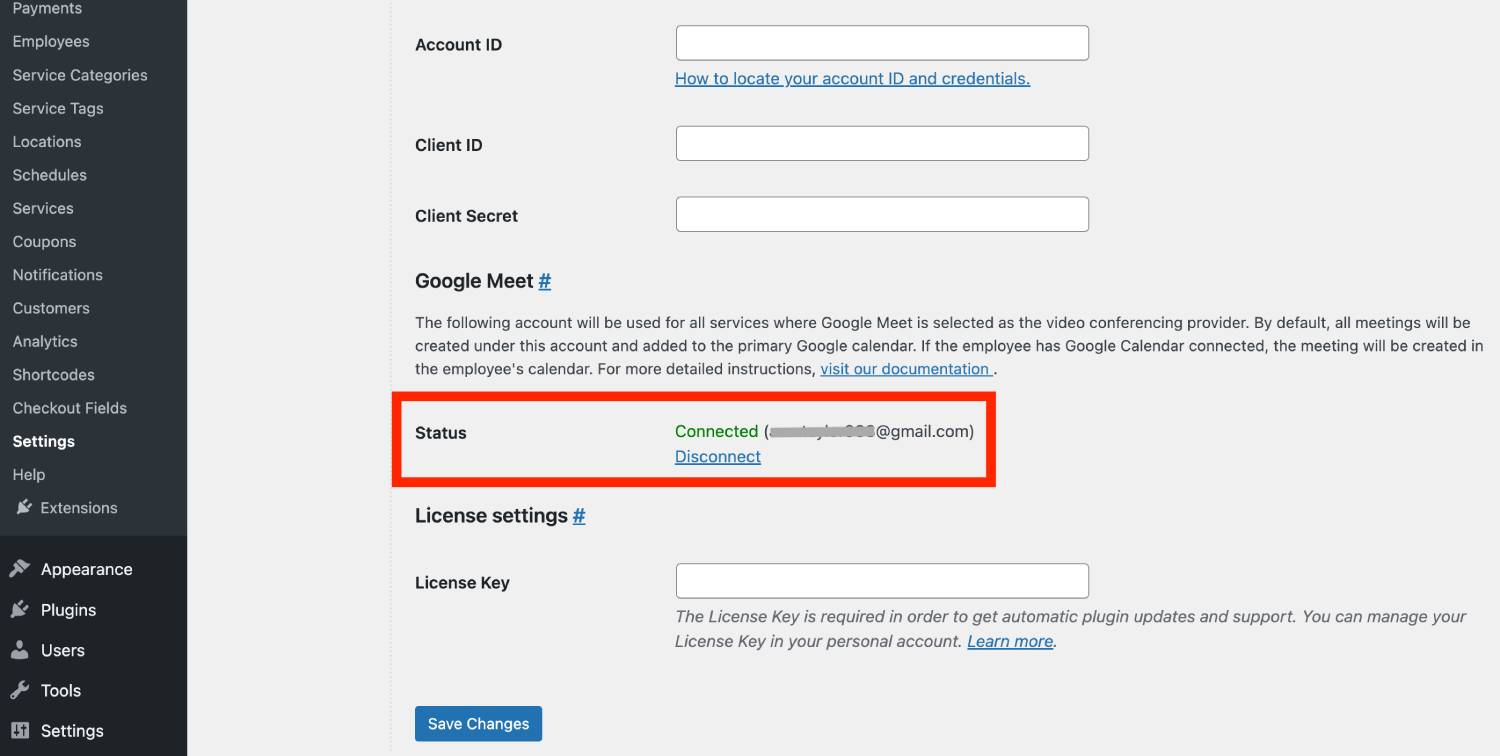
From this point on, Google Meet meetings will be created in the primary calendar of the connected Google account.
Step 4: Enable Google Meet for Services
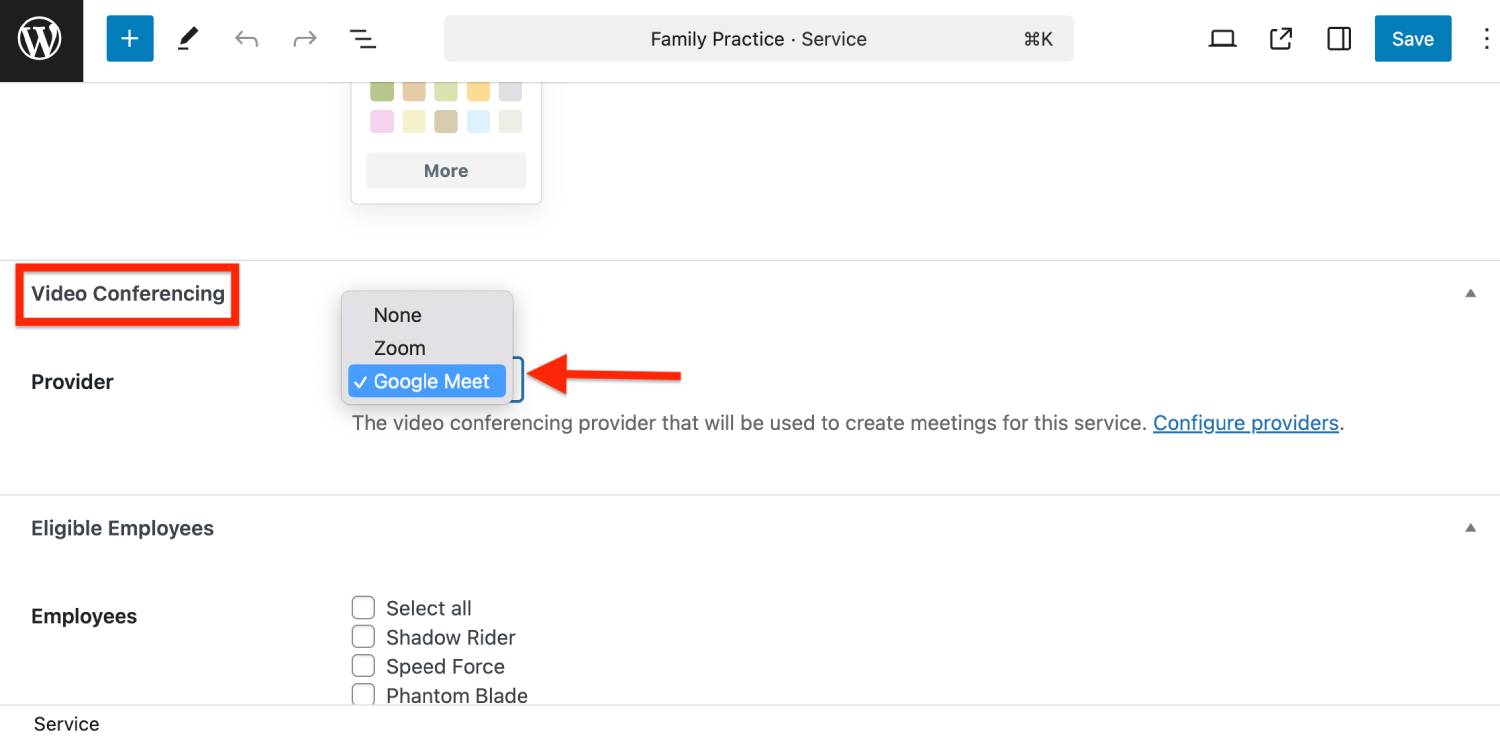
- To use Google Meet for specific appointments, open Appointments > Services and edit the service you want to run online.
- In the Video Conferencing settings, select Google Meet as the provider and save the service.
Group Bookings
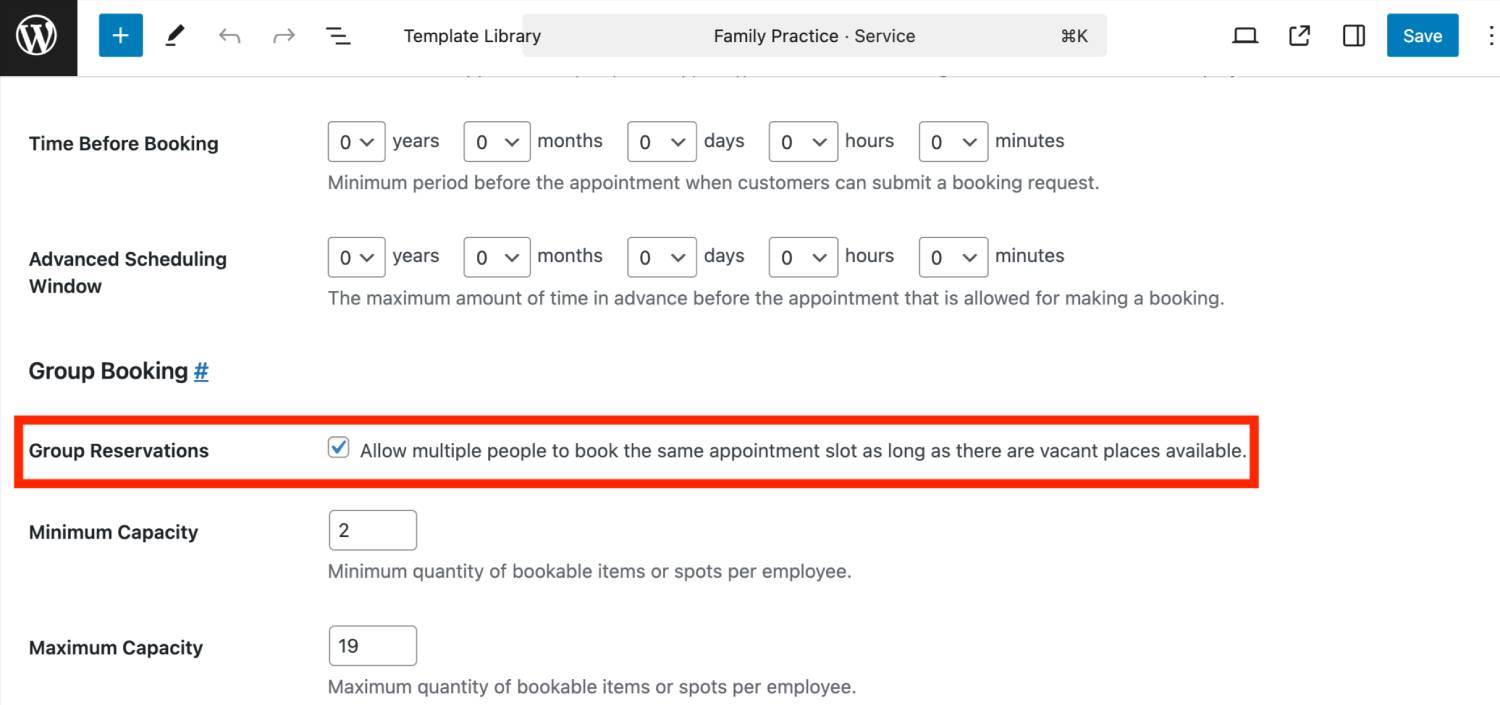
If you’re running group classes, workshops, or any service where multiple clients can book the same time slot, the Video Conferencing addon supports group reservations. So, you can be sure that everyone will get one shared Google Meet link if they book the same time slot. This way, all participants can join this session.
Step 5: Automate Google Meet Meeting Links in Emails
You can automatically include Google Meet meeting details in email notifications sent after a booking is made.
Note: Automated meeting details are created only for confirmed bookings.
To add meeting details to standard booking emails:
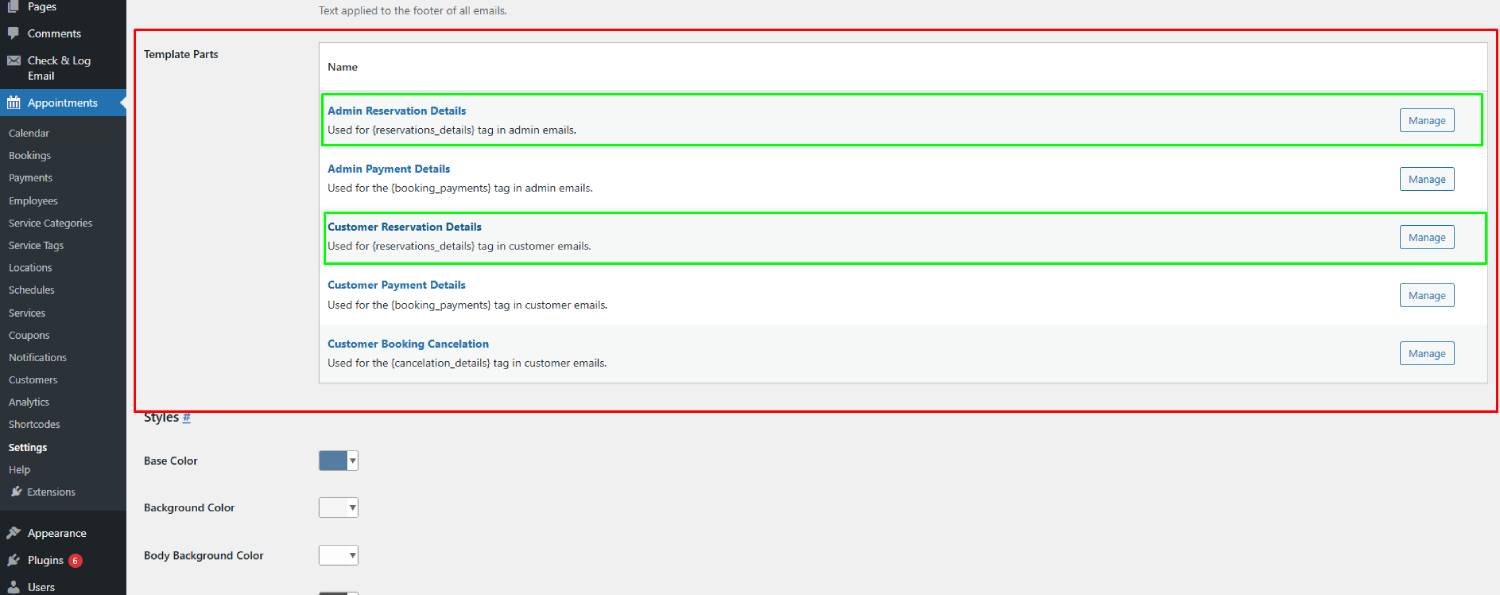
- Go to Appointments > Settings > Emails.
- Scroll to the Template Parts section.
- Edit the following templates:
- Admin Reservation Details
- Customer Reservation Details
- Insert the {video_conference_details} tag into the template content. This tag automatically inserts the meeting link and the meeting code.
- Save the changes.
Note: You can also include Google Meet details in custom notifications. This allows you to send meeting links in reminders, staff notifications, or other custom email workflows.
For additional configuration options and advanced settings, refer to the official MotoPress documentation.
Google Meet Integration Documentation

Watch the WordPress Google Meet Plugin in Action
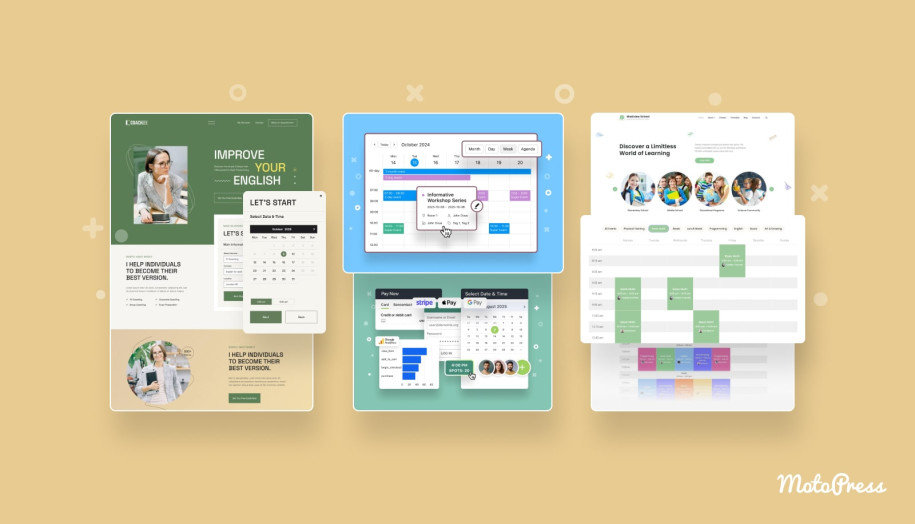
If you prefer a visual walkthrough, we’ve created a video tutorial demonstrating how to connect Google Meet WordPress with the Appointment Booking plugin using the Video Conferencing add-on.
To Conclude
When online meetings are part of your services, they work best when they’re built directly into the booking process. The Google Meet WordPress plugin, as part of a booking system, allows you to manage appointments, calendars, and video meetings. With the video conference WordPress plugin approach offered by MotoPress, you can handle everything under one roof.
Ready to connect Google Meet to your workflow? Share your feedback with us!
FAQ on the Google Meet Plugin for WordPress
Can I offer both online and in-person appointments on the same website?
Is this Google Meet WordPress plugin suitable for group sessions and classes?
Can I use Zoom instead of Google Meet?