Connect MotoPress Hotel Booking to Zapier
Hotel Booking Zapier add-on connects your MotoPress Hotel Booking website with thousands of apps through Zapier. Automate guest communications, internal notifications, spreadsheets, CRM updates, task management, and other workflows when booking events happen on your website.
This add-on is currently in beta. The Zapier app is private while we gather feedback from early users. To participate, request access using the invitation link below.
Download plugin (v1.0.0) Join the private beta on Zapier Provide feedback
A Zapier account is required to join the private beta. Sign in to your existing Zapier account, or create an account before accepting the invitation.
What you can automate
- Send a notification when a new booking is waiting for guest confirmation.
- Notify your team when a new booking is waiting for admin approval.
- Send follow-up messages when a booking is confirmed.
- Alert your team when a booking is cancelled.
- Keep other systems updated when a booking status changes.
Available triggers
- New Pending User Booking — triggers when a frontend booking is waiting for guest email confirmation.
- New Pending Admin Booking — triggers when a frontend booking is waiting for admin approval.
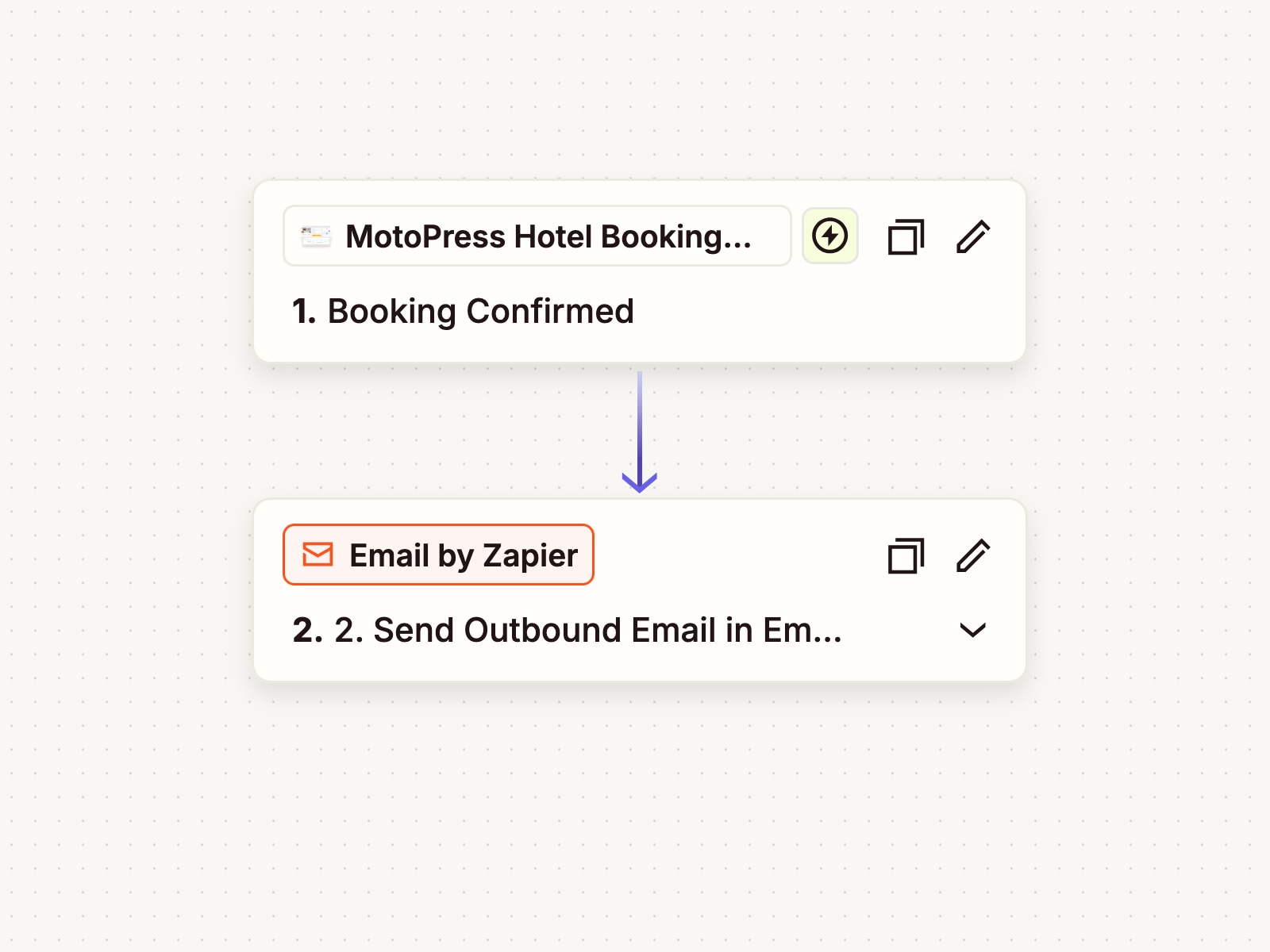
- Booking Confirmed — triggers when a booking becomes confirmed.
- Booking Cancelled — triggers when a booking is cancelled.
- Booking Status Changed — triggers when a booking changes status.
Booking information available in Zapier
Each event can include booking status, booking dates and times, guest details, adult and child totals, reserved accommodations, rates, services, totals, currency, payment status, customer notes, price information, and the WordPress booking URL when available.
Reserved accommodations are provided as structured line items so supported Zapier steps can use room, rate, guest, and service information individually.
How it works
- Install and activate the Hotel Booking Zapier add-on on a WordPress site with MotoPress Hotel Booking active.
- Open Accommodation → Settings → Extensions → Zapier.
- Join the private Zapier beta using the invitation link. After you accept the invitation, the private MotoPress Hotel Booking app will be available in your Zapier editor.
Create a Zap and configure the trigger:
- In the Trigger step, search for and select the private MotoPress Hotel Booking app.
- Choose one of the available booking trigger events.
- In the Account field, click Sign in.
- Enter the public HTTPS URL shown in the add-on settings under Accommodation → Settings → Extensions → Zapier.
- Continue to WordPress. If needed, sign in as an administrator. Zapier will then automatically complete the connection.
- Select the app that should receive the event.
Security and privacy
Connection uses OAuth 2.0 with PKCE. Authorization is restricted to WordPress administrators, and access tokens expire and can be refreshed automatically. The integration does not send card numbers or sensitive payment credentials to Zapier.
Beta feedback
During the beta period, we are looking for feedback about connection setup, trigger timing, booking fields, and the usefulness of the available payload data. If you find an issue or have a workflow request, please contact MotoPress support and mention that you are testing the Hotel Booking Zapier beta.