
Reschedule Events with Drag-and-Drop: New in the Events Calendar 2.2.0
Table of Contents
The new MotoPress Events Calendar plugin version 2.2.0 update brings a major usability upgrade to your event management workflow.
You can now reschedule events and adjust their duration with simple drag-and-drop and resize actions – just like in Google Calendar. You don’t need to open individual events to make small changes to their time and date.
With a more interactive visual calendar builder, managing events is now faster, more intuitive, and far more flexible. Let’s walk through what’s new.
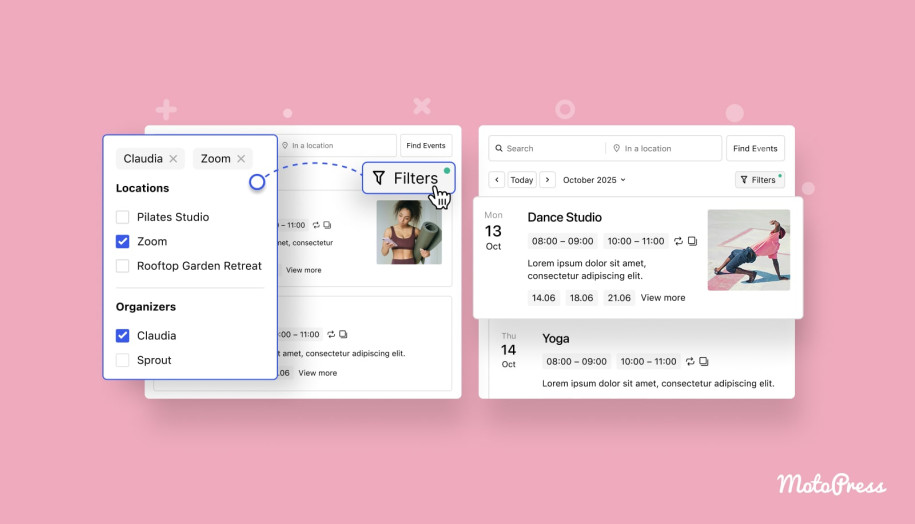

Work in multiple calendar views
The updated events management plugin gives you more control with three major working modes:
– Monthly view
– Weekly view
– Daily view
Each mode is optimized to make event editing with new options quick and visual, depending on how detailed you want your schedule to be. But there are a few nuances. Let’s take a look at them.
Month Calendar View
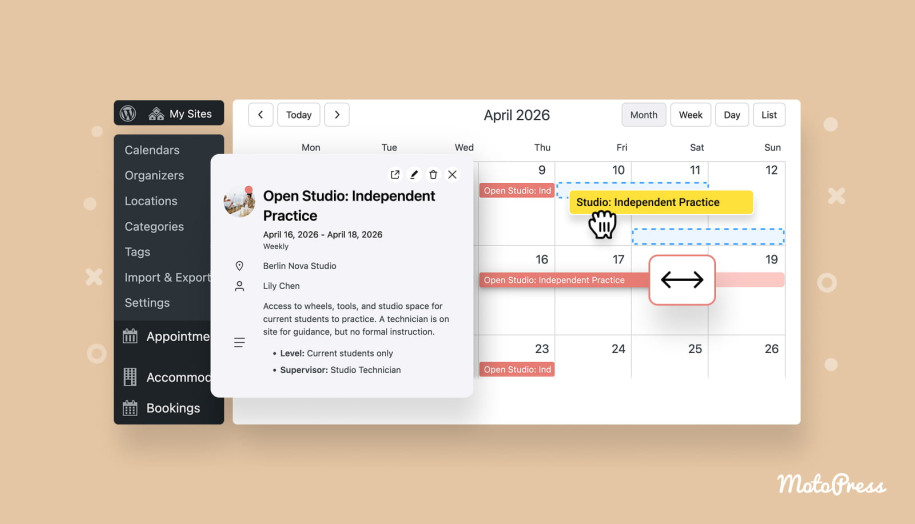
Simple as that, you can now use drag and drop to reschedule events in the calendar.
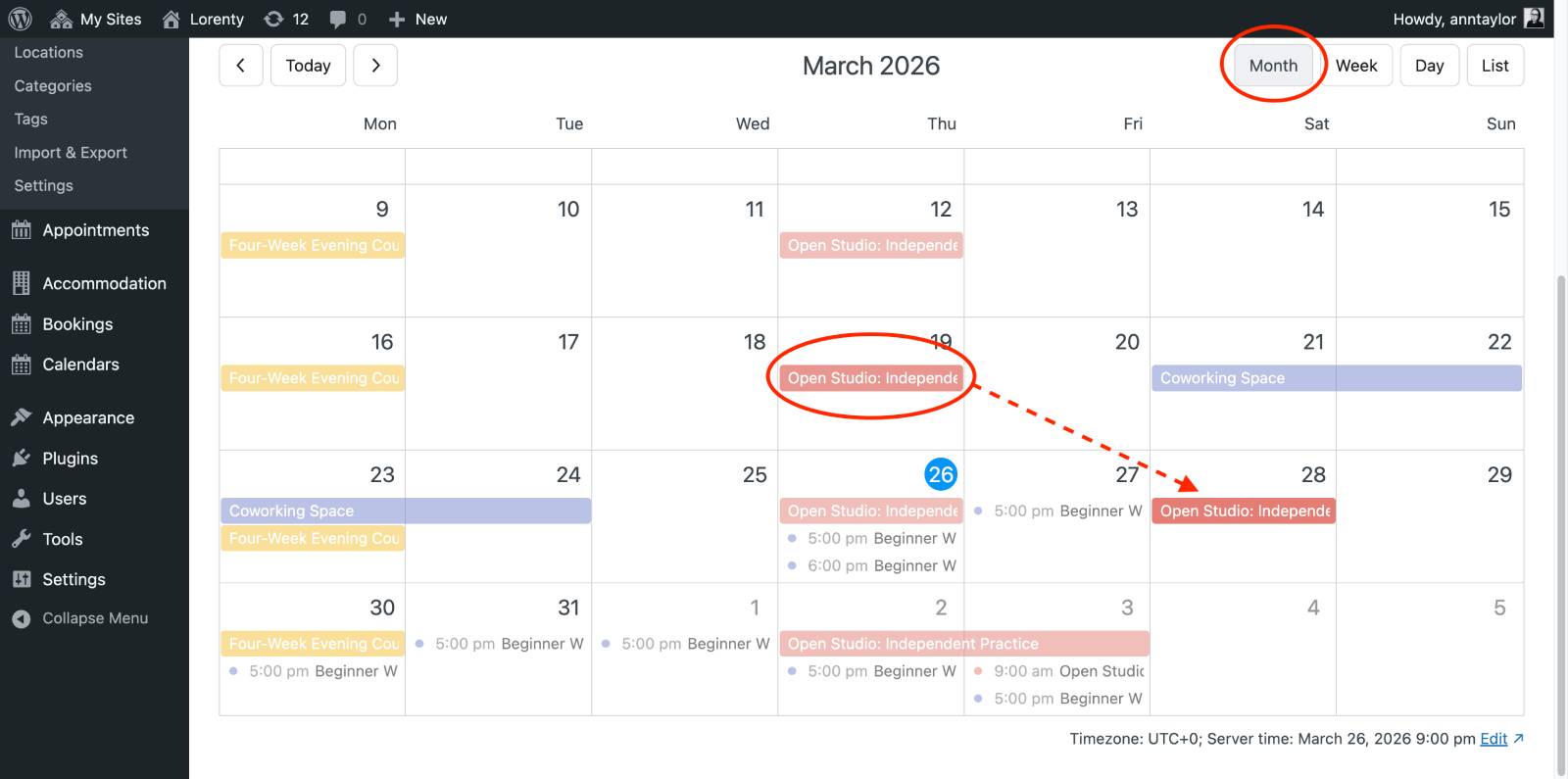
In the monthly view, rescheduling events is as simple as dragging them to a new date. This works for:
– Full-day events
– Events with specific times
– Multi-day events
Just click, drag, and drop – and your event is instantly rescheduled. Need to adjust how long an event lasts? Then use these actions:
– Hover over an event to reveal resize handles.
– Drag the edges left or right to extend or shorten it.
Important:
- Works for full-day and multi-day events only.
- Events with specific times cannot be resized in a monthly view.
While these features visually enhance your workflow, they perform the same function as manually editing an event’s date and time (when you click on the Edit event button). But it’s now much faster and more intuitive.
Week & Day Calendar Views
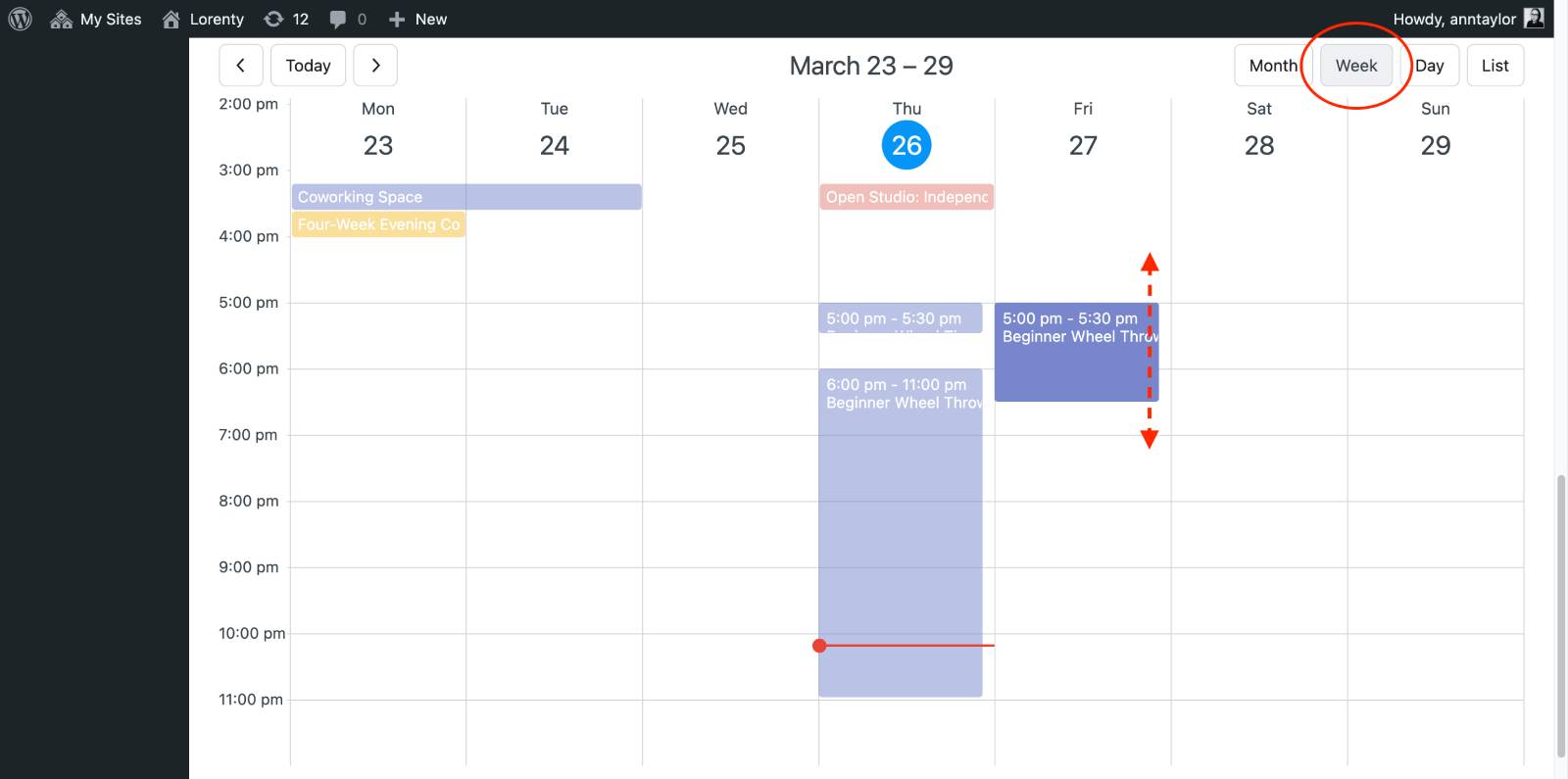
For more detailed scheduling, switch to week or day view. Here, you can:
– Drag and drop events to change their time and date.
– Resize events vertically to adjust their duration.
Limitations:
In week and day calendar views, some events still require manual editing. More precisely, events that span across multiple days (cross-day events):
– Cannot be resized or moved via drag-and-drop.
– Must be edited via the Edit Event screen.
Interesting fact: you can also convert events to full-day events. For this, drag a timed event into the top (all-day) section to convert it into a full-day event.
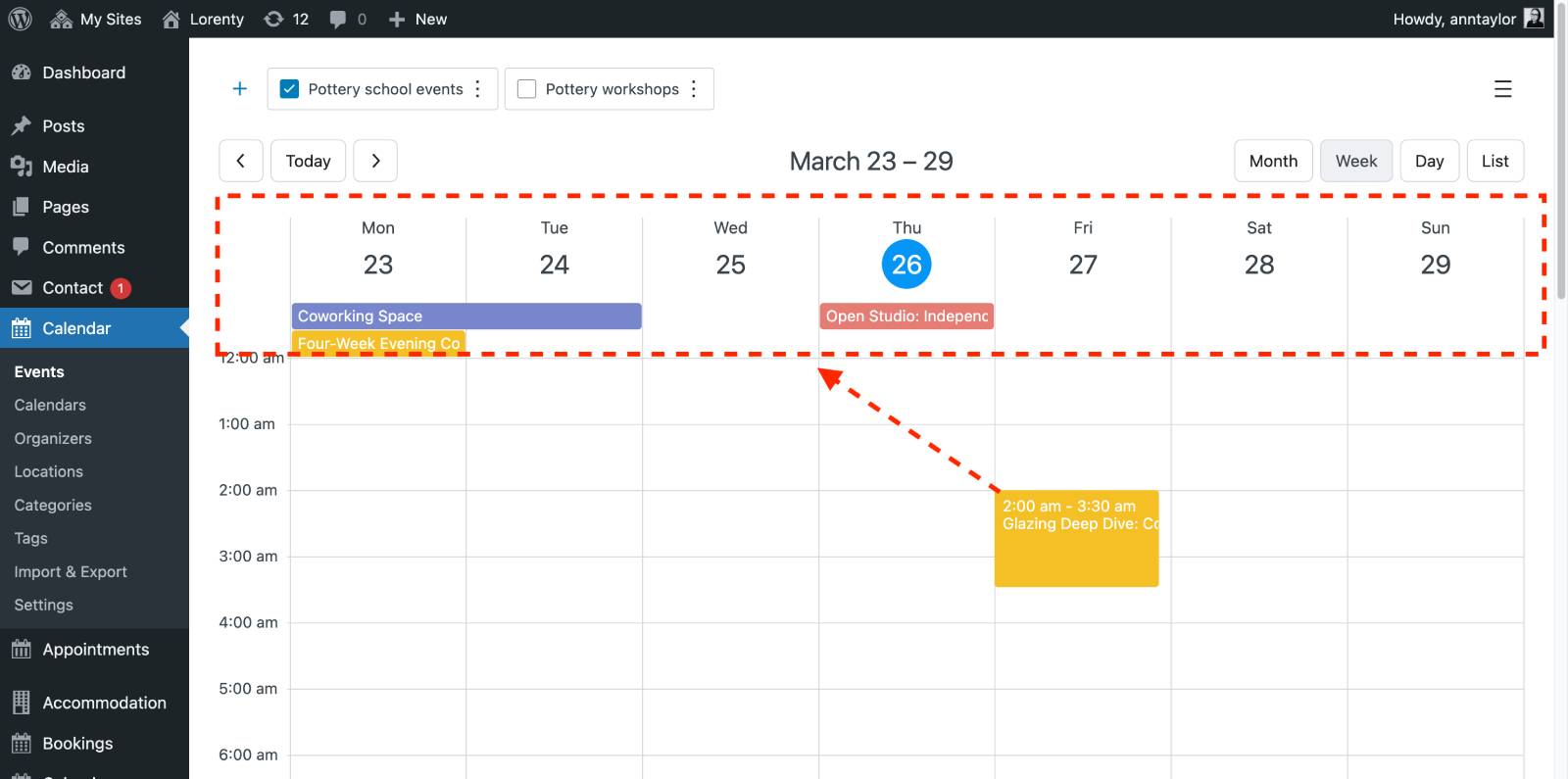
However, you cannot convert full-day events back into timed events using drag-and-drop.
List View
The list calendar view remains unchanged. Drag-and-drop and resize are not supported here and events can still be edited using the standard Edit event button.
Editing repeating events
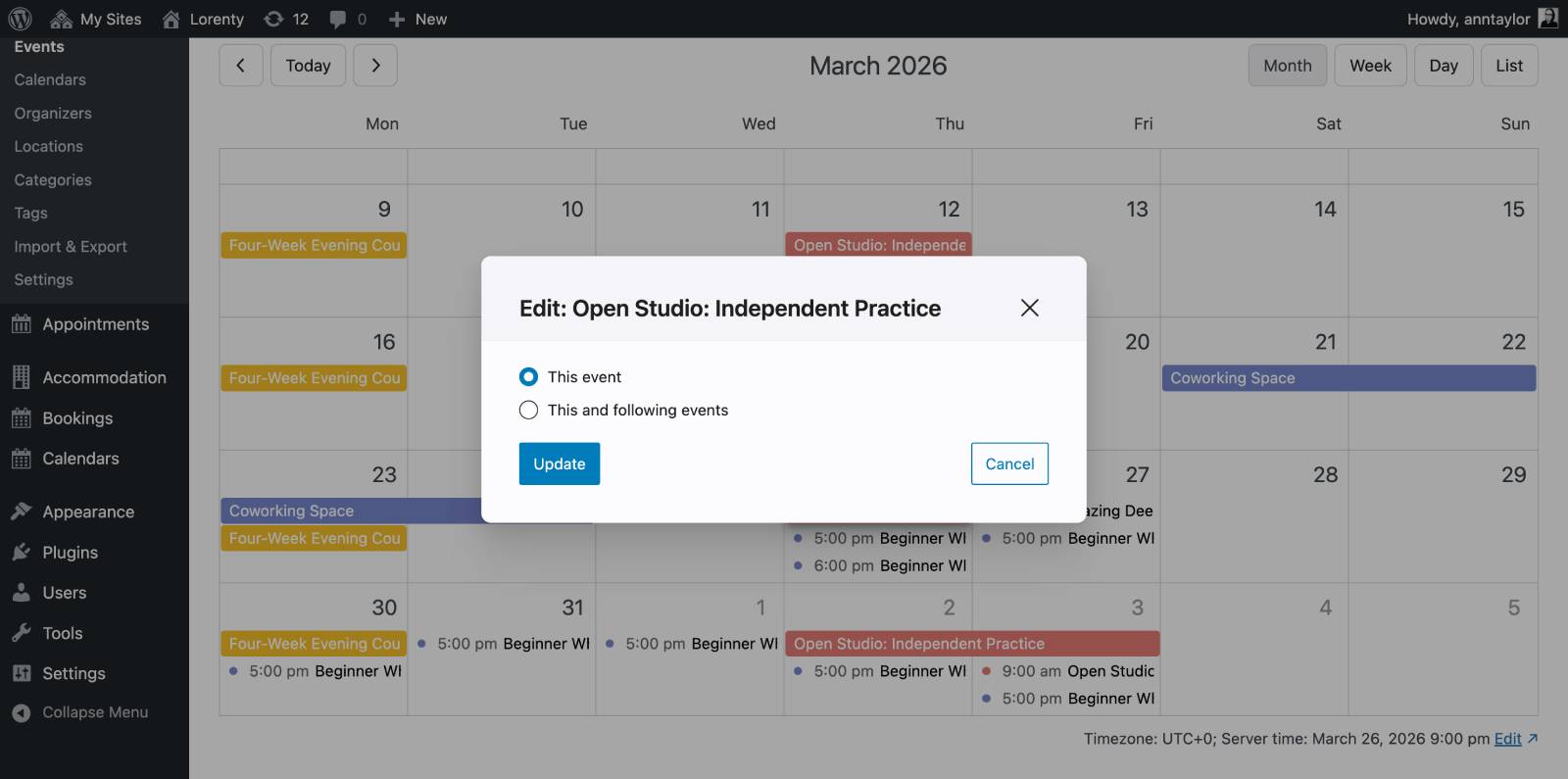
When working with recurring events, you’ll now see additional options prompted when dragging or resizing:
– This event – update only the selected occurrence.
– This and following – apply changes to all future events in the series.
This gives you precise control over recurring schedules without breaking the entire sequence.

Final thoughts
The MotoPress Events Calendar version 2.2.0 focuses on one thing: speed and simplicity. With the new visual drag-and-drop controls and flexible calendar views, you can now:
– Reschedule events instantly just like in Google Calendar.
– Adjust event durations in a few clicks without opening settings.
– Manage recurring events faster.
All while working directly inside the events calendar WordPress plugin interface! Let us know whether you like the new event rescheduling workflow!